How do I change an issued invoice in Rekaz?
To correct an issued invoice in Rekaz, do not edit the invoice itself. Open the relevant order, void the invoice and select a cancellation reason, update the order, then issue a new invoice.
Before completing a financial action, check the label shown in your Rekaz account, as interface labels may change.
Steps
From Home, open the order that contains the issued invoice you need to correct.
The order is open and its invoice actions are available.
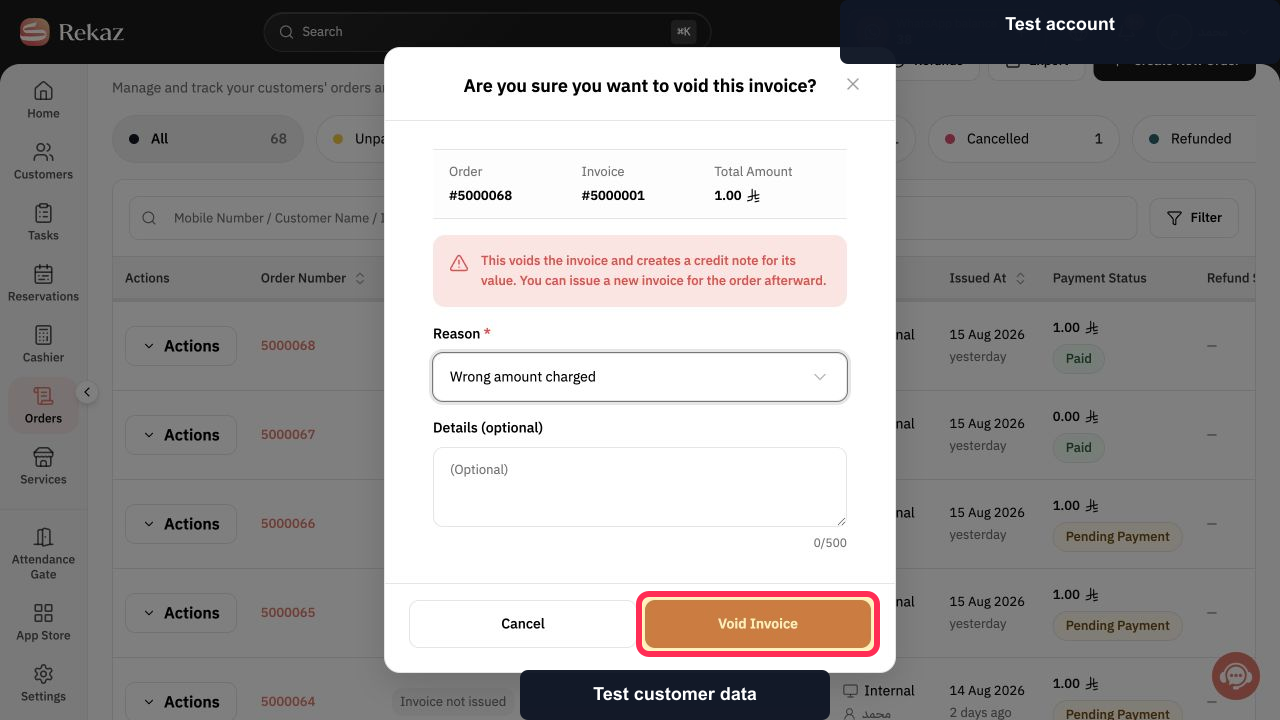
Select Void Invoice.
The invoice-cancellation options are displayed.
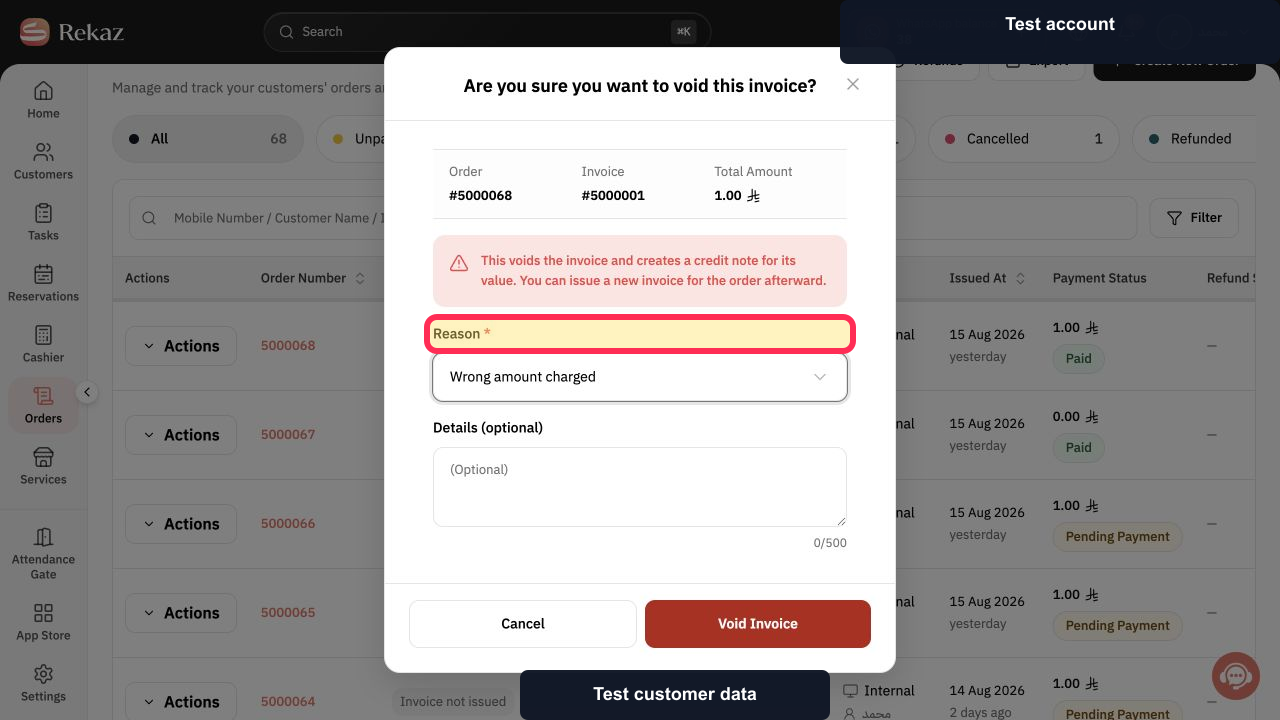
Enter the required explanation in Reason * before confirming the void.
The invoice-void reason is entered.
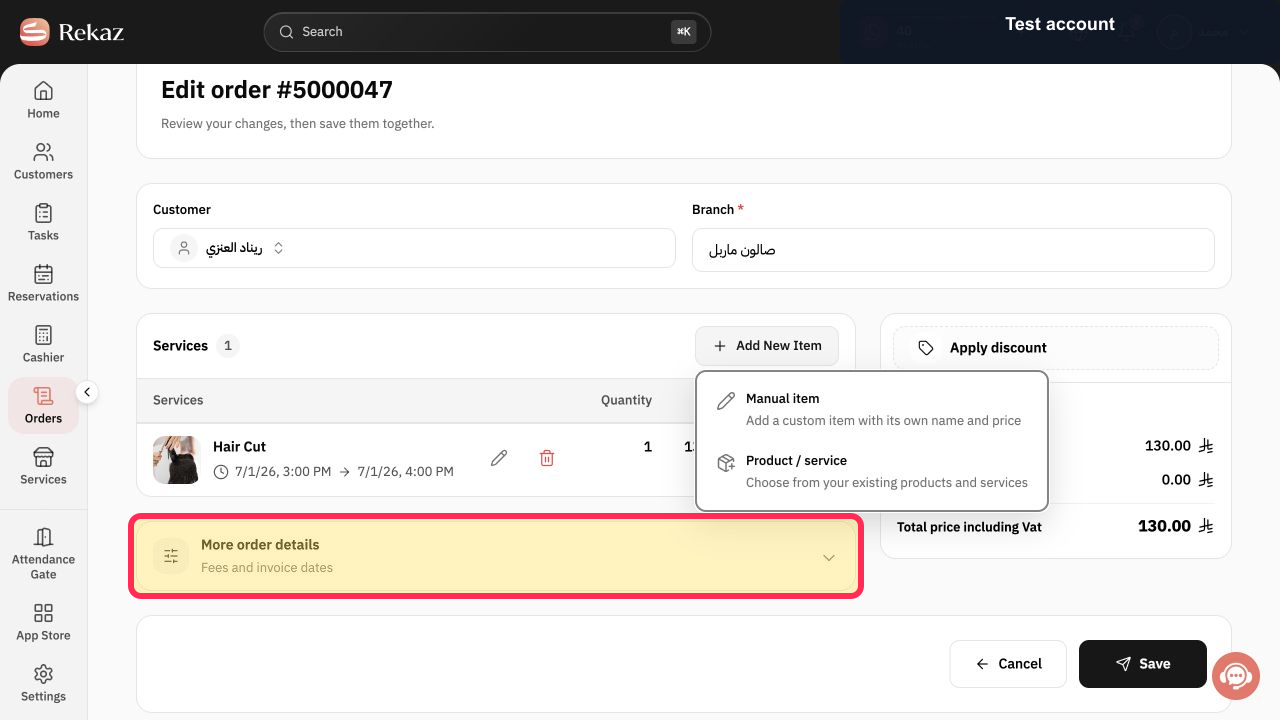
After the invoice has been voided, update the order details as needed.
The order reflects the required changes before a replacement invoice is issued.
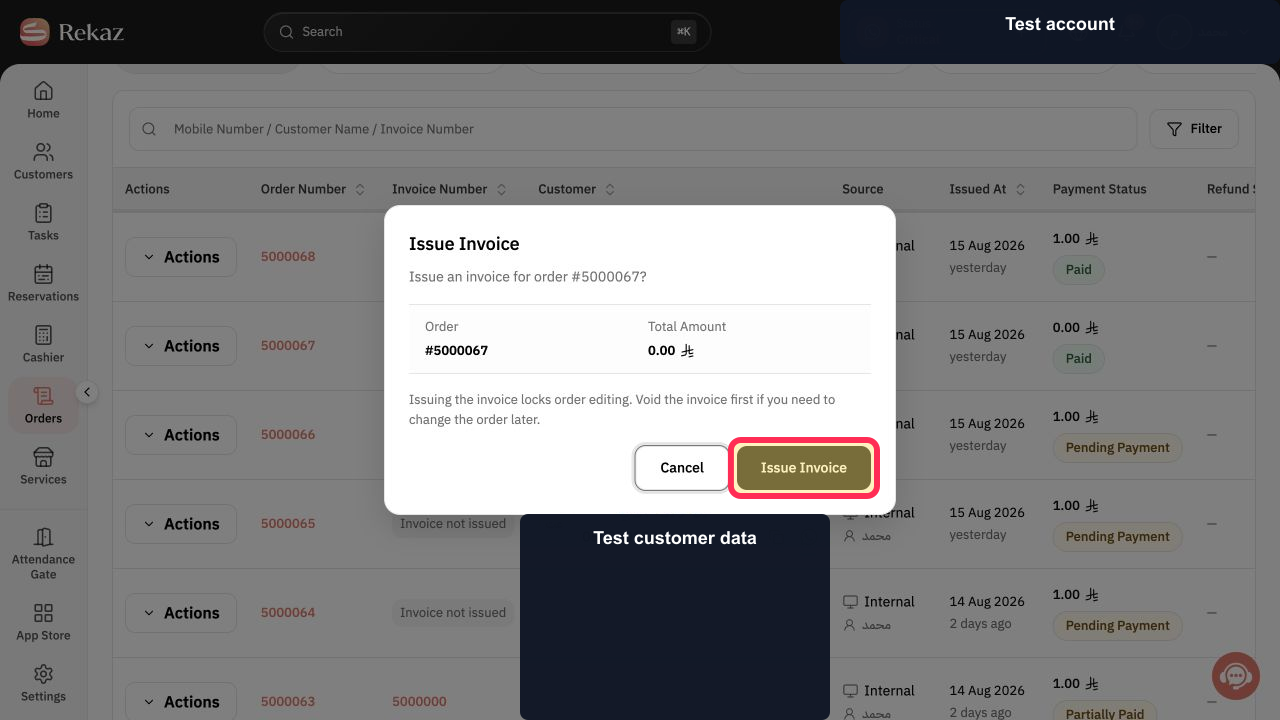
After updating the order, select Issue Invoice and confirm the action.
The corrected replacement invoice is submitted for issuance.
Illustrated guide
Step 1: Open the relevant order.
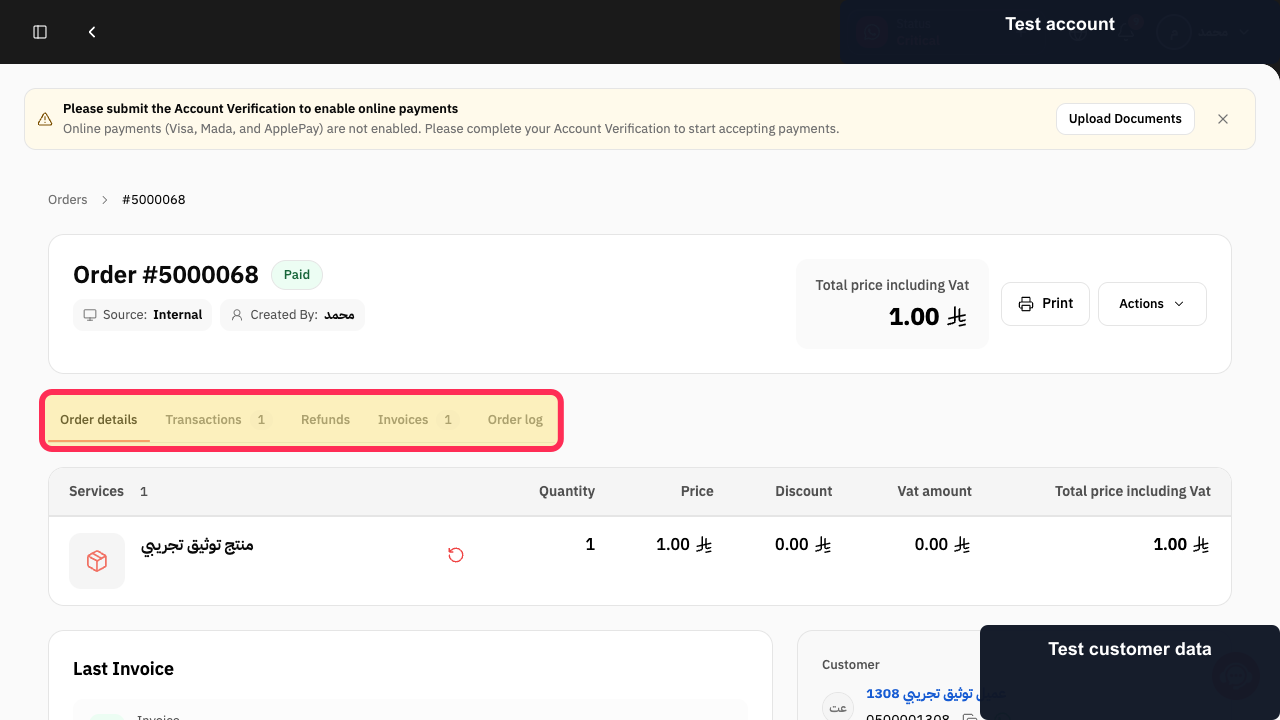
Step 2: Select Void Invoice from the order.
Step 3: Enter the reason for voiding the invoice.
Step 4: Update the order after voiding the invoice.
Step 5: Issue the corrected invoice.
Important notes
An issued invoice is not edited directly. The documented process is to void it, update the order, and issue a new invoice.
The illustrated flow matches the reference invoice-voiding process.
If the Rekaz interface has changed, confirm the visible button name before carrying out a financial or final action.
Related questions
Can I edit an order or invoice after issuing it in Rekaz?
How do I void an invoice and issue a new one in Rekaz?
What is the correct way to correct an issued invoice in Rekaz?


