How do I view order refunds in Rekaz?
To view refund requests for a specific order in Rekaz, open the order details and select the Refunds tab. This tab shows refunds linked only to the order you currently have open.
If the Refunds tab shows “No Refunds Found”, there are no refund requests associated with that order.
Steps
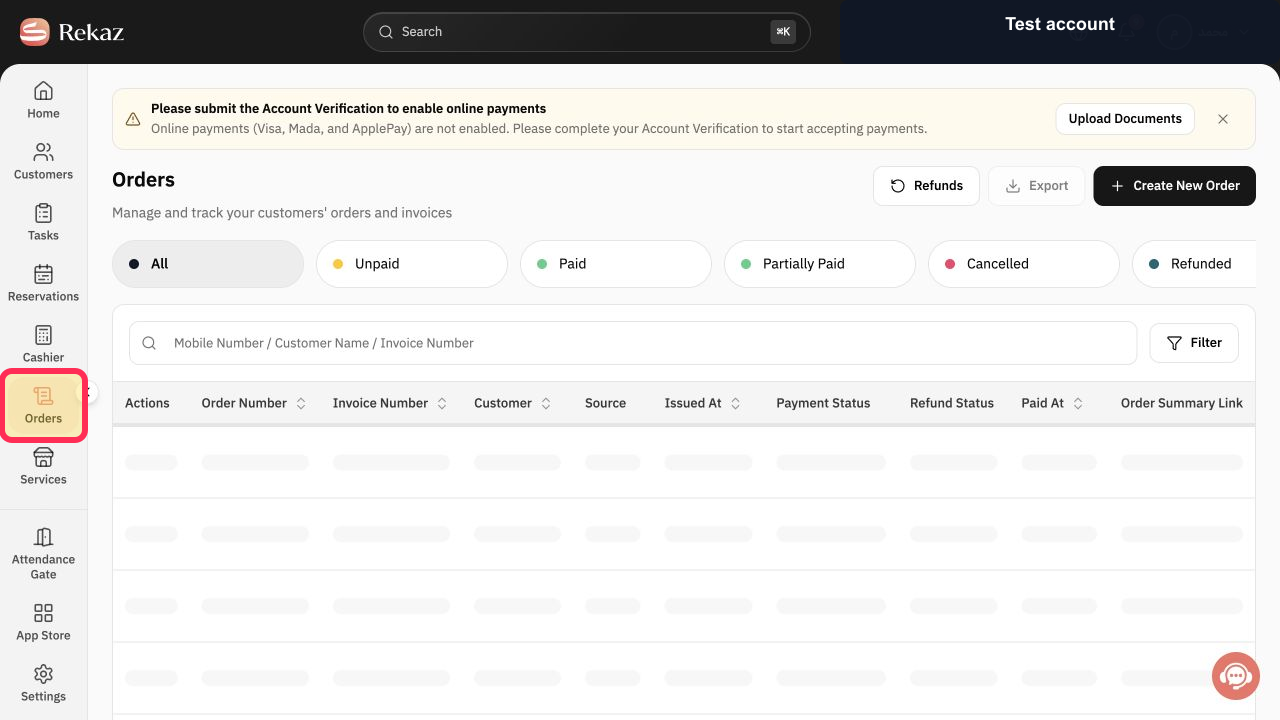
From Home, select Orders in the sidebar.
The Orders list opens.
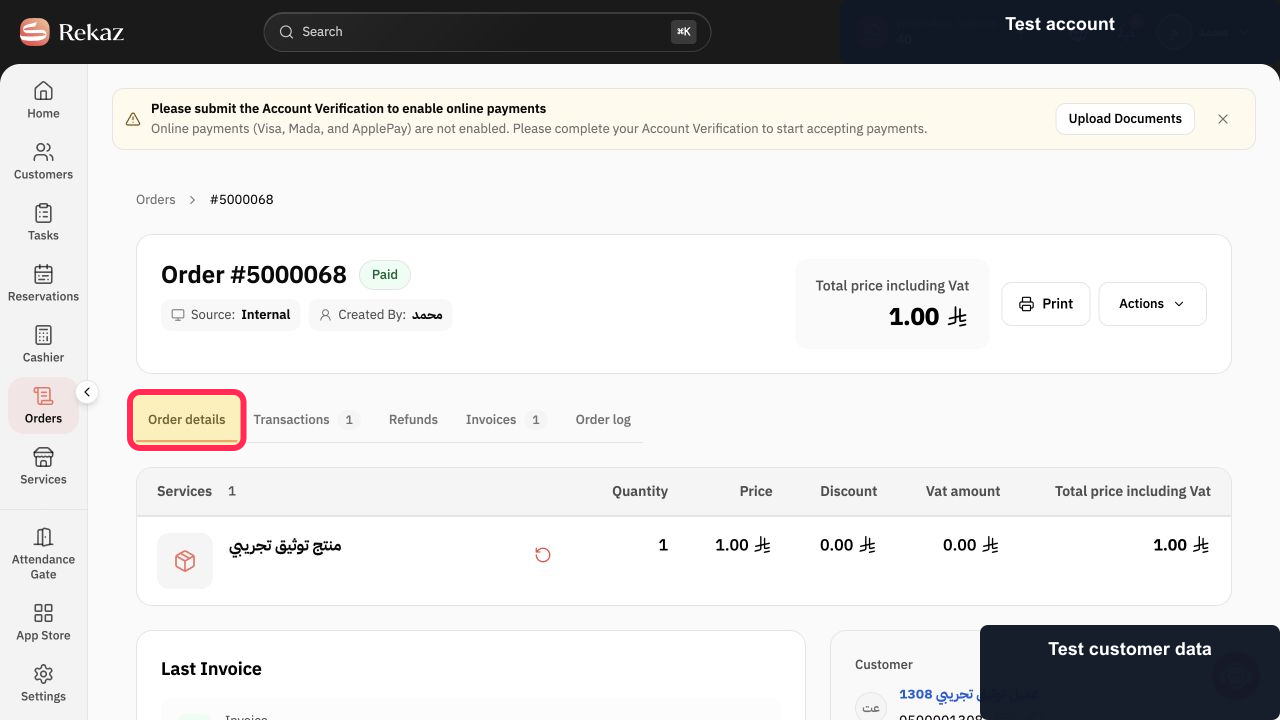
Open the Order details for the order you want to review.
The selected order’s details open, with tabs such as Transactions, Invoices, and Refunds.
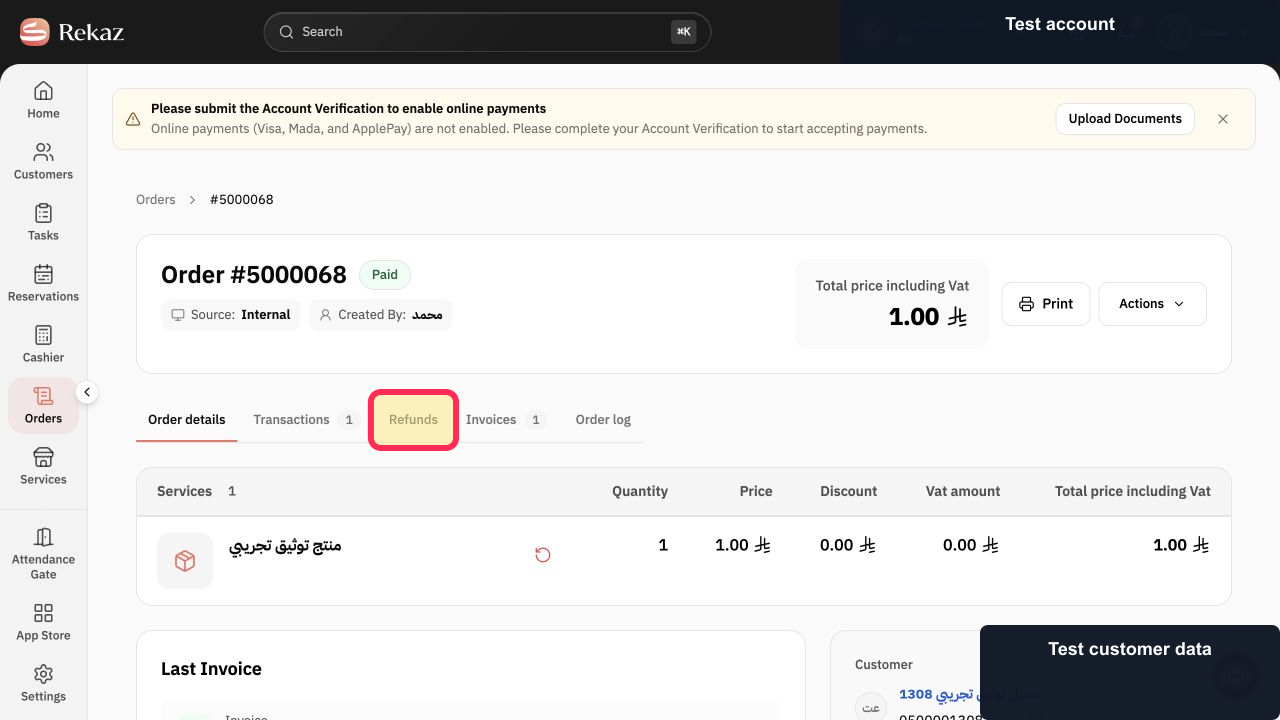
Select the Refunds tab.
Refund requests linked to the open order are displayed. If there are none, “No Refunds Found” appears.
Illustrated guide
Step 1: Open Orders from the Rekaz sidebar.
Step 2: Open the details for the required order.
Step 3: Select the Refunds tab in the order details.
Important notes
The Refunds tab applies only to the order currently open.
For a broader refunds view, use the Refunds button in the Orders list.
Related questions
Where can I find refunds for an order in Rekaz?
How can I tell whether an order has a refund request in Rekaz?
Where is the refund record in an order invoice in Rekaz?


