How do I edit an order in Rekaz?
You can edit a non-cancelled order in Rekaz from the order’s details page by selecting Actions, then Edit. An existing invoice or payment does not automatically remove the edit option; check the fields available on that specific order.
After saving, review the items, discount, tax, and Amount Paid. If the edit changes the total, you may need to handle a payment difference or issue a replacement document, depending on the options shown in the order.
Steps
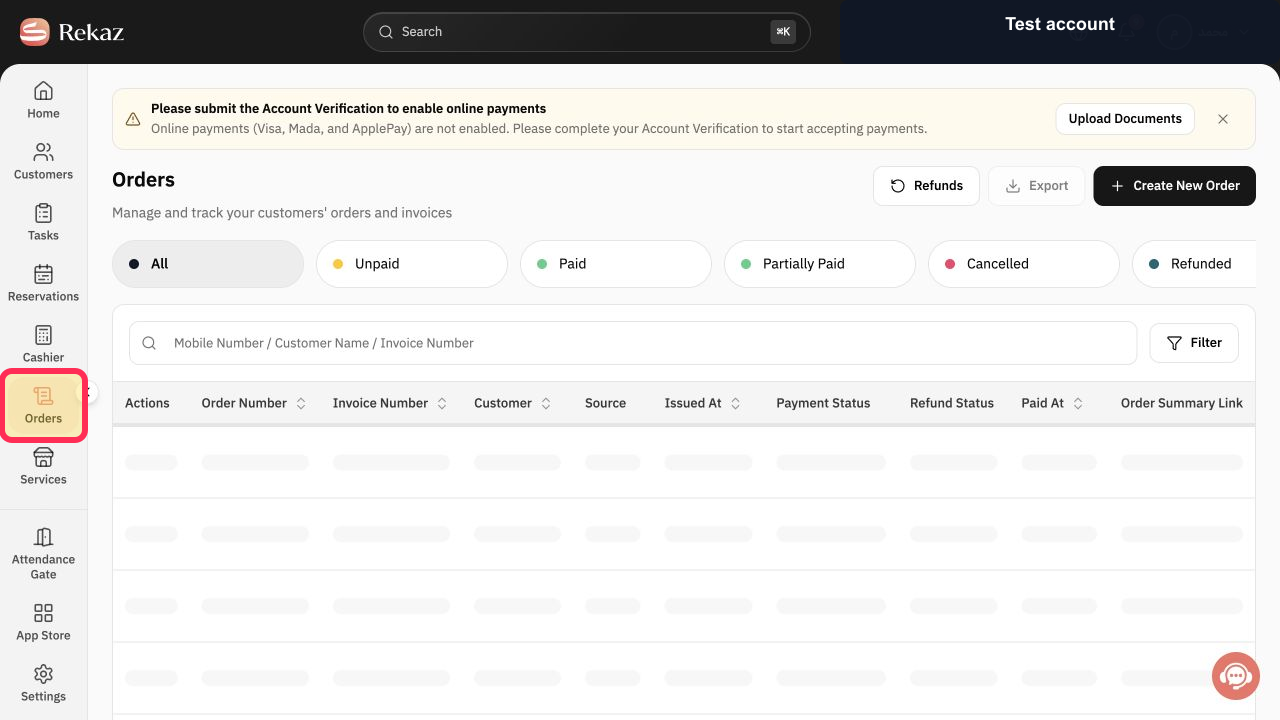
From the signed-in Rekaz Home page, select Orders in the sidebar.
The Orders page opens and displays your orders.
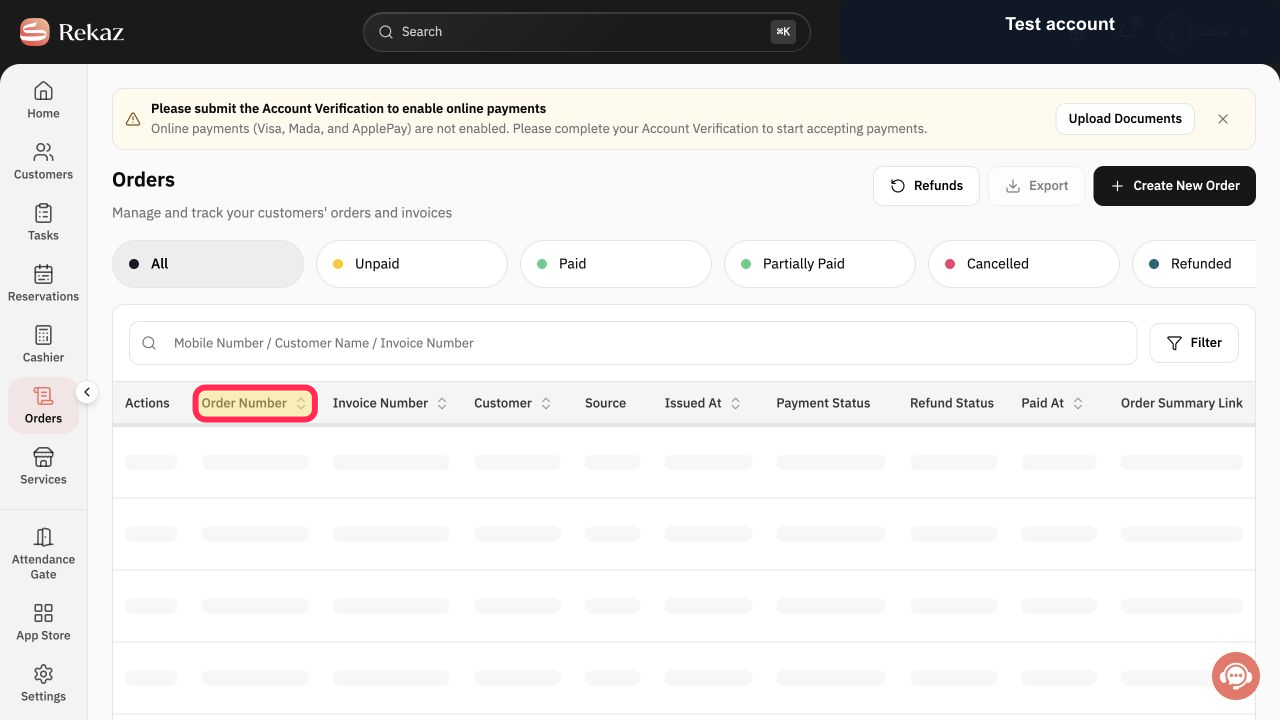
Open the order you want to update by selecting its Order Number.
The selected order’s details page opens.
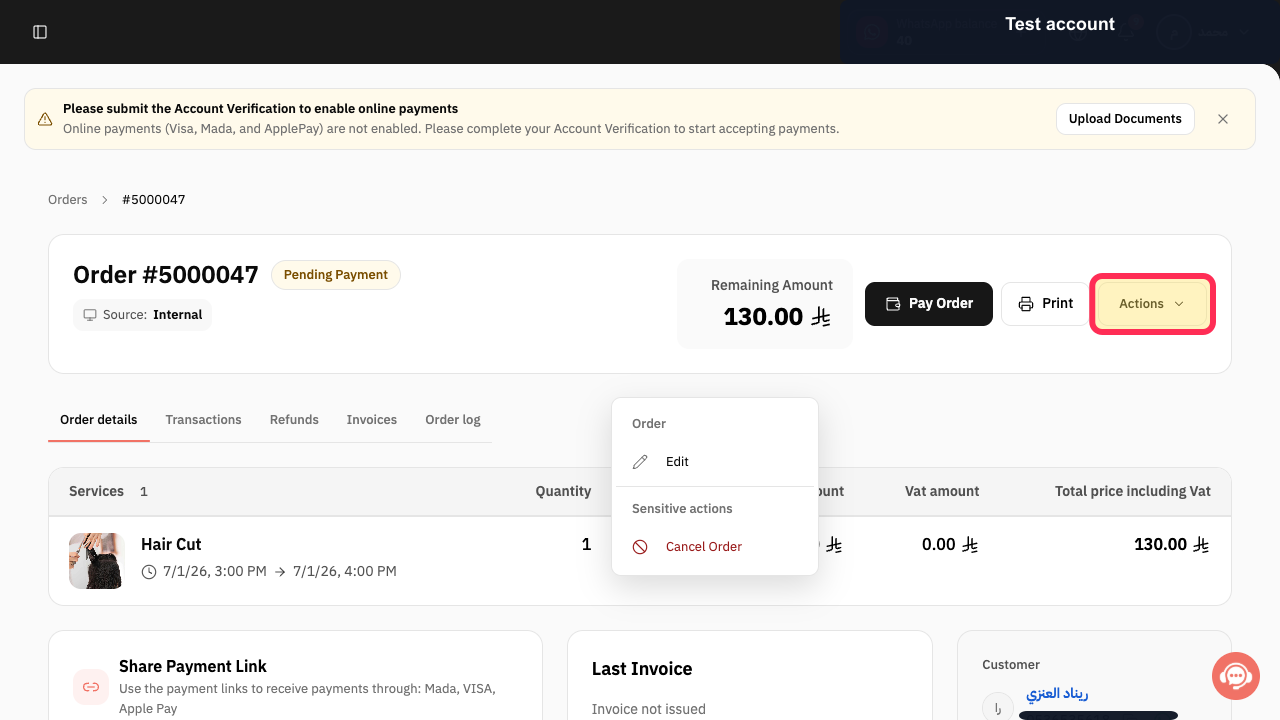
On the order details page, select Actions.
The Actions menu opens.
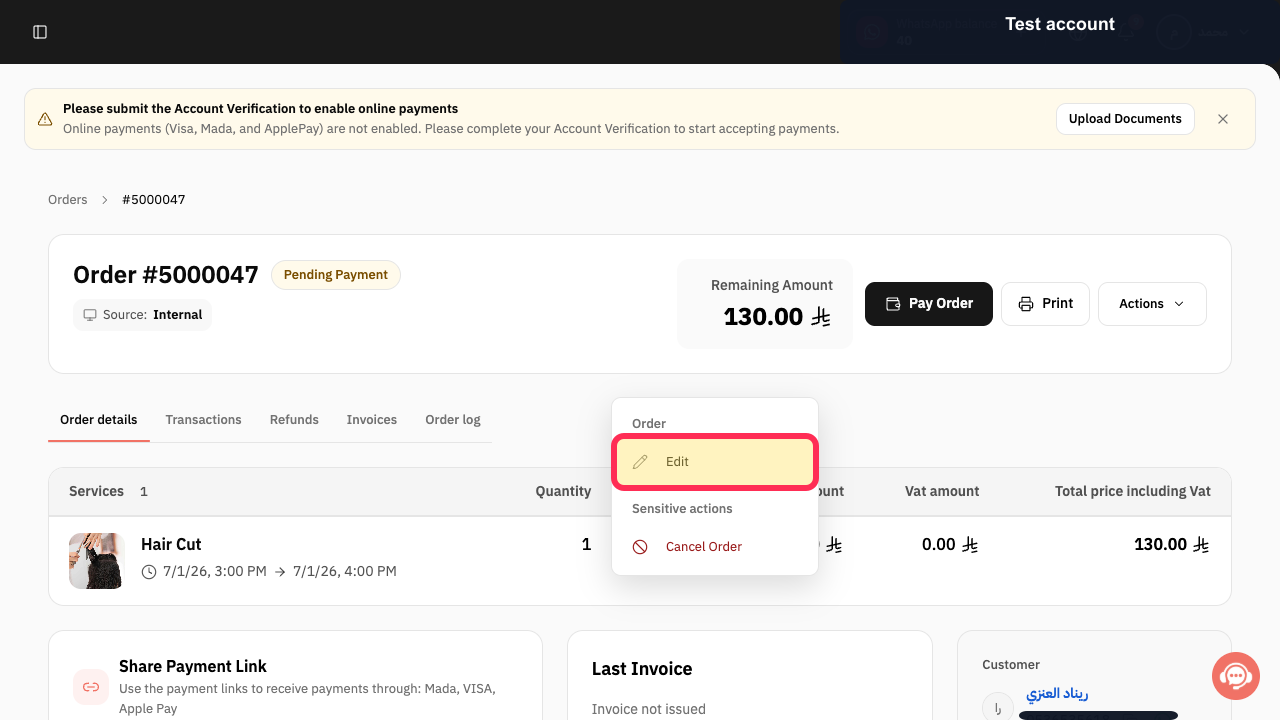
Select Edit.
The order opens in edit mode.
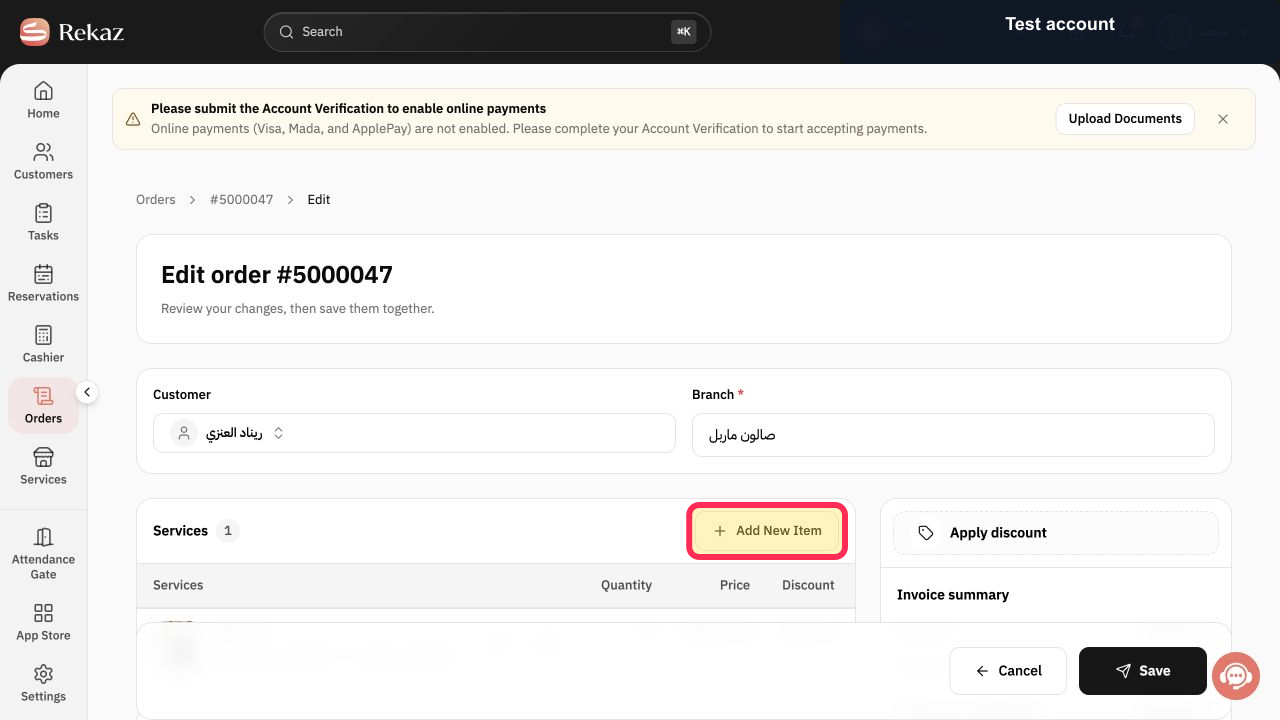
If you need to add an item, select Add in the Items section and add the required item.
The added item appears in the order’s item list.
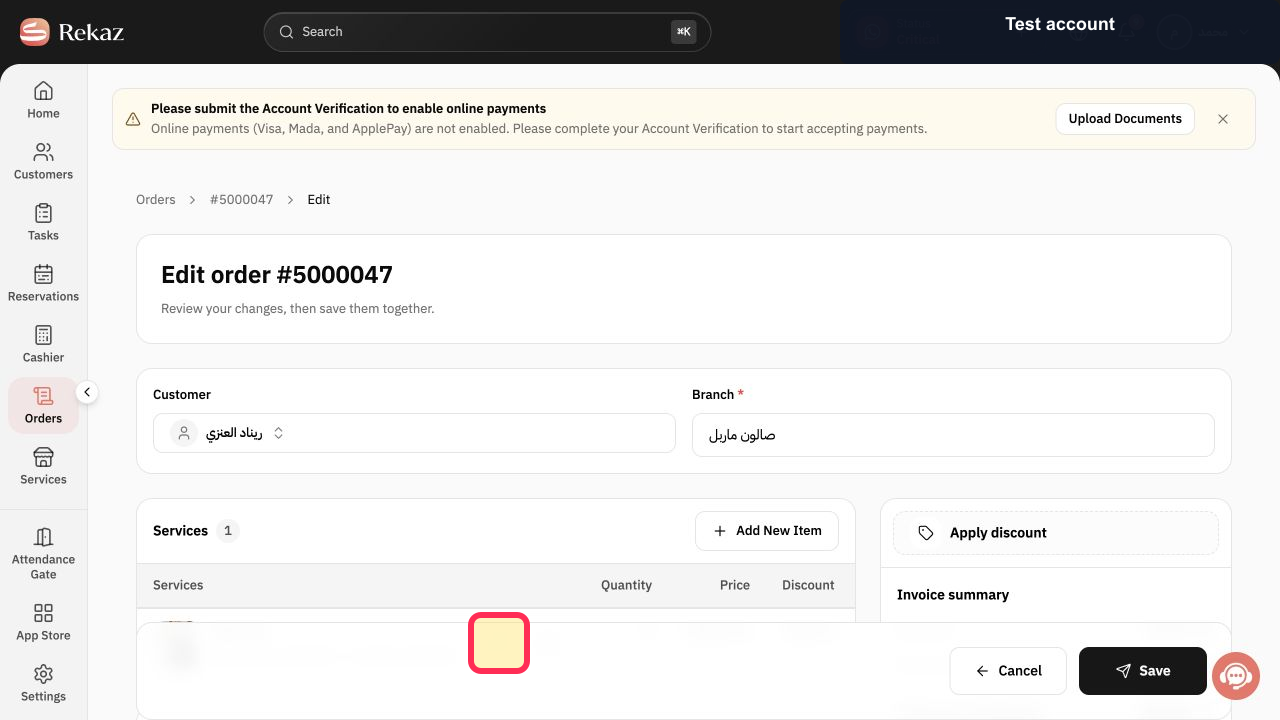
To change an existing item, select Edit for that item and update its available fields. You can also change the customer, branch, or discount if those fields are available for the order.
The updated item and other changed order details appear in the edit form.
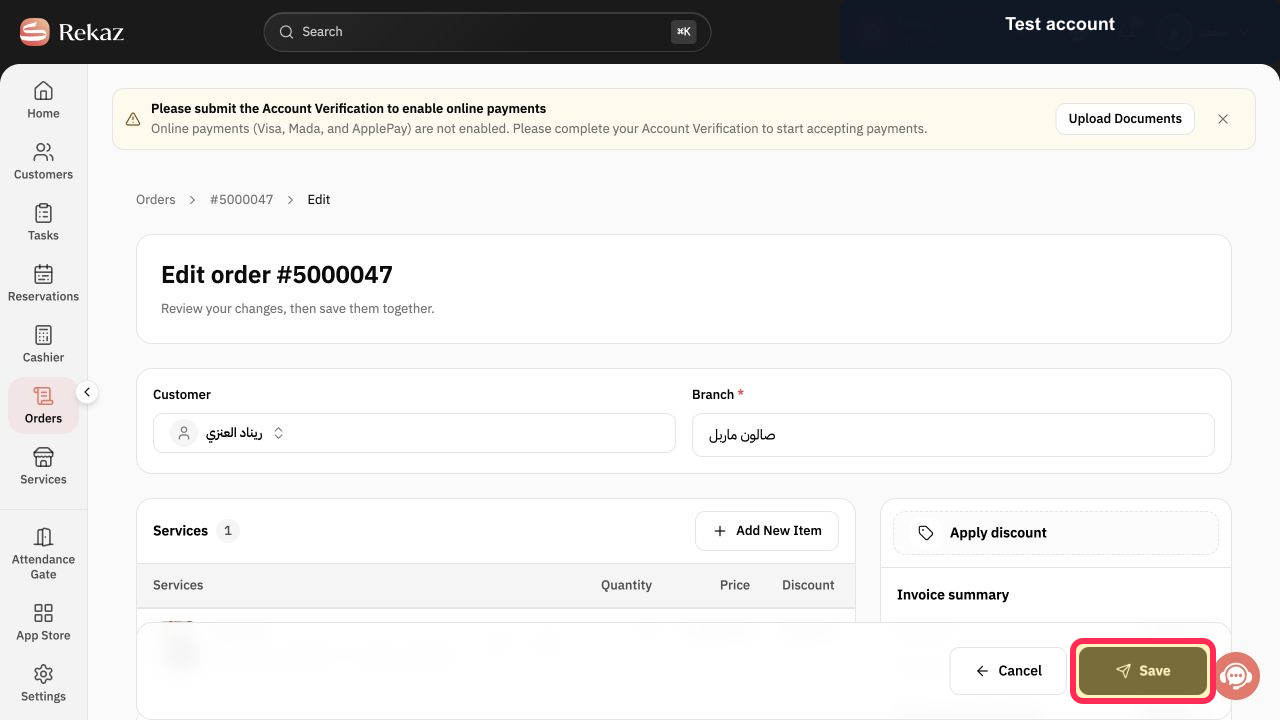
Review the Invoice summary, including the items, discount, tax, and Amount Paid, then select Save.
The changes are saved and the order details are displayed.
Open the order again and confirm that the changes appear. Also review the Payment Status and Invoice after the update.
The updated details and the current payment or invoice status are visible on the order.
Illustrated guide
Step 1: The Orders option in the Rekaz sidebar.
Step 2: The Order Number for the order to be edited.
Step 3: The Actions control on the order details page.
Step 4: The Edit option in the Actions menu.
Step 5: The Add control in the Items section of the order form.
Step 6: The Edit control for an existing item and the available order fields.
Step 7: The Invoice summary and Save control after reviewing the changes.
Step 8: The updated order details, Payment Status, and Invoice information.
Important after payment
Do not cancel and recreate an order only because an older guide said that editing was not possible.
Before completing the process, compare the new total with the Amount Paid.
If no suitable option is shown for a payment difference, contact Rekaz Support with the Order Number only. Do not send login details.
Related questions
Can I edit an order that already has a payment in Rekaz?
Why is the Edit option not available for my Rekaz order?
What should I check after changing an order total in Rekaz?
How do I add or update items on an order in Rekaz?
How do I update a discount on an order in Rekaz?


