How do I perform a stock count in Rekaz?
To perform a physical stock count in Rekaz, open the Stock Count app from App Store, start a new count for the relevant branch, enter each product’s counted quantity, and finalize the session.
After submission, review the stock quantity, counted quantity, and variance quantity to identify differences. Finalize only after all quantities have been entered, as you may not be able to edit the session afterwards.
Steps
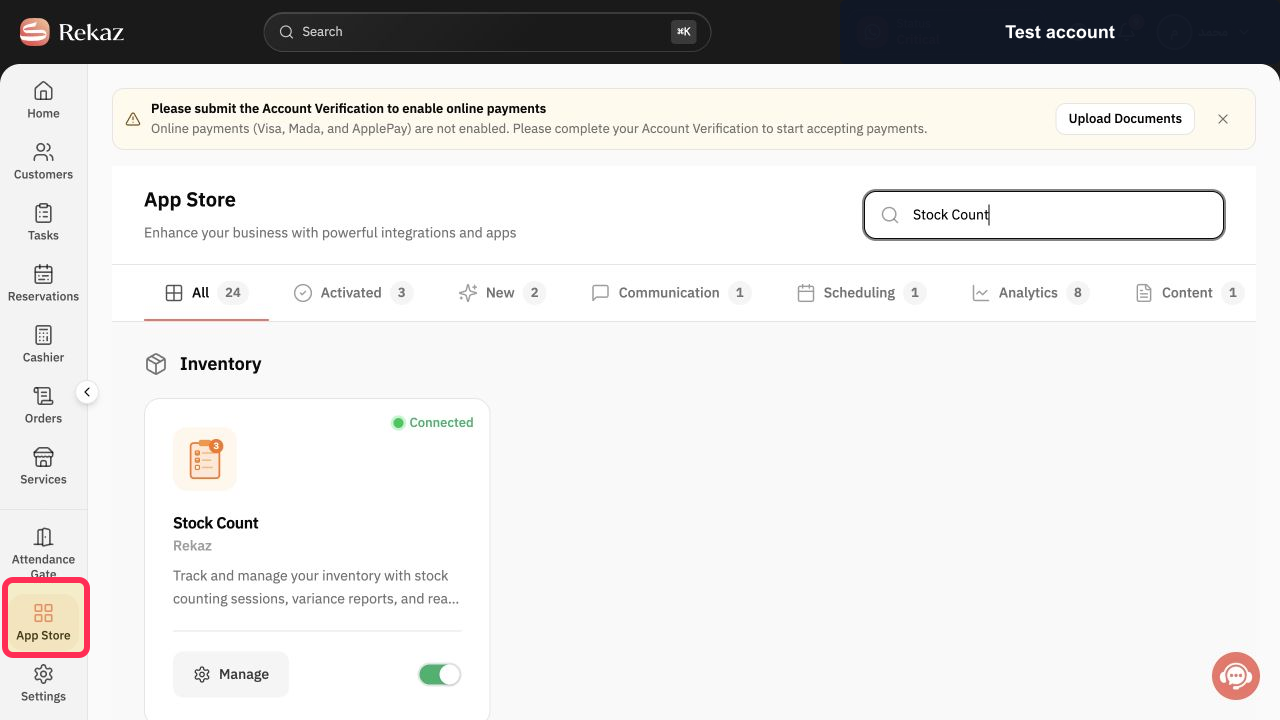
From the signed-in Rekaz dashboard, click App Store in the sidebar.
The App Store opens.
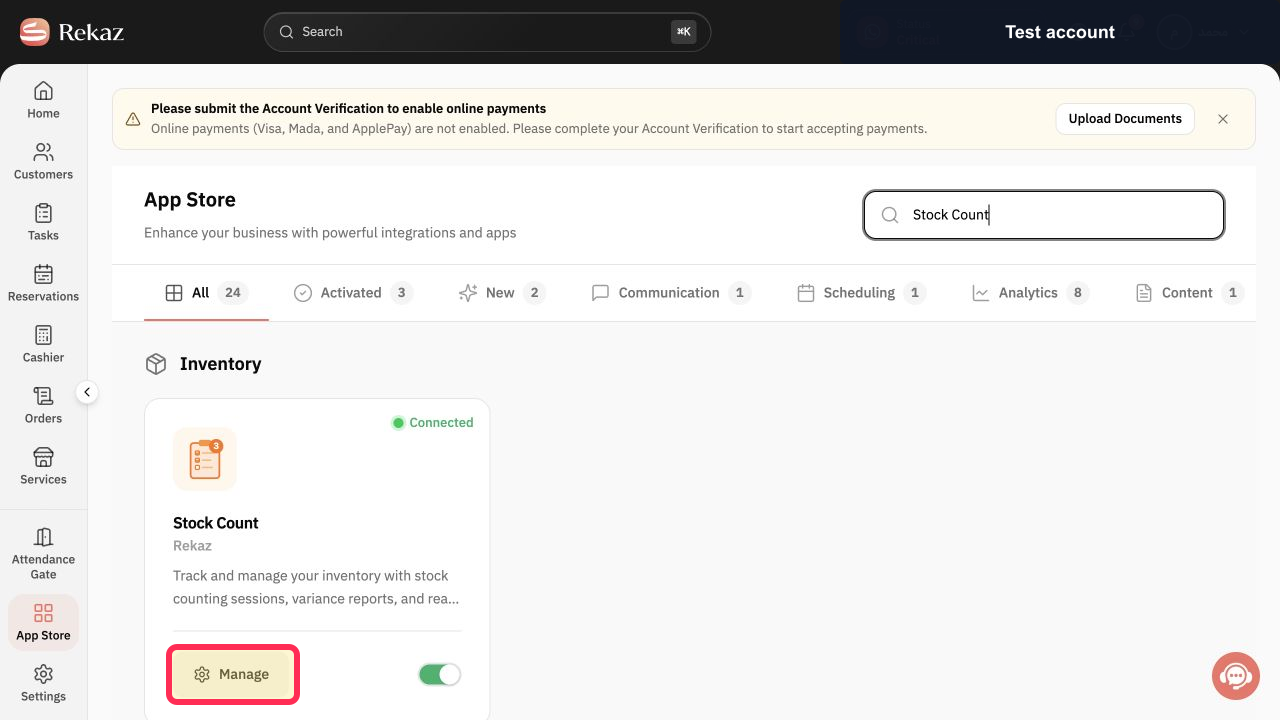
Open the Stock Count app and click Manage.
The Stocks Count page opens.
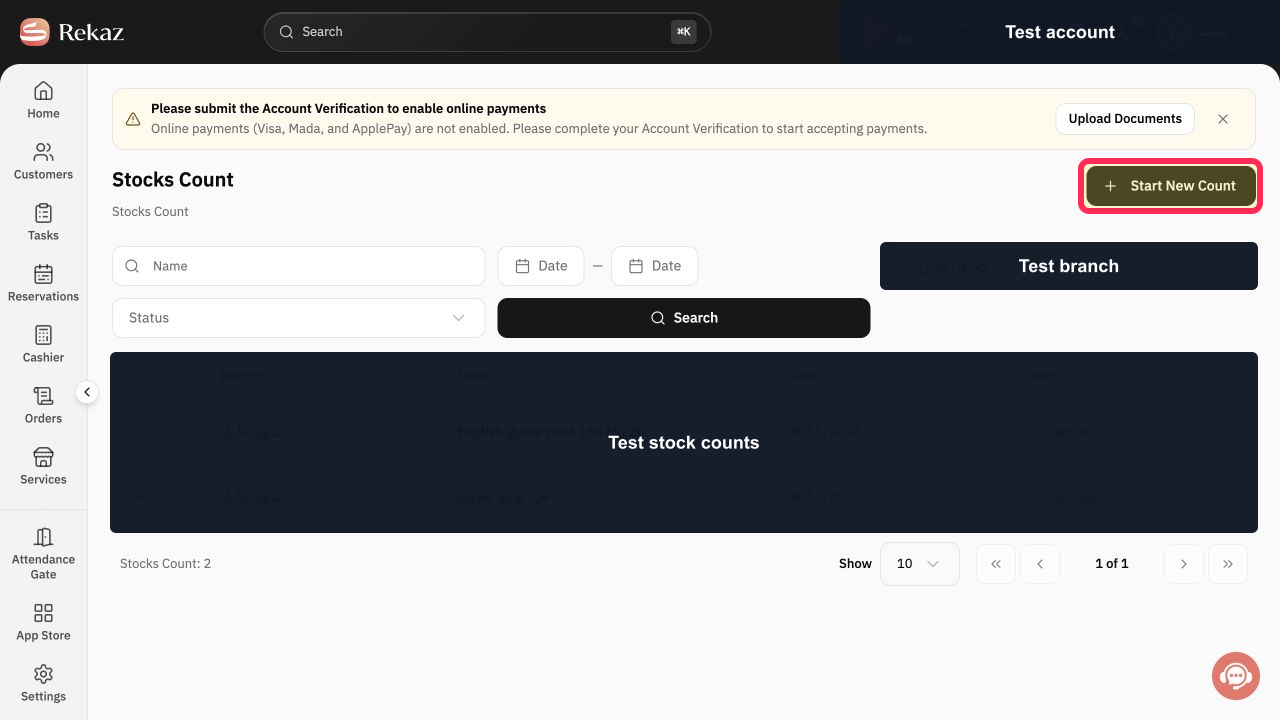
On Stocks Count, click Start New Count.
The Add the stock-take info form opens.
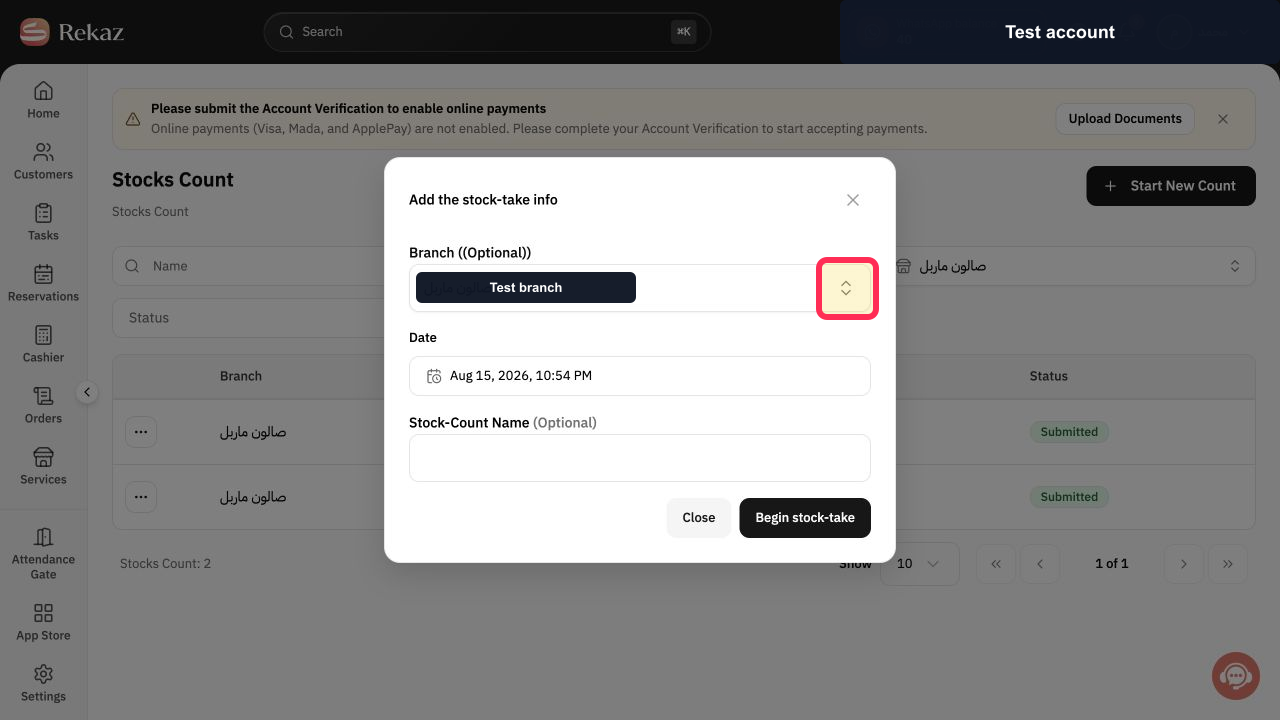
In Add the stock-take info, select the branch for this stock count.
The selected branch is shown in the form.
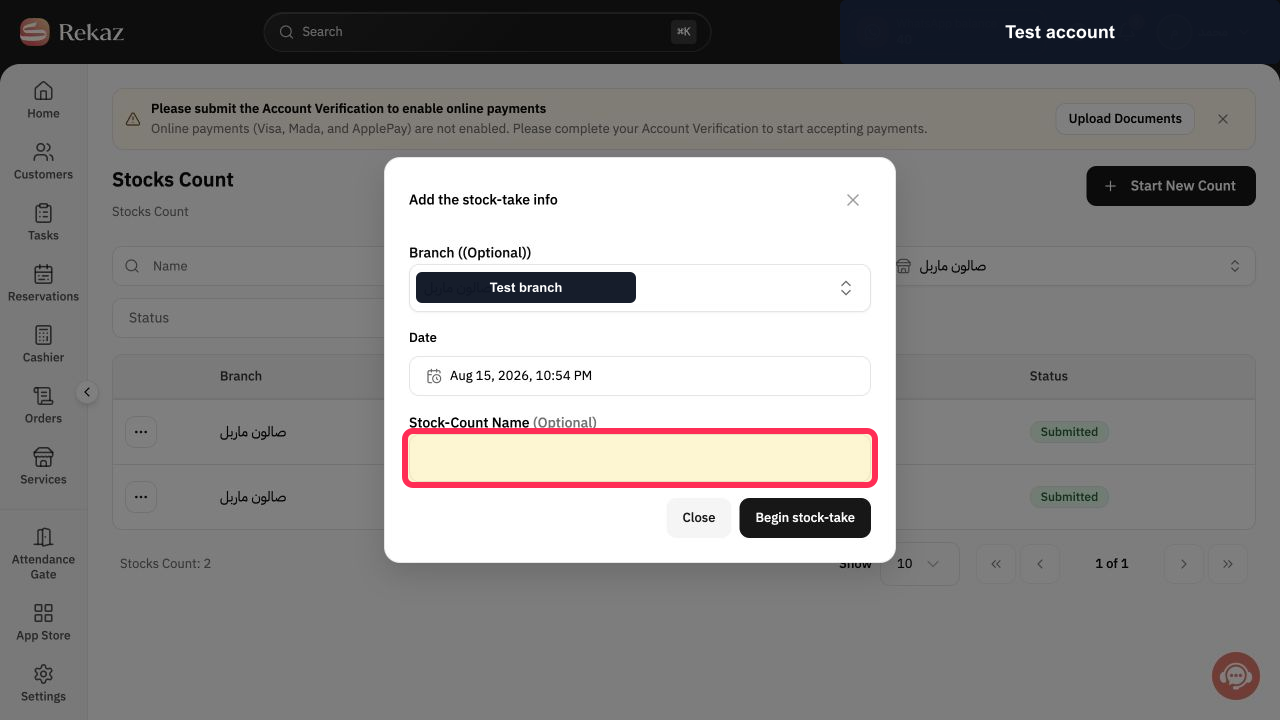
Enter a clear name for the stock count.
The Stock-Count Name field contains the name you entered.
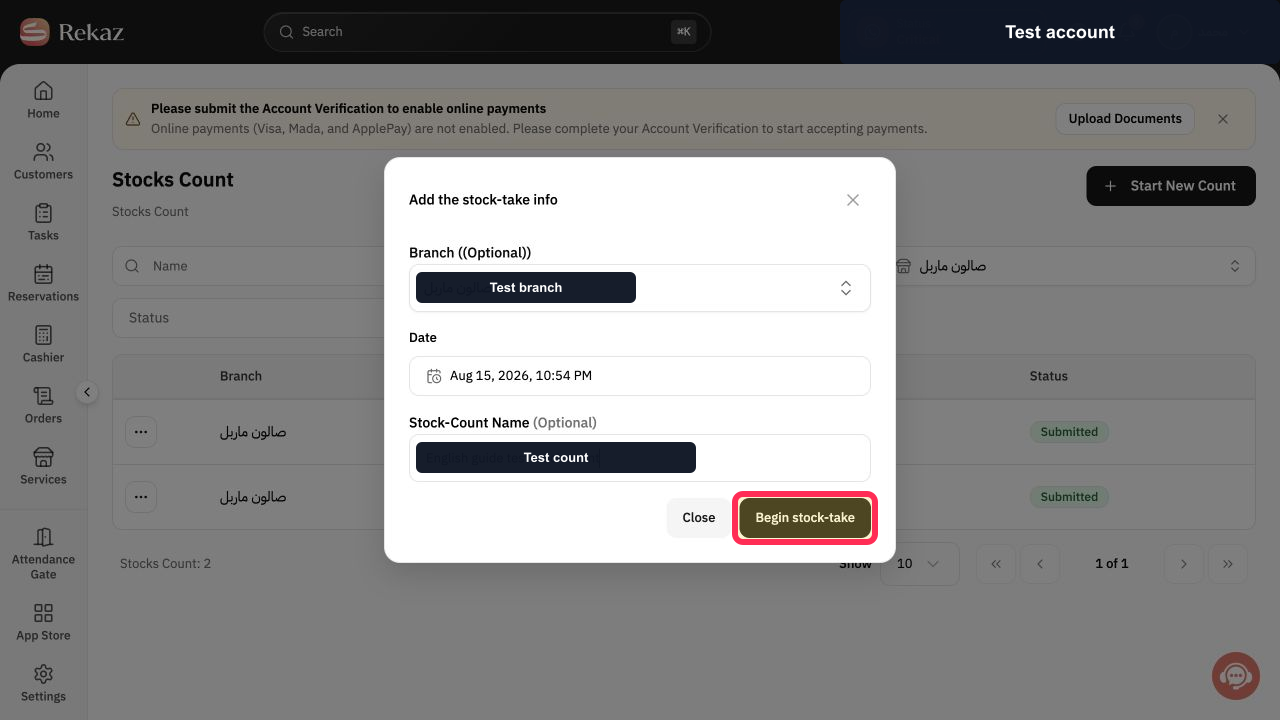
Click Begin stock-take.
The stock-taking session opens with products ready to be counted.
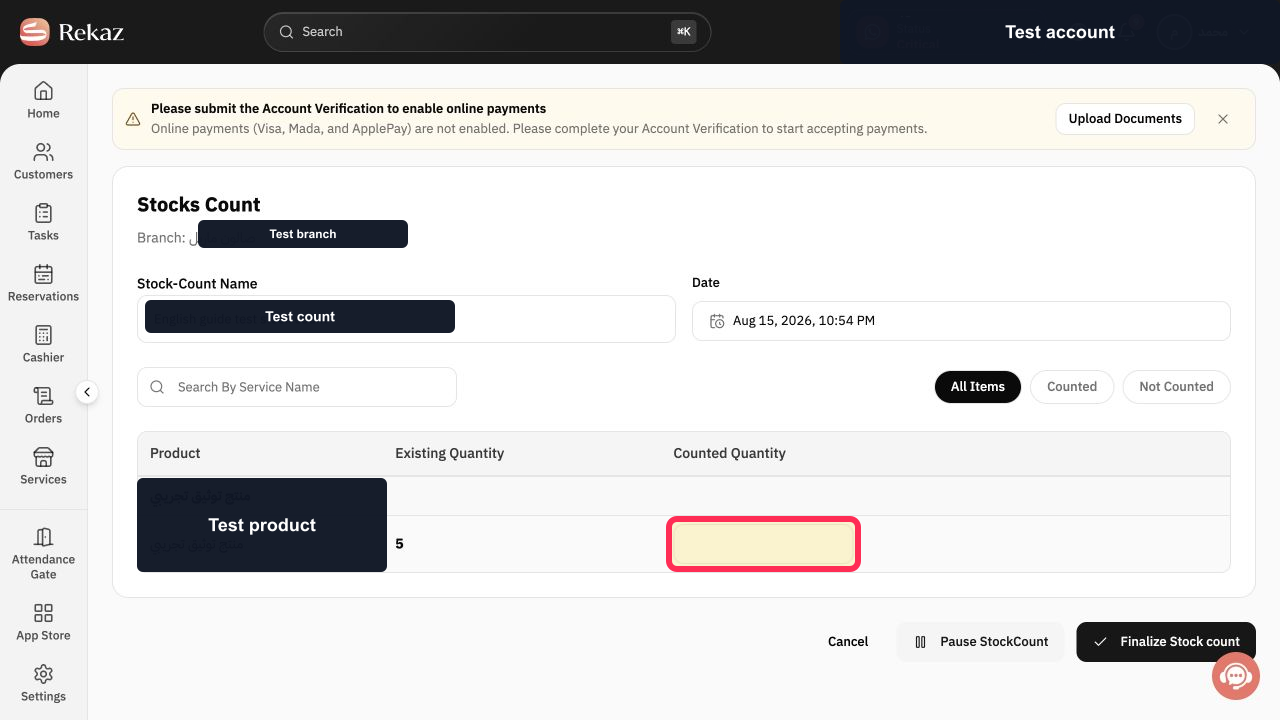
Enter the physical count for each product in Counted Quantity.
Each entered counted quantity is displayed for its product.
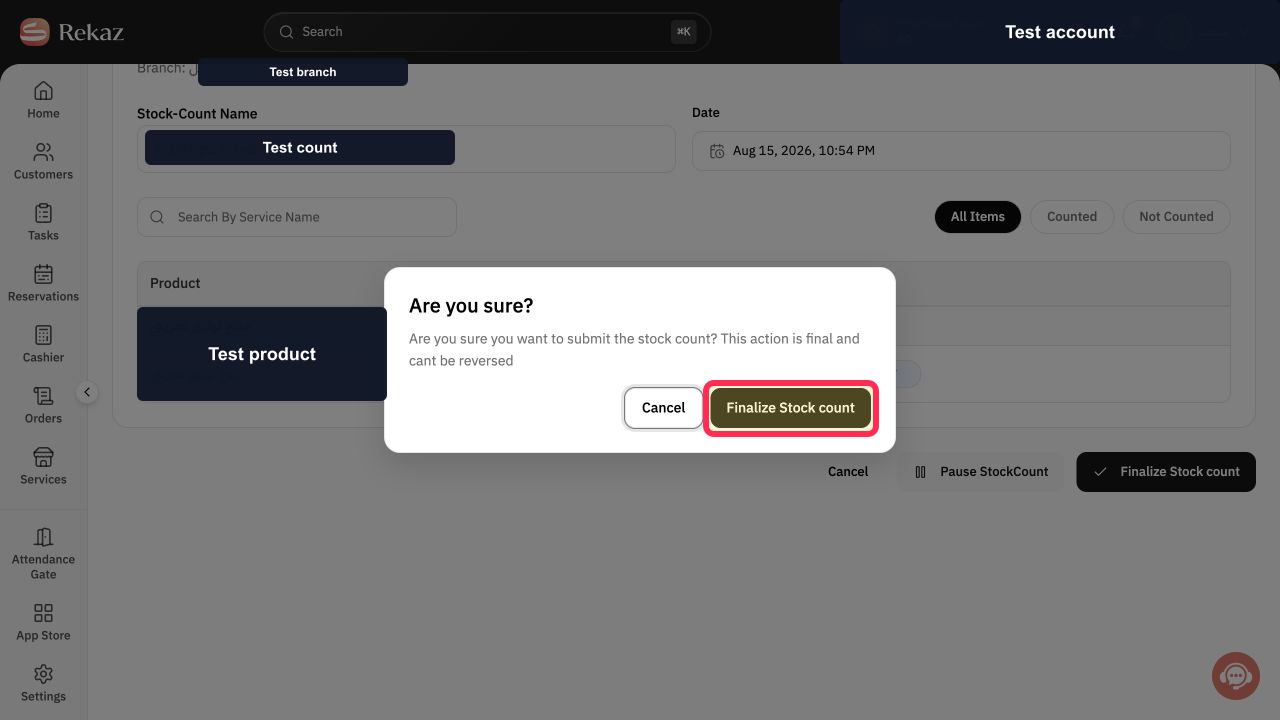
After checking that all quantities have been entered, click Finalize Stock count.
A confirmation dialog is displayed.
In the confirmation dialog, click Finalize Stock count.
The stock count is submitted.
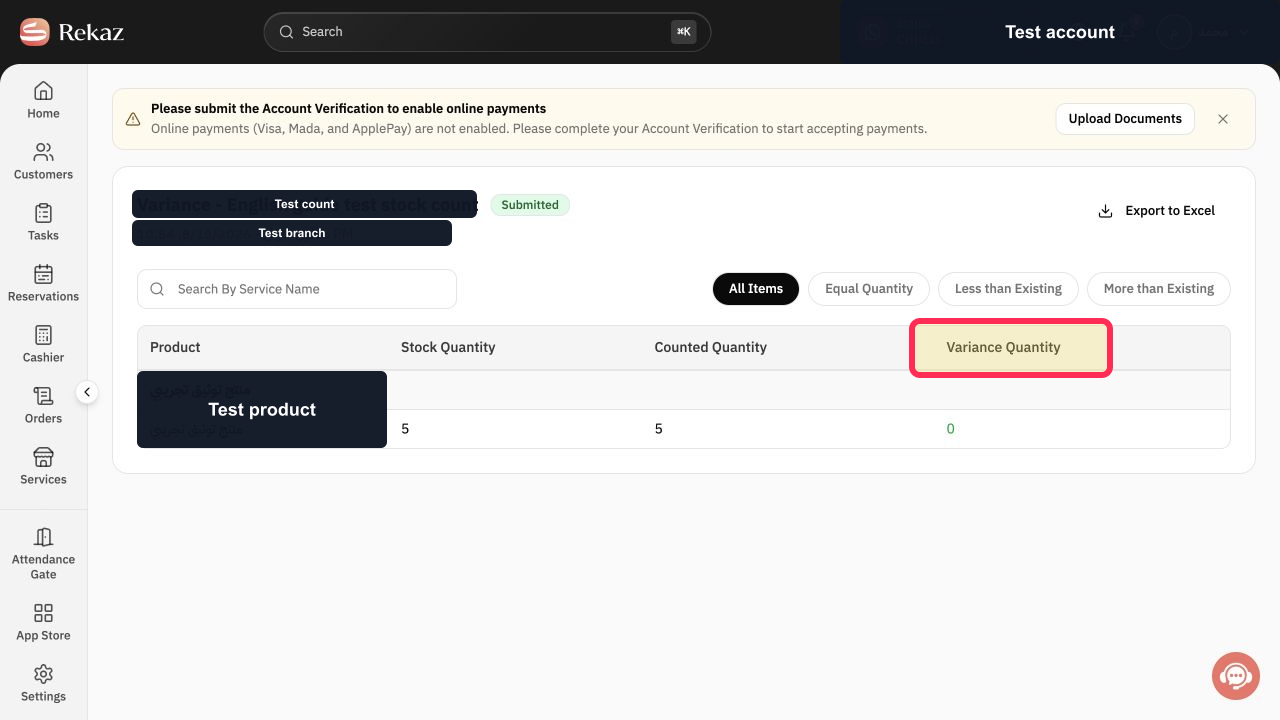
On the submitted stock count, review Stock Quantity, Counted Quantity, and Variance Quantity.
You can compare the recorded stock quantity, the physical count, and the variance for each product.
Illustrated guide
Step 1: Open App Store from the Rekaz sidebar.
Step 2: Open Stock Count management.
Step 3: Start a new stock count.
Step 4: Select the branch for the stock count.
Step 5: Enter a clear stock-count name.
Step 6: Begin the stock-taking session.
Step 7: Enter the quantity counted for each product.
Step 8: Finalize the completed stock count.
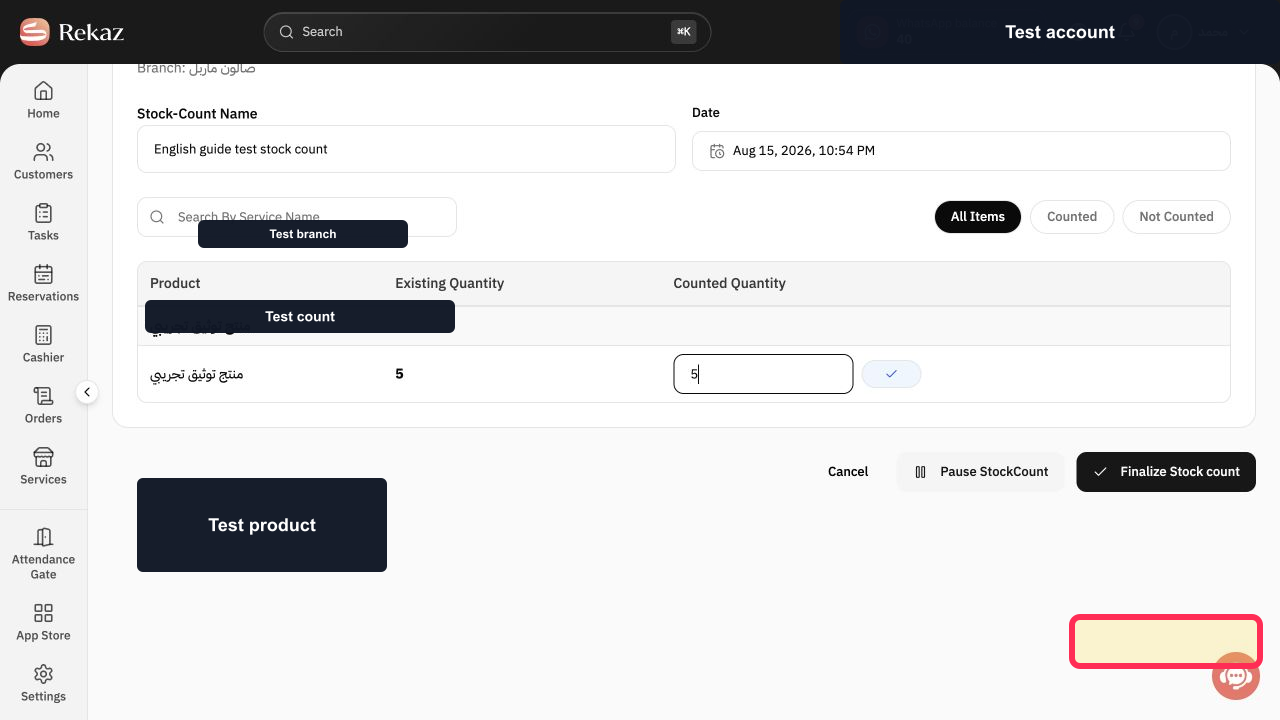
Step 9: Confirm stock-count finalization.
Step 10: Review stock-count variances.
Before you finalize
Use the correct branch and confirm the session date so that you do not mix different stock-taking sessions.
Do not finalize the count until you have entered every quantity. You may not be able to edit the session after finalization.
Check the product balance after finalization, particularly if its previous balance was Unlimited.
If Stock Count is not available
Stock Count is managed through App Store. Use Manage to open the app.
Related questions
How do I enter physical inventory quantities in Rekaz?
How do I finalize a stock count in Rekaz?
Where can I review stock-count variances in Rekaz?
How do I select a branch for a stock count in Rekaz?


