How do I sell or issue a gift to a customer in Rekaz?
The verified gift-sale flow starts in Cashier, not on the service-management Gifts page. The customer is required before you can add the recipient details.
The screenshots use test customer and recipient data, which is masked. Verify the customer, recipient number, gift amount, and payment method before the final reservation confirmation.
Steps
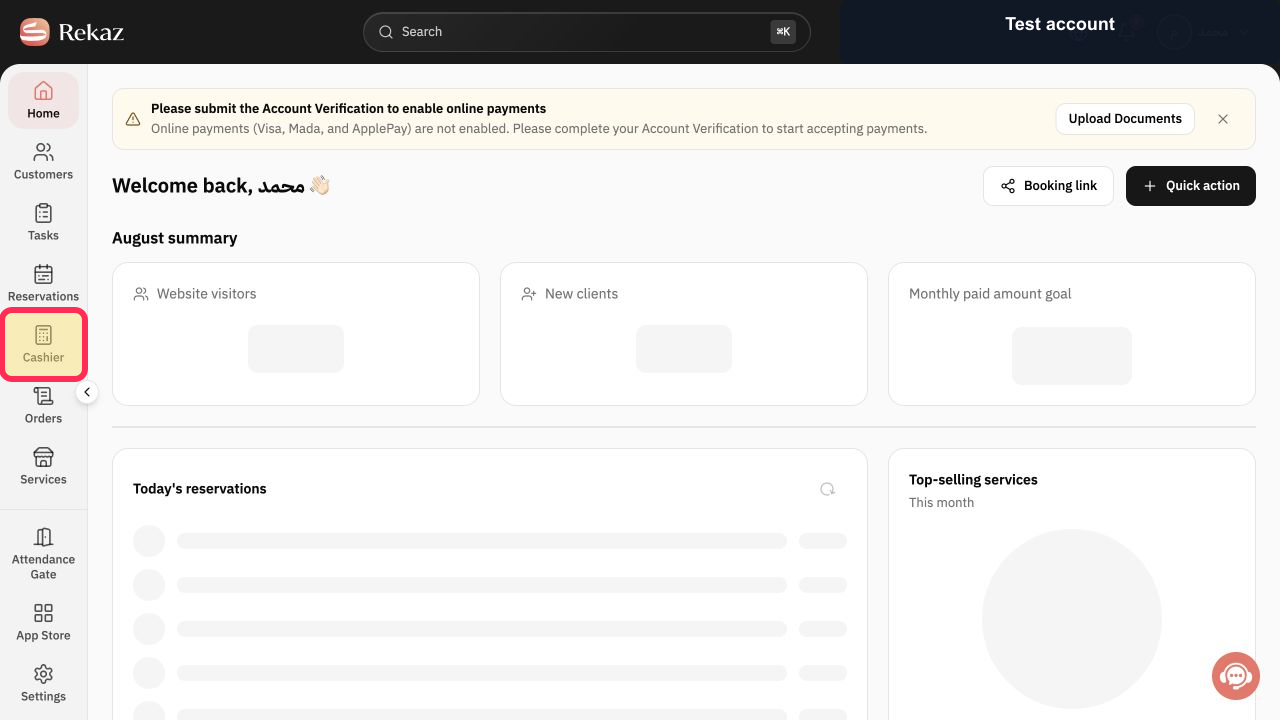
From the Rekaz navigation, select Cashier.
The Point of Sale opens.
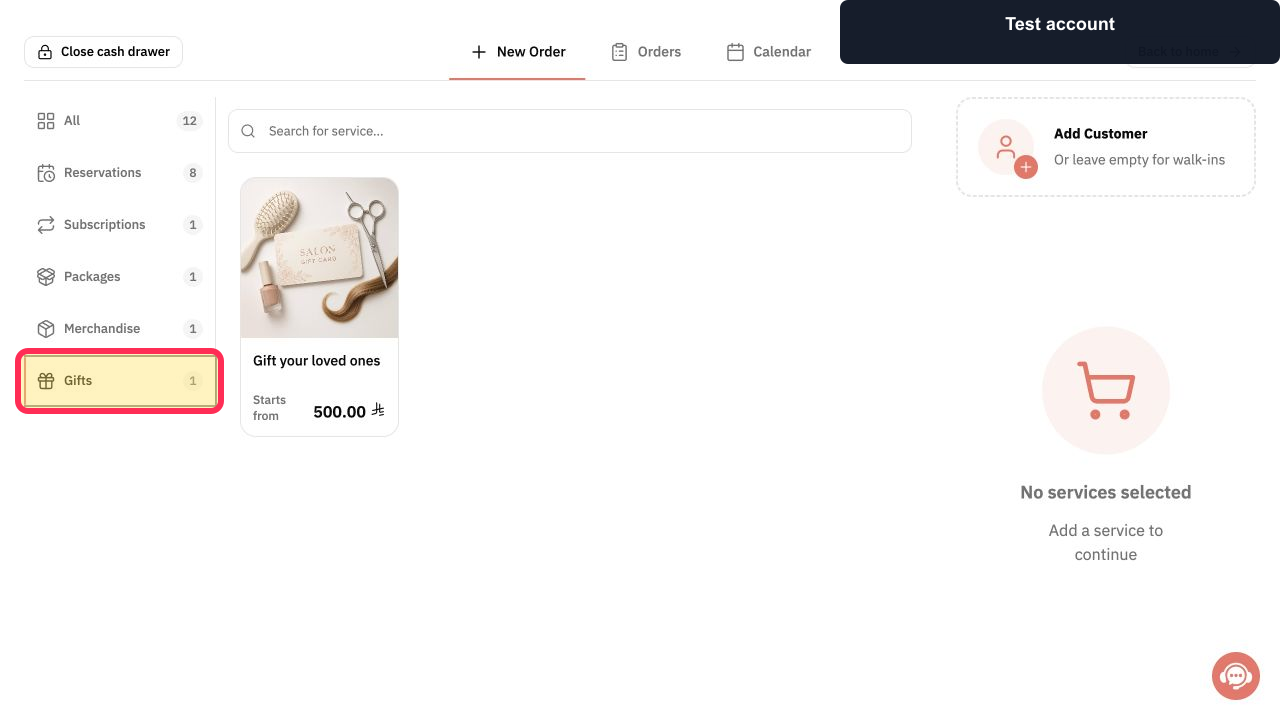
In the service filters, select Gifts.
Only Gift services remain visible.
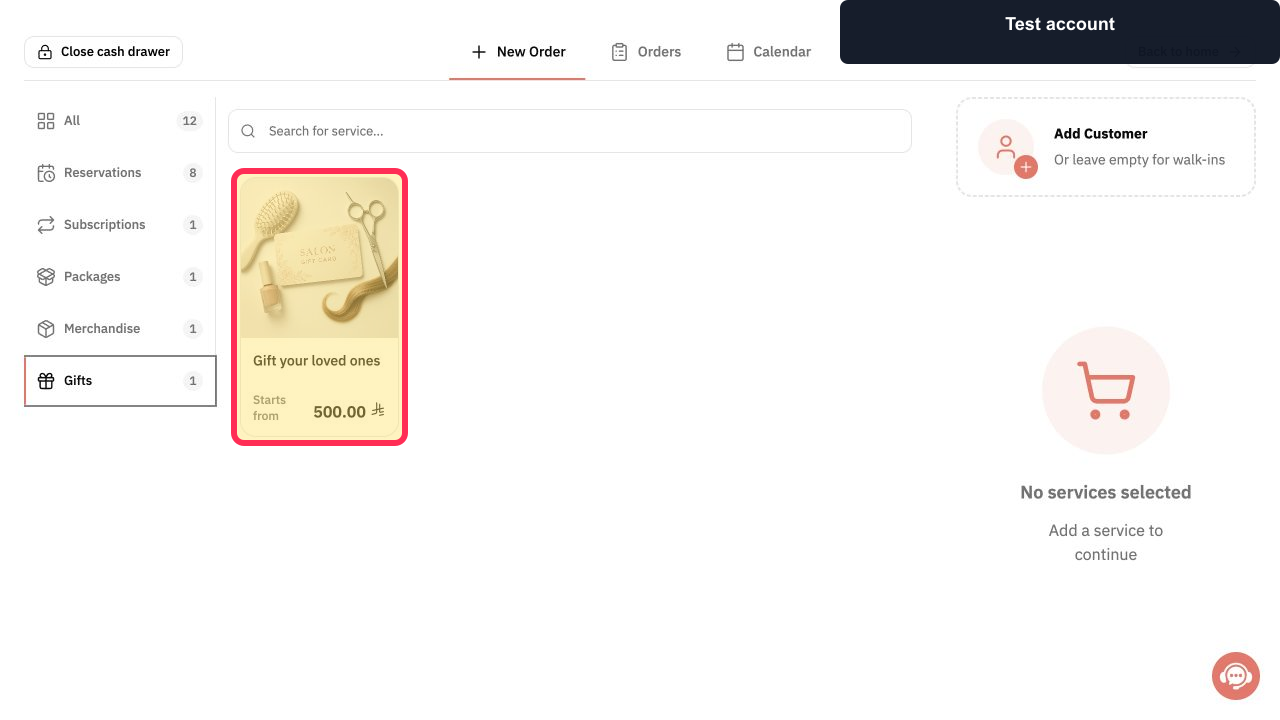
Select the Gift service that you want to sell.
The Gift price options open.
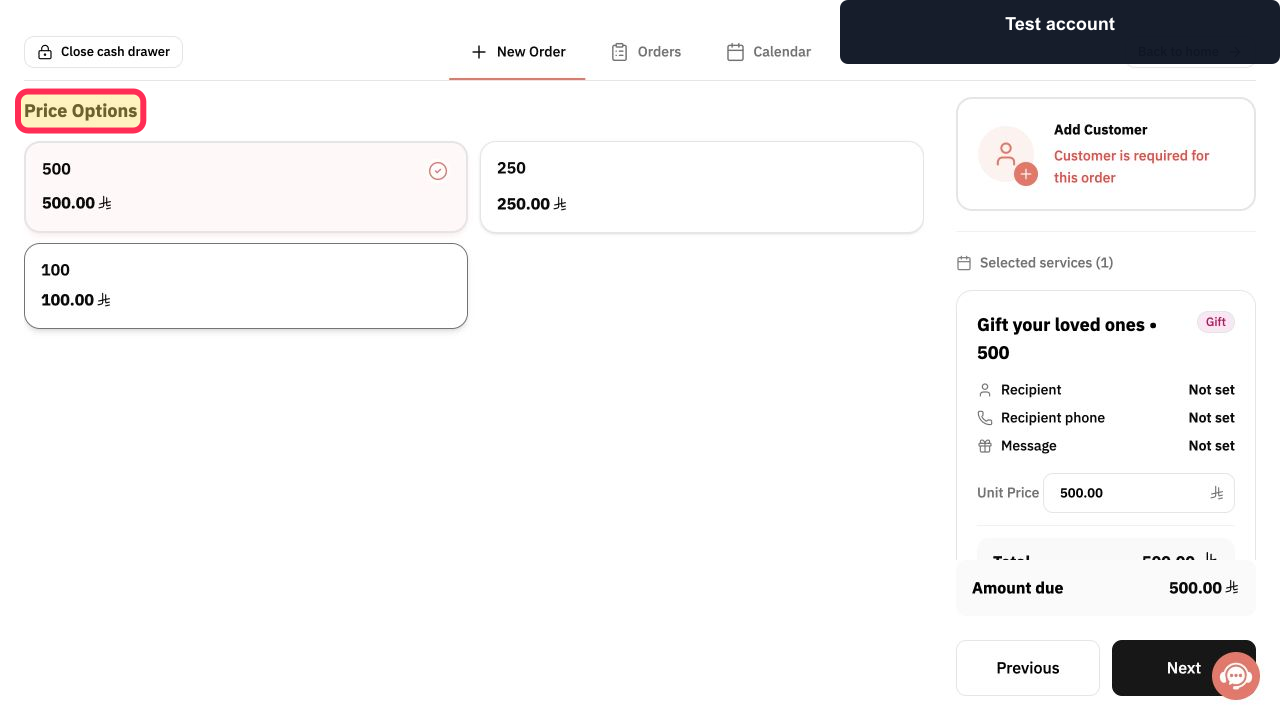
Under Price Options, select the required gift amount.
The chosen Gift amount is added to the order.
Select Add Customer on the right, choose the correct customer, and then select Next.
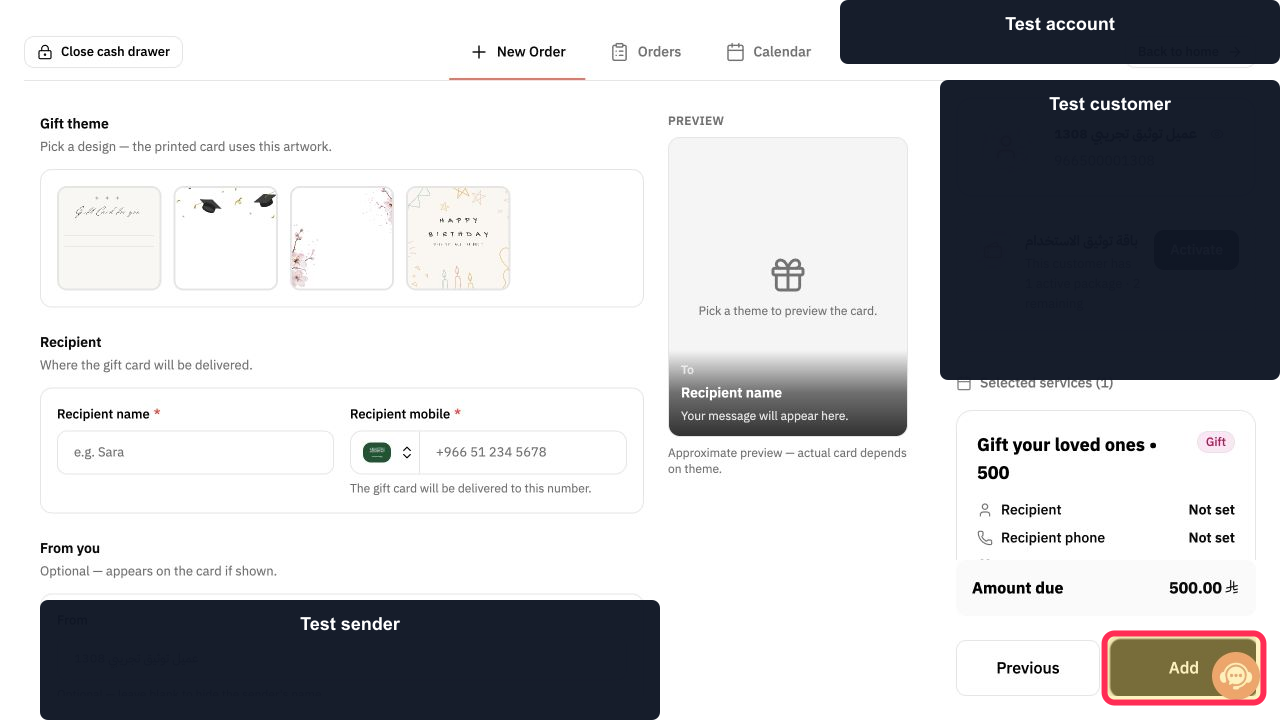
The Gift theme and recipient form opens for the selected customer.
Enter the recipient's name under Recipient name *.
The recipient name is attached to the Gift.
Enter the recipient's country code and mobile number under Recipient mobile *.
The recipient mobile number is ready for verification.
Choose the Gift theme, such as General, and review the sender, language, and message fields below.
The Gift card presentation is configured.
After checking the recipient and card details, select Add.
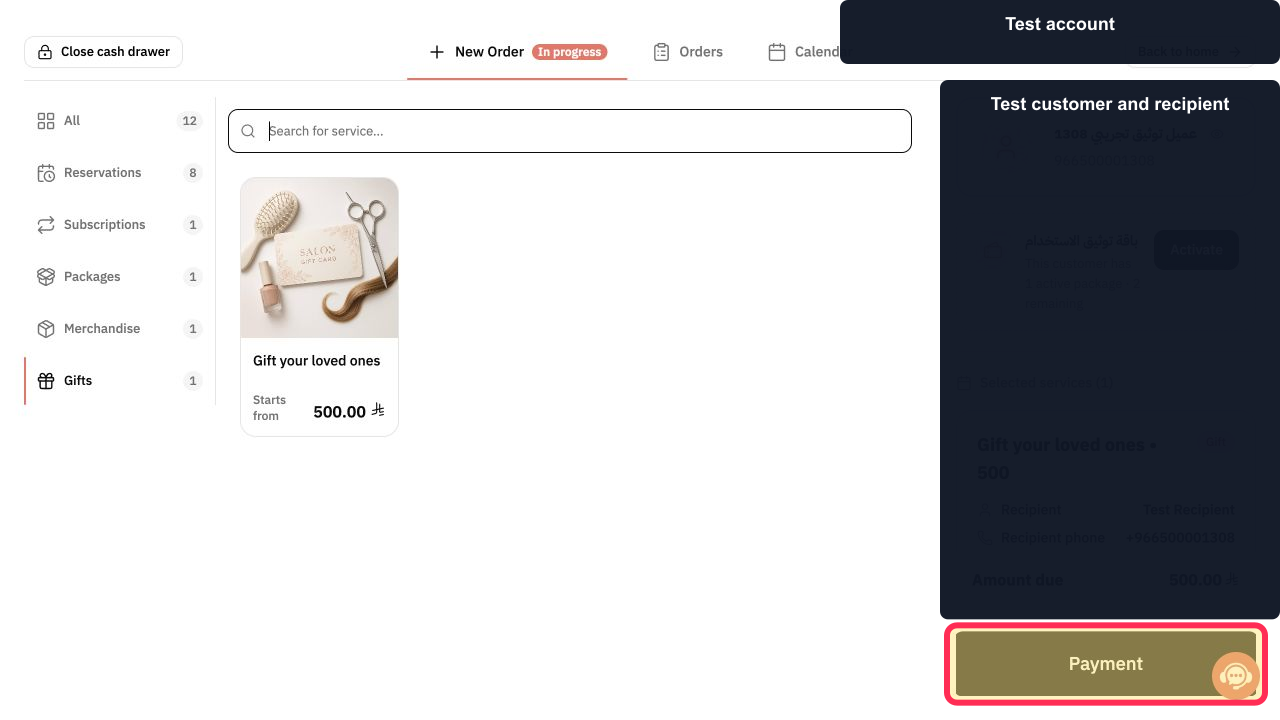
The configured Gift appears in the current order.
Review the Gift, recipient, total, and amount due, then select Payment.
The available payment methods open.
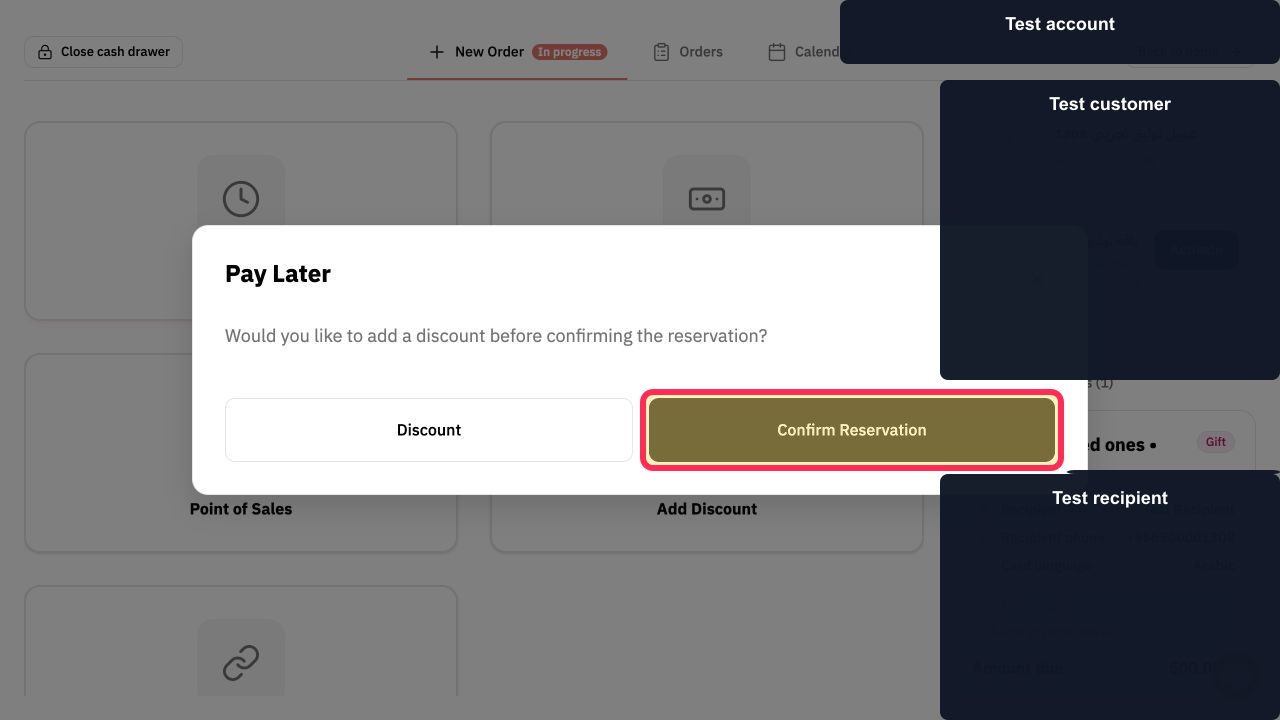
Choose the intended payment method. For Pay Later, review the warning and select Confirm Reservation only when you intend to create the reservation; use Discount first if required.
The Gift reservation is confirmed only after the final action.
Illustrated guide
Step 1: Open Cashier from the Rekaz navigation.
Step 2: Filter the Rekaz cashier to Gifts.
Step 3: Select the Gift service in the cashier.
Step 4: Choose the required Gift price option.
Step 5: Attach the customer and continue to the Gift recipient form.
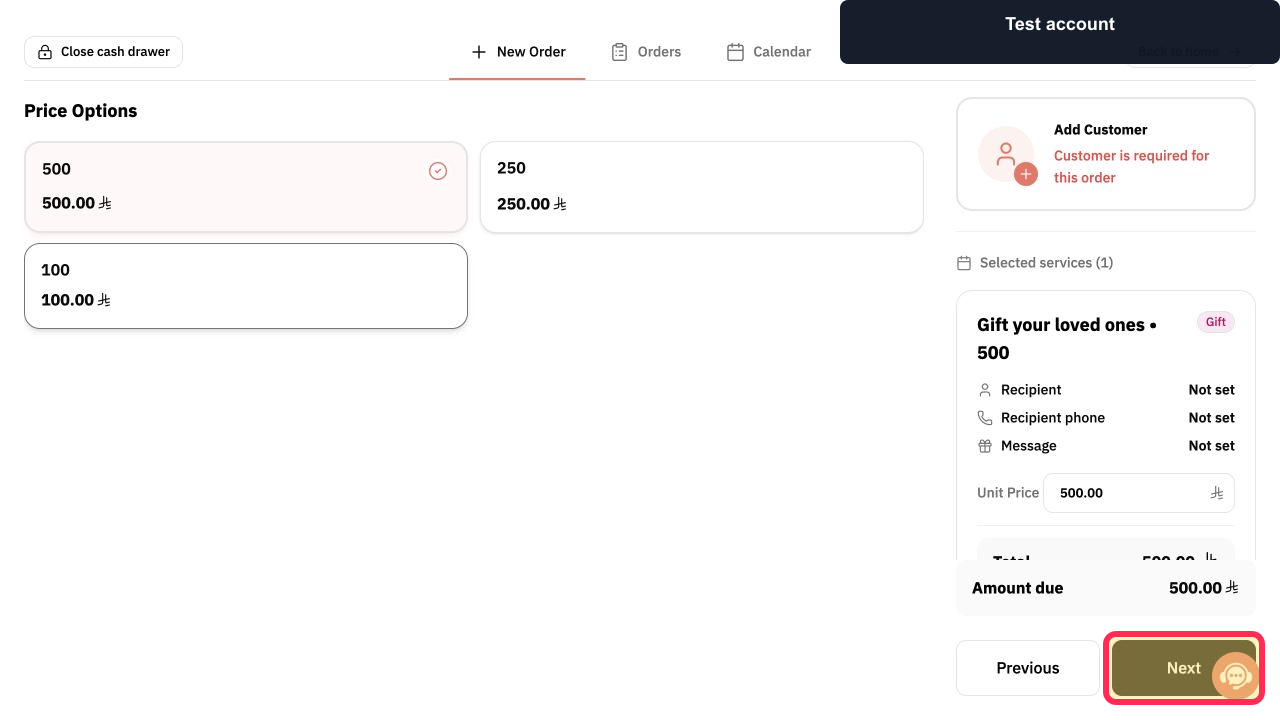
Step 6: Enter the Gift recipient name.
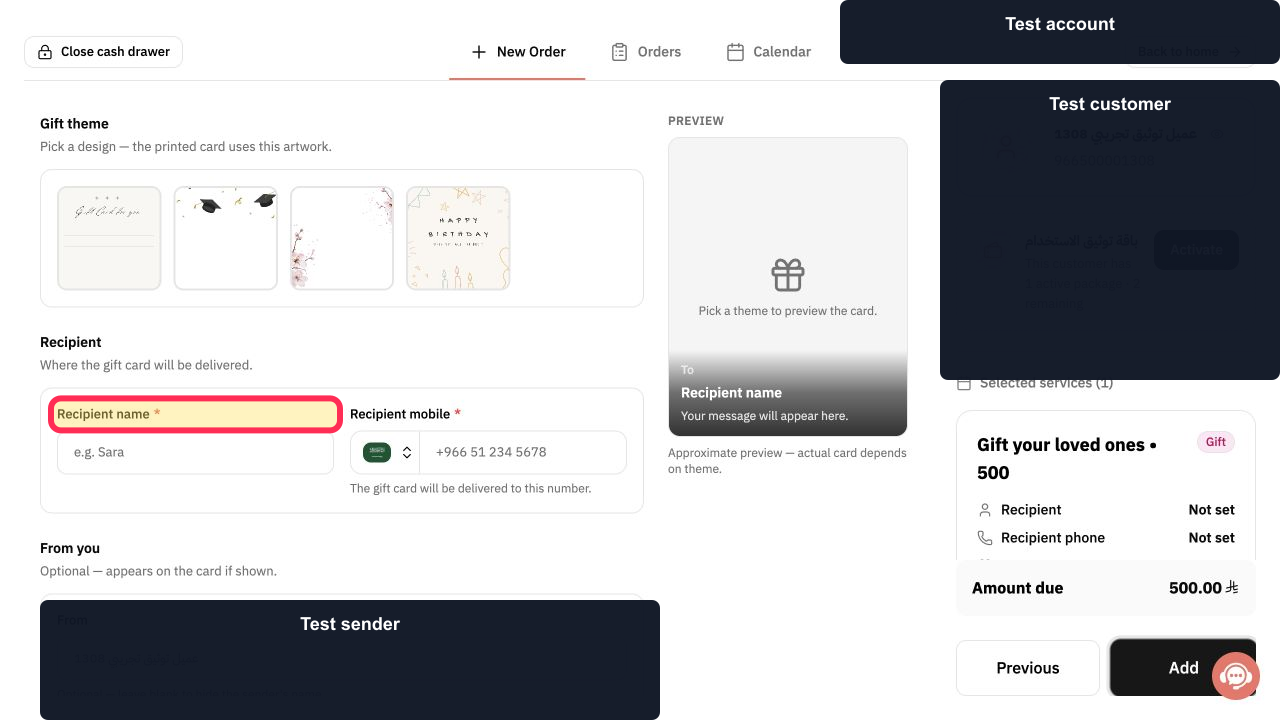
Step 7: Enter the Gift recipient mobile number.
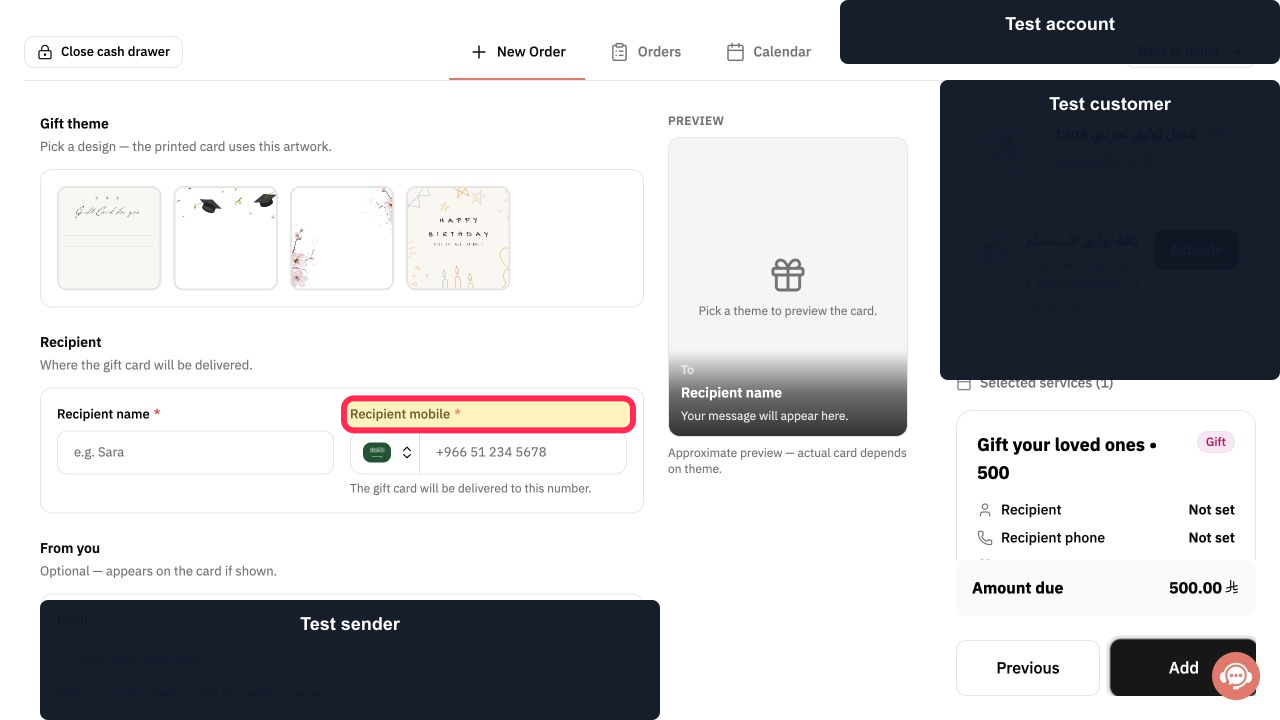
Step 8: Choose the Gift theme and review its card details.
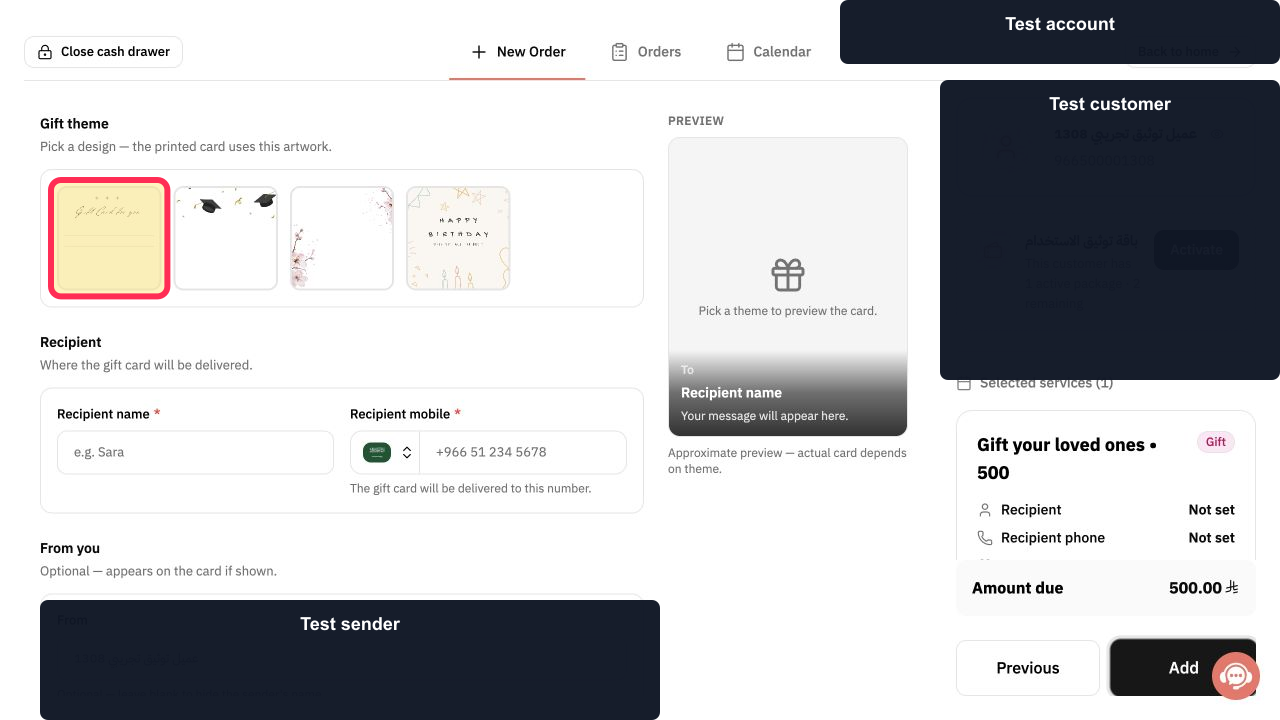
Step 9: Add the configured Gift to the order.
Step 10: Review the Gift order and continue to payment.
Step 11: Confirm the Gift reservation using the intended payment choice.
Important checks
Review the name, status, amount, and date shown before saving or taking a final action.
The exact current labels for the new-gift, payment, and link-sending controls have not been verified. Use the controls available in your Gifts workflow.
Do not rely on options that are not visible in your Rekaz interface.
Confirm the gift details before payment or sending a link.
Related questions
Where can I find the option to sell or issue a gift to a customer in Rekaz?
What are the steps to create a gift for a customer in Rekaz?
How do I choose a service or gift amount when creating a gift in Rekaz?


