How do I use Cashier to start an order in Rekaz?
To start an order in Rekaz, open Cashier and select Create New Order. You can add a customer now or later, then search for and select a service to continue with the order.
The Cashier screen also provides access to Orders and Calendar, along with the Close cash drawer option.
Steps
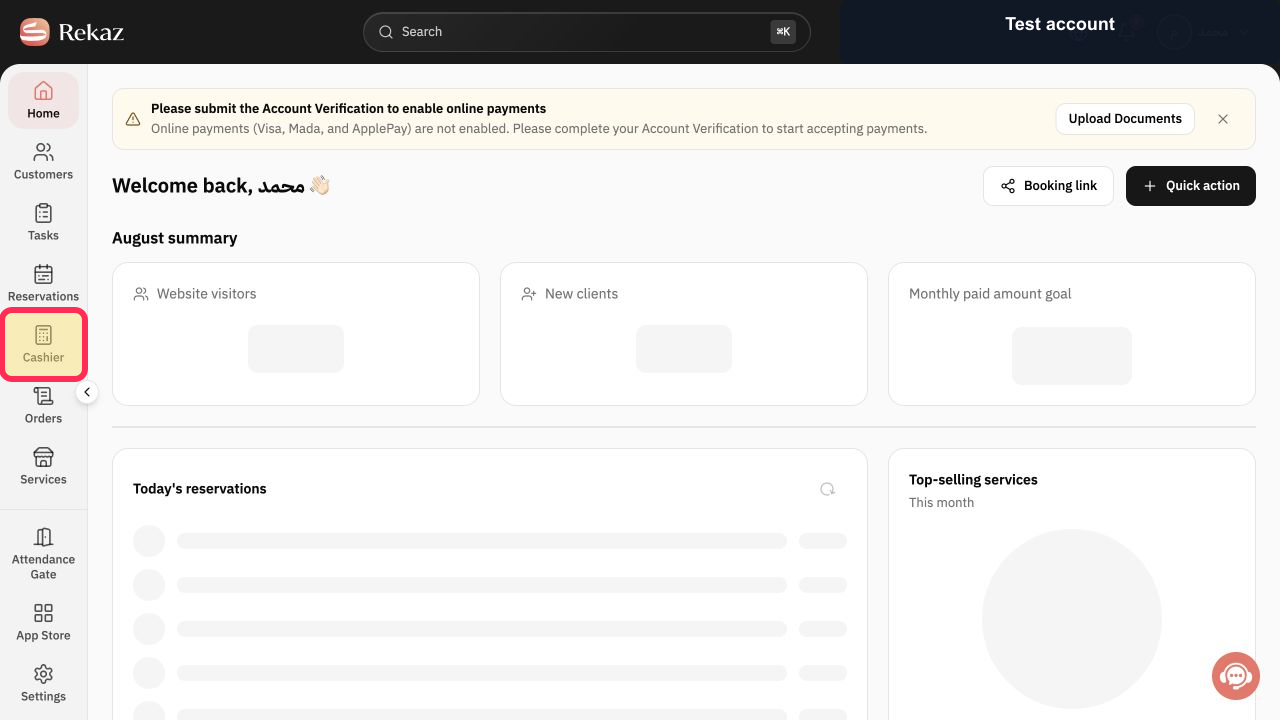
From the main sidebar, select **Cashier**.
The Cashier screen opens.
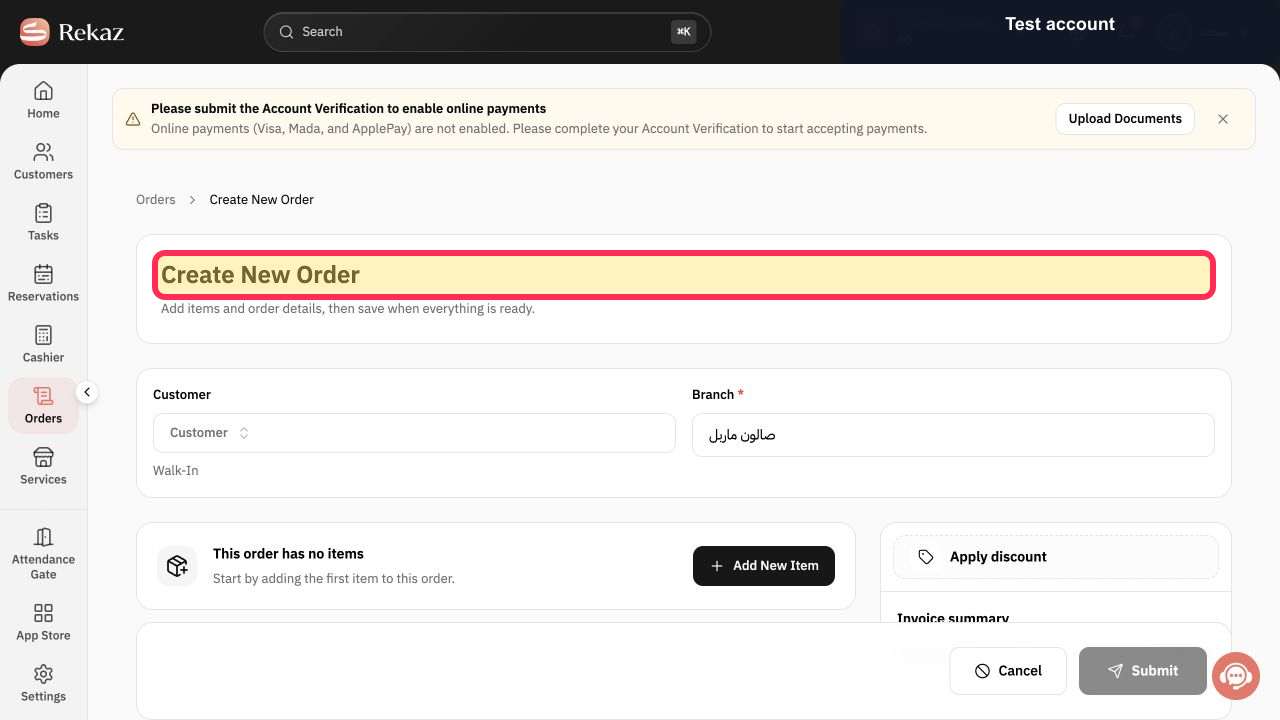
Select **Create New Order**.
The new order screen is displayed.
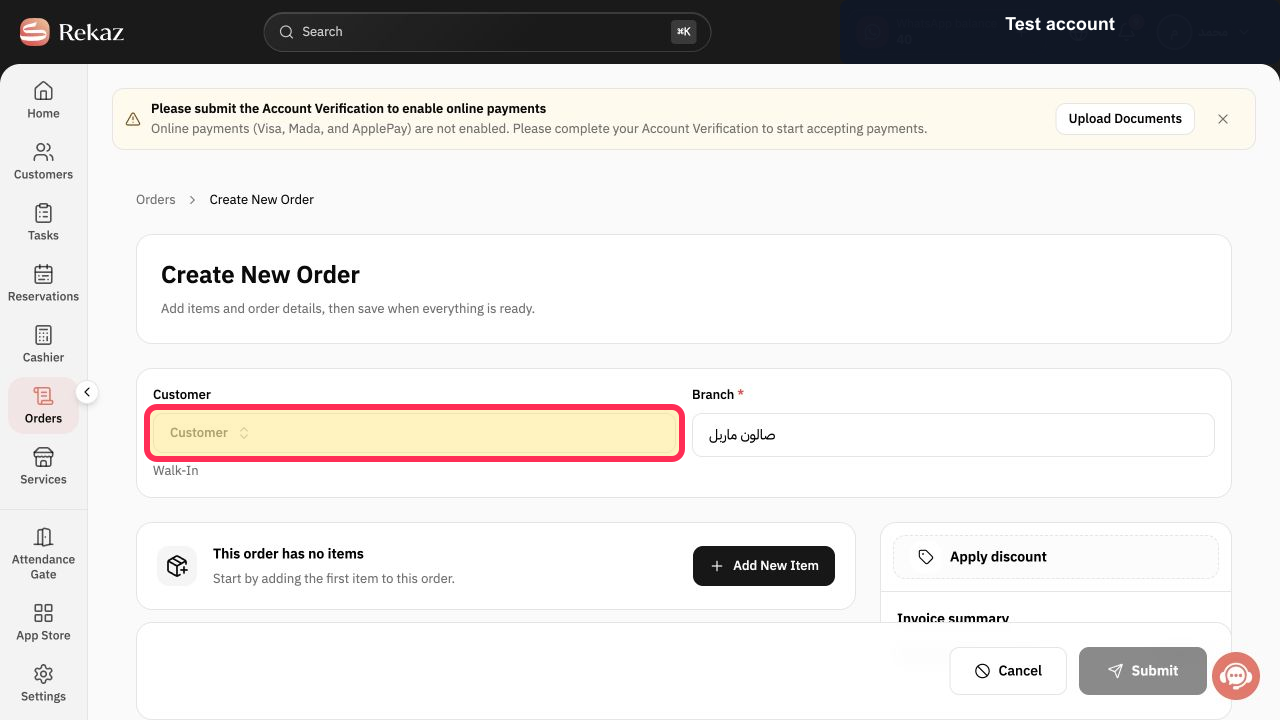
Optionally, select **Customer** and add the customer. You can also continue without adding a customer and complete this later.
The customer is added to the order, or the order remains without a customer if you choose to continue.
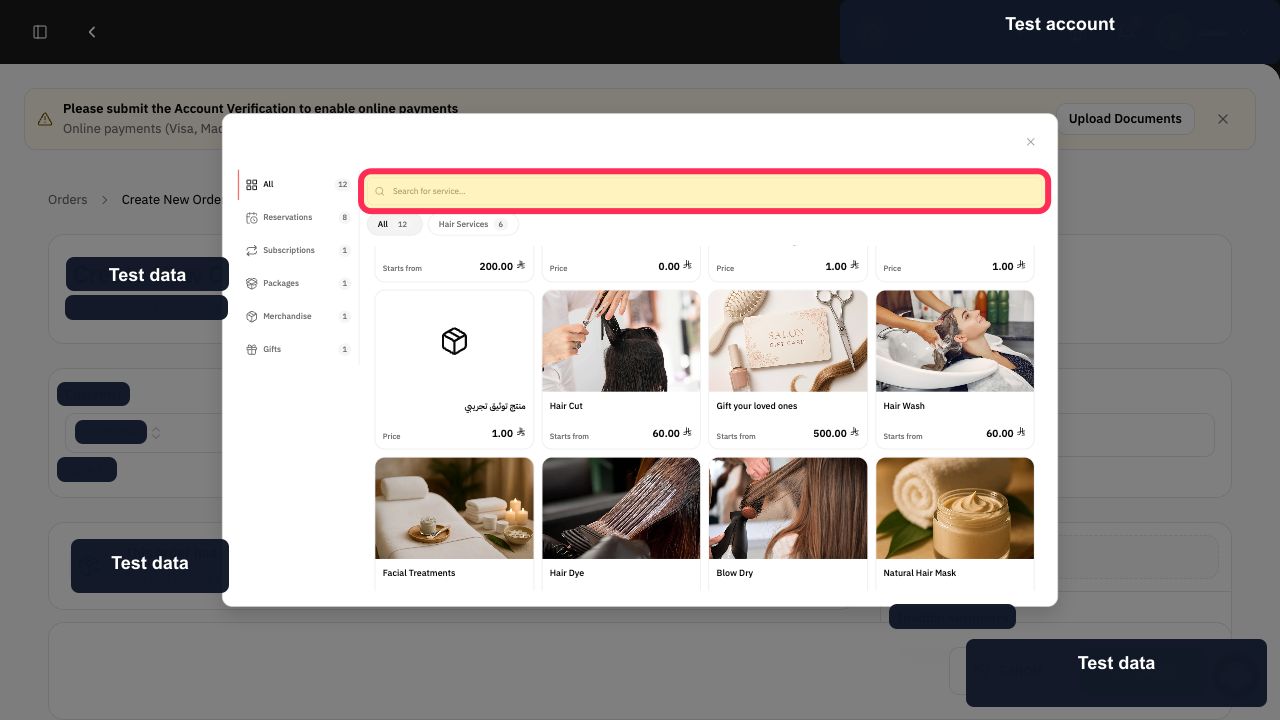
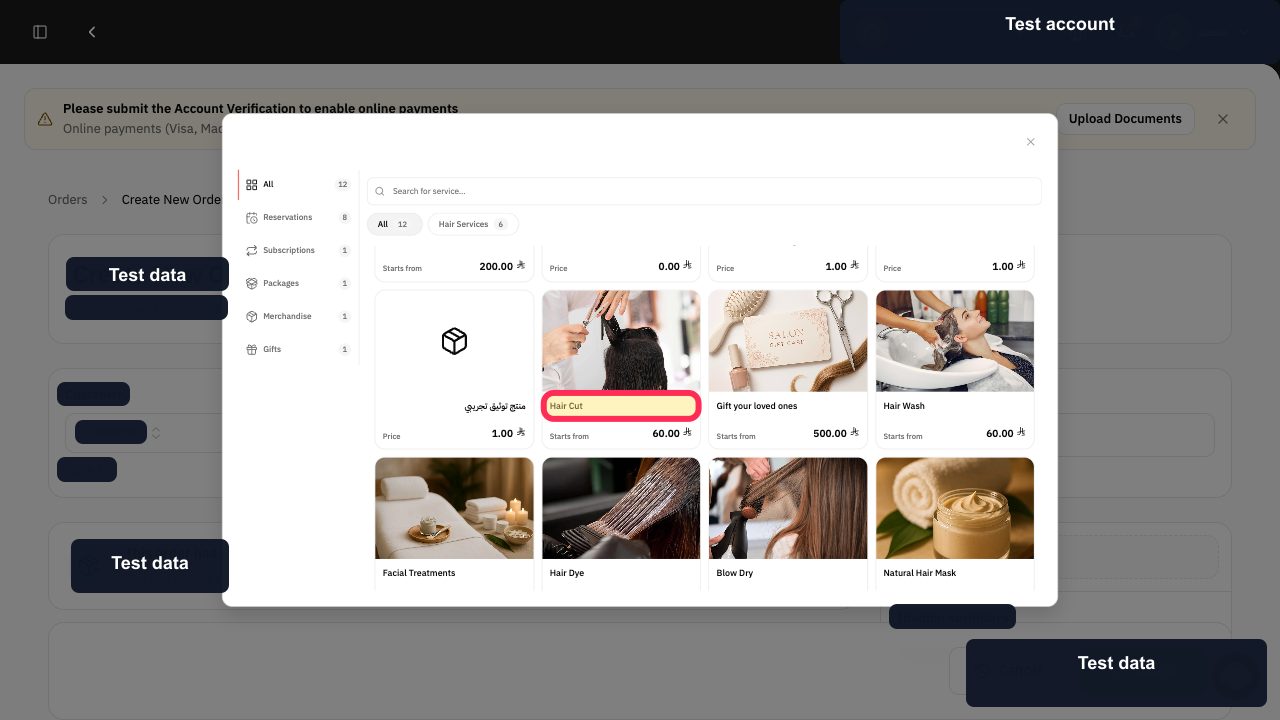
Use Search for service... to find the service by name.
The order item selector shows matching services.
Select the matching service card to add it to the order. The selected service is added to the order draft.
Illustrated guide
Step 1: The Cashier option in the main sidebar.
Step 2: The Create New Order button on the Cashier screen.
Step 3: The Customer field for optionally adding a customer to the order.
Step 4: Search for a service to add to the order.
Step 5: Select the matching service card.
Important notes
Adding a customer is optional in this Cashier flow.
A Reservation Service may require Provider Selection and a Time Slot.
Related questions
How do I start a new order in Rekaz Cashier?
How do I sell through the point of sale in Rekaz?
What can I do on the Cashier screen in Rekaz?


