How do I void an invoice and issue a new one in Rekaz?
To void an invoice in Rekaz, open its linked order from Orders, select Void Invoice, and choose a Cancellation Reason. Once you have completed any required changes to the order, select Issue New Invoice.
If you need to edit an order after its invoice has been issued, void the current invoice first.
Steps
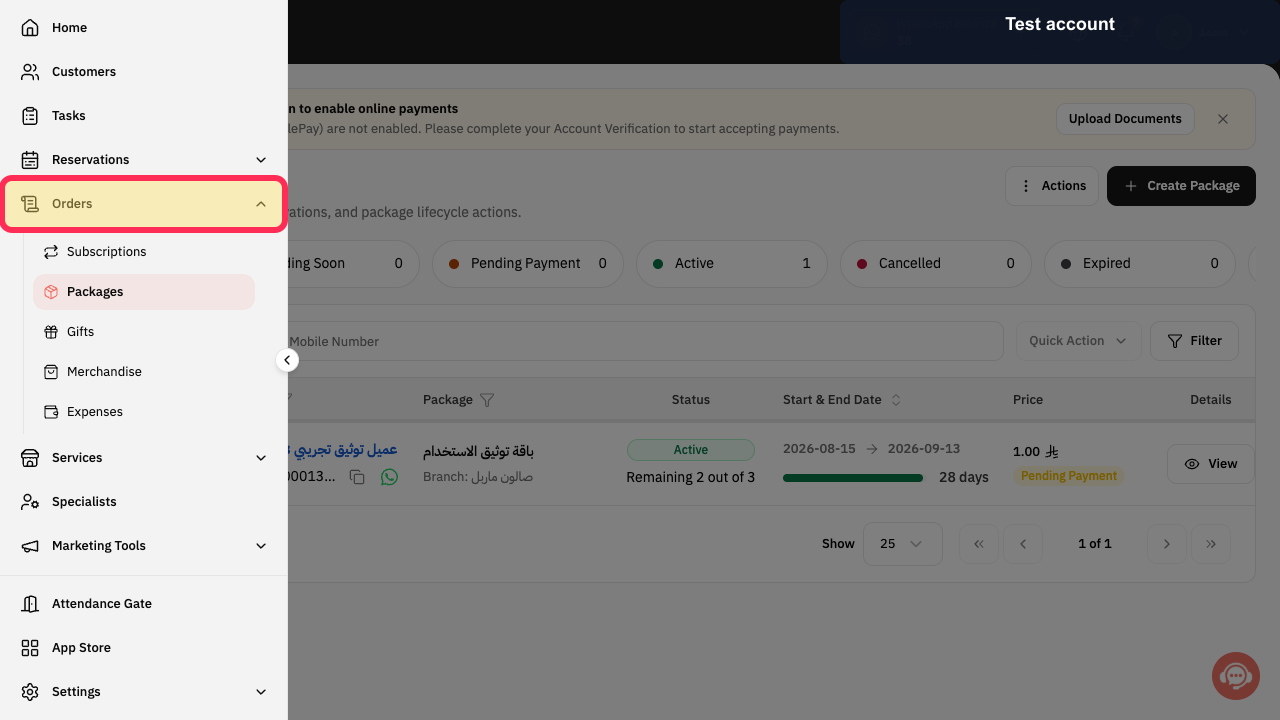
From the sidebar, select Orders.
The Orders area opens.
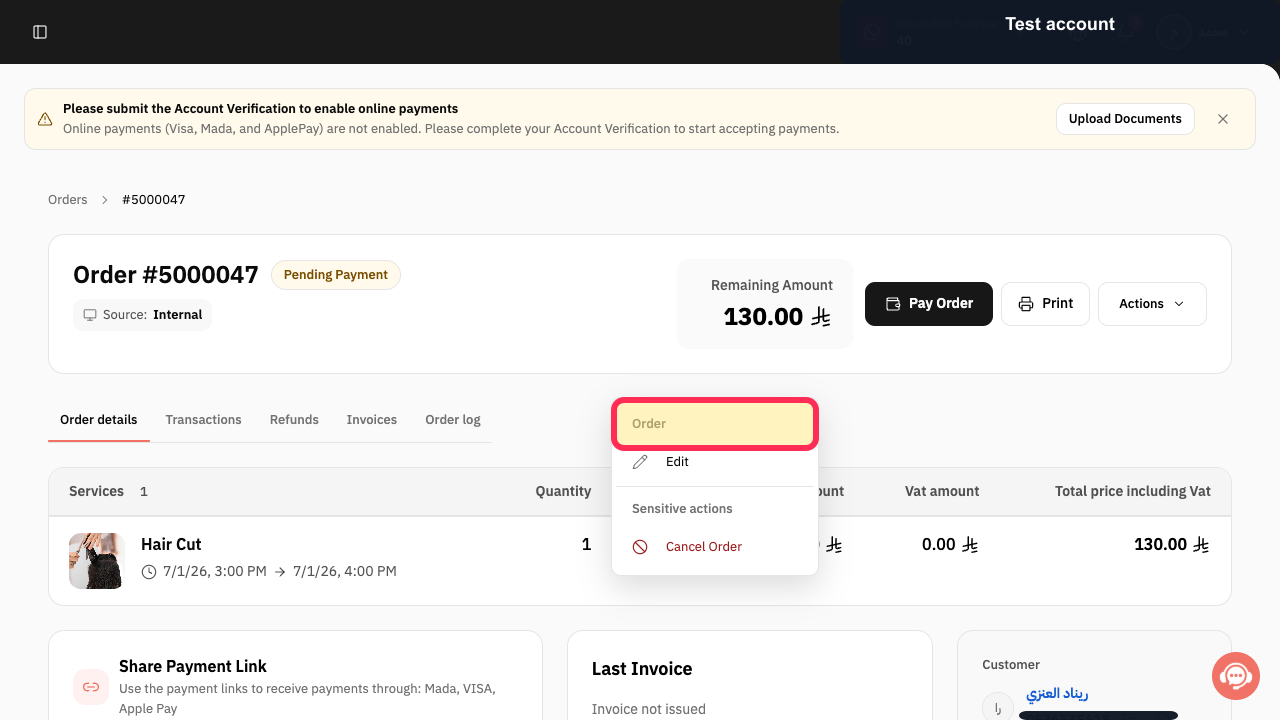
Open the order linked to the invoice you want to void.
The selected order opens and its invoice actions are available.
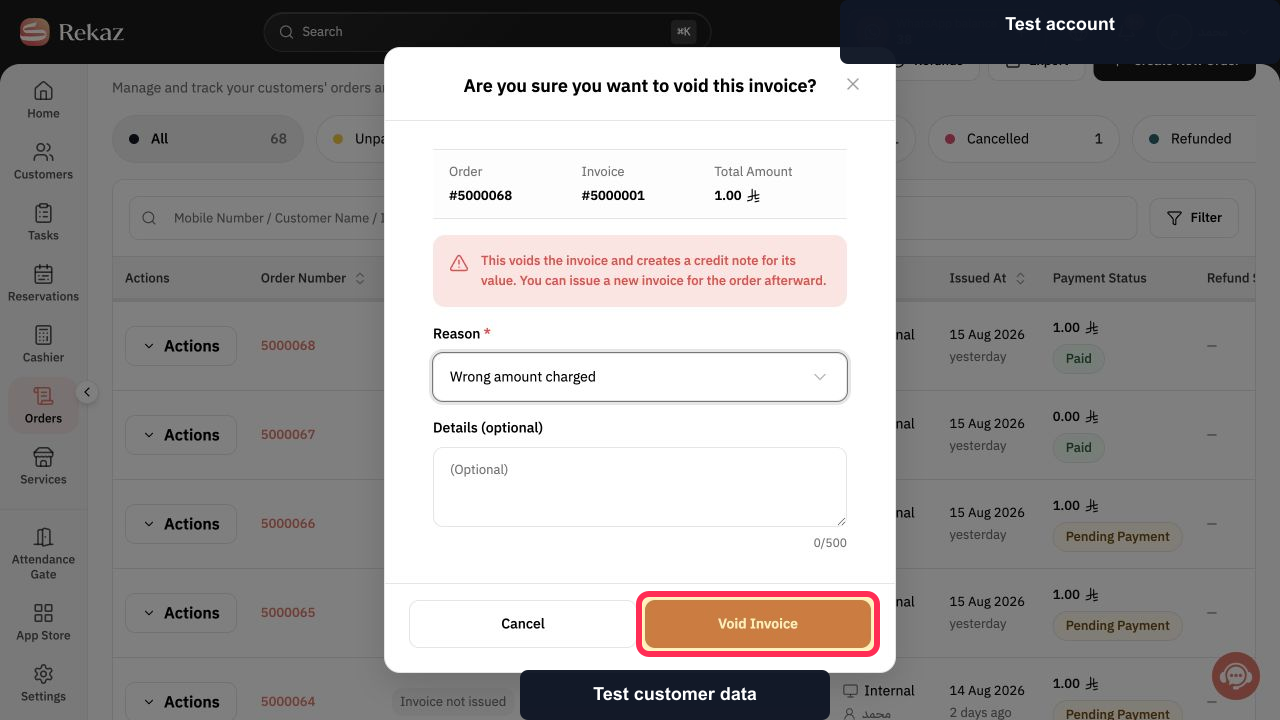
Select Void Invoice.
A cancellation-reason option is displayed.
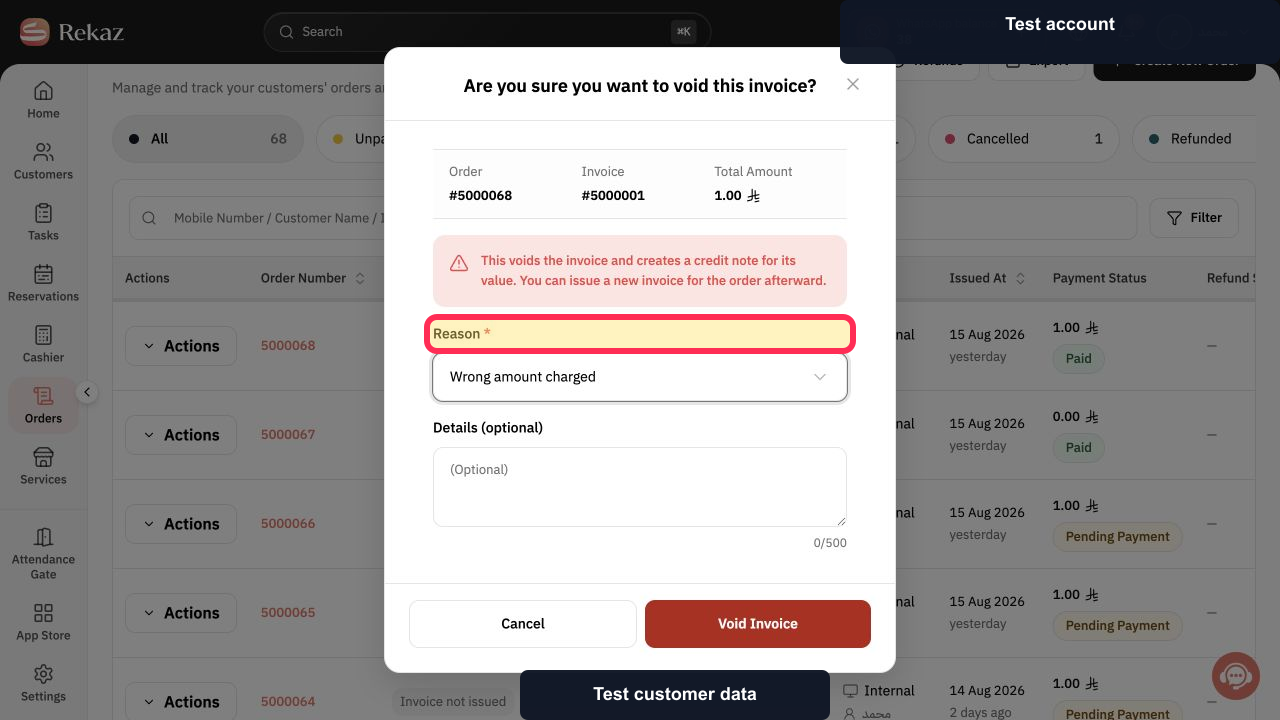
Enter the required reason in Reason * before voiding the invoice.
The invoice-void reason is entered.
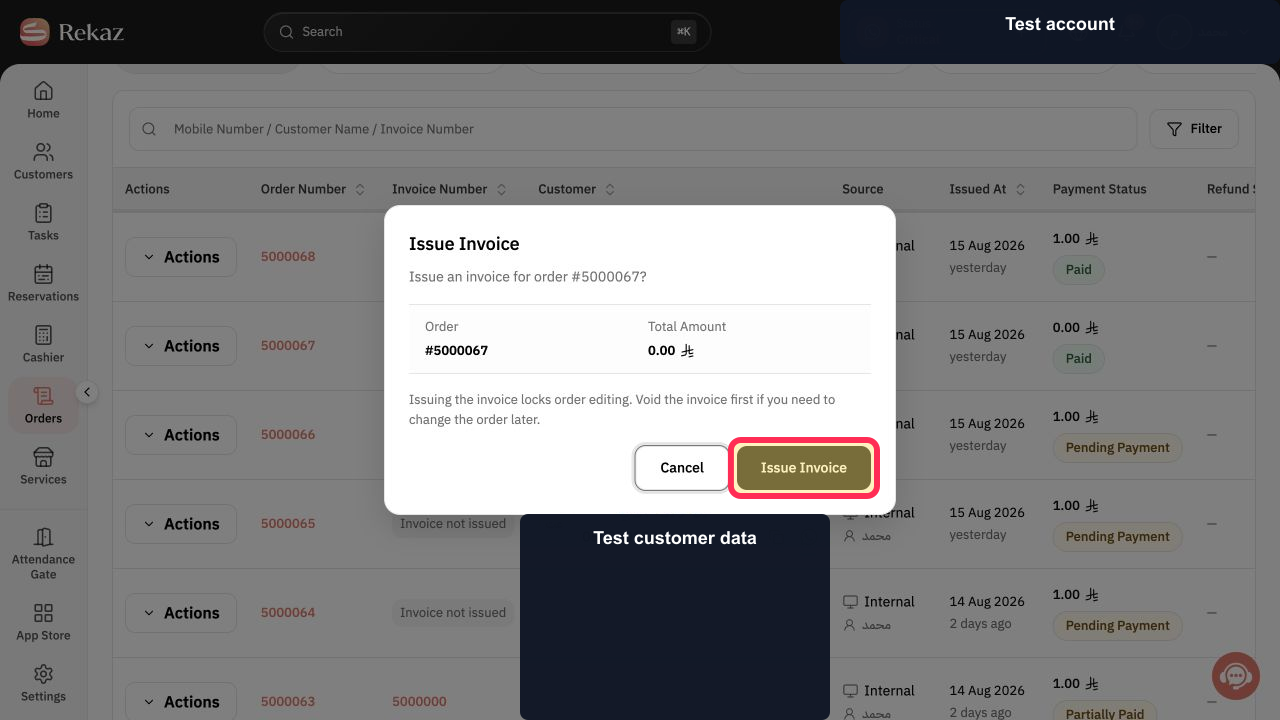
After completing the required order changes, select Issue Invoice and confirm the action.
The replacement invoice is submitted for issuance.
Illustrated guide
Step 1: Select Orders from the sidebar.
Step 2: Open the order linked to the invoice.
Step 3: Select Void Invoice on the order.
Step 4: Enter the reason for voiding the invoice.
Step 5: Issue the replacement invoice.
Important note
When you make changes to an order, you must void the current invoice before issuing a new one.
Related questions
How can I cancel an invoice and create a replacement invoice in Rekaz?
Where can I find the Void Invoice option in Rekaz?
What should I do before issuing a new invoice for an edited order in Rekaz?


