How do I refund an online payment to a customer in Rekaz?
To refund an online payment to a customer in Rekaz, open the relevant order and use Actions > Refund Invoice. You can process either a full refund or a partial refund, depending on the payment and amount you select.
Before processing the refund, review all details carefully. If the Rekaz interface has changed, confirm the visible button name before completing this financial action.
Steps
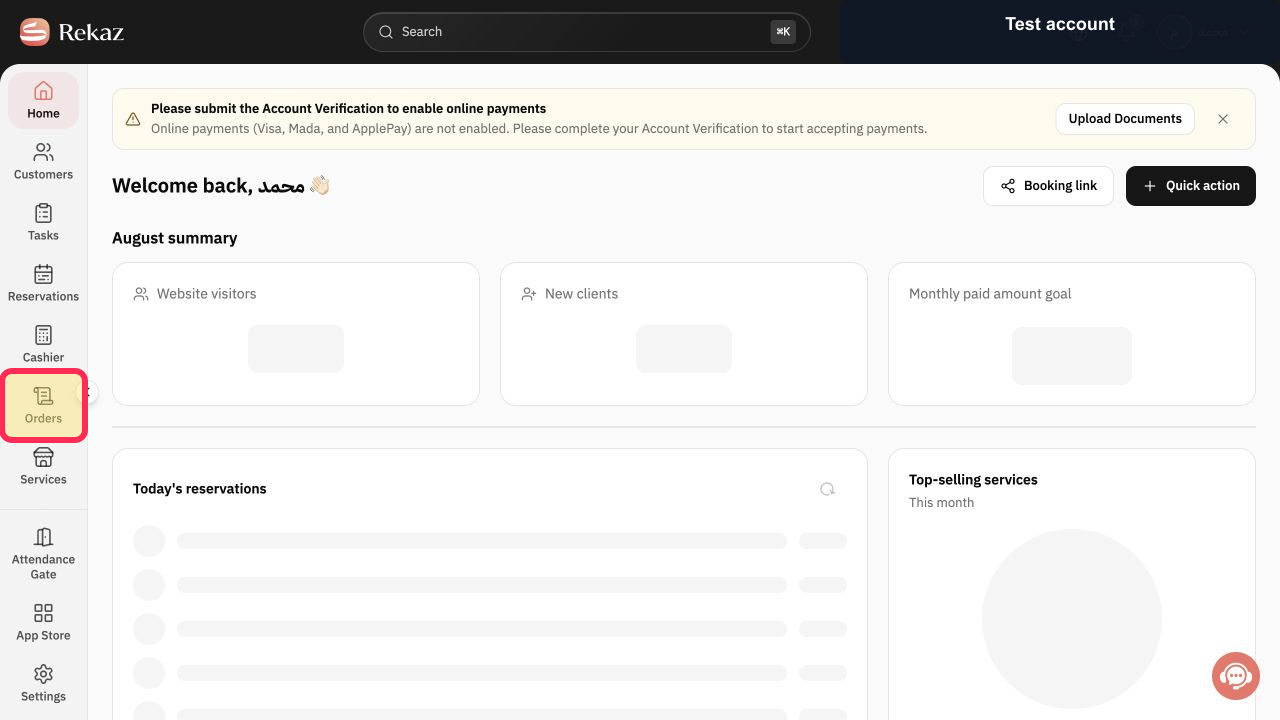
From the Home page, select Orders in the sidebar, then open the order you want to refund.
The selected order is open.
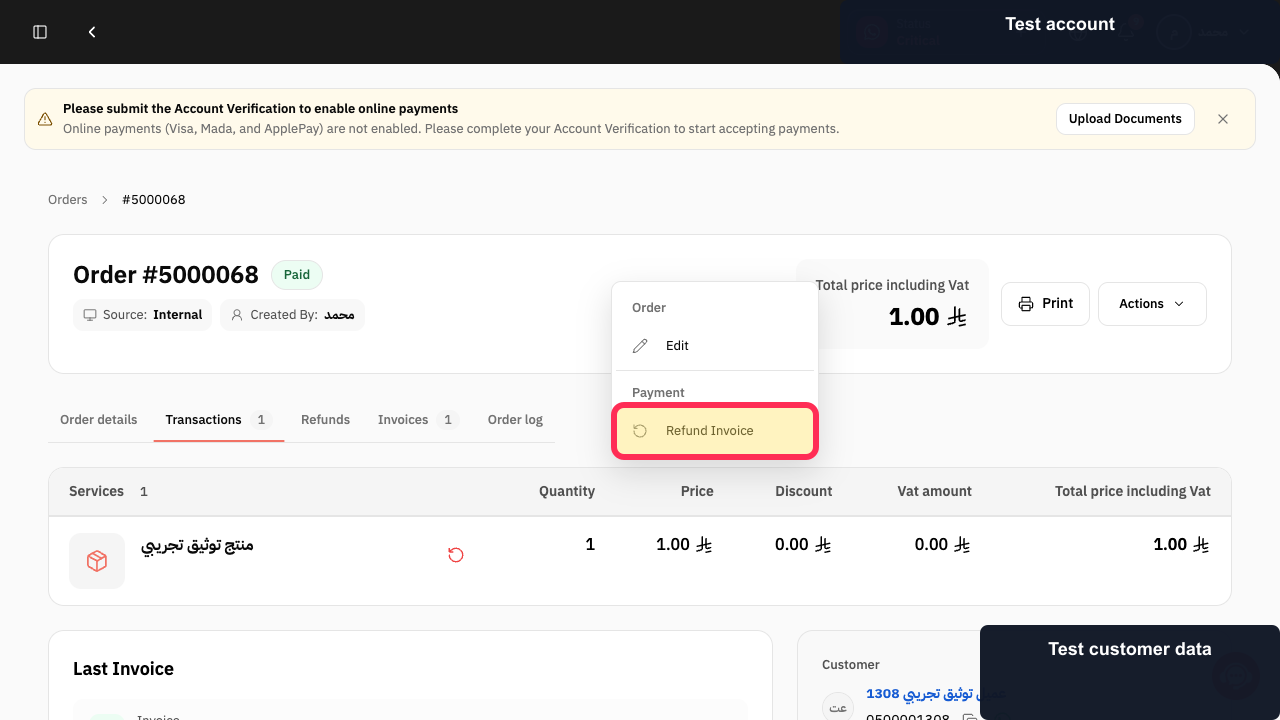
Select Actions, then select Refund Invoice.
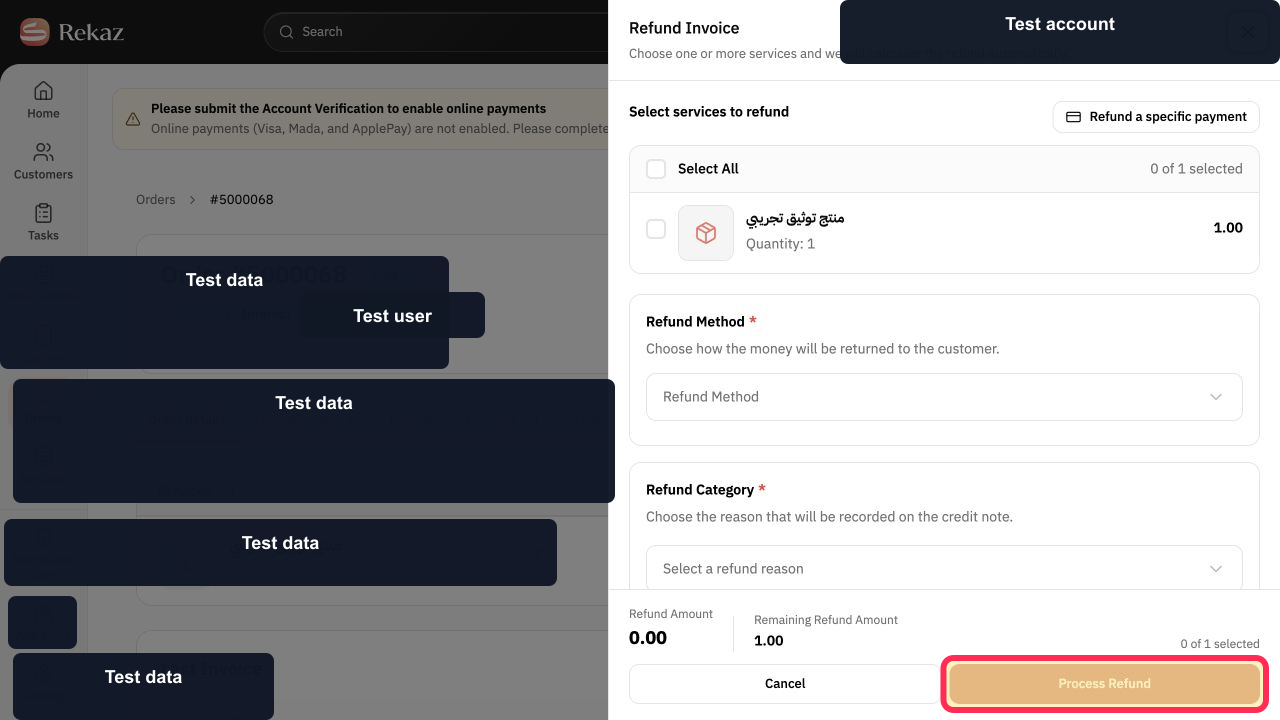
The refund screen opens.
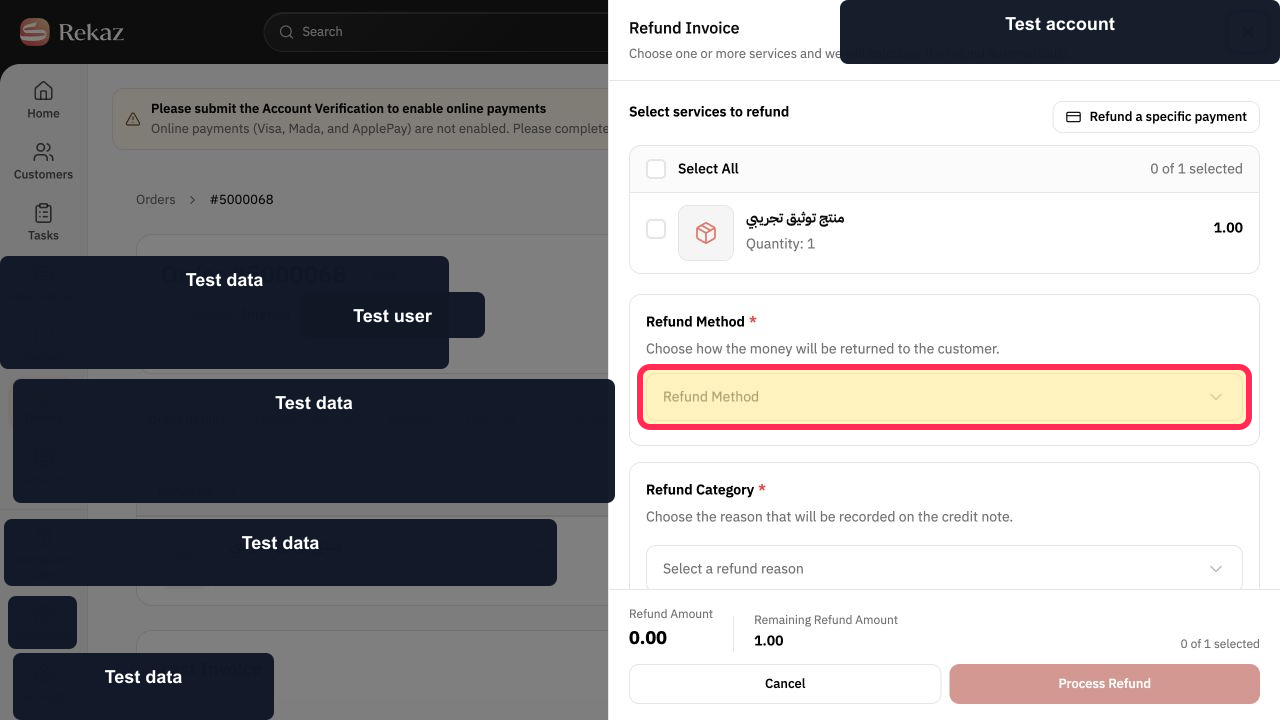
For a full refund, select the service, Refund Method, and refund reason.
The full-refund details are selected.
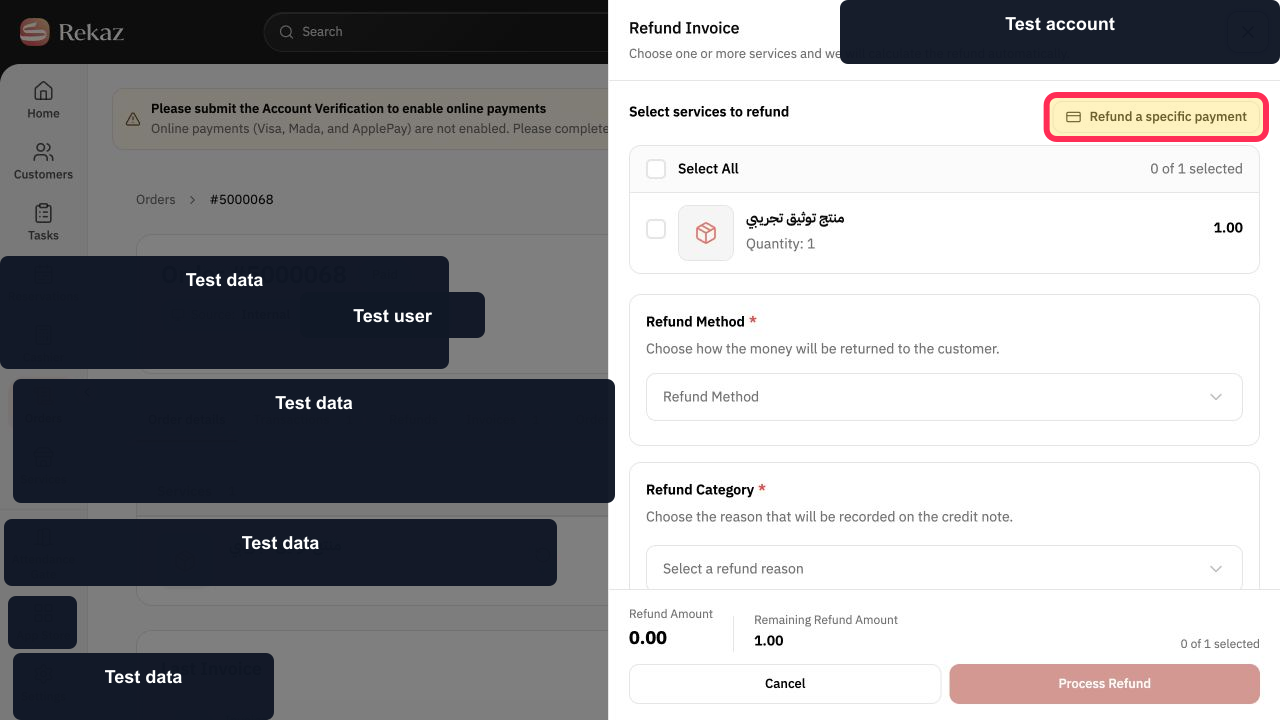
For a partial refund, select Refund a specific payment, then choose the payment and enter the amount to return.
The specific-payment refund path opens.
Review the refund details, then select Process Refund.
The refund is submitted for processing.
Illustrated guide
Step 1: Open the order you want to refund from Orders.
Step 2: Open Refund Invoice from the order Actions menu.
Step 3: Select the service, Refund Method, and reason for a full refund.
Step 4: Open the partial-refund payment path.
Step 5: Review the details and process the refund.
Important notes
This uses the same documented refund flow as refunding an order amount to a customer.
If the Rekaz interface changes, check the visible button name before completing any financial or final action.
Related questions
Where can I find the option to refund an online payment to a customer in Rekaz?
What are the correct steps to refund an online payment to a customer in Rekaz?
How do I process a full or partial order refund in Rekaz?


