How do I set a service provider’s coverage area in Rekaz?
To set a service provider’s coverage area in Rekaz, open the provider’s profile, go to the location and coverage-area section, enable coverage, and add the areas they serve. You can enter a Delivery fee for an area when needed.
Review each area and its fee before saving. Repeat the area-addition process if the provider serves more than one area.
Steps
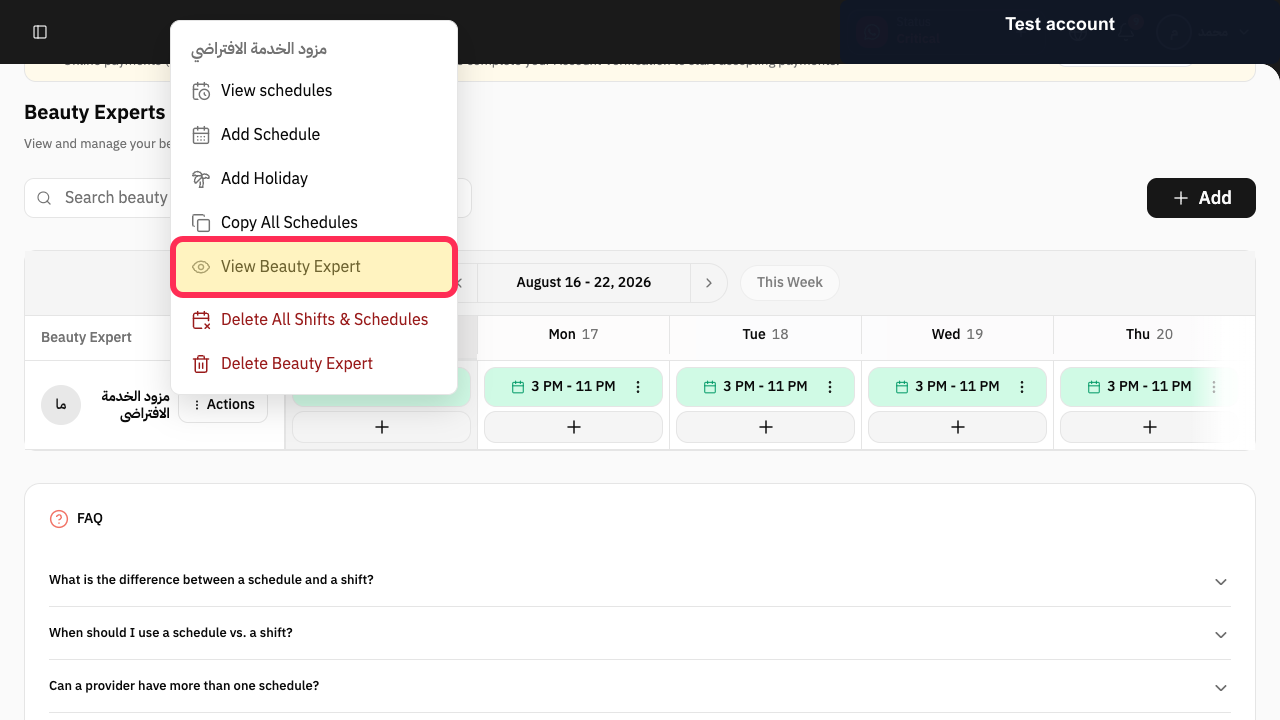
Open Beauty Experts, select Actions for the provider, and choose View Beauty Expert.
The provider profile opens.
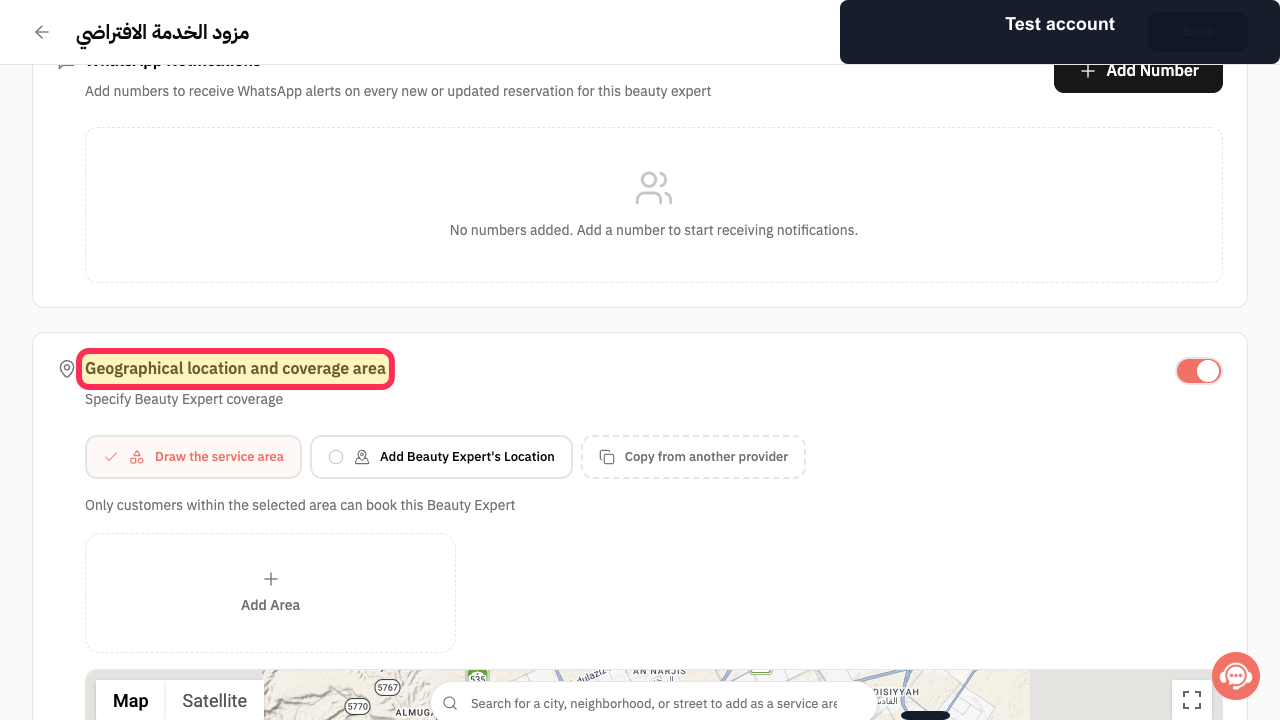
Scroll to Geographical location and coverage area and enable the switch.
Coverage controls and the map become active.
Select Draw the service area.
The service-area drawing mode is selected.
Search for a city, neighborhood, or street, or select Add Area to draw the service area on the map.
The area can be selected or drawn.
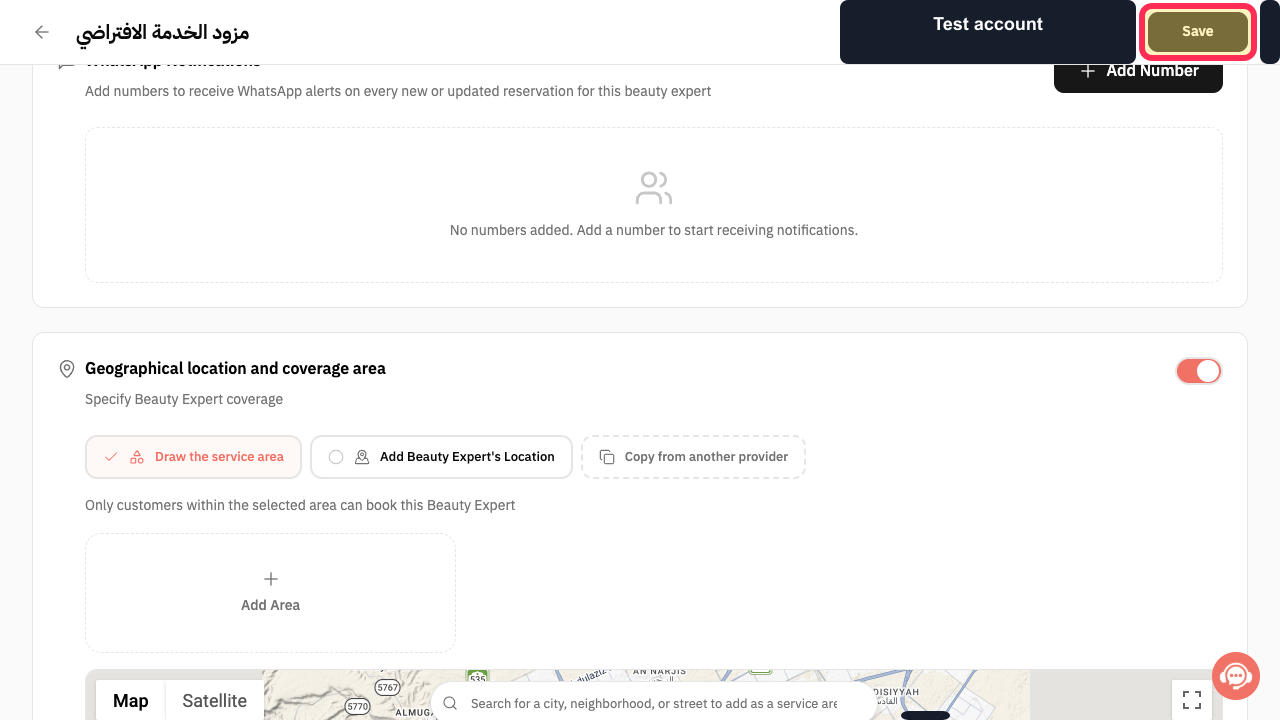
Review the coverage and select Save.
The provider coverage settings are submitted.
Illustrated guide
Step 1: Open the Beauty Expert profile.
Step 2: Enable geographical coverage for the provider.
Step 3: Choose Draw the service area.
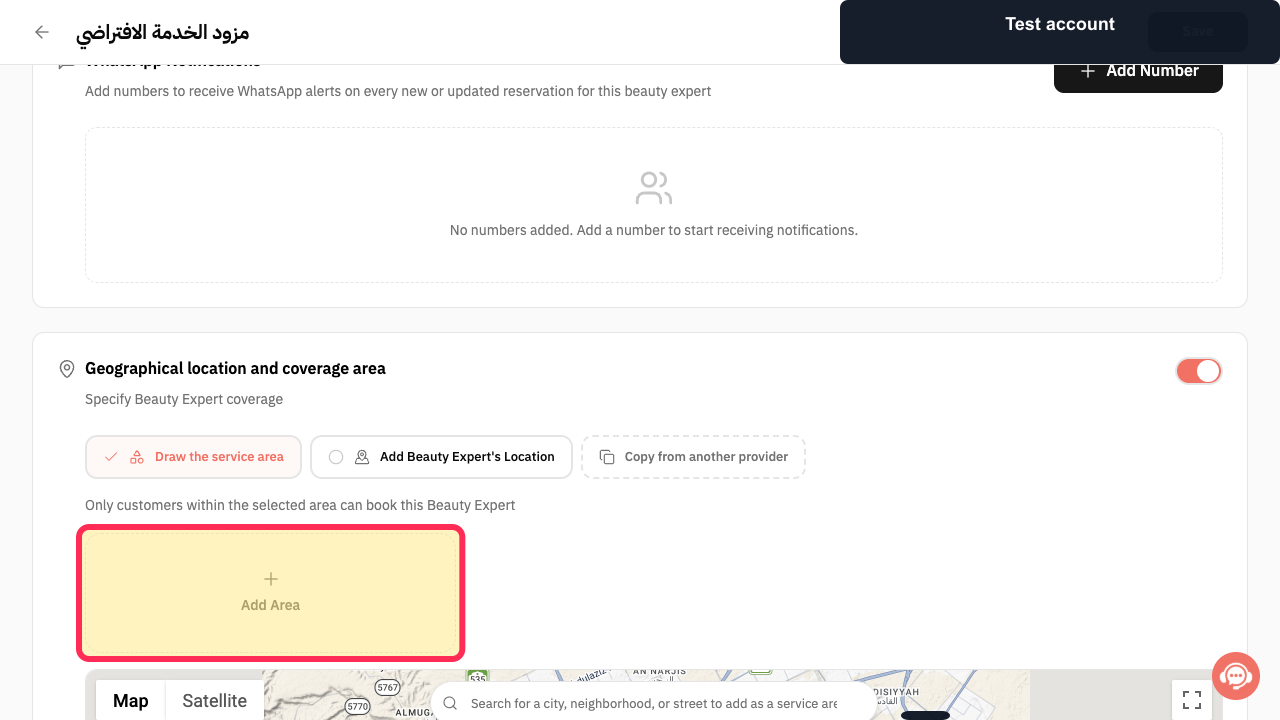
Step 4: Search for or draw a service area.
Step 5: Save the provider coverage area.
Important notes
Check each area and its Delivery fee before you save.
If the service provider covers multiple areas, add each area separately.
Related questions
How do I set a specialist’s service area in Rekaz?
Where do I add a staff member’s coverage area in Rekaz?
How do I link a service provider to an area in Rekaz?


