How do I add buffer time between bookings in Rekaz?
You can add buffer time between bookings in Rekaz by opening the reservation service, going to Beauty Experts & Schedules, and enabling the buffer option. This can leave time for cleaning, preparation, or handover between appointments.
The buffer changes the booking slots shown to customers. This verified example uses a 15-minute buffer; choose the duration that fits your operation.
Steps
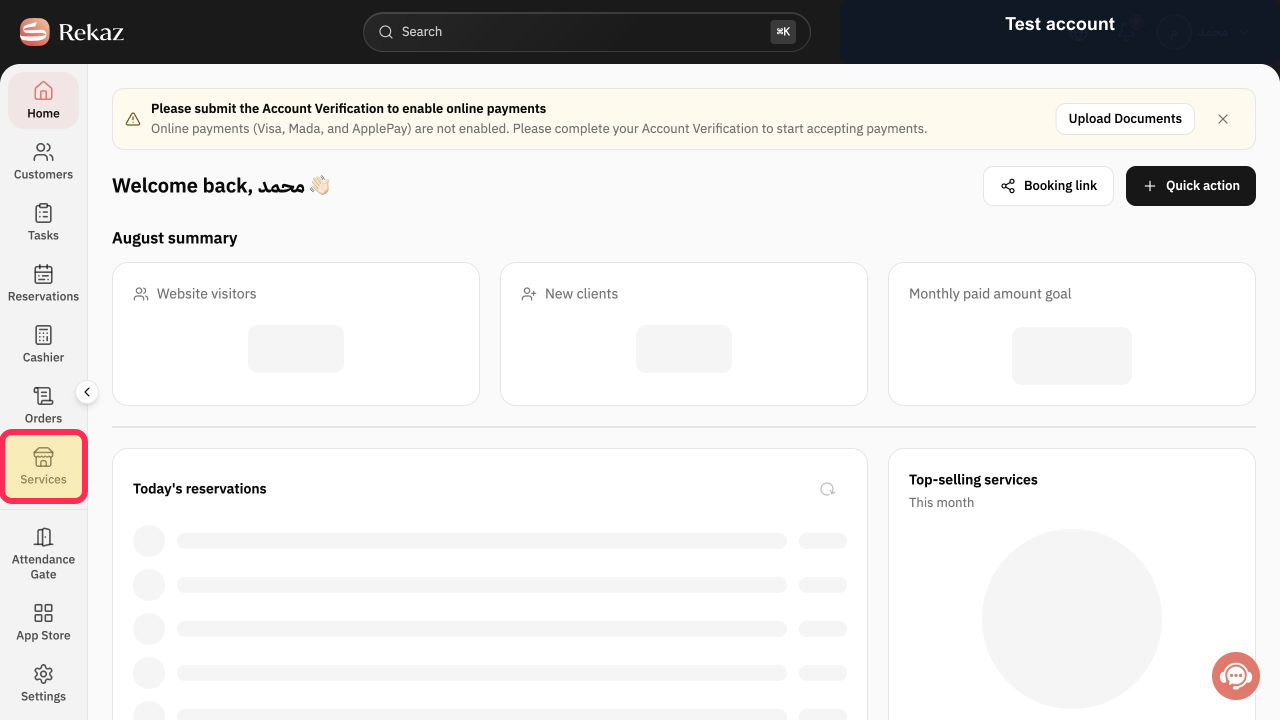
From the signed-in Rekaz sidebar, select Services.
The Services page opens.
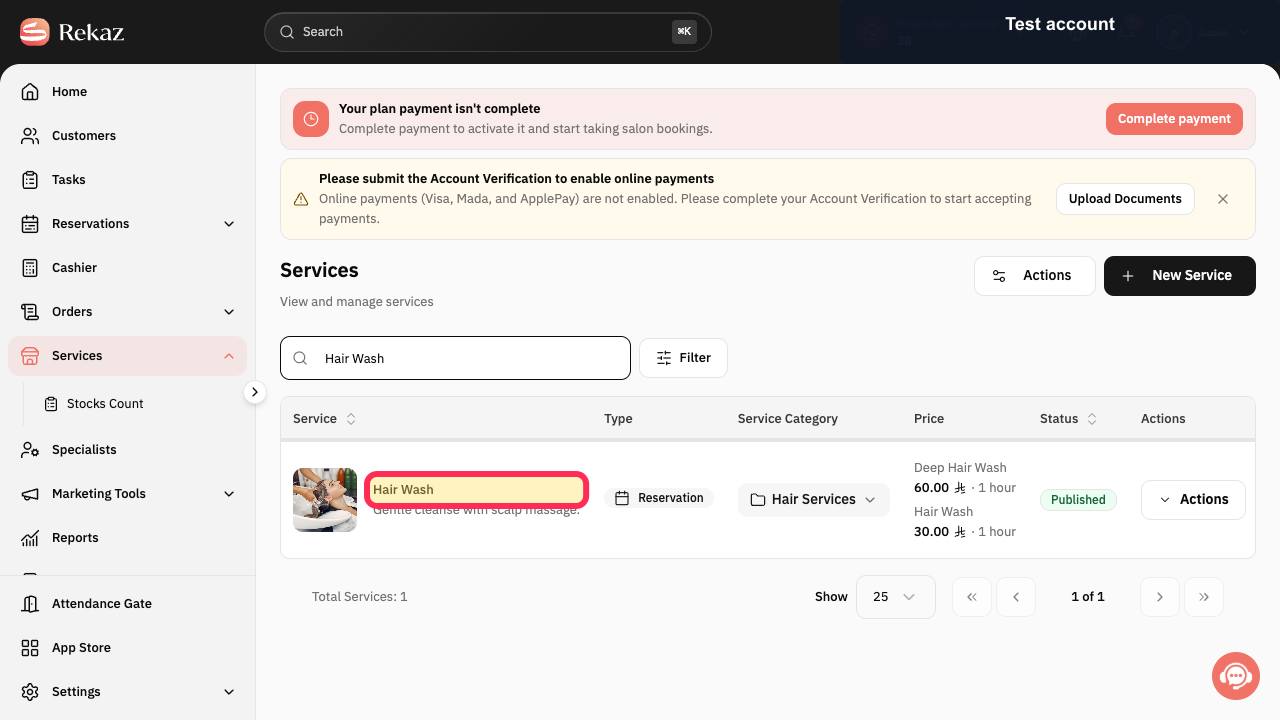
Search for and select the reservation service you want to edit. This guide uses Hair Wash as the example service.
The selected reservation service opens for editing.
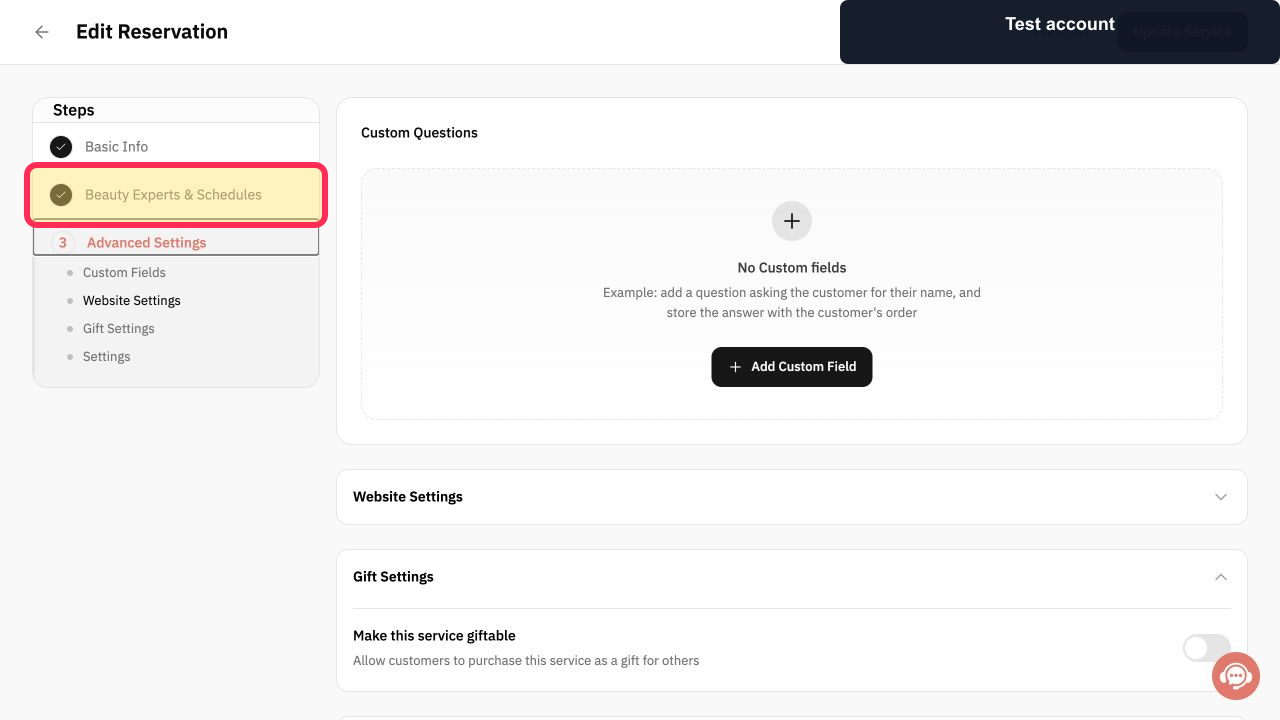
In the service editor, select Beauty Experts & Schedules.
The Beauty Experts & Schedules step opens.
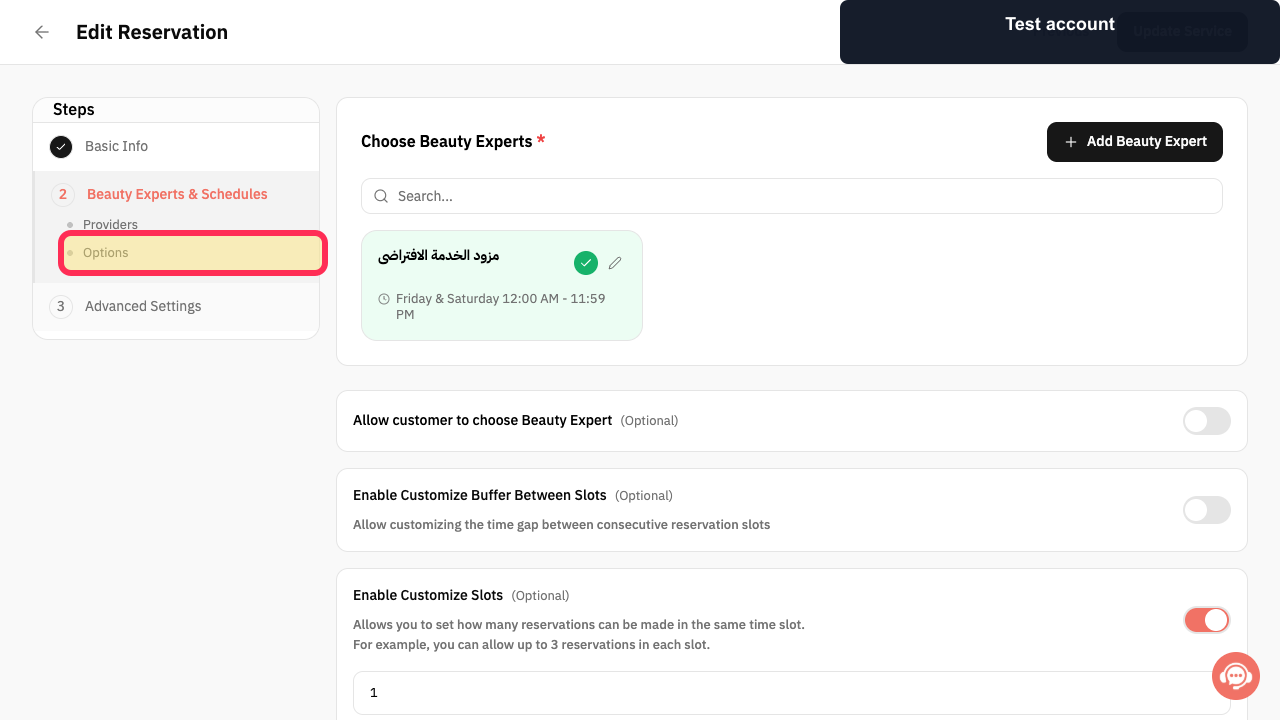
Select Options under Beauty Experts & Schedules.
The booking options for the service are displayed.
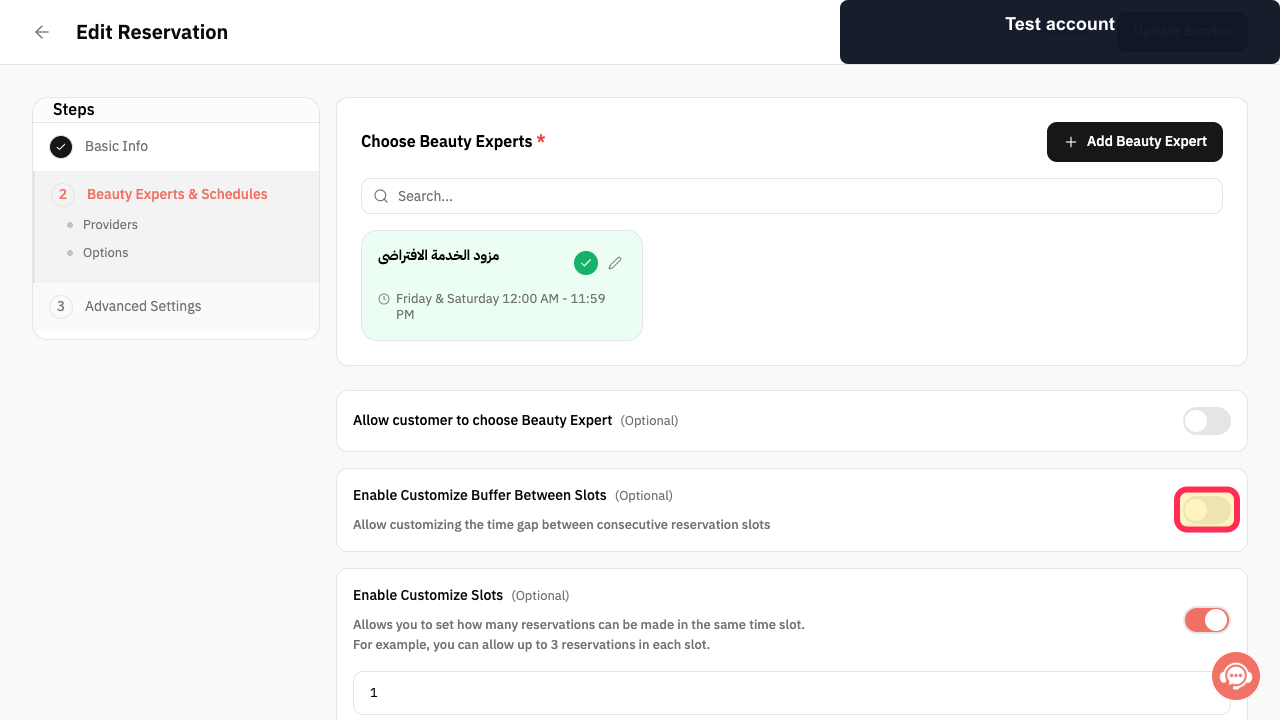
Turn on Enable Customize Buffer Between Slots.
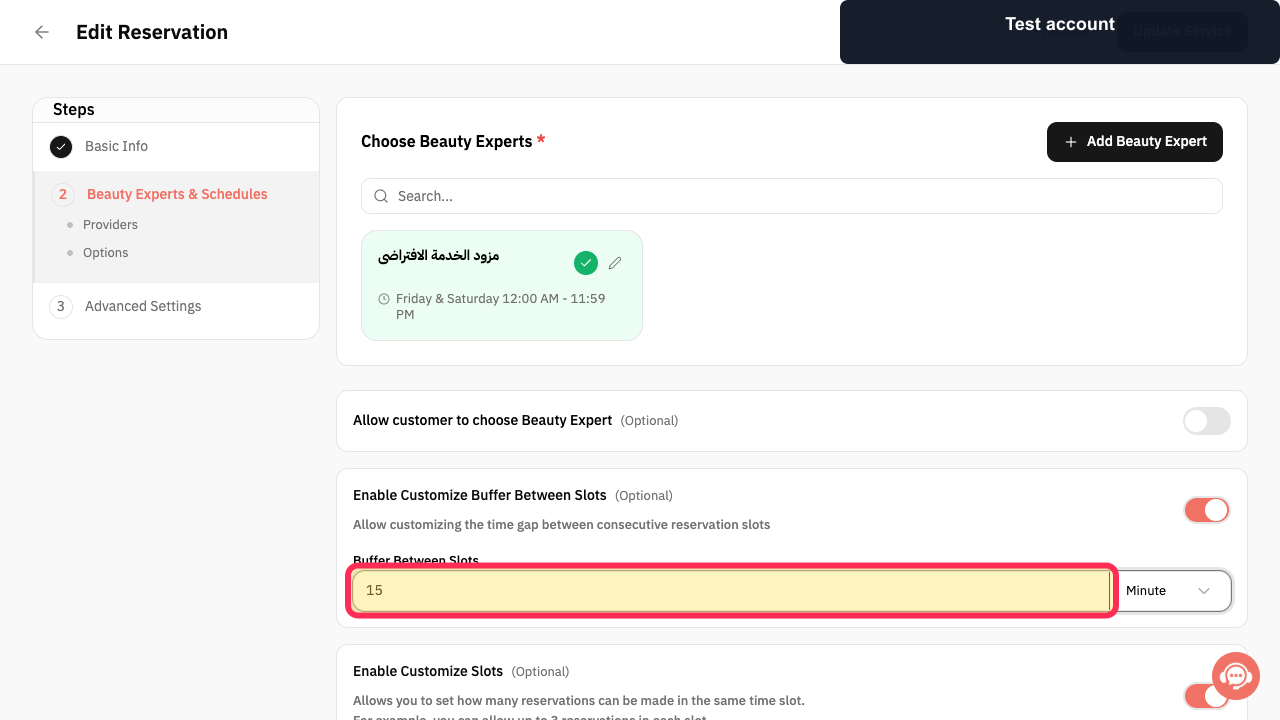
The Buffer Between Slots field appears.
Enter the required buffer and choose its time unit. In this example, enter 15 and keep Minute selected.
The service shows a 15-minute buffer between slots.
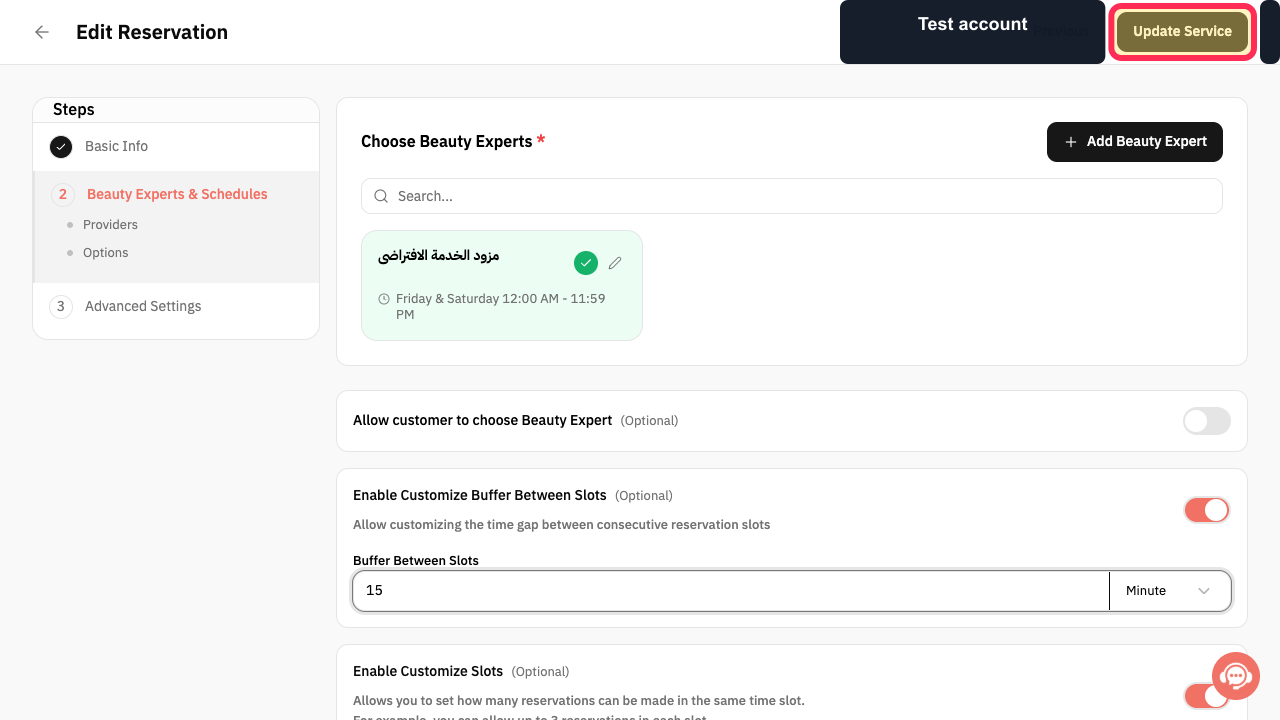
Review the setting, then select Update Service.
The service is saved with the buffer applied.
Illustrated guide
Step 1: Open Services from the Rekaz sidebar.
Step 2: Select the reservation service to edit; Hair Wash is used in this example.
Step 3: Open Beauty Experts & Schedules in the service editor.
Step 4: Open the service's booking Options.
Step 5: Enable a custom buffer between reservation slots.
Step 6: Set the buffer duration to 15 minutes in this example.
Step 7: Update the service to save the buffer setting.
Important notes
The buffer period changes the booking slots available to customers.
Use a buffer duration that is long enough for preparation, cleaning, or handover, but avoid making it longer than necessary because it can reduce available booking times.
Related questions
How do I add a gap between appointments in Rekaz?
How do I add cleaning time after each booking in Rekaz?
Where can I set a booking buffer in Rekaz?


