How do I block part of a service provider’s schedule in Rekaz?
To block only part of a service provider’s day in Rekaz, add a holiday of type Break, turn off Full Day, and set the start and end times. This prevents new bookings during the selected period.
Use Break for a short period when the service provider is unavailable, such as a rest period or another commitment. Review the date and times carefully before saving.
Steps
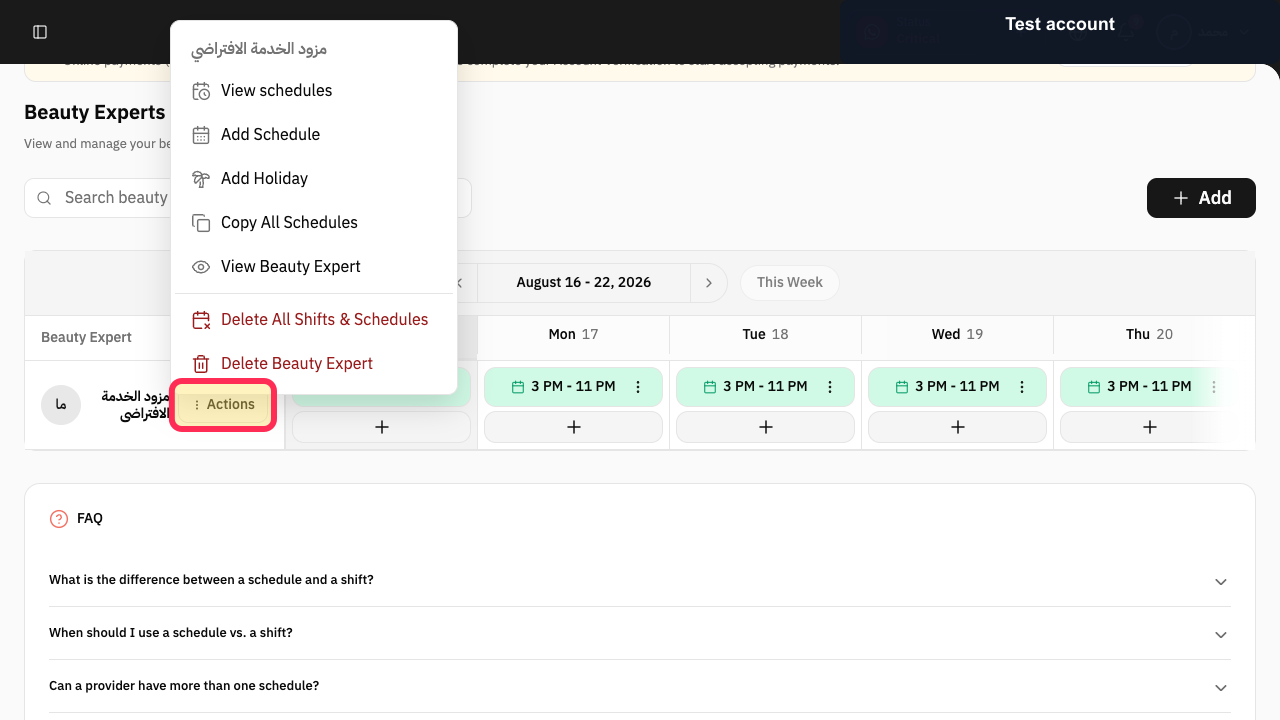
Open Beauty Experts and select Actions beside the provider.
The provider Actions menu opens.
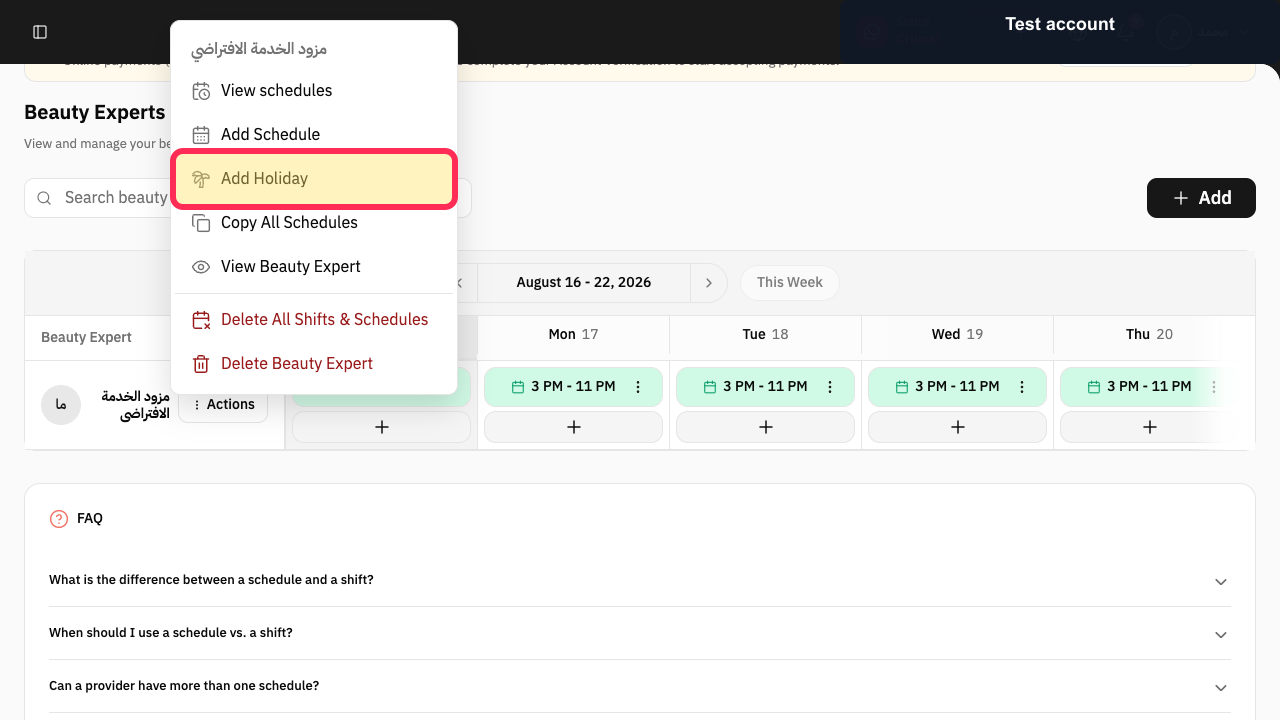
Select Add Holiday.
The Add Holiday dialog opens.
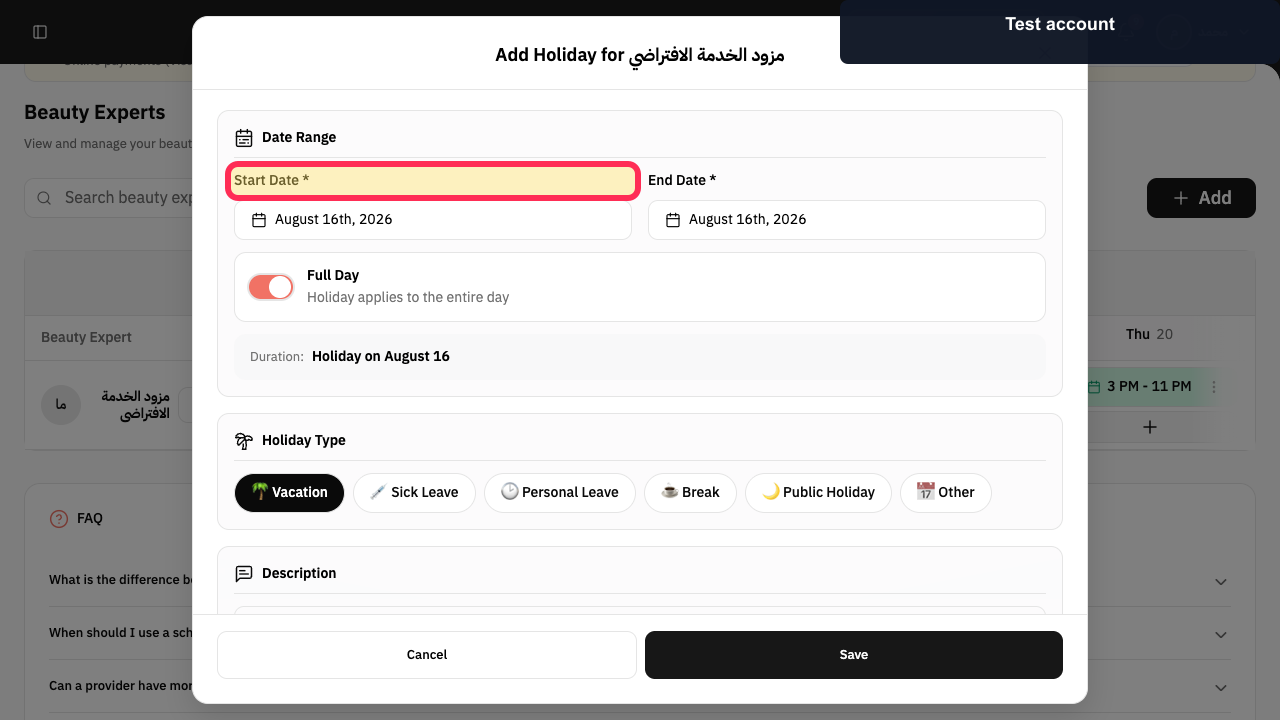
Set Start Date and End Date for the blocked period.
The holiday date range is configured.
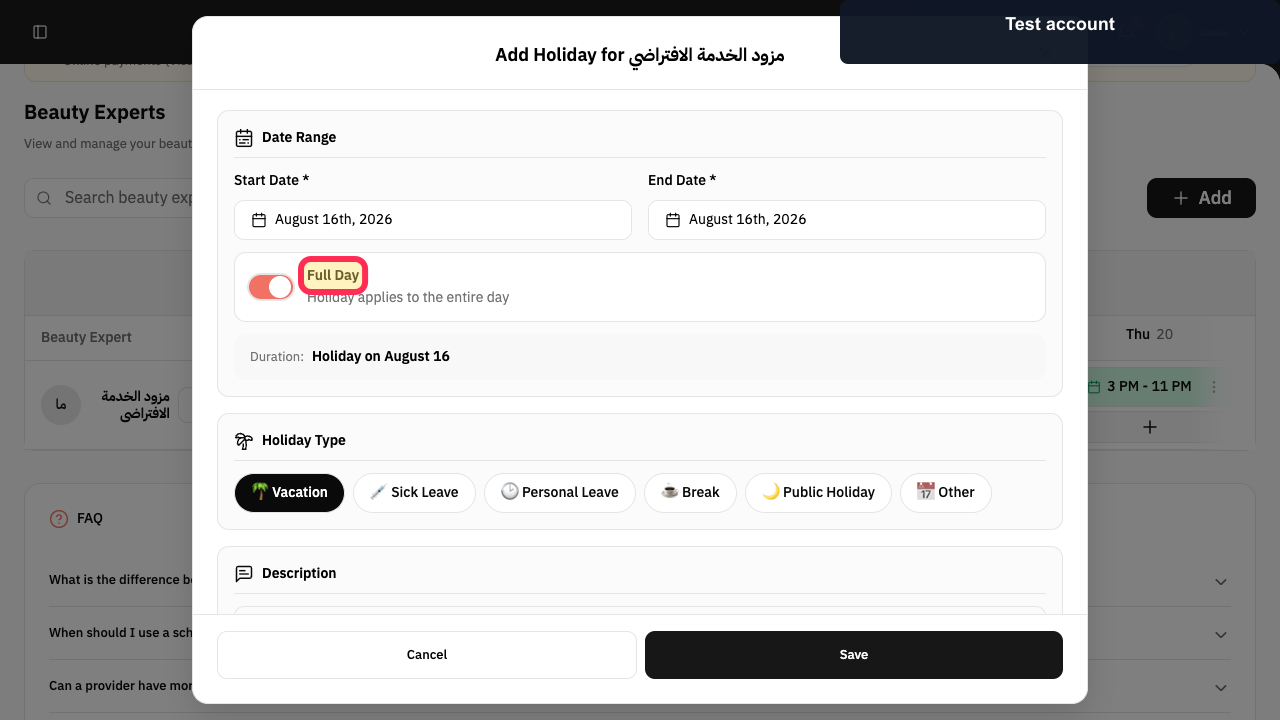
Disable Full Day so that only part of the day is blocked.
Start-time and end-time controls become available for a partial-day absence.
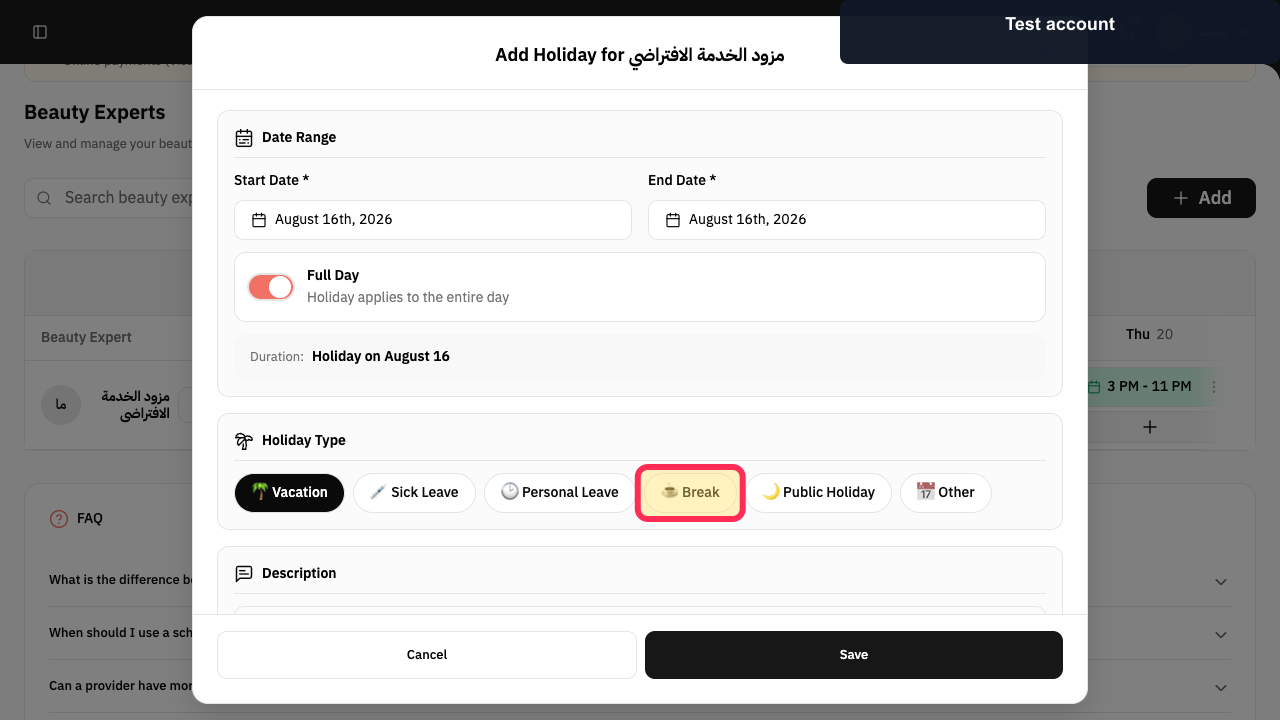
Choose Break as the Holiday Type and set the required start and end times.
The partial-day break is configured.
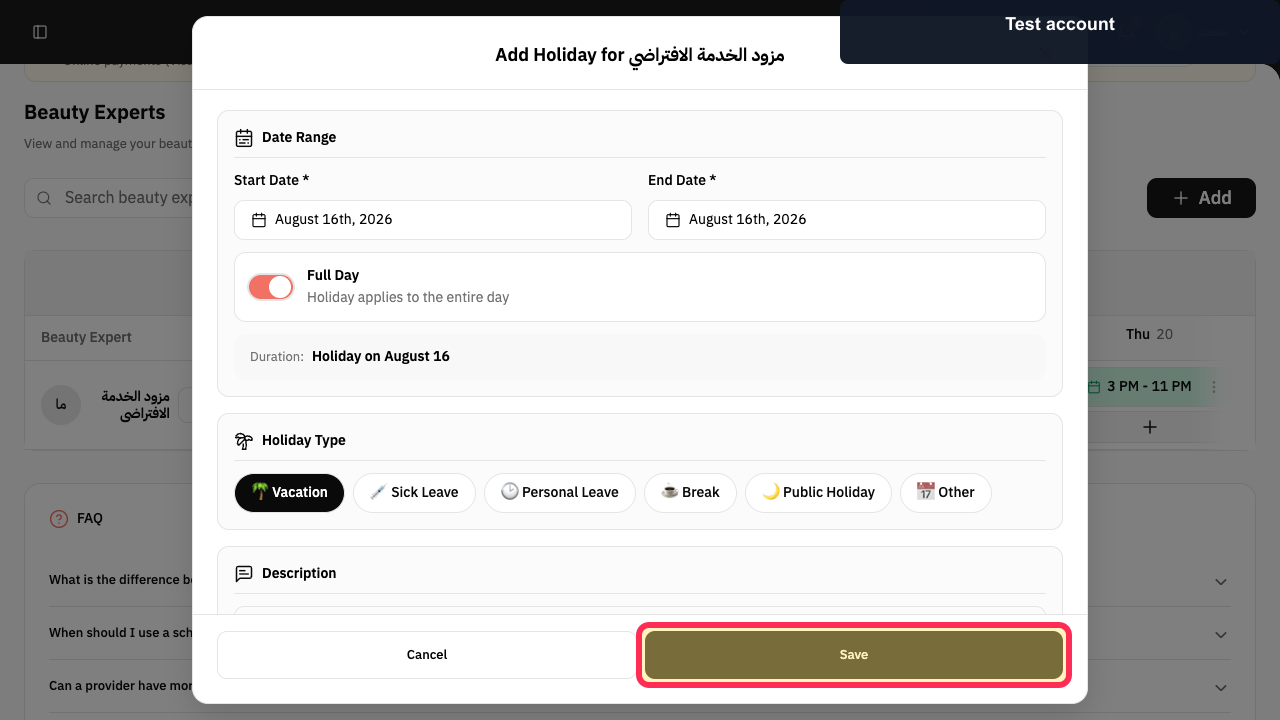
Optionally enter a description, then select Save.
The partial-day block is submitted.
Illustrated guide
Step 1: Open Actions for the provider.
Step 2: Open the provider holiday dialog.
Step 3: Set the blocked period's dates.
Step 4: Turn off Full Day for a partial-day block.
Step 5: Choose Break and set its times.
Step 6: Save the blocked schedule period.
Important notes
Choose Break when you need to block only part of a day, rather than record a full-day absence.
Check the date and times carefully before saving so that you do not block bookings outside the intended period.
Related questions
How do I block an hour in a specialist’s schedule in Rekaz?
How do I add a break that prevents bookings in Rekaz?
How do I block a specific time in the Rekaz calendar?


