How do I set a service provider’s working hours in Rekaz?
To set a service provider’s working hours in Rekaz, open the specialist’s working hours and edit the schedule. You can override the schedule for one day only or edit the entire schedule, then choose the schedule dates, working days, and start and end times.
Use an override for a one-day exception. For a temporary change, use Add Shift rather than changing the main schedule when possible.
Steps
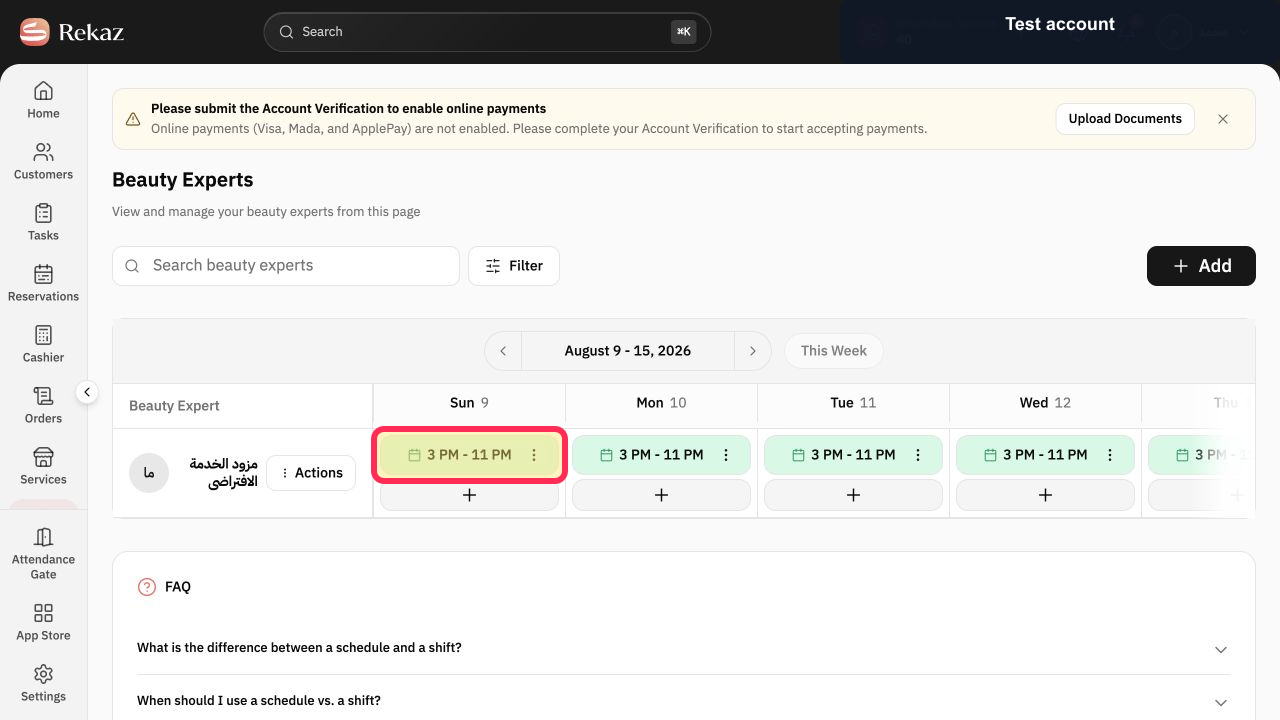
Open Beauty Experts and select the working-hours block for the day you want to change.
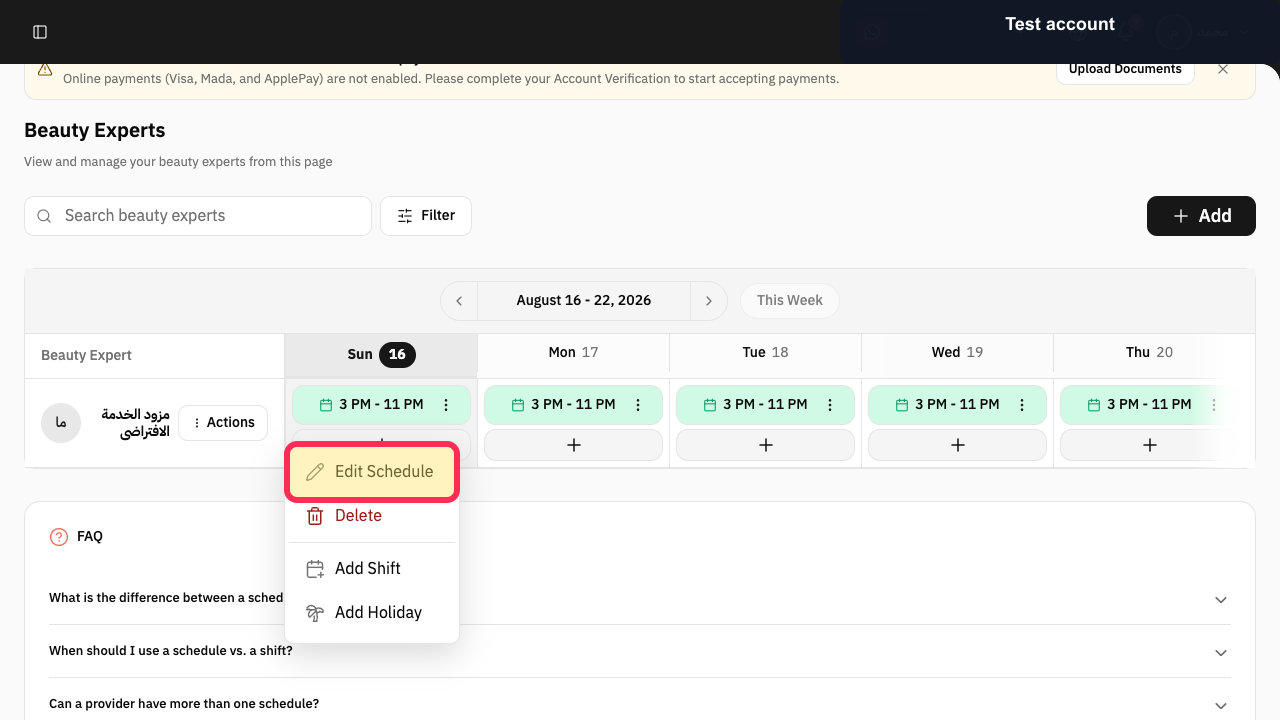
The schedule-block menu opens.
Select Edit Schedule.
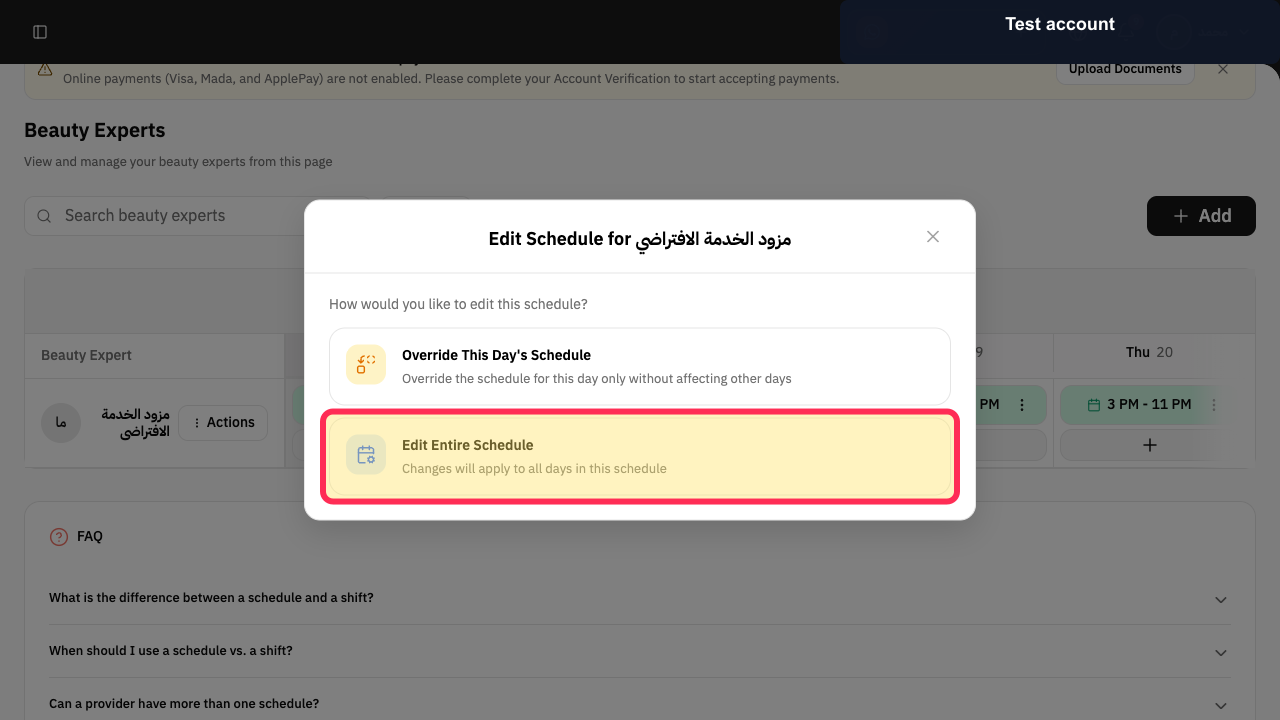
The schedule-edit scope dialog opens.
Select Override This Day's Schedule for one date, or Edit Entire Schedule for the recurring schedule.
The appropriate editor opens.
For an entire schedule, set Schedule Start Date and Schedule End Date as needed.
The schedule validity period is configured.
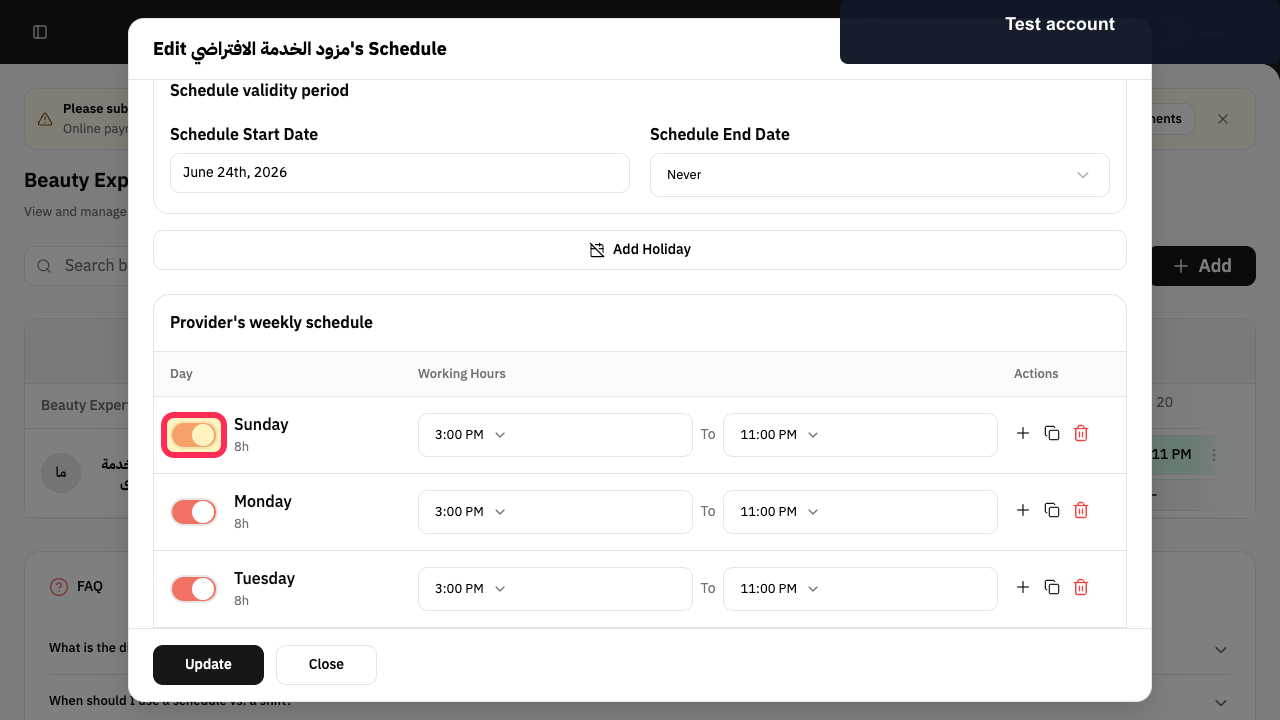
Enable the required working days.
Time controls are available for each enabled day.
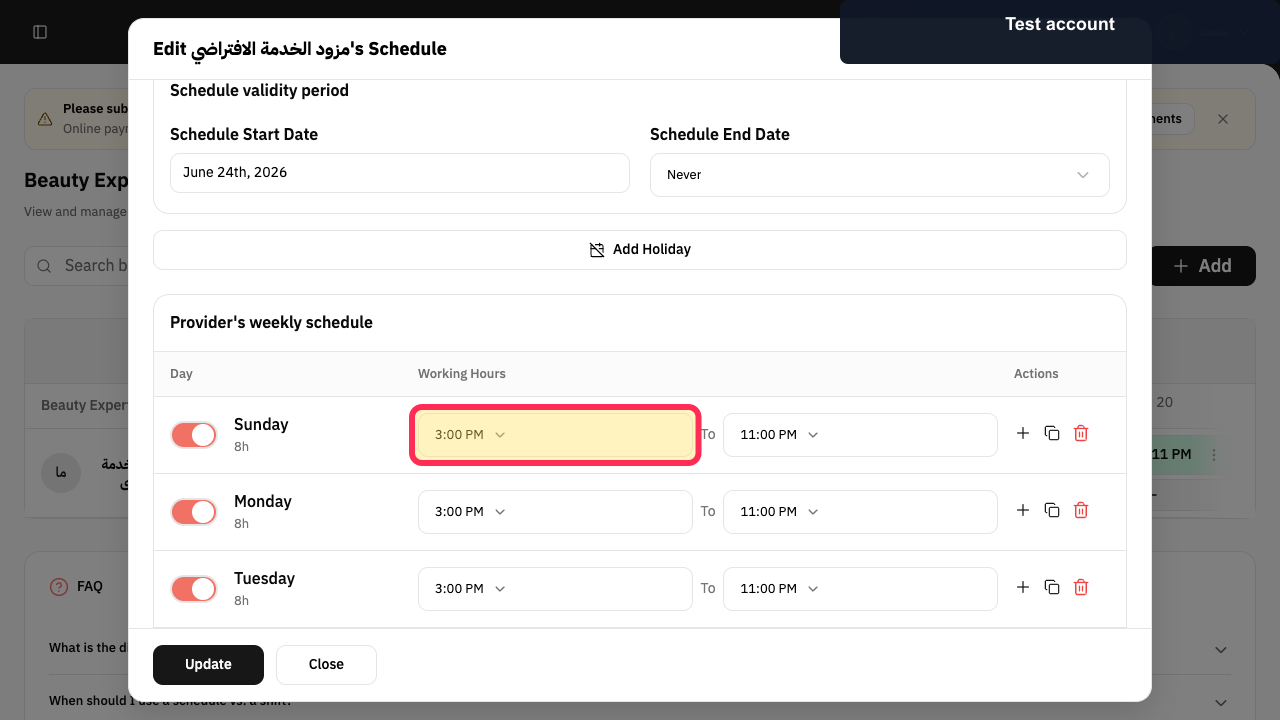
Set the start and end time for each enabled day.
The updated daily hours are displayed.
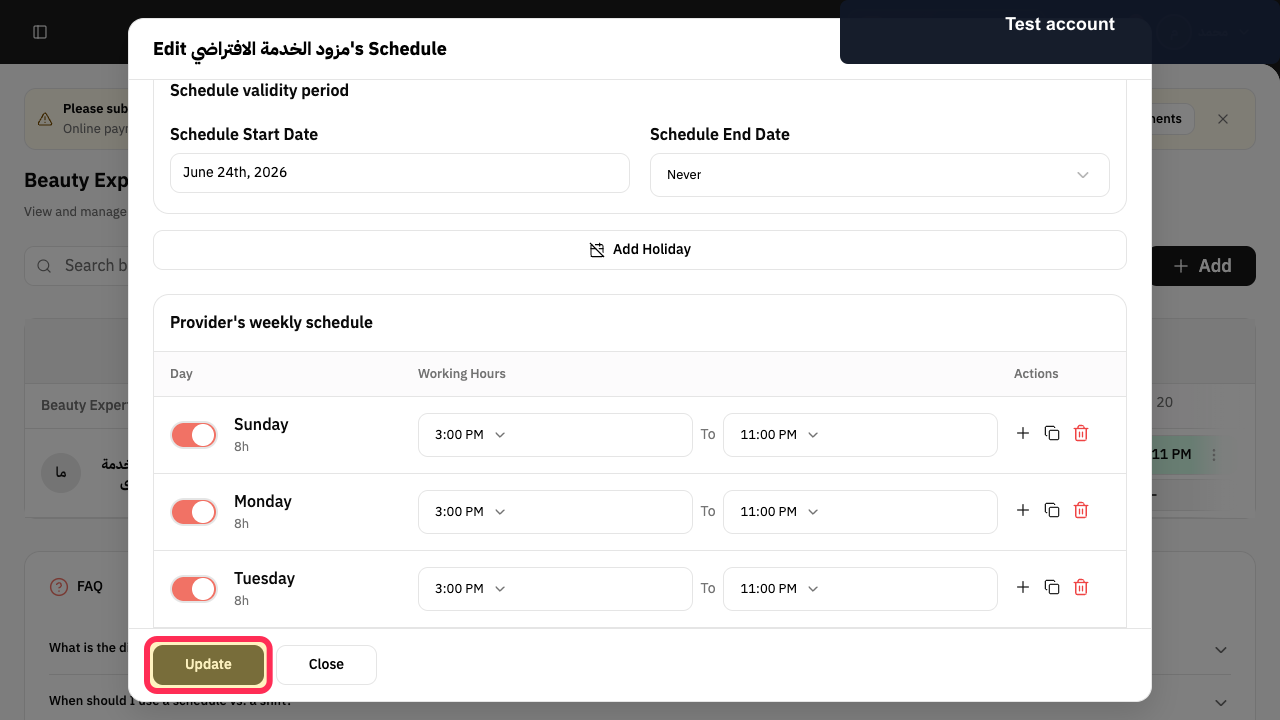
Select Update.
The schedule changes are submitted.
Illustrated guide
Step 1: Open the selected provider working-hours block.
Step 2: Choose Edit Schedule.
Step 3: Choose the schedule edit scope.
Step 4: Set the schedule validity period.
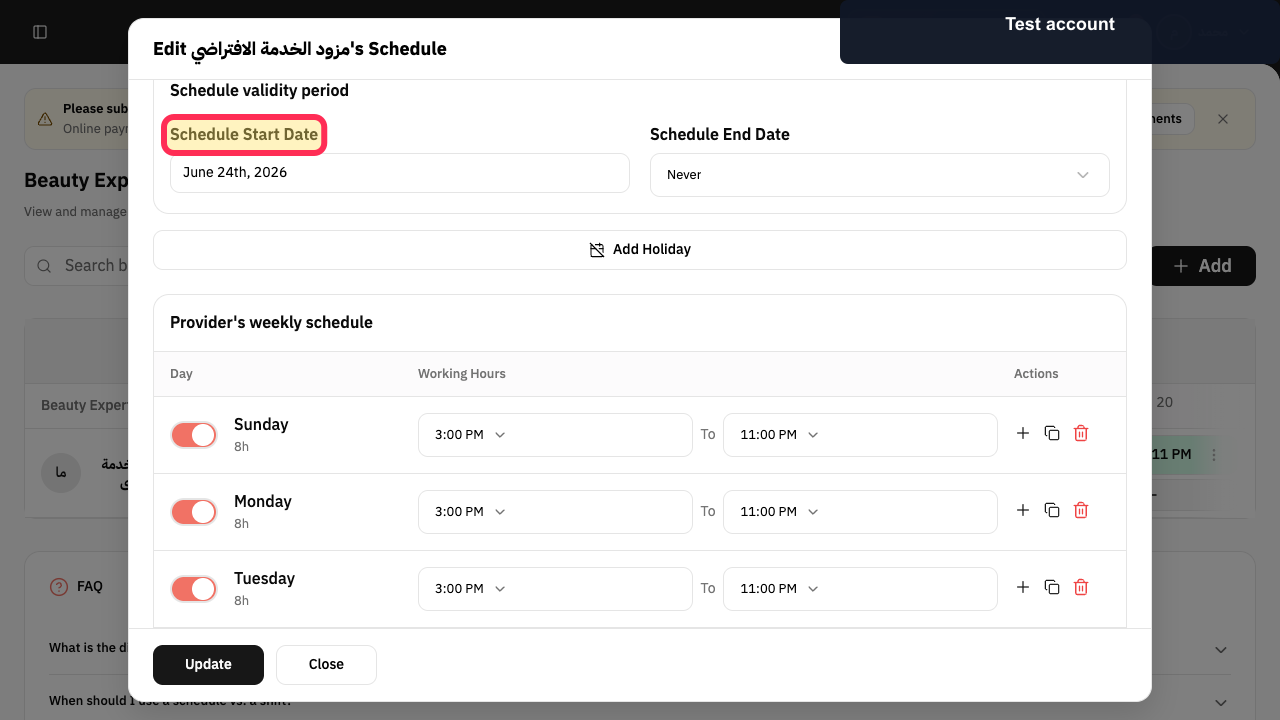
Step 5: Enable the provider's working days.
Step 6: Set the provider's start and end times.
Step 7: Update the provider's working hours.
Choose the right schedule option
Use **Override This Day's Schedule** when the change applies to one day only. Use **Edit Entire Schedule** when the change should apply to the full schedule.
Temporary changes and multiple periods
For a temporary change, use **Add Shift** instead of changing the main schedule unless the main schedule itself needs to be updated.
If needed, set more than one working period for a day.
Related questions
How do I change a specialist’s working hours in Rekaz?
How do I edit a service provider’s schedule in Rekaz?
How do I add a second working period on the same day in Rekaz?


