How do I filter reservations by status or date in Rekaz?
In Rekaz, you can filter the reservations list by status, Reservation Date, or service provider so that you can find a specific group of appointments without reviewing the entire list.
You can combine a status with a date and service provider filter for more precise results.
Steps
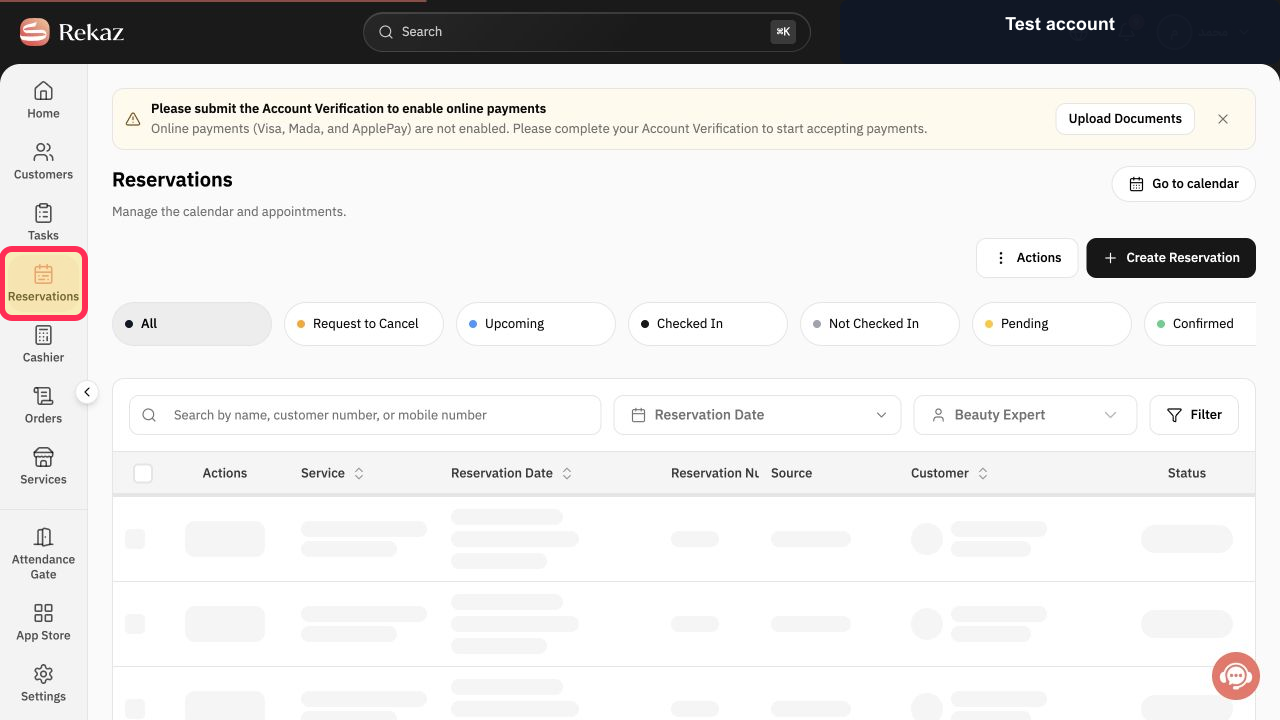
From the signed-in Rekaz dashboard, select **Reservations** from the sidebar.
The reservations list opens, with status options and filtering controls available.
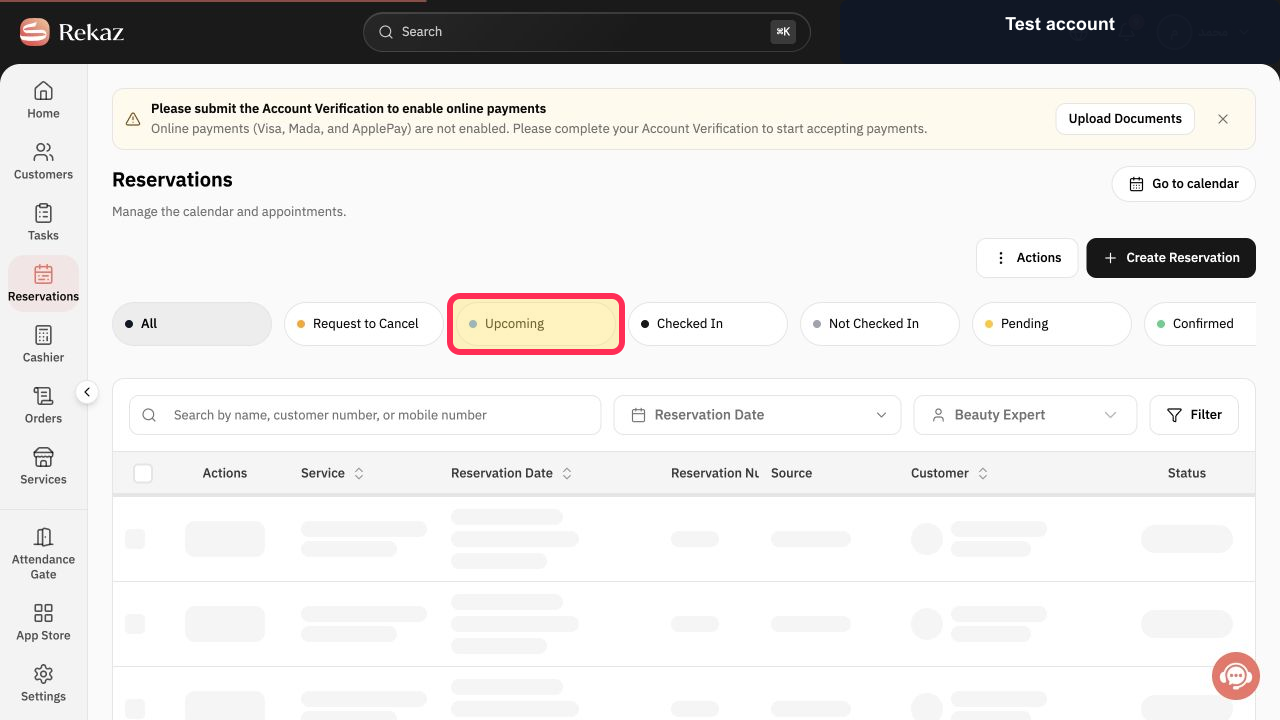
At the top of the list, select the status you want to view. For example, select **Upcoming**. You can also use All, Confirmed, Completed, or Canceled, depending on the reservations you need to find.
The list updates to show reservations with the selected status.
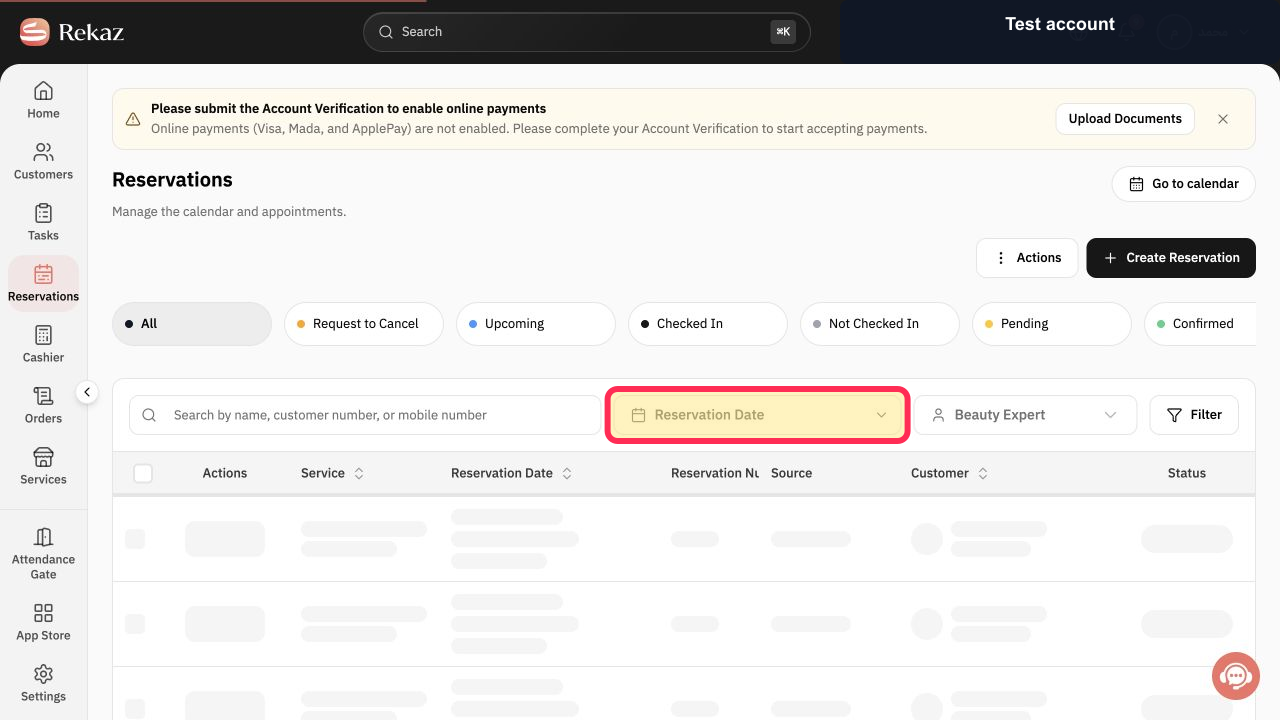
To narrow the results by date, set the **Reservation Date** you want to view.
The selected Reservation Date is ready to be applied as a filter.
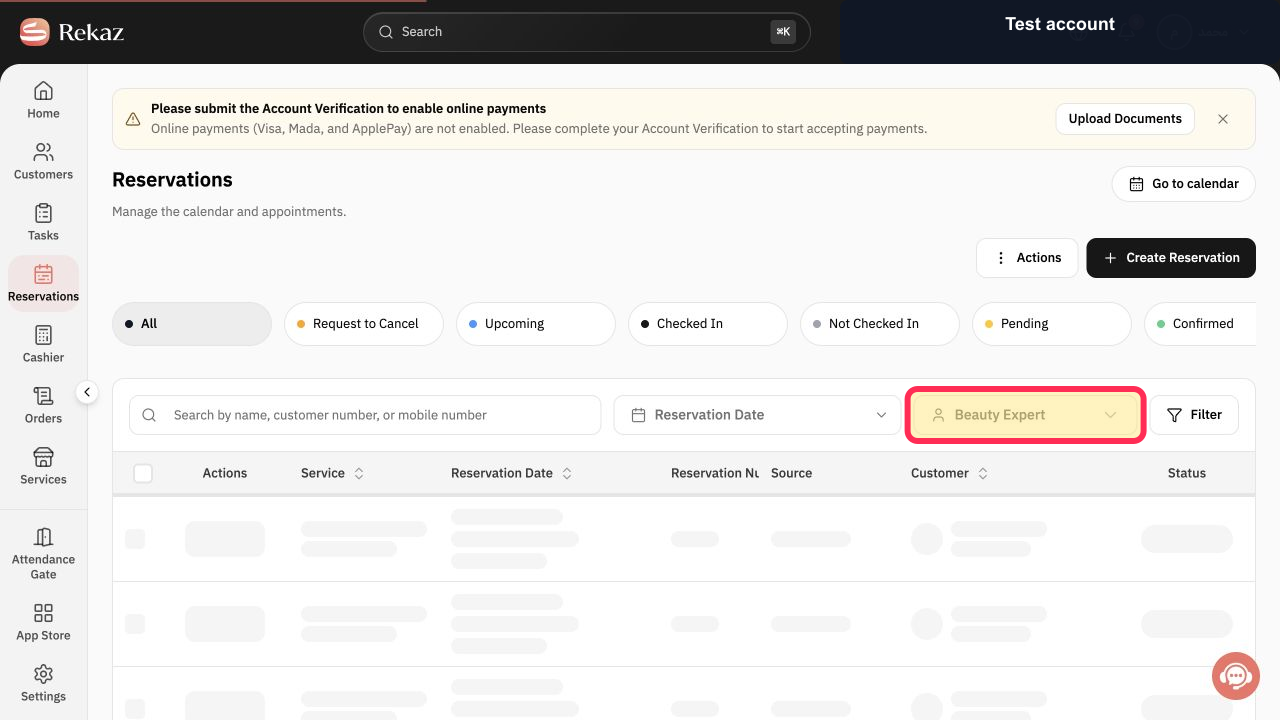
To narrow the results by service provider, select Beauty Expert and choose the required provider.
The selected Beauty Expert is added to the reservation filters.
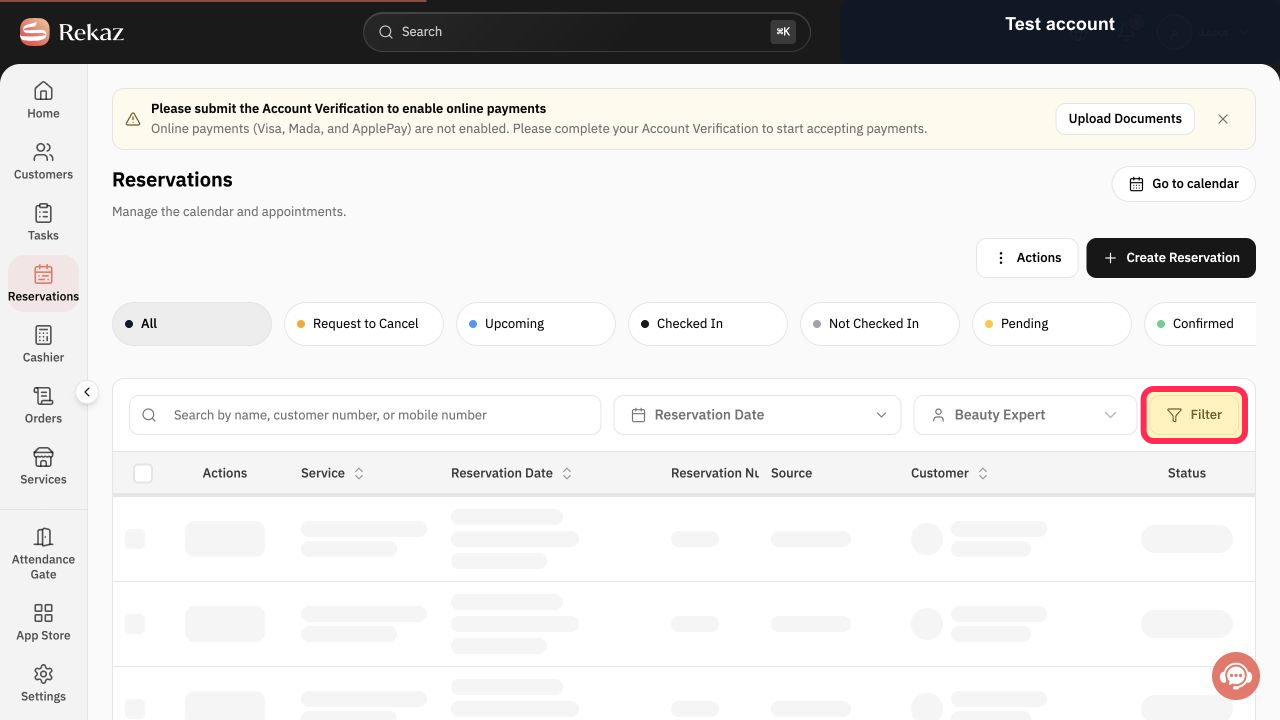
Select Filter to apply the selected status, date, and Beauty Expert criteria.
The Reservations list refreshes using the selected filters.
Illustrated guide
Step 1: Open the Reservations list from the Rekaz sidebar.
Step 2: Use a status button to show reservations with that status.
Step 3: Select a Reservation Date to narrow the reservations list.
Step 4: Filter reservations by Beauty Expert.
Step 5: Apply the reservation filters.
Important notes
You can combine status, Reservation Date, and service provider filters for more specific results.
Related questions
How do I view canceled reservations in Rekaz?
How do I filter reservations for a specific day in Rekaz?
How do I view reservations for a specific service provider in Rekaz?


