How do I generate a payment link for a reservation in Rekaz?
Generate the link only after selecting the correct service, time, and customer context and reviewing the reservation amount.
Share the generated link only with the intended customer through an approved channel; never include passwords, one-time codes, or unrelated customer data.
Steps
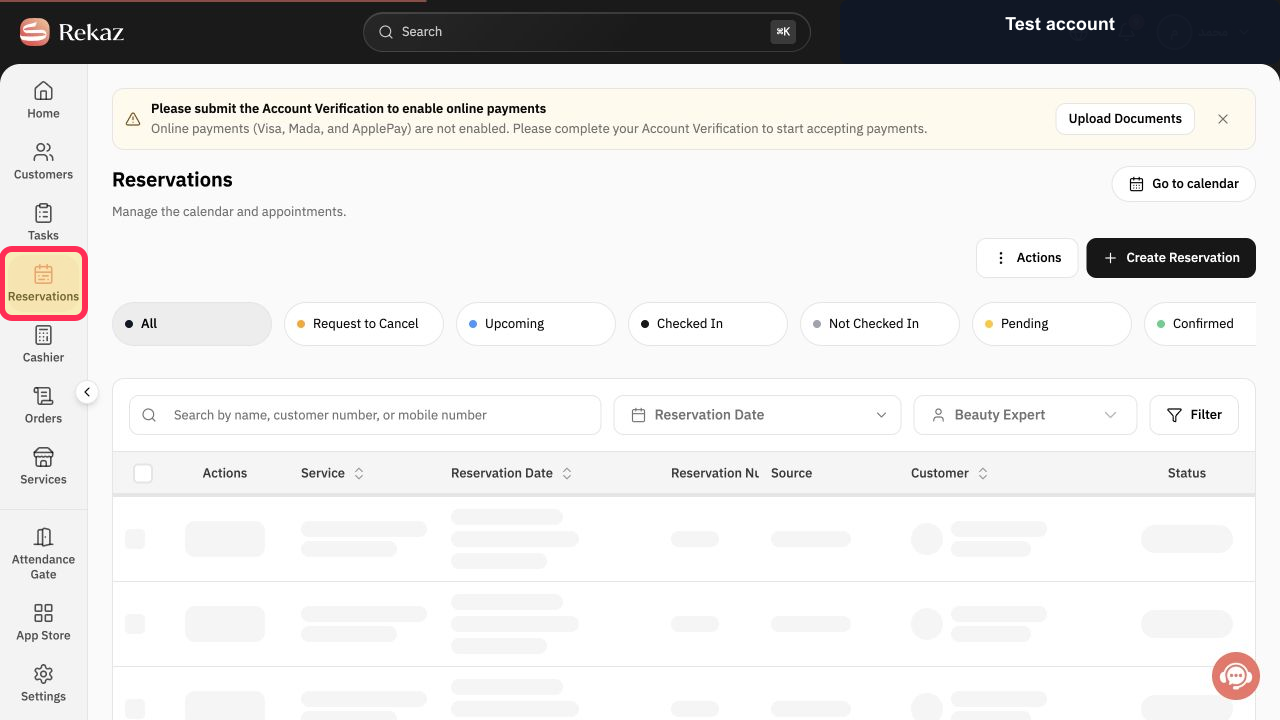
From the signed-in Rekaz dashboard, select Reservations.
The Reservations list opens.
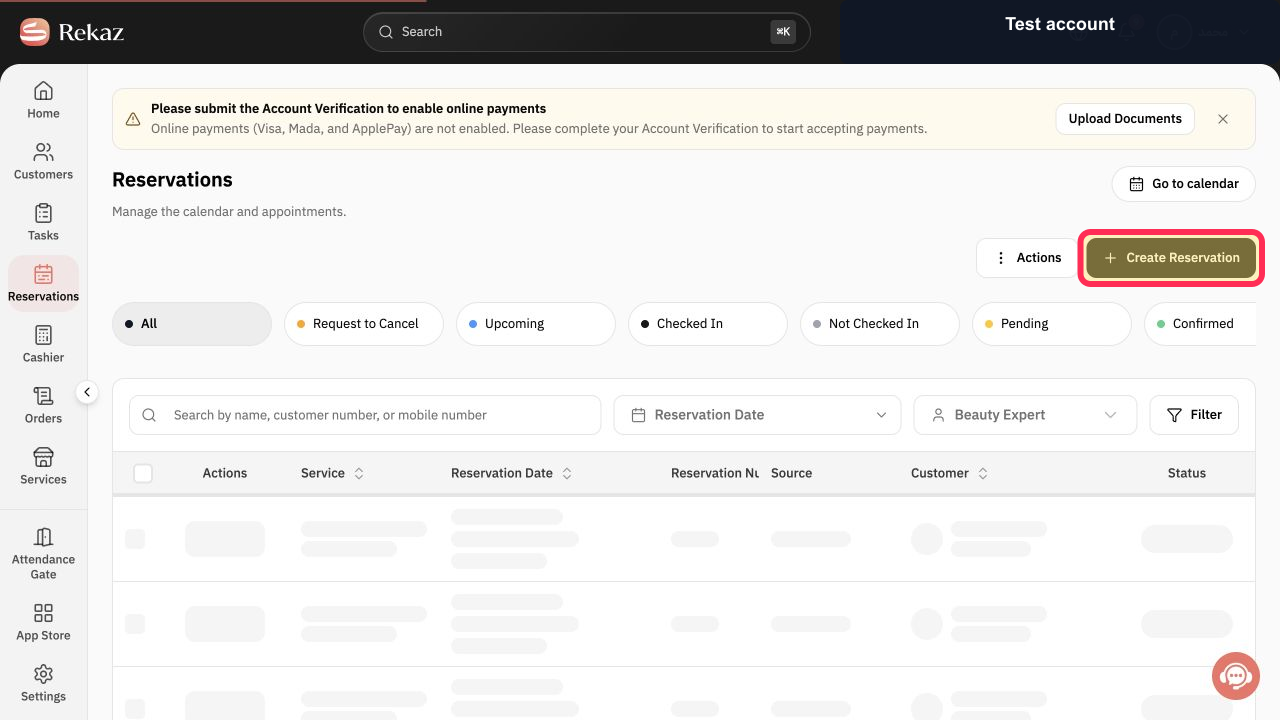
Select Create Reservation.
The new-reservation workflow opens.
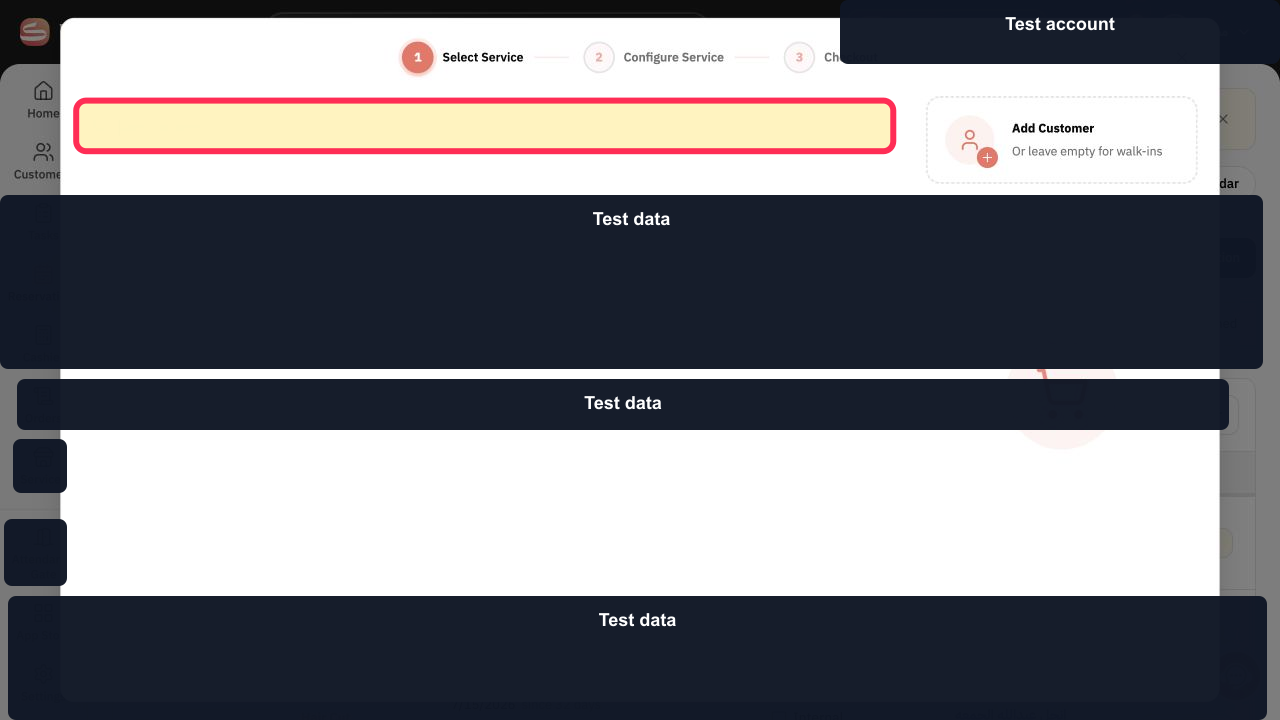
Use Search for service... to find the required service.
Matching services are displayed.
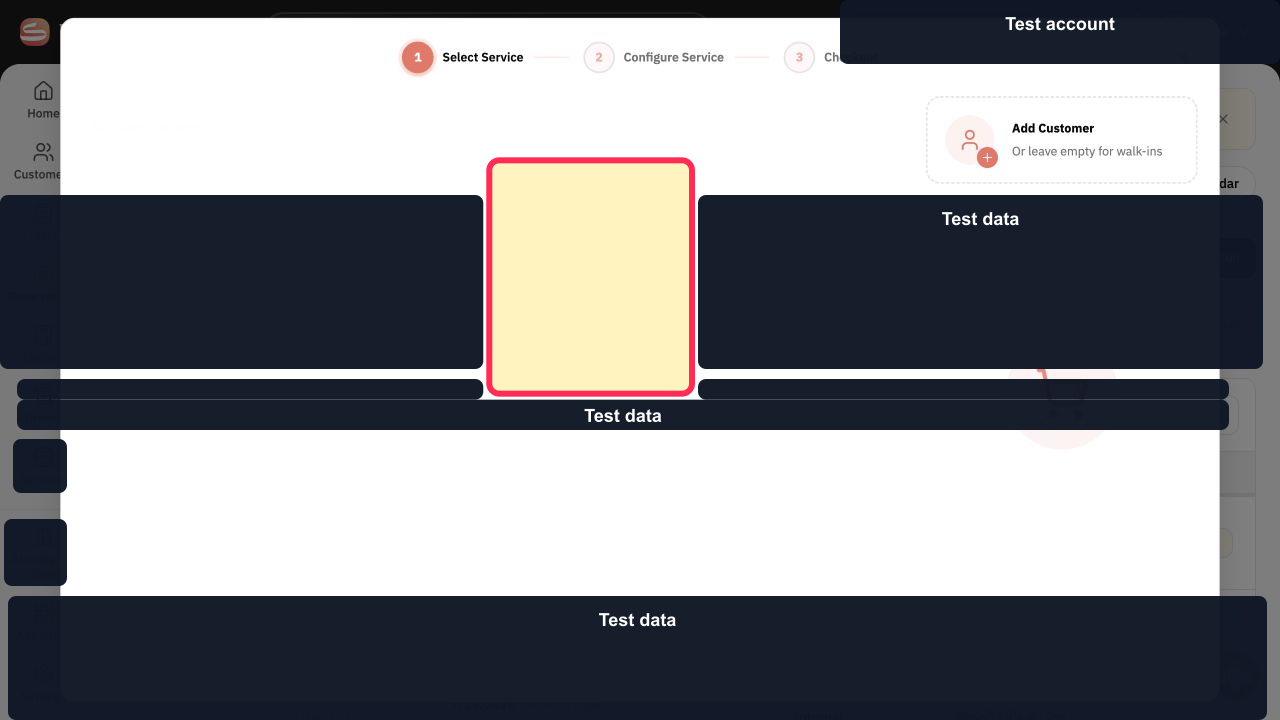
Select the matching service. In the verified account, Hair Cut is the example.
The service is selected.
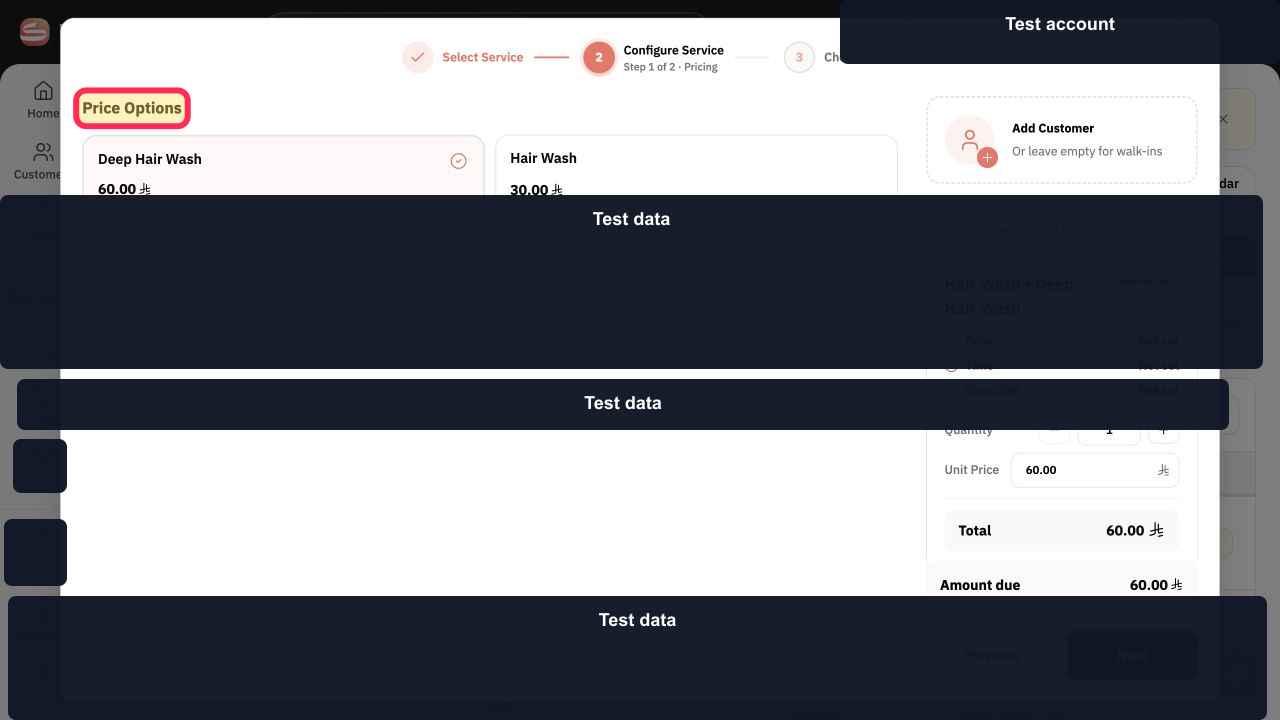
Review Price Options for the service.
The service price options are displayed.
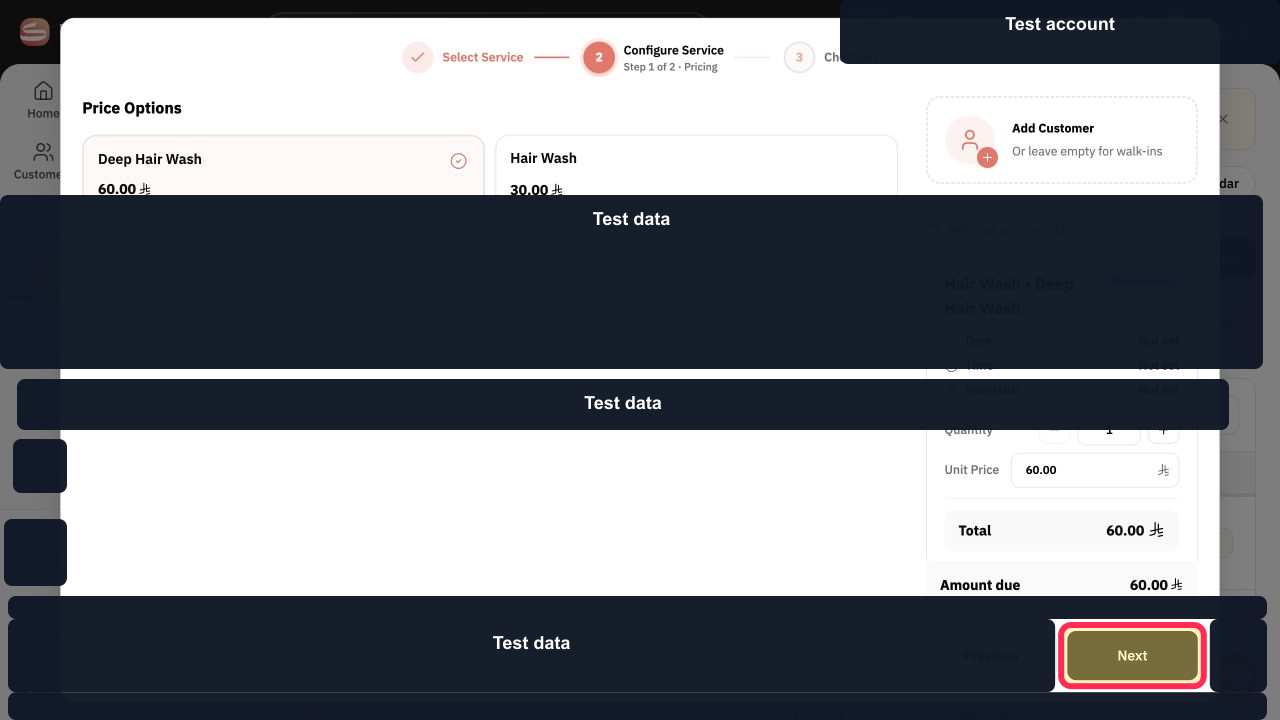
Select Next after reviewing the service and optional customer selection.
The scheduling step opens.
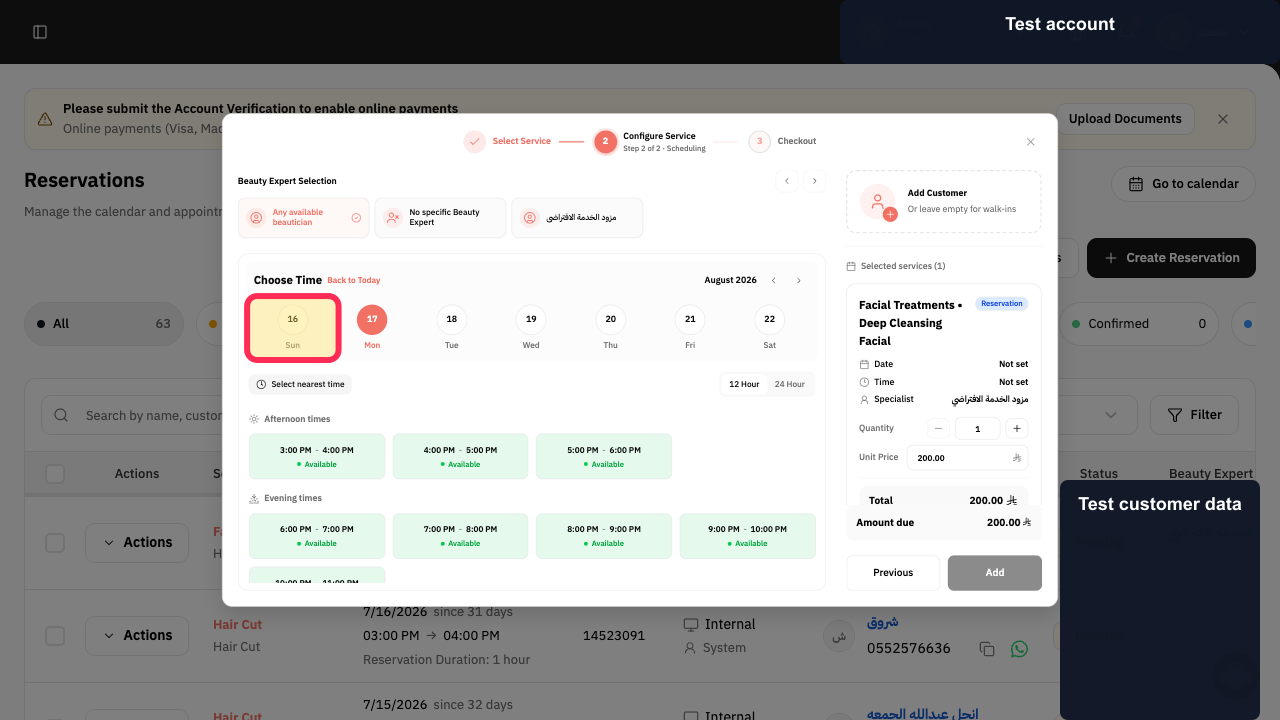
Choose the reservation date. The verified example selects 16 Sun.
The selected date becomes active.
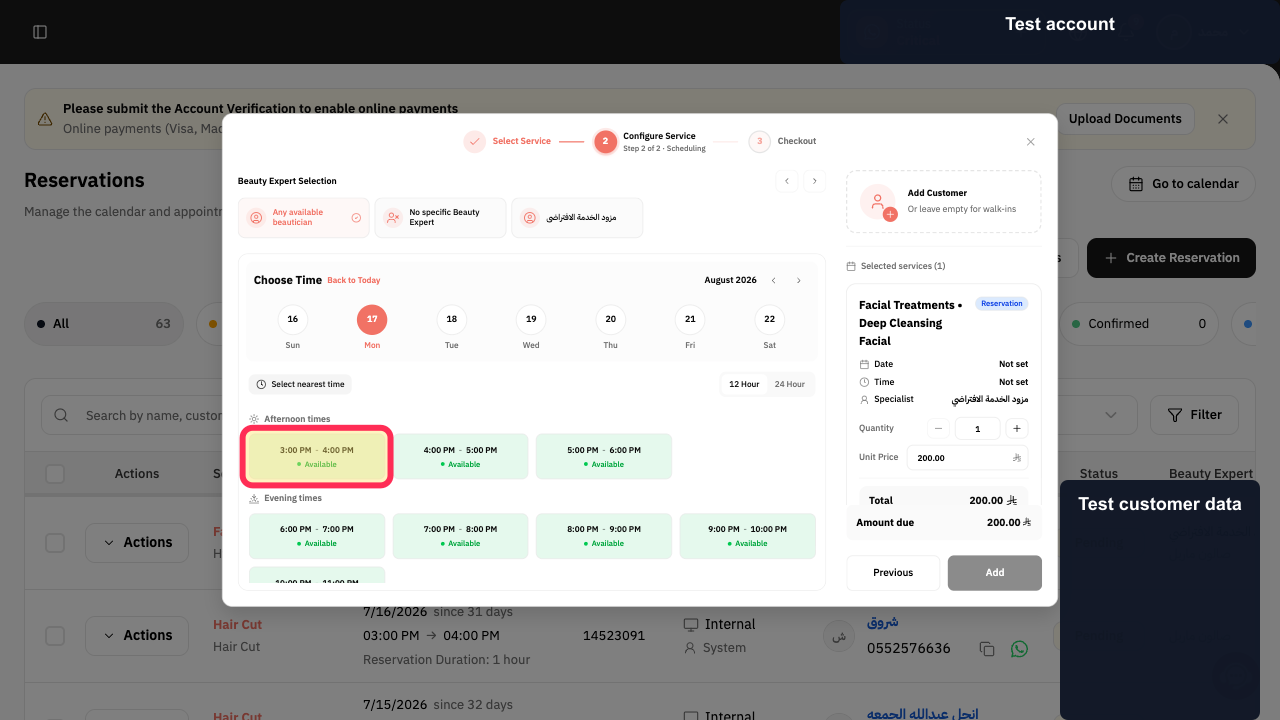
Select an available appointment time. The verified example uses 3:00 PM - 4:00 PM Available.
The available time is selected.
Select Add to add the scheduled service.
The scheduled service is added to the reservation.
Select Payment to open the payment options.
The reservation payment step opens.
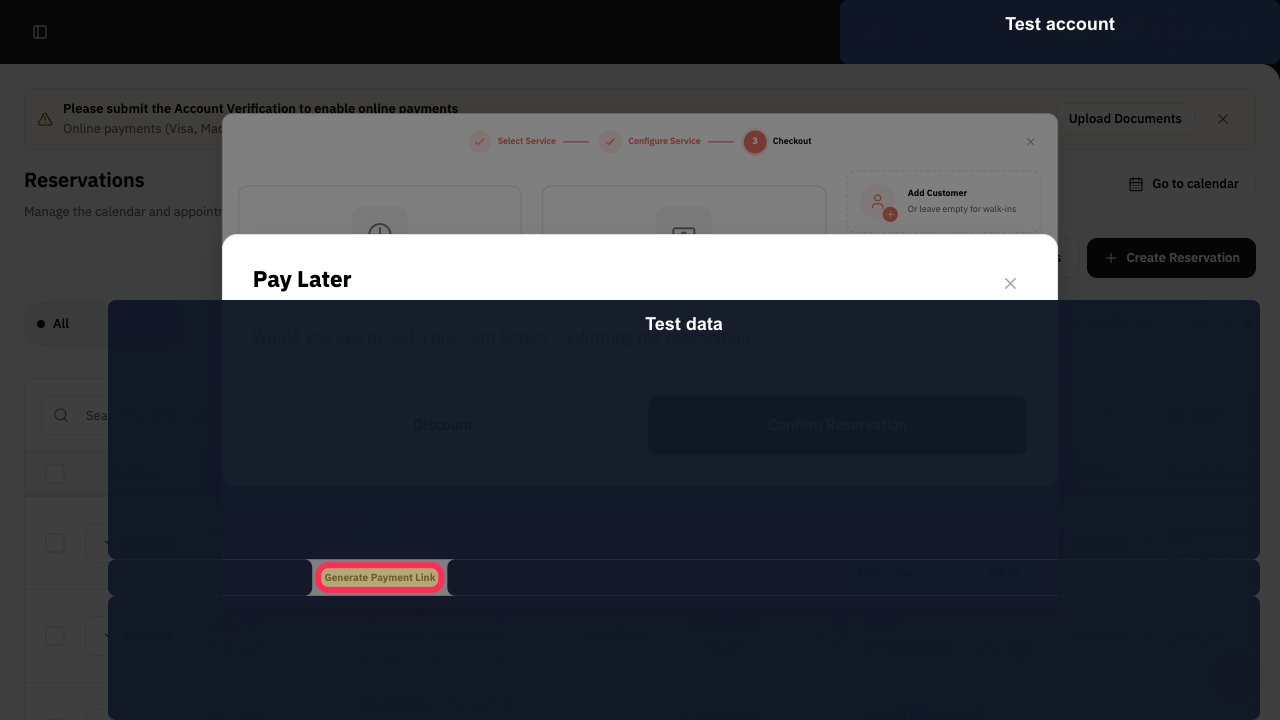
Review the reservation summary and amount, then select Generate Payment Link.
Rekaz starts generating the payment link for the reviewed reservation.
Illustrated guide
Step 1: Open Reservations in Rekaz.
Step 2: Start a new reservation.
Step 3: Search for the reservation service.
Step 4: Select the reservation service; Hair Cut is the verified example.
Step 5: Review the service price options.
Step 6: Continue to reservation scheduling.
Step 7: Choose the reservation date.
Step 8: Choose an available reservation time.
Step 9: Add the scheduled service.
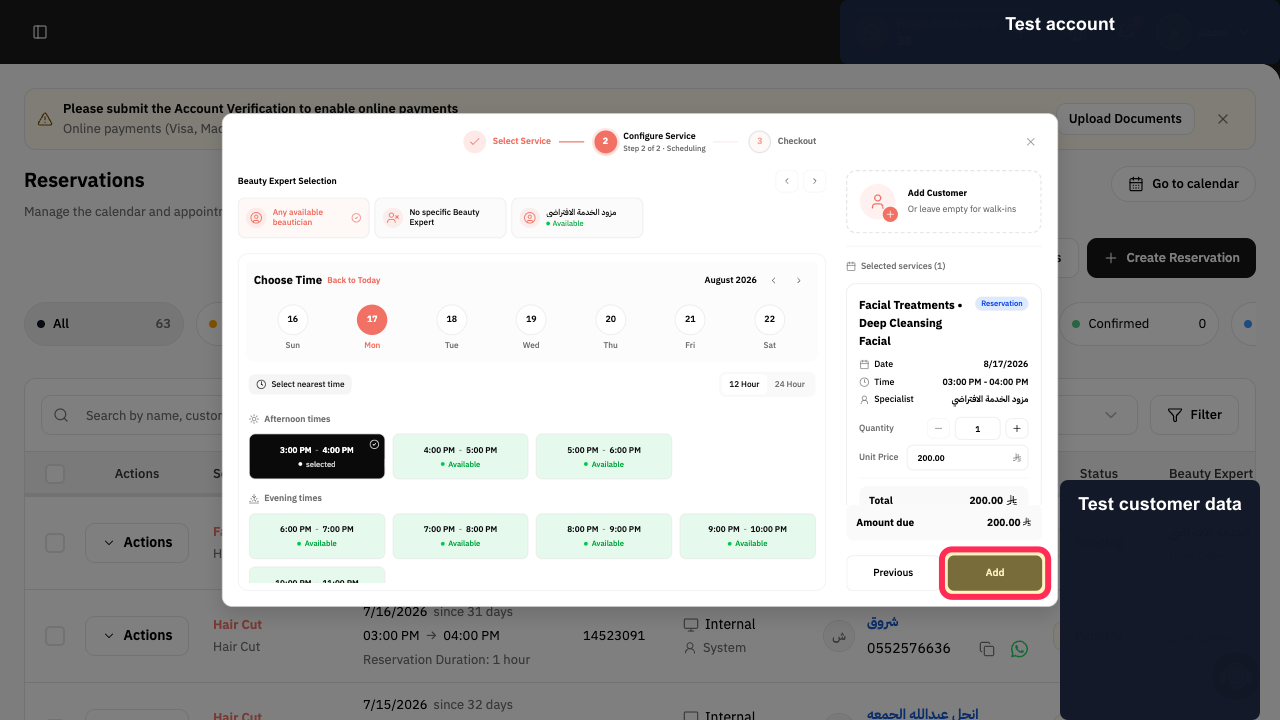
Step 10: Continue to the payment options.
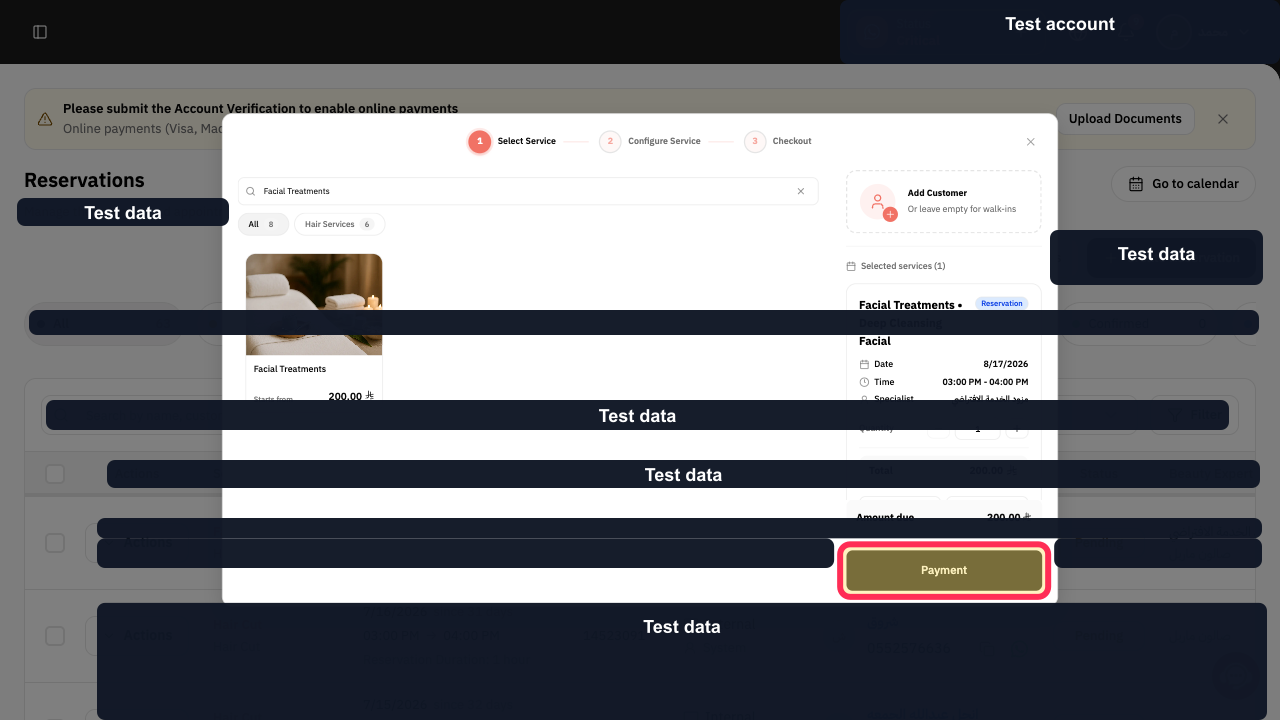
Step 11: Generate the reservation payment link.
Important notes
Check the Reservation Summary and amount before you generate the link.
Follow the next confirmation screen to share the link using the method shown for your account.
Related questions
How do I send a payment link for an appointment in Rekaz?
How can I book a customer and let them pay through a link in Rekaz?
Where can I find Generate Payment Link for a reservation in Rekaz?


