How do I change the staff member for an existing reservation in Rekaz?
To assign an existing reservation to another staff member in Rekaz, open the reservation’s Actions menu and select Edit. Choose the replacement staff member, check the Date & Time, and save when you are ready.
Before making the change, confirm that the replacement staff member is available for the required date and time.
Steps
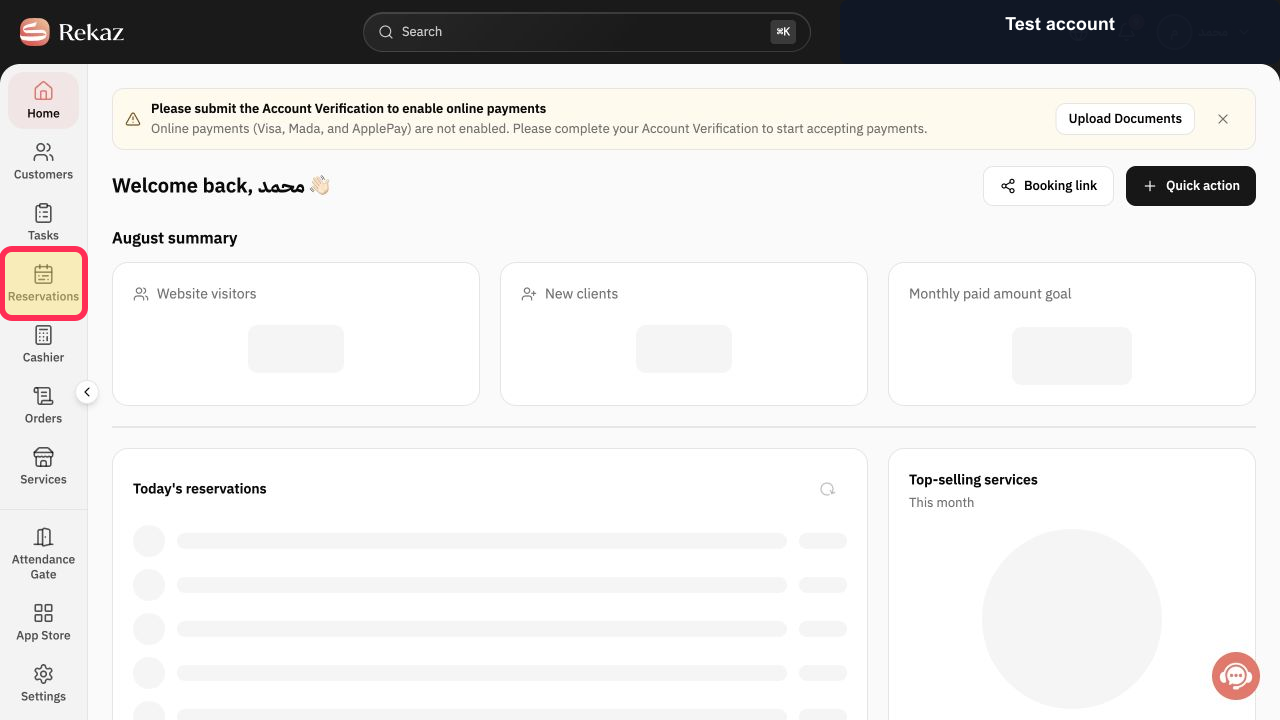
From the signed-in Rekaz dashboard, select Reservations in the sidebar.
The Reservations page opens and shows your reservations.
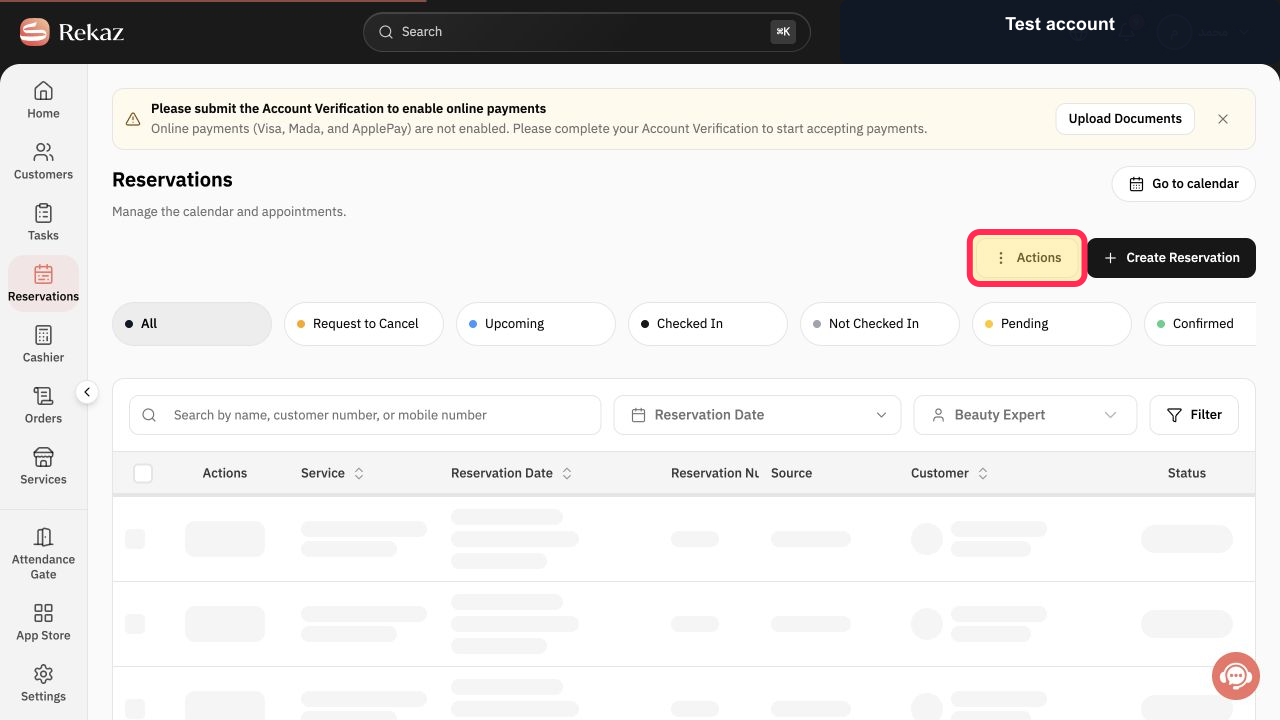
Find the reservation you want to update, then select Actions for that reservation.
The available actions for the selected reservation are displayed.
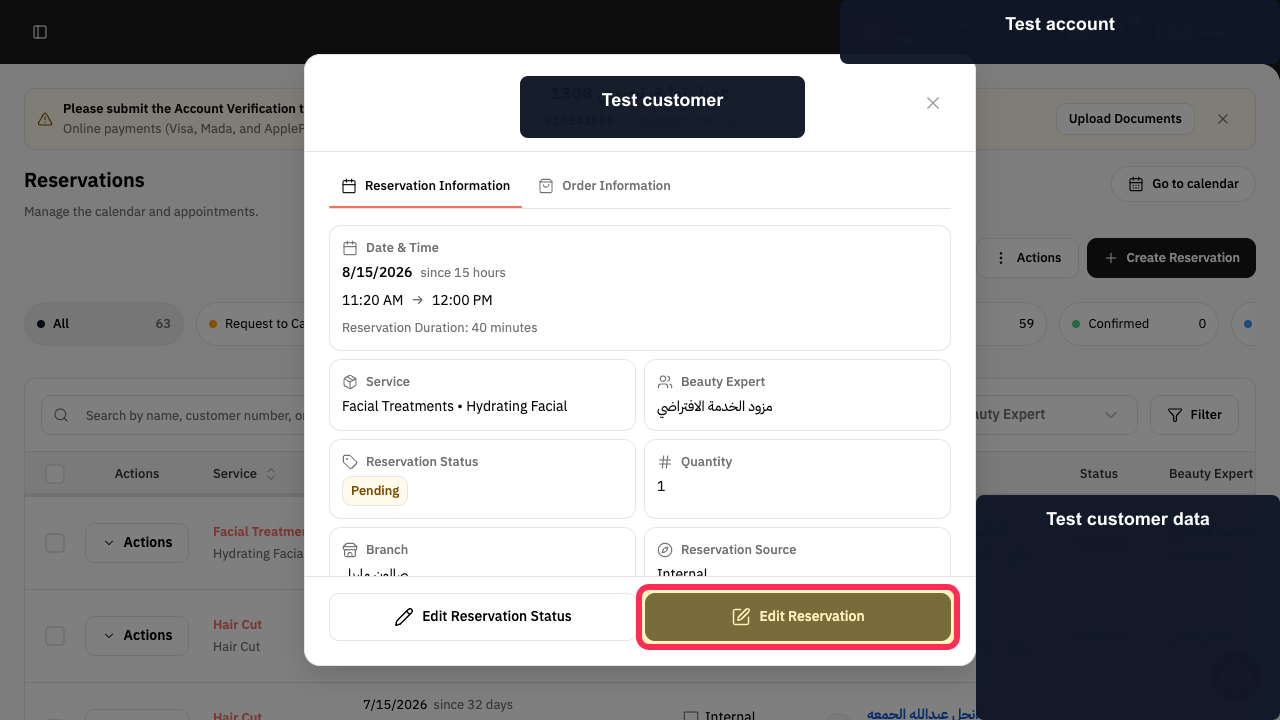
Select Edit.
The Edit Reservation window opens.
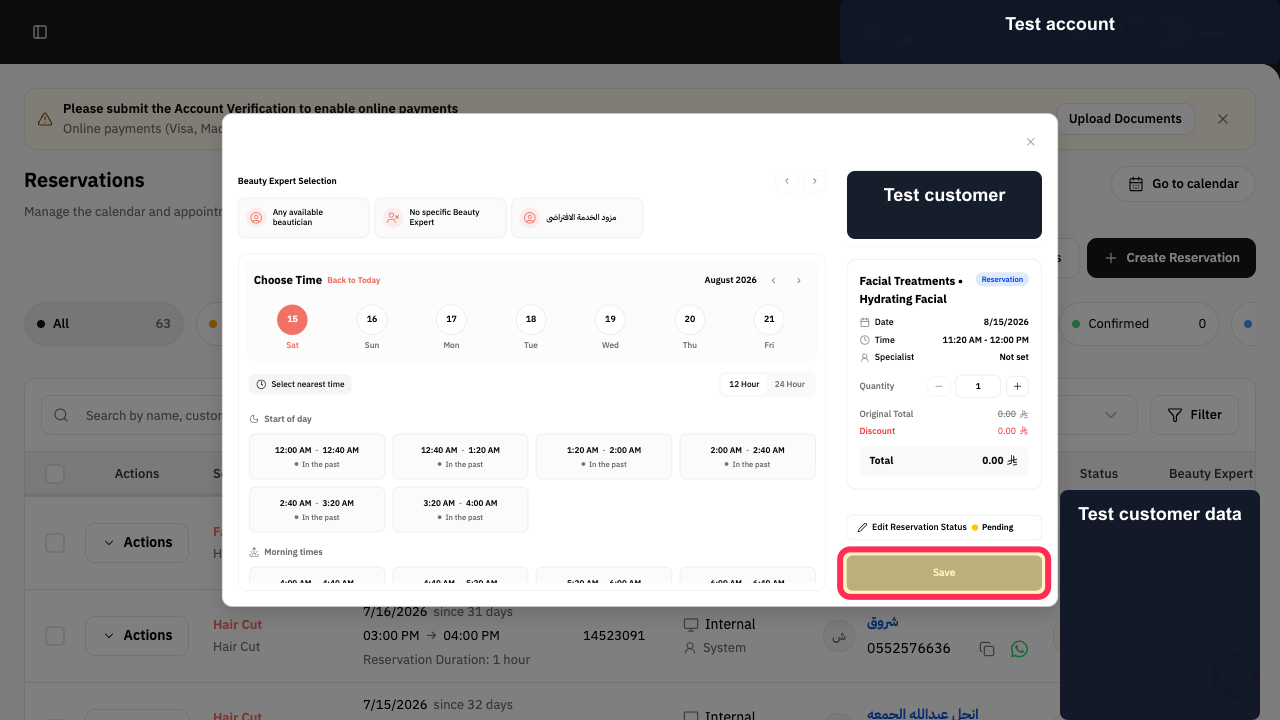
Choose the replacement Beauty Expert. Choose the provider that applies to your reservation. The replacement Beauty Expert is selected.
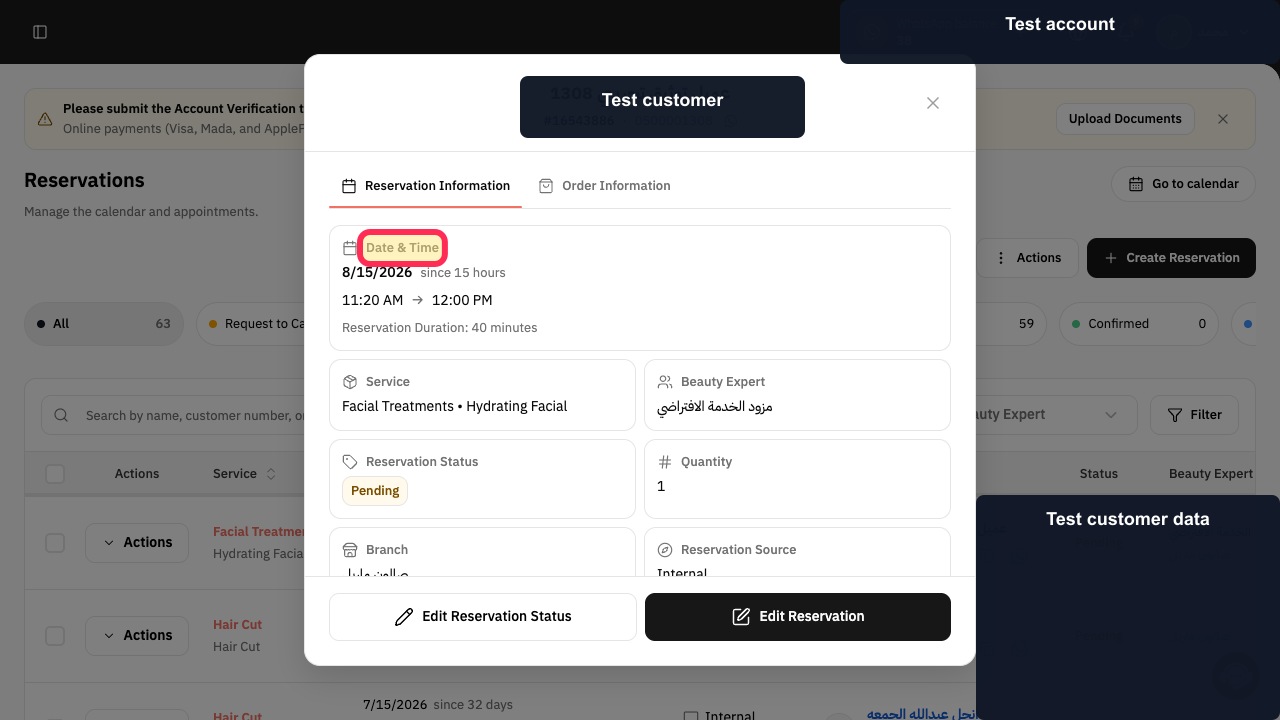
Review the reservation Date & Time and confirm that the replacement staff member is available.
You can review the scheduled date and time before saving.
When you are ready to apply the change, select Save.
The change is submitted. Confirm the saved reservation details in Rekaz.
Illustrated guide
Step 1: Open Reservations from the Rekaz sidebar.
Step 2: Open Actions for the reservation you want to update.
Step 3: Select Edit from the reservation’s Actions menu.
Step 4: Choose the replacement Beauty Expert for the reservation.
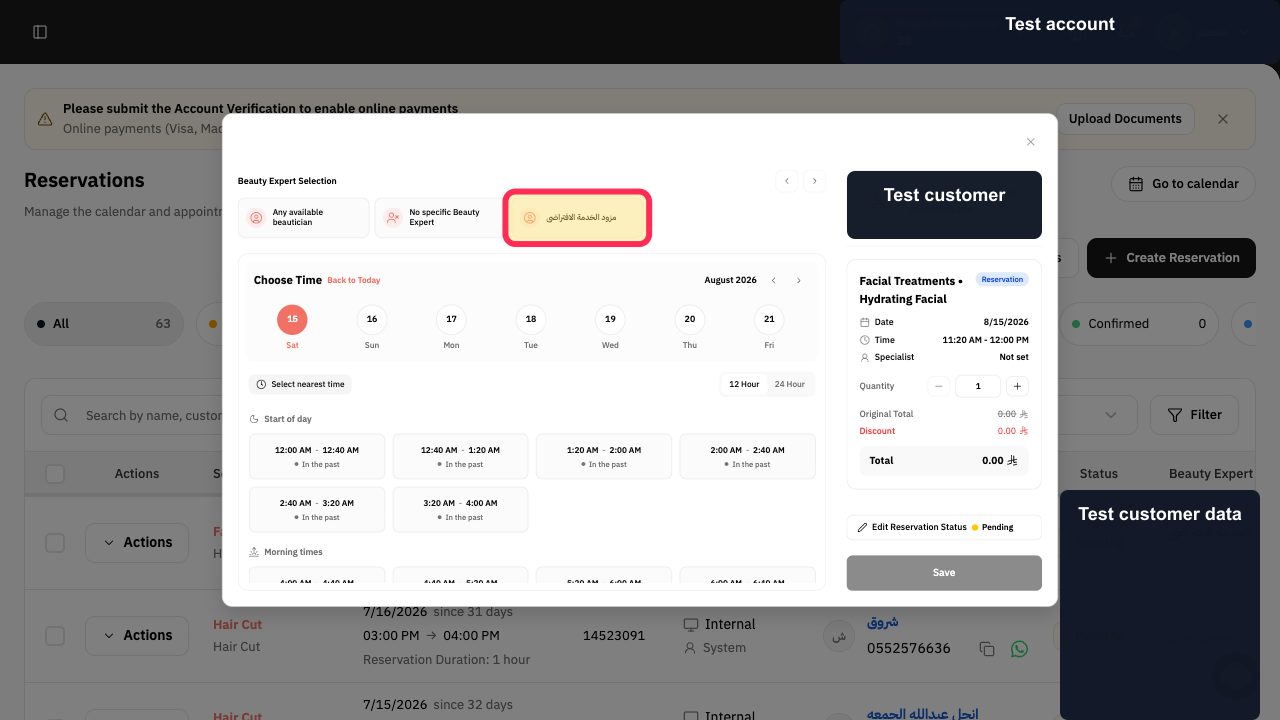
Step 5: Review the Date & Time before saving the change.
Step 6: Save the updated reservation.
Important notes
Check that the replacement staff member is available on the required date and time.
Related questions
How do I move a reservation to another staff member in Rekaz?
How do I change the employee assigned to an appointment in Rekaz?
Where can I edit the staff member for an existing reservation in Rekaz?


