How do I add a reservation from the Reservations page in Rekaz?
Rekaz currently shows a Pay Later confirmation dialog in the reservation workflow. From this dialog, you can confirm the reservation without completing the older payment-completion flow described in this article.
Rekaz does not currently show the controls for opening Reservations, starting a new reservation, selecting a service, or choosing an appointment date and time. The steps below document the confirmed final action only.
Steps
Verify that you are in the Reservations workspace by locating the text “Manage the calendar and appointments.”
The Reservations workspace context is visible.
When the Pay Later dialog is visible, review its confirmation prompt before proceeding.
The dialog asks whether you would like to add a discount before confirming the reservation.
Select Confirm Reservation.
The confirmation action is submitted. The supplied evidence does not include a post-confirmation screen or reservation status.
Illustrated guide
Step 1: Reservations workspace context.
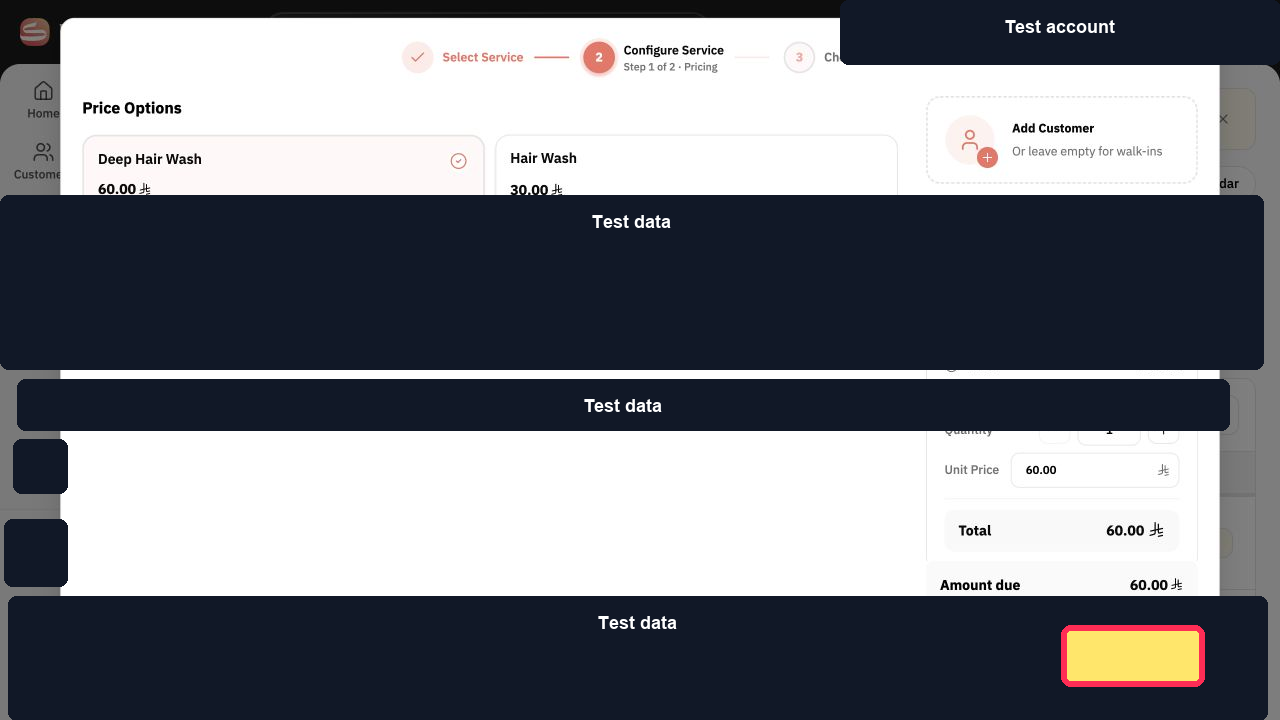
Step 2: Review the Pay Later confirmation dialog.
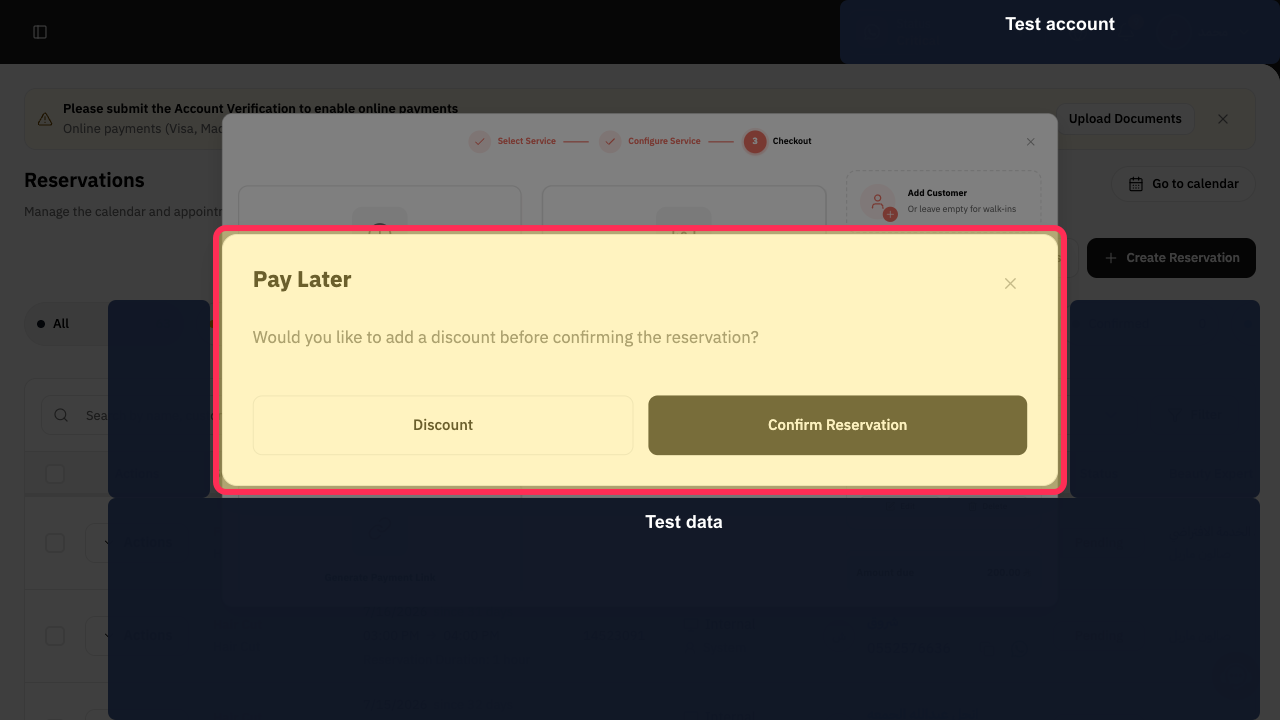
Step 3: Select Confirm Reservation in the Pay Later dialog.
Important notes
Completing payment is the action that creates the reservation. The documented flow reaches the payment options, but payment was not completed during the recording.
You can add the customer at this stage or later, depending on the text displayed in the Sales Dashboard.
Related questions
How do I create an appointment for a customer in Rekaz?
How do I make a reservation for my salon in Rekaz?
How do I choose a service and time for a reservation in Rekaz?


