How do I add a reservation from the calendar in Rekaz?
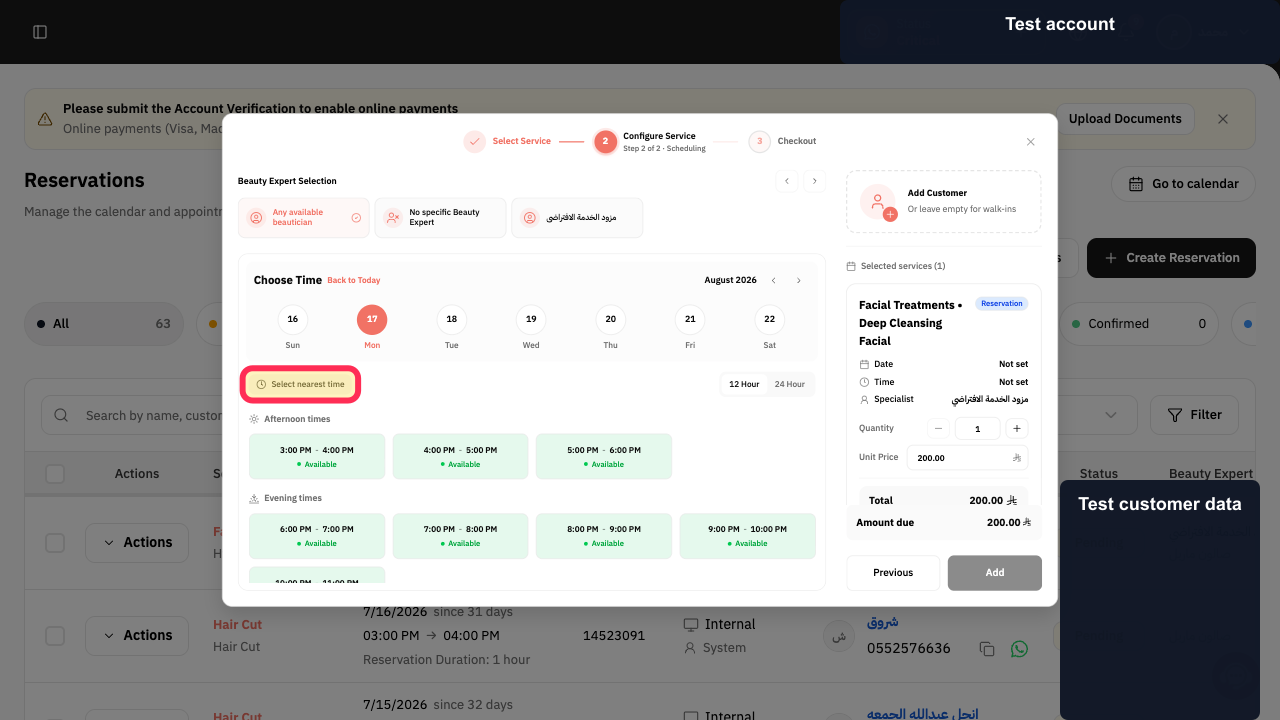
To add a reservation from the calendar in Rekaz, select the required service. If suitable, select **Select nearest time** to choose the nearest available appointment time.
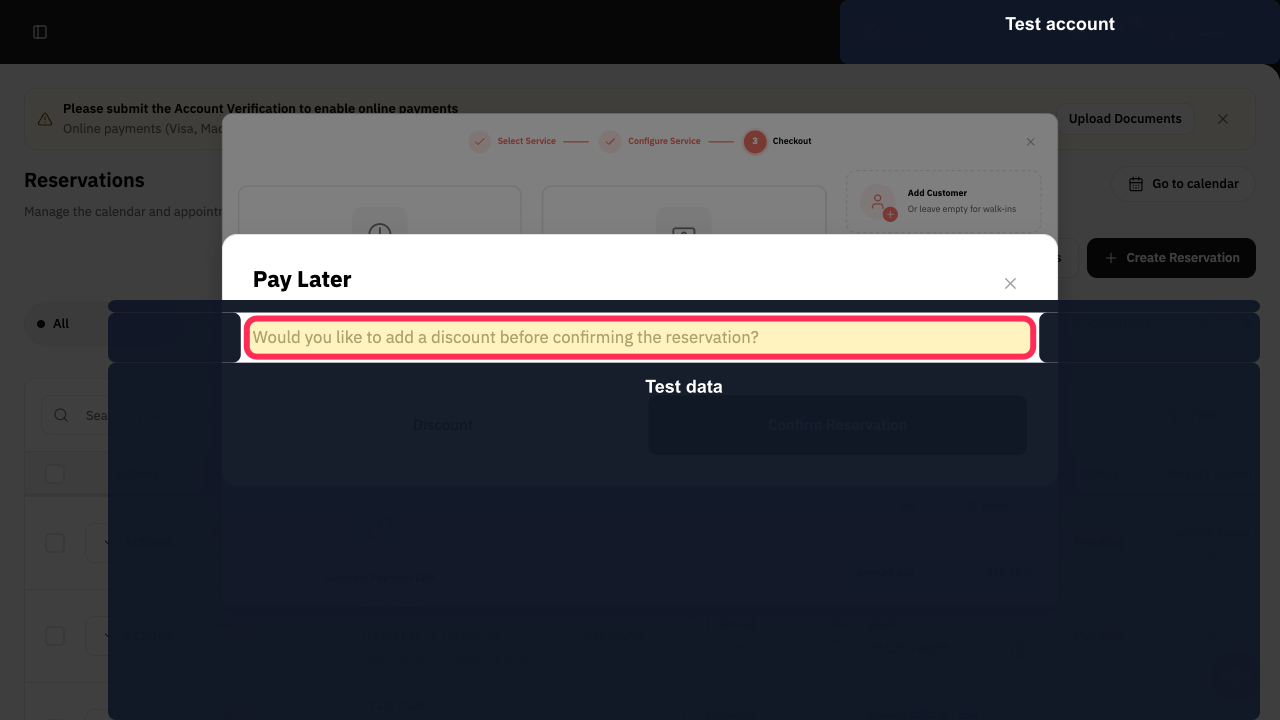
The reservation flow shows the Pay Later confirmation prompt. Separate date or time-slot controls, an Add or Payment action, and a standalone Confirm Reservation control are not shown.
Steps
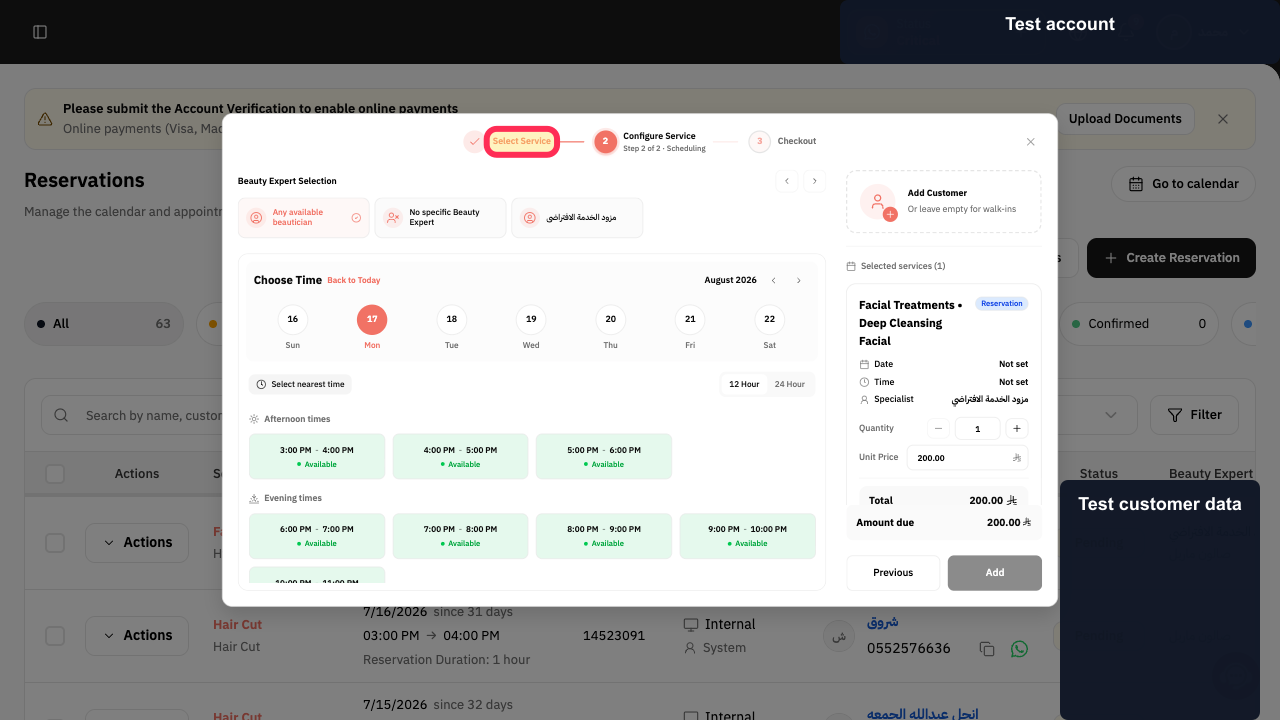
Verify that the reservation flow is at the **Select Service** stage.
The Select Service stage is visible.
If the nearest available appointment is suitable, select **Select nearest time**.
The reservation flow applies the nearest available time option.
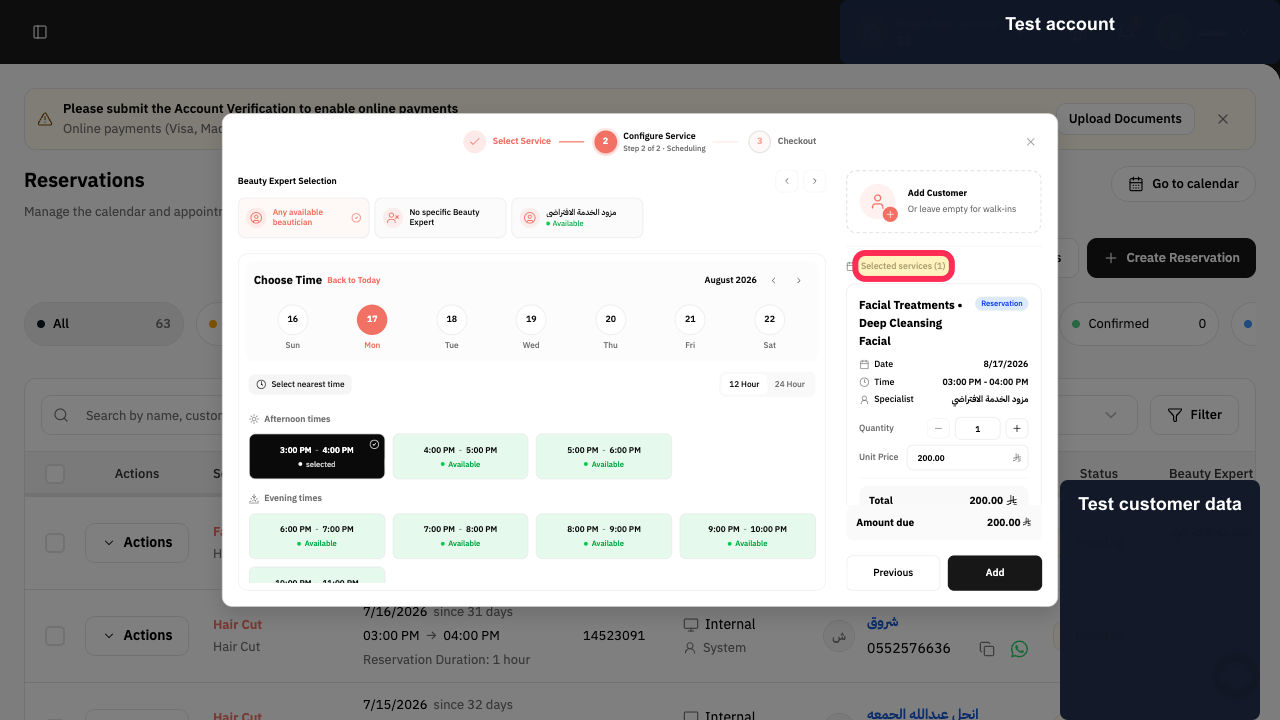
Verify that **Selected services (1)** is displayed in the reservation flow.
The selected-services status is visible.
If the Pay Later confirmation prompt appears, review whether to add a discount before confirmation.
The prompt asking about a discount before confirming the reservation is visible.
Illustrated guide
Step 1: The Select Service stage in the Rekaz reservation flow.
Step 2: The Select nearest time button in the reservation flow.
Step 3: The Selected services (1) status in the reservation flow.
Step 4: The Pay Later confirmation prompt in Rekaz.
Important
Completing the payment is the action that creates the reservation.
Payment is not completed, so no reservation is created. Confirm the final payment result in your account before considering the reservation created.
Related questions
How do I create a reservation from the Reservations Calendar in Rekaz?
How do I add an appointment from the calendar in Rekaz?
Where is the Create Reservation button in the Rekaz calendar?
How do I book a customer from the Reservations Calendar in Rekaz?


