How do I void an invoice and issue a new one in Rekaz?
Voiding an invoice creates a credit note for its value. Afterward, you can issue a new invoice for the order.
Verify the order number, invoice number, amount, and reason before selecting Void Invoice. Issuing the replacement invoice locks order editing again.
Steps
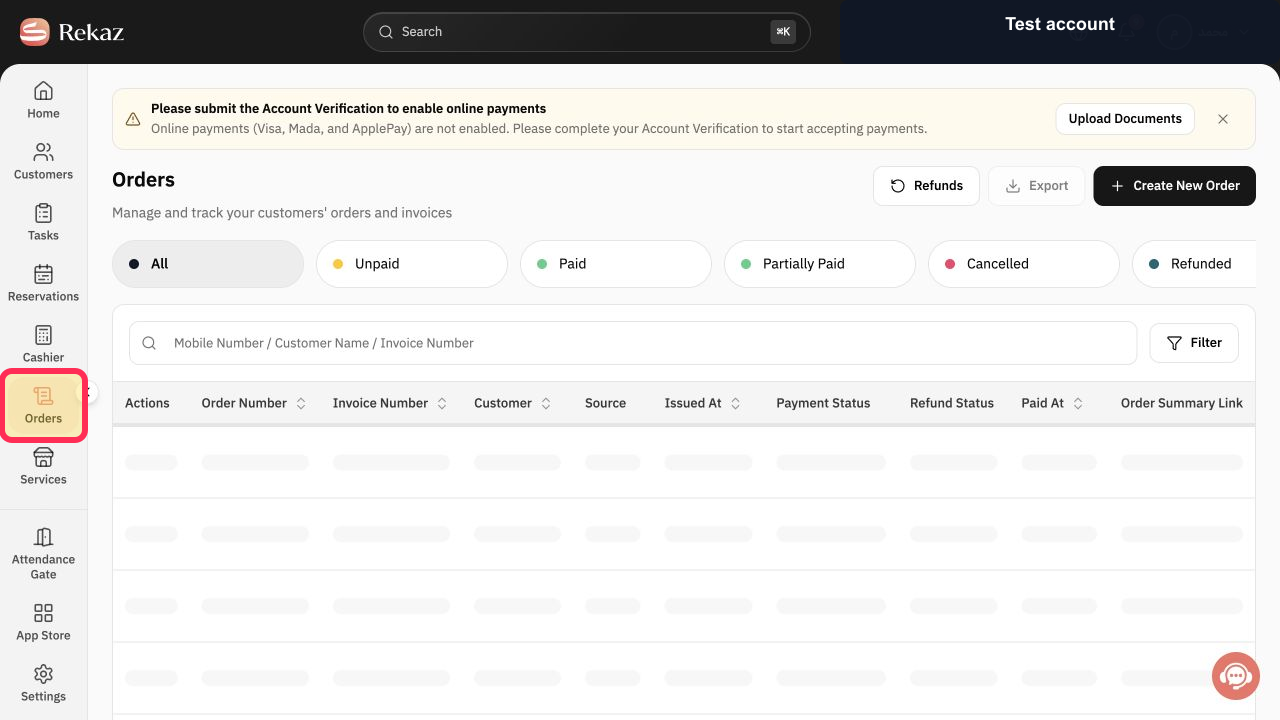
From the Rekaz navigation, select Orders.
The Orders page opens.
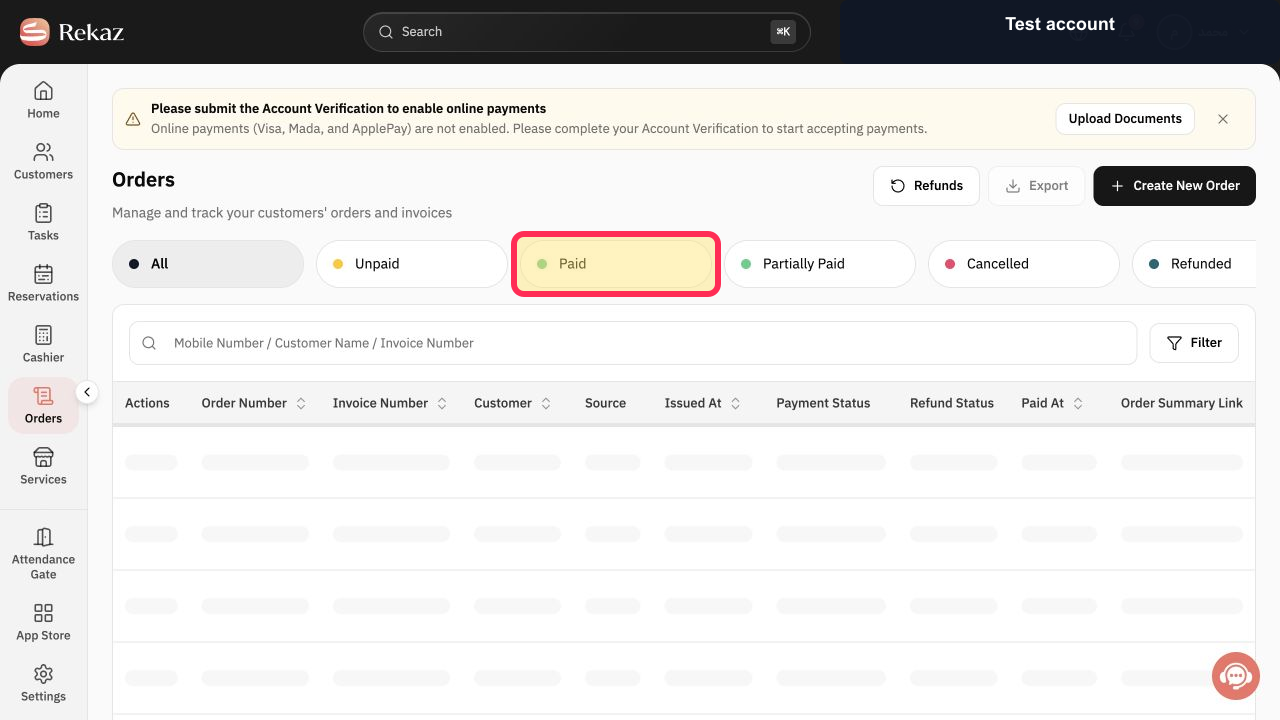
Select Paid and locate the order whose invoice must be replaced.
Paid orders and their invoice numbers are visible.
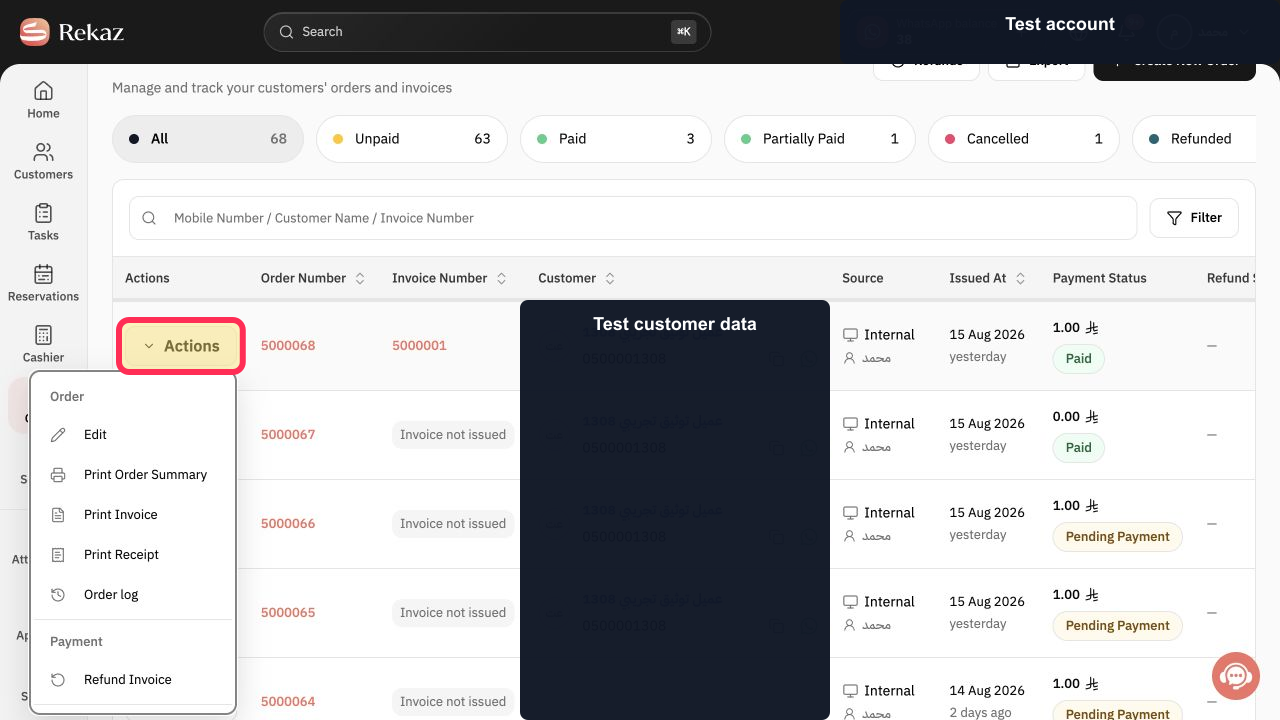
Select Actions for the order that has the invoice.
The order Actions menu opens.
Select Void Invoice under Sensitive actions.
Rekaz opens the invoice-void dialog with the order, invoice, amount, and credit-note warning.
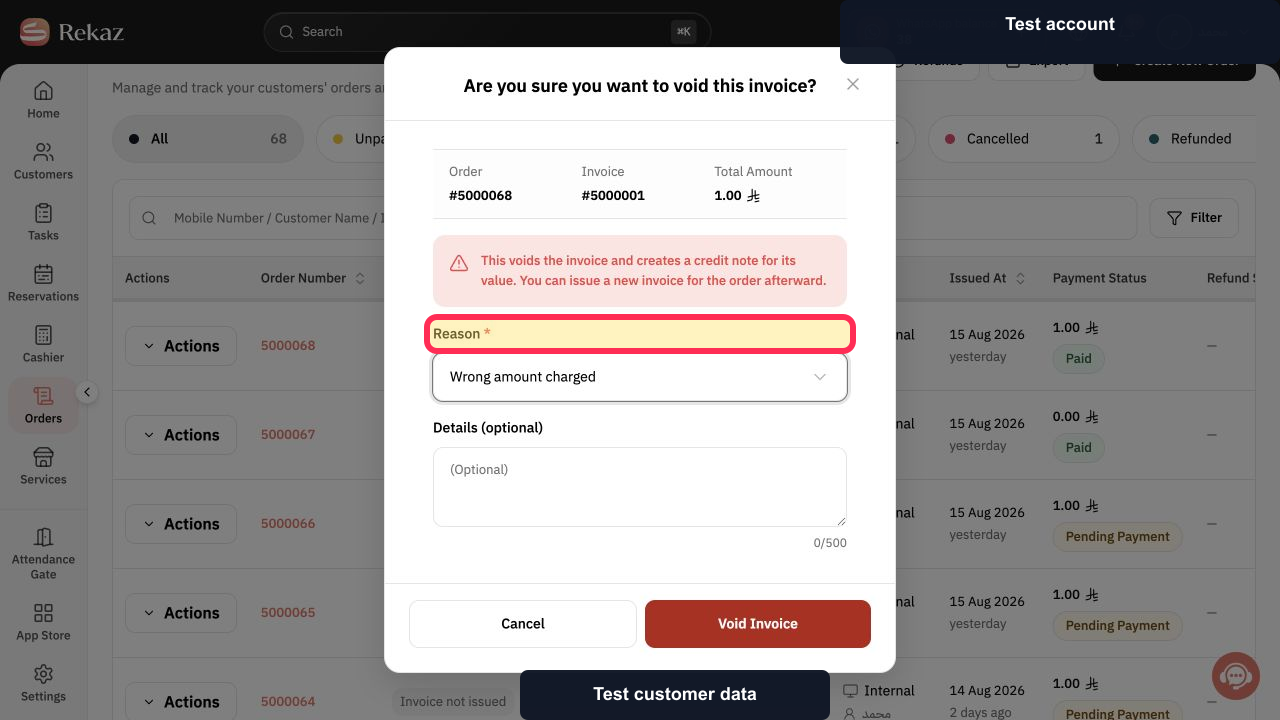
Under Reason *, choose the accurate reason for voiding the invoice and add optional details when useful.
The required void reason is selected.
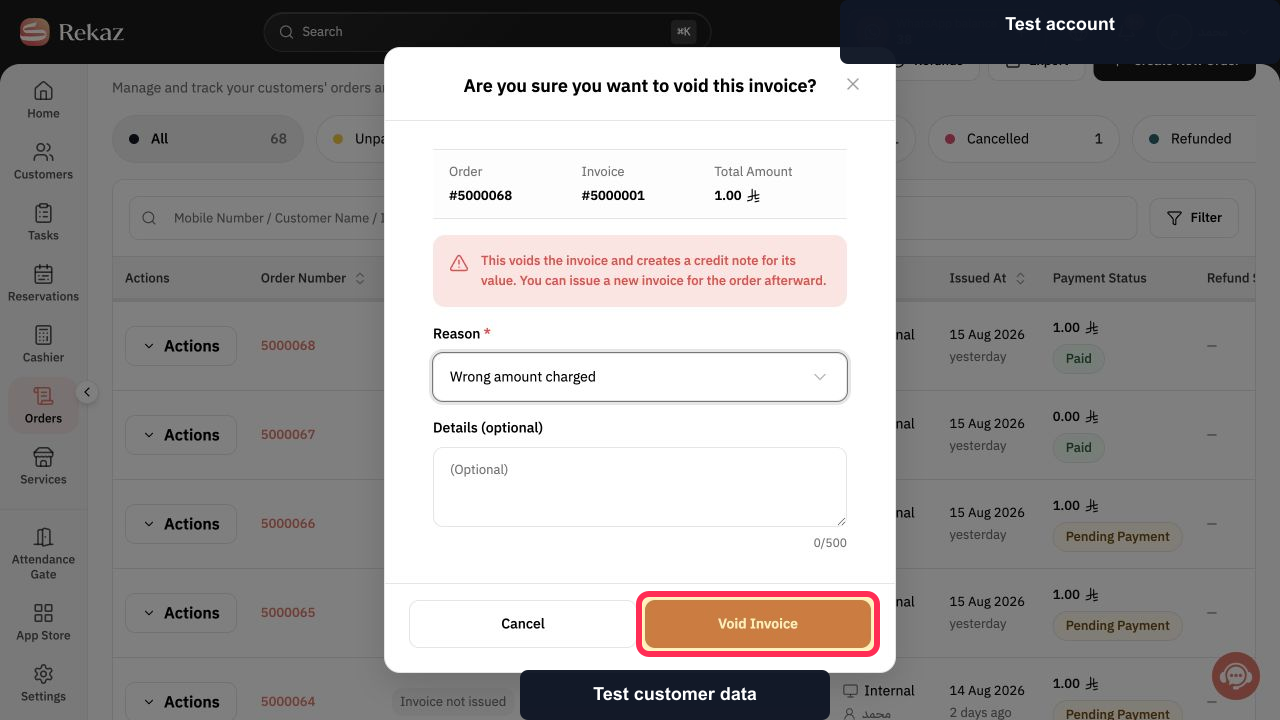
Review the order, invoice, amount, and reason, then select Void Invoice only when you intend to create the credit note.
The invoice is voided only after the final action.
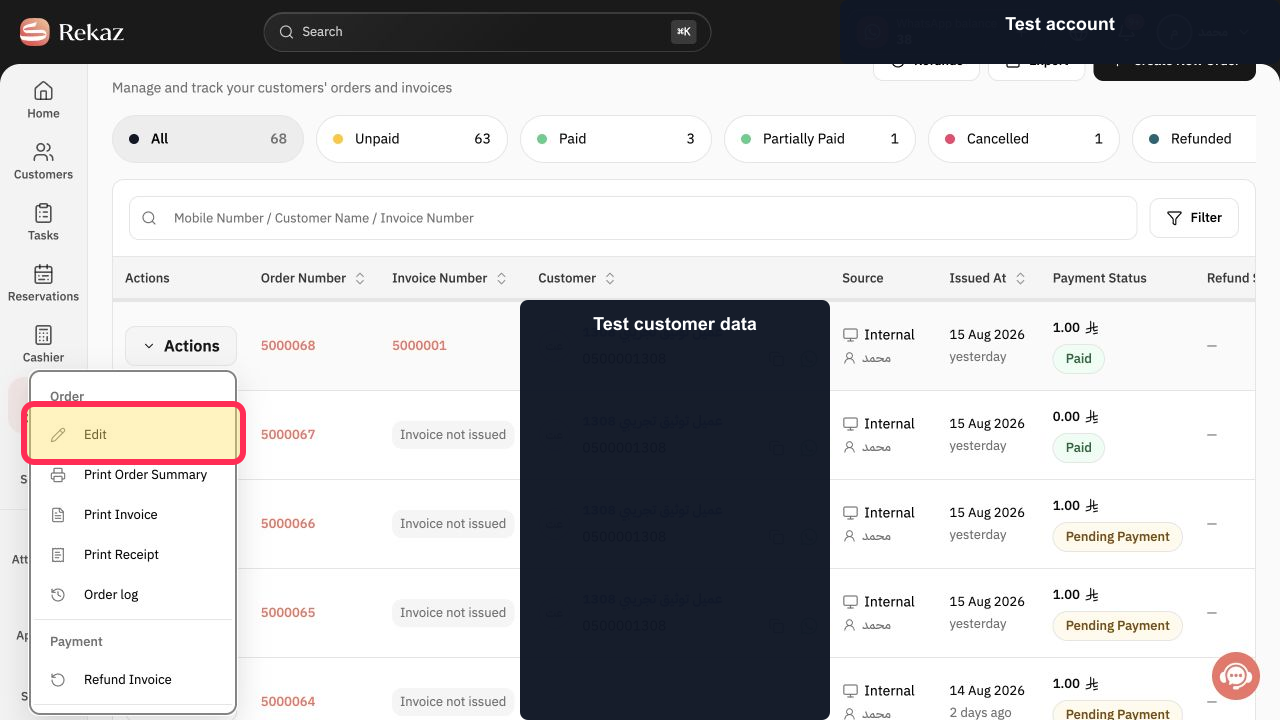
If the order details need correction before reissuing, open Actions and select Edit, then save the required changes.
The order can be corrected before the replacement invoice is issued.
After the order is ready and shows Invoice not issued, open Actions and select Issue Invoice.
Rekaz opens the Issue Invoice confirmation.
Verify the order number and total amount, then select Issue Invoice.
The replacement invoice is issued and order editing becomes locked again.
Illustrated guide
Step 1: Open Orders in Rekaz.
Step 2: Filter the Orders list to Paid.
Step 3: Open the paid order's Actions menu.
Step 4: Open the invoice-void confirmation.
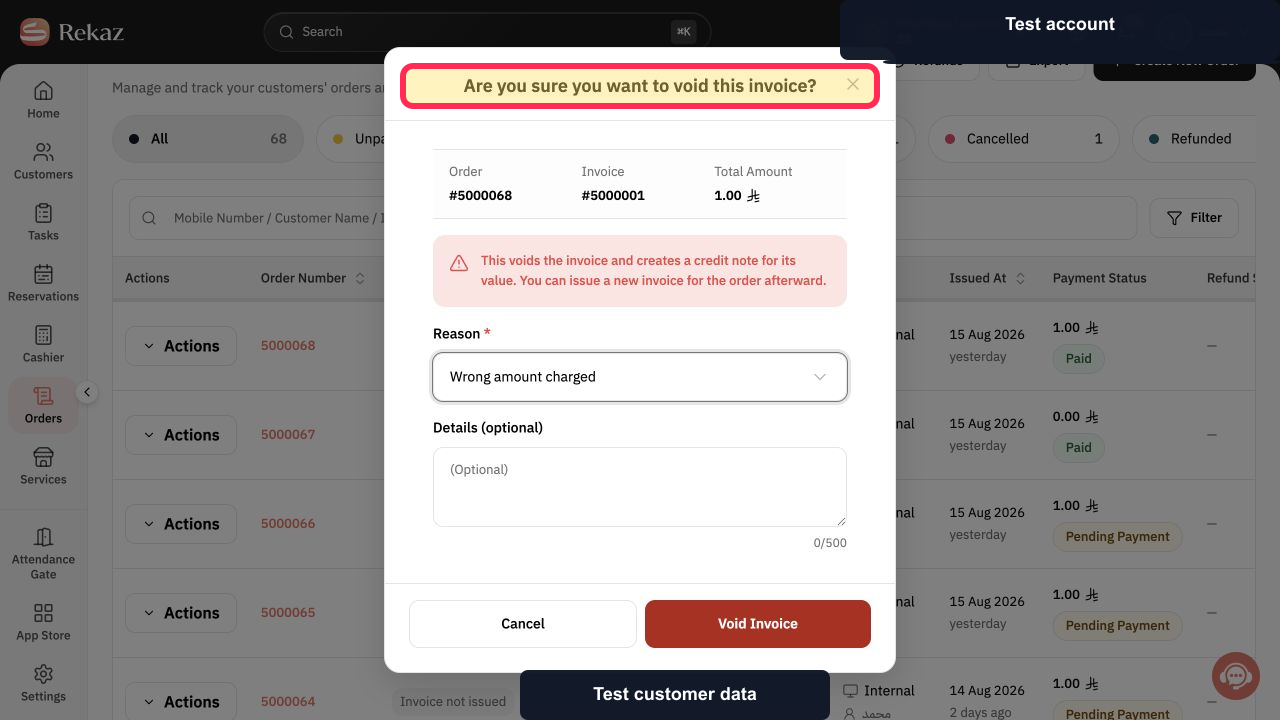
Step 5: Choose the reason for voiding the invoice.
Step 6: Confirm the invoice void after the final review.
Step 7: Edit the order before issuing its replacement invoice when needed.
Step 8: Choose Issue Invoice for the corrected order.
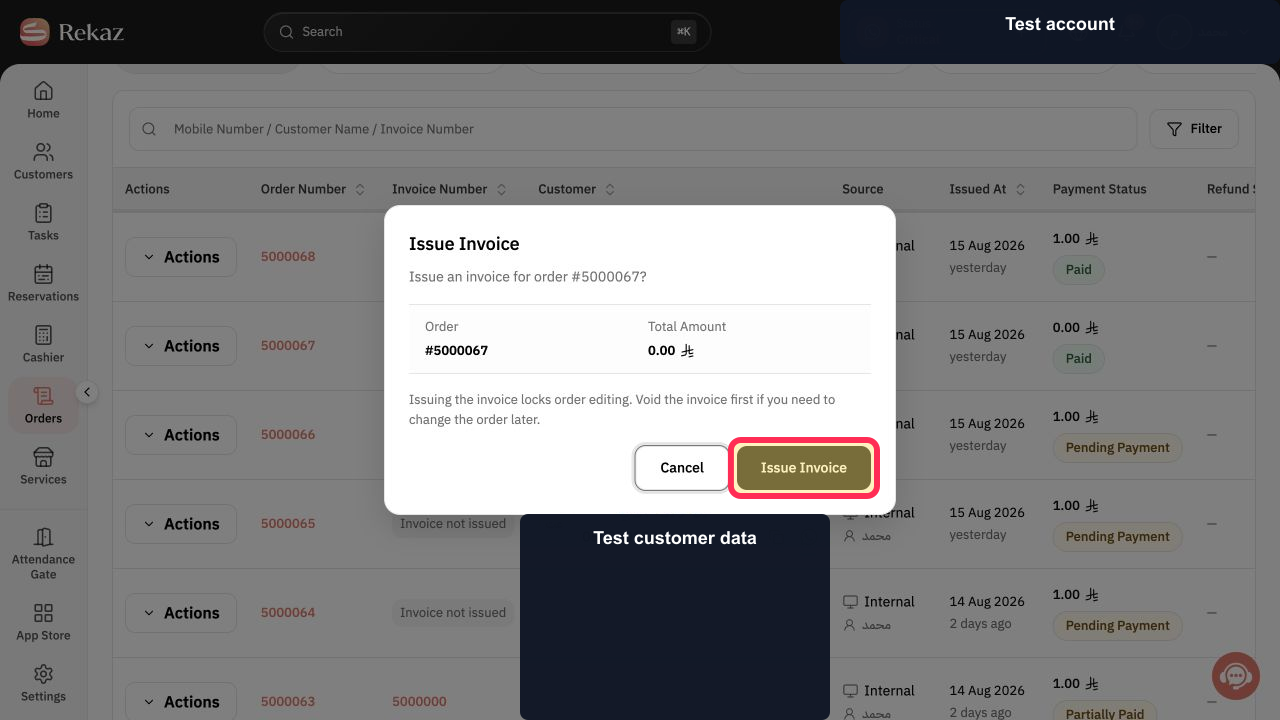
Step 9: Confirm issuing the replacement invoice.
Important
You cannot edit an invoice after it has been issued.
If you change an order, you must void the current invoice and issue a new one for the changes to appear on the invoice.
Related questions
How can I replace an issued invoice in Rekaz?
Why can’t I edit an issued invoice in Rekaz?
How do I issue a new invoice after changing an order in Rekaz?


