How do I edit a reservation in Rekaz?
Use Edit Reservation for appointment changes. The service remains visible while the current editor focuses on the Beauty Expert and Choose Time controls.
Check the customer and reservation number before changing the schedule.
Steps
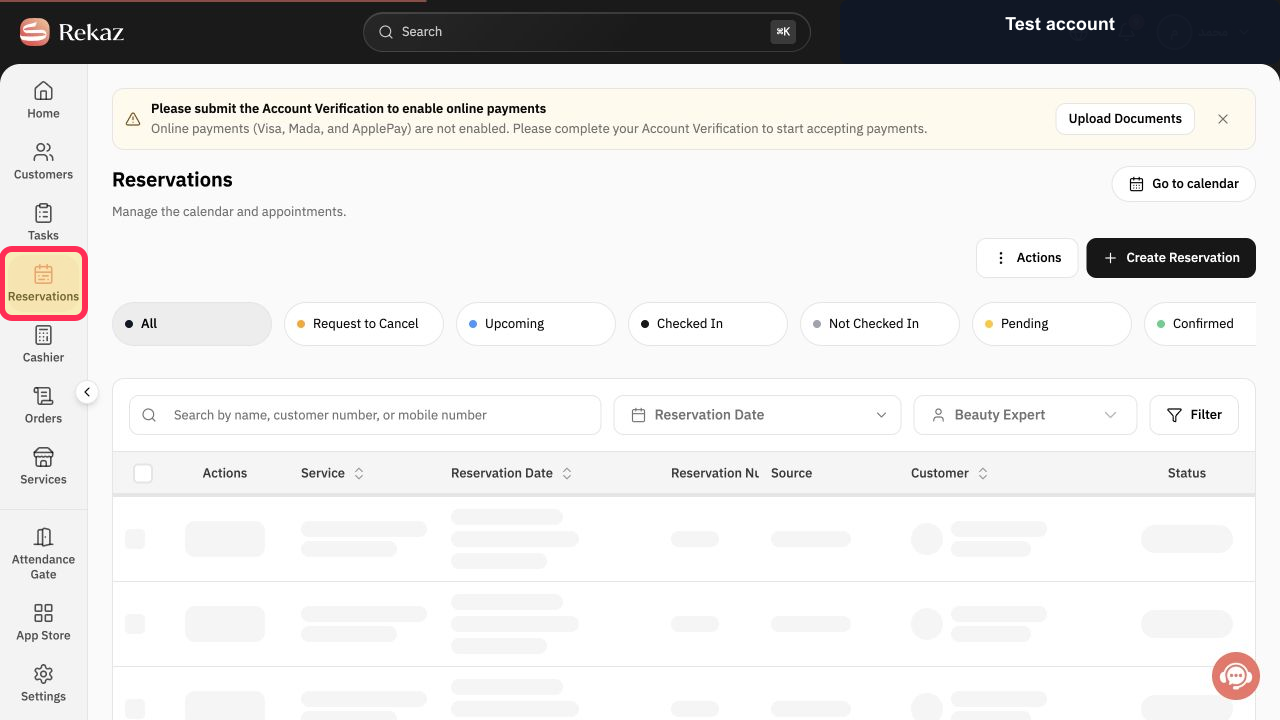
From the Rekaz navigation, select Reservations.
The Reservations page opens.
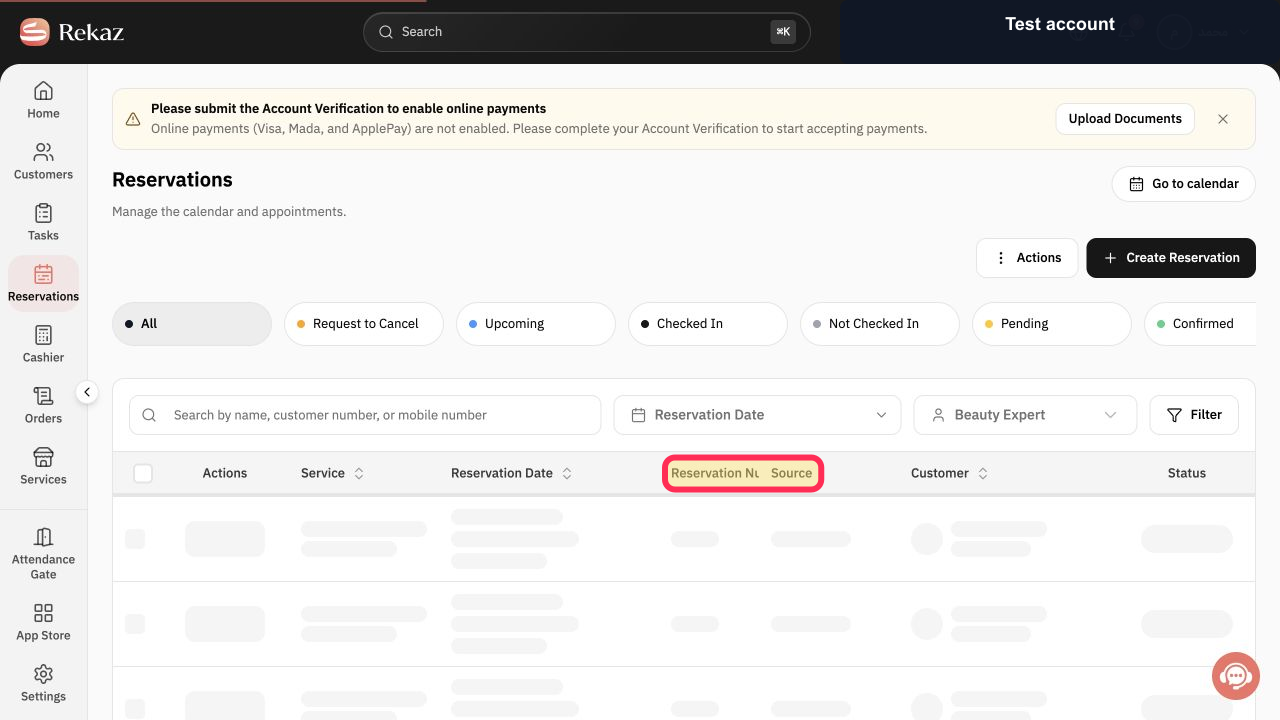
Locate the reservation using the Reservation Number column and verify the row.
The intended reservation row is identified.
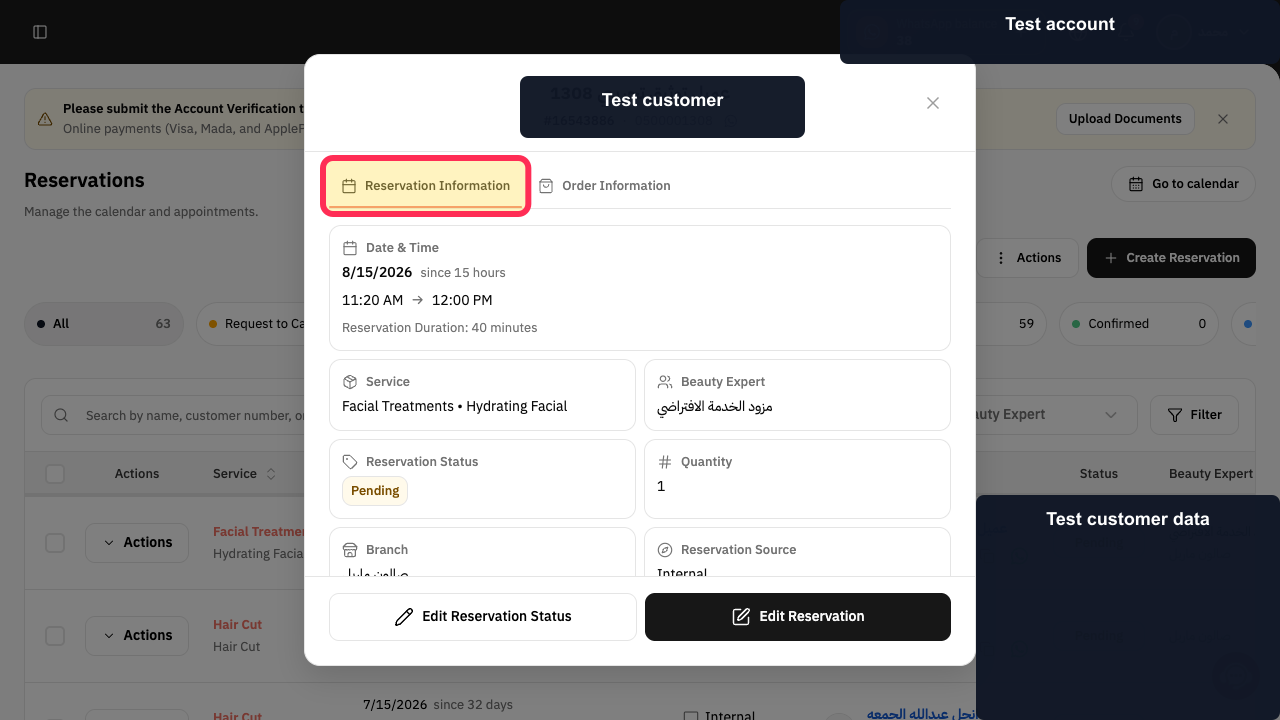
Select the reservation row and review Reservation Information in the details panel.
The selected reservation details panel opens.
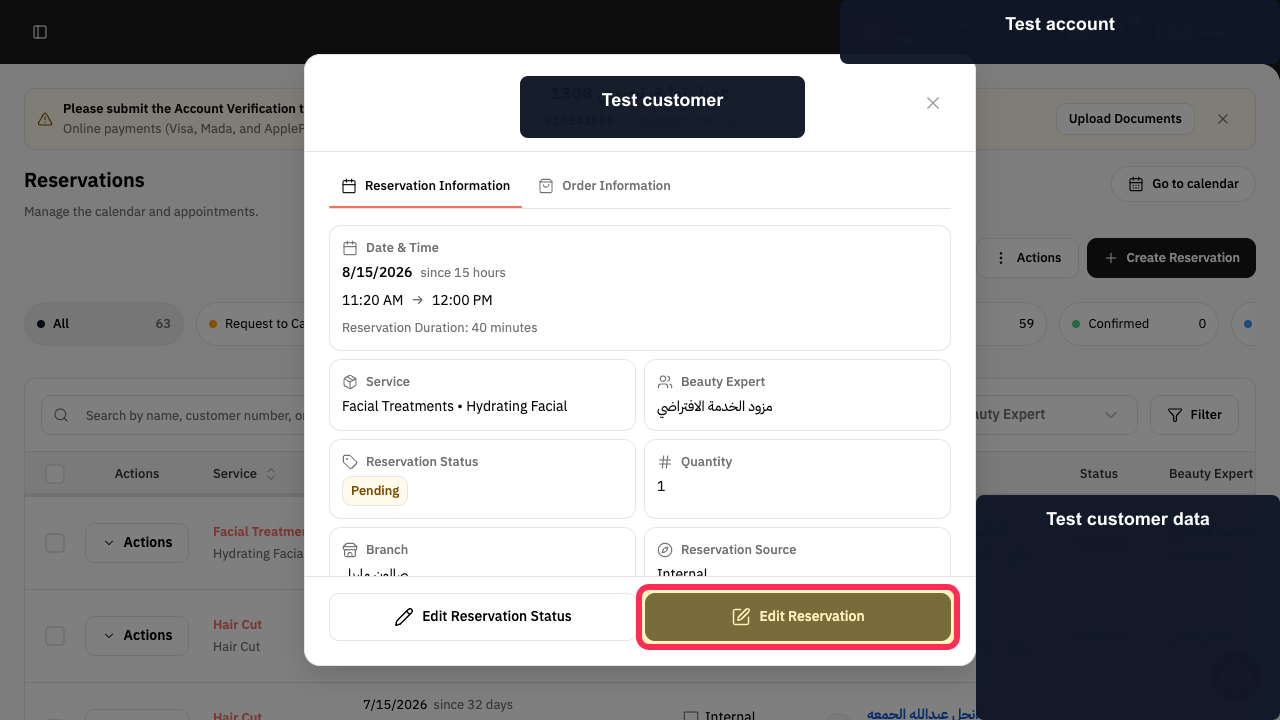
Select Edit Reservation.
The Edit Reservation window opens.
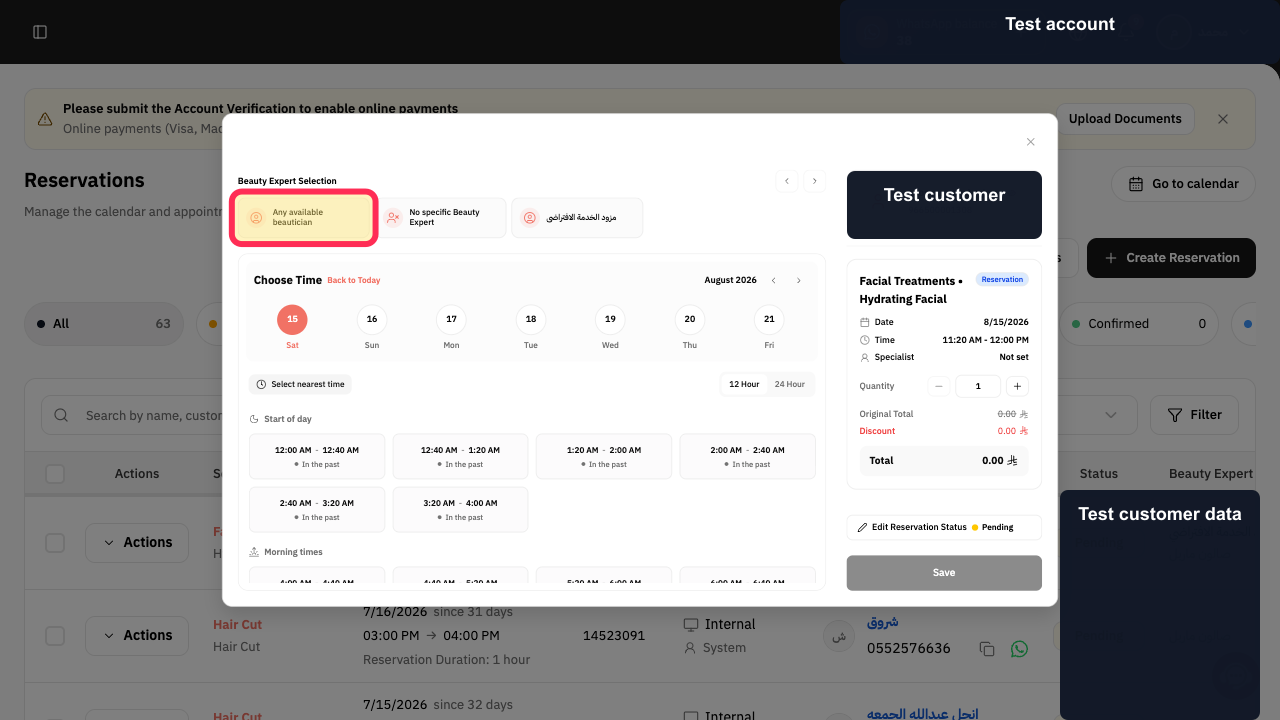
Under Beauty Expert Selection, choose the provider option required for the appointment.
The intended provider option is selected.
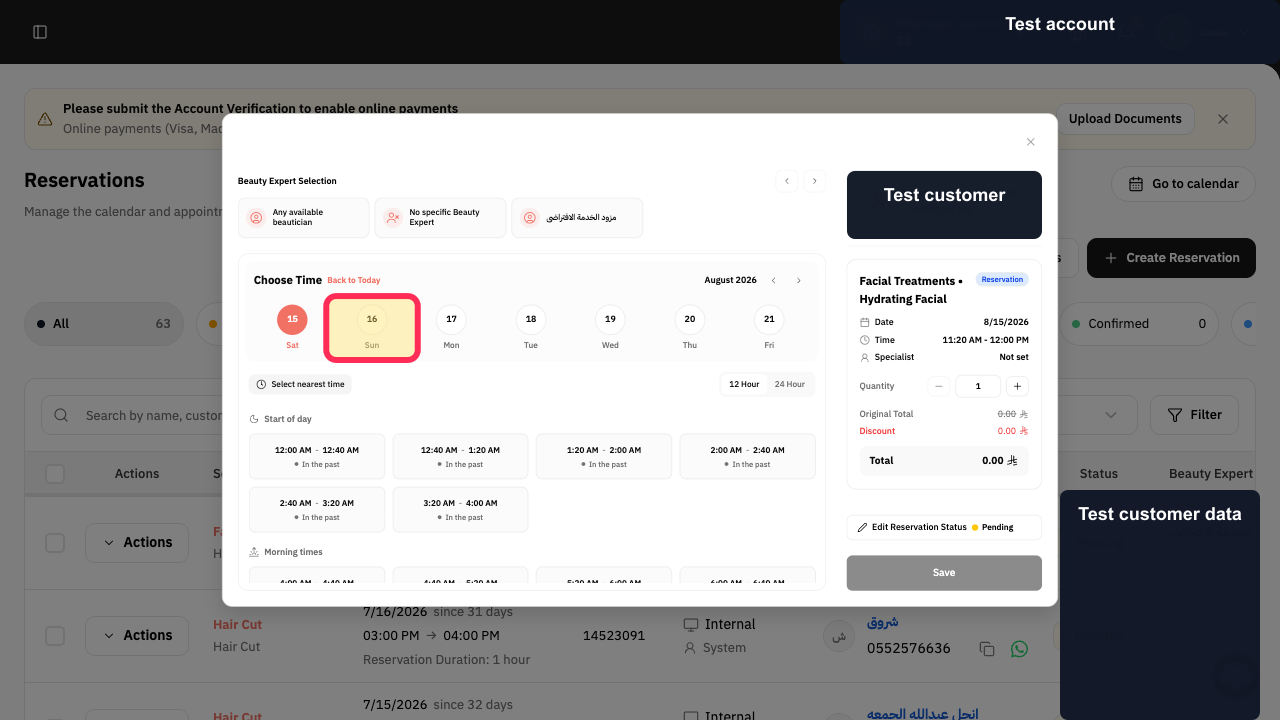
Under Choose Time, select the new date, such as 16 Sun.
The editor shows time slots for the selected date.
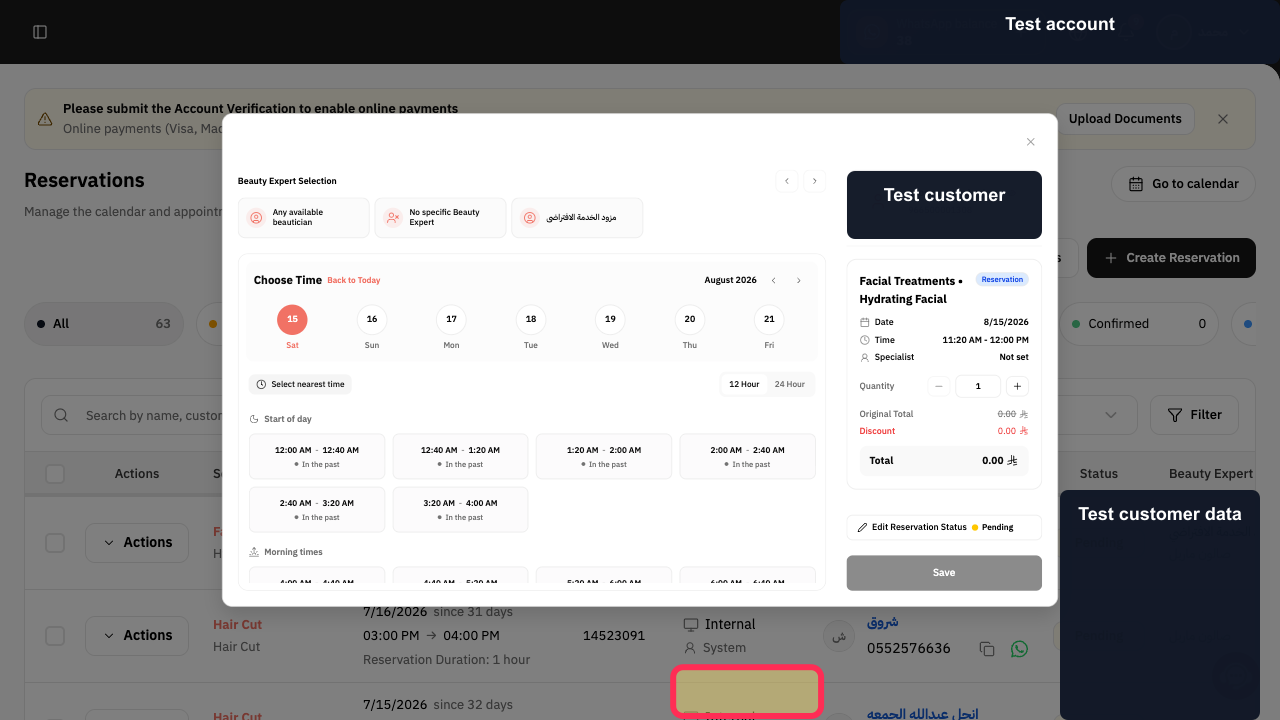
Select an available time slot, such as 11:20 AM - 12:00 PM.
The chosen slot is selected.
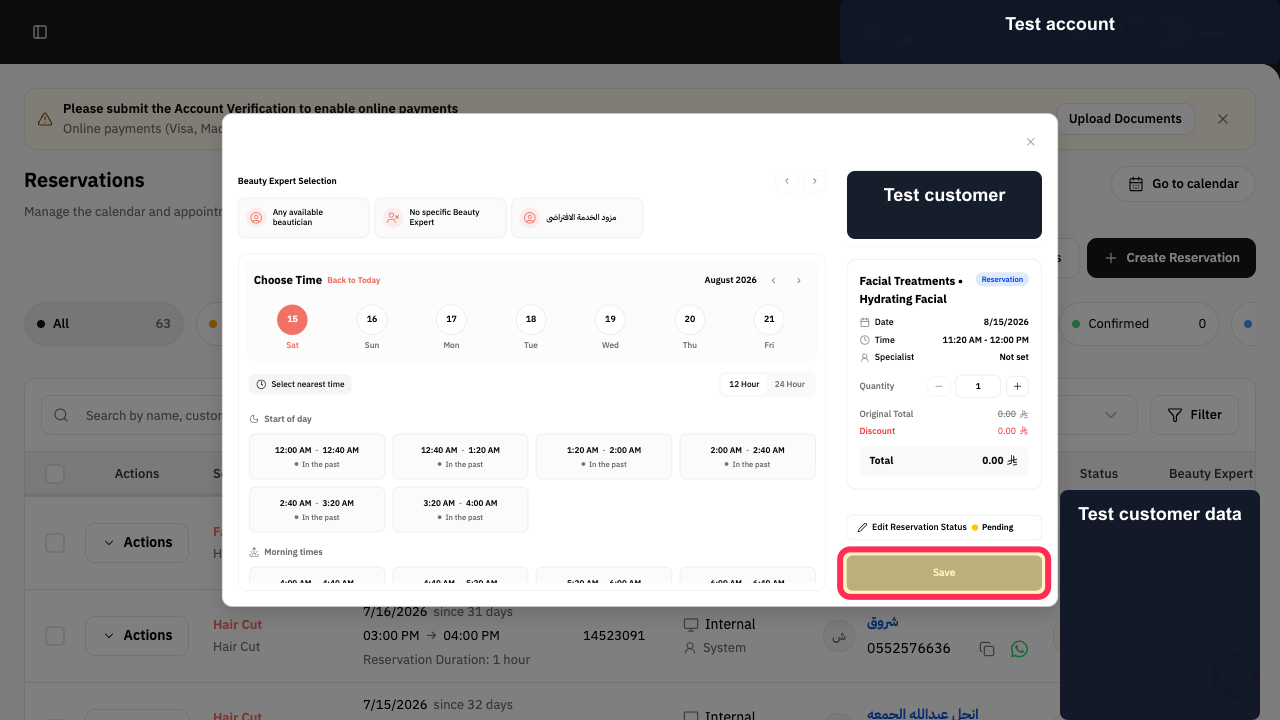
Review the appointment and select Save.
The reservation changes are submitted.
Illustrated guide
Step 1: Open Reservations in Rekaz.
Step 2: Locate the reservation by its number.
Step 3: Open the reservation information.
Step 4: Open Edit Reservation.
Step 5: Choose the reservation provider.
Step 6: Choose the new reservation date.
Step 7: Choose the new reservation time slot.
Step 8: Save the reservation changes.
What you can and cannot edit
You can edit the reservation date, time, and Service Provider.
You cannot change the reservation to a different service.
You cannot change the customer on an existing reservation.
Related questions
How do I change a reservation date in Rekaz?
How do I change the Service Provider for a reservation in Rekaz?
Why can’t I change the service or customer on a reservation in Rekaz?


