How do I add leave for a service provider in Rekaz?
To record leave for a service provider, open the provider’s actions from the Providers page, choose the option to add leave, select the leave duration, and save the changes.
Steps
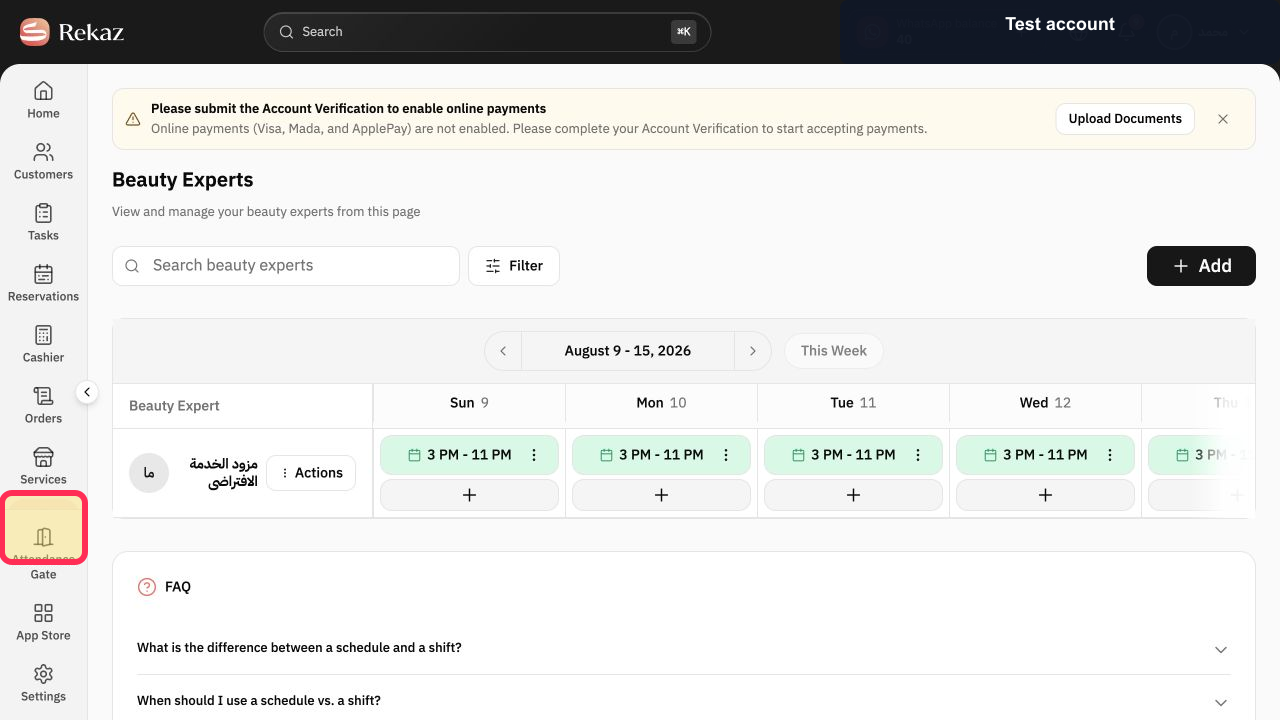
Select Specialists in the Rekaz sidebar and locate the provider who will be unavailable.
The provider is displayed on the Beauty Experts schedule.
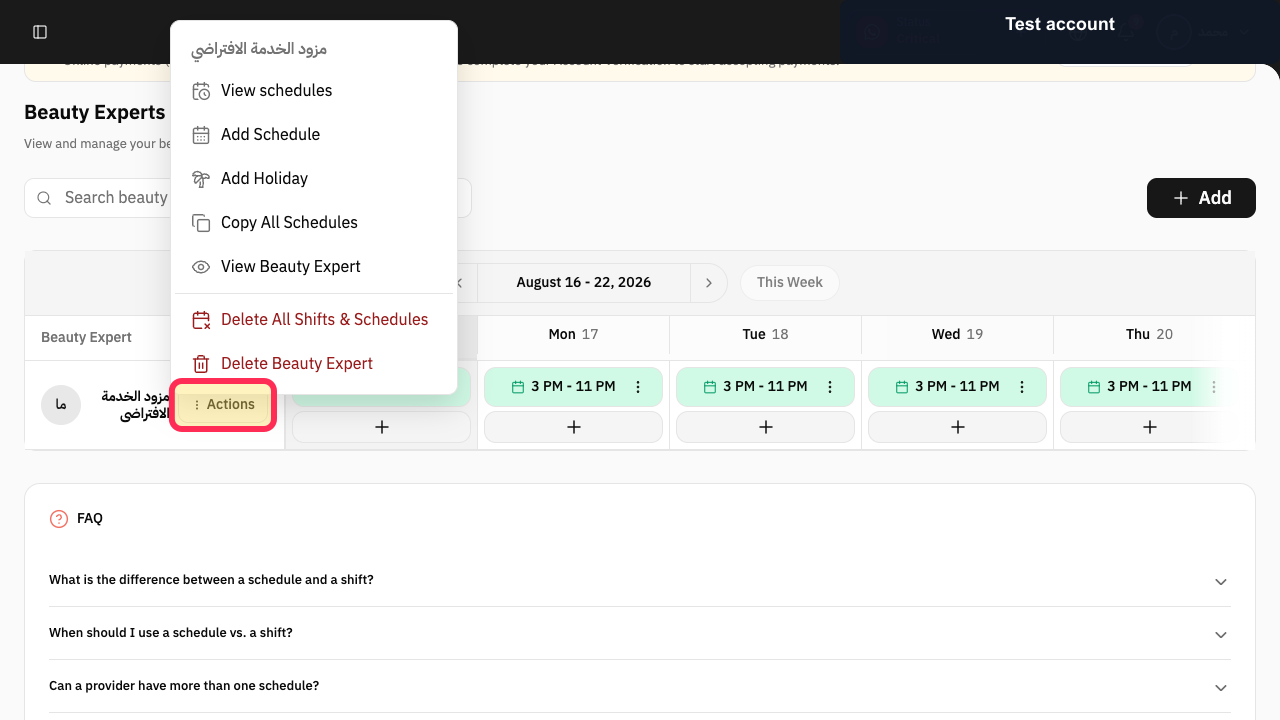
Select Actions beside the provider.
The provider Actions menu opens.
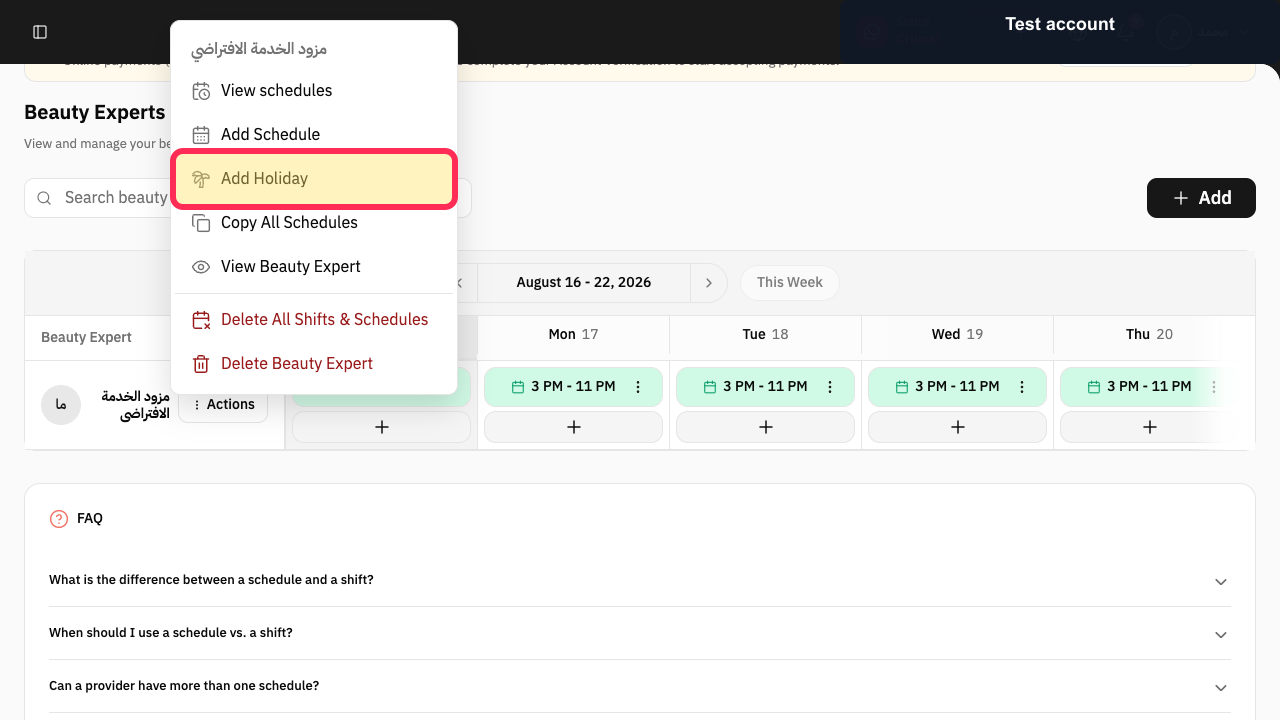
Select Add Holiday.
The Add Holiday dialog opens for the selected provider.
Set Start Date and End Date for the absence.
The holiday date range is configured.
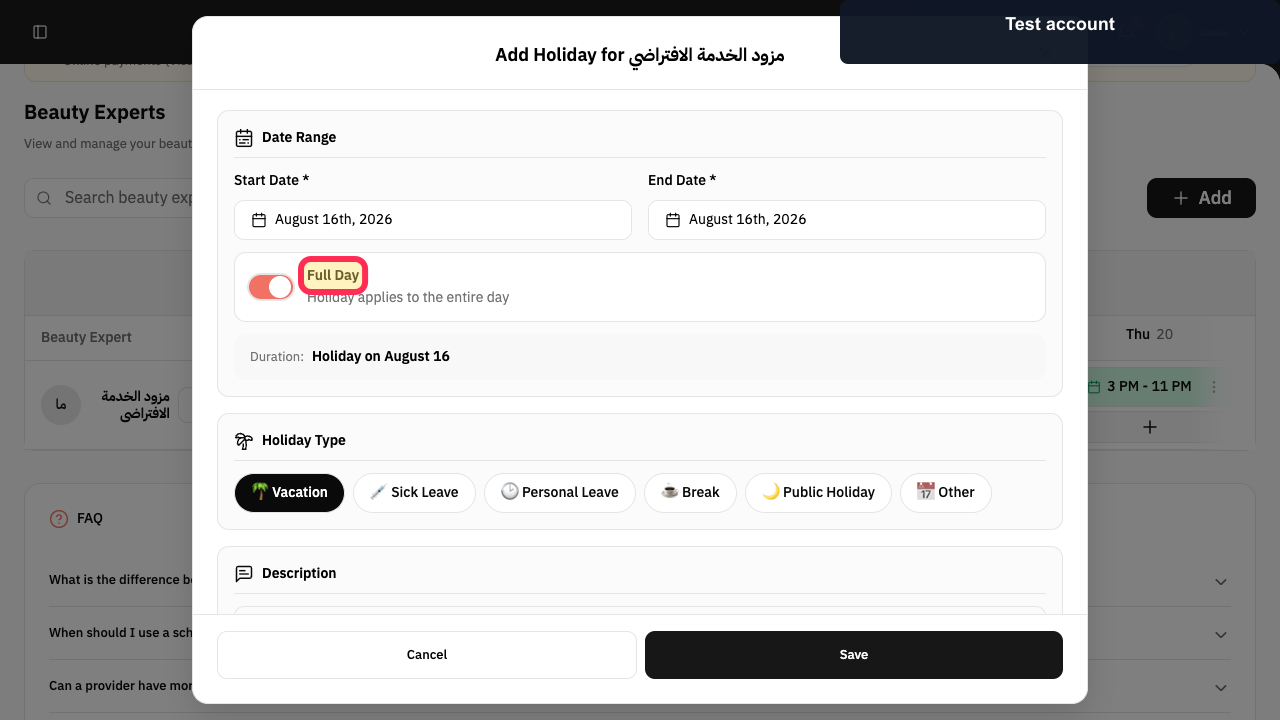
Leave Full Day enabled for a full-day absence, or disable it to enter a shorter time range.
The duration matches the provider's actual absence.
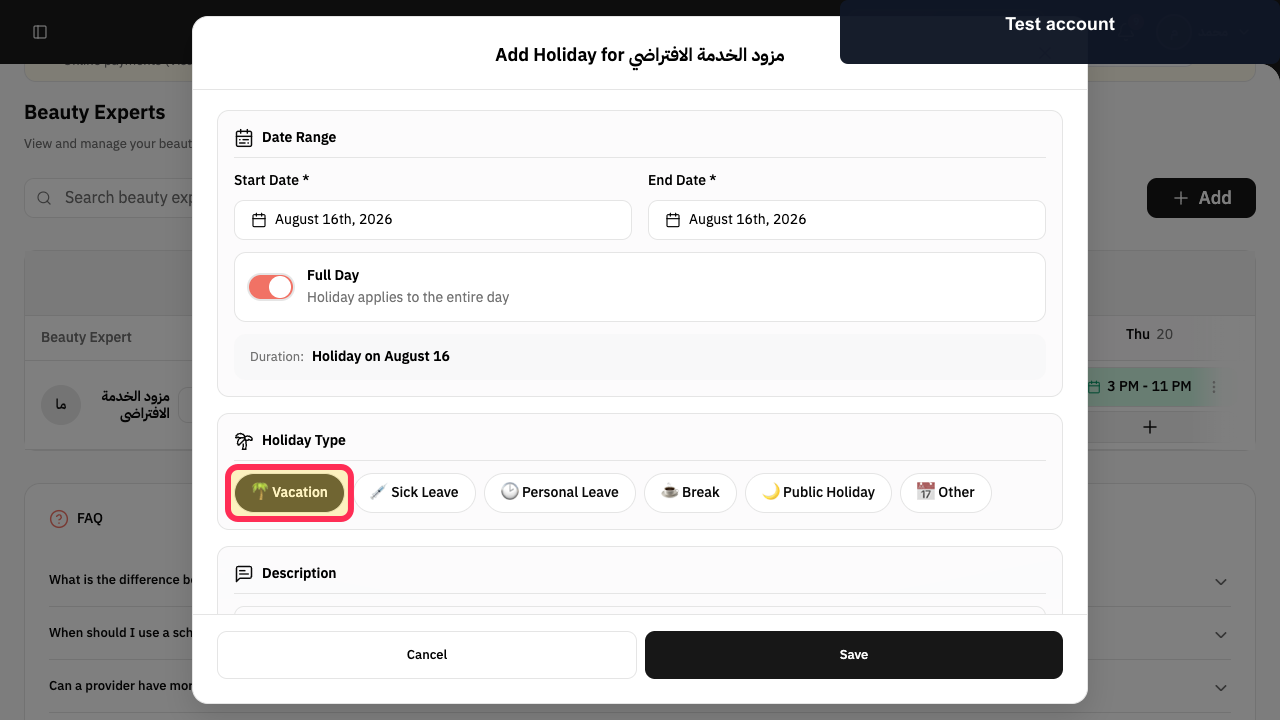
Choose Vacation, Sick Leave, Personal Leave, Break, Public Holiday, or Other.
The Holiday Type is selected.
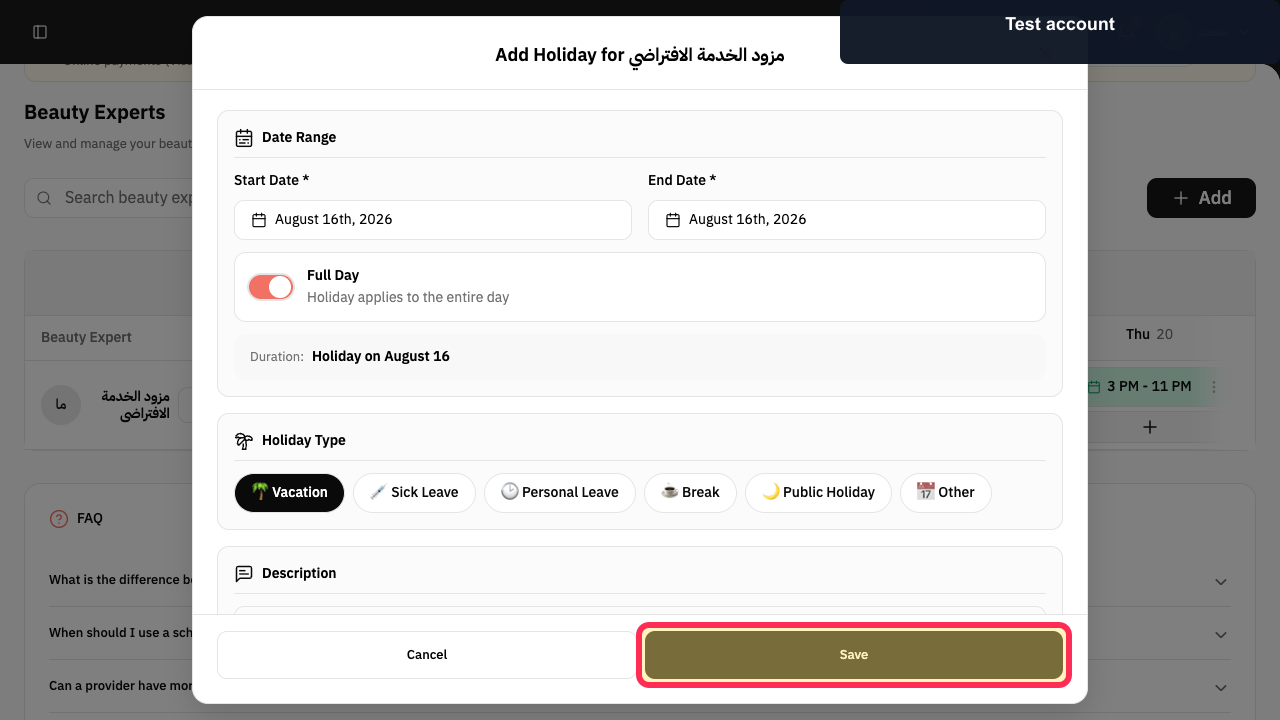
Optionally enter a description, then select Save.
The provider holiday is submitted.
Illustrated guide
Step 1: Open Specialists and locate the provider.
Step 2: Open the provider Actions menu.
Step 3: Open Add Holiday for the provider.
Step 4: Set the provider's holiday dates.
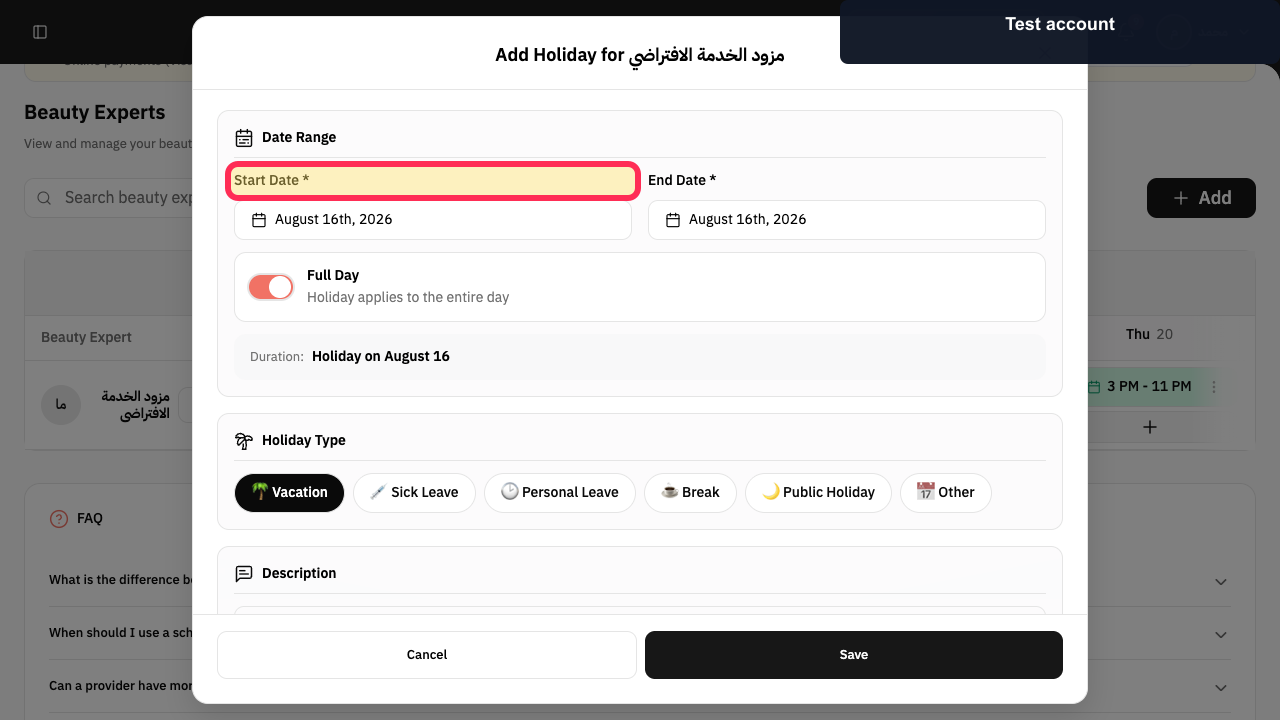
Step 5: Choose whether the absence lasts the full day.
Step 6: Choose the provider's Holiday Type.
Step 7: Save the provider holiday or leave.
Before you save
Make sure the selected duration covers the full leave period for the service provider.
Related questions
How can I record time off for a provider in Rekaz?
Where do I add a service provider’s leave period in Rekaz?
How do I set a provider as unavailable for a specific period in Rekaz?


