How do I delete all schedules and shifts for a service provider in Rekaz?
To remove every schedule and shift for one service provider, open that provider’s actions menu on the Providers page, select the option to delete all shifts and schedules, and confirm the deletion.
This action applies to the selected service provider’s schedules and shifts.
Steps
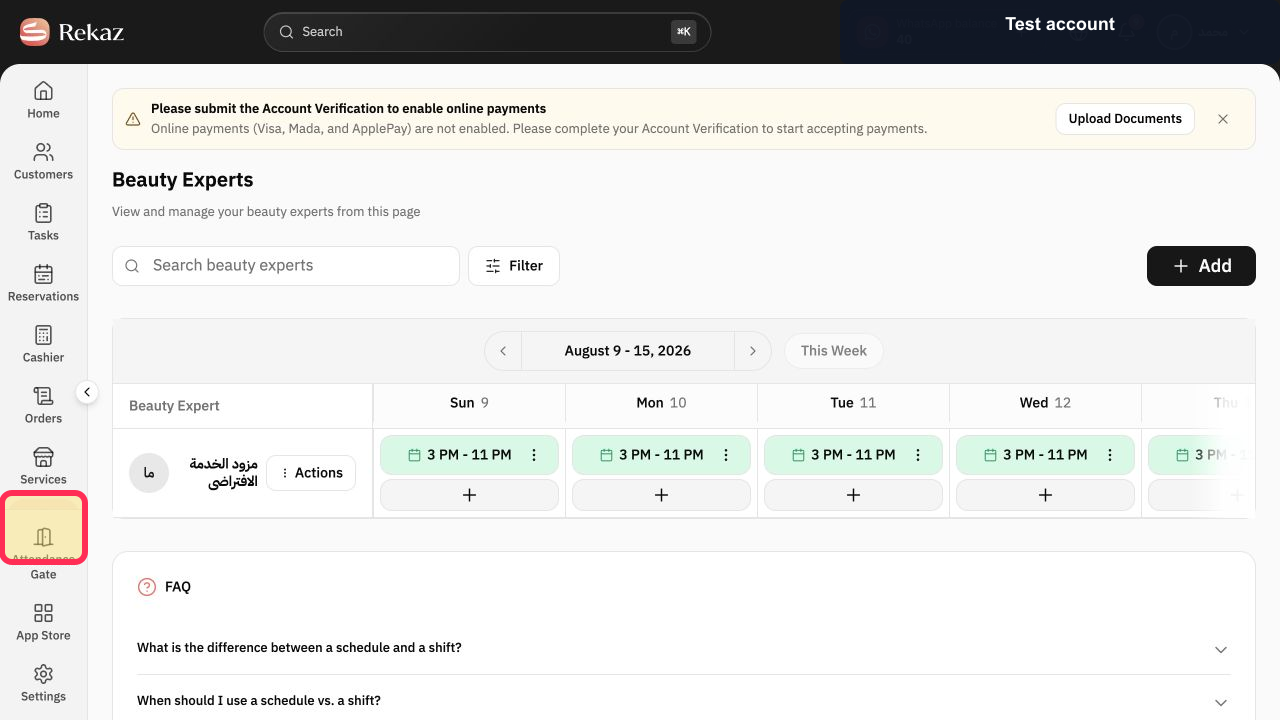
Select Specialists in the Rekaz sidebar and locate the provider whose schedule history must be removed.
The provider is visible on the Beauty Experts weekly schedule.
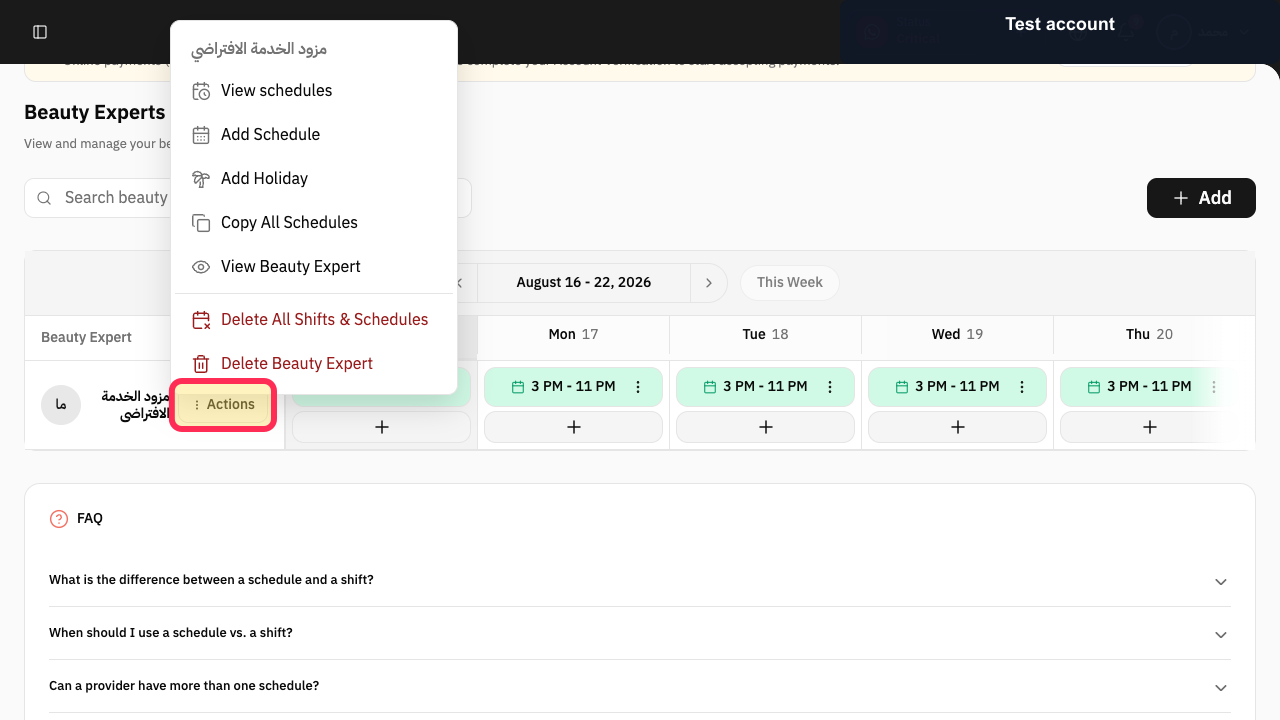
Select Actions beside the provider.
The provider Actions menu opens.
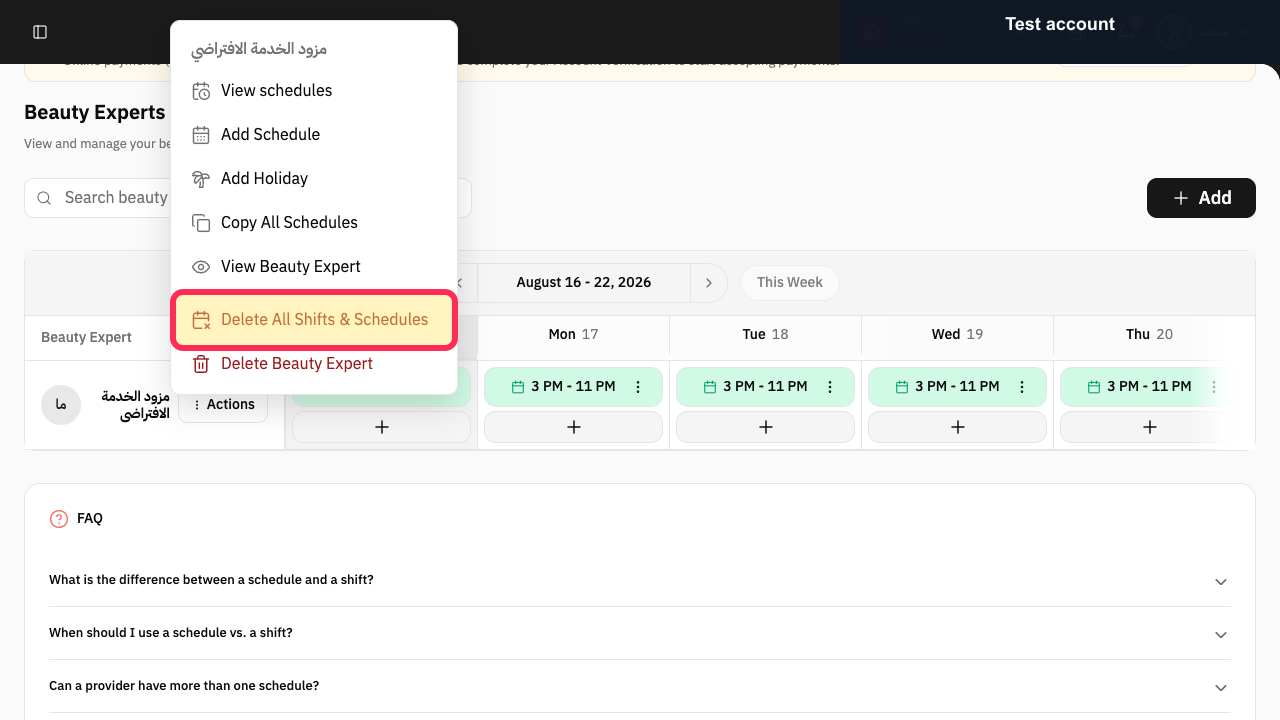
Select Delete All Shifts & Schedules.
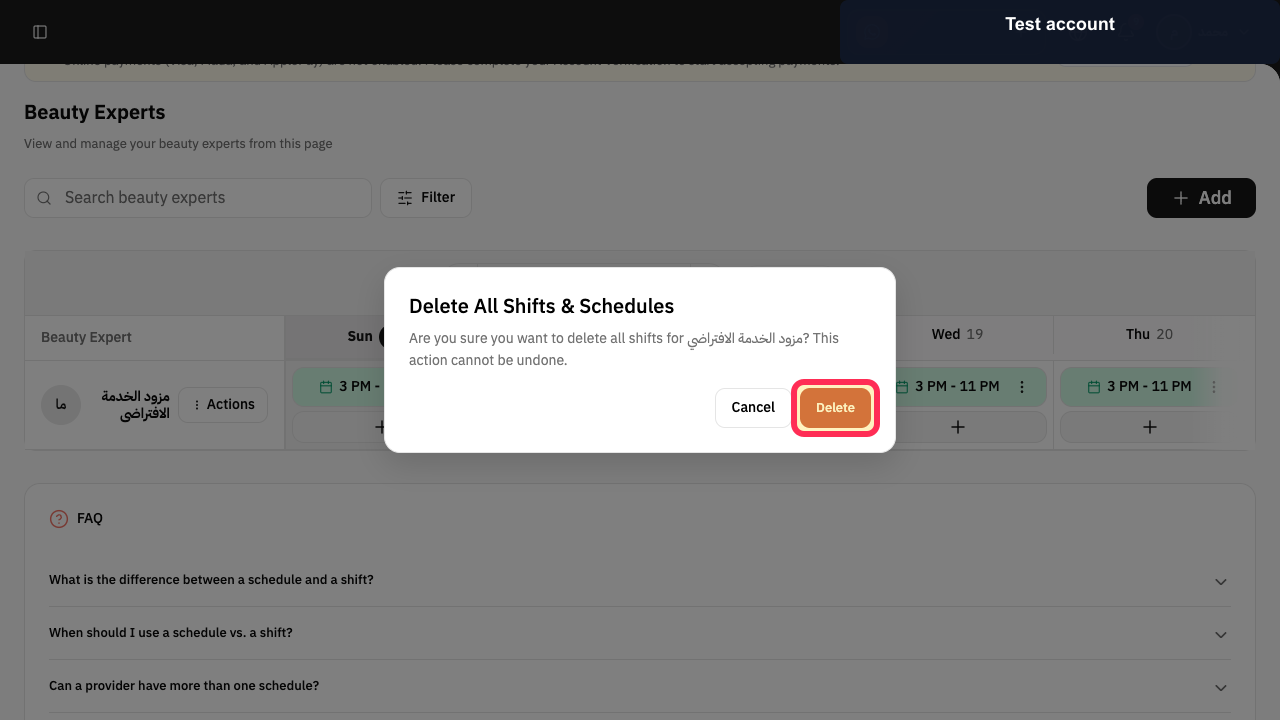
A confirmation warning explains that the action cannot be undone.
Verify the provider name in the warning and make sure all shifts and schedules are permanently removed.
Select Delete to proceed, or Cancel to keep the schedules.
All shifts and schedules are deleted only after confirmation.
Illustrated guide
Step 1: Open Specialists and locate the provider.
Step 2: Open the provider Actions menu.
Step 3: Choose Delete All Shifts & Schedules.
Step 4: Review the irreversible schedule-deletion warning.
Step 5: Confirm or cancel deleting all provider schedules.
Before you delete schedules and shifts
Make sure you have selected the correct service provider before confirming the deletion.
Related questions
How can I remove a provider’s shifts in Rekaz?
How can I delete a service provider’s schedules in Rekaz?
How do I clear all schedules for one provider in Rekaz?


