How do I restrict employee access in Rekaz?
Rekaz provides a Roles area where you can start a new role and avoid granting full access. Use this workflow to apply least-privilege access for employee roles.
The current interface does not include a control to save the role, assign users to it, or select individual permissions.
Steps
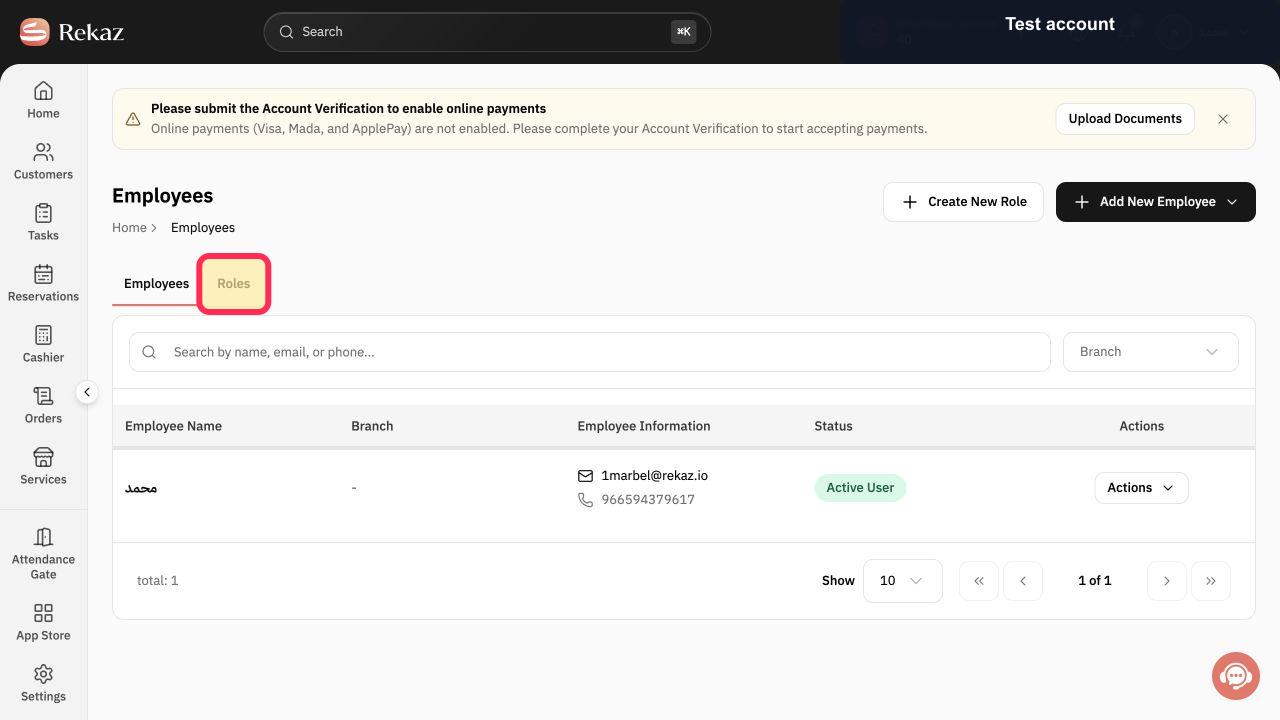
Select the Roles tab.
The Roles area is displayed, with the option to create a new role.
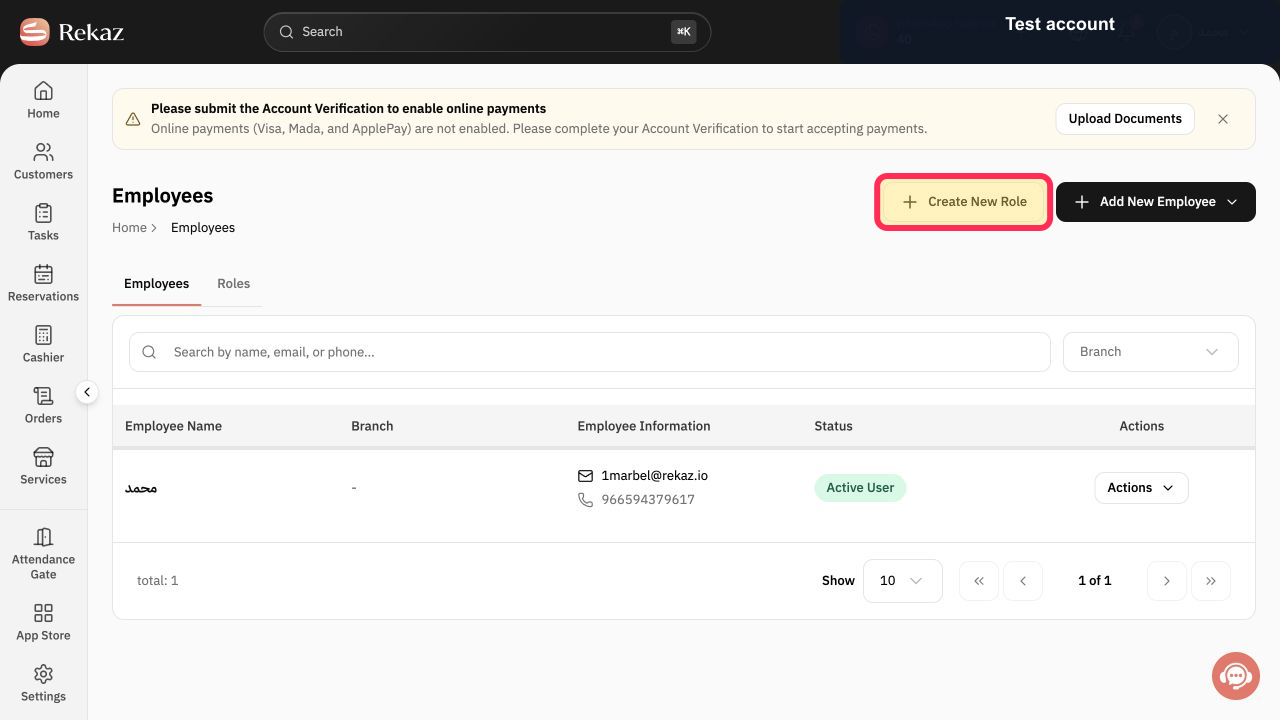
Select Create New Role.
The Create New Role page opens.
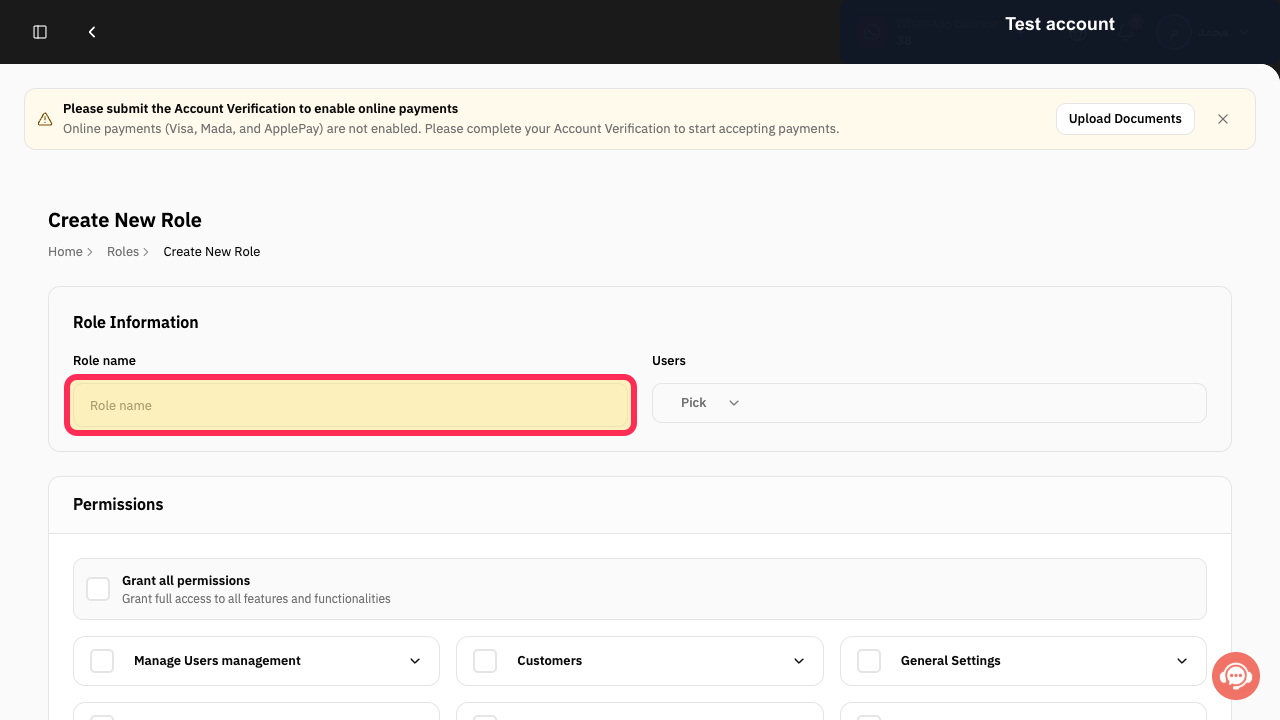
Enter a clear name for the restricted role.
The role name is entered in the Role name field.
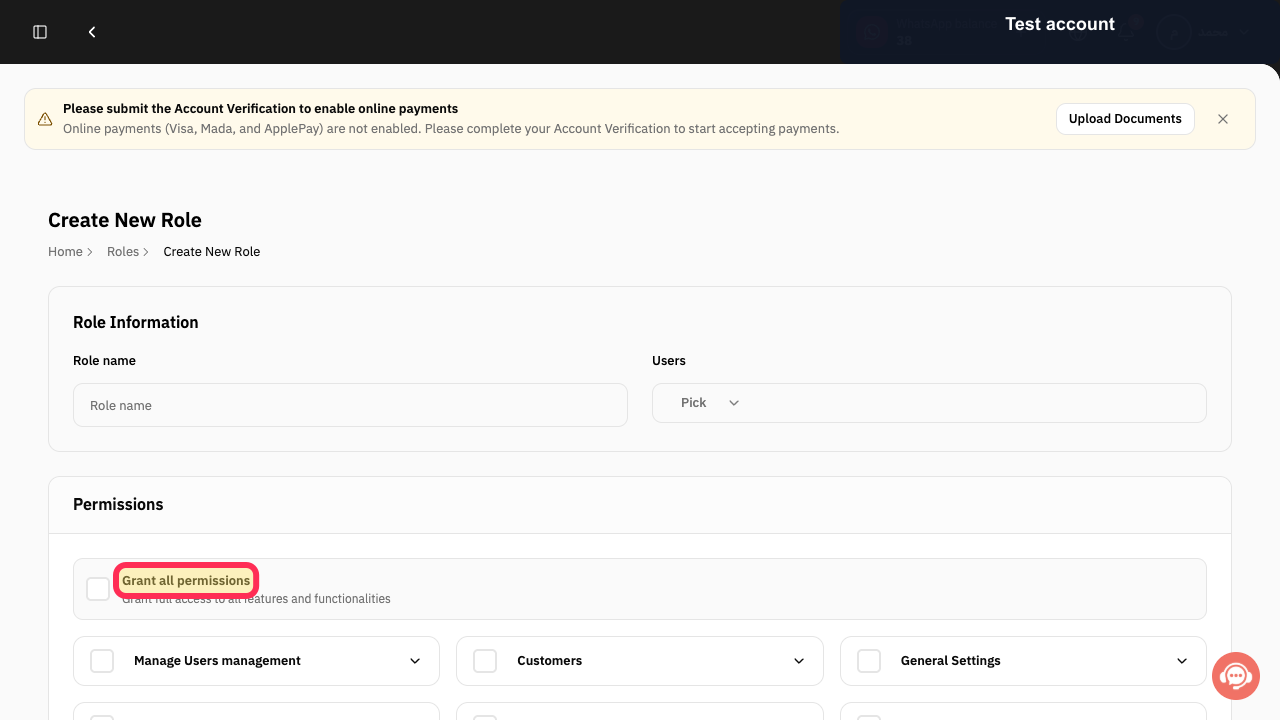
Leave Grant all permissions unselected.
The role is not configured with full access to all features and functionalities.
Illustrated guide
Step 1: The Roles tab in the employee management area.
Step 2: The Create New Role button in the Roles area.
Step 3: The Role name field on the Create New Role page.
Step 4: The Grant all permissions setting on the role form.
Important access-control guidance
Apply the principle of least privilege: give each employee only the access required to perform their work.
Do not share the Owner account. Create and assign custom roles instead.
Review the Sensitive Information permission group carefully.
Recheck roles regularly and after any change to an employee’s duties.
Permissions can cover areas such as Customers, Payments, Reports, and Sensitive Information.
Leave Grant all permissions unselected when an employee does not require complete access.
Related questions
How do I hide sensitive data from an employee in Rekaz?
How do I control a user’s access in Rekaz?
How do I prevent an employee from viewing reports in Rekaz?


