Why was my invoice not issued in Rekaz?
Use the Orders list to confirm whether the affected order is labelled “Invoice not issued.” Then review the company information used for invoices in Rekaz Invoice Settings, including VAT settings and invoice notes.
Do not assume that printing an invoice will issue one.
Steps
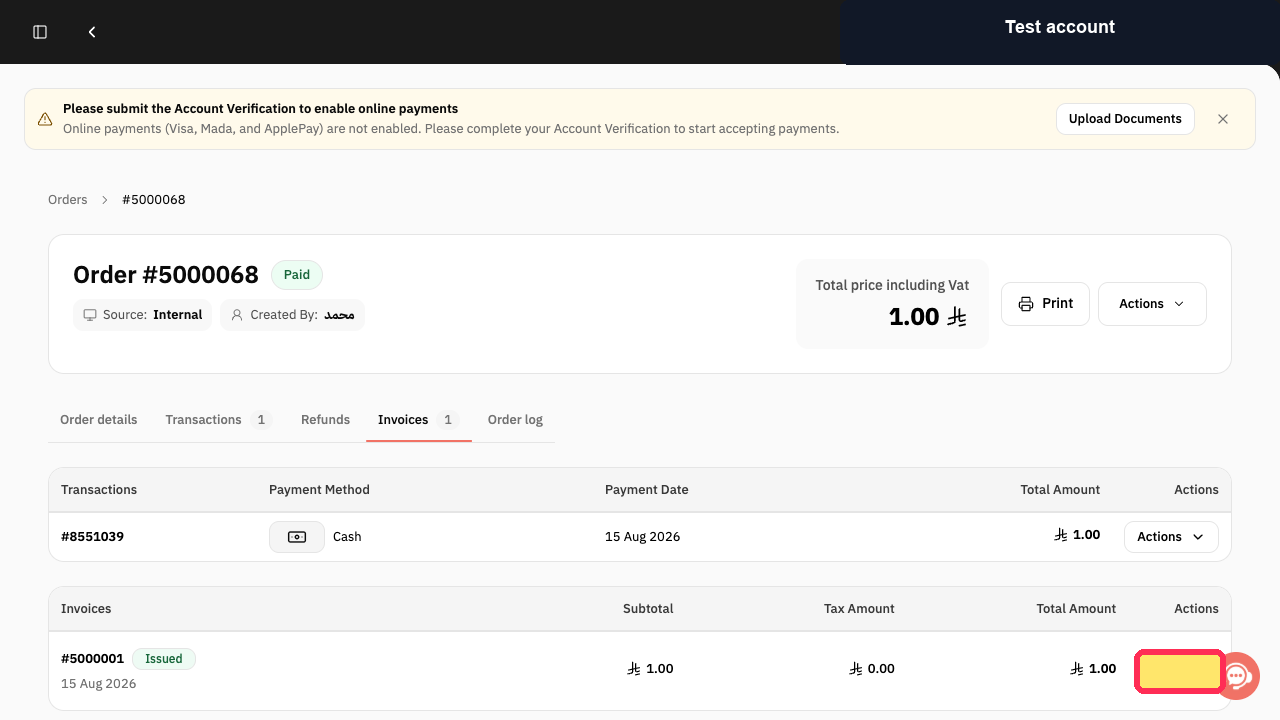
In the Orders list, find the affected order and verify whether it is marked “Invoice not issued.”
The order’s invoice status is visible as “Invoice not issued.”
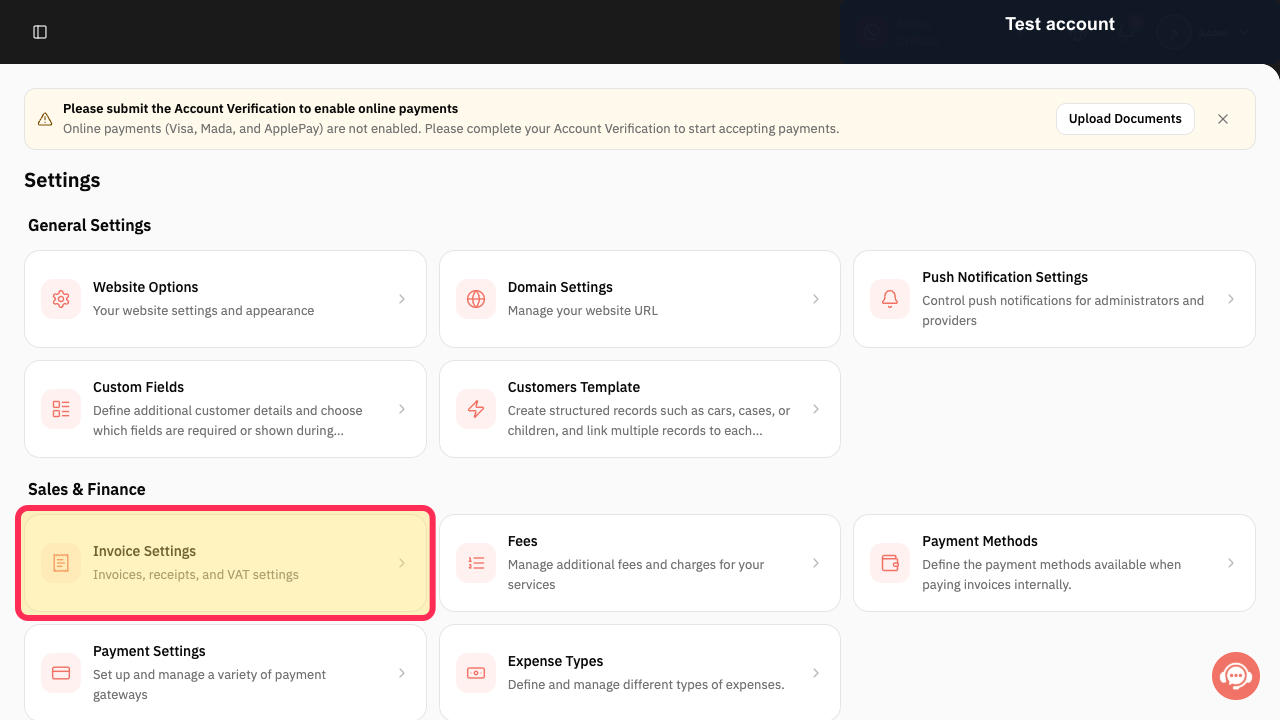
From Settings, select the Invoice Settings card.
The Invoice Settings page opens.
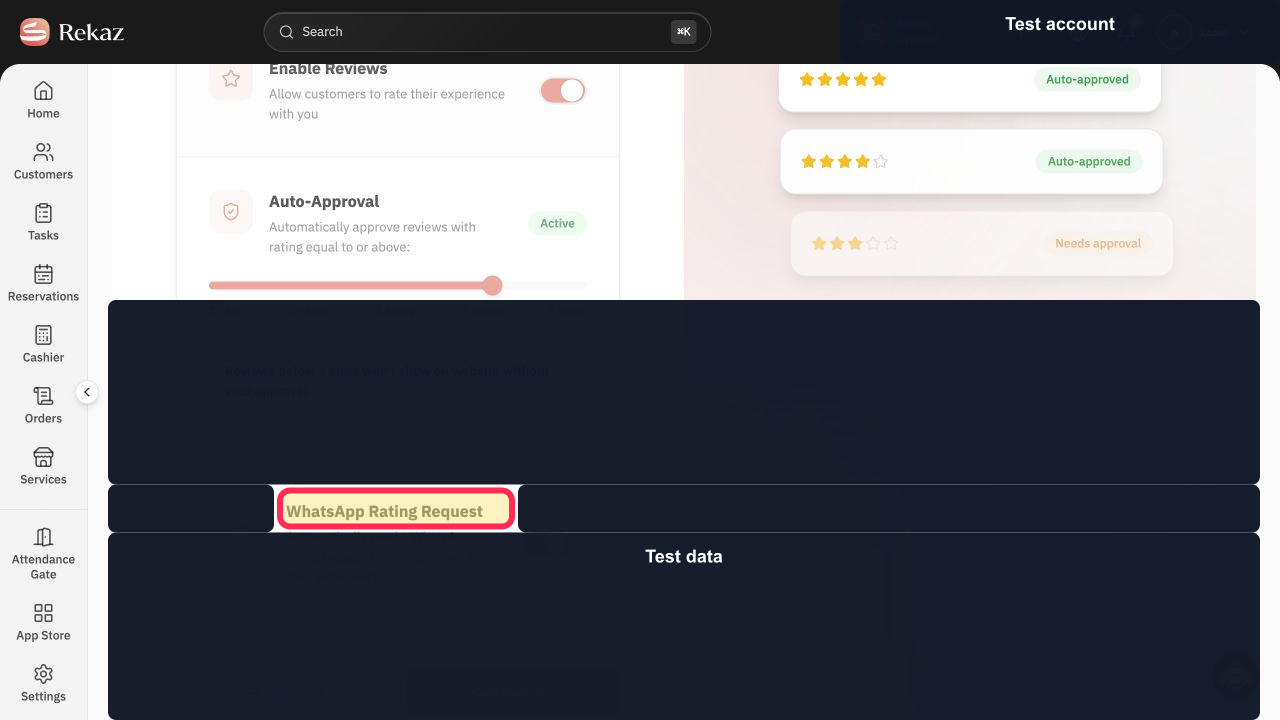
Select Company Information and review the commercial registration, VAT settings, and invoice notes used for invoices.
The Company Information option for managing commercial registration, VAT settings, and invoice notes is available.
Illustrated guide
Step 1: Verify the invoice status on the affected order.
Step 2: Open Invoice Settings to review invoice configuration.
Step 3: Review the company information used on invoices.
Important notes
Check that payment was recorded once only.
Review your business details and tax configuration before relying on the invoice.
Do not edit the order or repeat the payment while you are checking the invoice flow.
Related questions
Why is my invoice not showing after payment in Rekaz?
Where can I find the latest invoice for an order in Rekaz?
Why is the Print Invoice option not available in Rekaz?


