How do I use Rekaz to manage a Physiotherapy Center?
Rekaz does not currently show a Physiotherapy Center-specific workflow. Use the standard service-management areas for your treatment offerings, and use packages where you need to group services or set usage limits.
The current interface does not show the action for associating a service with a specific Service Provider’s schedule, or a single end-to-end test-booking action. You can safely review the calendar, add an existing product or service to an order, and check the displayed online-payment status.
Steps
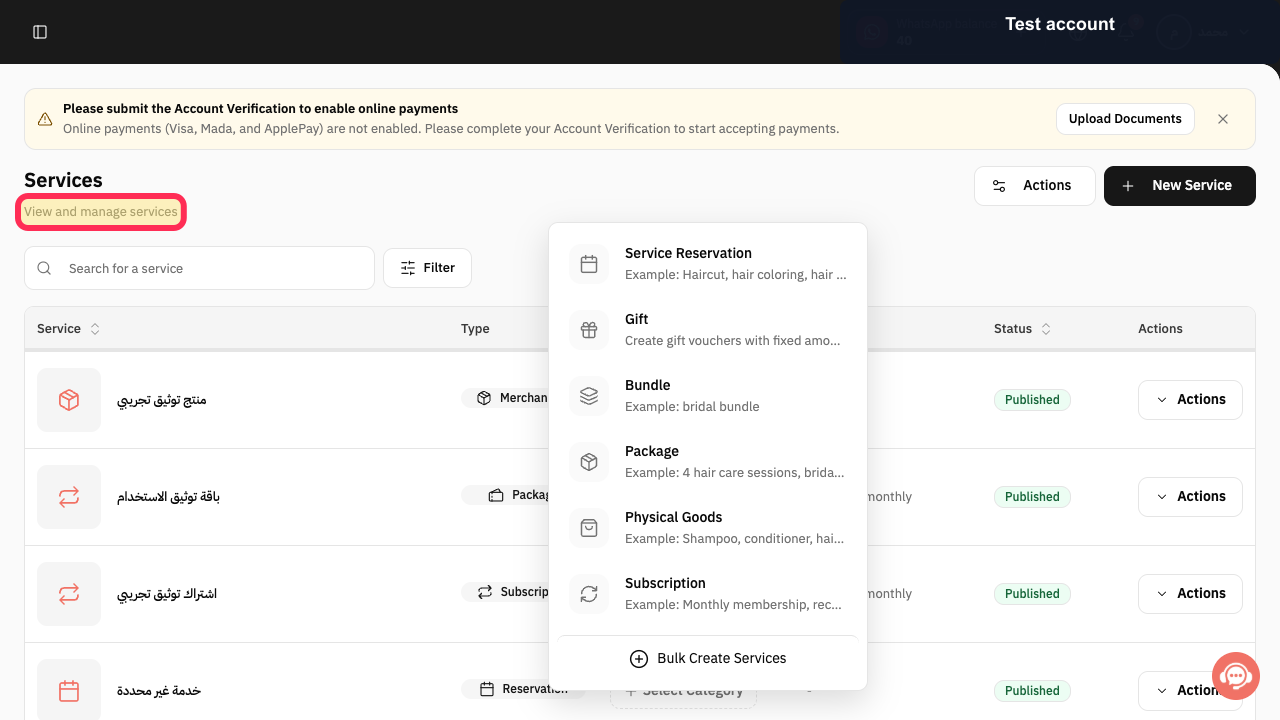
In Services, verify that this is the area for viewing and managing the services you use to represent your treatment offerings.
The Services area shows the description “View and manage services.”
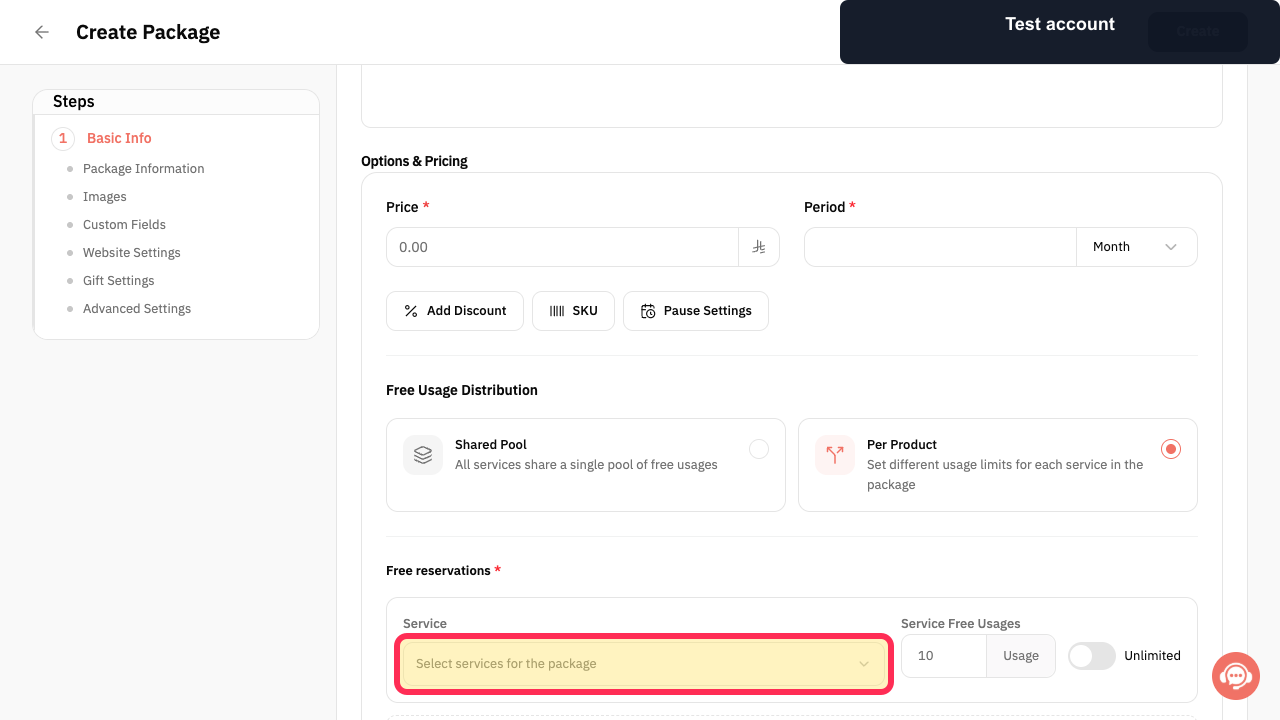
If you sell a treatment package, select “Select services for the package” in the package editor.
The control for selecting the services included in the package is visible.
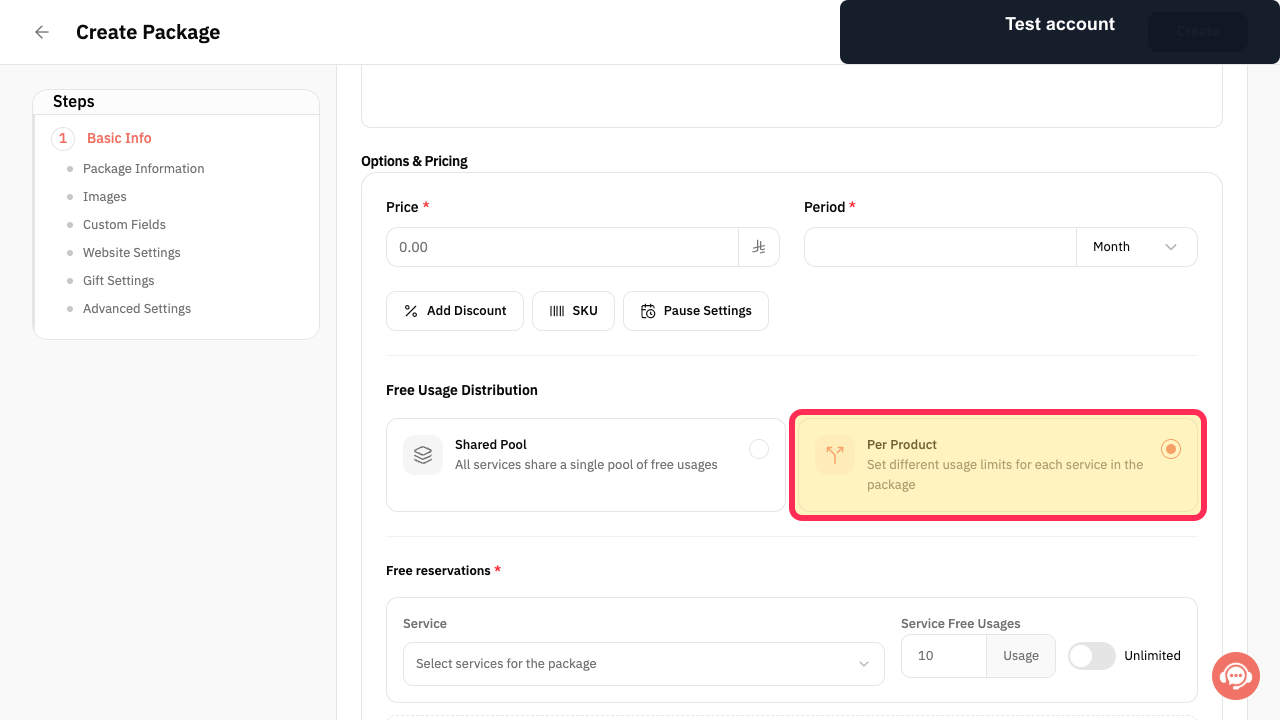
For a package with separate limits for each included service, choose “Per Product.”
The “Per Product” option states that different usage limits can be set for each service in the package.
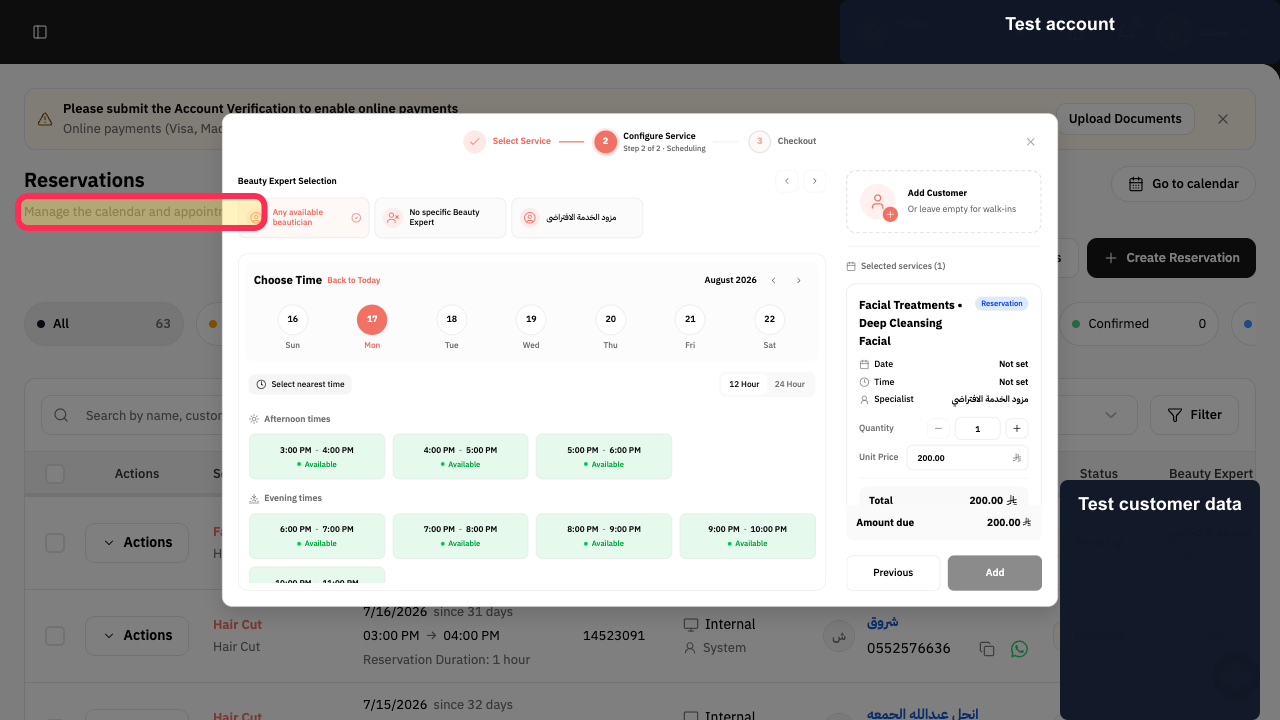
Review the Reservations area to manage the appointment calendar.
The page identifies Reservations as the place to manage the calendar and appointments.
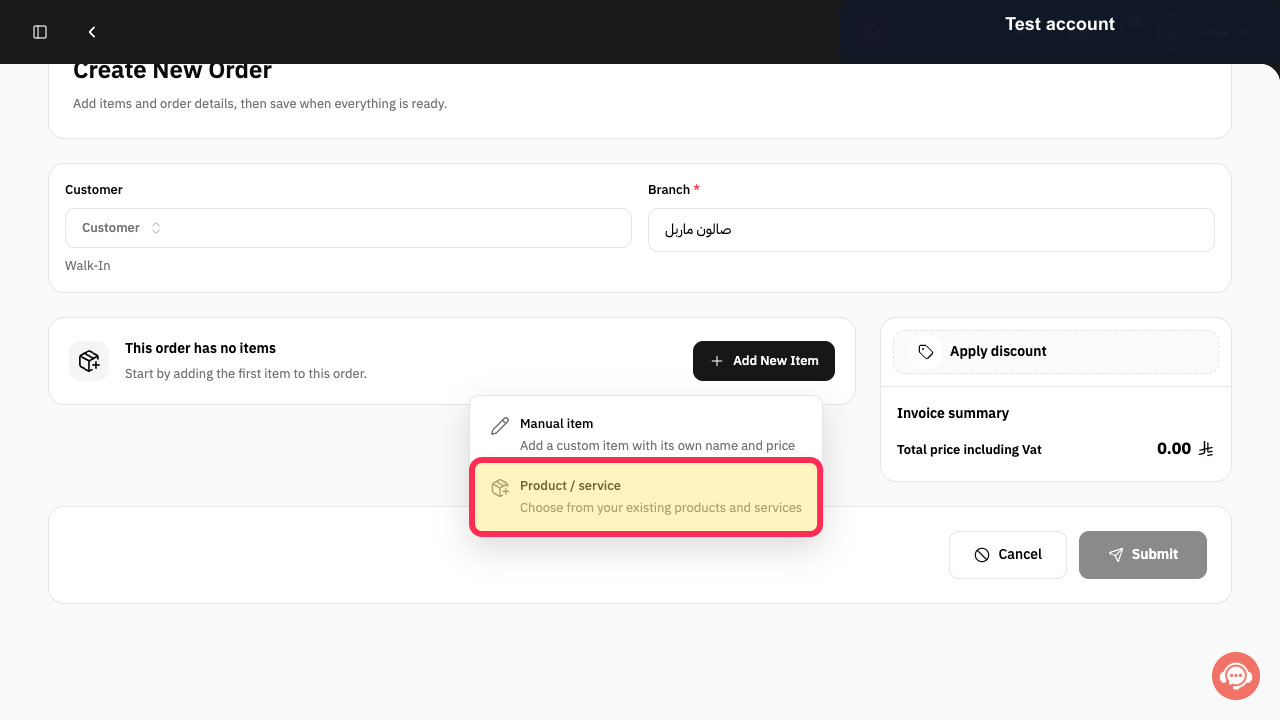
When creating an order, choose “Product / service” to add one of your existing services.
The order flow offers Product / service and explains that it uses existing products and services.
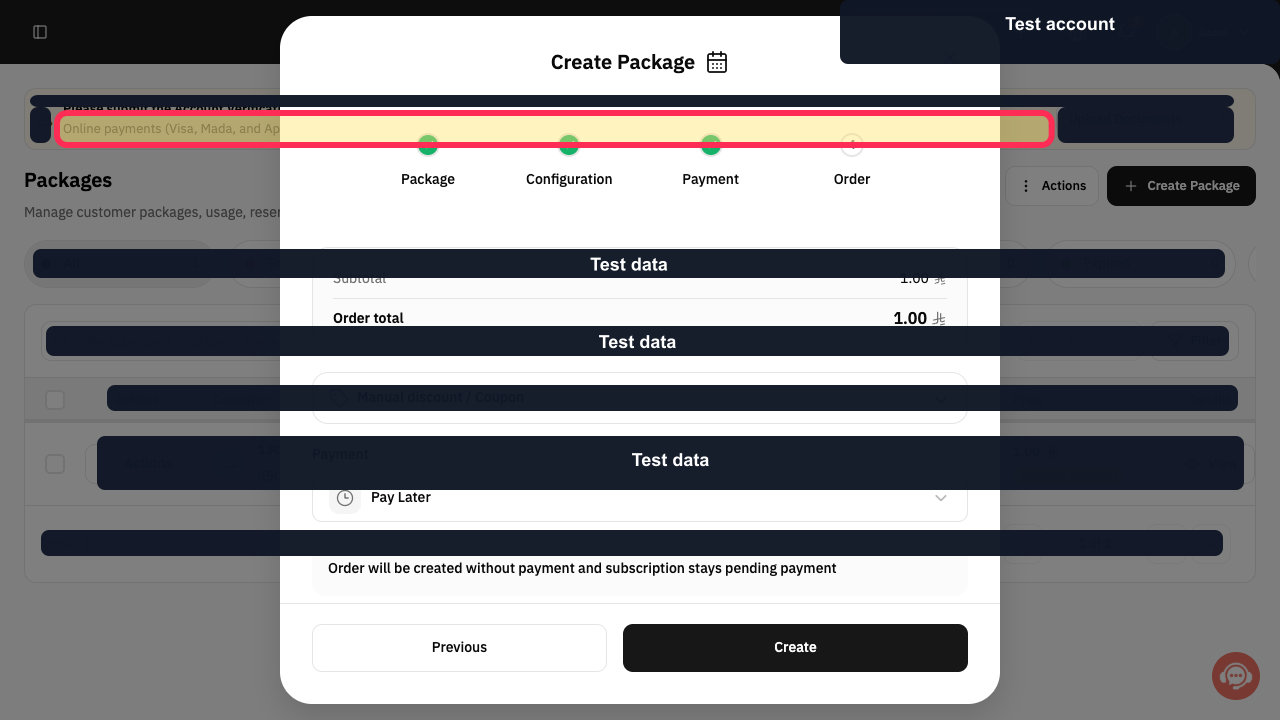
Check the payment-status message before relying on online payment for appointments or packages.
A message states that online payments are not enabled and that Account Verification is required to start accepting payments.
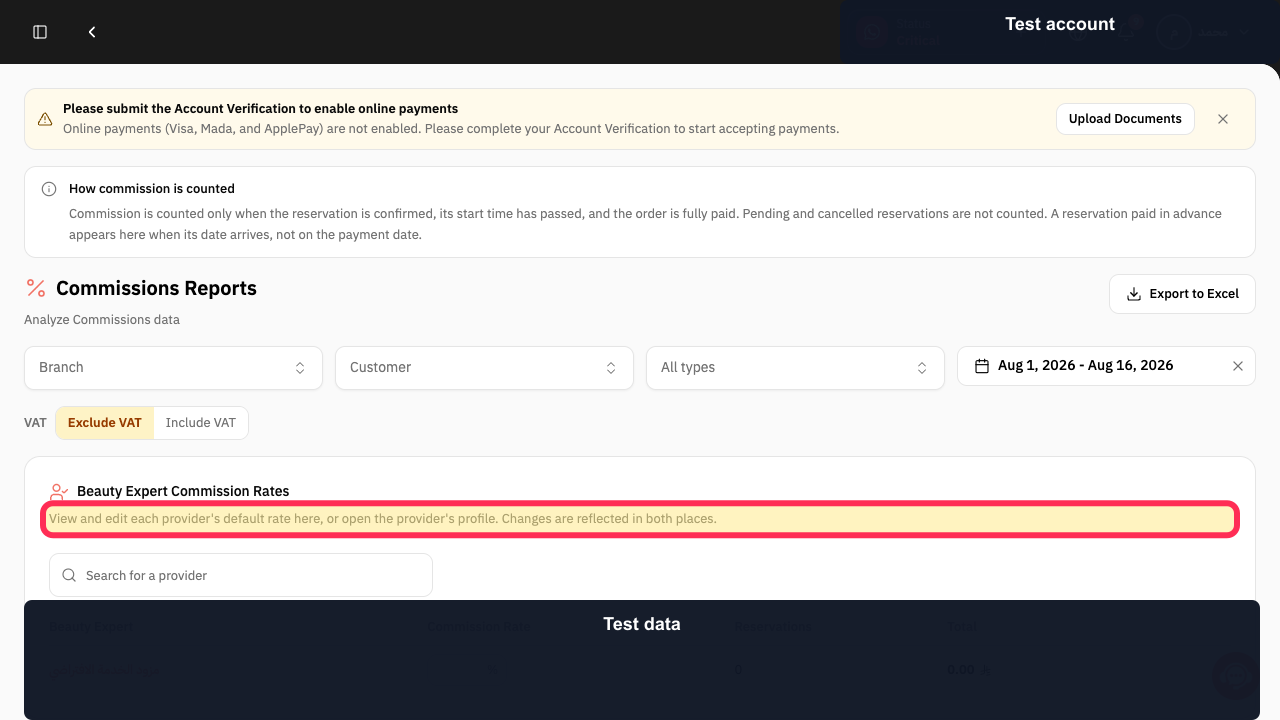
In the commissions report, review the guidance for provider default rates before making any rate changes.
The report states that each provider’s default rate can be viewed and edited there or from the provider profile.
Illustrated guide
Step 1: Services is identified as the area to view and manage services.
Step 2: The package editor control for selecting included services.
Step 3: The Per Product package-usage option.
Step 4: The Reservations area for managing the calendar and appointments.
Step 5: The order-item option for choosing an existing product or service.
Step 6: The online-payment status message displayed in Rekaz.
Step 7: Commission-report guidance for provider default rates.
Important notes
Begin with a small setup: one service and one Service Provider. Expand the setup only after you have tested it.
Review each related detailed guide before changing settings or making bookings available to customers.
Related questions
How do I manage physiotherapy treatment sessions in Rekaz?
How do I organise a package of physiotherapy sessions in Rekaz?
How do I prepare a Physiotherapy Center for bookings in Rekaz?


