How do I set up an academy, classes, and subscriptions in Rekaz?
To set up an academy in Rekaz, begin with a small, testable setup: create one service that represents a class or another academy offering, assign the provider who delivers it, and set the team’s actual availability. You can then use subscriptions or packages for recurring use and monitor operations in Reports.
Before accepting real customer bookings, test the complete journey for one academy service, including the booking and applicable payment stages.
Steps
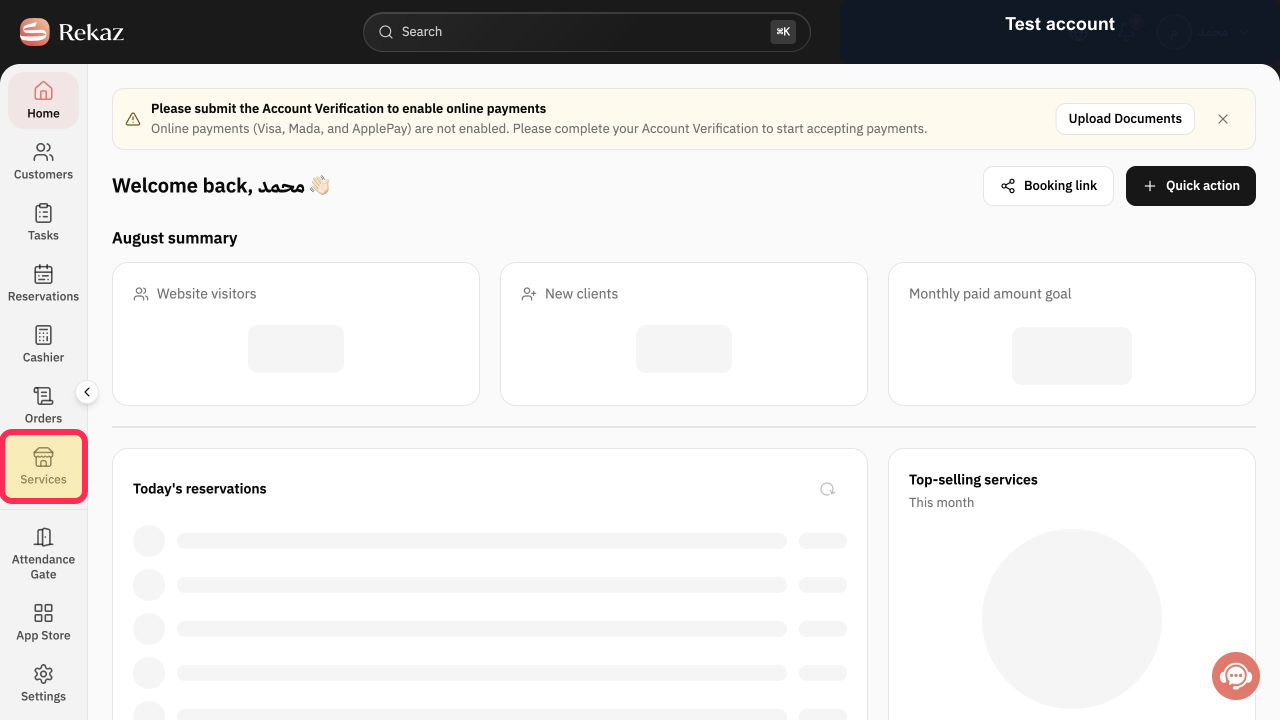
From Home, select Services in the sidebar to open the Services page.
The Services page is open.
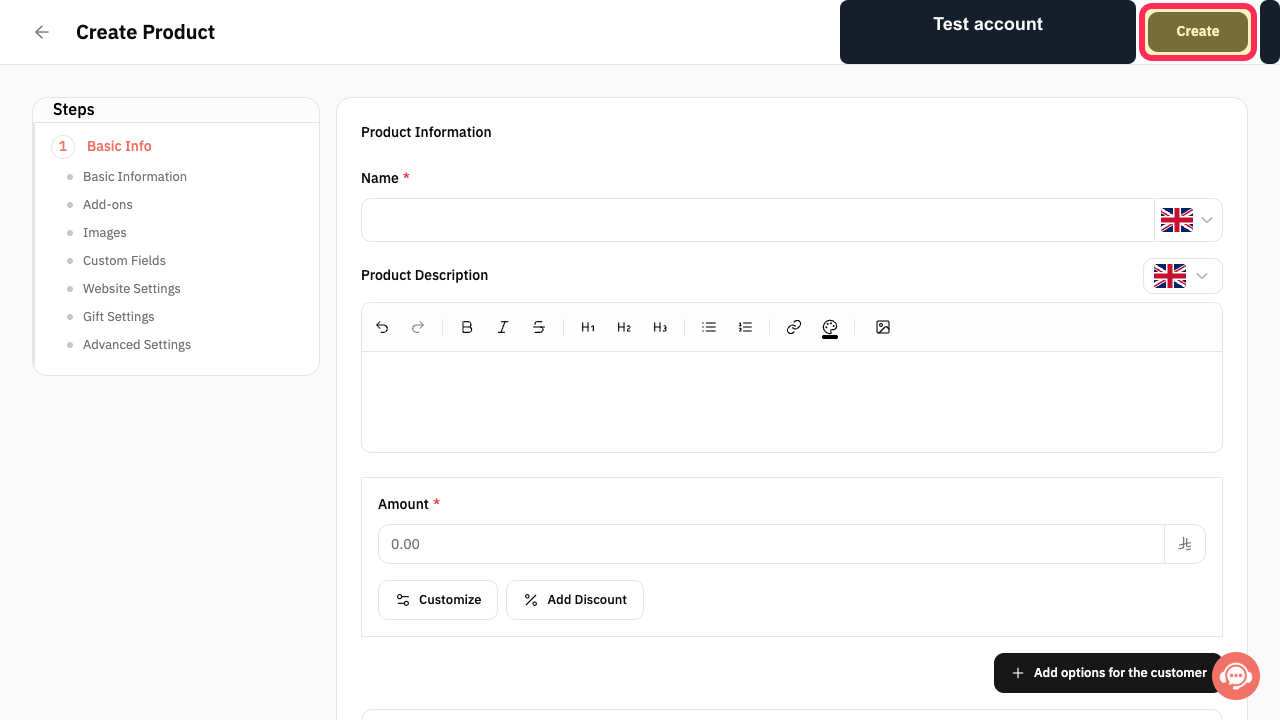
Select Create and start with one service that represents a class or another offering from your academy. Keep the first setup small so you can test it before adding more services.
The new academy service is open and ready to be configured.
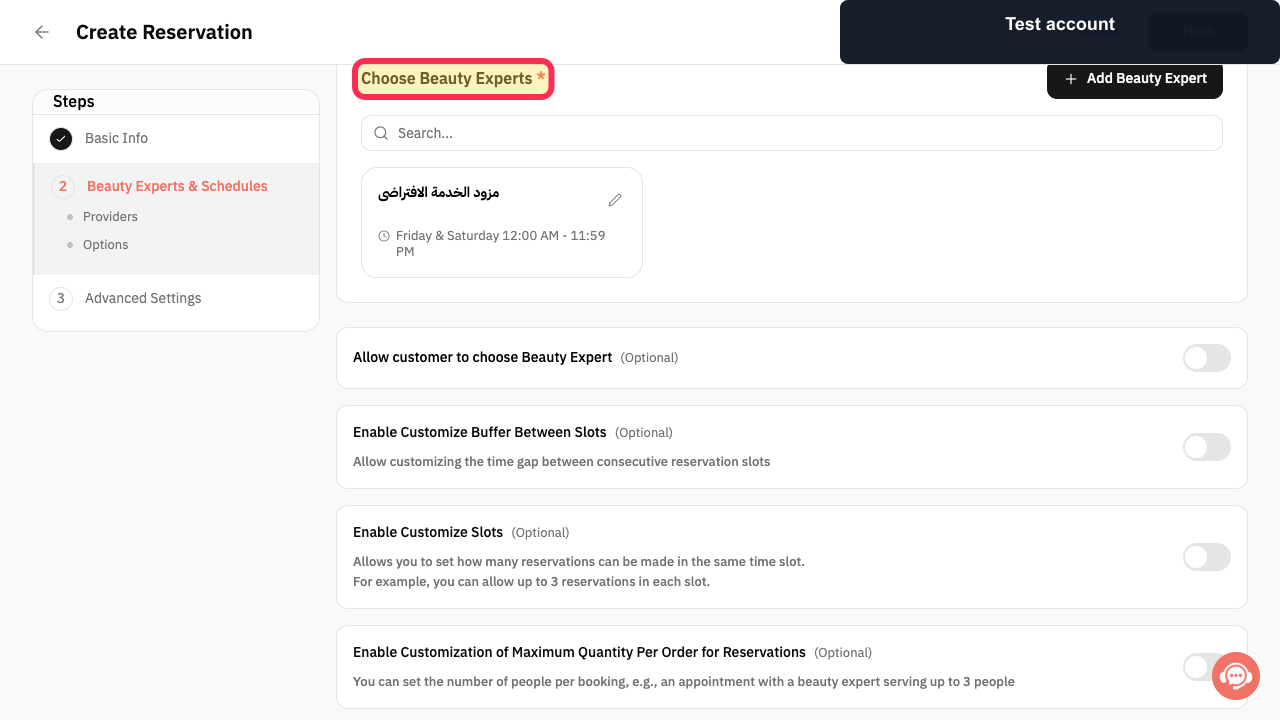
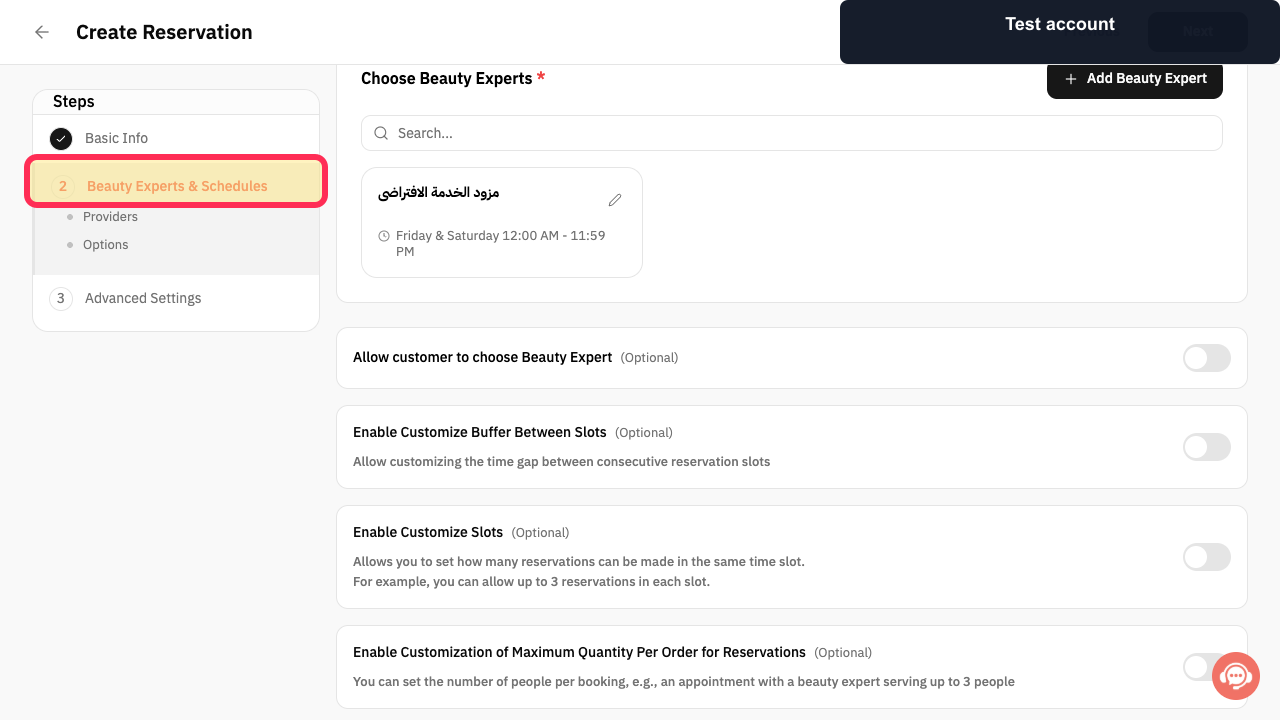
In 2 Beauty Experts & Schedules, use Choose Beauty Experts* to assign the person who will deliver the academy appointments.
The assigned Beauty Expert appears in the academy service setup.
Open Schedules and set the actual availability of the academy team.
The team’s working availability is shown in Schedules.
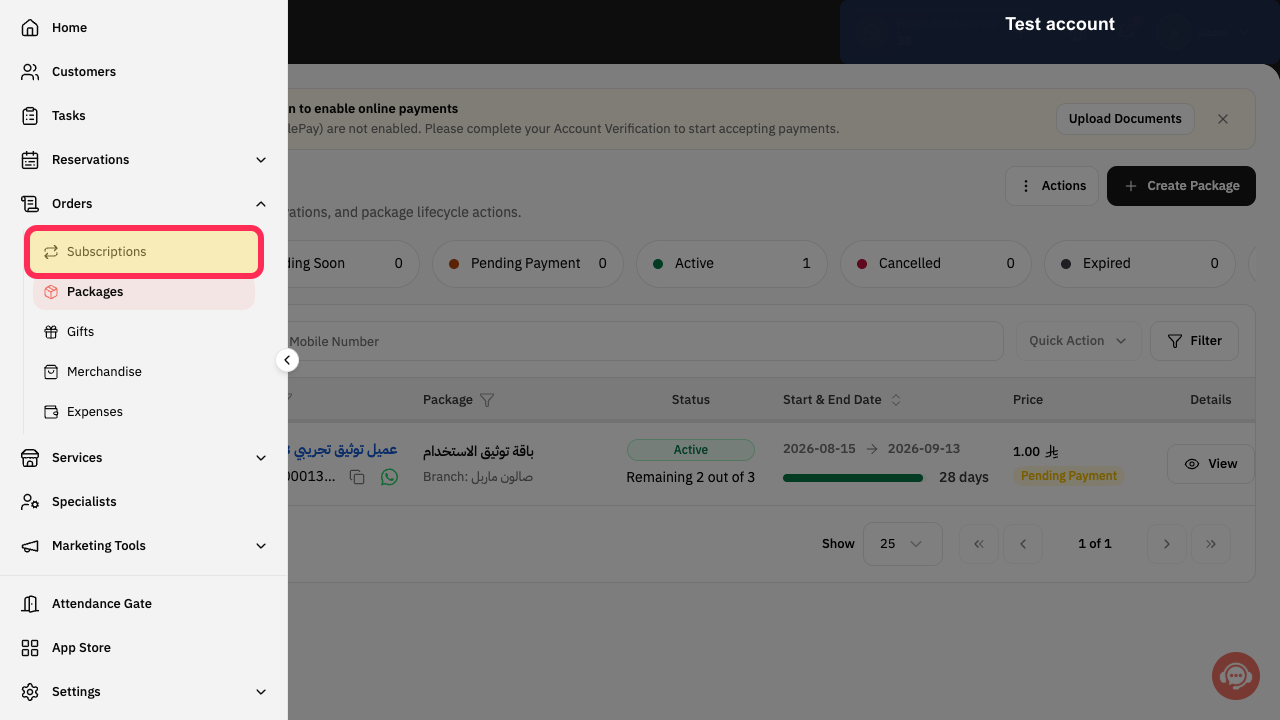
Open Subscriptions and choose a Subscription or Package when the academy offering requires a set Duration or a recurring Number of uses.
The appropriate recurring-use option is selected for the academy offering.
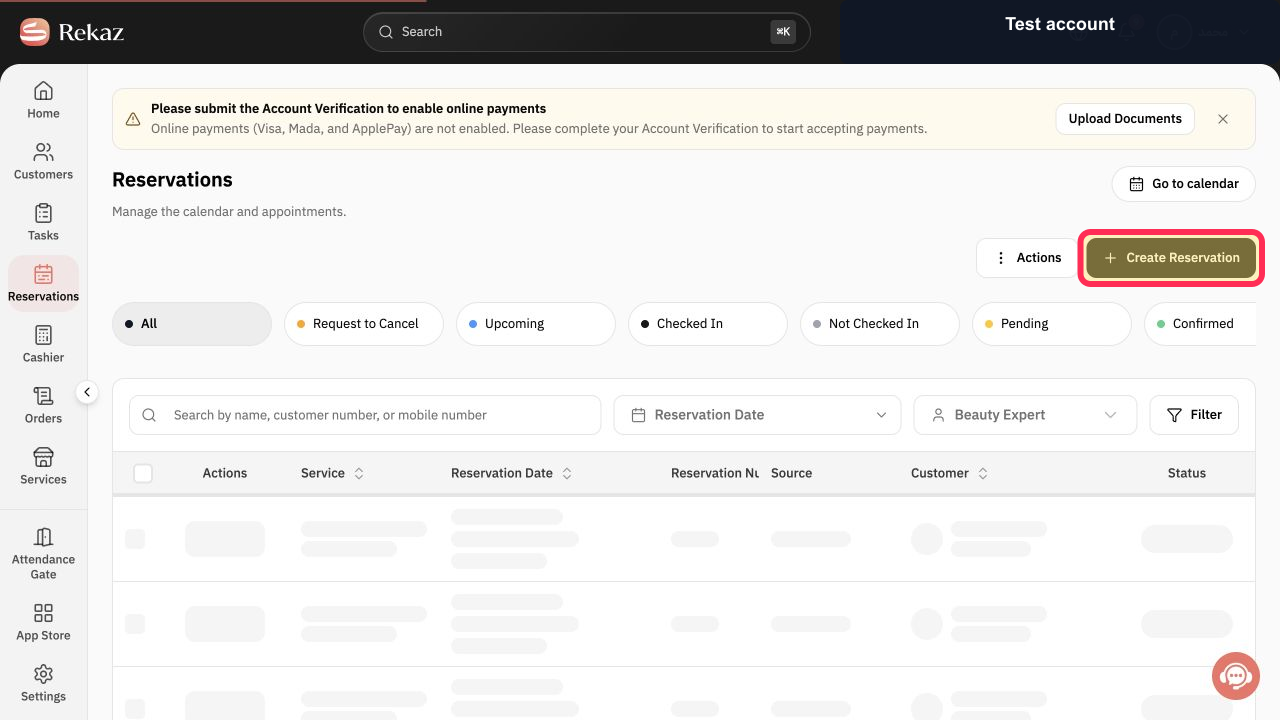
Select Create Reservation and complete a test booking for an academy service. Then follow the detailed instructions for your configured payment workflow and test the applicable payment stage before accepting real customer bookings. Do not use real customer information or payment-card details solely for testing; contact Rekaz support if you cannot test the payment journey safely.
The test reservation is visible for review. Keep customer bookings closed until the applicable payment journey has also been tested.
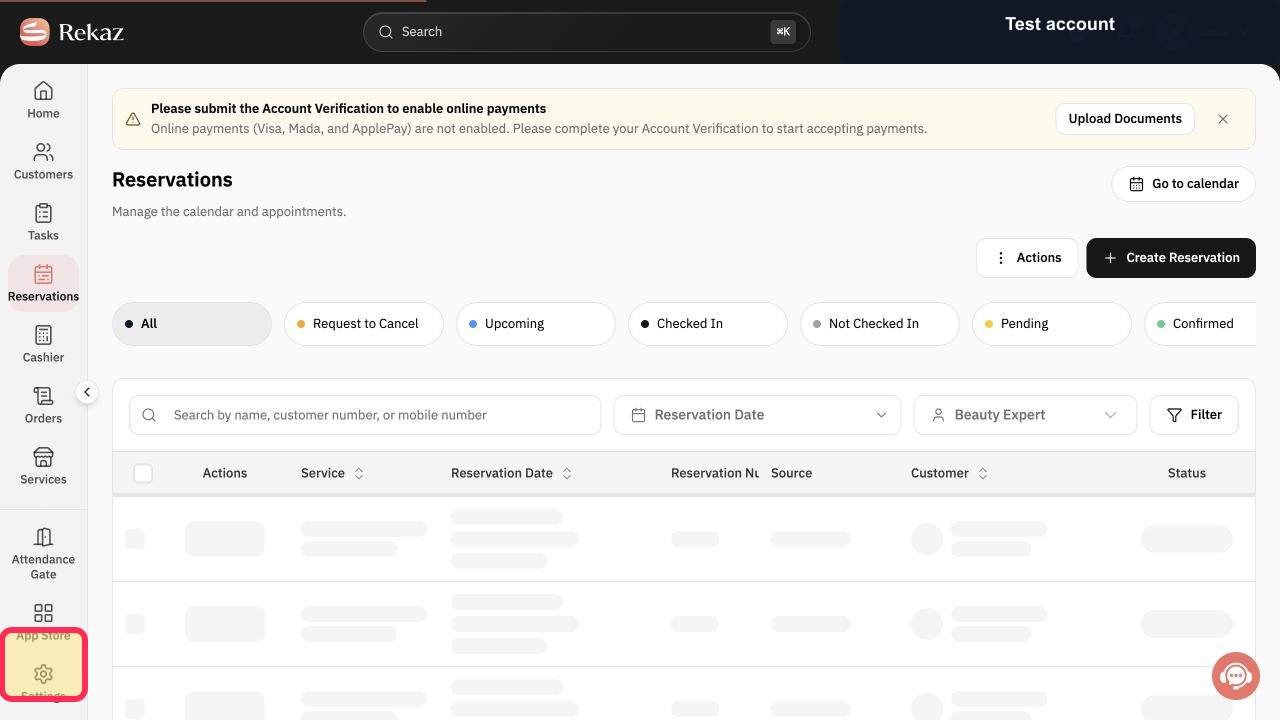
Open Reports and select the report that measures the academy operation you need to monitor.
The selected operational report is open for review.
Illustrated guide
Step 1: The Services option in the Home sidebar used to open the Services page.
Step 2: The Create control on the Services page used to start one academy service.
Step 3: Assign the academy service under Choose Beauty Experts.
Step 4: The Schedules section used to set the academy team’s actual availability.
Step 5: The Subscriptions area used to choose a Subscription or Package for recurring academy use.
Step 6: The Create Reservation control used to begin the academy’s test booking before checking the applicable payment journey.
Step 7: The Reports section used to select an operational report for the academy.
Important notes and limitations
Start with one service and one Service Provider, then expand the setup after testing it.
Review the relevant detailed guides before changing settings or making bookings available to customers.
Test both booking and the applicable payment journey before opening the flow to customers. Resolve any booking or payment issues first, and contact Rekaz support if you cannot complete the test safely.
Related questions
How do I manage academy classes in Rekaz?
How do I manage academy services in Rekaz?
How do I record student subscriptions in Rekaz?
How do I set up academy bookings in Rekaz?
How do I set up an academy in Rekaz?


