How do I use Rekaz to manage a veterinary clinic?
To manage a veterinary clinic in Rekaz, begin with a small operating model: create one service, assign one service provider, set the provider’s actual availability, and create the customer records you need. Then test the complete booking and payment journey before accepting real bookings.
Rekaz uses its standard service, provider, schedule, customer, booking, payment, and reporting areas for this workflow. Configure them to reflect how your veterinary clinic operates.
Steps
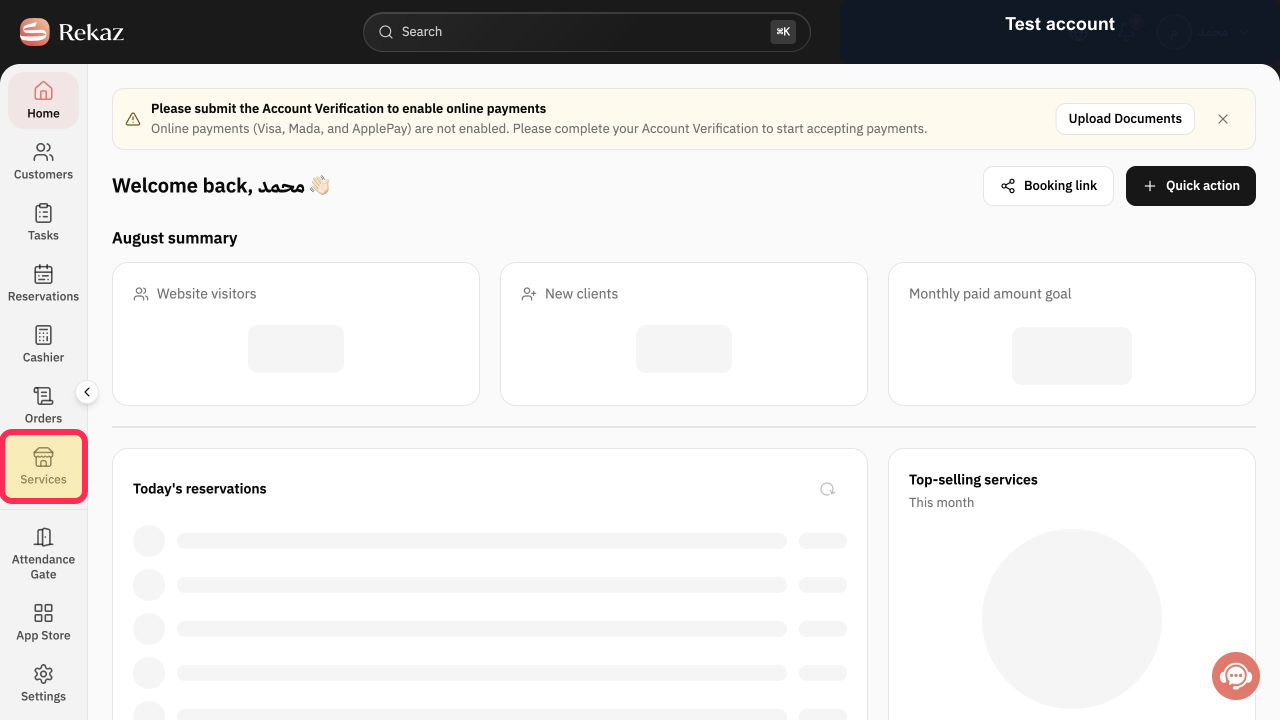
From Home, select Services in the sidebar. Start setting up a service that represents an offering from your veterinary clinic.
The Services page opens, where you can begin setting up the clinic service.
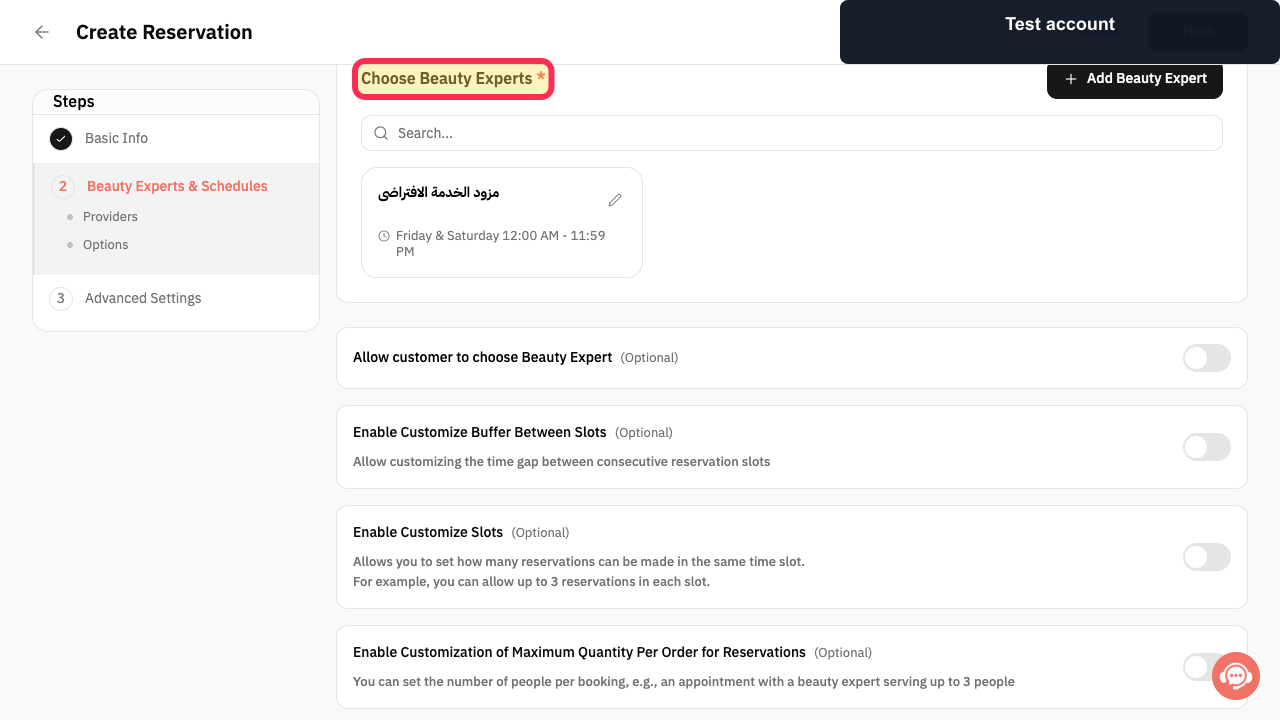
In 2 Beauty Experts & Schedules, use Choose Beauty Experts* to assign the person who will handle veterinary-clinic appointments.
The assigned Beauty Expert appears in the veterinary service setup.
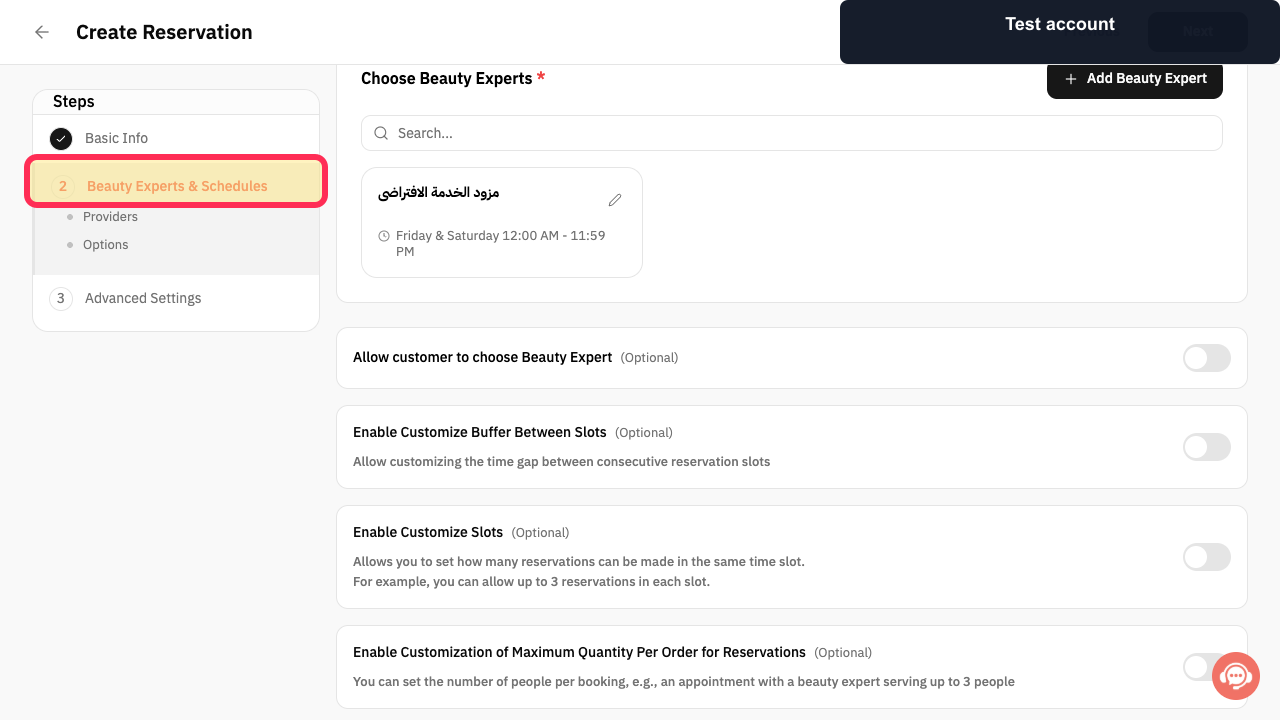
Open Schedules and set the actual availability of your veterinary clinic team.
The team’s available appointment times are configured in Schedules.
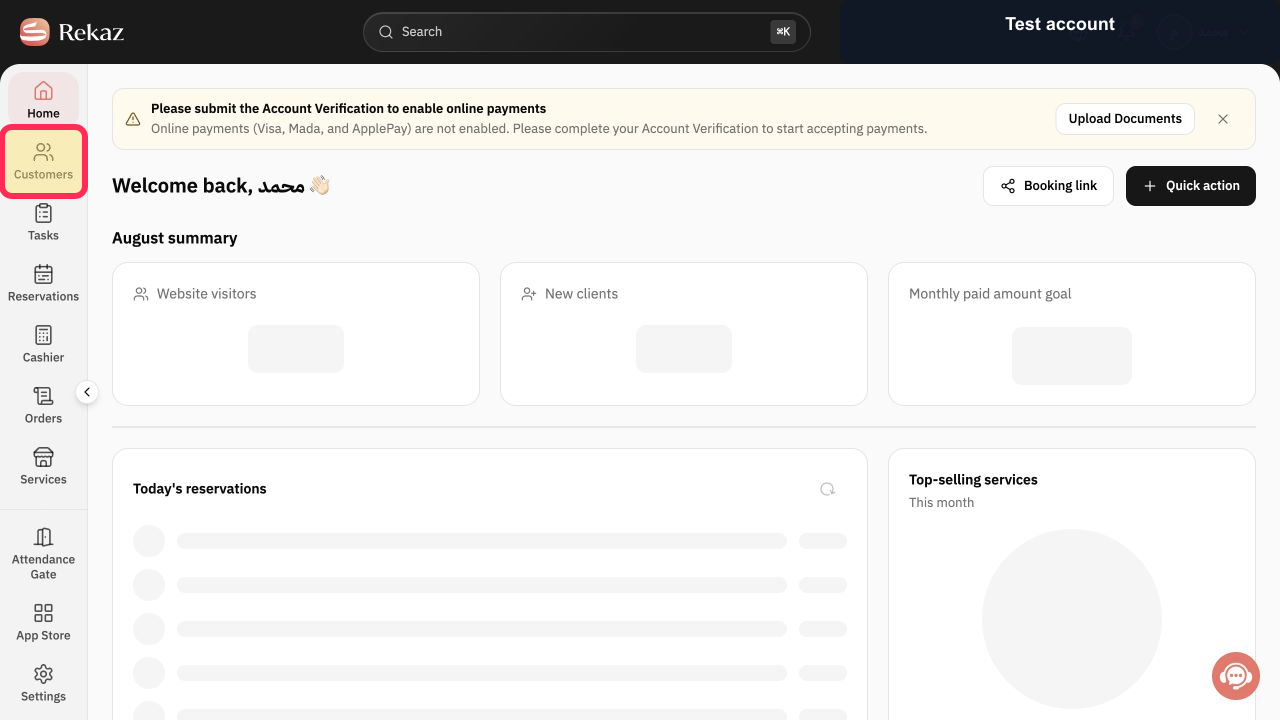
From Home, select Customers in the sidebar. Create and maintain the customer record needed for clinic operations and follow-up.
The Customers page opens, where you can manage the clinic’s customer records.
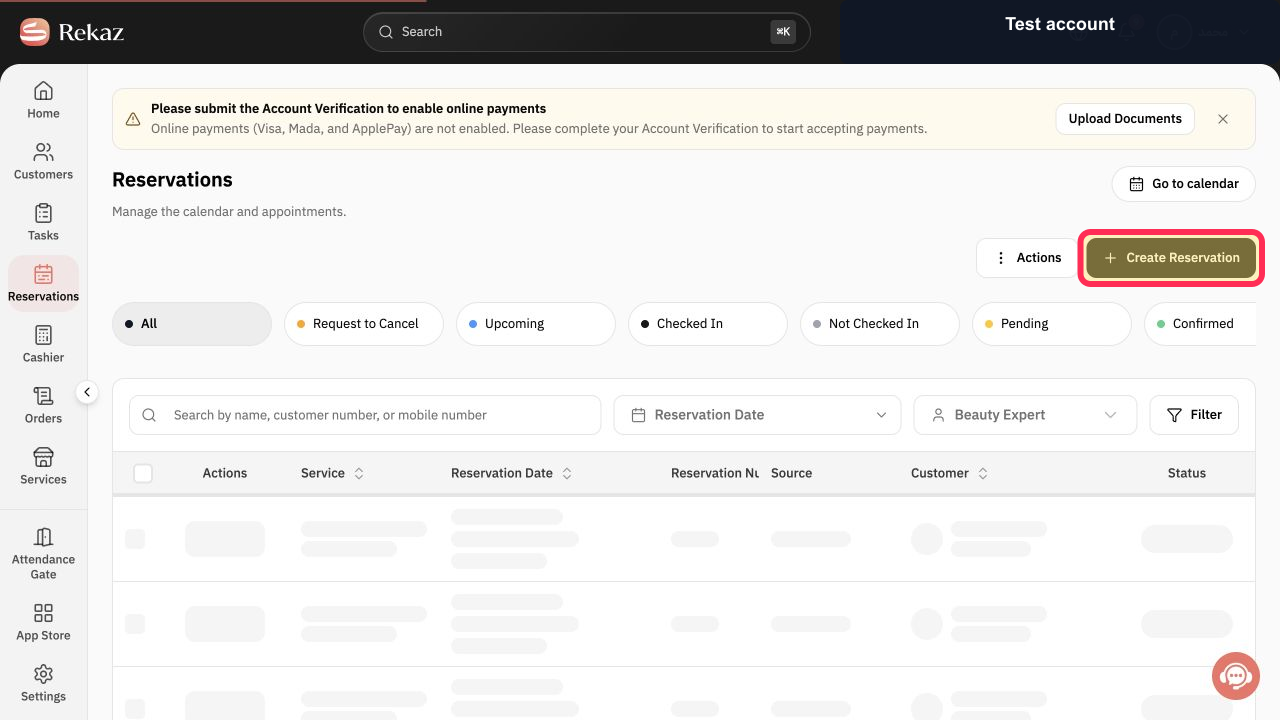
From Home, open Reservations and select Create Reservation. Create a test booking for one veterinary clinic service, choose its service provider and available time, and continue to Payment to test the payment journey before accepting real bookings.
The test booking reaches the Payment stage so you can check the booking and payment journey. Only submit a payment when using a clinic-approved test method; otherwise, stop before making a charge.
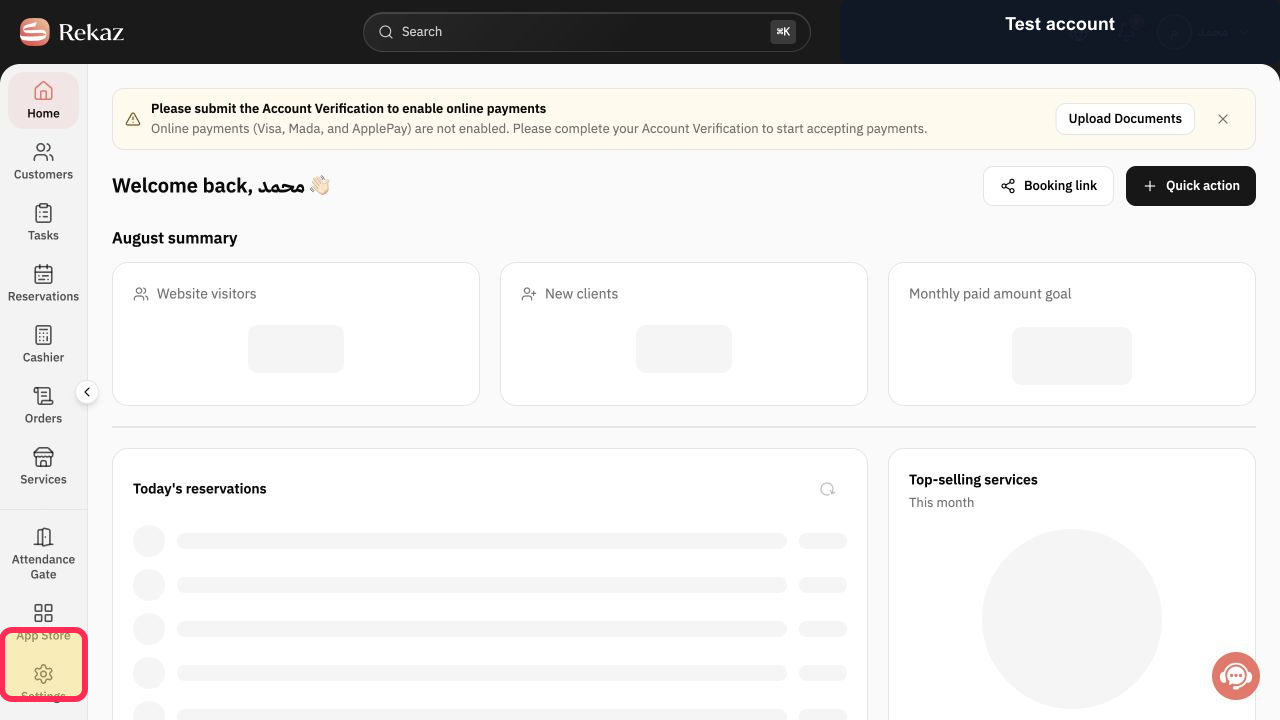
From Home, select Reports in the sidebar. Choose the report that best measures your veterinary clinic operations.
The Reports area opens, where you can select an appropriate operational report.
Illustrated guide
Step 1: Open Services to start setting up a veterinary clinic service.
Step 2: Assign the veterinary service under Choose Beauty Experts.
Step 3: Set the veterinary clinic team’s actual availability in Schedules.
Step 4: Use Customers to build the records needed for clinic operations and follow-up.
Step 5: Select Create Reservation to test the veterinary clinic’s booking and payment journey.
Step 6: Open Reports and choose a report for monitoring veterinary clinic operations.
Important notes and limitations
Start with one service and a Single provider, then expand your setup after testing the complete workflow.
Review the detailed guidance for each area before changing settings or opening bookings to customers.
Use Rekaz’s standard features to represent your clinic’s workflow; this process does not add a separate veterinary-clinic feature or veterinary-specific records.
Never use real customer card data or other customer-sensitive information in a test booking. If you cannot test the payment journey safely without submitting a real charge, contact Rekaz Support before opening bookings to customers.
Related questions
How do I organize veterinary appointments in Rekaz?
How do I prepare a veterinary clinic for bookings in Rekaz?
How do I manage animal-service bookings in Rekaz?


