How do I manage medical clinic appointments in Rekaz?
Rekaz currently presents appointment management through Reservations, which is described in the interface as the place to manage the calendar and appointments. Use reservation-service settings to review booking availability and capacity, then use specialist schedules for day-specific availability changes.
The current interface does not show the actions of assigning a provider through a service-provider selector, creating a test booking through a visible Create Booking action, or selecting a clinic-specific operational report. Follow the available reservation, schedule, and customer-management areas below rather than relying on those unsupported actions.
Steps
On the Reservations page, verify that this is the area used to manage your clinic calendar and appointments.
The page describes Reservations as the place to manage the calendar and appointments.
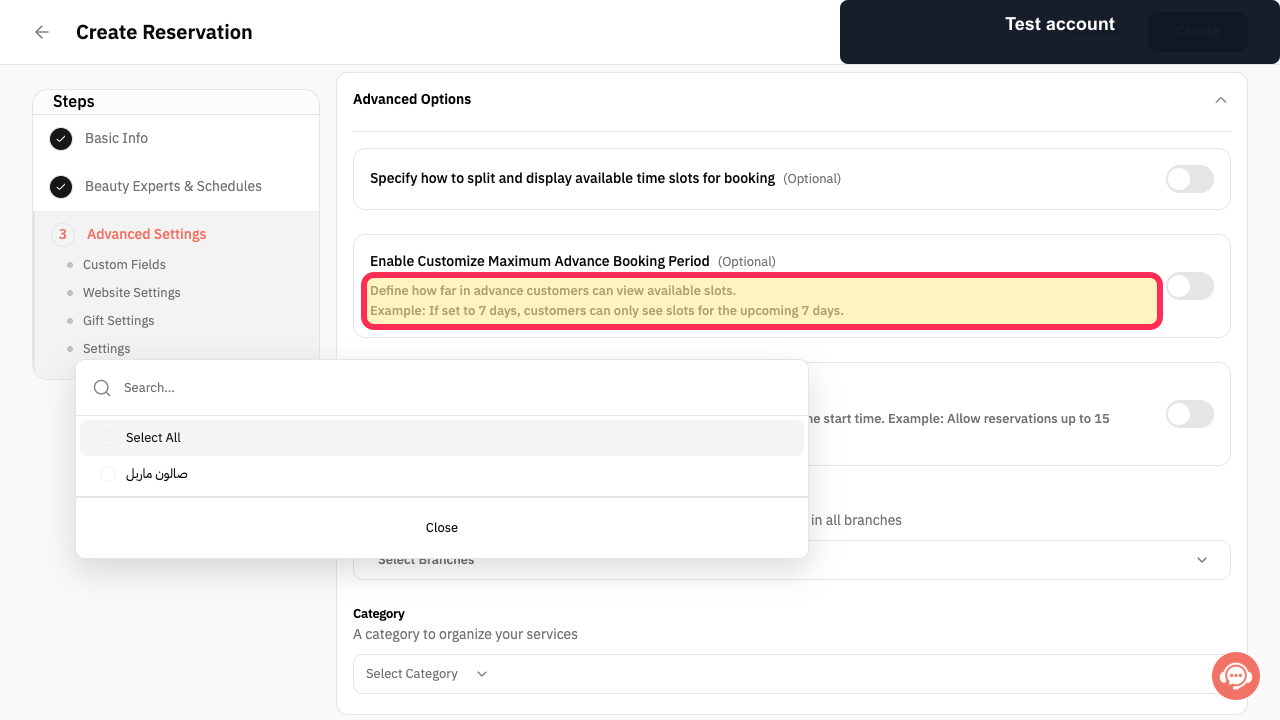
In the reservation service scheduling settings, review how far in advance customers can see available appointment slots.
The booking-horizon guidance is visible for the reservation service.
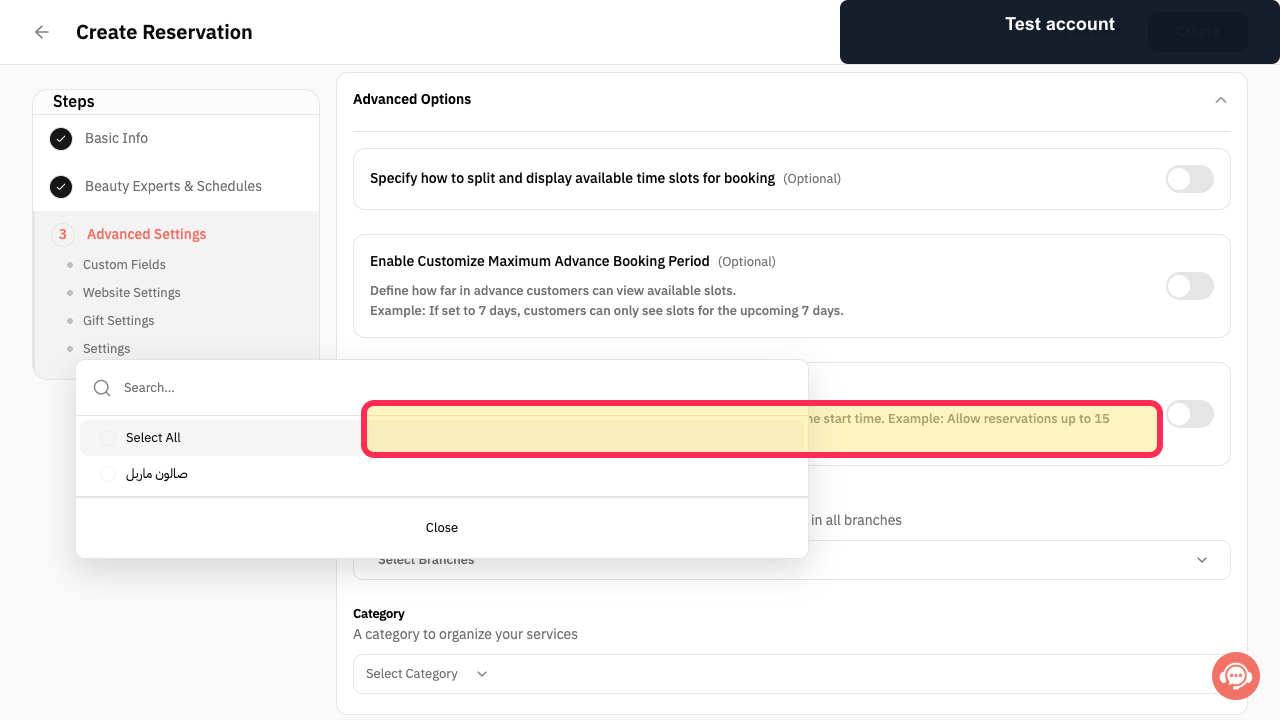
Review the reservation time-window guidance to determine when customers may make an appointment relative to its start time.
The time-window guidance for customer reservations is visible.
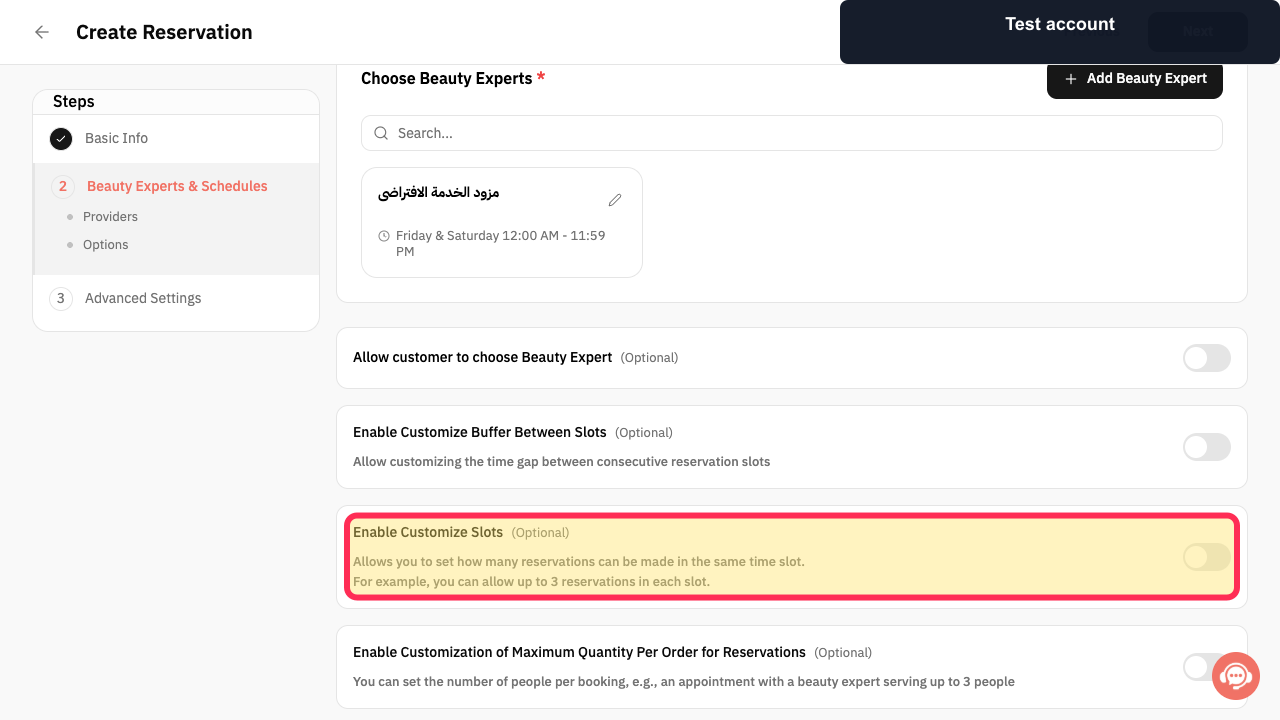
If more than one appointment can be accepted in the same time slot, enable the slot-customization option for the reservation service.
The option for setting the number of reservations allowed in a time slot is available.
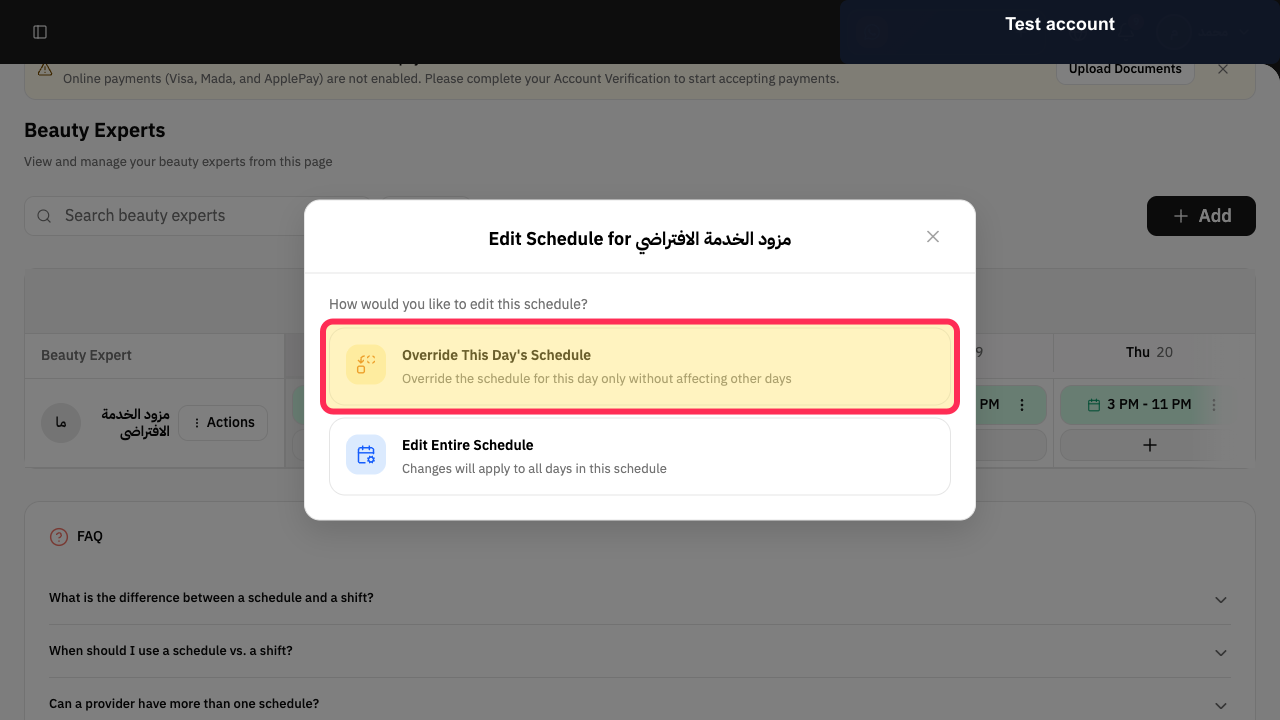
When a specialist needs a one-day availability exception, select the option to override that day’s schedule only.
The one-day schedule override option is selected without changing other days.
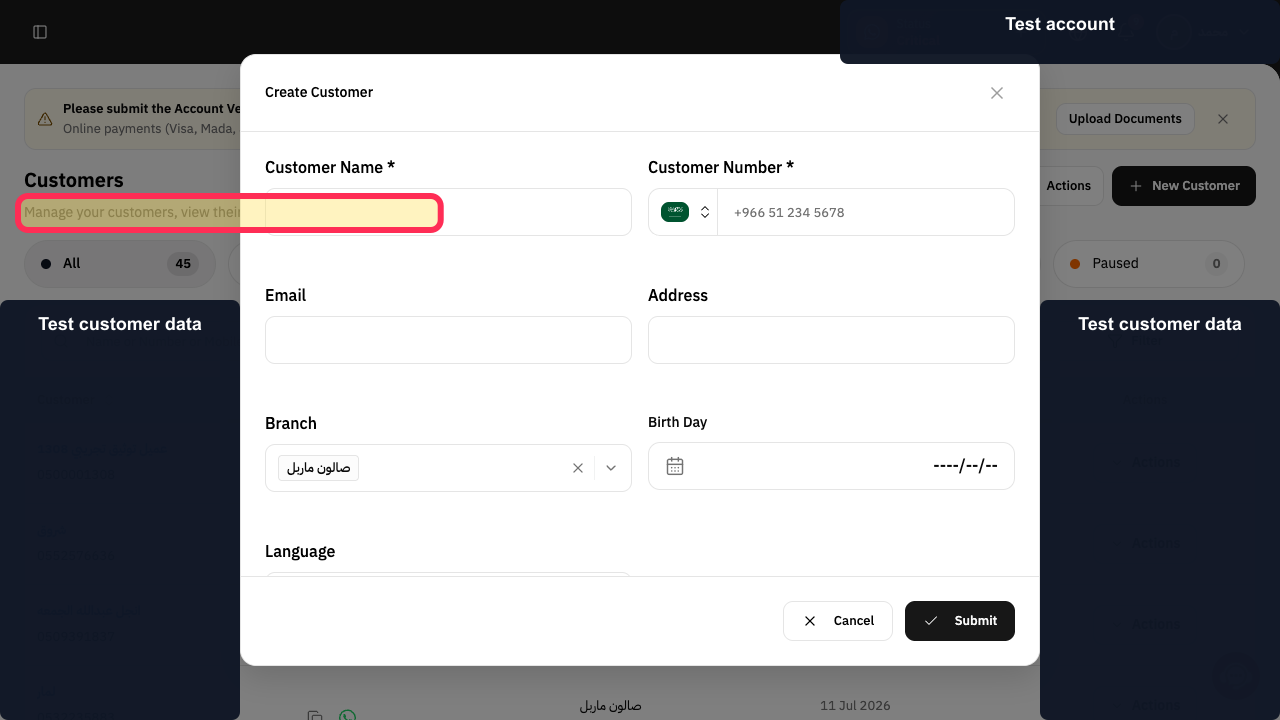
Use the Customers area to review customer details and activity associated with clinic operations.
The Customers area describes customer-detail and activity management.
Illustrated guide
Step 1: Reservations is the Rekaz area for managing the calendar and appointments.
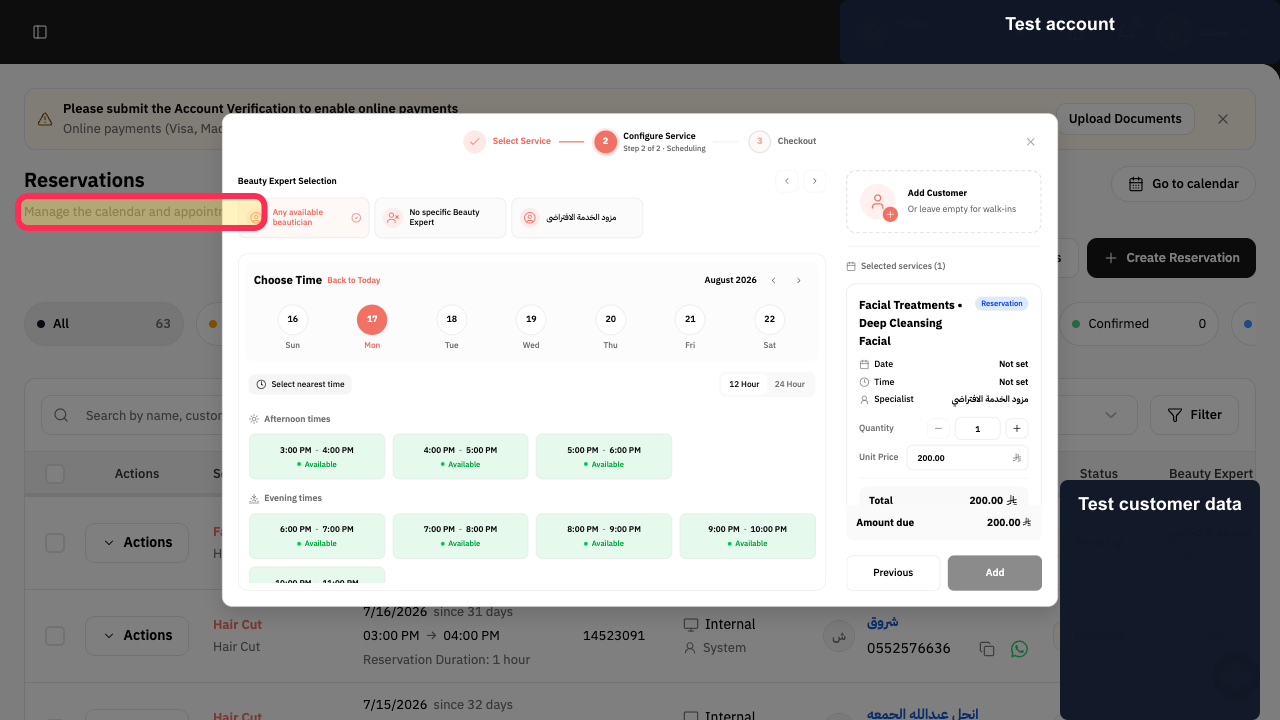
Step 2: Review how far in advance customers can view appointment slots.
Step 3: Review the time window for customer reservations.
Step 4: Enable slot customization when concurrent appointments are needed.
Step 5: Override a specialist’s schedule for one day only.
Step 6: Use Customers to review customer details and activity.
Important notes and limitations
This is an operational setup workflow, not a separate medical-clinic feature in Rekaz.
Begin with one service and one service provider, then expand the setup after testing it.
Review each related detailed guide before changing settings or opening bookings to customers.
Related questions
How do I organise clinic appointments in Rekaz?
How do I set up doctors’ schedules in Rekaz?
How do I manage a medical clinic in Rekaz?


