How do I manage restaurant bookings in Rekaz?
To manage restaurant bookings in Rekaz, start with a small test setup: create one restaurant service, set one specialist’s availability, add a customer, create a test booking, record payment for its test order, and review a relevant report.
This guide describes an operational workflow using existing Rekaz areas. Review the detailed guidance for each area before changing settings or accepting live customer bookings.
Steps
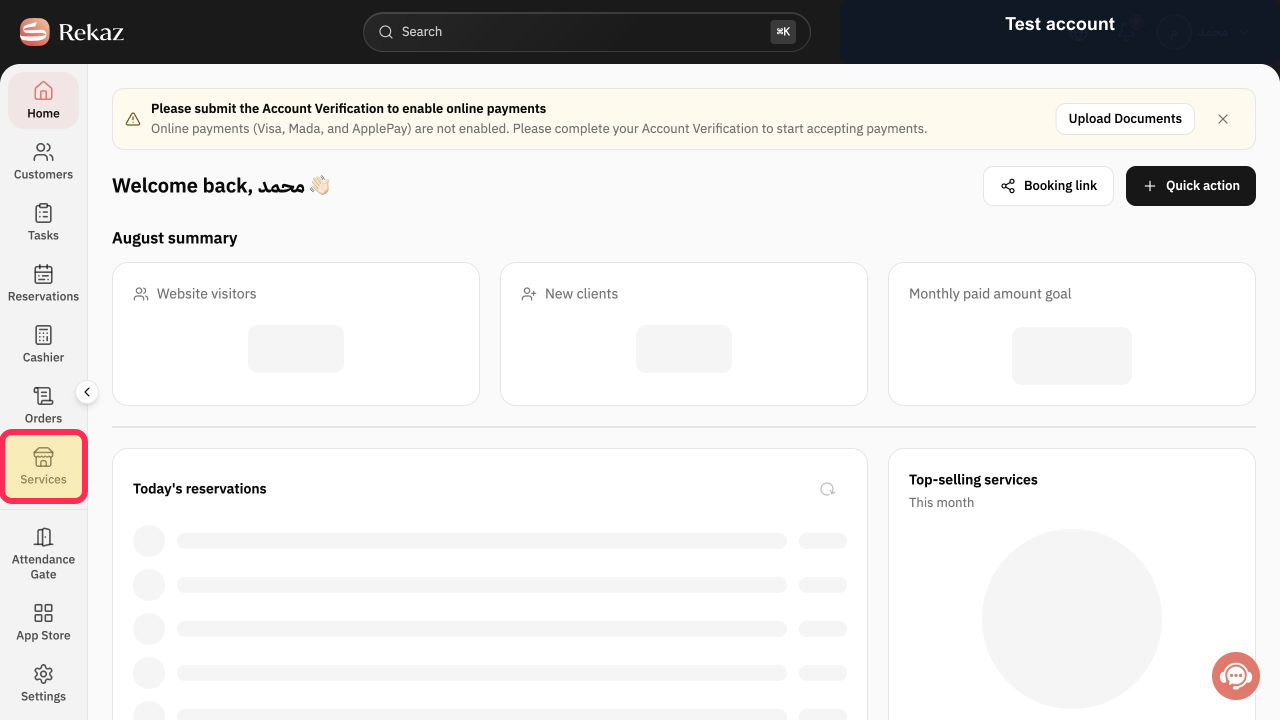
From Home, select Services. Start a Service that represents what your restaurant offers.
The Services page is open, where you can begin setting up the restaurant service.
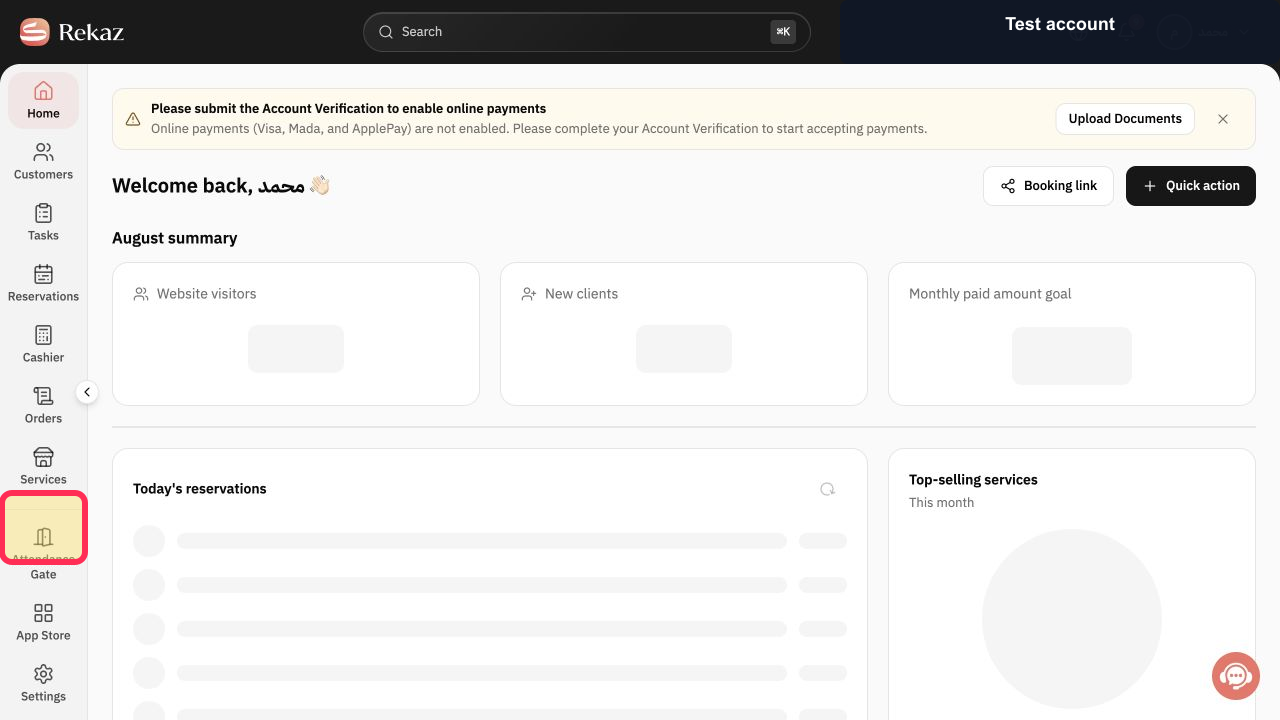
From Home, select Specialists. Review and set the real availability for the restaurant team.
The Specialists area is open, where team availability can be reviewed and adjusted.
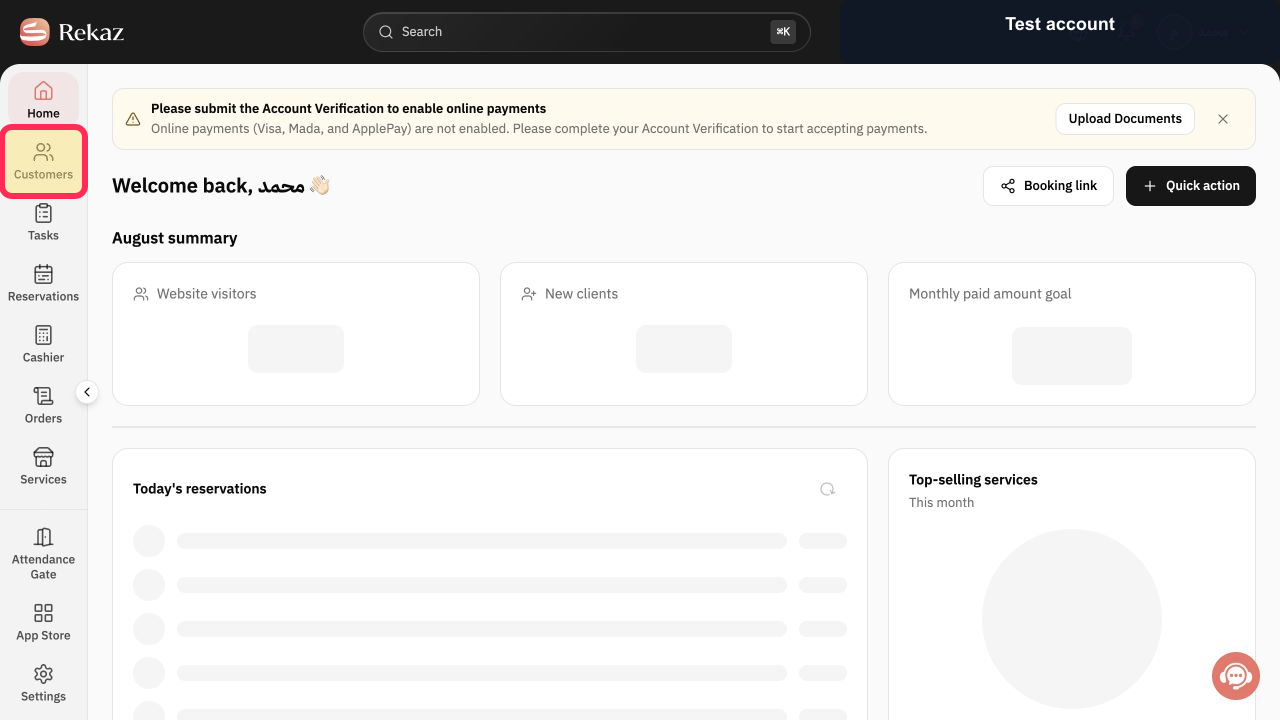
From Home, select Customers. Create or maintain the Customer History needed for daily operations and follow-up.
The Customers page is open, where customer records can be managed.
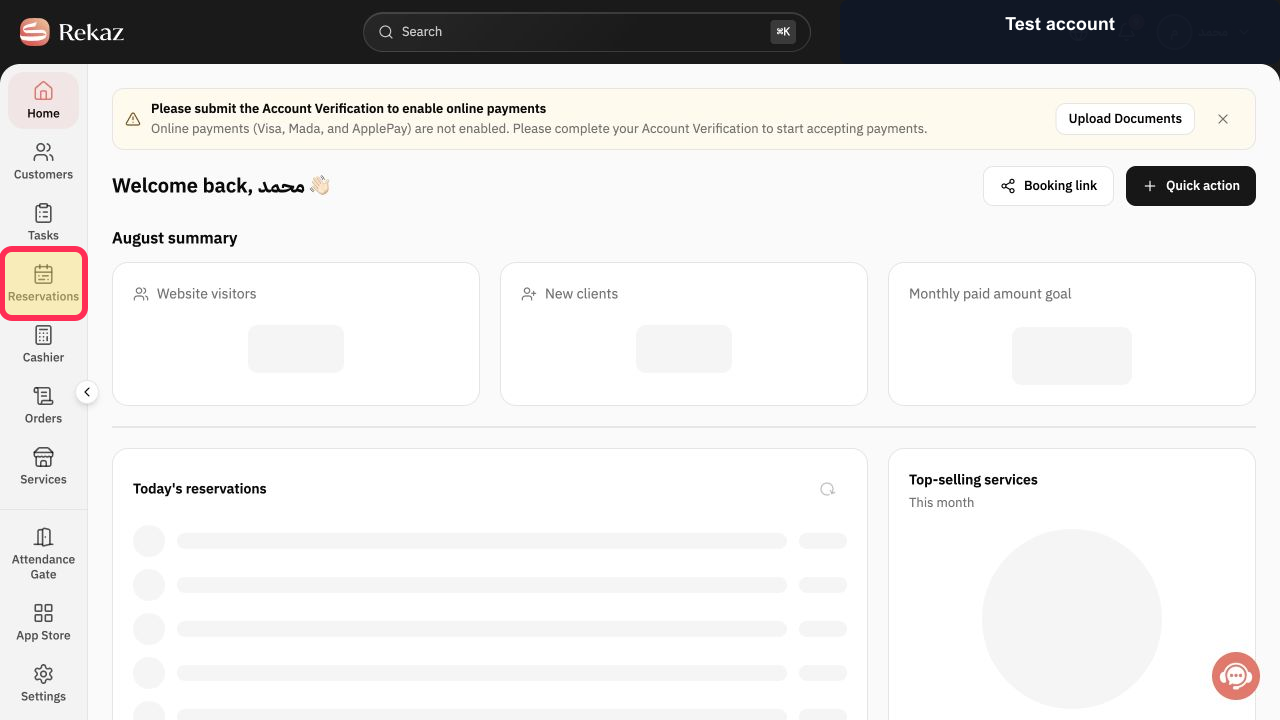
From Home, select Reservations. Before accepting live bookings, create and test a complete booking for the restaurant service.
The Reservations area is open, where you can test the restaurant booking flow.
From Home, select Orders. On a test order from the restaurant workflow, test recording the payment.
The Orders area is open, where you can access the test order and its payment flow.
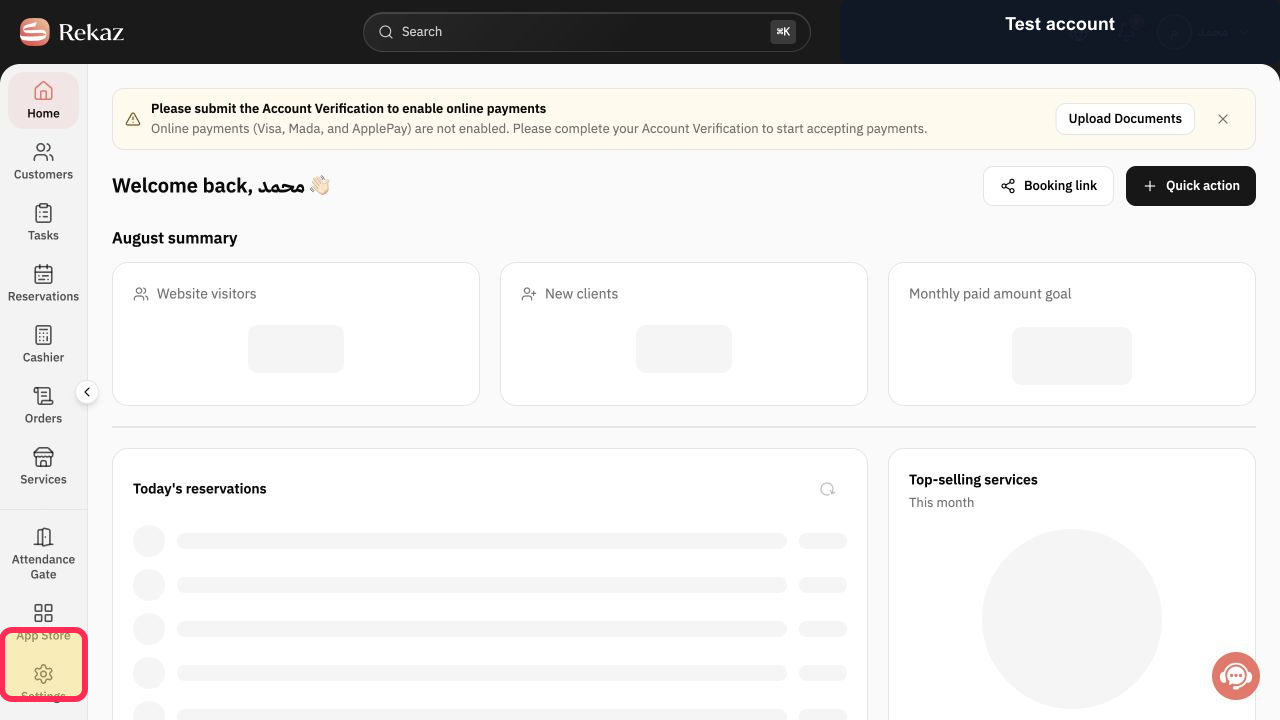
From Home, select Reports. Choose the report that helps you monitor restaurant operations.
The Reports area is open, where you can select a relevant operational report.
Illustrated guide
Step 1: Open Services and begin a restaurant service in Rekaz.
Step 2: Set the restaurant team’s actual availability in Rekaz.
Step 3: Use Customers to maintain restaurant customer records in Rekaz.
Step 4: Test a complete restaurant booking in Rekaz before accepting live bookings.
Step 5: Test recording payment for a restaurant test order in Rekaz.
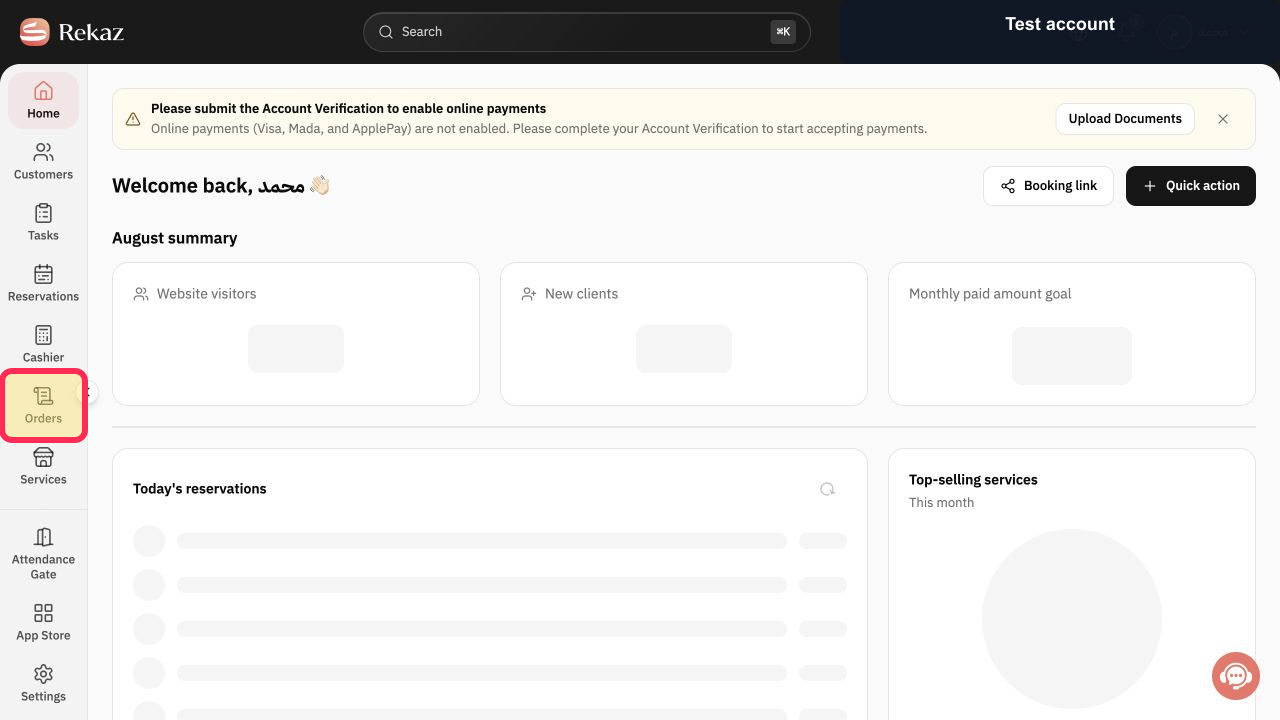
Step 6: Open Reports and select a report for restaurant operations in Rekaz.
Important notes and limits
Begin with a small model—one Service and one Single provider—then expand the setup after testing.
Review the detailed guide for each area before changing settings or making bookings available to customers.
Related questions
How do I create a table reservation in Rekaz?
How do I manage restaurant appointments in Rekaz?
How do I organise guest bookings in Rekaz?


