How do I set up and manage my salon in Rekaz?
To set up and manage your salon in Rekaz, start with one service and one Service Provider. Set the team’s actual availability, create the customer record needed for daily operations, and test the complete booking and payment journey before accepting real bookings. You can then use Reports to monitor salon operations.
This operational guide connects Rekaz services, schedules, customers, reservations, Cashier, payments, and reports without assuming any salon-specific feature that is not available in Rekaz.
Steps
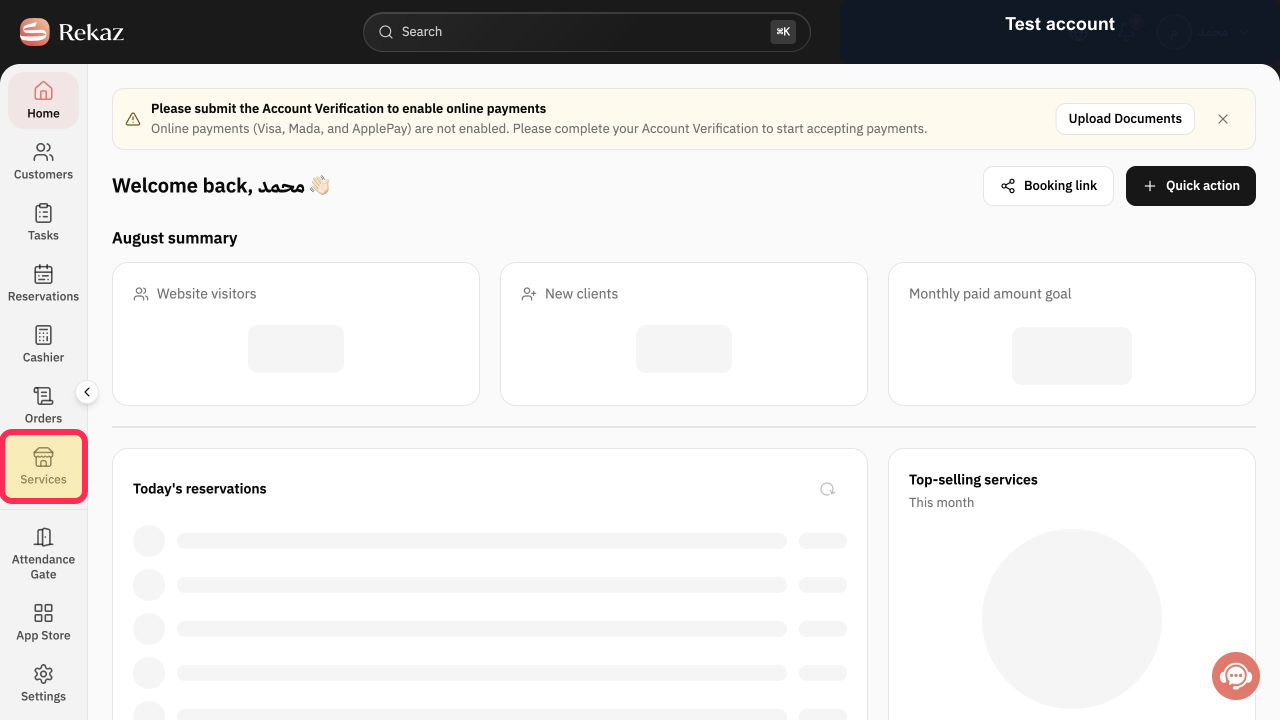
From the sidebar, select Services and start setting up and organizing a service that represents what your salon offers.
The Services page is open, where you can begin setting up and organizing a salon service.
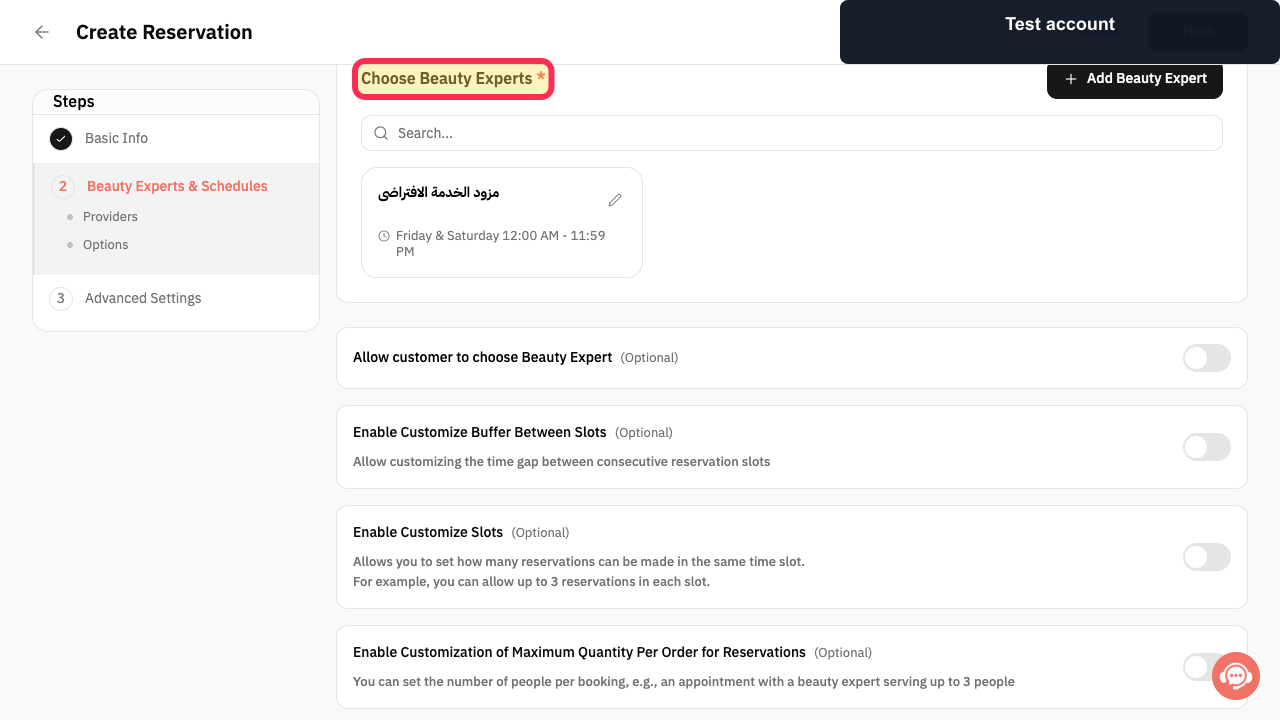
In 2 Beauty Experts & Schedules, use Choose Beauty Experts* to assign the person who will deliver the salon service.
The assigned Beauty Expert appears in the service schedule setup.
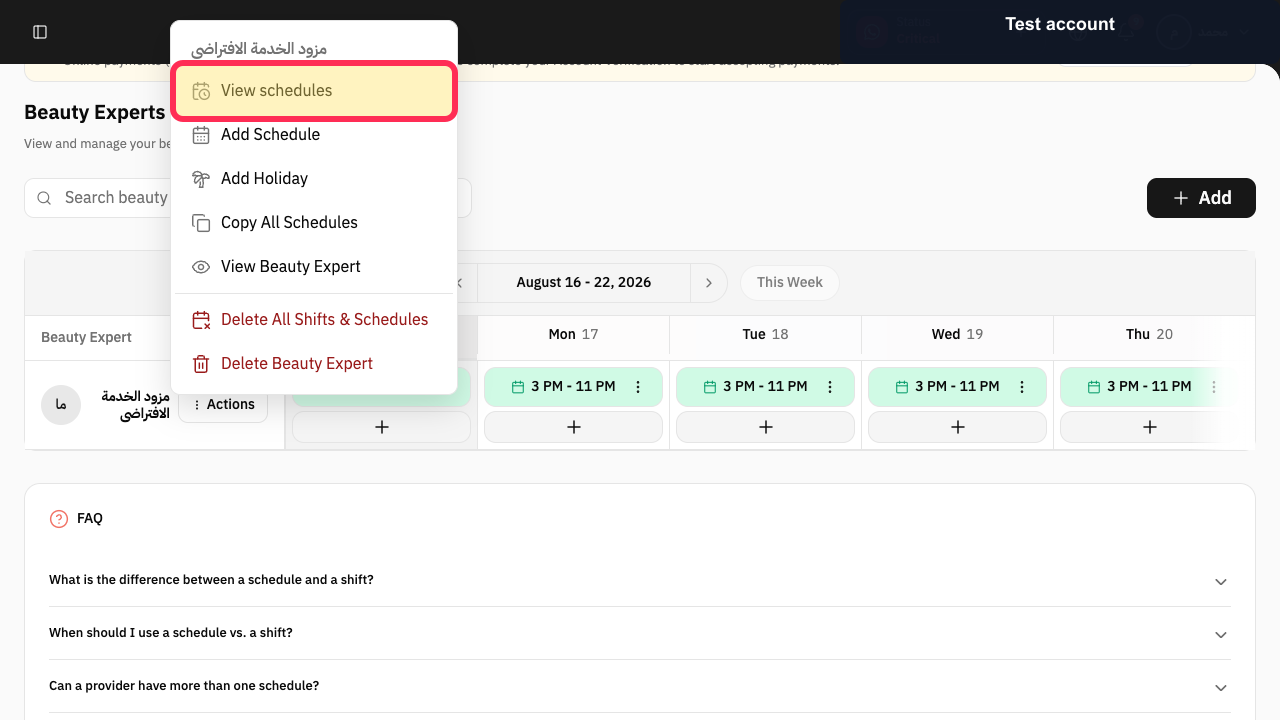
Open Schedules and set the actual availability of your salon team.
The team’s availability can be reviewed and adjusted to reflect its real working schedule.
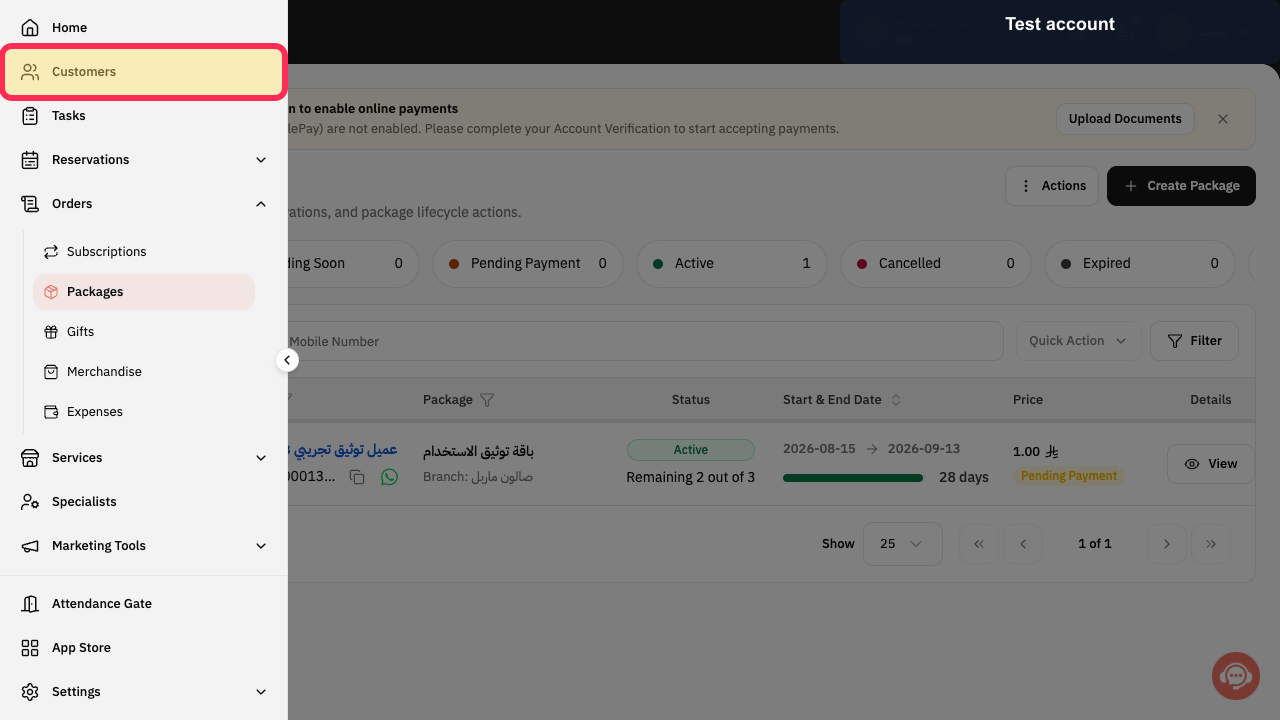
From the sidebar, select Customers and create or maintain the customer record needed for salon operations and follow-up.
The Customers page is open for creating and maintaining customer records.
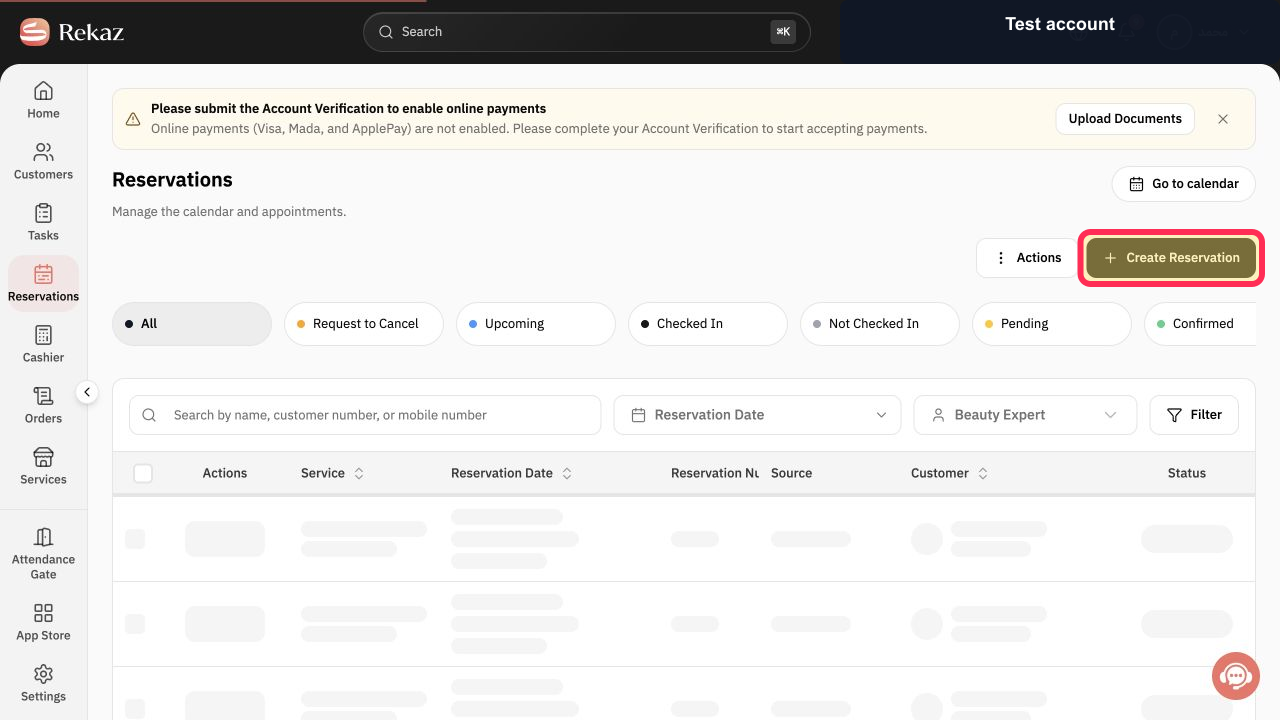
From the dashboard, select Create Reservation and test a complete booking for a salon service before accepting real bookings.
The reservation flow opens so you can test the service, customer, Service Provider, schedule, and other required booking details.
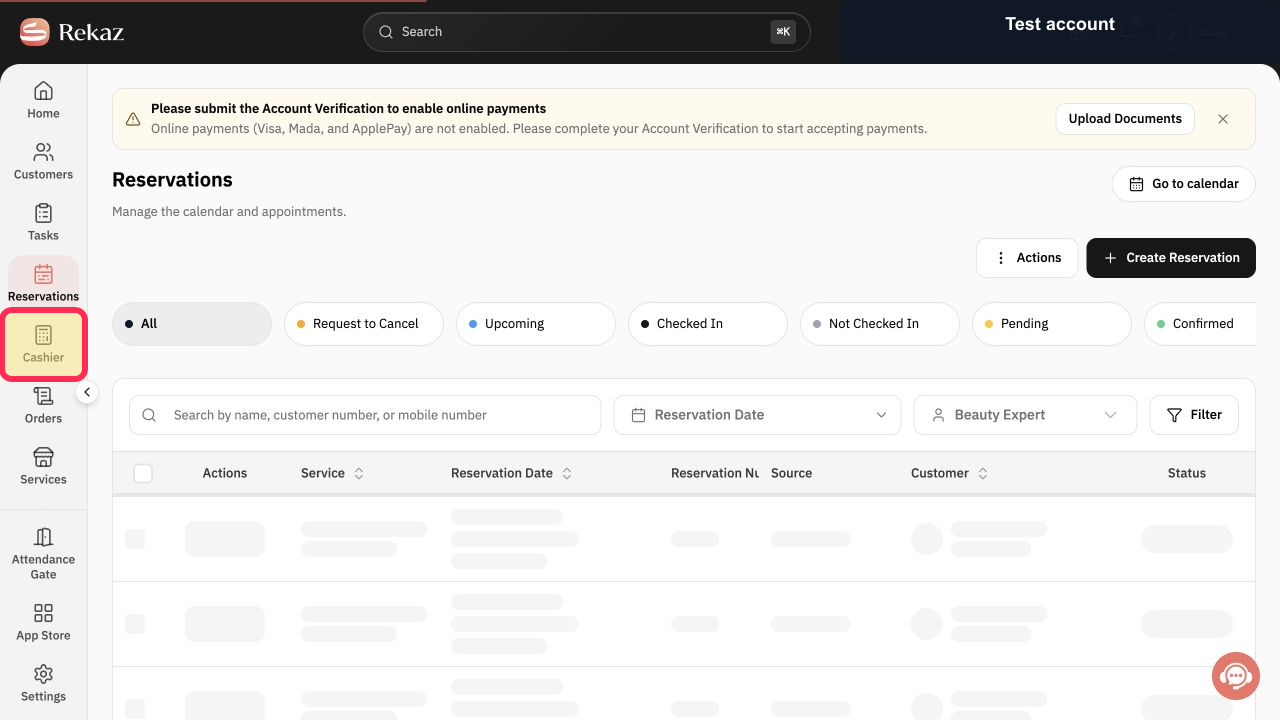
Open Cashier for the test reservation and review the payment stage using the payment method your salon intends to accept. Check the resulting payment status in Rekaz rather than assuming payment was completed after selecting a payment action.
Cashier is open for reviewing the test reservation’s payment stage; the payment result remains dependent on the status displayed in Rekaz.
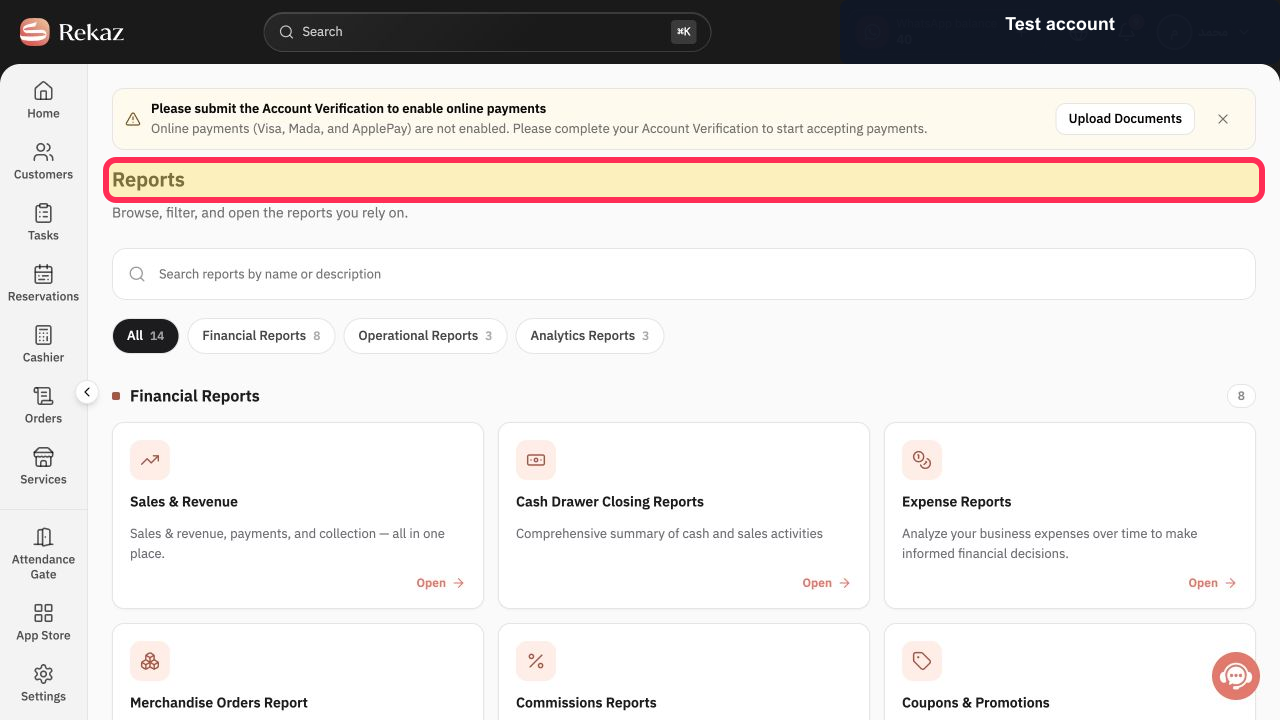
From the sidebar, select Reports and choose the report that helps you measure salon operations.
The Reports page is open, where you can select a report relevant to salon operations.
Illustrated guide
Step 1: The Services page with the option to start setting up a salon service.
Step 2: Assign the salon service under Choose Beauty Experts.
Step 3: The Schedules page where the salon team’s actual availability is configured.
Step 4: The Customers page used to maintain records for salon operations and follow-up.
Step 5: The Create Reservation control used to start a complete salon booking test.
Step 6: Cashier open for reviewing the payment stage of the test salon reservation.
Step 7: The Reports page with reports available for measuring salon operations.
Important notes and limitations
Start with a small setup—one service and one Service Provider—then expand the configuration after testing.
Review each related detailed guide before changing settings or opening bookings to customers.
Test both the booking flow and the payment stage. Confirm that Rekaz displays the expected reservation and payment statuses before accepting real customer bookings.
If the reservation or payment status is missing, unclear, or different from what you expect, do not open bookings to customers until you have reviewed the relevant settings or contacted Rekaz support.
When testing or contacting support, do not share passwords, card details, or unnecessary customer-sensitive information.
Related questions
How do I organize salon operations in Rekaz?
How do I start a salon booking system in Rekaz?
What Rekaz setup do salons need?
How do I test salon bookings and payments through Cashier in Rekaz?


