How do I find a missing expense in Rekaz?
If you recorded an expense but cannot find it, open Expense Reports from the Financial Reports section. Set the report to the relevant period and Branch, then review the results for the expense record.
Steps
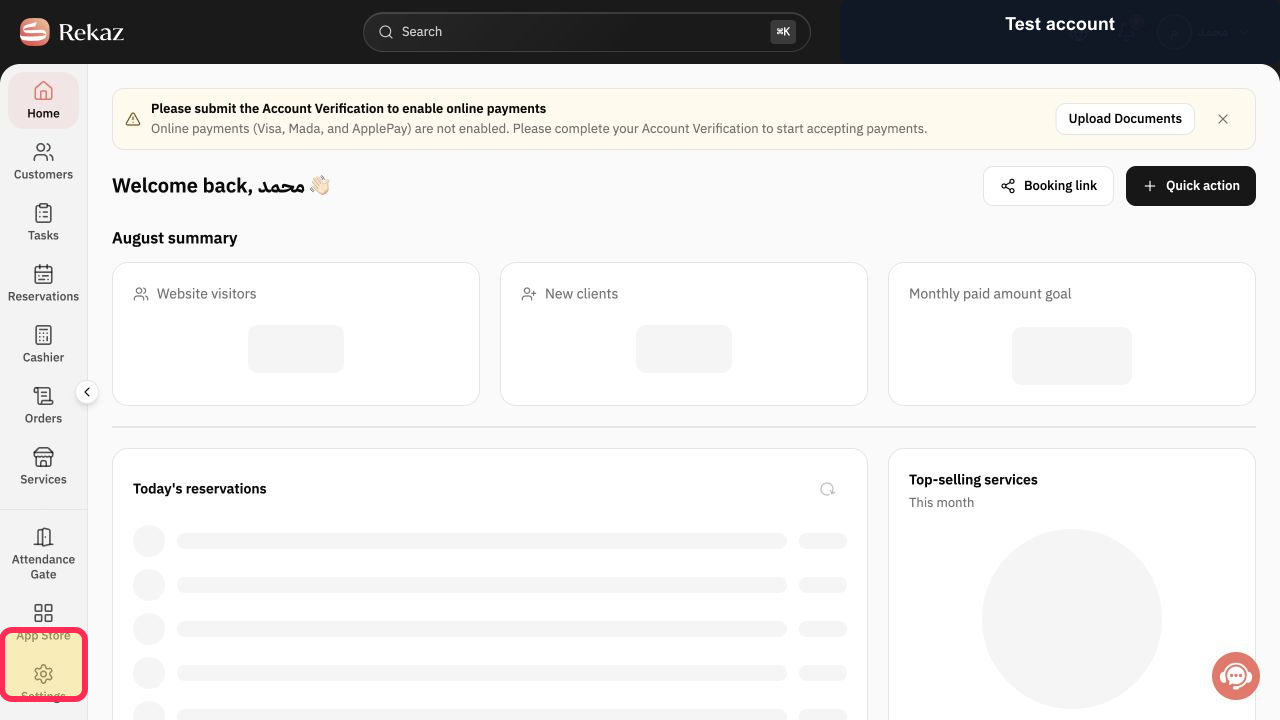
From the sidebar, select Reports.
The Reports page opens.
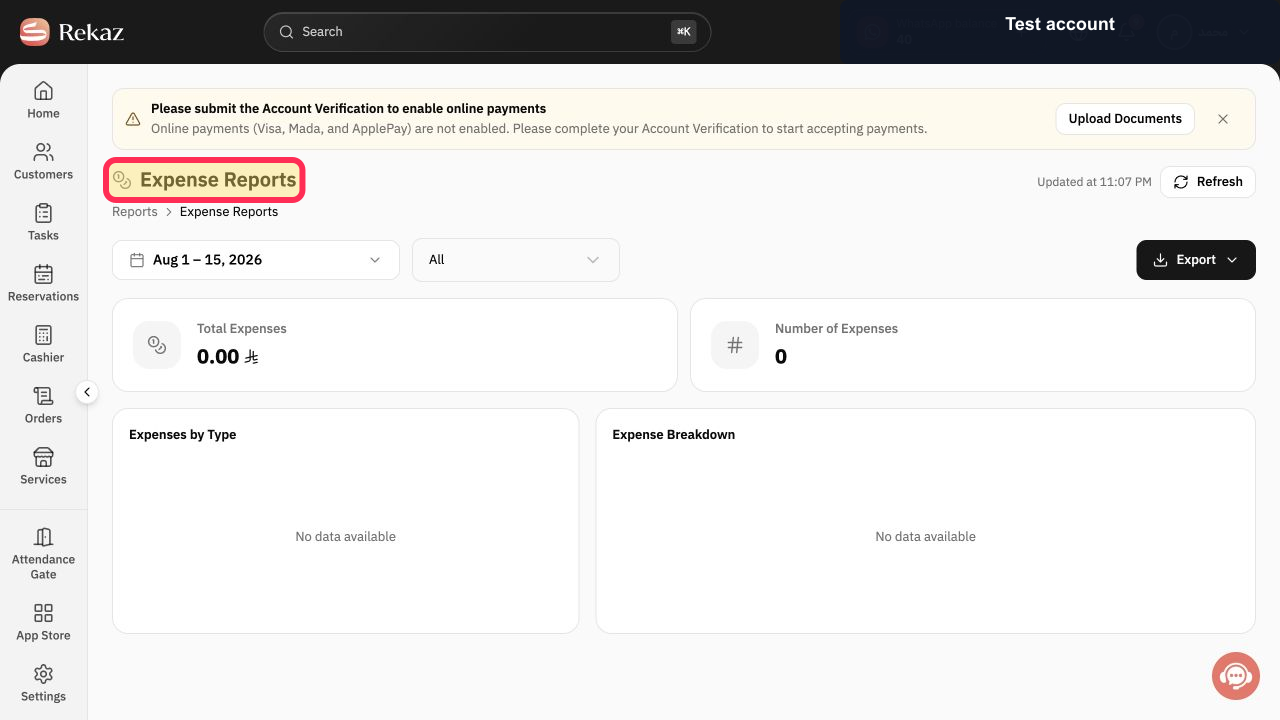
Under Financial Reports, select the Expense Reports card.
The Expense Reports page opens.
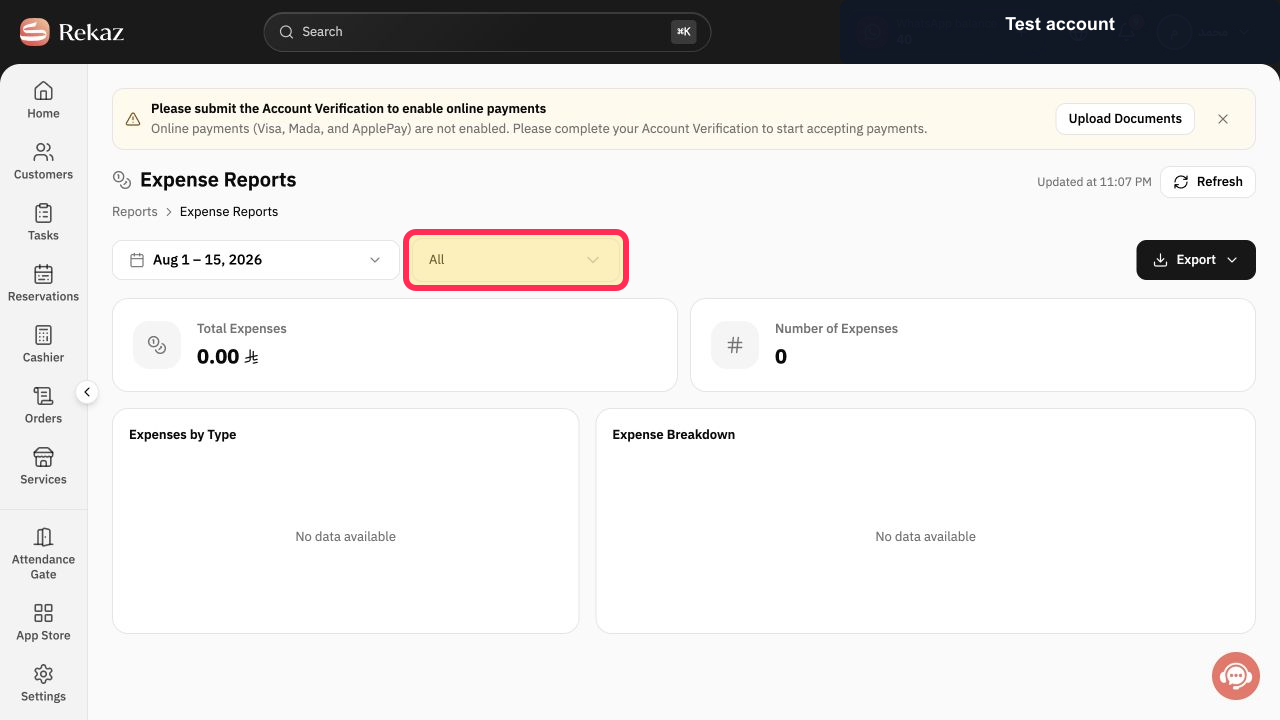
Set the date range to include the missing expense, then open the branch filter currently shown as All and select the relevant branch before reviewing the results.
The expense report uses the required period and branch scope.
Illustrated guide
Step 1: Select Reports from the Rekaz sidebar.
Step 2: Select the Expense Reports card under Financial Reports.
Step 3: Set the branch scope in the Expense Reports page.
If you still cannot find the expense
Confirm that the selected date range includes the date when the expense was recorded and that you chose the correct Branch. If the expense may have been recorded under another branch or period, adjust the filters and review the results again.
If the expense still does not appear, contact Rekaz support. Share only non-sensitive context, such as the approximate date and branch. Hide unrelated customer or financial information in screenshots, and never send passwords, card details, or API secrets.
Important notes
The screenshots show the standard route for opening Expense Reports.
If the Rekaz interface changes, check the visible button or field name before taking any financial or final action.
Related questions
Where can I find an expense I recorded in Rekaz?
How do I open Expense Reports in Rekaz?
I recorded an expense but cannot find it in Rekaz—where should I look?
How do I filter Expense Reports by date and branch in Rekaz?


