Why won’t my booking website open in Rekaz?
If your Rekaz booking website does not open, first review the saved website configuration rather than changing the design at random. Check the current design and preview, save only if the configuration is correct, and then test the link in a private browser window or on another device.
If the issue continues, keep a record of when it happened and the booking link shown before contacting support.
Steps
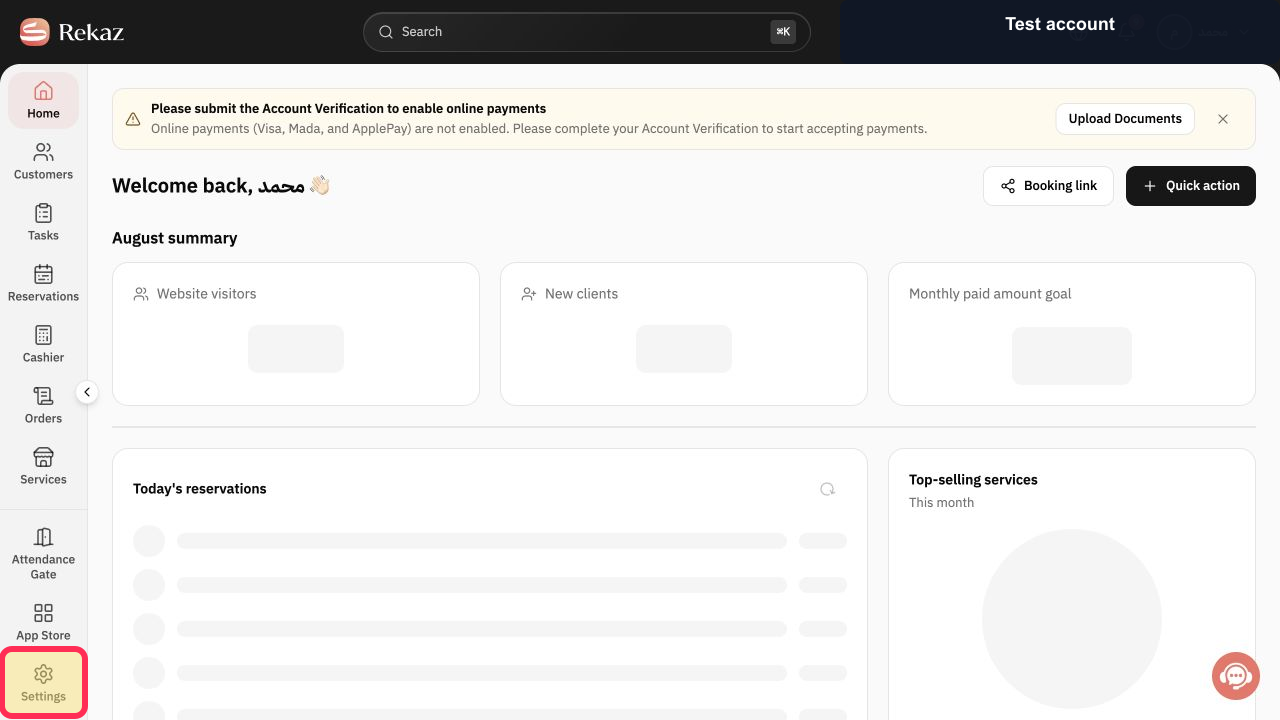
From the signed-in Rekaz dashboard, select Settings in the sidebar.
The Settings area opens.
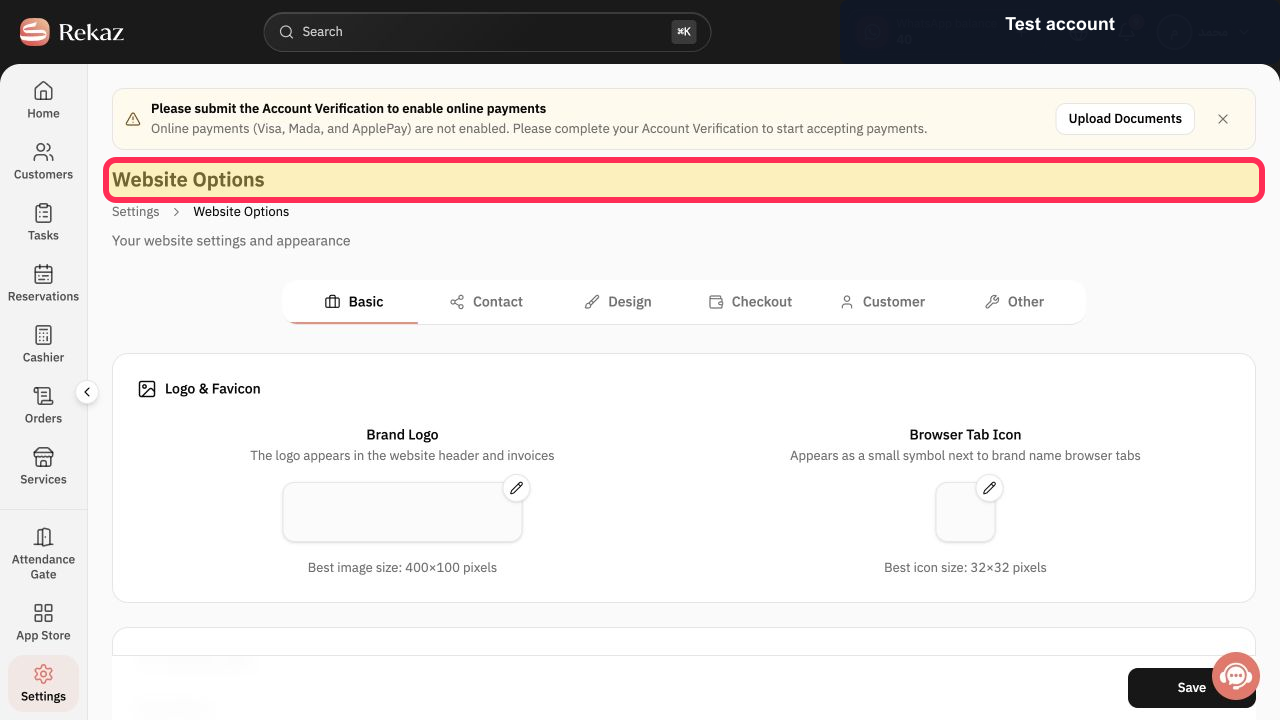
Open the website settings option in Settings. The website configuration page opens.
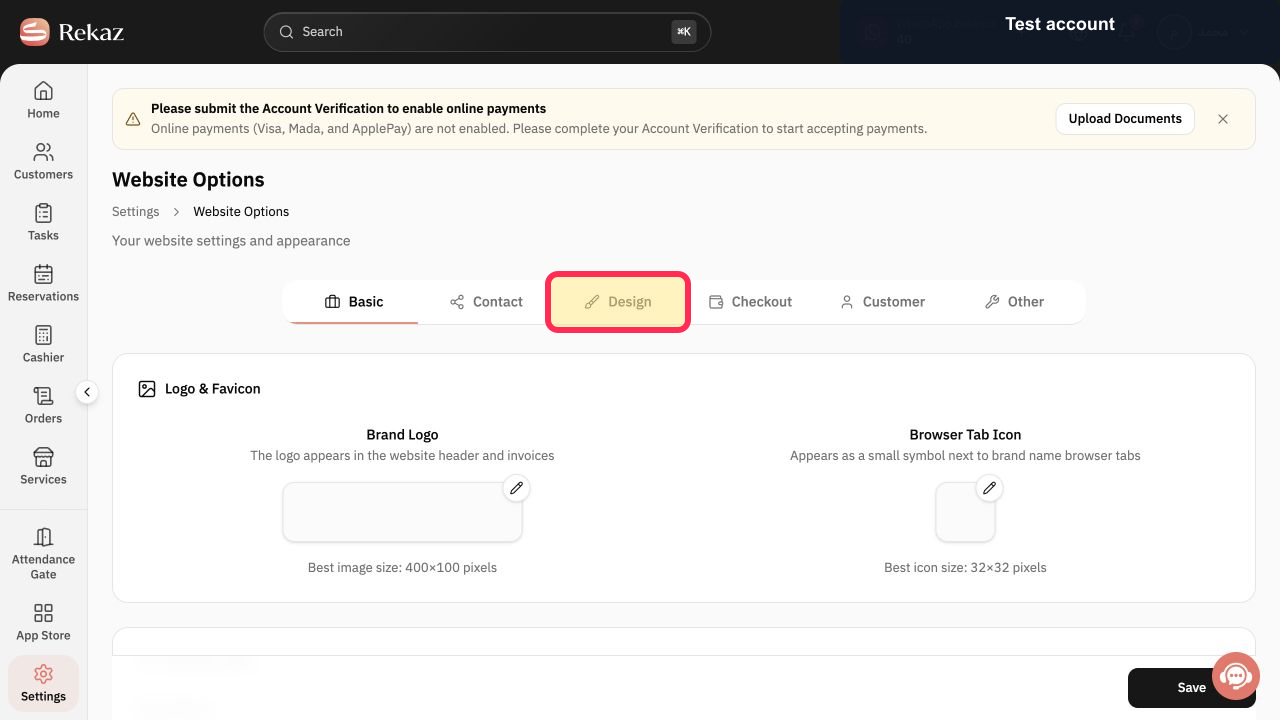
Open the design tab to review the current website design. The current website design settings are displayed.
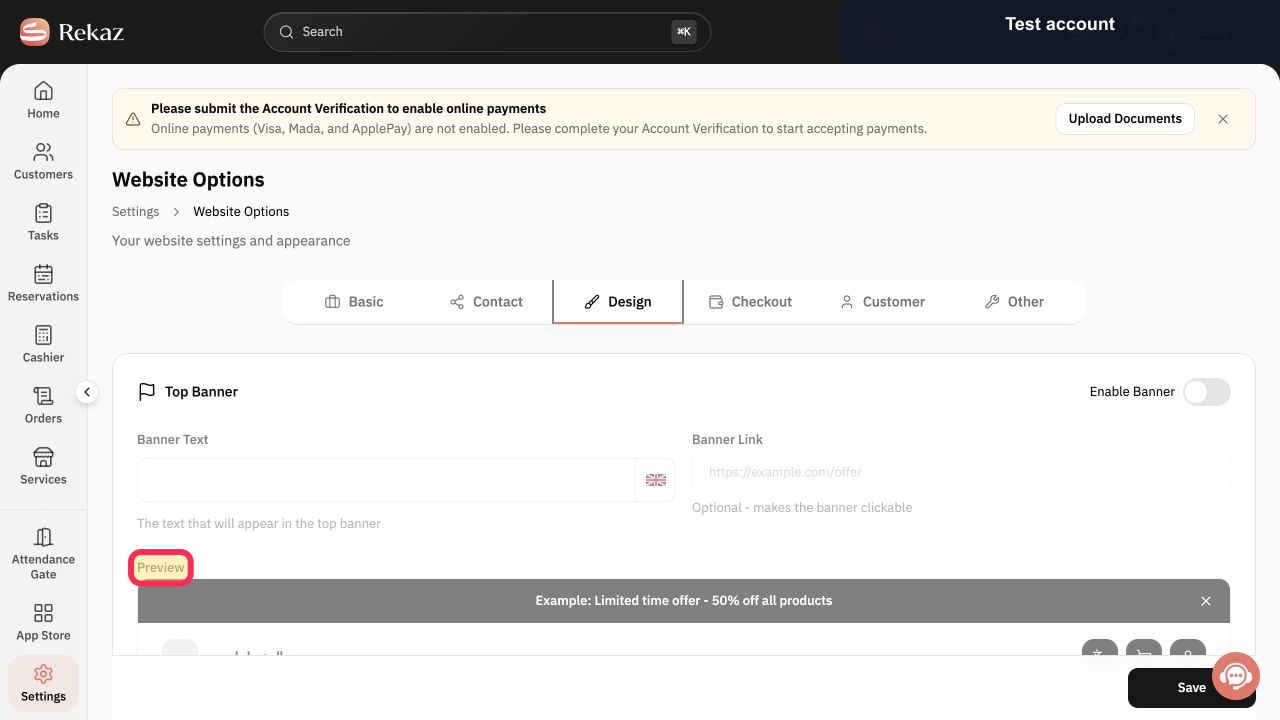
Review the website preview. A preview of the current website configuration is available for review.
Save changes only if the website configuration and preview are correct. The correct website configuration is saved.
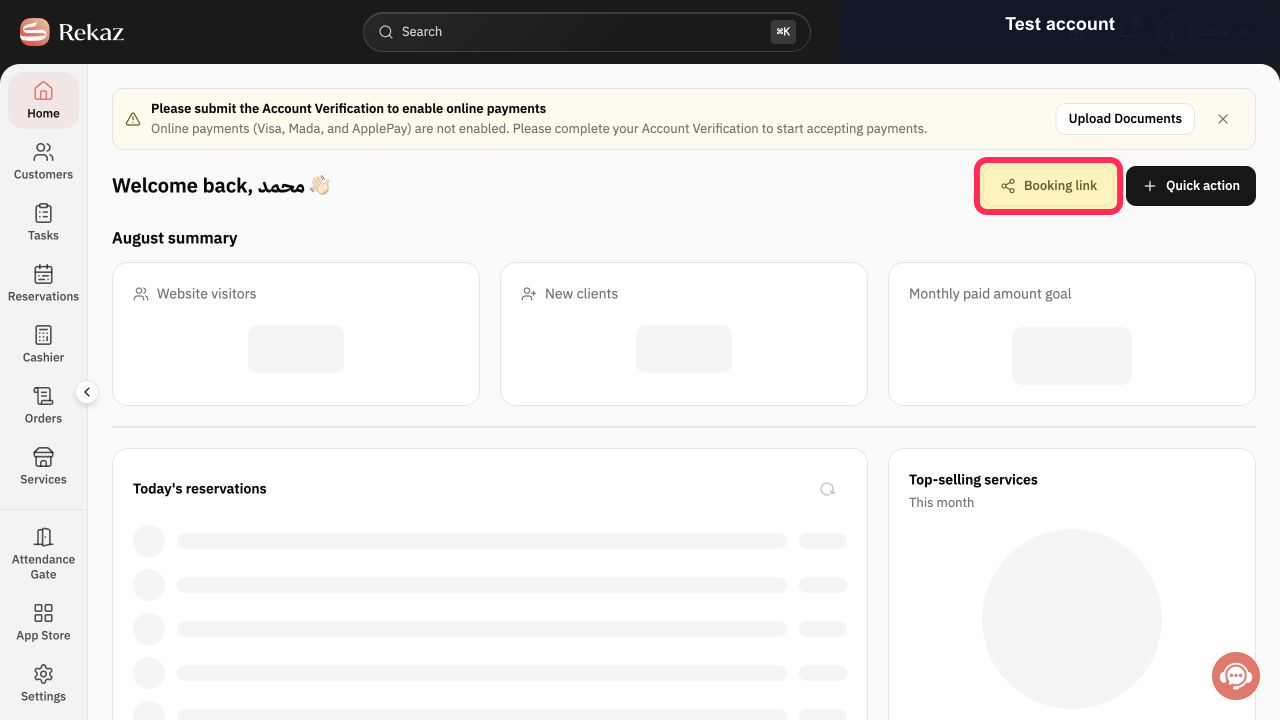
Open the booking website link in a private browser window or on another device to test the saved version outside the Rekaz admin session.
You can confirm whether the public booking website opens outside the admin session.
Illustrated guide
Step 1: Open Settings from the Rekaz sidebar.
Step 2: Open the website settings page from Settings.
Step 3: Review the current website design.
Step 4: Check the website preview before saving.
Step 5: Save only confirmed correct website changes.
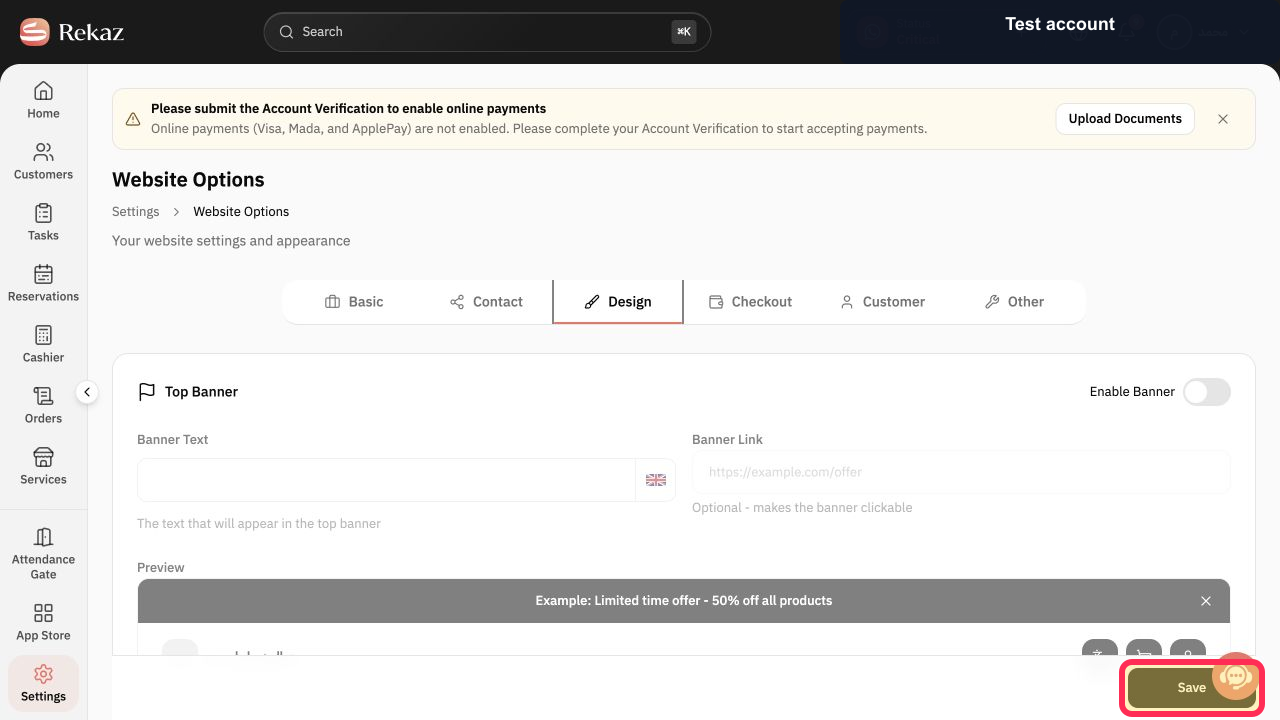
Step 6: Test the booking website in a private window or on another device.
Important notes
Do not make random design changes while investigating the issue.
Testing outside the admin session helps you check the public version of the booking website after saving.
If the problem continues, record the time of the issue and the booking link that was displayed before requesting support.
Related questions
My Rekaz booking website link will not open
My booking page is not working in Rekaz
How can I test my Rekaz booking website?


