Why is my payment link not working in Rekaz?
A payment link can fail because the order no longer has the expected balance, the account has not completed online-payment activation, or an old link was shared after the order changed.
Always create the replacement link from the current order. Do not record a payment unless it was actually received.
Steps
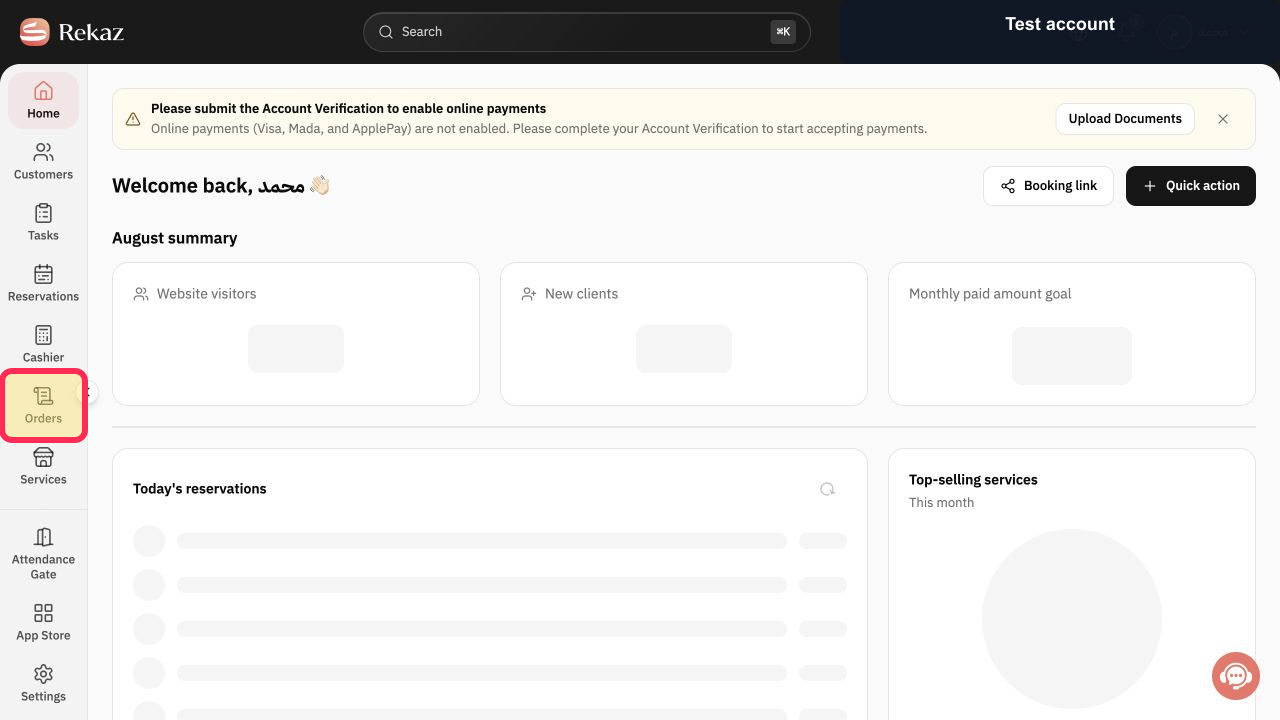
Open Orders from the Rekaz navigation and select the order connected to the link.
The current order opens.
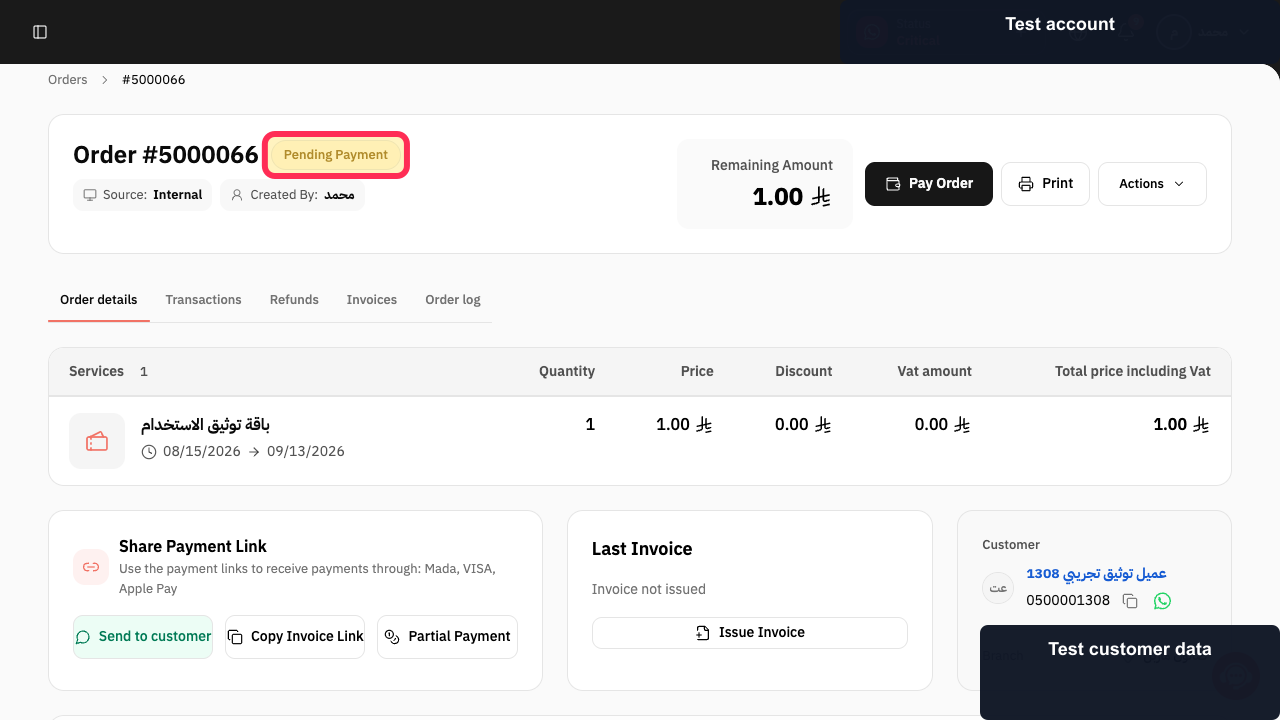
Confirm that the order is still marked Pending Payment.
The order still requires payment.
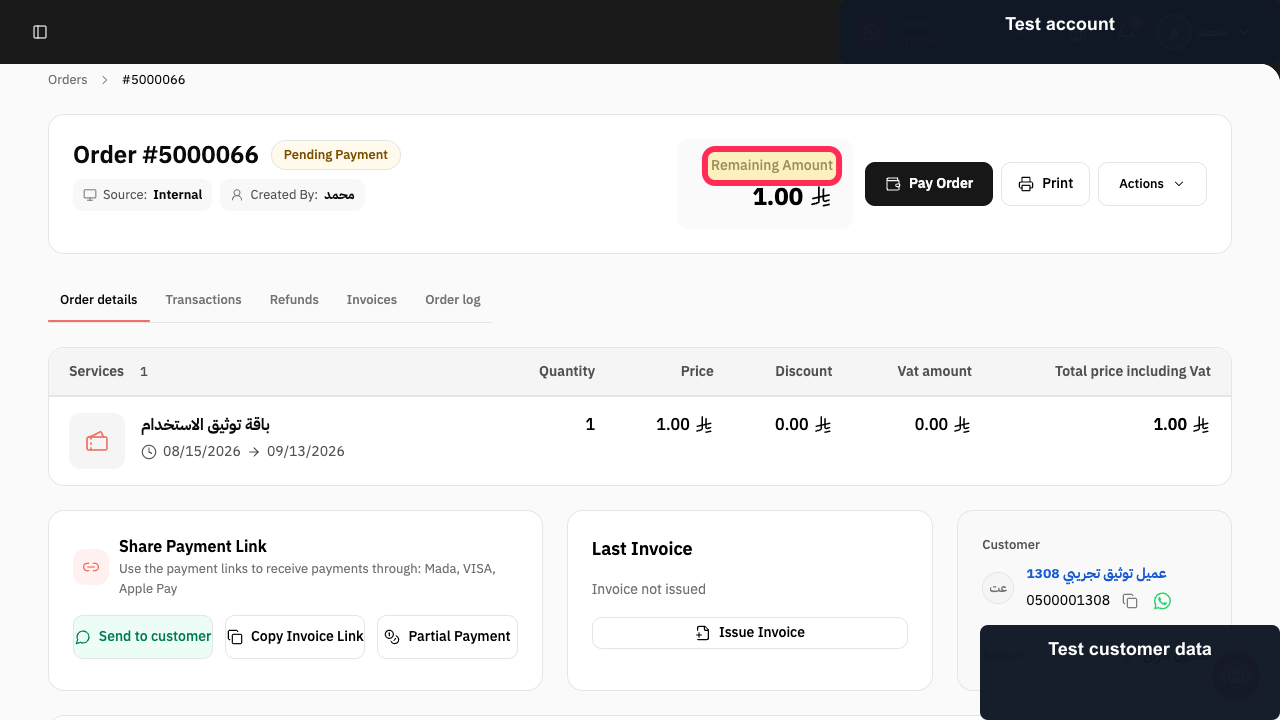
Verify Remaining Amount before creating another link.
The amount still due is confirmed from the current order.
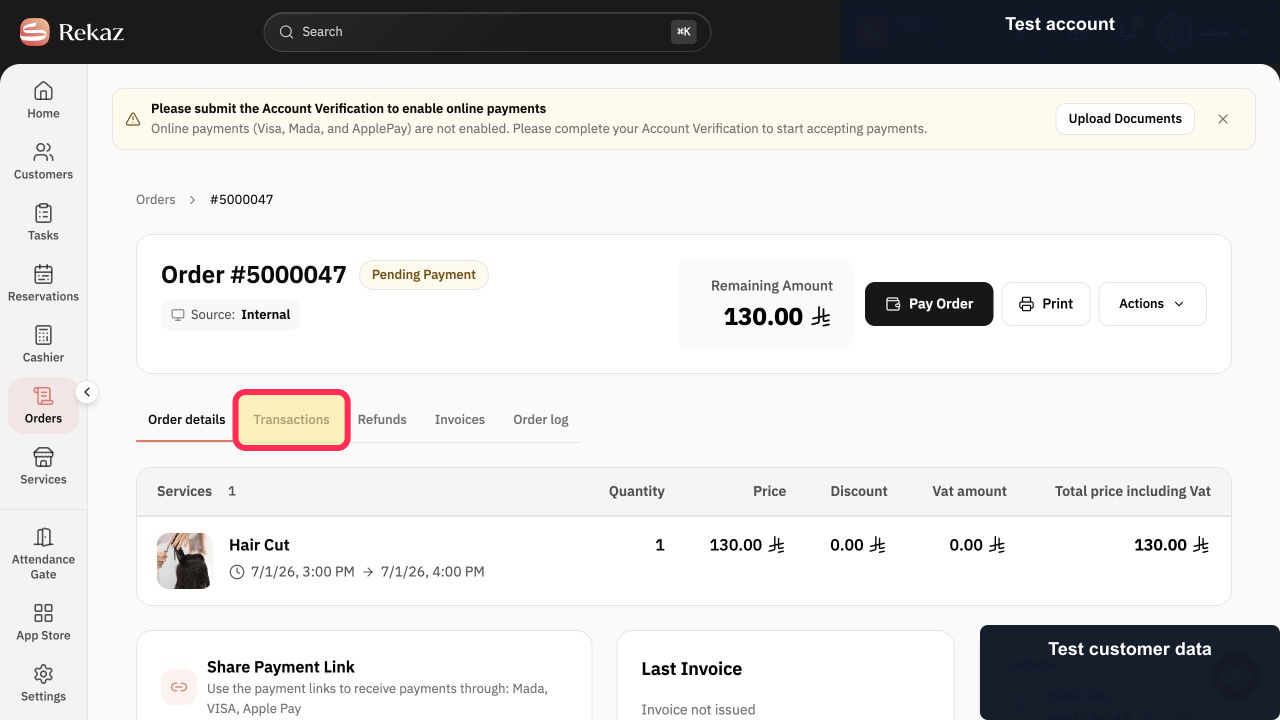
Open Transactions and check that no successful payment has already been recorded.
You avoid sending a new link for an amount that was already paid.
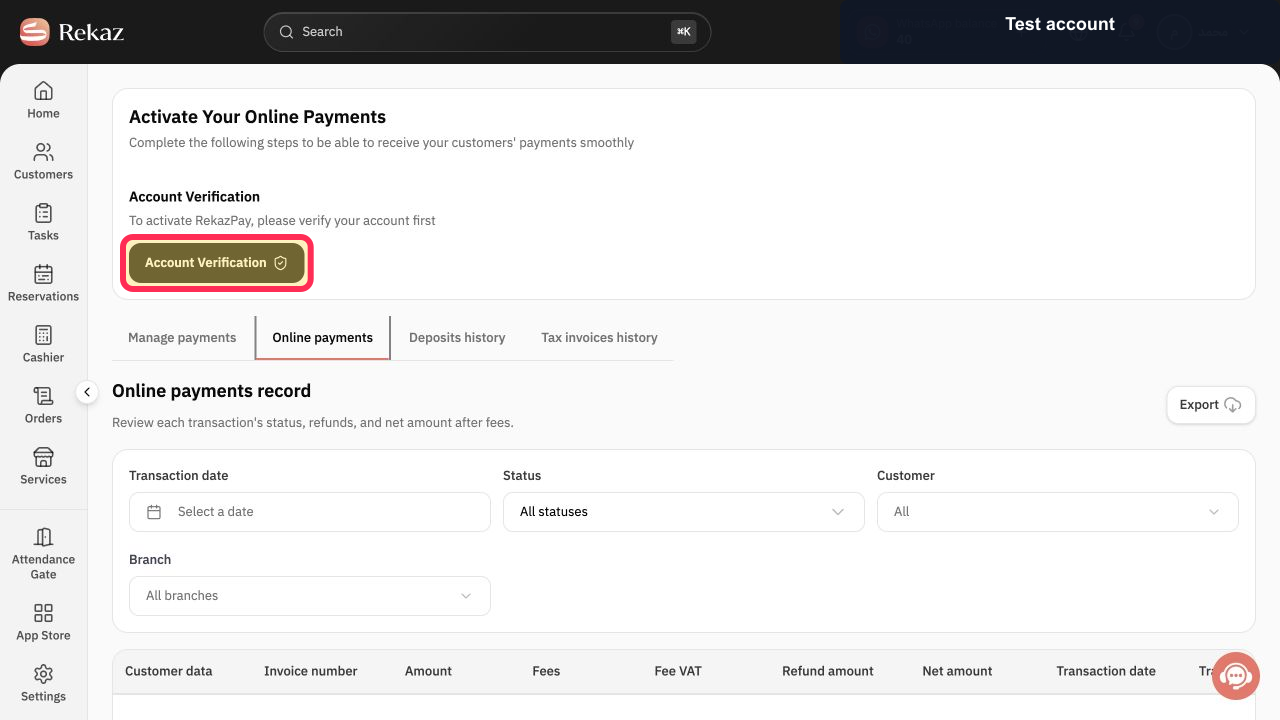
If online payments are not active, open Rekaz Pay and select Account Verification when prompted.
The verified activation requirement is displayed instead of an unavailable payment record.
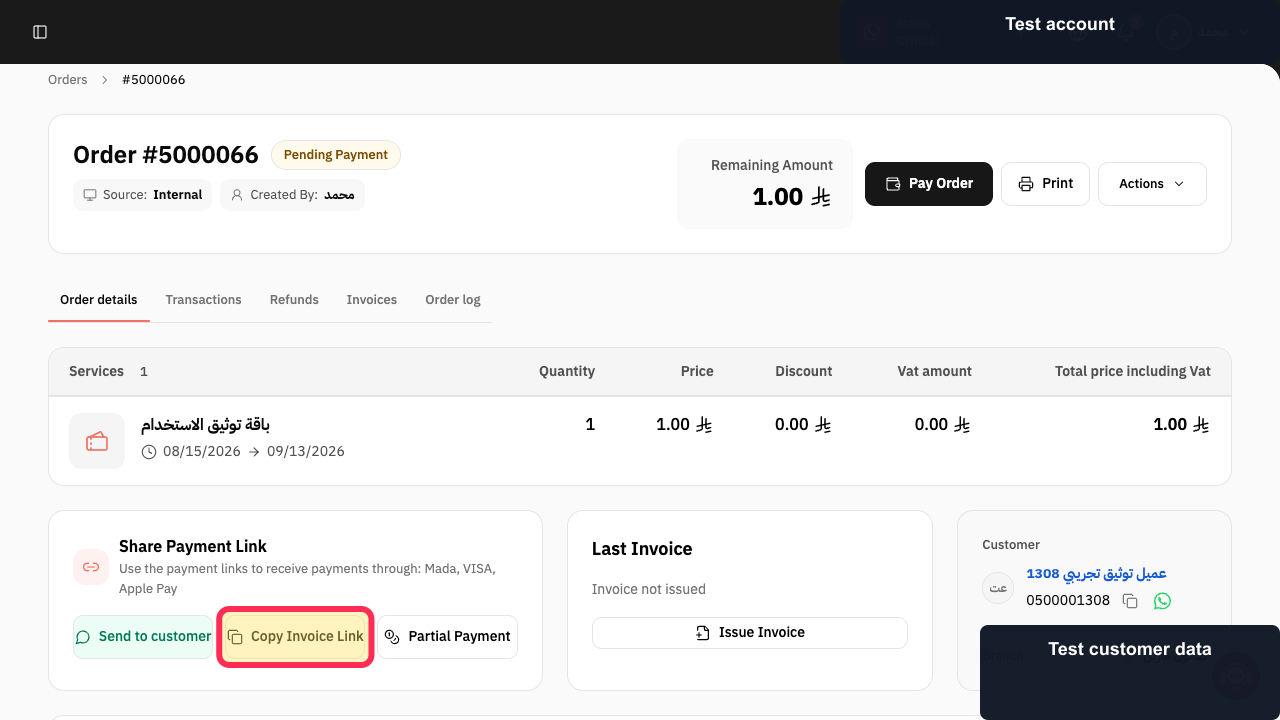
Return to the order and select Copy Invoice Link.
The Payment link dialog opens for the current order.
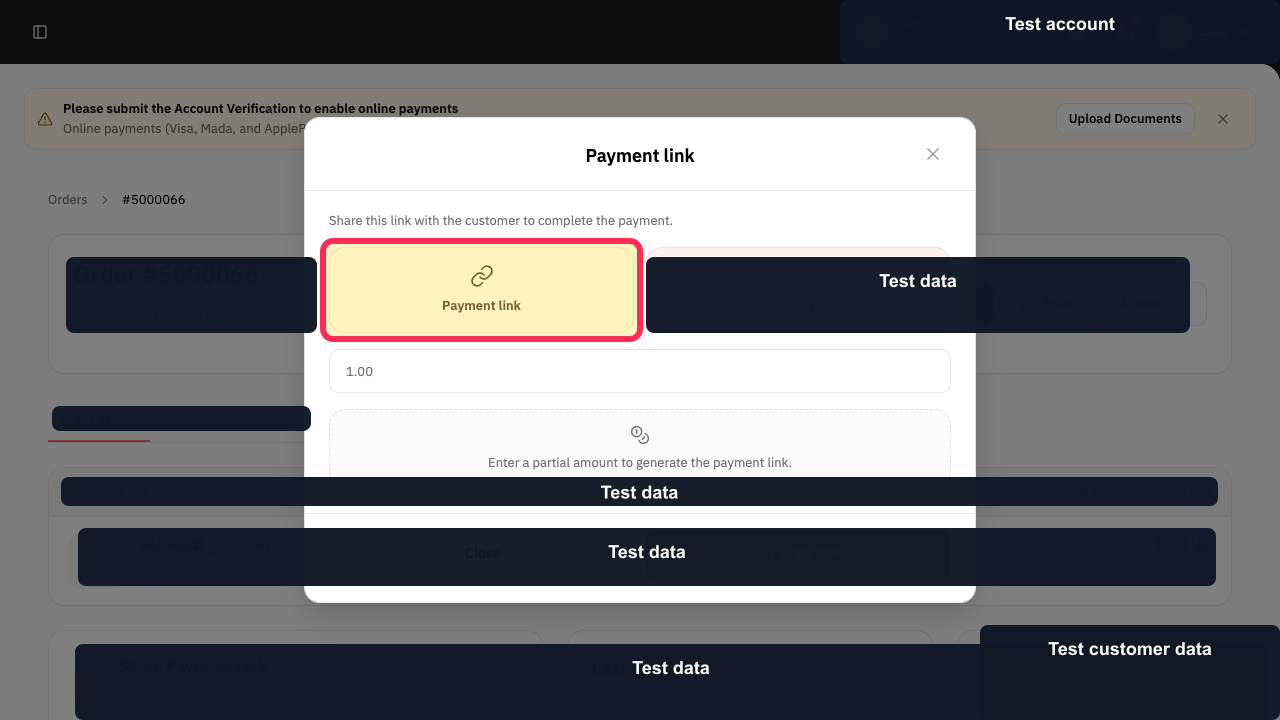
Choose Payment link when the customer should pay the full Remaining Amount.
The full-payment link option is selected.
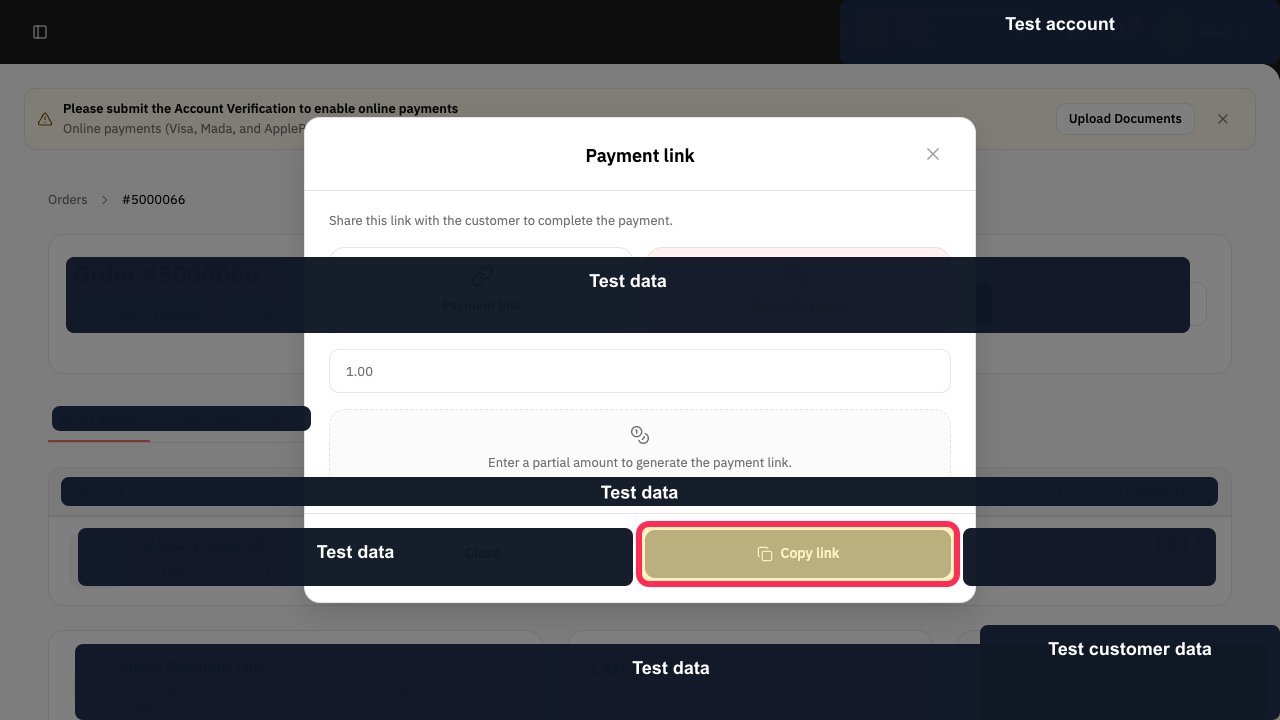
Select Copy link and share the new link through an approved customer channel.
The current full-payment link is copied.
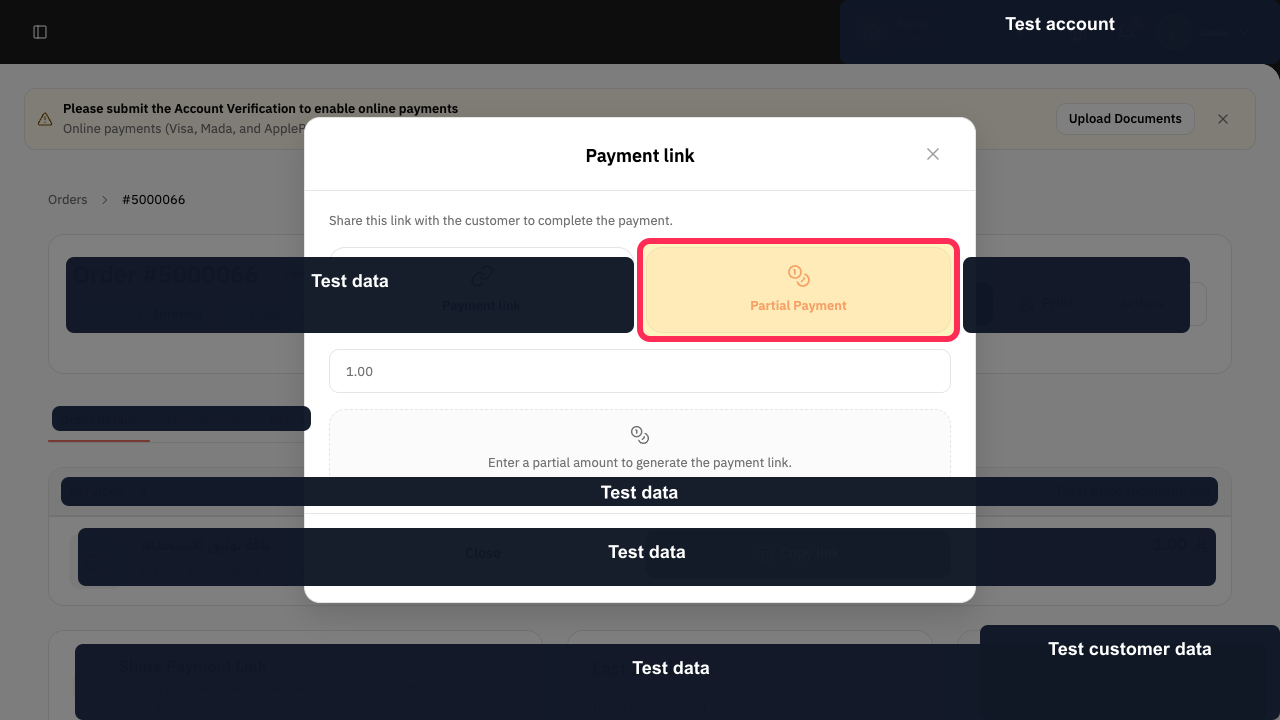
Choose Partial Payment only when you intend to request a specific amount below the Remaining Amount, then enter that amount and copy the generated link.
The customer receives a link for the intended partial amount rather than the full balance.
Illustrated guide
Step 1: Open the order connected to the payment link.
Step 2: Check the order payment status.
Step 3: Verify the current remaining balance.
Step 4: Review the order transaction history.
Step 5: Complete the Rekaz Pay account-verification requirement.
Step 6: Open the current order's payment-link dialog.
Step 7: Choose a full payment link.
Step 8: Copy the current Rekaz payment link.
Step 9: Use Partial Payment only for an amount-specific link.
Important checks
Test the copied link in a private browser window before sending it to the customer.
Do not send an old payment link after the Remaining Amount has changed.
Confirm the order status and Remaining Amount first.
Review the available payment methods in Online Payments settings.
Copy the payment link again from the current order.
Use Partial Payment only for the intended partial amount.
Related questions
Why won’t my payment link open in Rekaz?
Why is my Rekaz payment link broken?
How do I get a new payment link in Rekaz?
When should I use Partial Payment in Rekaz?


