How do I manually sync attendance biometrics in Rekaz?
The current Attendance System supports a Manual checklist, a dedicated QR Code Scanner, and the device Camera. Choose the method that matches how you check customers in and out.
Steps
Open Attendance in Rekaz.
The Attendance System opens.
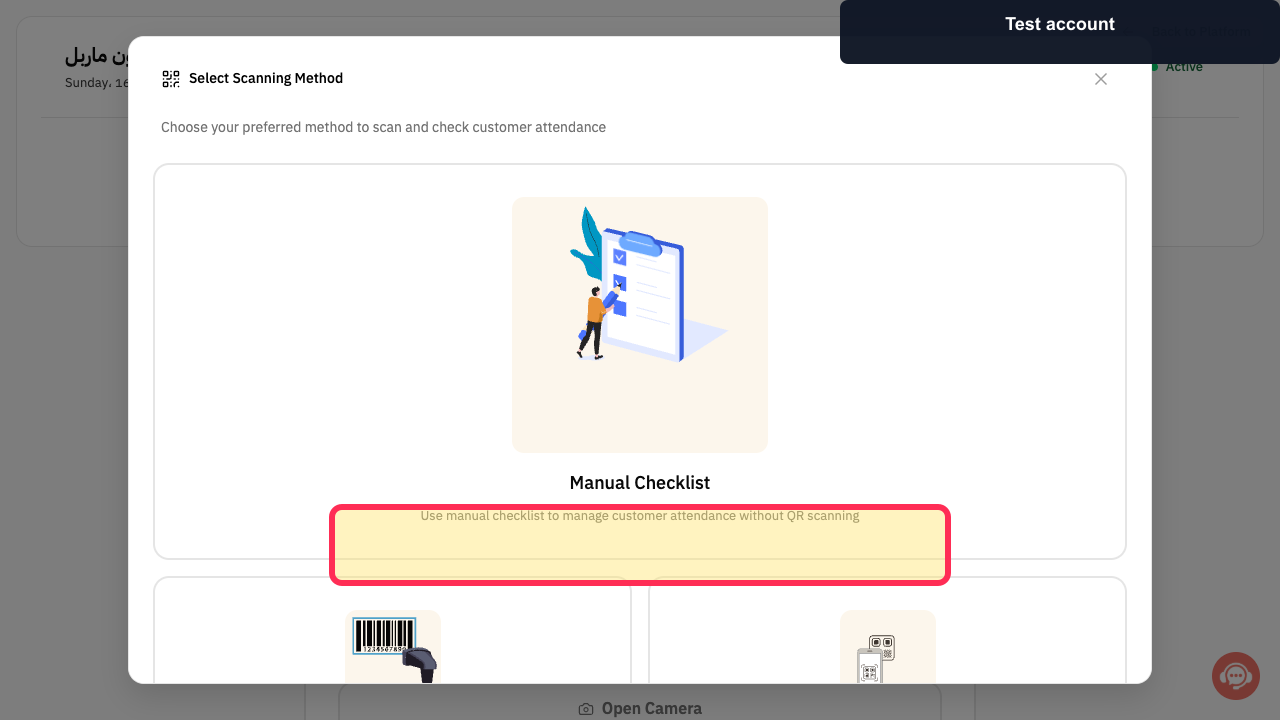
Review Select Scanning Method when the attendance page asks how you want to scan customers.
Manual Checklist, QR Code Scanner, and Camera are displayed.
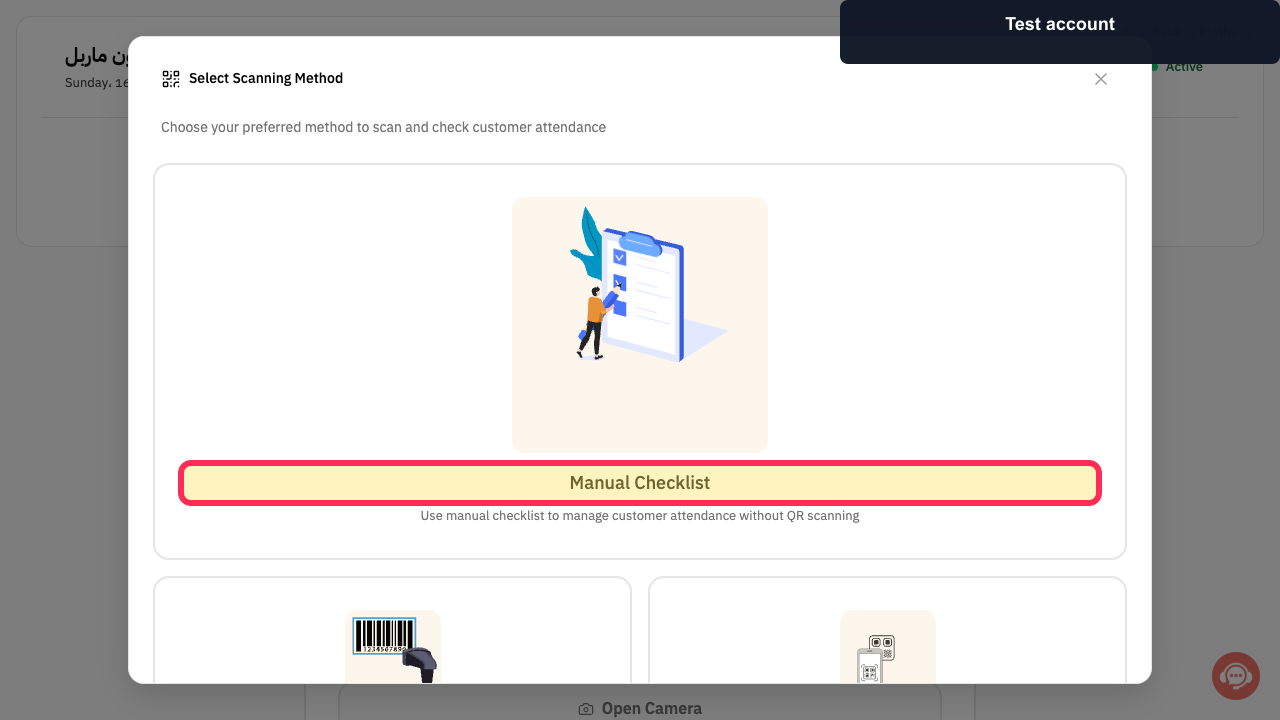
Choose Manual Checklist to find customers and record attendance without QR scanning.
The Manual attendance method is selected.
Choose QR Code Scanner when a dedicated QR scanner will identify customers.
The Scanner attendance method is selected.
Choose Camera when the device camera will scan customer QR codes.
The Camera attendance method is selected.
Use Search by Name or Search by Mobile Number in the selected attendance view. Customers can be located using the supported attendance search.
Illustrated guide
Step 1: Open the Rekaz Attendance System.
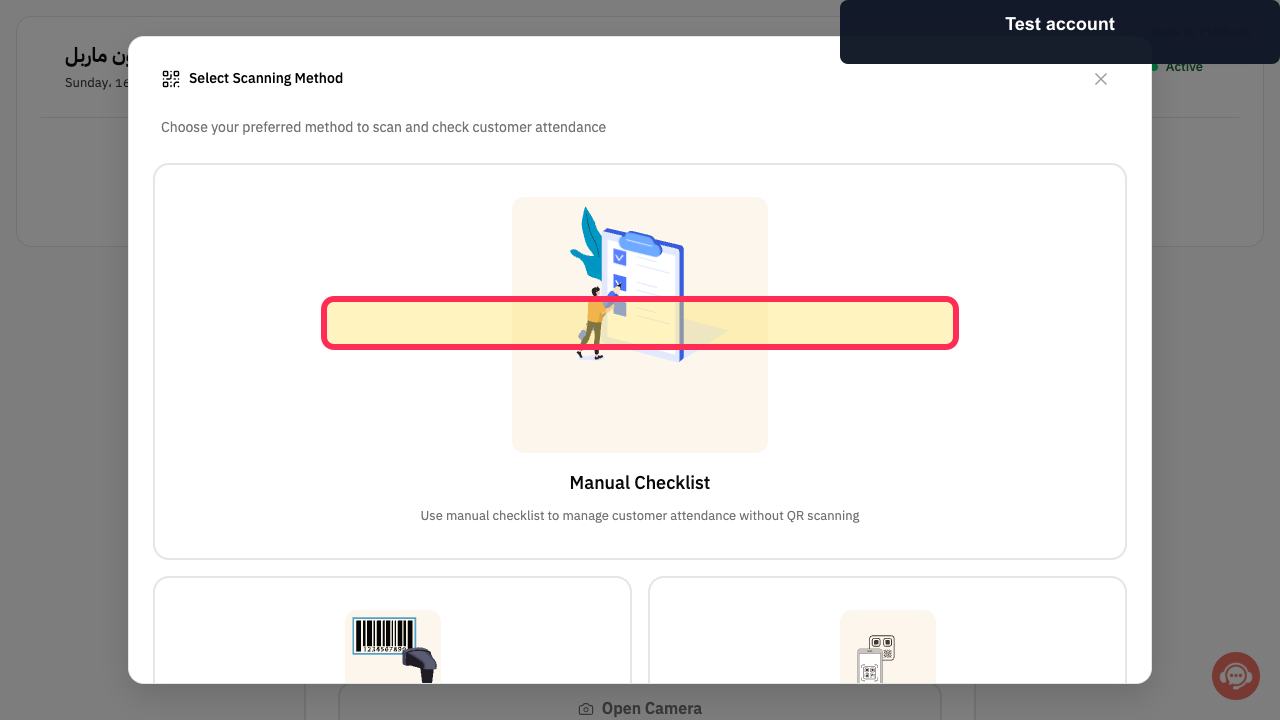
Step 2: Review the current attendance scanning methods.
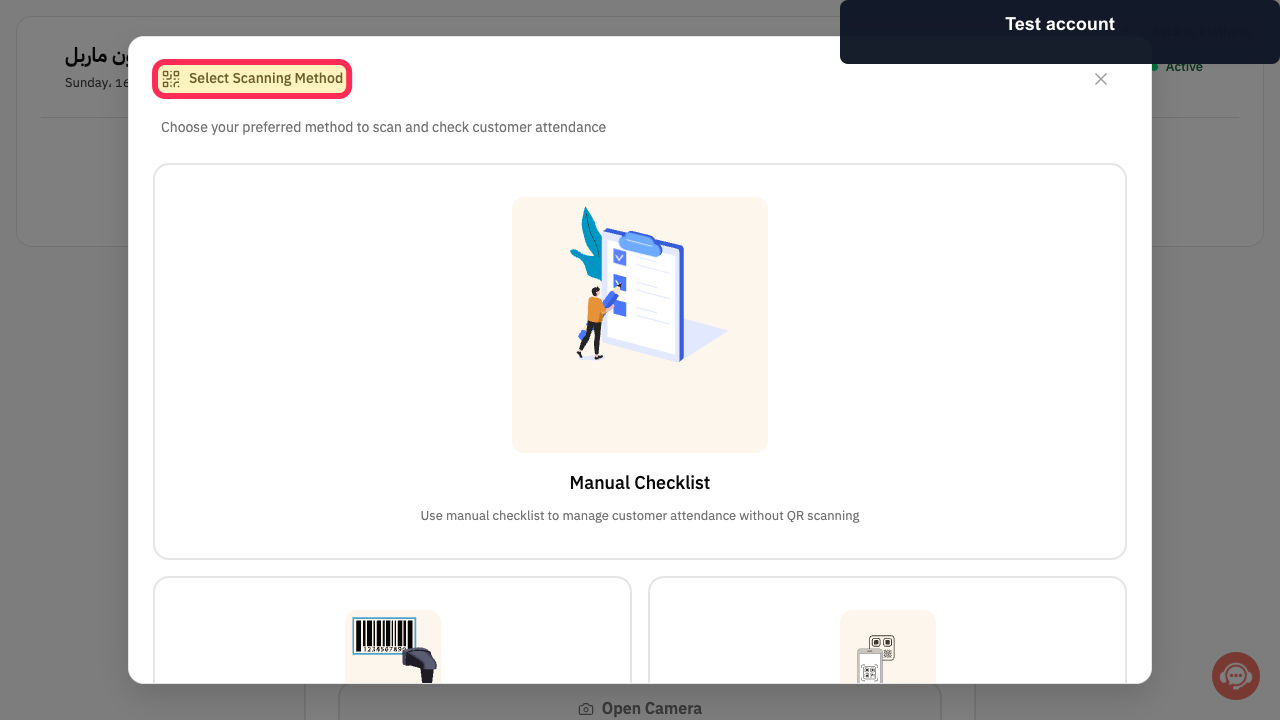
Step 3: Choose Manual Checklist for attendance.
Step 4: Choose the QR Code Scanner method.
Step 5: Choose the Camera attendance method.
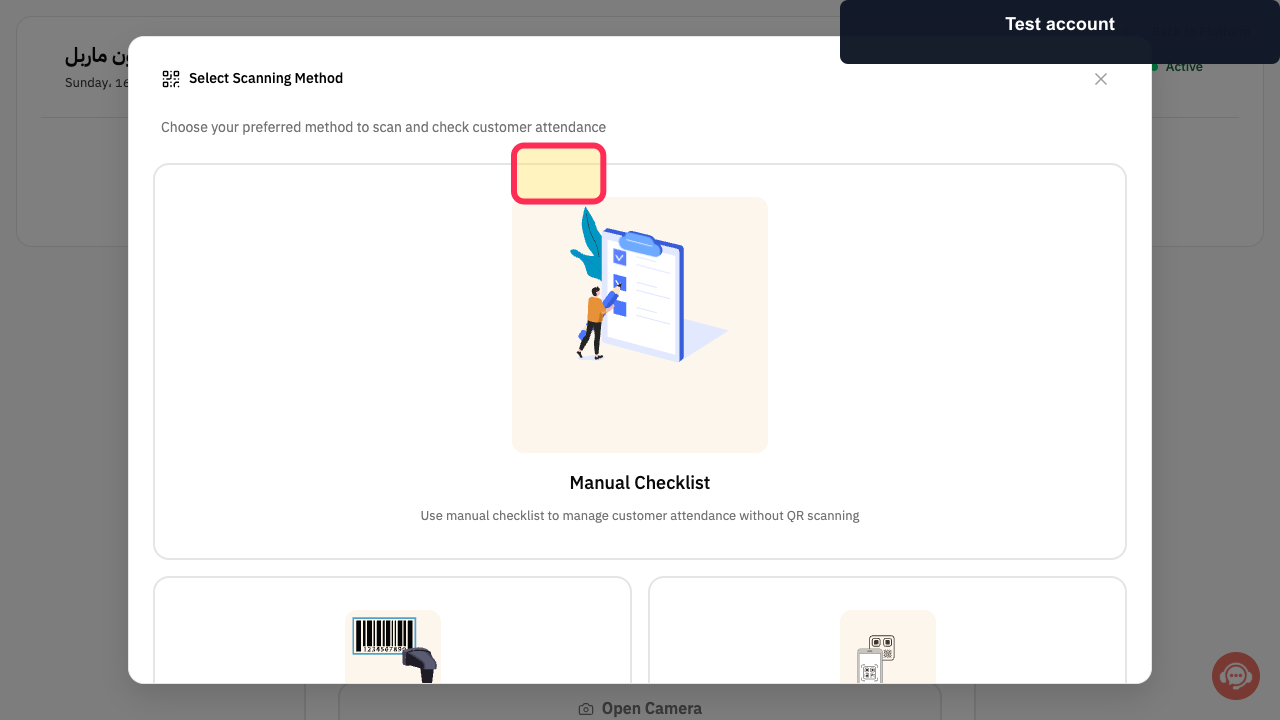
Step 6: Search for a customer in the current Attendance System.
If manual sync does not resolve the issue
If the sync problem continues after following these steps, contact Support for further assistance.
Related questions
Why is Automatic Sync for attendance biometrics not working in Rekaz?
How do I sync one customer's attendance biometric records in Rekaz?
How do I use Sync All for attendance biometrics in Rekaz?
How do I check biometric sync status in Rekaz?


