How do I compare branch performance in Rekaz?
To review branch-related sales data, open the Sales & Revenue report, use the Branch filter, and run the report with Show Results.
Steps
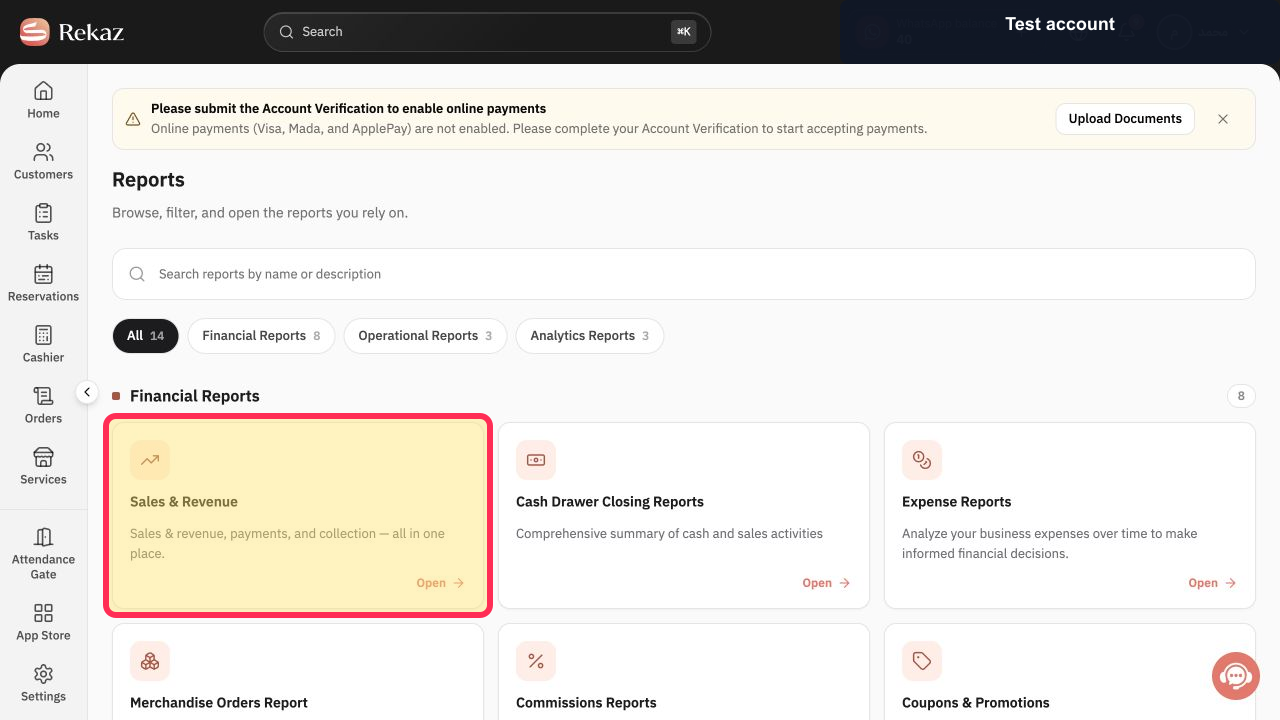
In Reports, open the Sales & Revenue report.
The Sales & Revenue report opens.
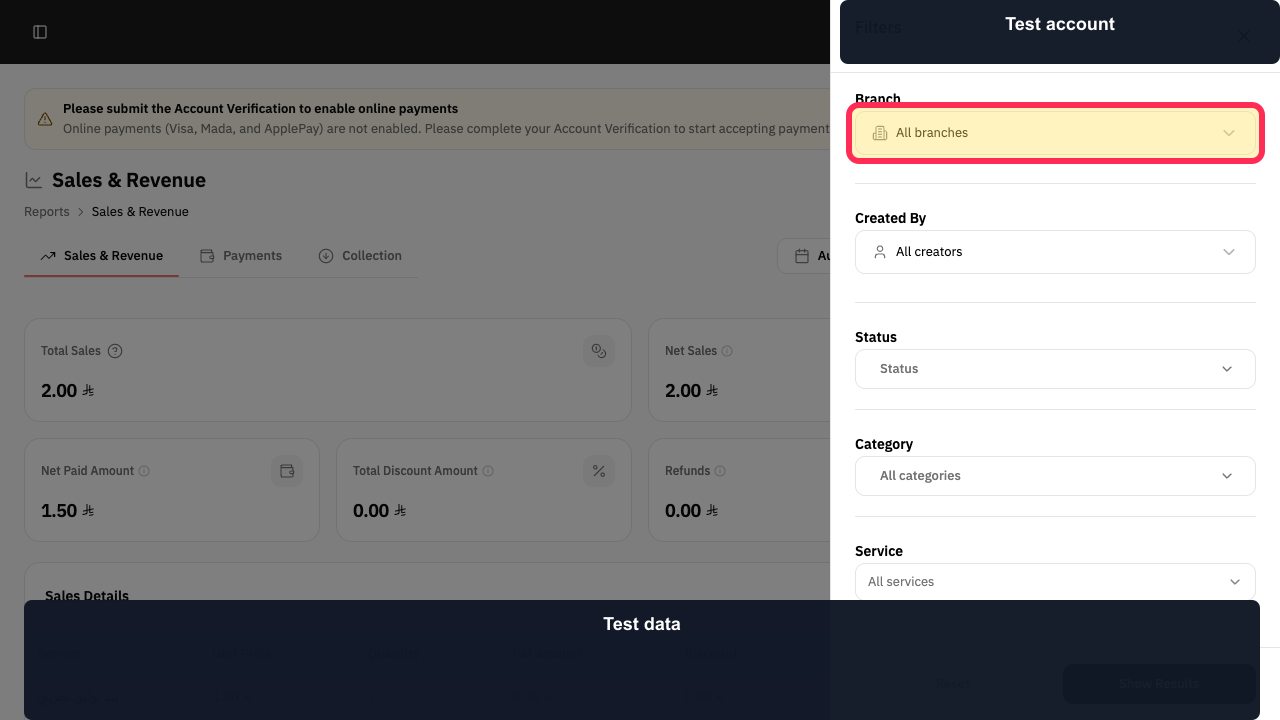
Open the Branch selector, currently showing All branches.
The Branch filter selector is opened so you can review the branch choices available to your account.
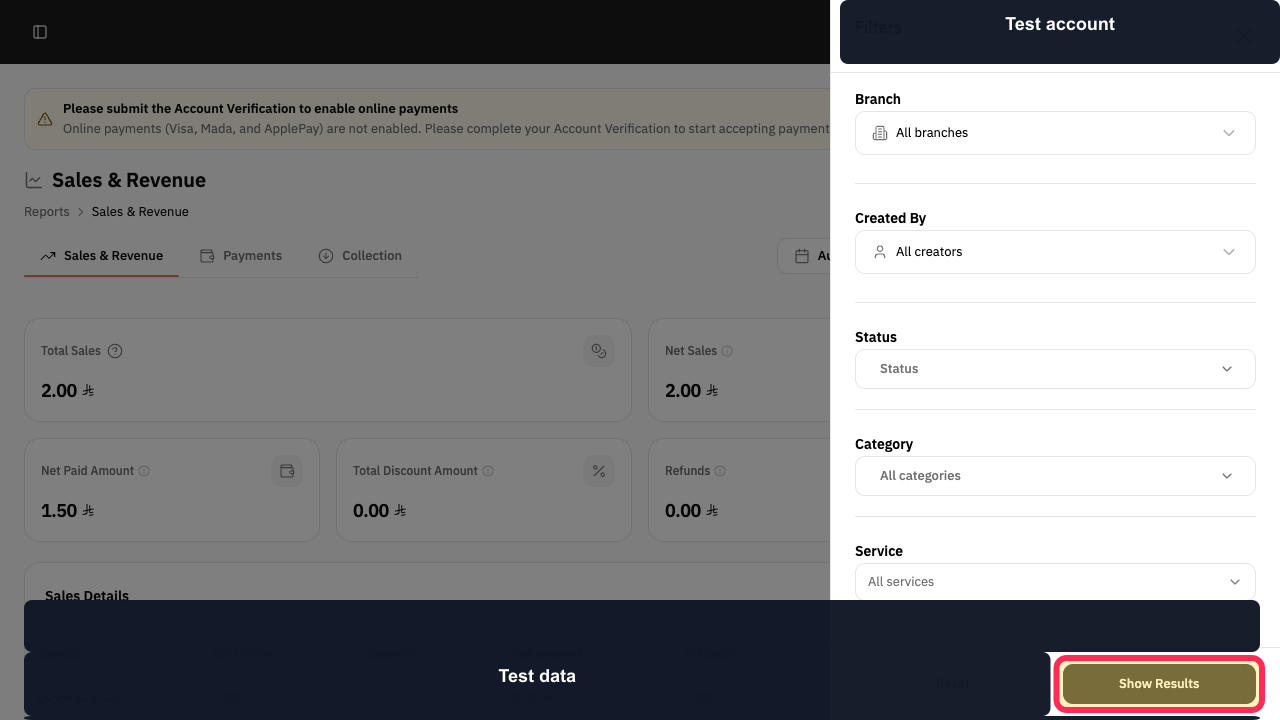
Select Show Results to run the report with the filters currently displayed.
Sales & Revenue refreshes using the current filter selections.
Illustrated guide
Step 1: Open the Sales & Revenue report.
Step 2: Open the Branch selector in Sales & Revenue.
Step 3: Run Sales & Revenue with the current filters.
Important comparison rules
Use identical filters for both branches so that the comparison is meaningful.
Do not change the Period, service, status, or other filters between branches.
Compare the same metric in both result sets, such as Sales or Bookings.
Run the report separately for each branch rather than expecting a combined branch comparison view.
Related questions
How do I find the best-performing branch in Rekaz?
How do I compare Sales for two branches in Rekaz?
Where can I find the branch filter in a Rekaz report?


