How do I view the Refunds Report in Rekaz?
Use the Refunds Report in Rekaz to review refund information after the report page is open. Confirm the page by its Refunds Report heading, then use the available date-range and search controls.
Steps
On the Reports page, select **Search reports by name or description** and enter `Refunds Report` to look for the report.
The search field displays the text you entered.
After the report has been opened, verify that the page heading is **Refunds Report**.
The page heading reads Refunds Report.
Select **Pick a date range** to open the report’s date-range selector.
The date-range selector opens.
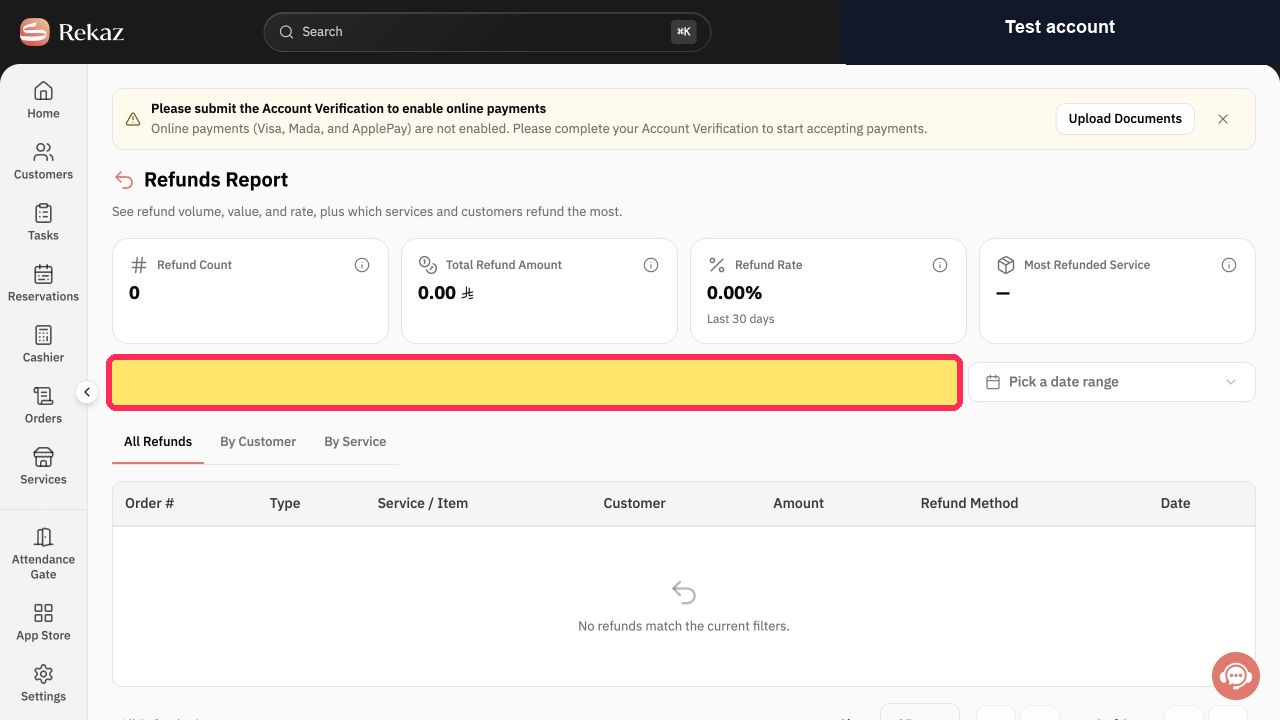
Select **Search by order number, customer, or service** and enter a search term.
The search field displays the term you entered.
Illustrated guide
Step 1: Search the Reports catalog for the Refunds Report.
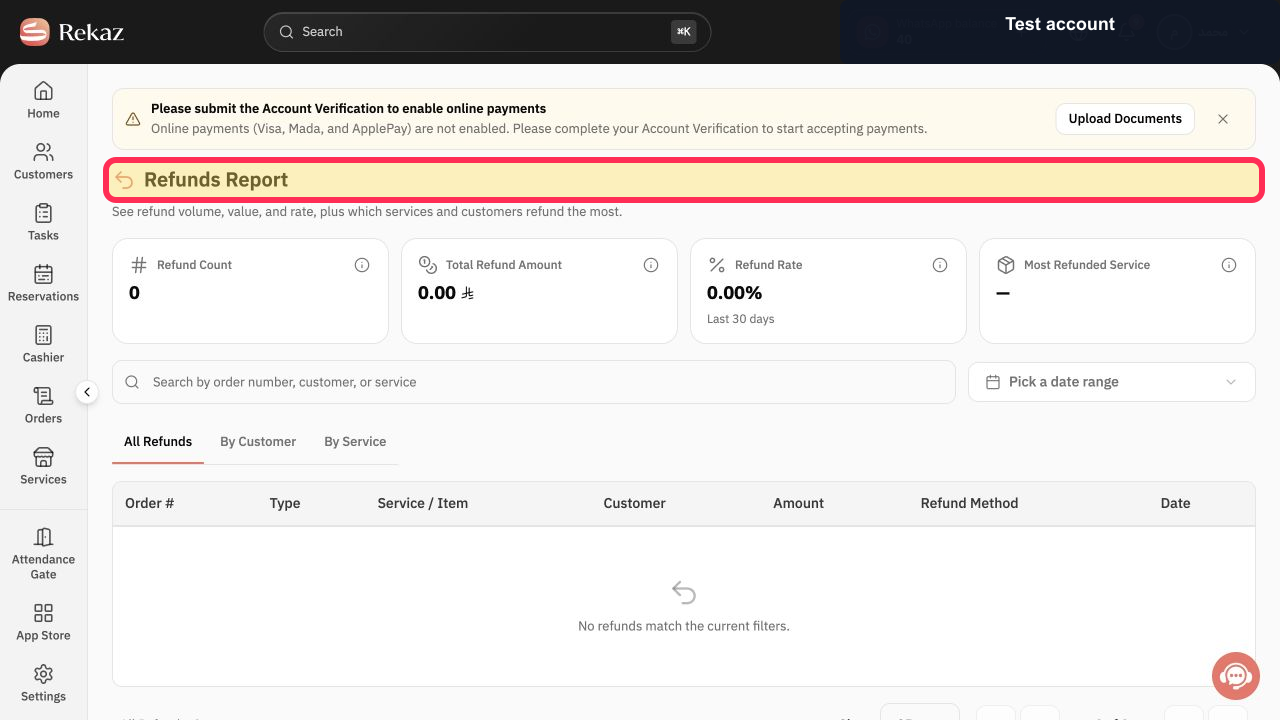
Step 2: Confirm that the Refunds Report page is open.
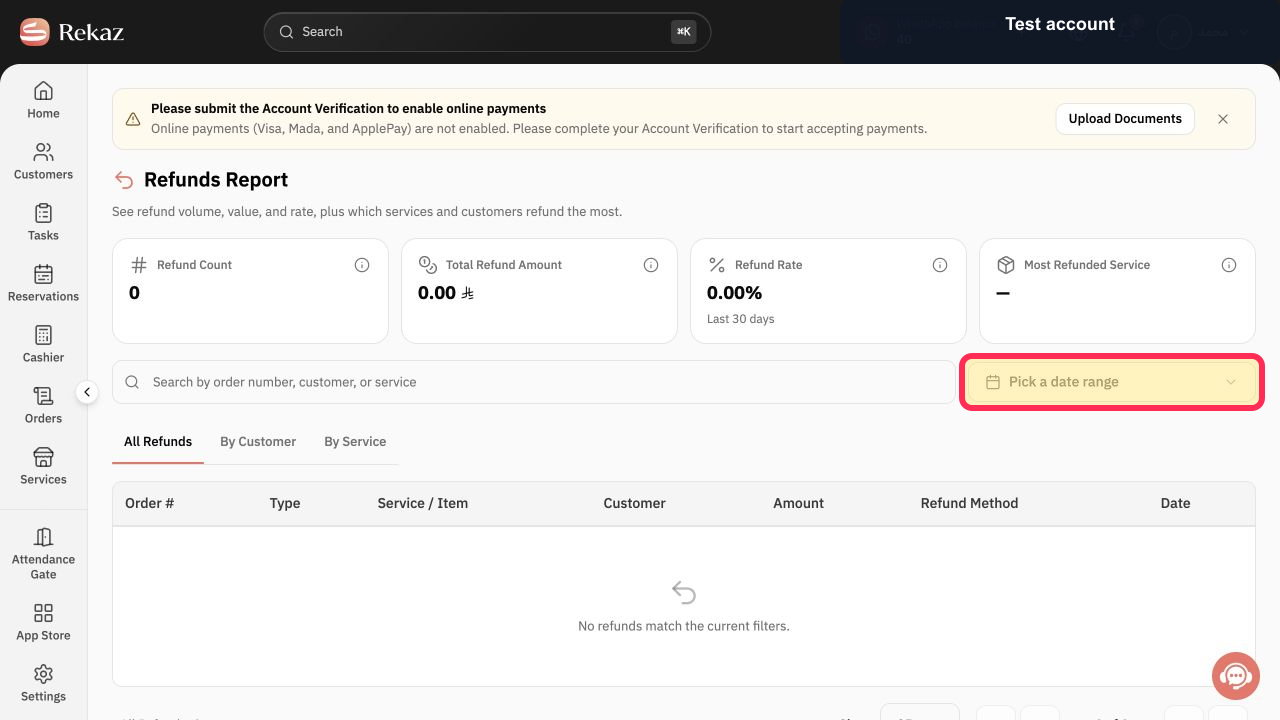
Step 3: Open the date-range selector for the Refunds Report.
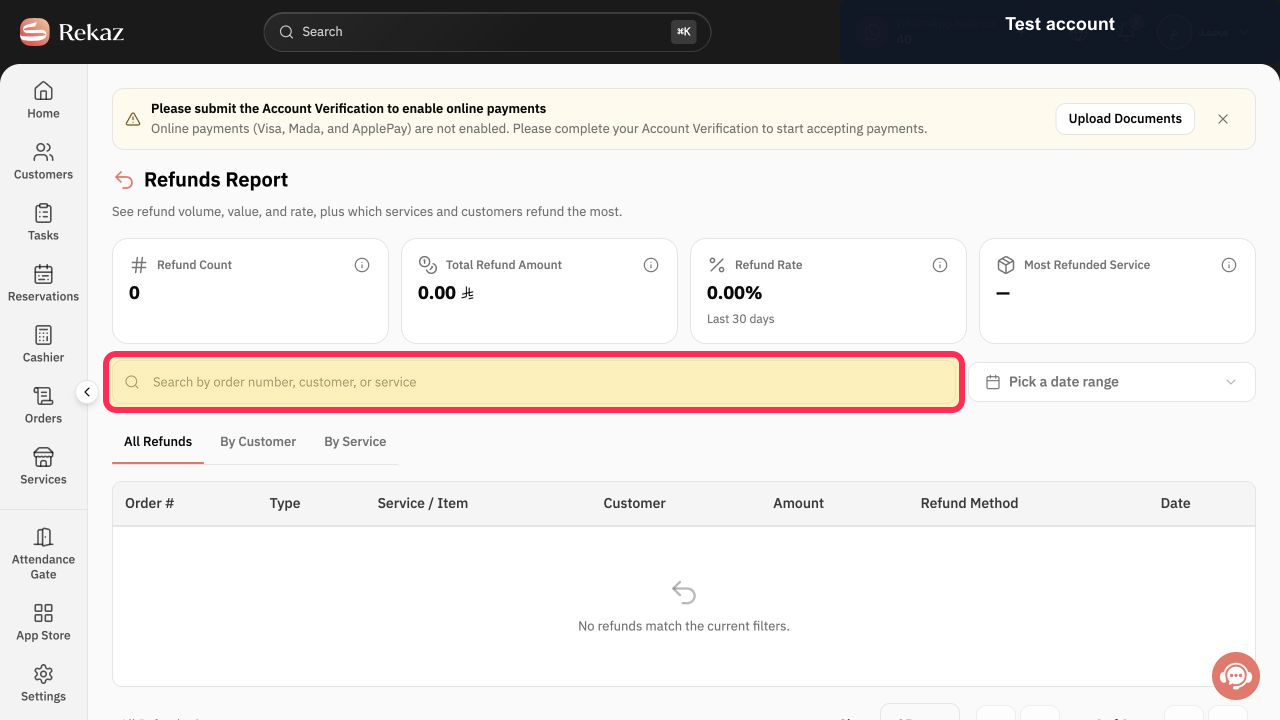
Step 4: Search within the Refunds Report.
Important notes
Check the selected date range before interpreting the report metrics.
Use the **By Customer** and **By Service** tabs to change how the results are grouped.
Related questions
Where can I find the Refunds Report in Rekaz?
How can I see the total refunded amount in Rekaz?
How do I search for a refunded order in Rekaz?


