How do I view the Customers Overview Report in Rekaz?
Customers Overview Report provides a per-customer view of amount, reservations, subscriptions, and recent activity.
Set the same date and branch scope before comparing this report with another Rekaz report.
Steps
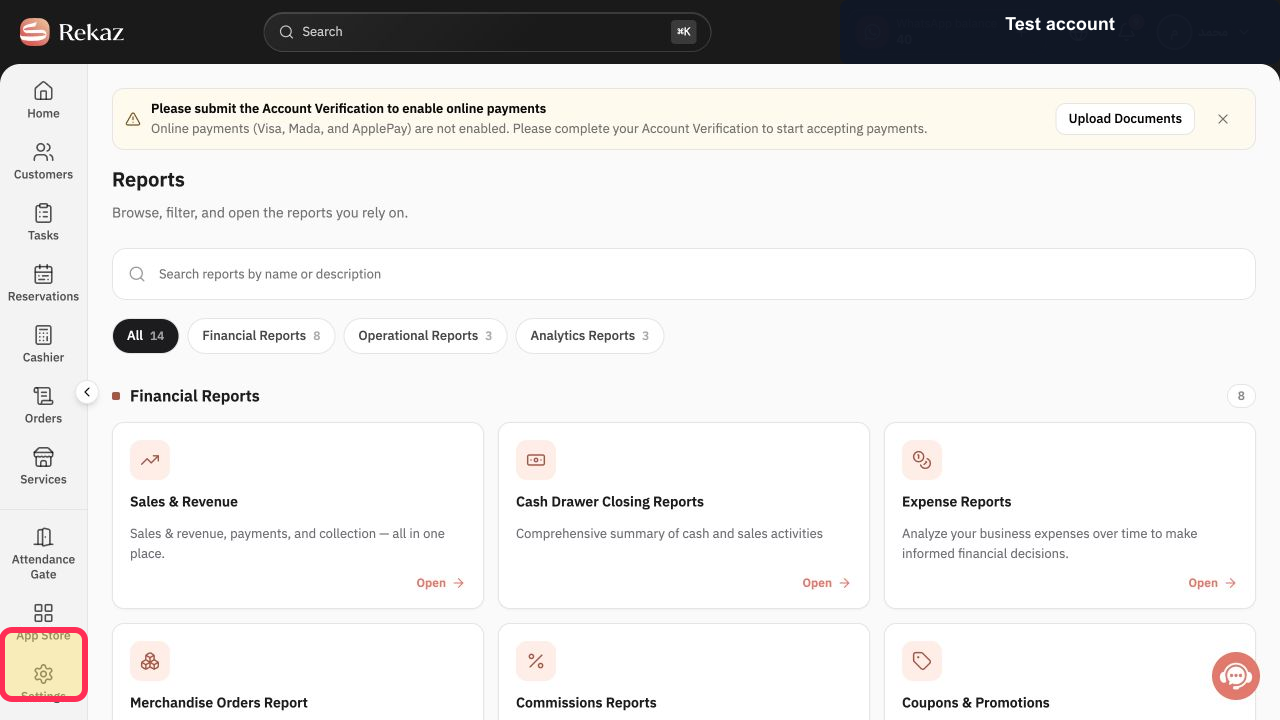
Open Reports from the Rekaz navigation.
The Reports catalog opens.
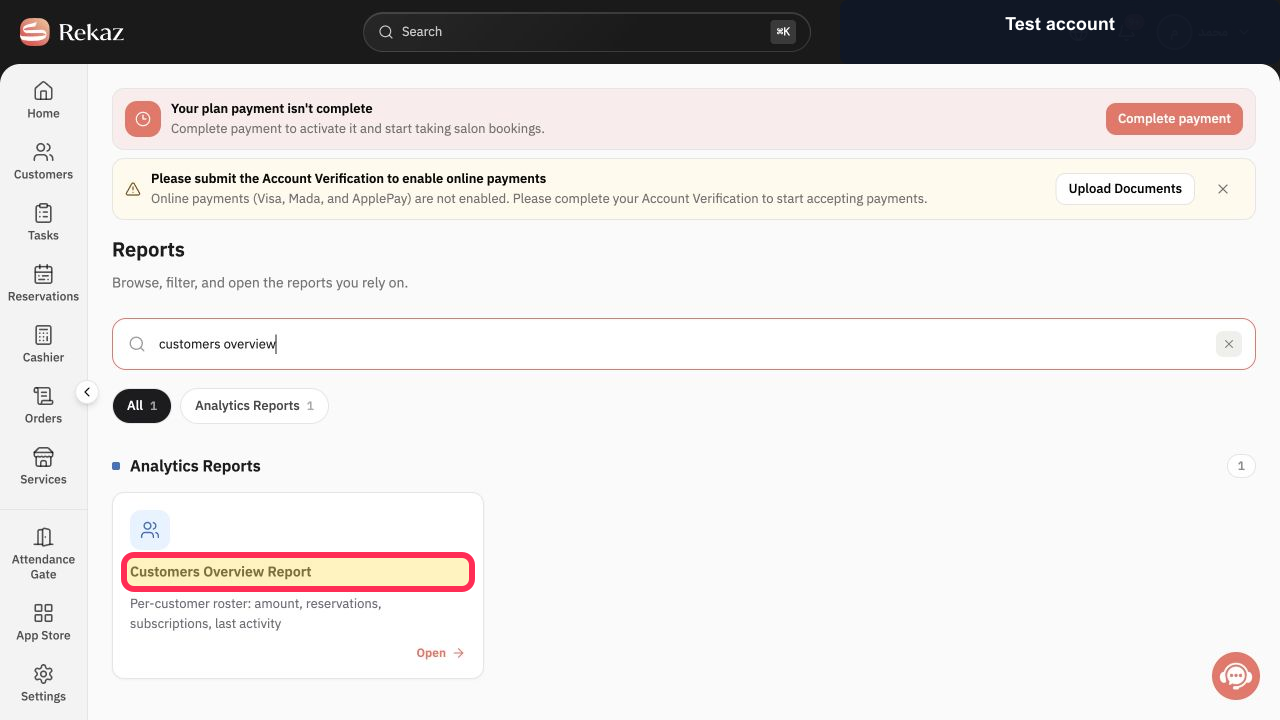
Select Customers Overview Report.
The Customers Overview Report opens.
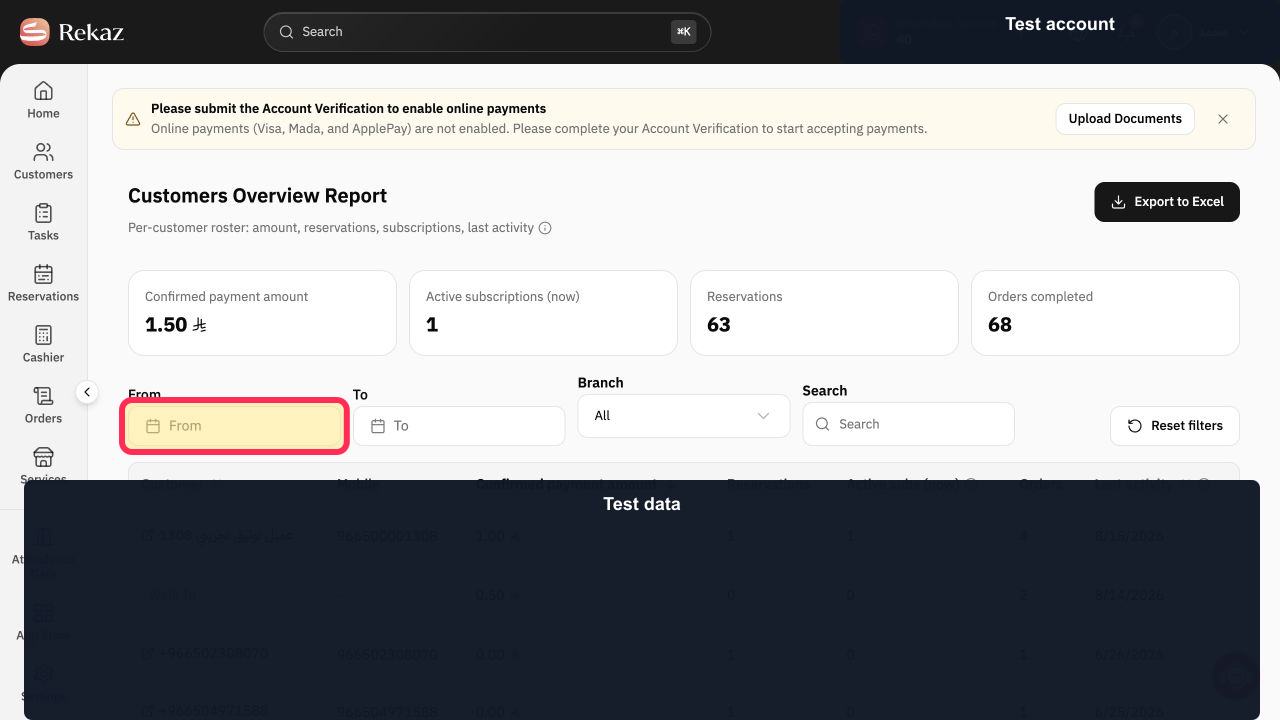
Select From and choose the beginning of the reporting period.
The report start date is set.
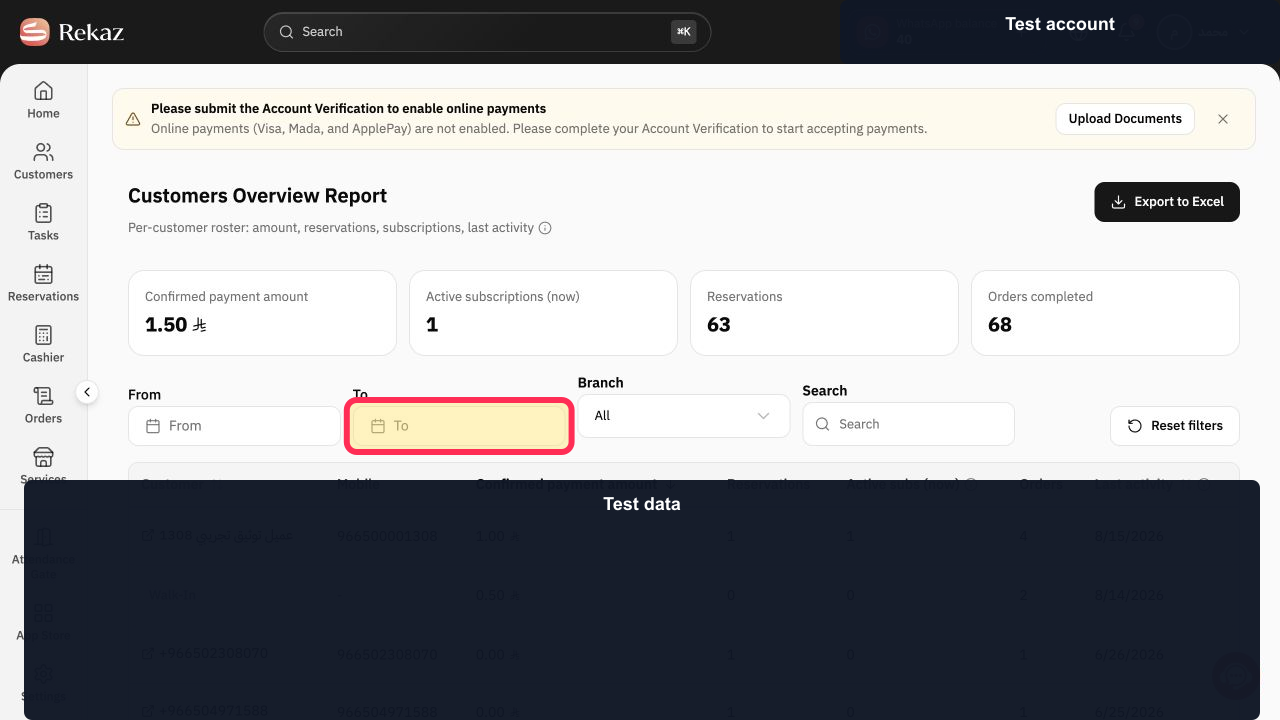
Select To and choose the end of the reporting period.
The report end date is set.
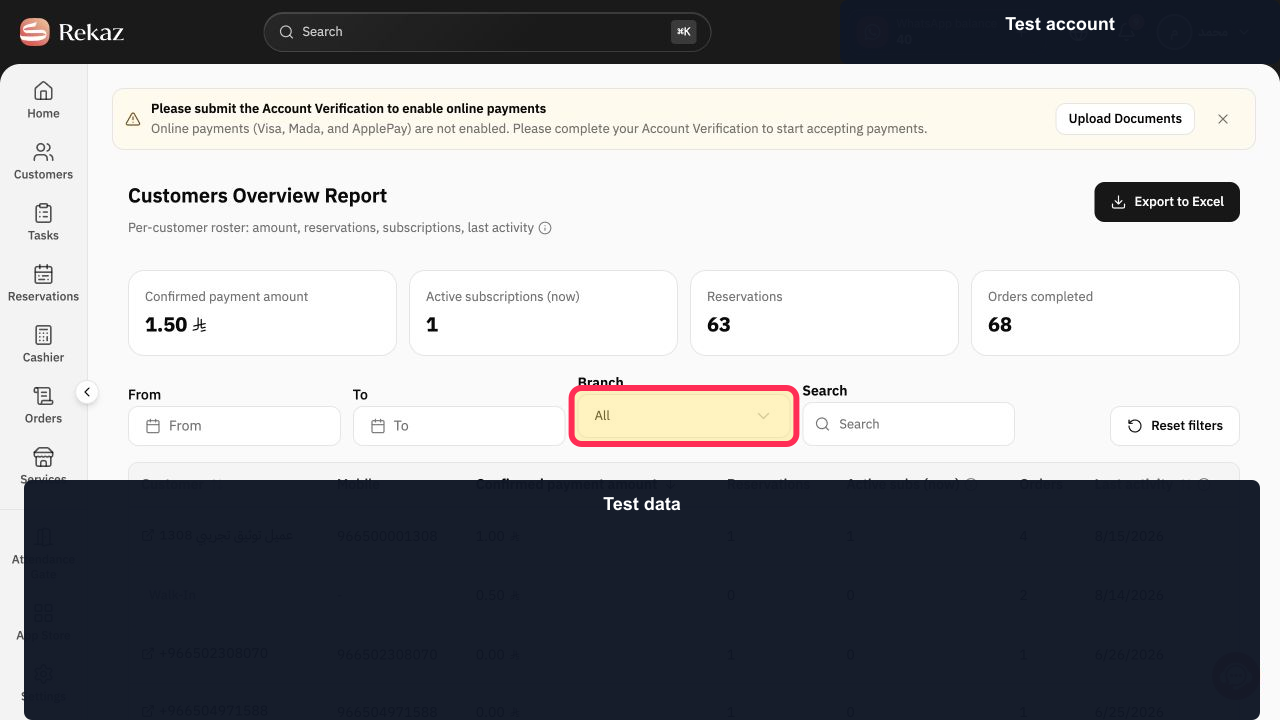
Select All and choose a branch, or leave All selected to include every branch.
The intended branch scope is selected.
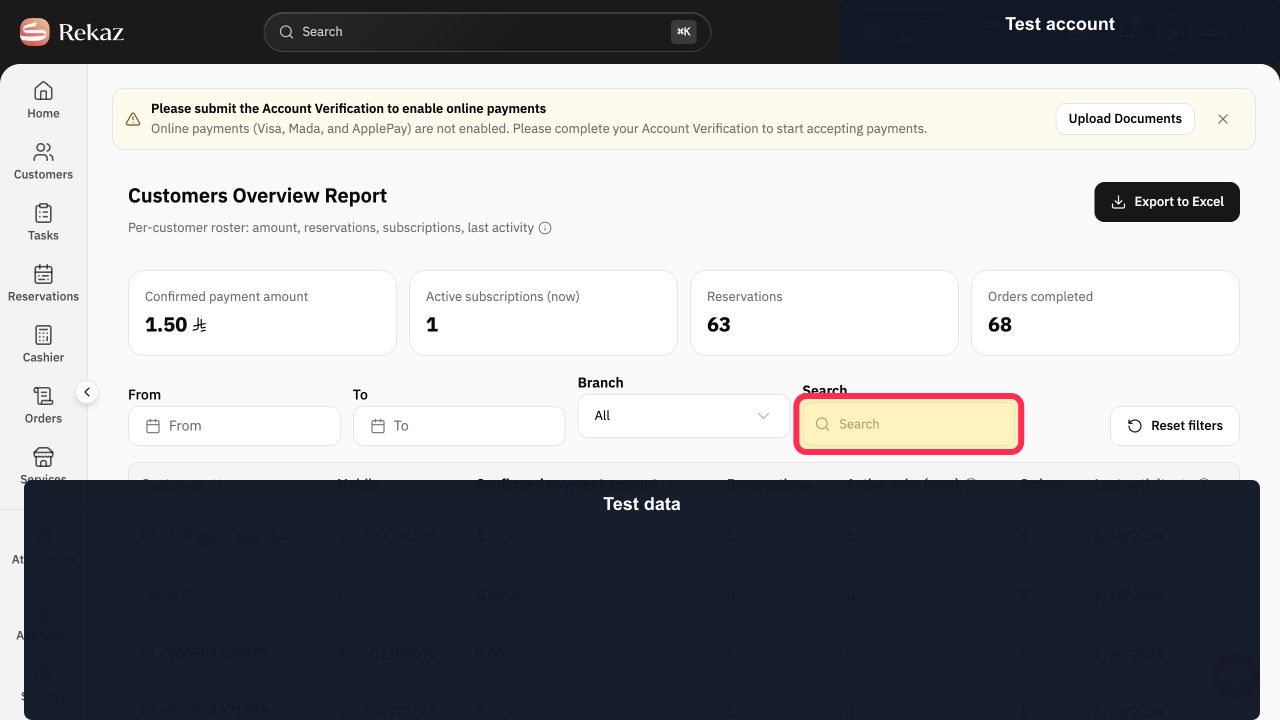
Use Search when you need to locate a specific customer in the filtered results.
The customer list is narrowed by the search term.
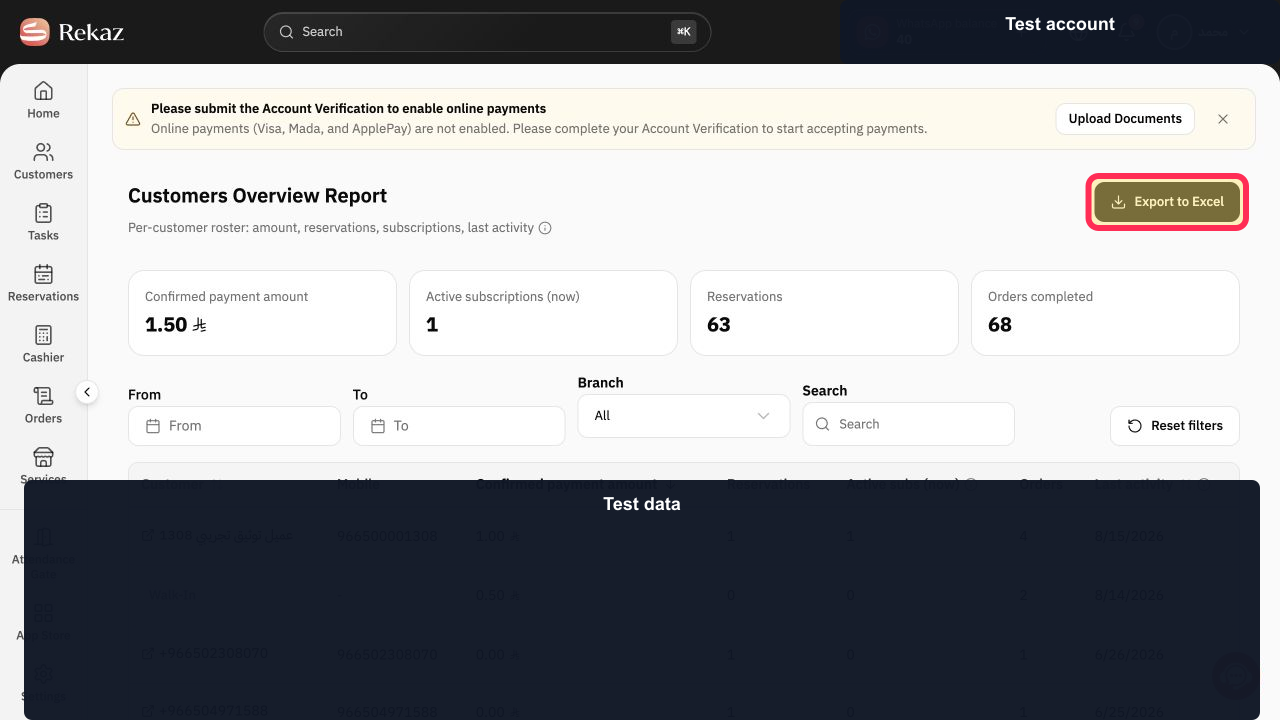
After reviewing the date, branch, and search scope, select Export to Excel.
The current Customers Overview results are prepared for download.
Illustrated guide
Step 1: Open the Rekaz Reports catalog.
Step 2: Open Customers Overview Report from the catalog.
Step 3: Set the Customers Overview start date.
Step 4: Set the Customers Overview end date.
Step 5: Choose the Customers Overview branch filter.
Step 6: Search the Customers Overview results.
Step 7: Export Customers Overview to Excel.
What the report includes
The Customers Overview Report brings together customer activity and purchase value from sales, reservations, and subscriptions.
Payments
Reservations
Active subs (now)
Orders completed
Important notes
Customer names and mobile numbers are not shown in the article images to protect customer privacy.
Check the date range and branch before exporting the report.
Related questions
How can I identify my top customers in Rekaz?
Where can I find a summary of customer activity in Rekaz?
How do I export the customer report to Excel in Rekaz?


