How do I view the Commissions Report in Rekaz?
Rekaz provides a separate Commissions Reports view to analyse commission data for products and services. You can filter the report by Date Range, branch, customer, operation type, and Provider.
To review commissions, open the report from Reports, set the relevant filters, and use Export to Excel when you need a downloadable copy.
Steps
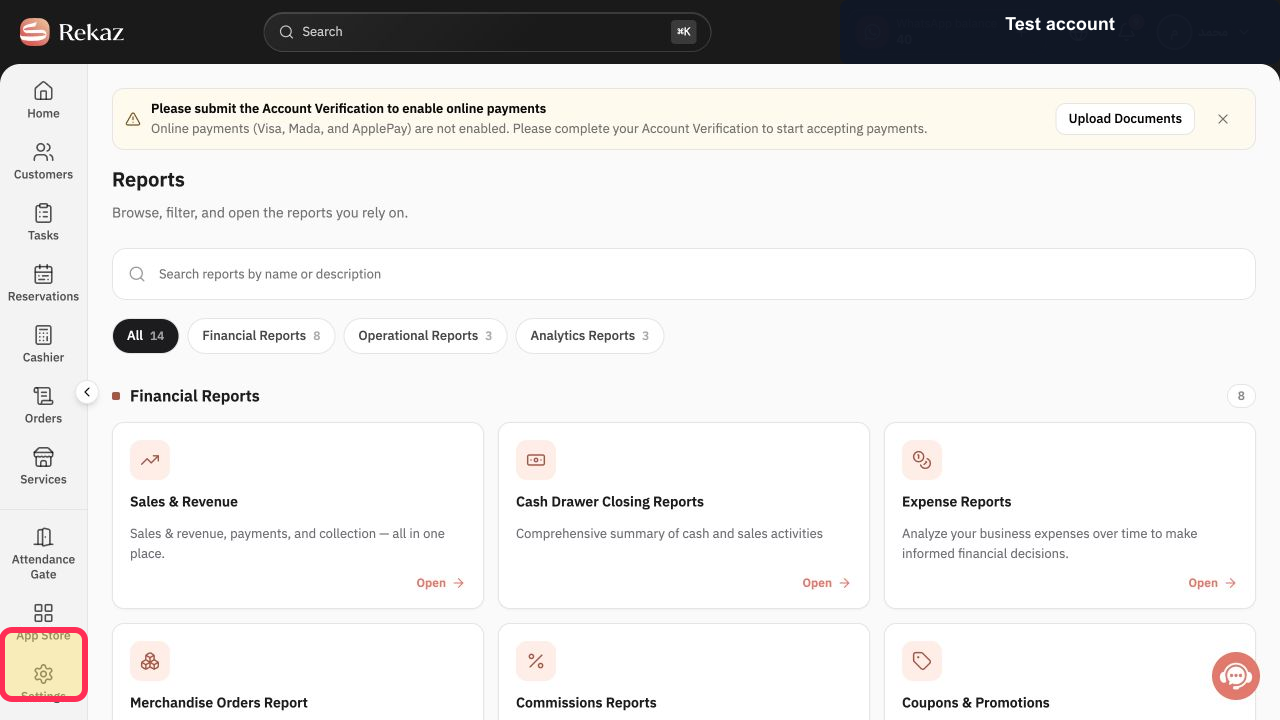
From the Home page, select Reports in the sidebar.
The Reports page opens, showing report cards.
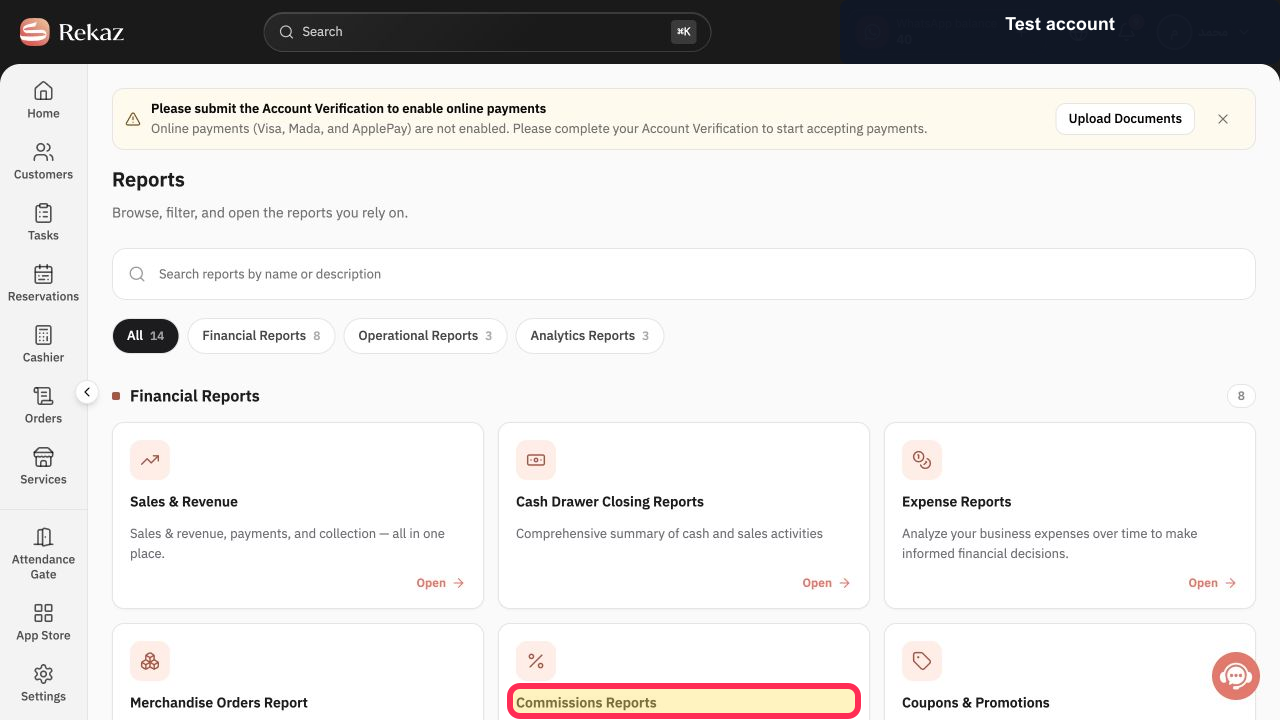
In the financial reports row, select the Commissions Reports card title.
The Commissions Reports page opens.
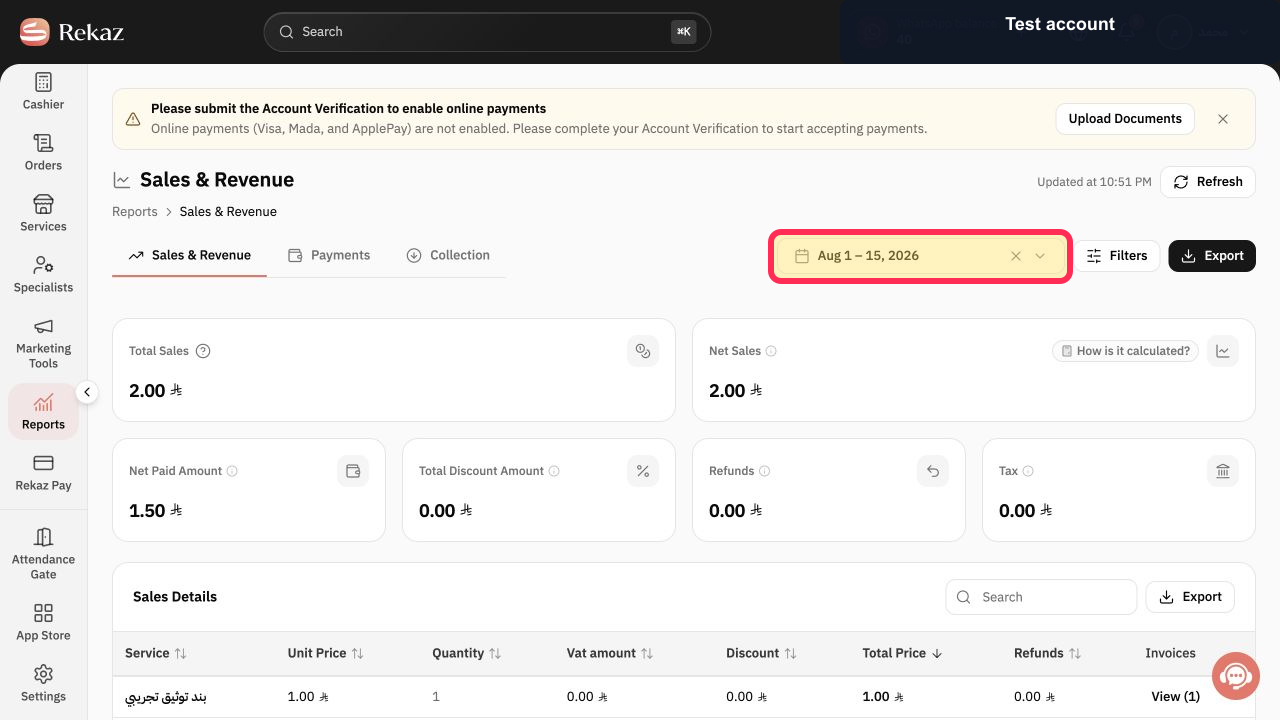
Set the Date Range you want to review.
The report results are filtered to the selected date range.
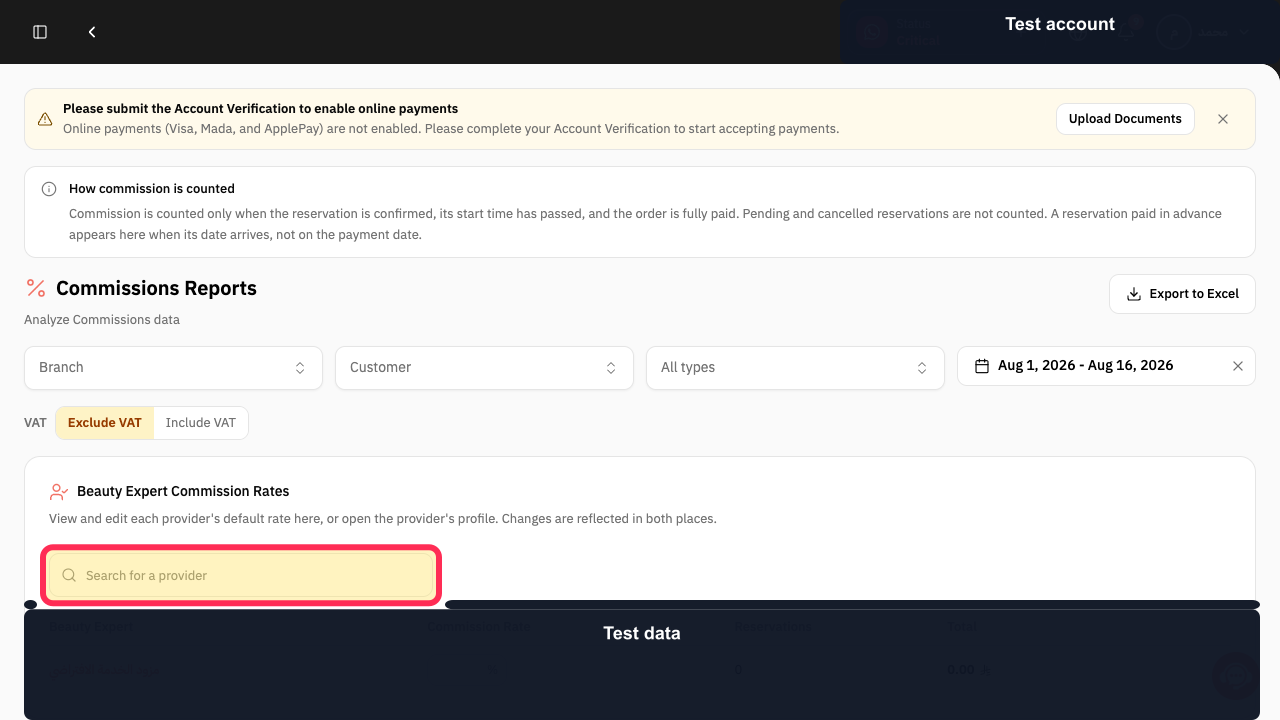
Enter a name in the Provider Name search field when you need to filter results for a specific provider.
The report results are filtered by the entered provider name.
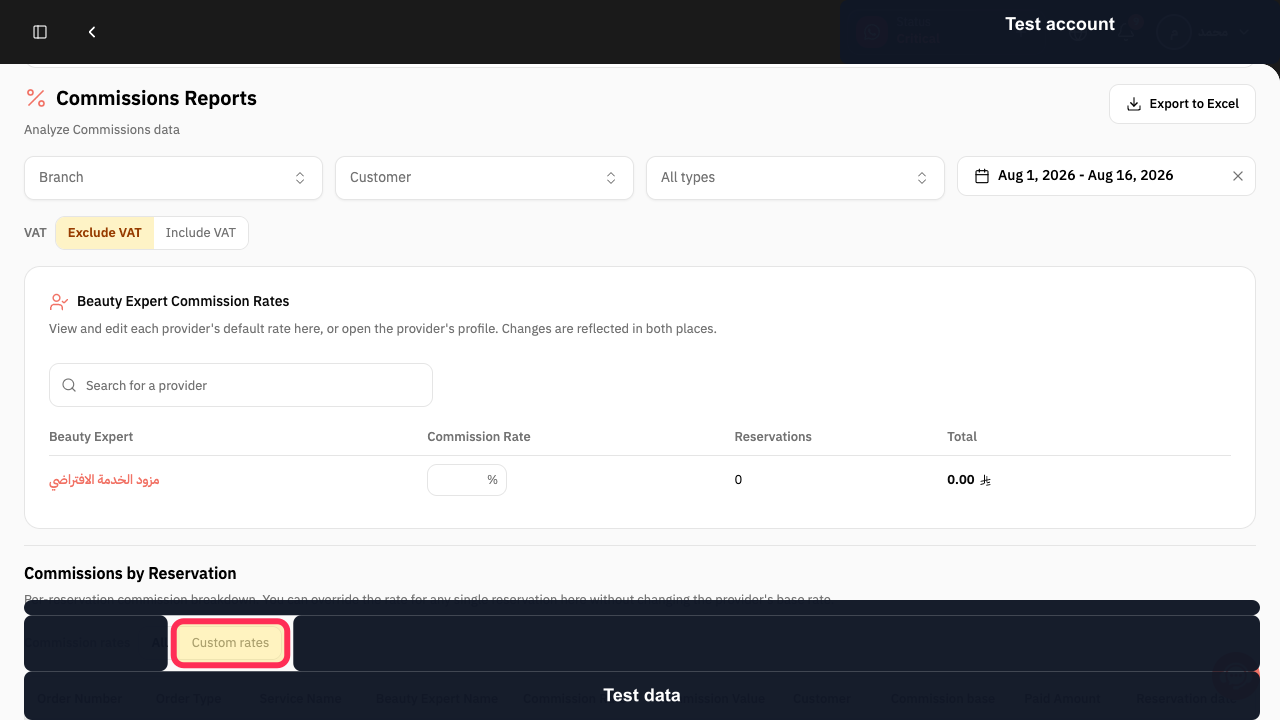
Select Custom rates to show only bookings with adjusted commission rates.
The report shows bookings with custom commission rates only.
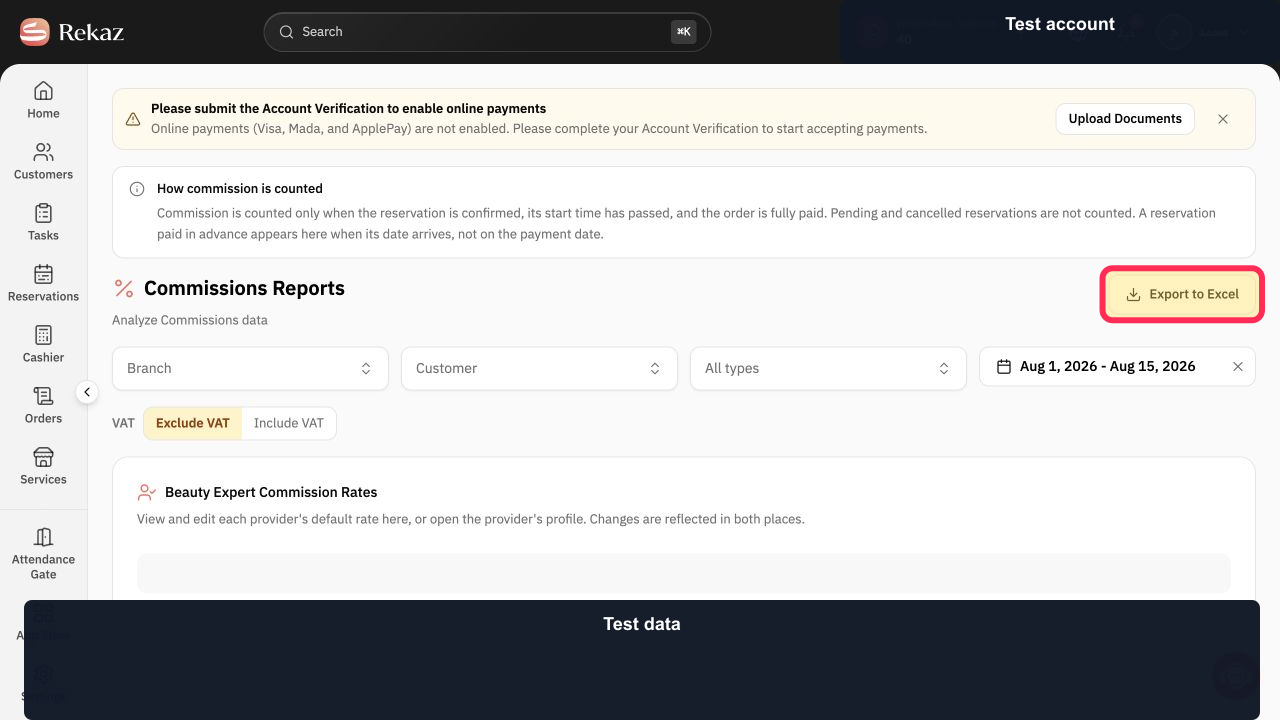
Select Export to Excel after setting your filters.
The filtered commission report is downloaded as an Excel file.
Illustrated guide
Step 1: Open Reports from the sidebar.
Step 2: Open the Commissions Reports card.
Step 3: Select the report Date Range.
Step 4: Search by Provider Name.
Step 5: Show bookings with Custom rates.
Step 6: Export the filtered commission report to Excel.
Important notes
Check the Date Range and all other filters before reviewing or exporting the results.
Custom rates shows bookings with adjusted commission rates in the current interface.
Related questions
Where can I find the staff commission report in Rekaz?
How do I review commissions for services and products in Rekaz?
How do I export the commissions report to Excel in Rekaz?


