How do I find service provider information in Rekaz reports?
Commissions Reports is the current provider-focused report in Rekaz. It shows commission rates and per-reservation commission details.
Choose the same branch, type, date range, and VAT treatment before comparing a provider's totals with another report.
Steps
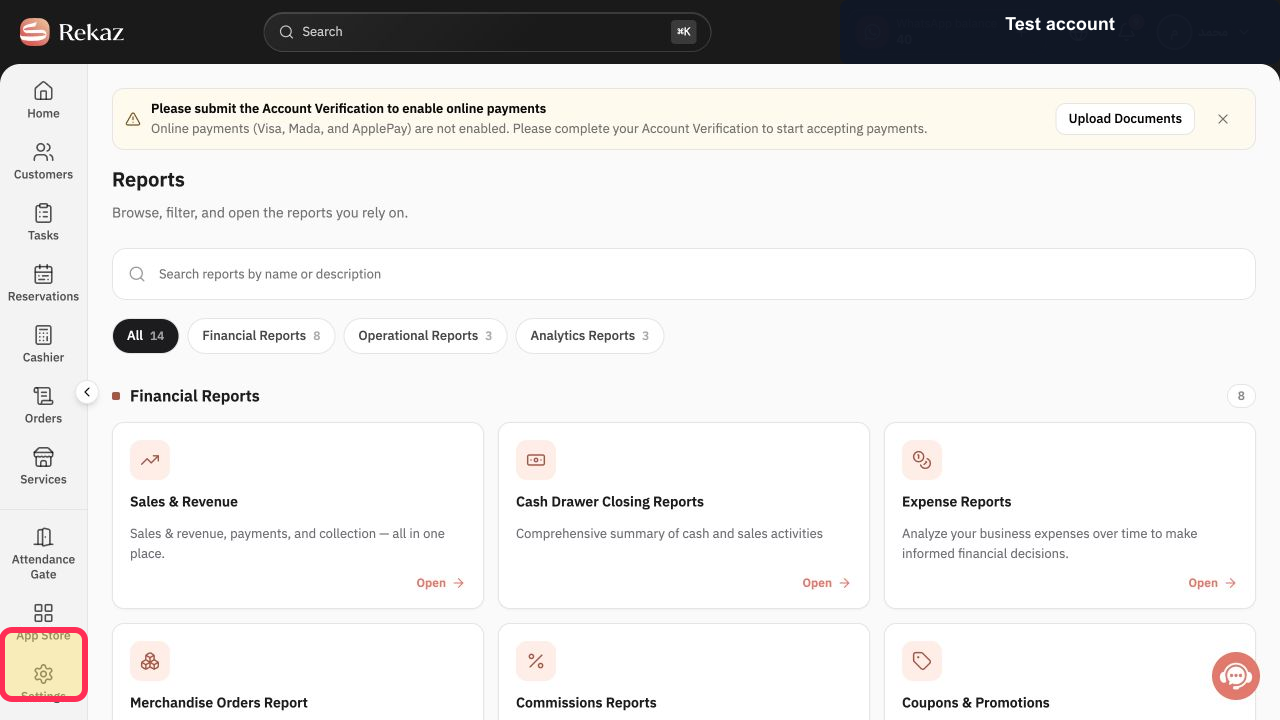
Open Reports from the Rekaz navigation.
The Reports catalog opens.
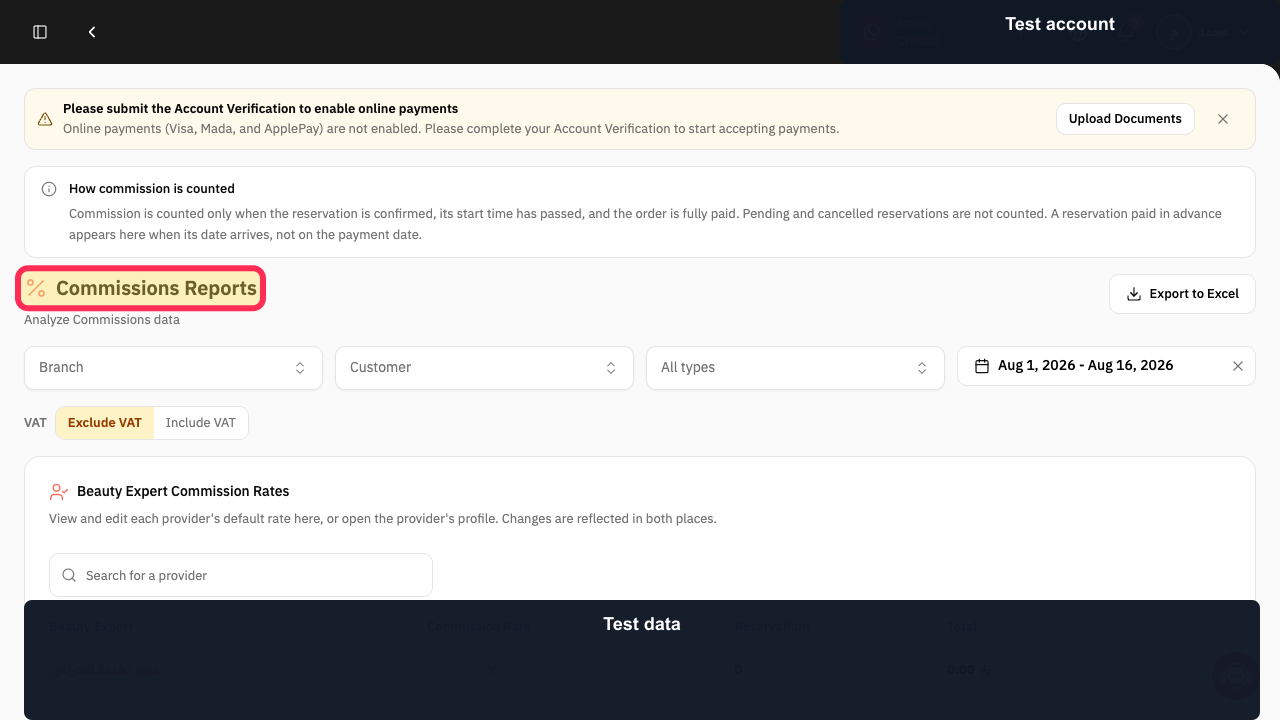
Select Commissions Reports.
The provider commission report opens.
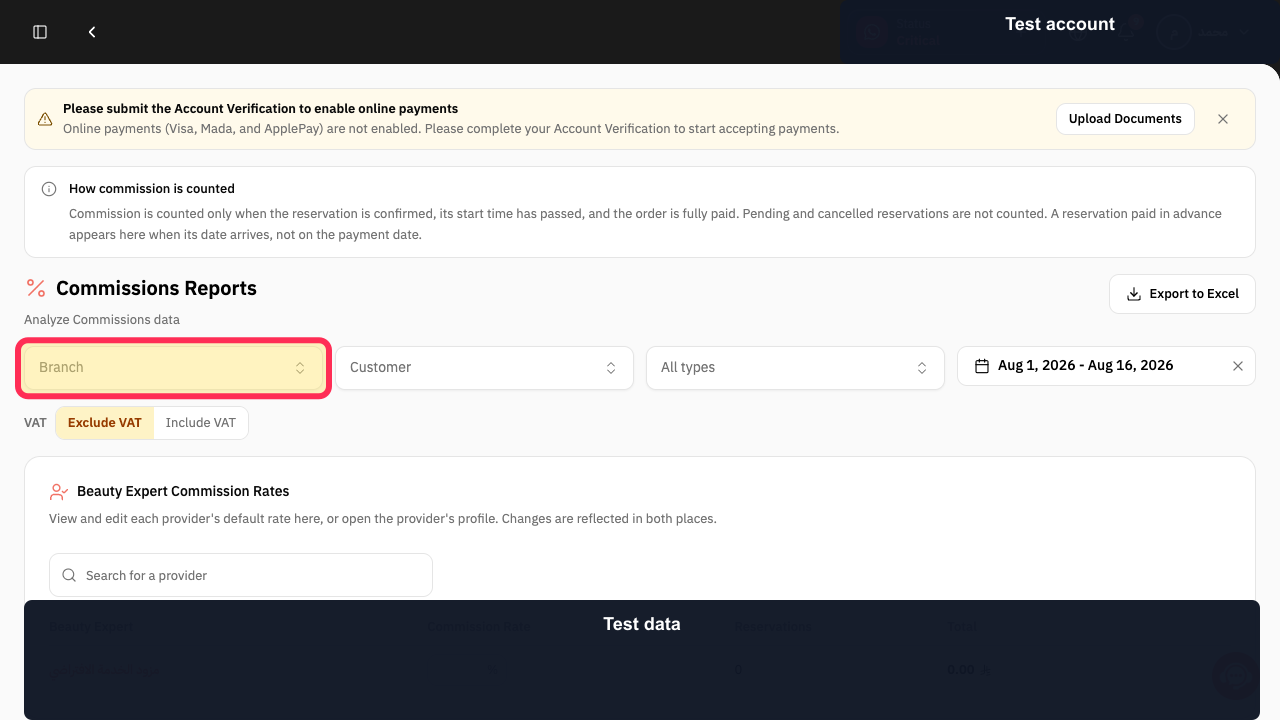
Select Branch and choose the branch you want to review.
The report is limited to the selected branch.
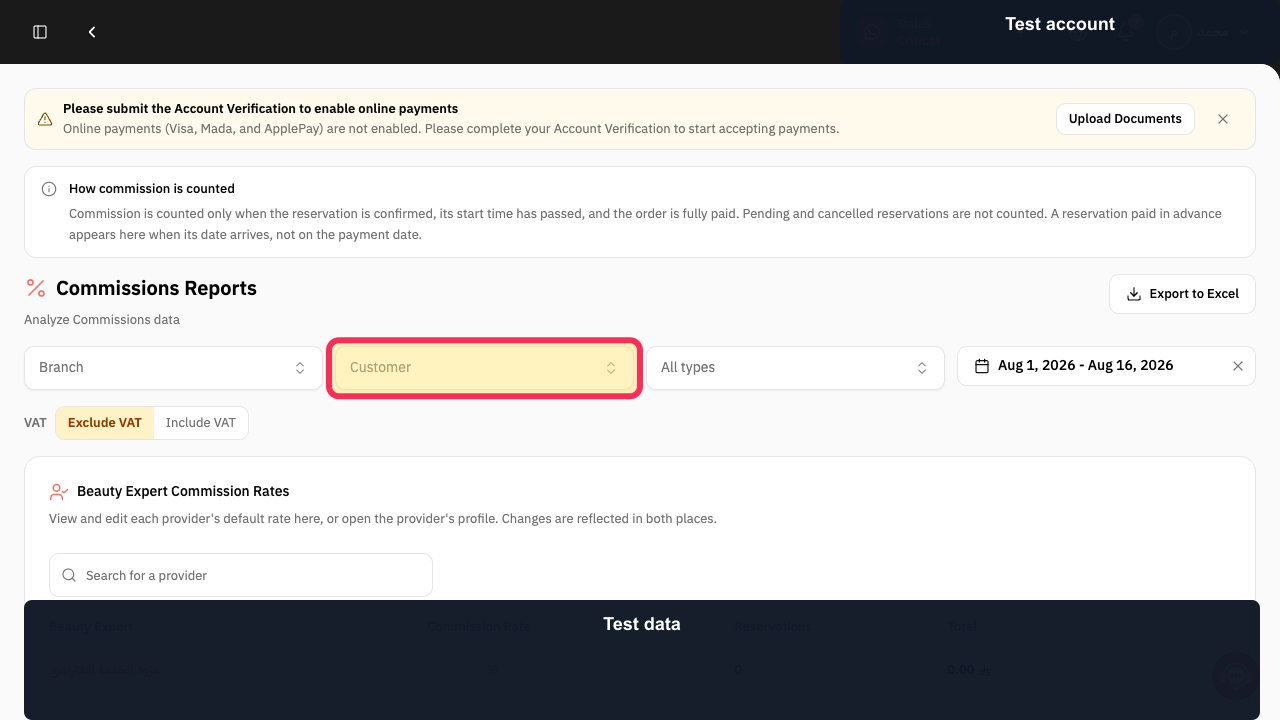
Select Customer when you need to limit the report to one customer.
The optional customer filter is available.
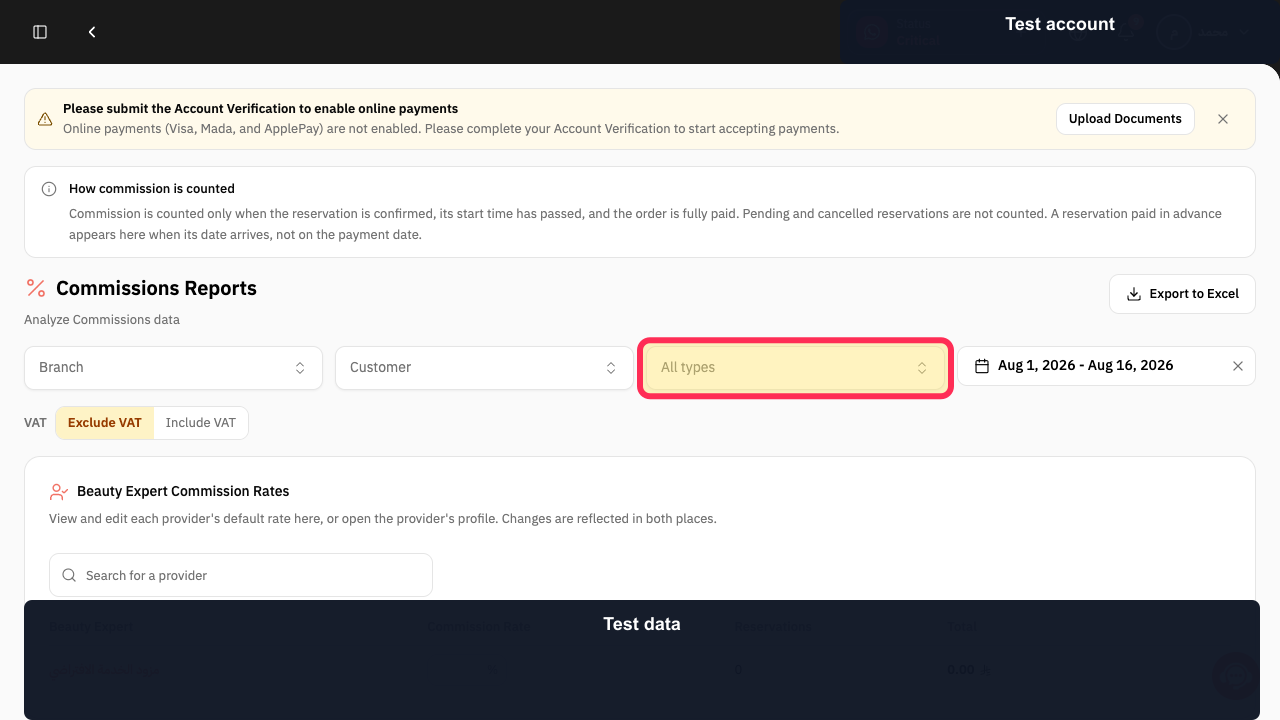
Open All types and choose the commission record type you need.
The report uses the selected commission type.
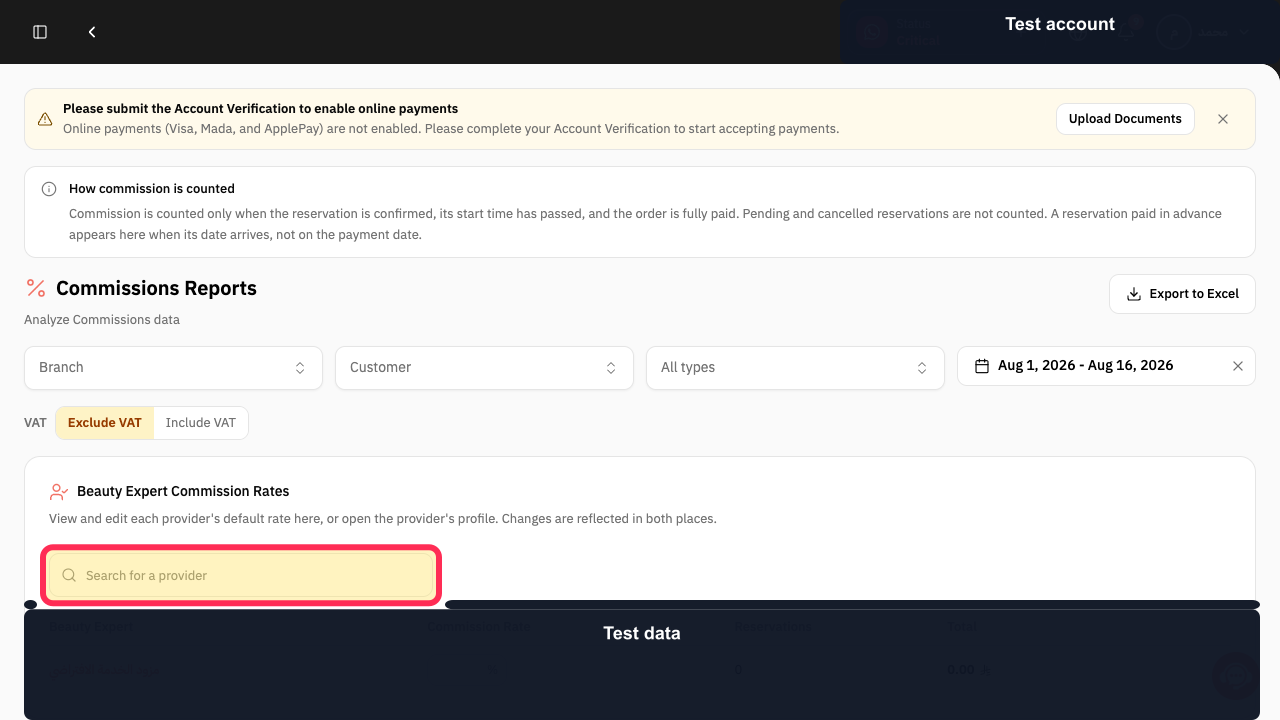
Use Search for a provider to locate the Beauty Expert you need.
Matching providers are shown in the commission report.
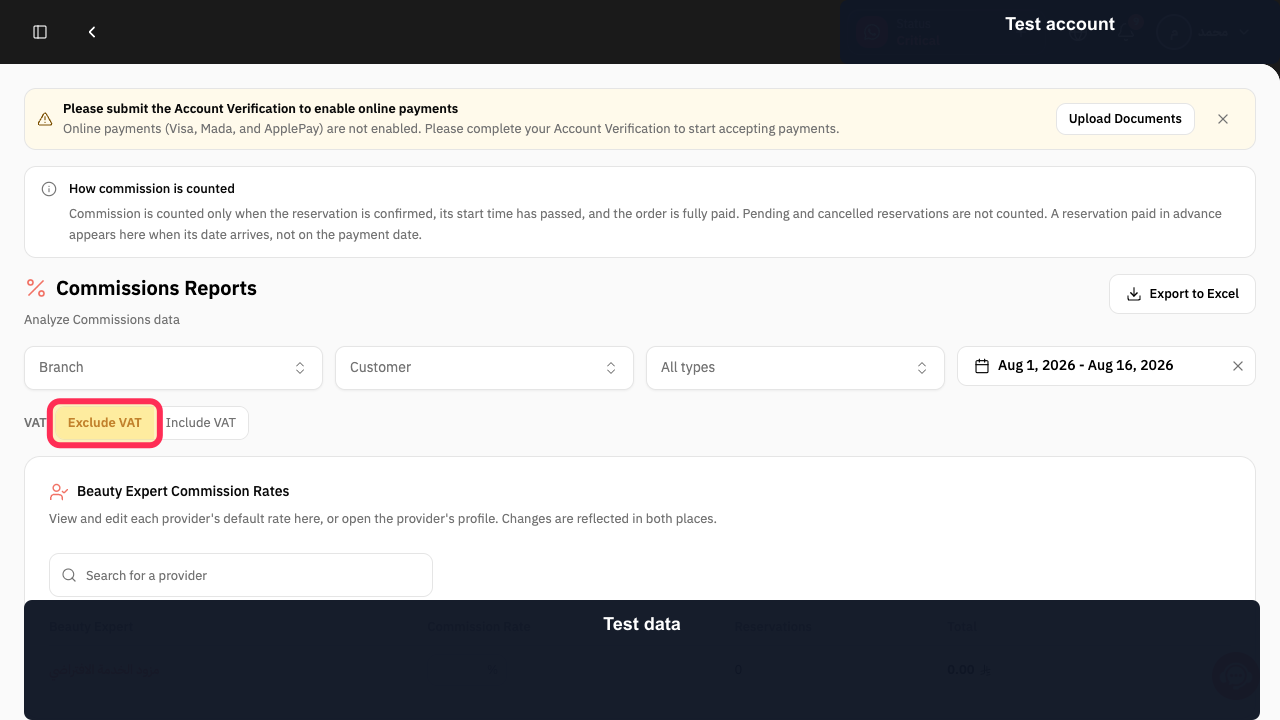
Choose Exclude VAT or Include VAT according to the figure you intend to compare.
The commission calculation uses the selected VAT treatment.
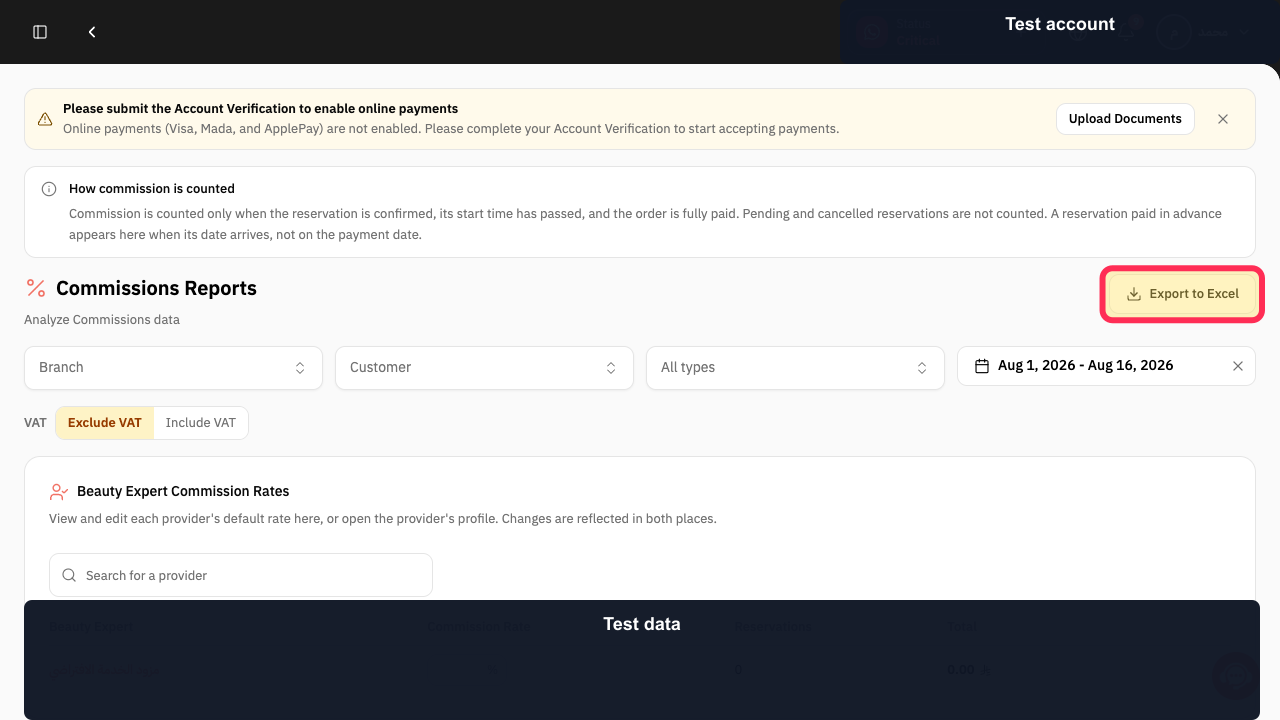
Select Export to Excel after verifying all filters.
The filtered provider commission report is prepared for download.
Illustrated guide
Step 1: Open the Rekaz Reports catalog.
Step 2: Open Commissions Reports.
Step 3: Filter commissions by branch.
Step 4: Filter provider commissions by customer when needed.
Step 5: Choose the commission record type.
Step 6: Search for a provider in Commissions Reports.
Step 7: Choose the VAT treatment for provider commissions.
Step 8: Export the provider commission report to Excel.
Important notes
The current Reports page shows 14 reports and does not show a separate report with the name Provider Report.
Check report values and data before taking any final or financial action.
Use Commissions Reports for service provider commissions.
Use the sales report filters for sales by branch, creator, and service.
Related questions
Where can I find service provider commissions in Rekaz?
How do I filter sales by service provider details in Rekaz?
Why can’t I find a separate Provider Report in Rekaz?


