How do I view Subscription Reports in Rekaz?
Subscription Reports brings subscription counts, renewals, expiry, revenue, and longer-term analysis into one report.
Set the date and status first so every summary card uses the scope you intend to review.
Steps
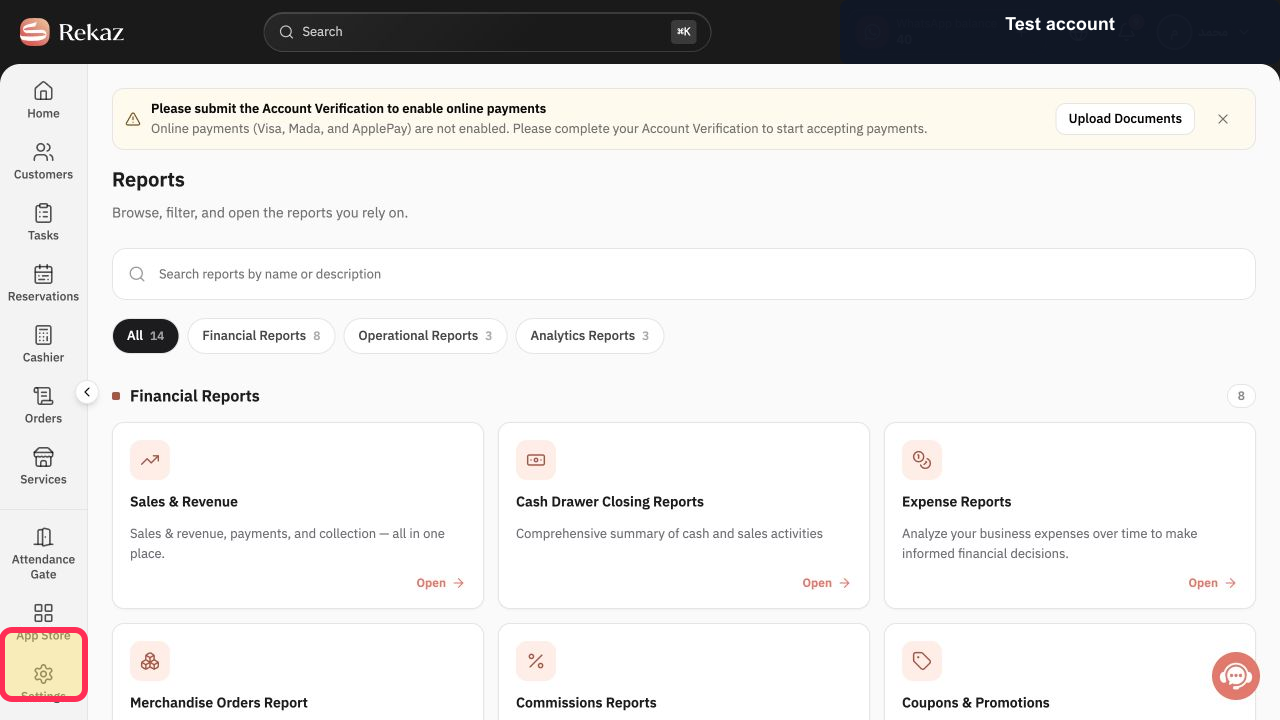
Open Reports from the Rekaz navigation.
The Reports catalog opens.
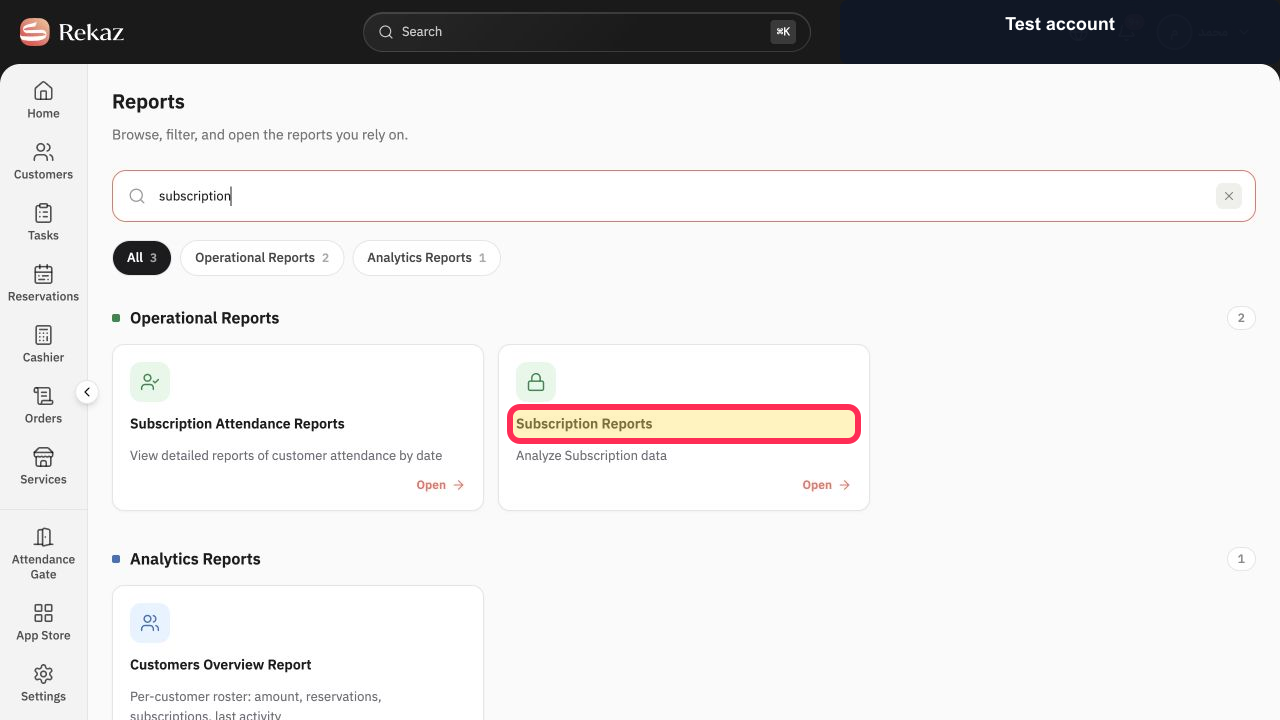
Select Subscription Reports.
The Subscription Reports page opens.
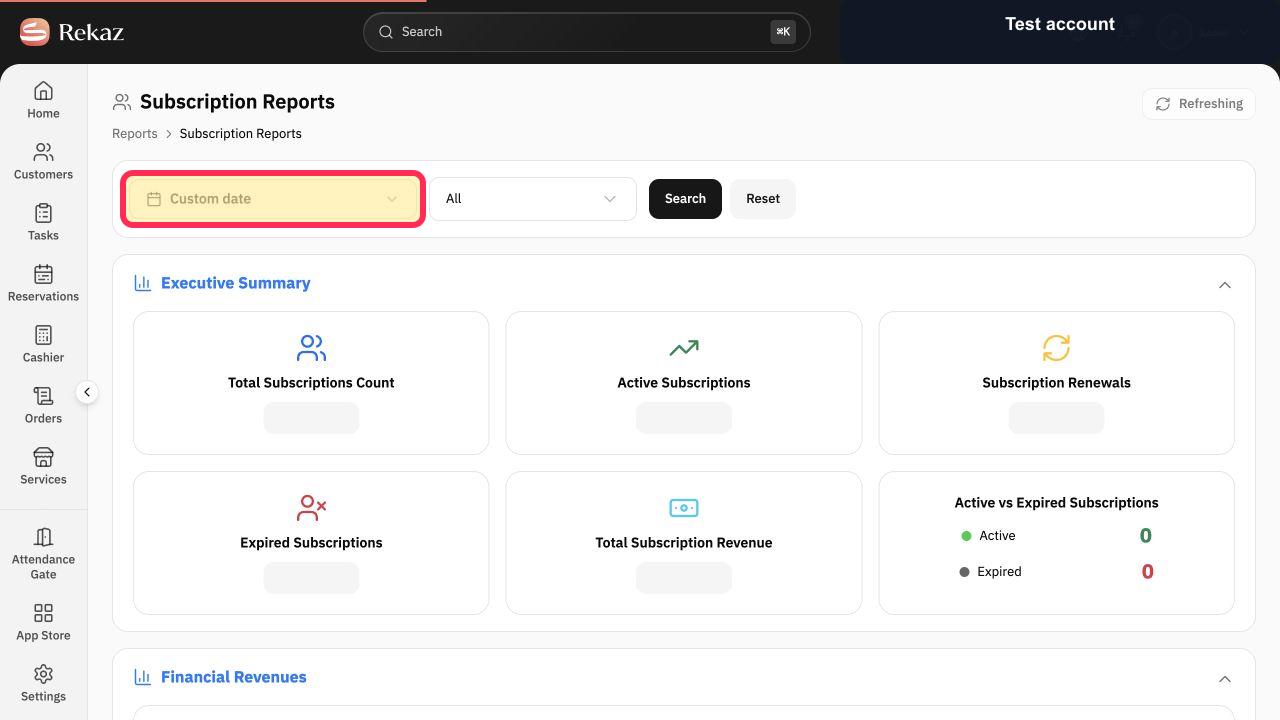
Select Custom date and choose the reporting period.
The subscription report uses the selected period.
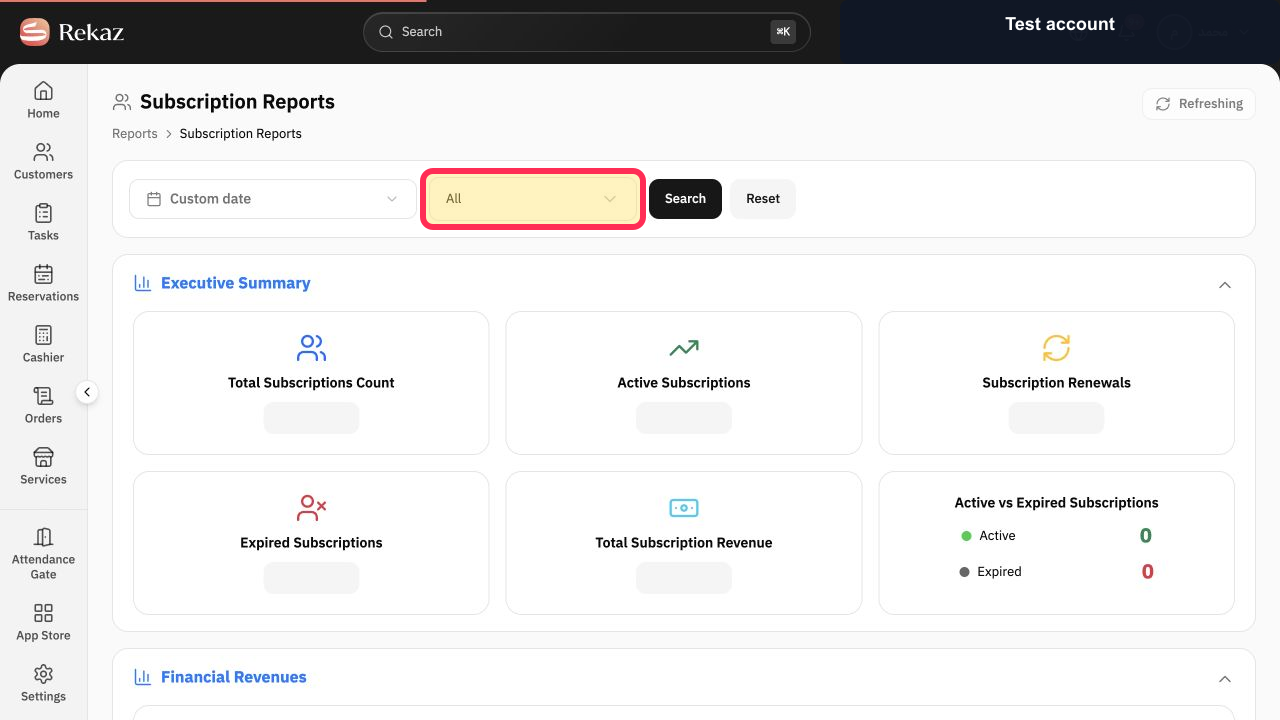
Select All and choose the subscription status you want, or leave All selected to include every status.
The intended subscription-status scope is selected.
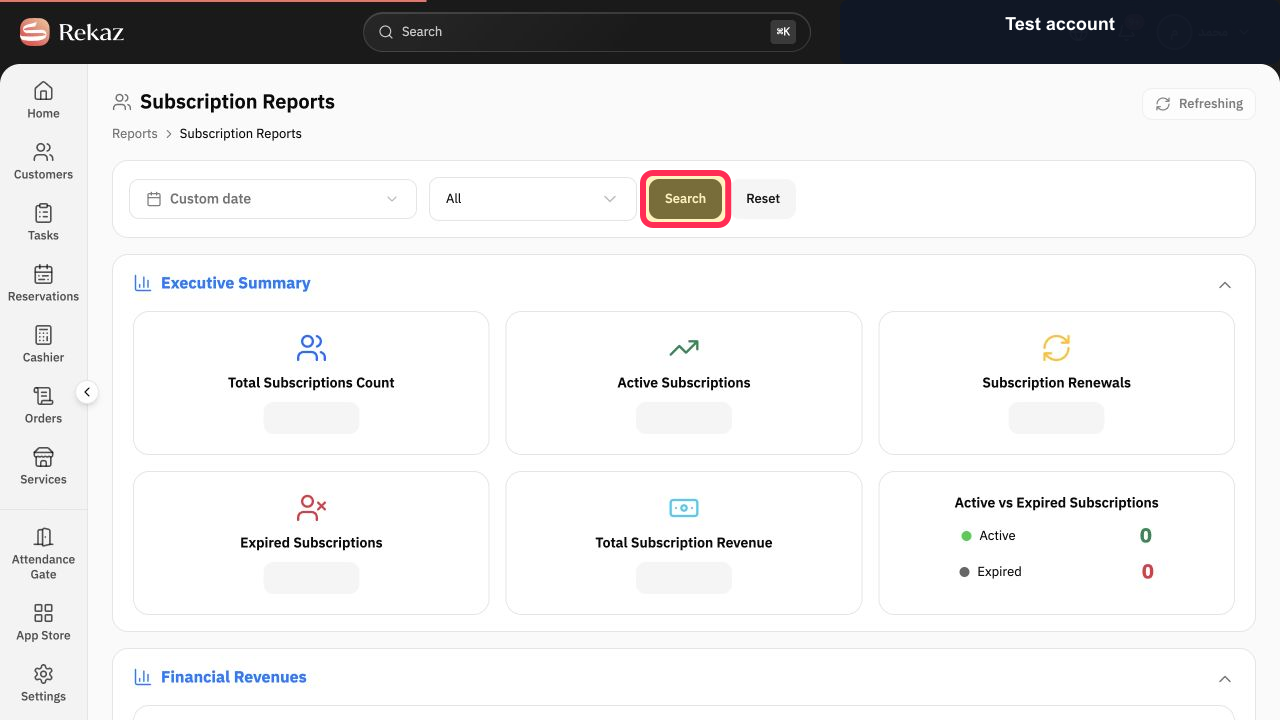
Select Search.
The report refreshes using the selected date and status.
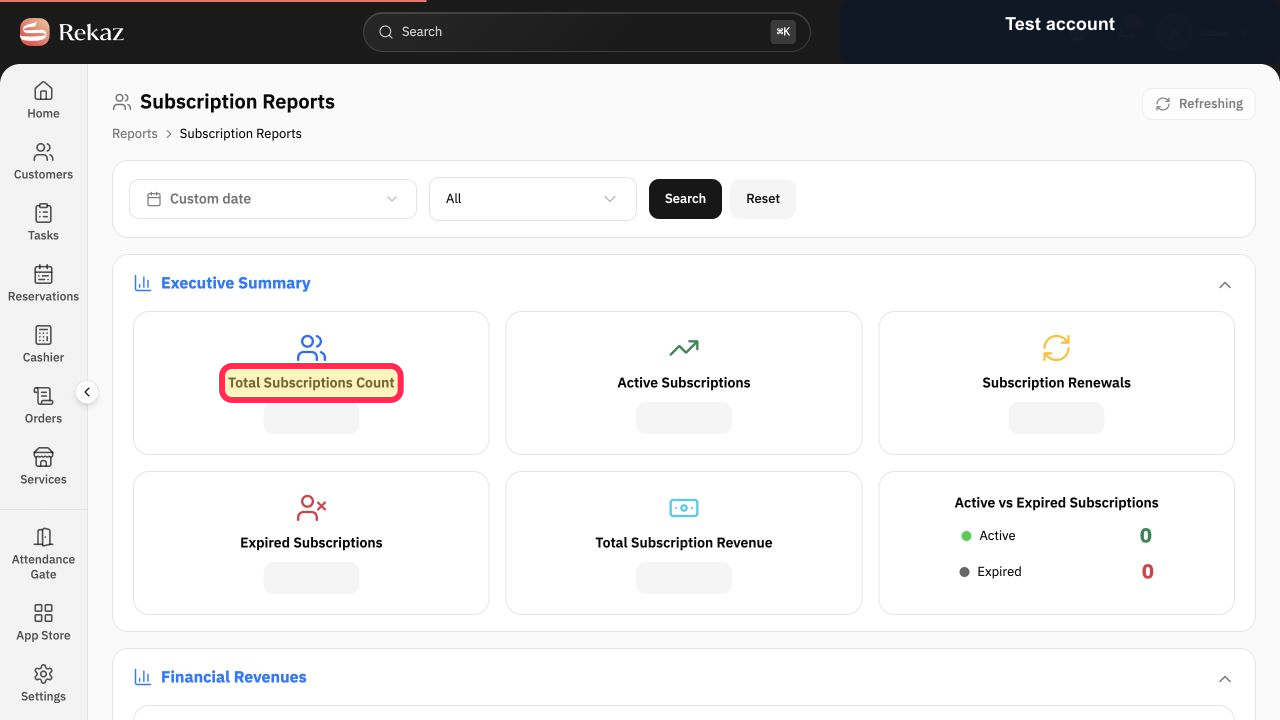
Under Executive Summary, review Total Subscriptions Count and the related active, renewal, expired, and revenue cards.
The main subscription metrics are visible for the selected scope.
Illustrated guide
Step 1: Open the Rekaz Reports catalog.
Step 2: Open Subscription Reports from the catalog.
Step 3: Set a custom date for Subscription Reports.
Step 4: Choose the Subscription Reports status filter.
Step 5: Apply the Subscription Reports filters.
Step 6: Review Total Subscriptions Count in the Executive Summary.
What you can review
The Executive Summary can include Total Subscriptions Count, Active Subscriptions, expired subscriptions, renewals, and Total Subscription Revenue.
Choose the appropriate Subscription Status before searching.
Report figures reflect the selected date and filters.
Related questions
Where can I find subscription statistics in Rekaz?
How do I see active and expired subscriptions in Rekaz?
How do I view Total Subscription Revenue in Rekaz?


