How do I view reservation attendance and no-show reports in Rekaz?
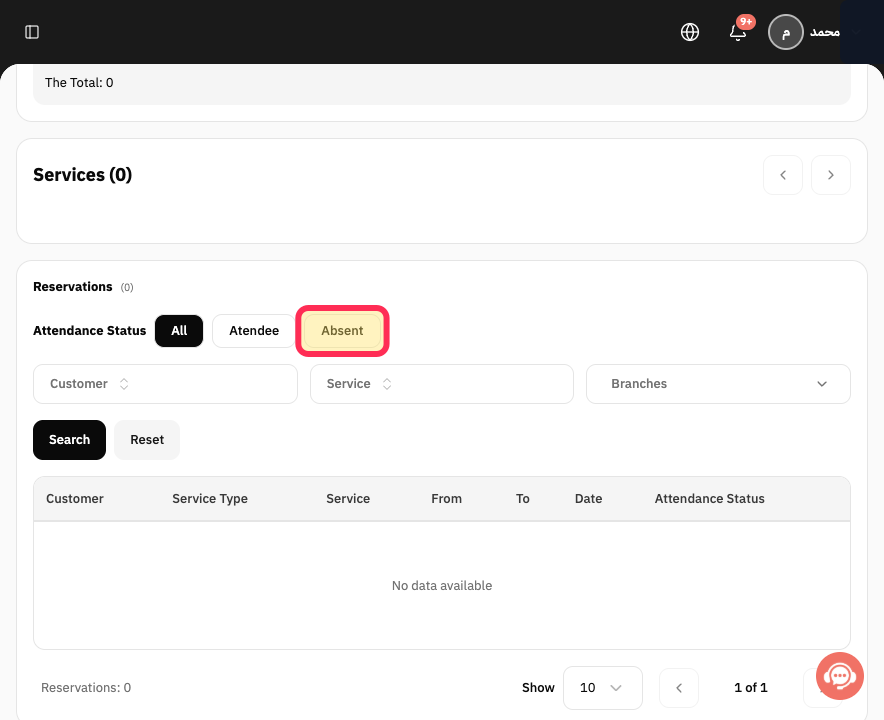
Reservation Attendance Reports separates attended and absent reservations for the selected date range. Use Absent when you need a no-show list.
Apply the same date and branch filters you use in other reports before comparing totals.
Steps
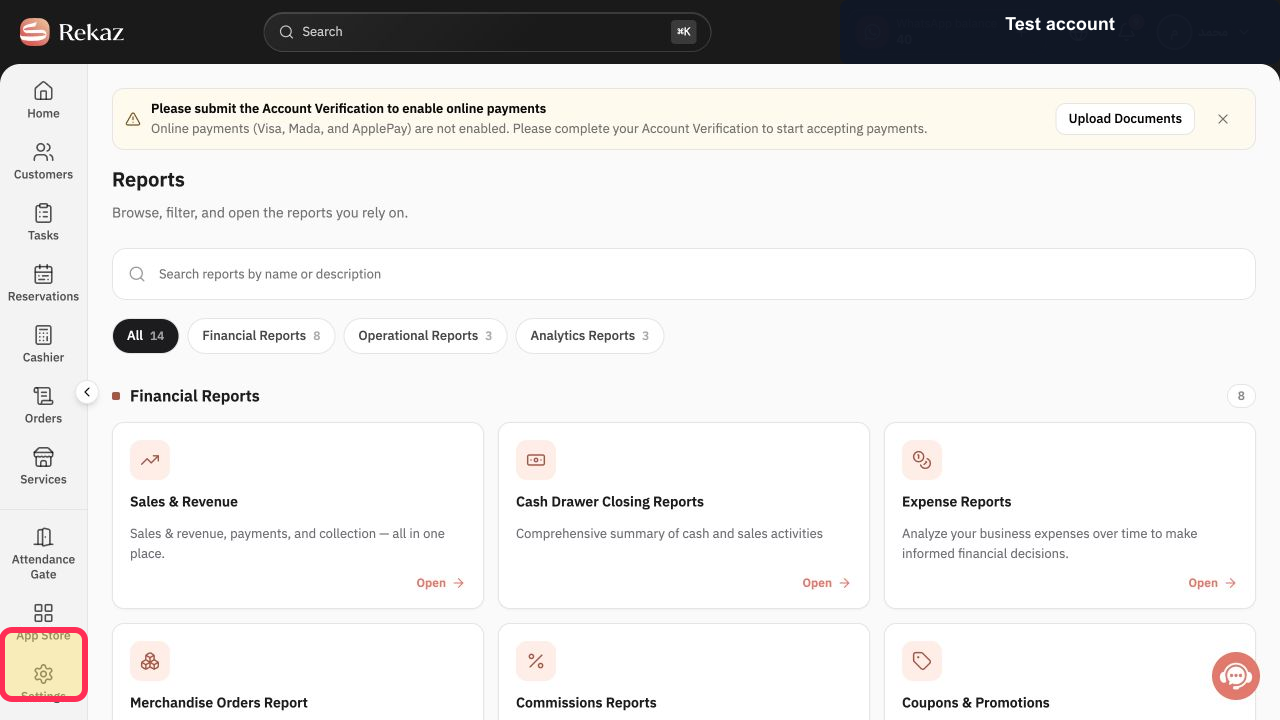
Open Reports from the Rekaz navigation.
The Reports catalog opens.
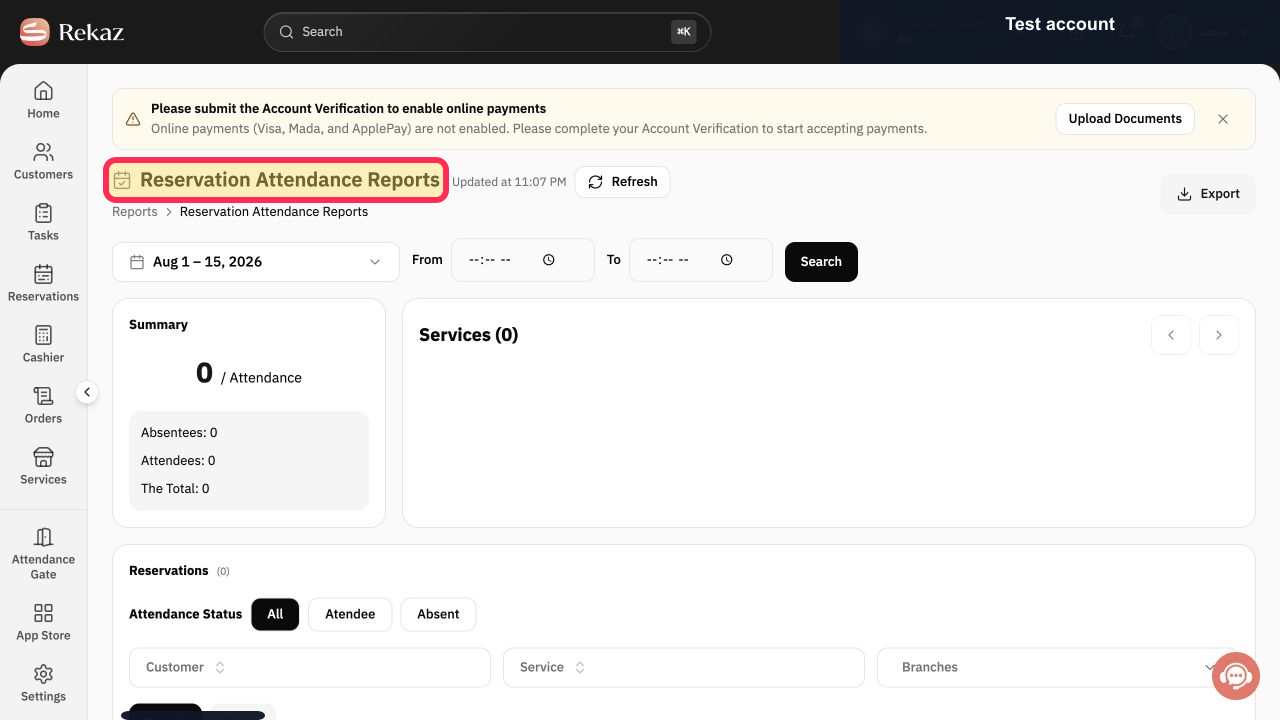
Select Reservation Attendance Reports.
The reservation attendance report opens.
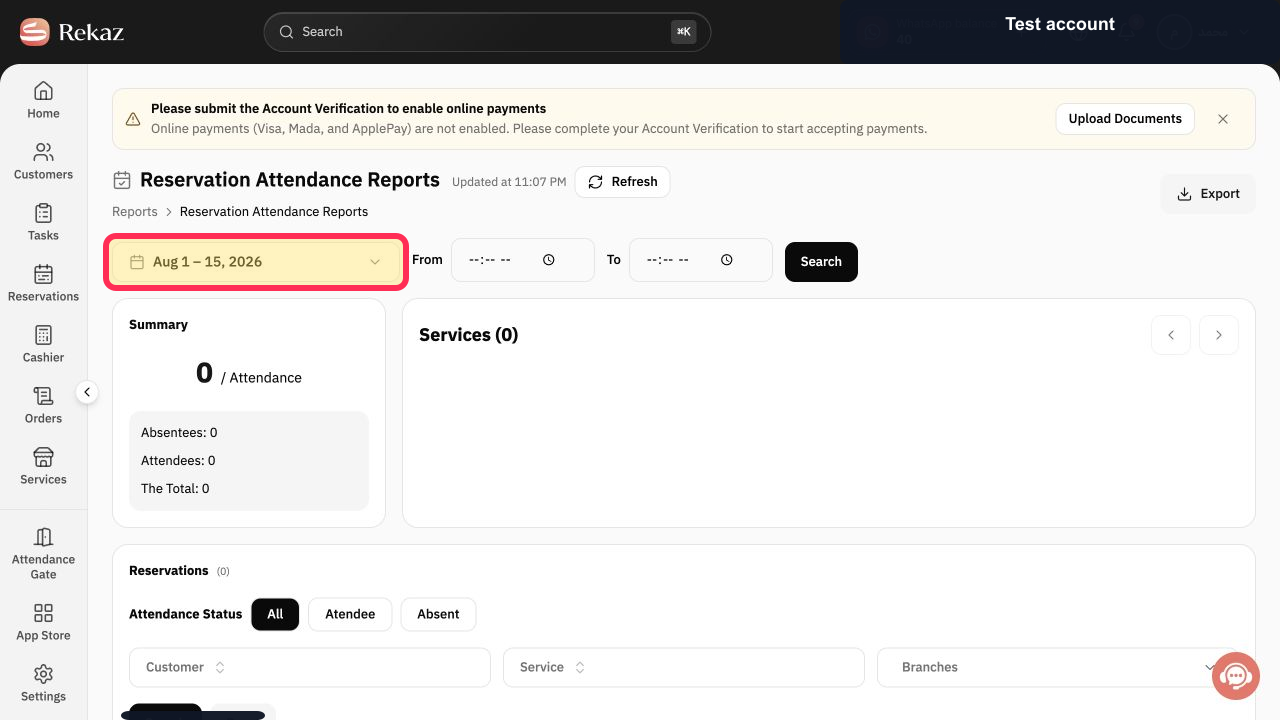
Select the date-range button and choose the period you want to review.
The report period is defined.
Under Attendance Status, select Absent.
Only reservations marked absent are included in the filtered view.
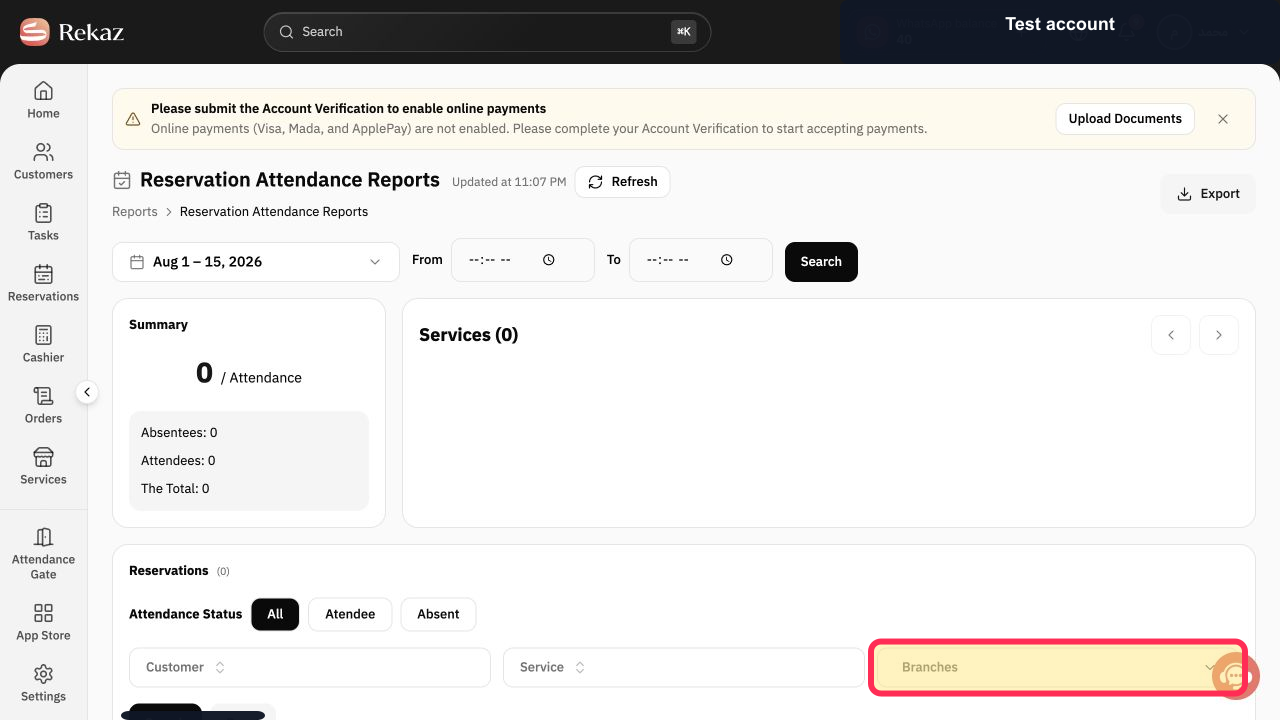
Select Branches and choose the required branch. Use Customer or Service as additional filters when needed.
The no-show list is limited to the intended branch and optional filters.
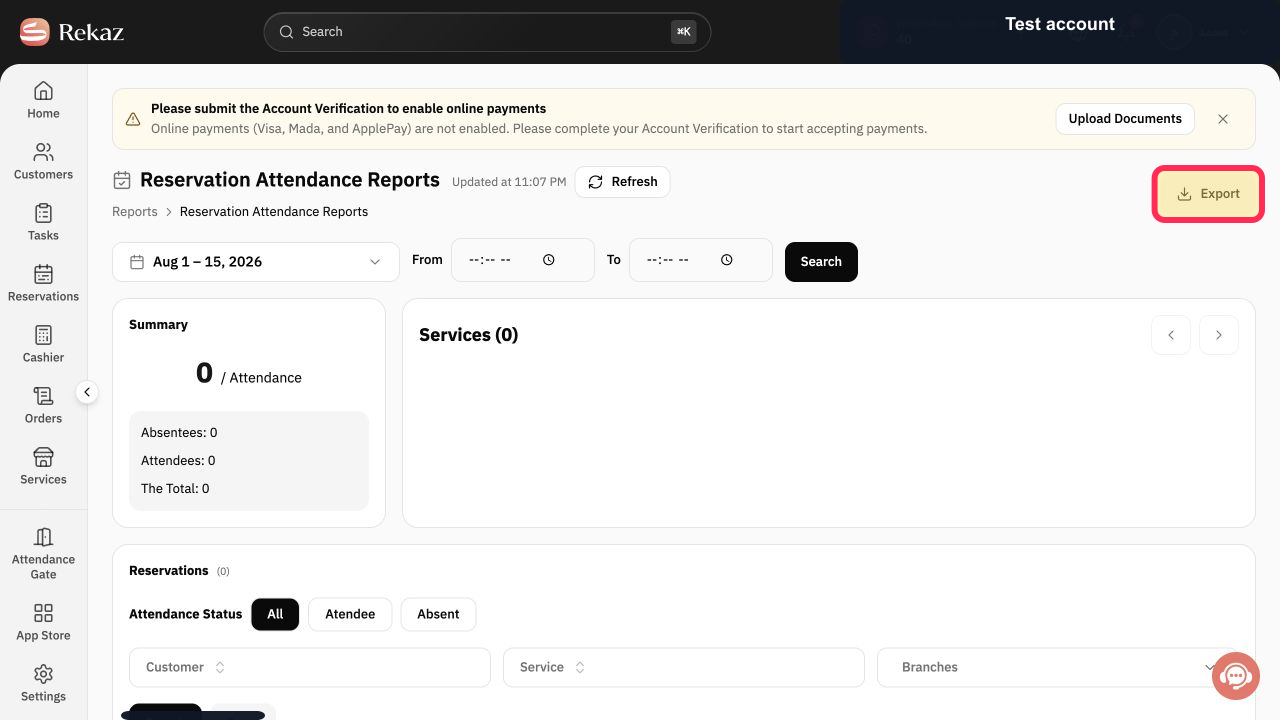
Select Export after verifying the date range and filters.
The filtered attendance report is prepared for download.
Illustrated guide
Step 1: Open the Rekaz Reports catalog.
Step 2: Open Reservation Attendance Reports.
Step 3: Set the Reservation Attendance Reports date range.
Step 4: Filter the attendance report to absent reservations.
Step 5: Filter reservation attendance by branch.
Step 6: Export the filtered reservation attendance report.
Important notes
Select Absent to view no-show reservations only.
Check the selected period before exporting the list.
Related questions
How do I find customers who did not attend their reservations in Rekaz?
Where can I find the reservation no-show report in Rekaz?
How do I export reservation attendance results in Rekaz?


