How do I view Reservation Reports in Rekaz?
Reservation Reports in Rekaz provide an overview of reservations, Revenue, Avg Reservation Value, and Cancellation Rate, along with Reservation Details.
You can switch between Overview, Top Customers, Top Services, and Peak Times. Apply Filters before reviewing or comparing results; exports reflect the filters currently applied.
Steps
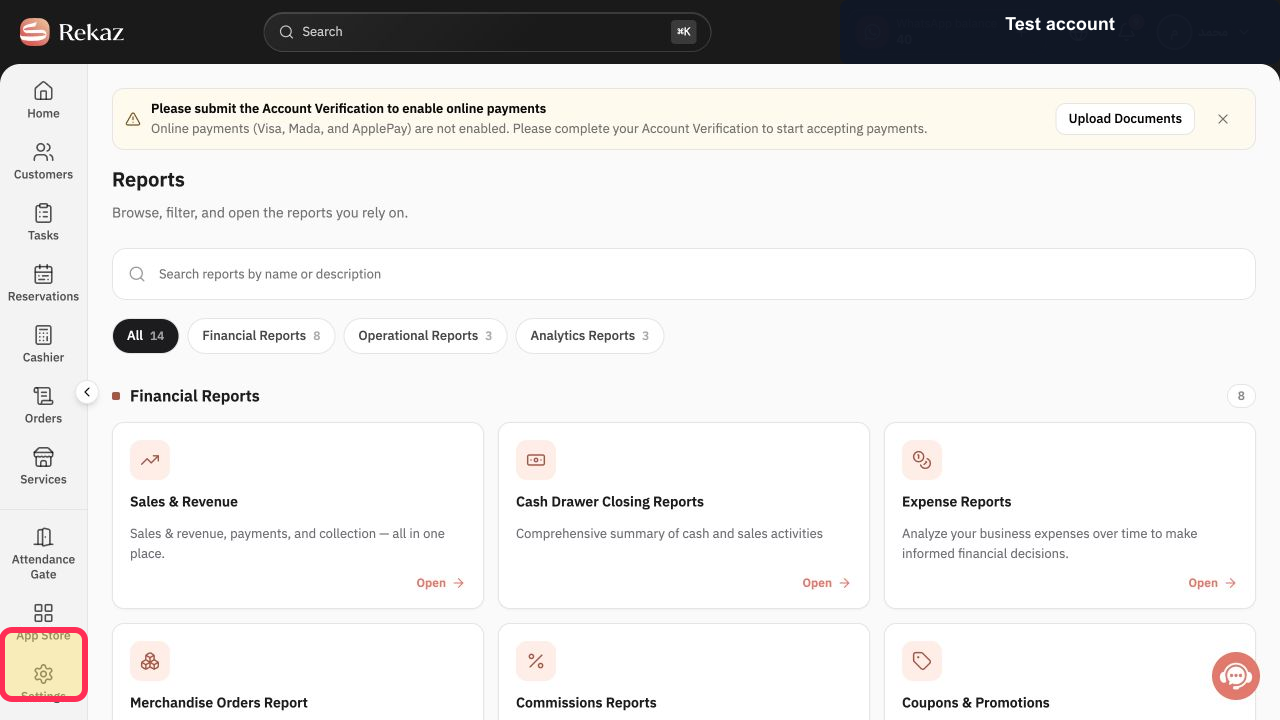
From the Home page, select Reports in the sidebar.
The Reports page opens.
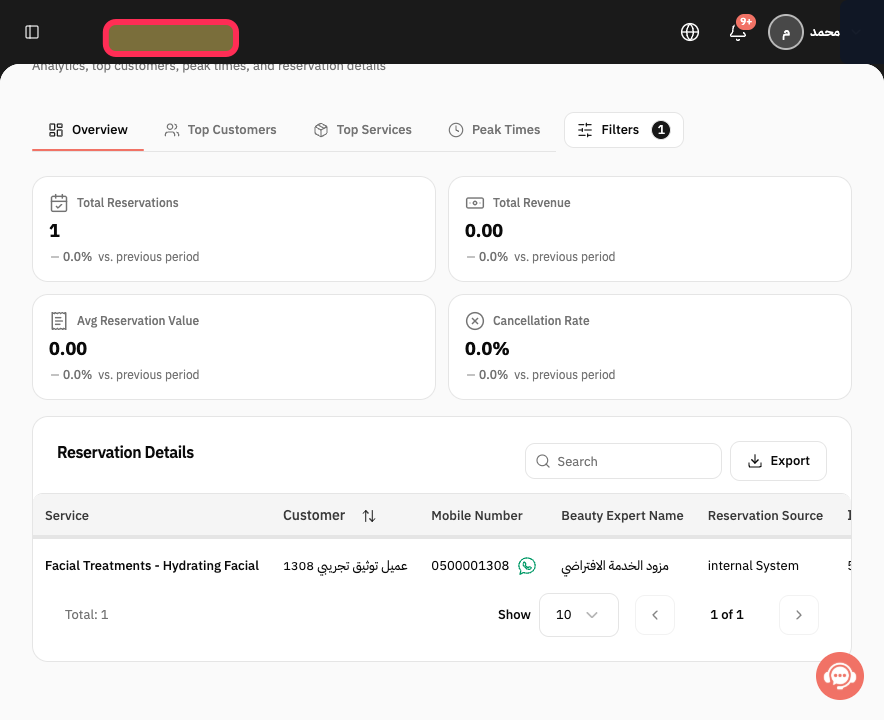
Find and open the Reservation Reports card.
The Reservation Reports dashboard opens.
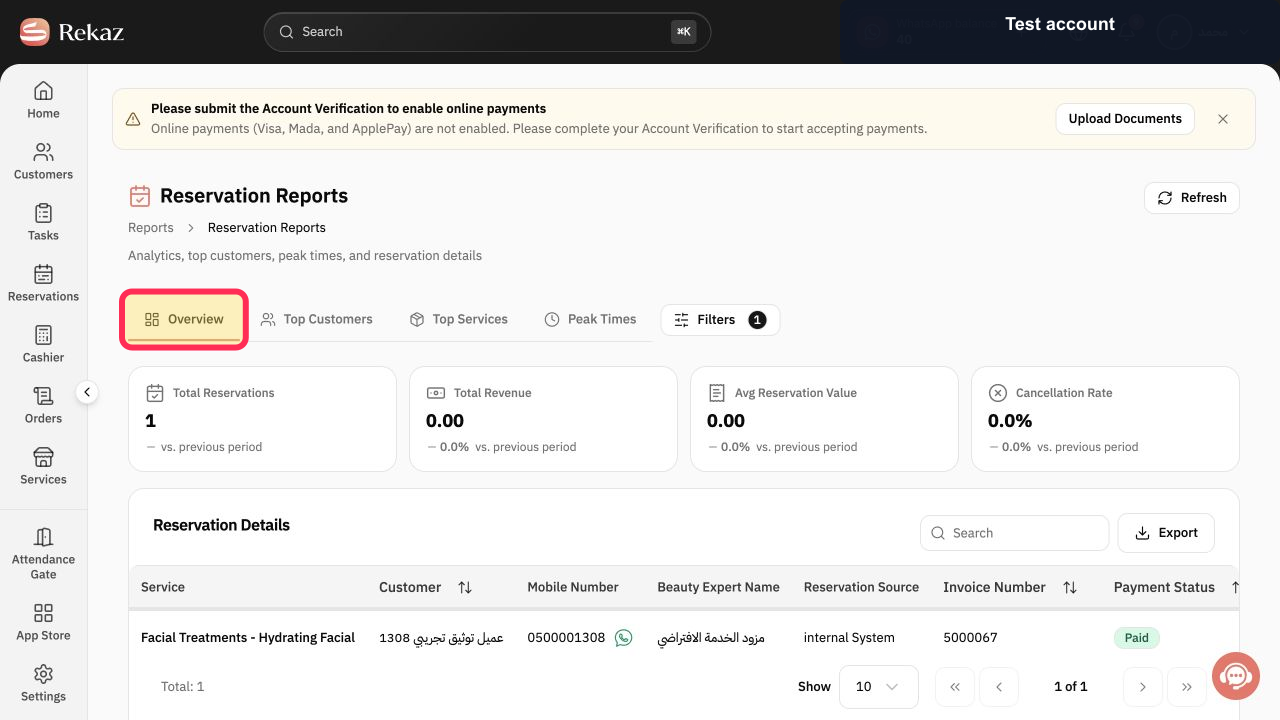
Select the Overview tab to review the reservation metrics.
The Overview view shows reservation metrics, including reservations, Revenue, Avg Reservation Value, and Cancellation Rate.
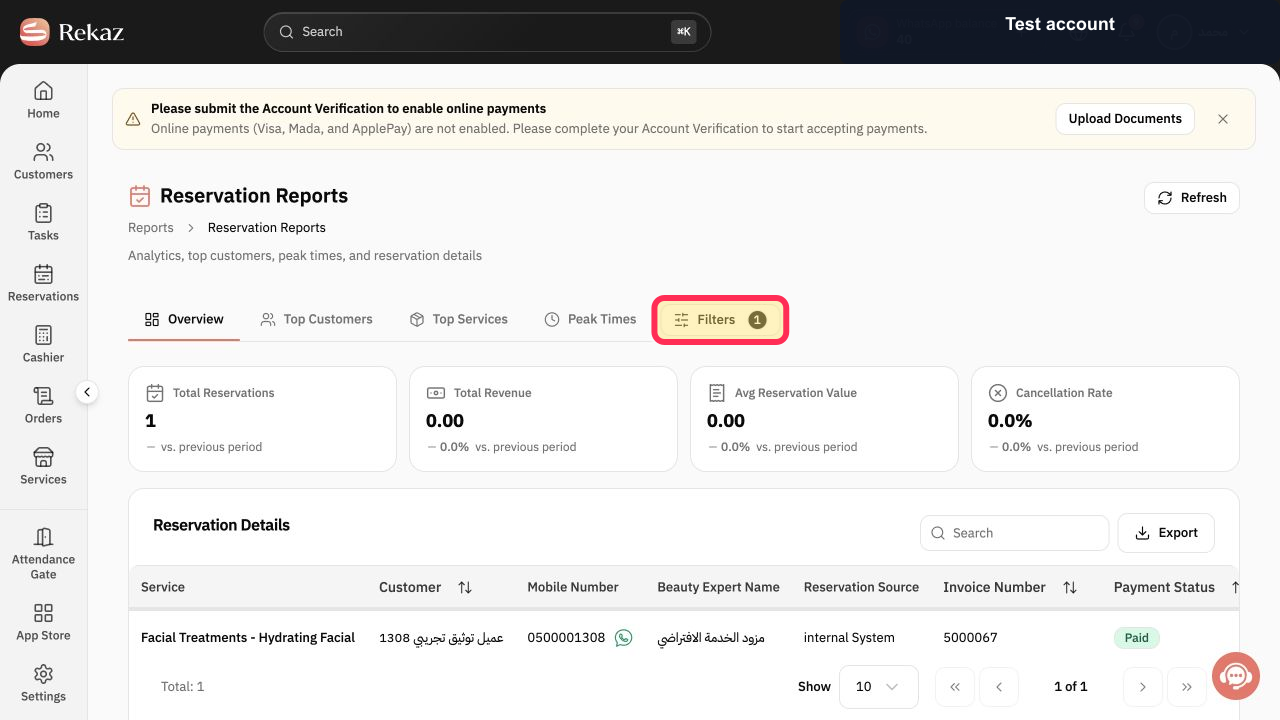
Open Filters and select the required range before reviewing the results.
The report results update to reflect the selected filters.
In the Reservation Details section, select Export when you need to download the displayed results.
The displayed Reservation Details are exported based on the filters applied.
Illustrated guide
Step 1: Select Reports from the sidebar.
Step 2: Open the Reservation Reports card.
Step 3: Review reservation metrics in Overview.
Step 4: Apply the required Filters before reviewing results.
Step 5: Export the filtered Reservation Details.
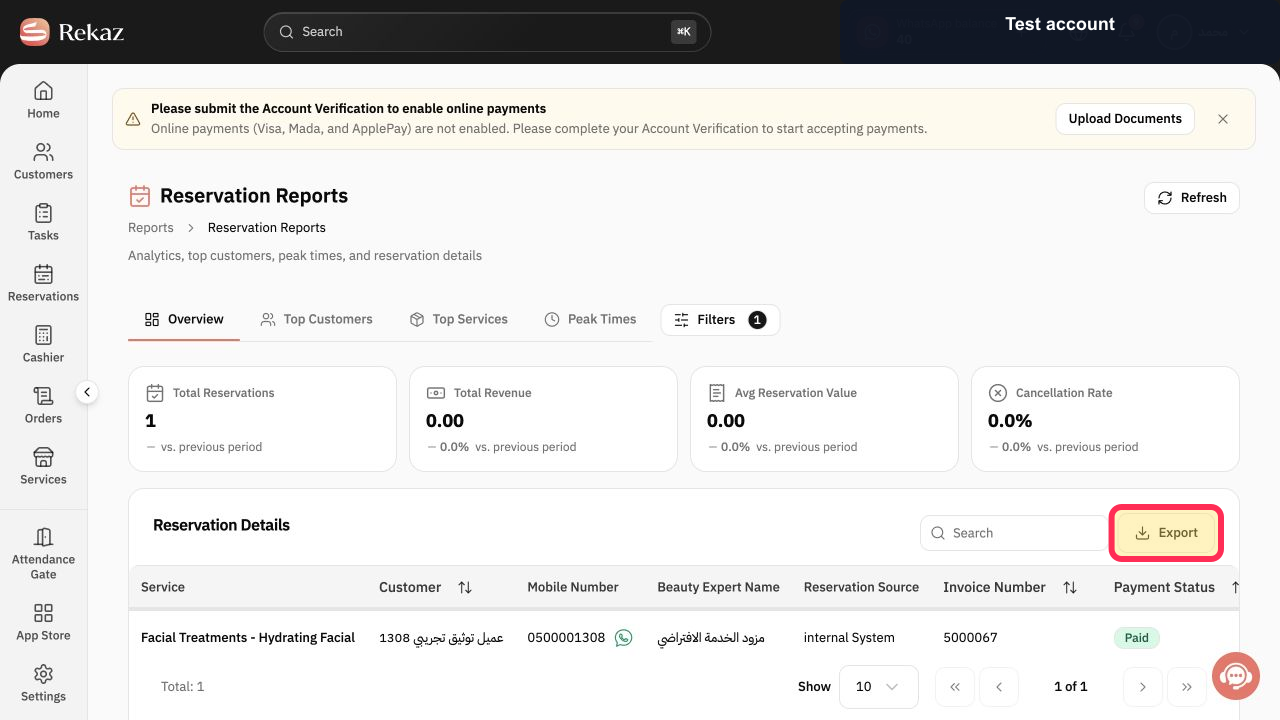
What you can review in Reservation Reports
Use the available report views to analyse reservation activity from different angles.
Overview: reservation metrics and summary indicators.
Top Customers: customers with the highest reservation activity.
Top Services: the most reserved services.
Peak Times: periods with the highest reservation activity.
Reservation Details: detailed reservation records.
Important notes
Check the selected period and Filters before comparing figures.
Exports reflect the results currently displayed after Filters are applied.
Related questions
Where can I find the reservation report in Rekaz?
How do I view reservation statistics in Rekaz?
How do I export Reservation Details in Rekaz?


