How do I view sales tax in Rekaz?
In Rekaz, the Sales & Revenue report shows tax as a separate card alongside paid, discounted, and refunded amounts. Select the required period and filters to view the tax amount for that report scope.
Steps
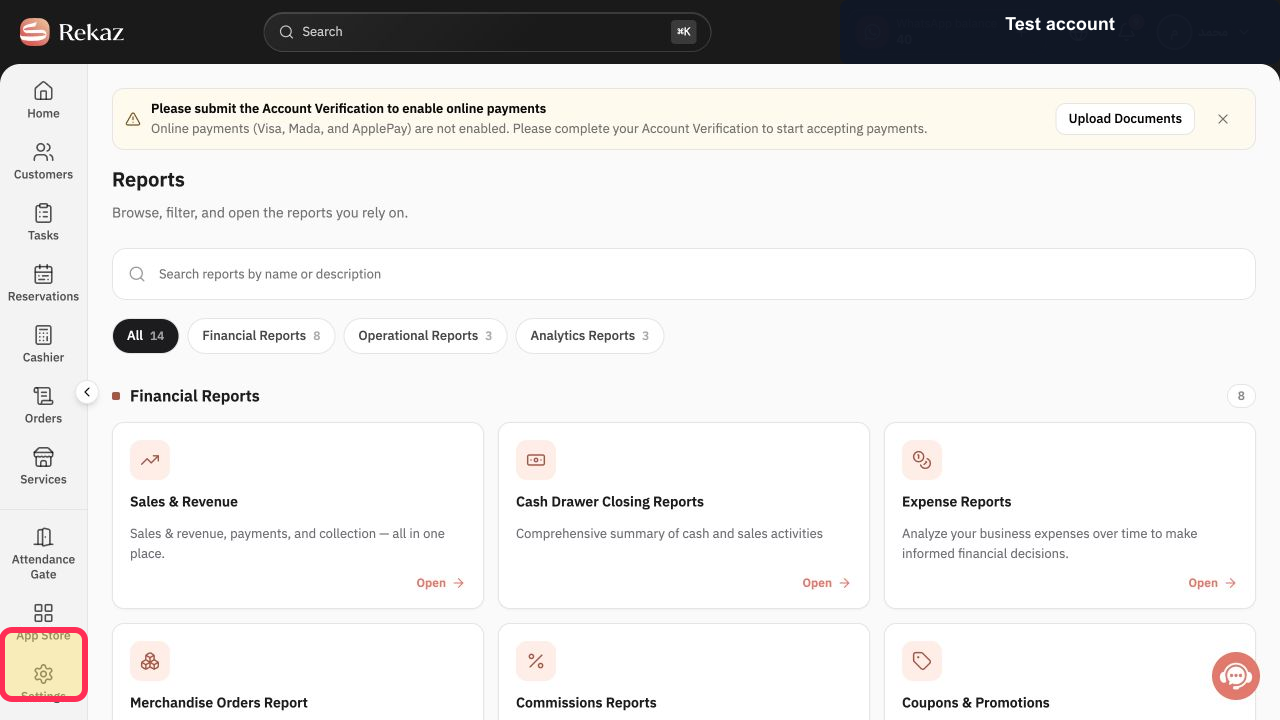
From the Home page, select Reports in the sidebar.
The Reports page opens.
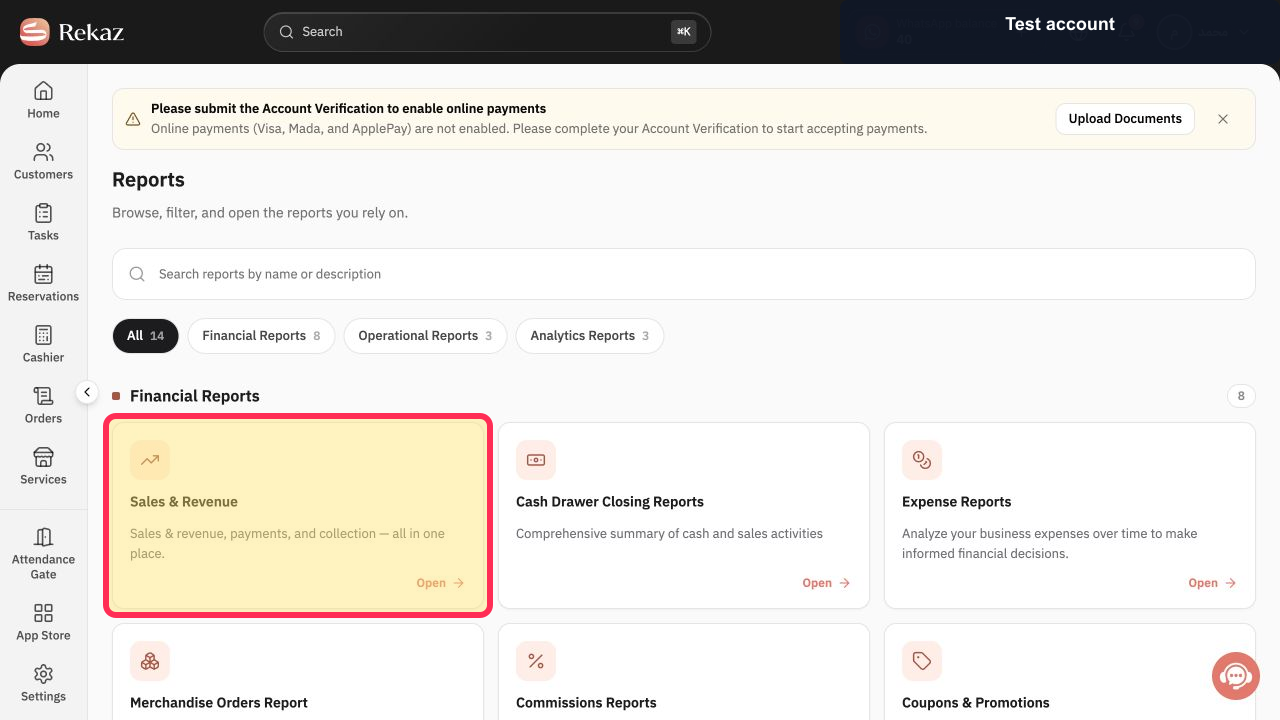
Select the Sales & Revenue report card.
The Sales & Revenue report opens.
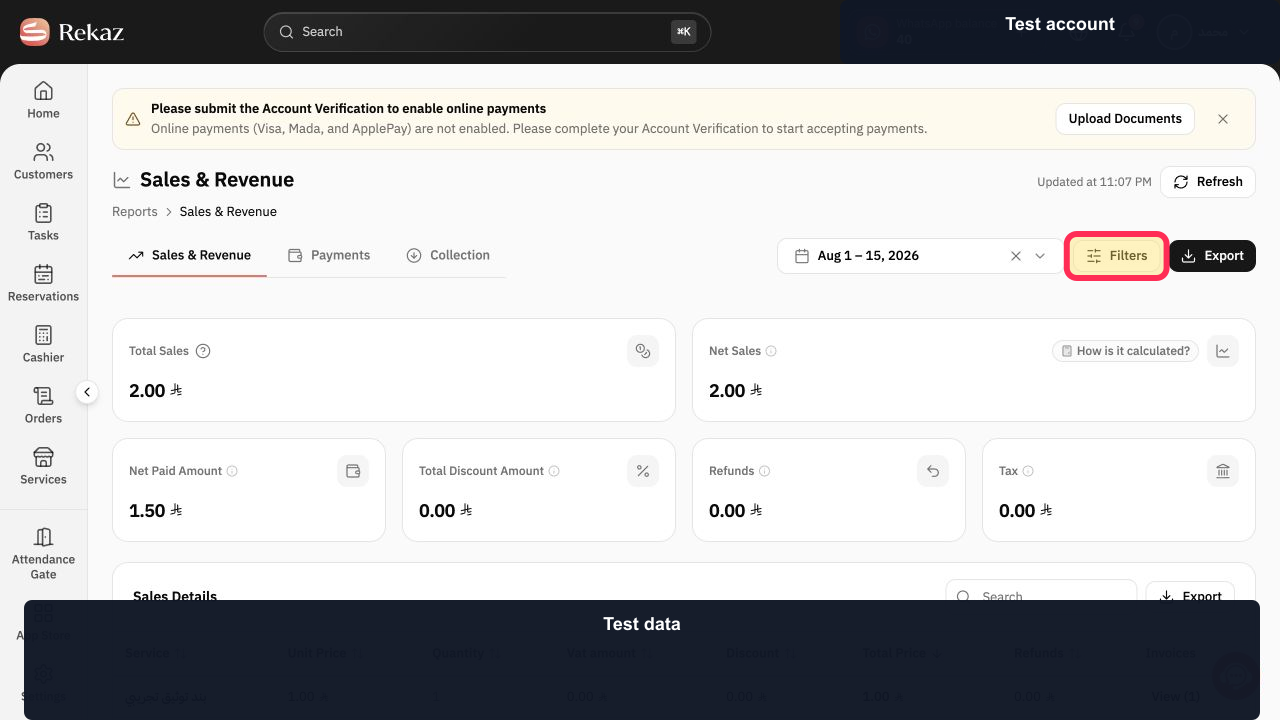
Select the required period and apply any filters needed for the report.
The report updates to reflect the selected period and filters.
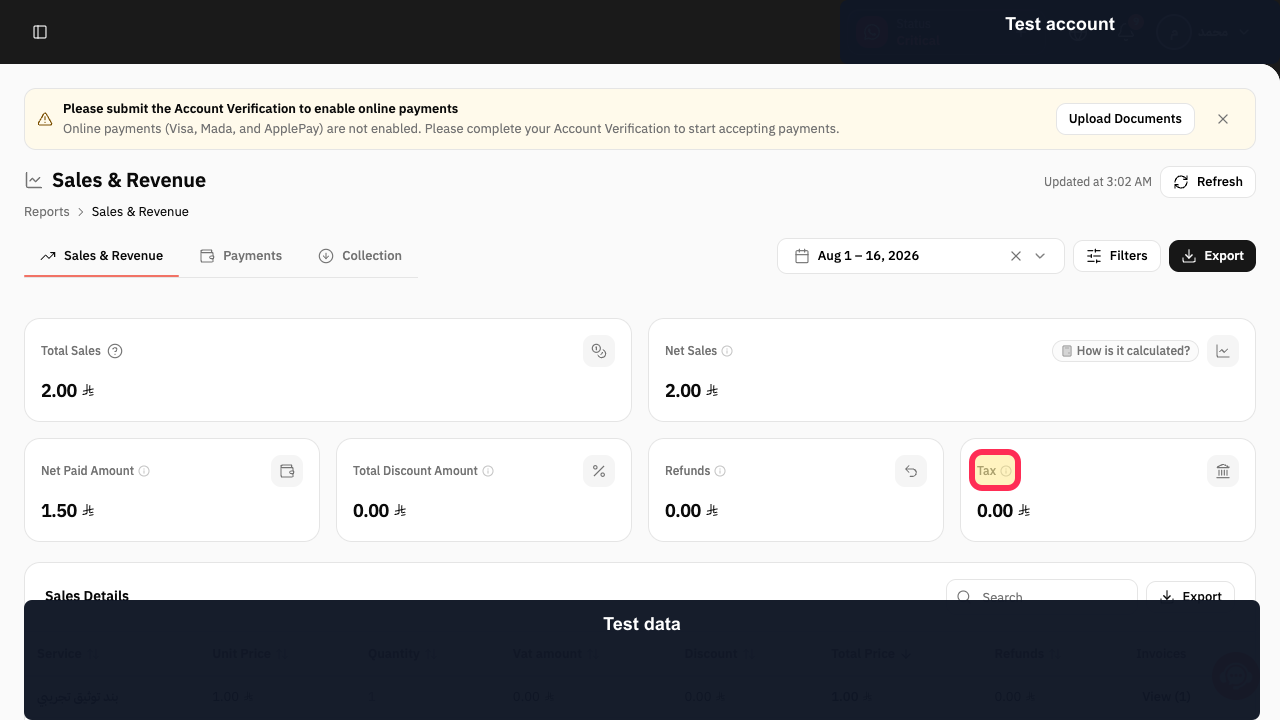
Review the Tax card in the report summary.
The Tax card shows the tax value for the selected period and applied filters.
Illustrated guide
Step 1: Open Reports from the Rekaz sidebar.
Step 2: Open the Sales & Revenue report.
Step 3: Set the report period and filters.
Step 4: View the tax value in the report summary.
Important notes
The Tax card reflects the date range and filters applied to the report.
Do not confuse the tax value with Net Sales or paid amounts.
Related questions
Where can I see sales tax in Rekaz?
How do I find the total tax in Rekaz?
Does tax appear in the Sales & Revenue report in Rekaz?


