How do I view the Sales & Revenue report in Rekaz?
To view sales and revenue performance in Rekaz, go to Reports and open Sales & Revenue. You can set a date range, filter the report by service and other available criteria, and review Total Sales, Net Sales, and Net Paid Amount for the selected results.
Use the metric that best answers your question, as these figures represent different measures of your business activity.
Steps
From the signed-in Rekaz dashboard, select Reports in the sidebar.
The Reports page opens.
Select the Sales & Revenue report card.
The Sales & Revenue report opens.
Select Date Range.
Date-range options or a date picker are displayed.
Choose the period you want to review.
The selected period is applied to the report.
Select Filters to narrow the report results.
The report filters are displayed.
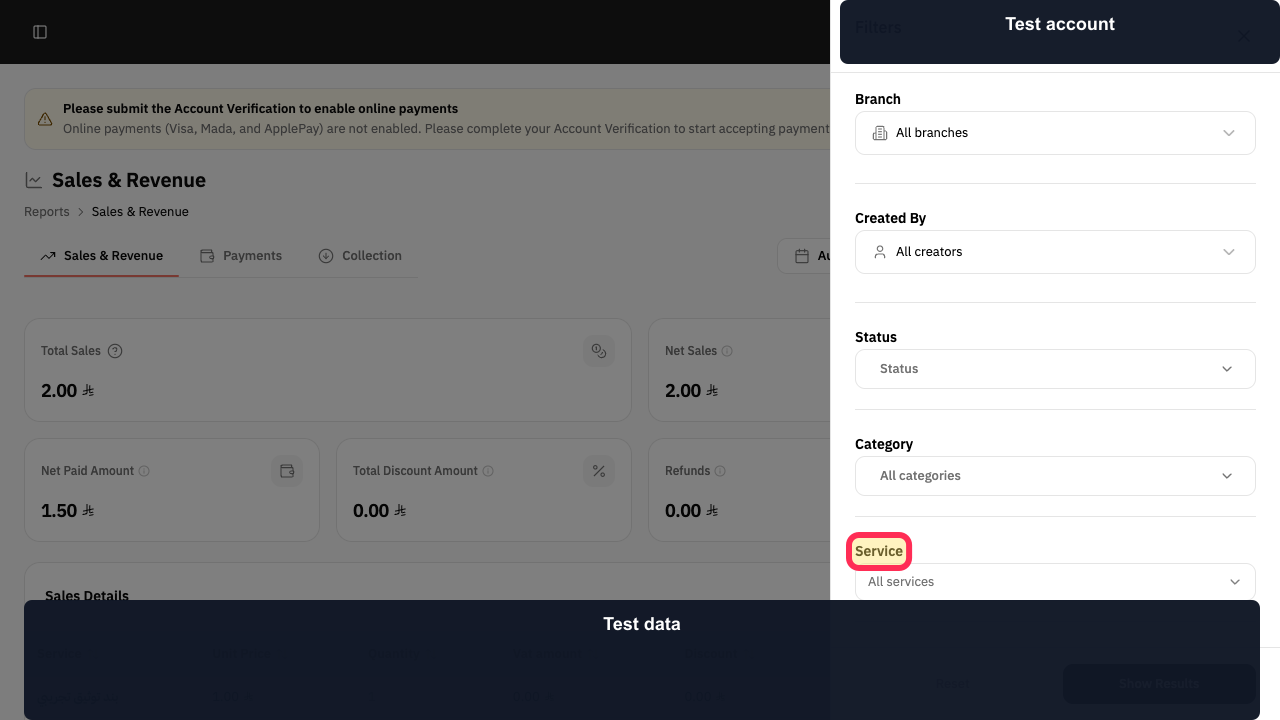
Select the required service. You can also filter by Branch, creator, or Status if needed.
Your selected filters are shown in the filter panel.
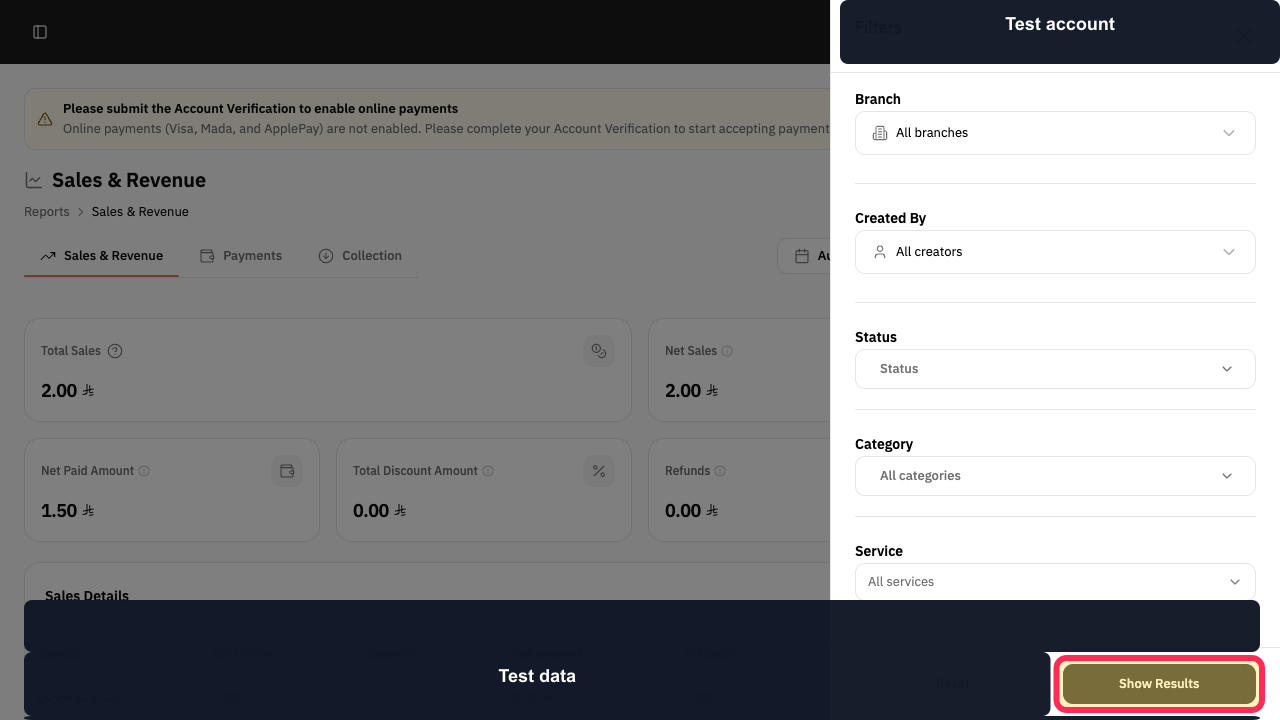
Select Show Results.
The report refreshes using the selected date range and filters.
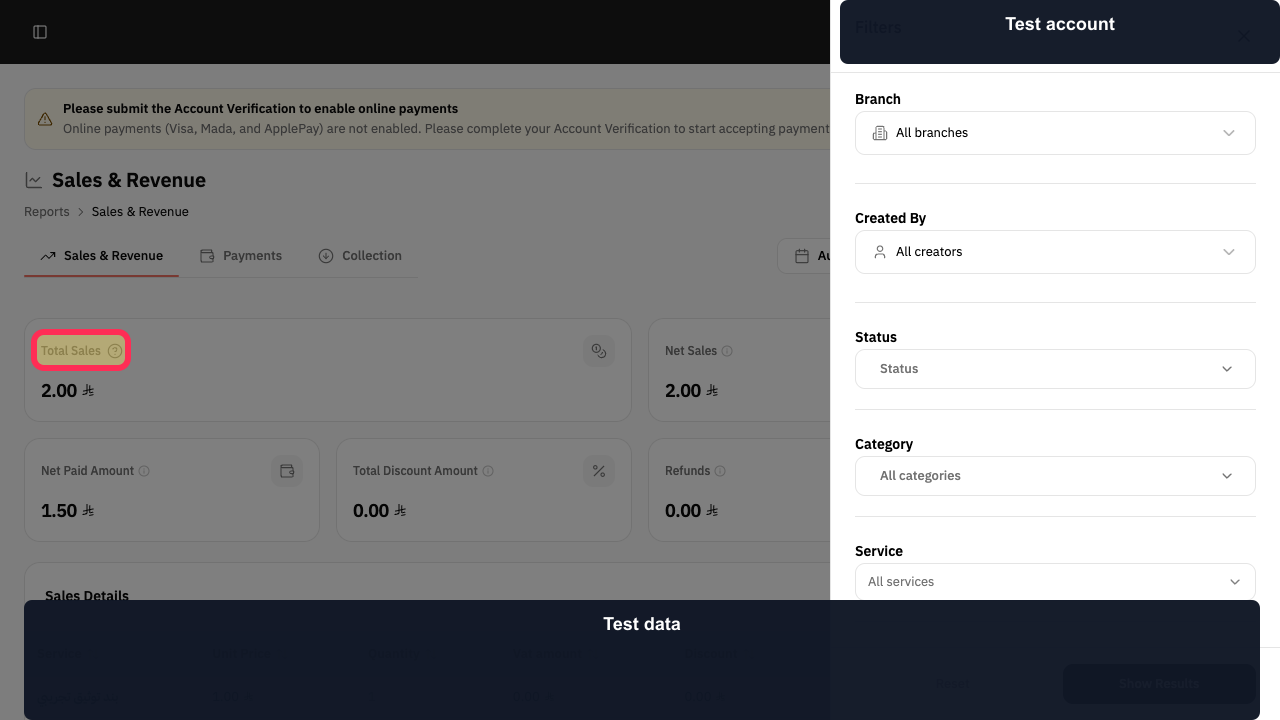
Review Total Sales, Net Sales, and Net Paid Amount, then use the metric that matches your reporting goal.
The current sales summary cards are visible for the selected filters.
Illustrated guide
Step 1: Select Reports from the Rekaz sidebar.
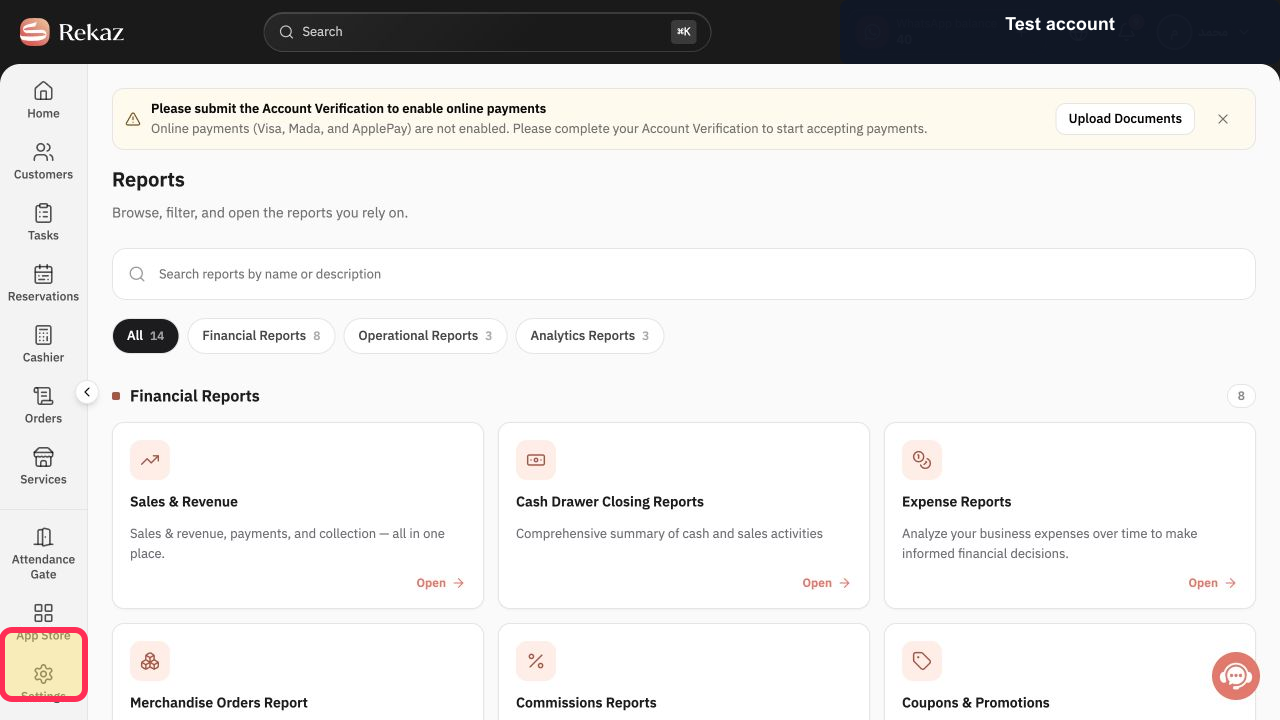
Step 2: Open the Sales & Revenue report.
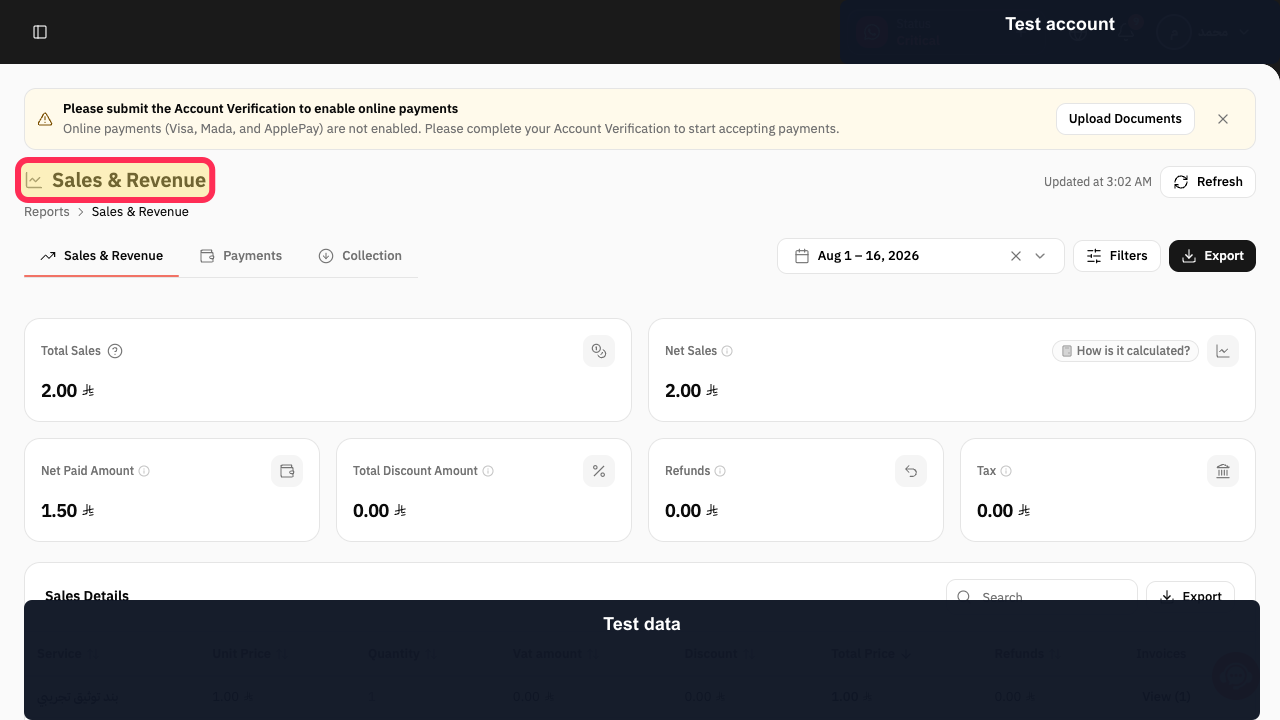
Step 3: Open the Date Range selector.
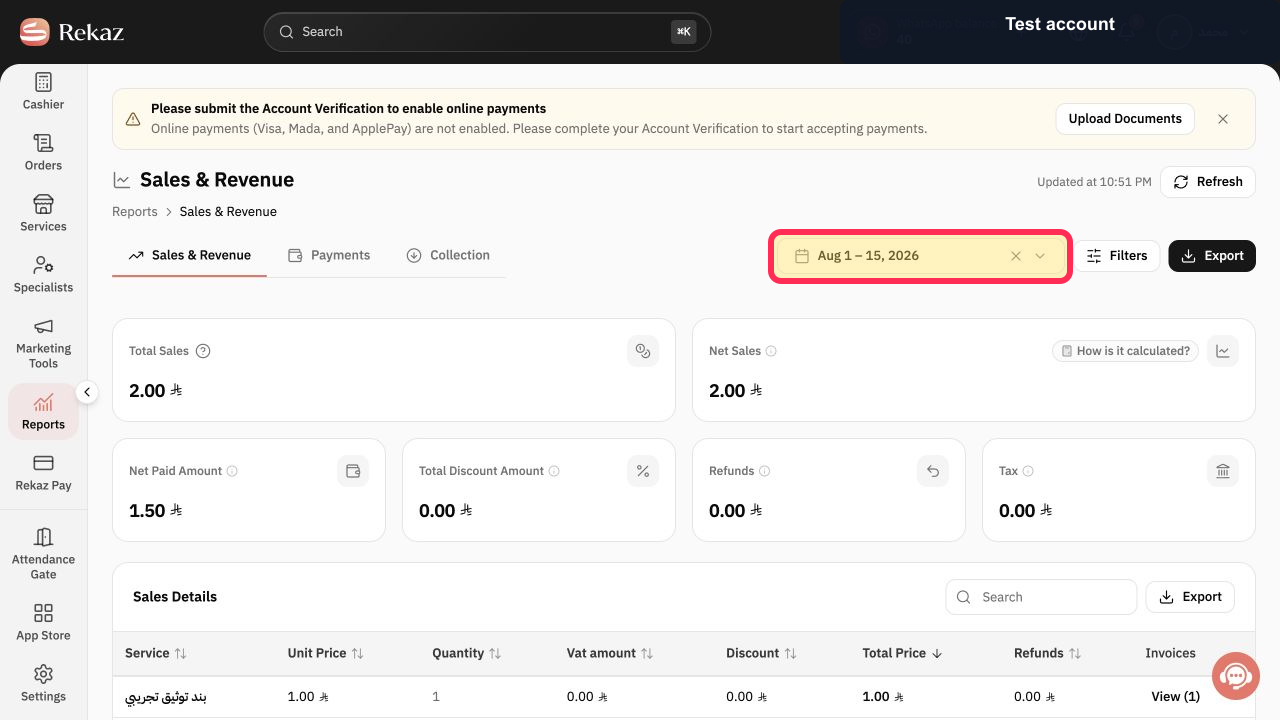
Step 4: Choose the reporting period.
Step 5: Open the report filters.
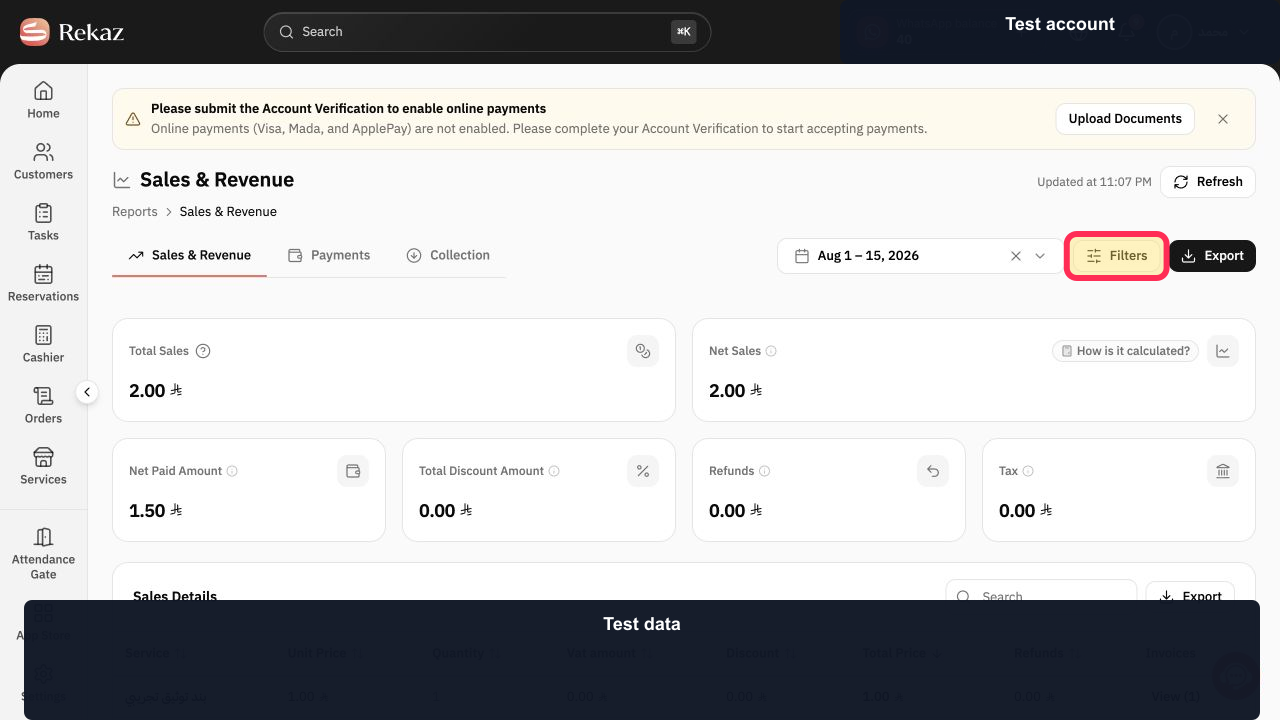
Step 6: Choose a service and any optional filters.
Step 7: Apply the selected report filters.
Step 8: Review the Sales & Revenue summary metrics.
Understand the report metrics
Total Sales, Net Sales, and Net Paid Amount are different metrics. Choose the one that matches the question you want to answer.
If no data appears, expand the Date Range or clear the filters.
Use Clear Filters to remove applied filters before running the report again.
Related questions
Where can I see my sales in Rekaz?
How do I find Net Sales in Rekaz?
How do I view a revenue and payments report in Rekaz?


