How do I export reports in Rekaz?
To export a report in Rekaz, open the required report from Reports, set the Date Range and any relevant filters, then select Export to download the file.
The exported file content depends on the report and the filters you selected.
Steps
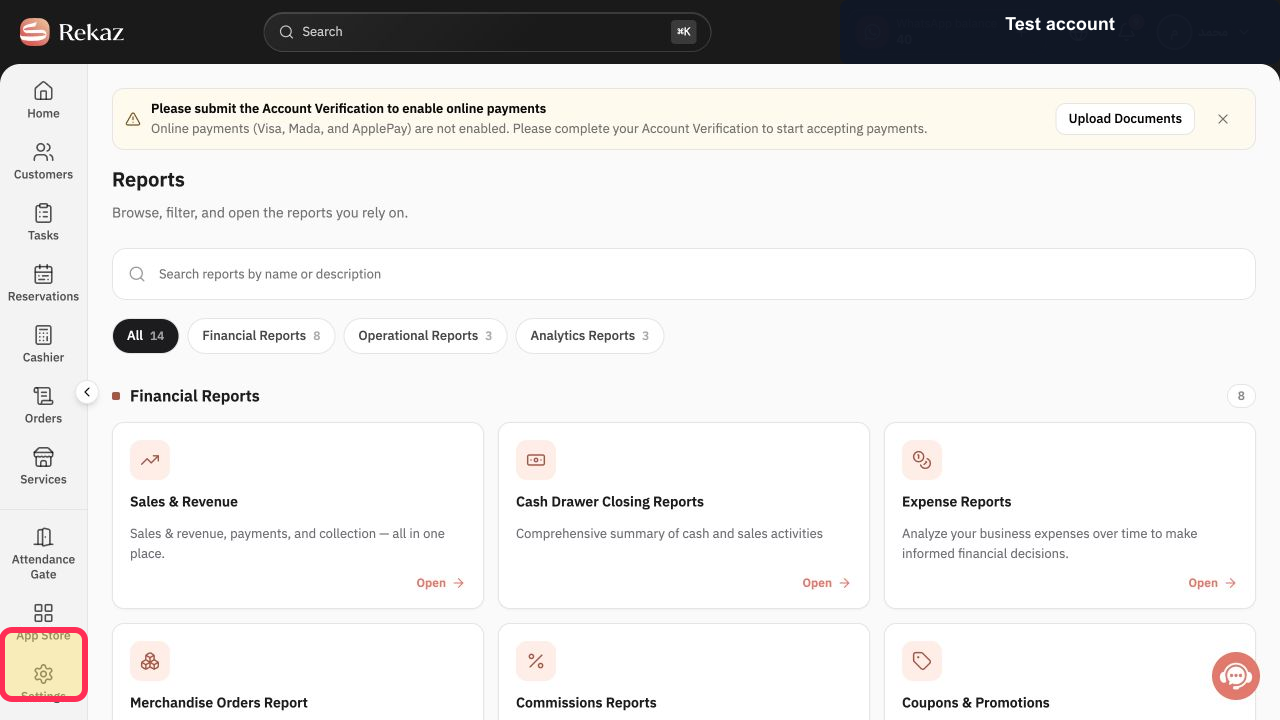
From the Home page, select Reports in the sidebar.
The Reports page opens.
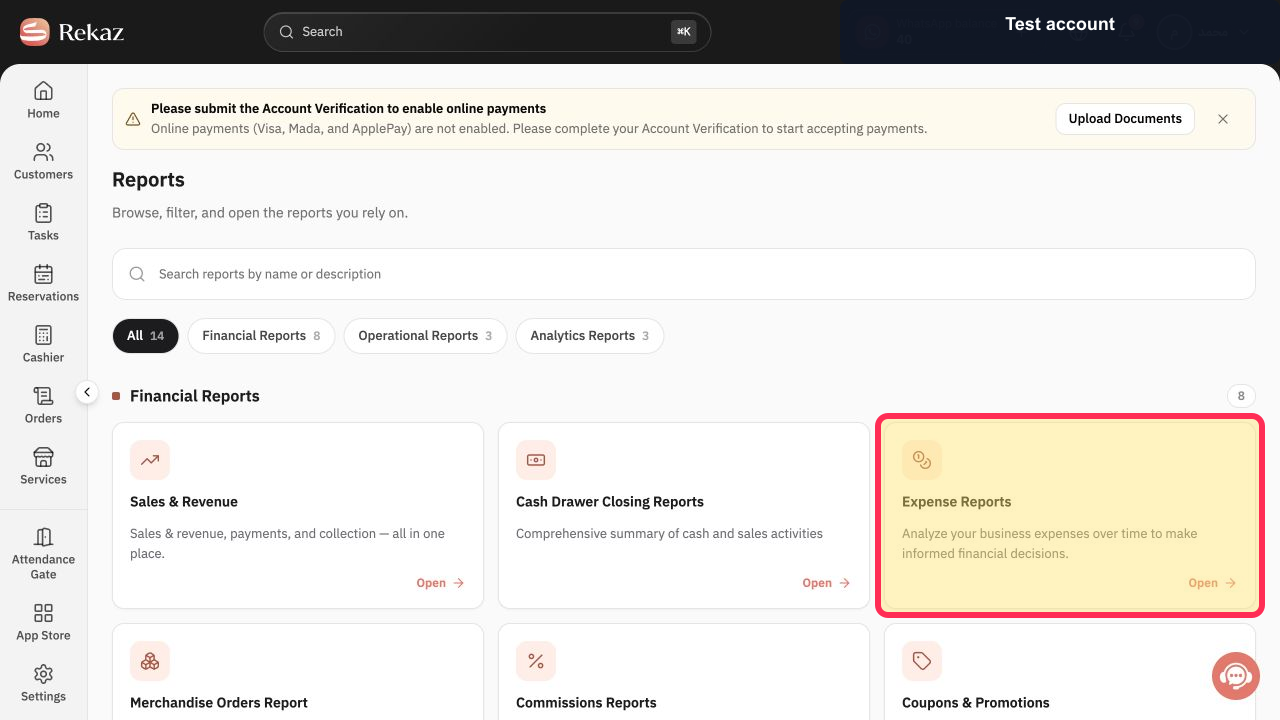
Select the report you want to export.
The selected report opens.
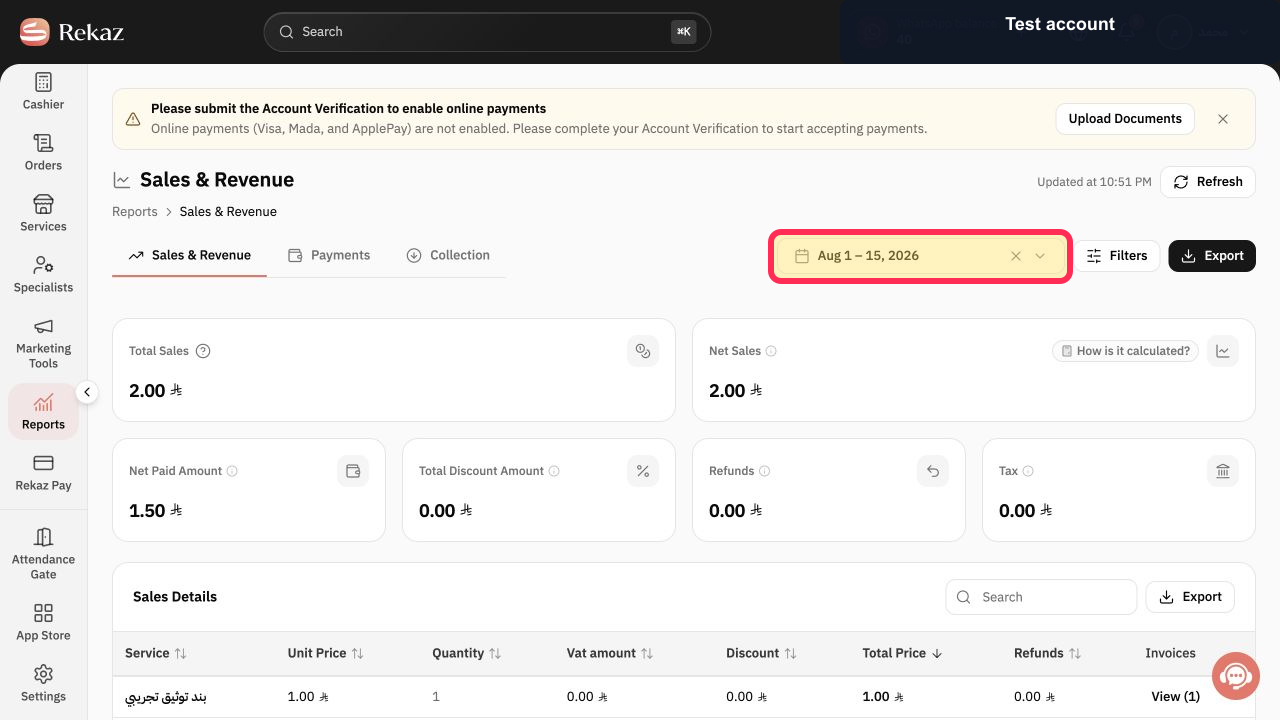
Set the required Date Range for the report.
The report updates to show results for the selected date range.
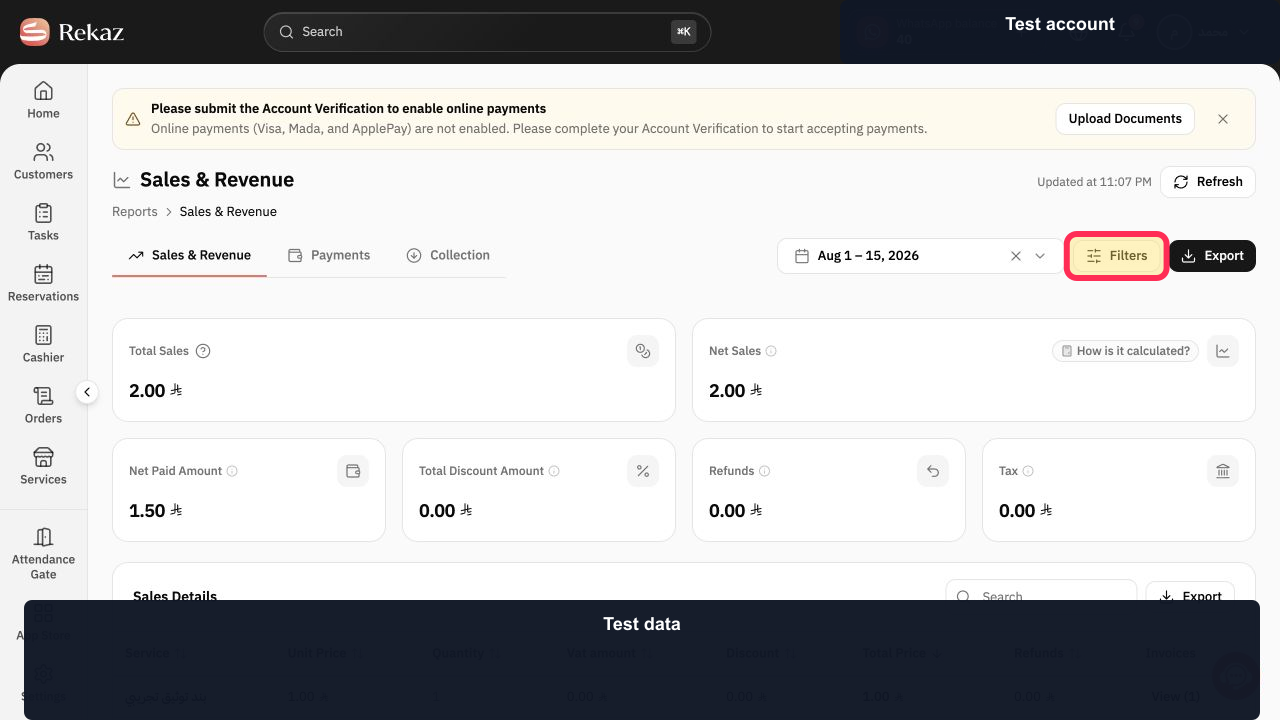
Set any relevant filters before exporting.
The report results reflect the selected filters.
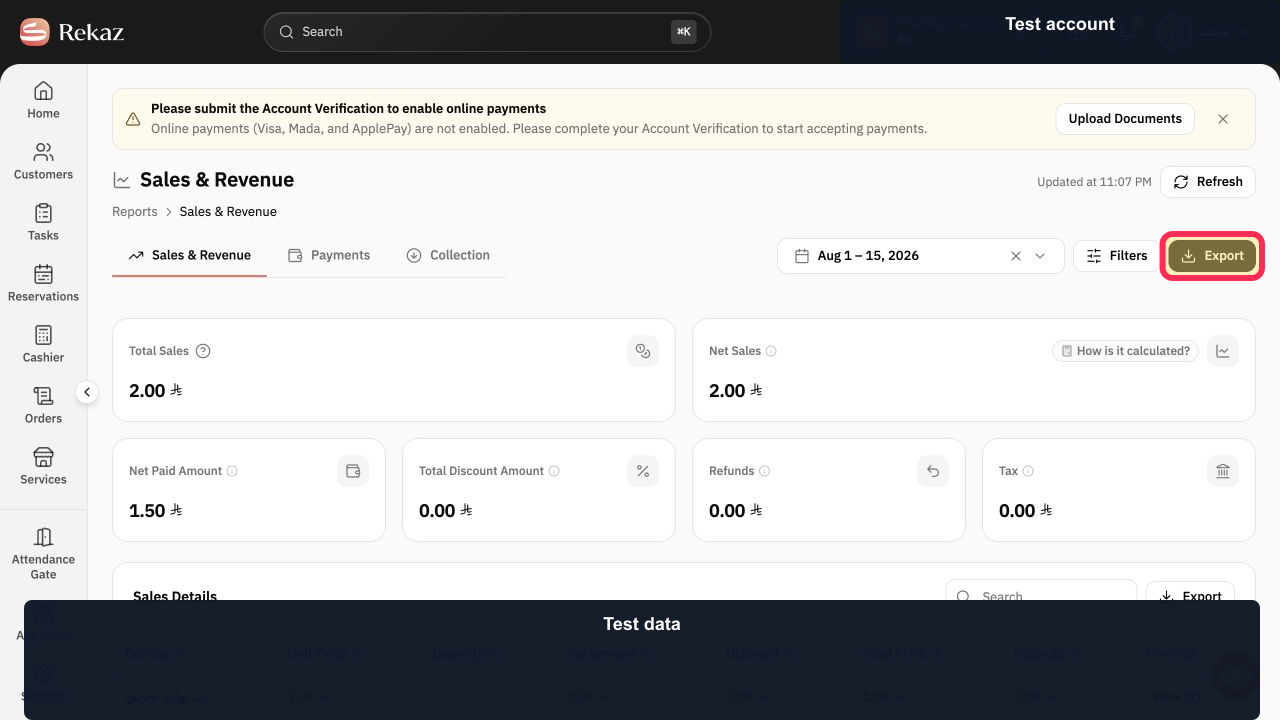
Select Export to download the report.
The report file is downloaded.
Illustrated guide
Step 1: Open Reports from the Rekaz sidebar.
Step 2: Choose the report you need.
Step 3: Set the Date Range for the report.
Step 4: Apply filters to include the results you need.
Step 5: Export and download the report.
Important notes
Set the date range and filters before exporting so the file includes the results you need.
The content of the exported file varies according to the report and the filters selected.
Related questions
How do I download a report from Rekaz?
Where is the Export button for reports in Rekaz?
How do I save a sales report in Rekaz?


