Why isn’t my biometric device syncing with Rekaz?
A device cannot be considered synchronized unless Rekaz shows the expected attendance record or a model-specific sync confirmation. The verified account currently exposes QR scanner, camera, and manual attendance—not a BioTime Dashboard.
Keep device passwords, network credentials, and API secrets out of screenshots and support messages.
Steps
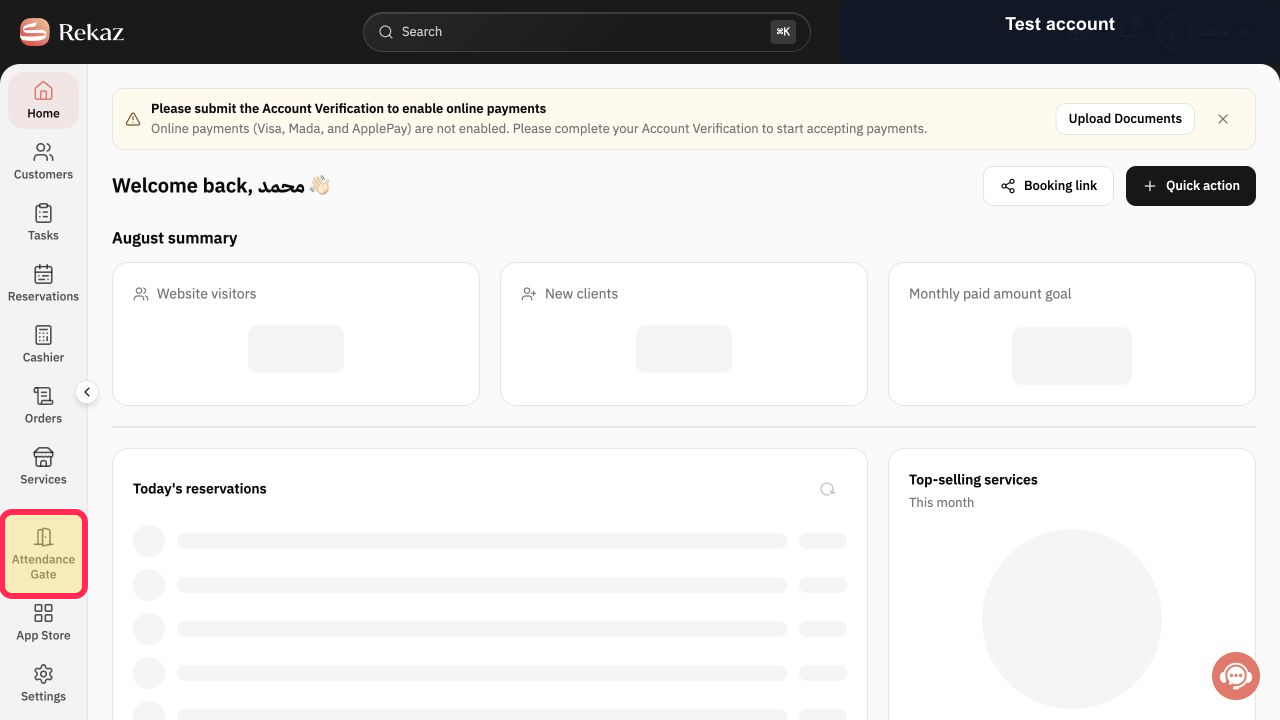
Open Attendance Gate from the Rekaz navigation.
The Attendance Gate opens.
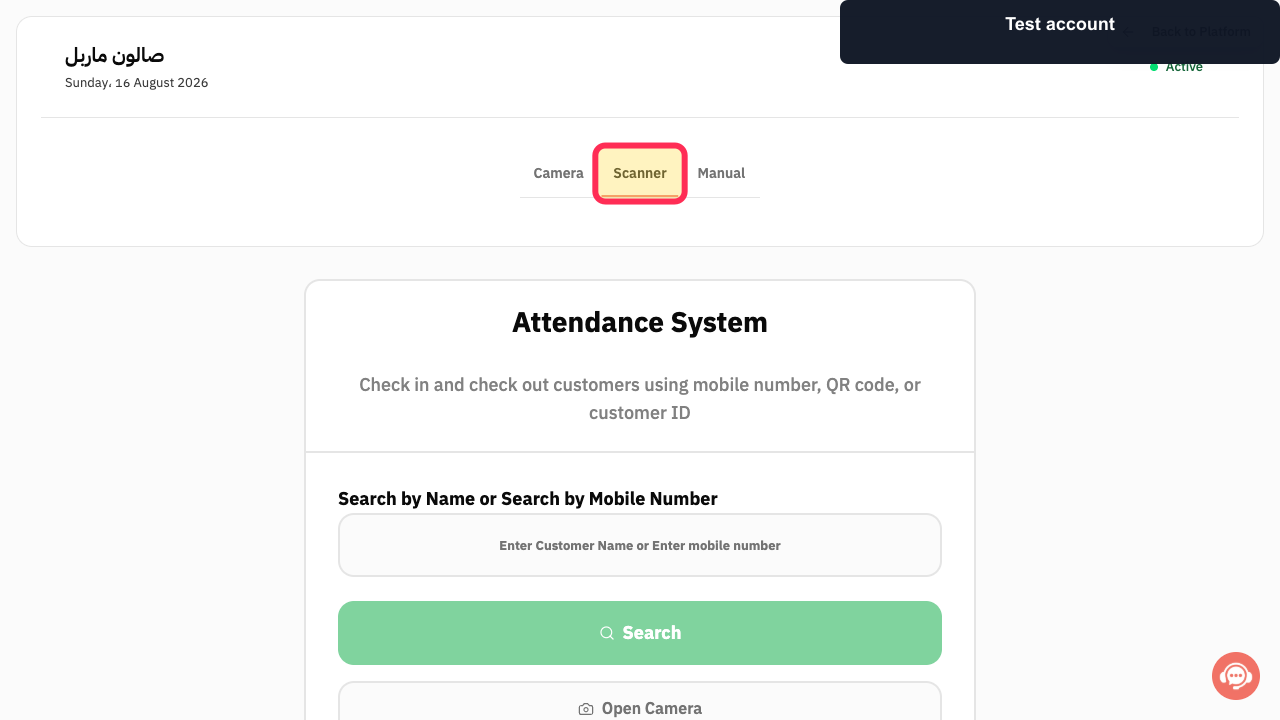
Select Scanner and confirm that Scanner Ready appears before scanning a QR code.
The dedicated scanner method is ready for a customer code.
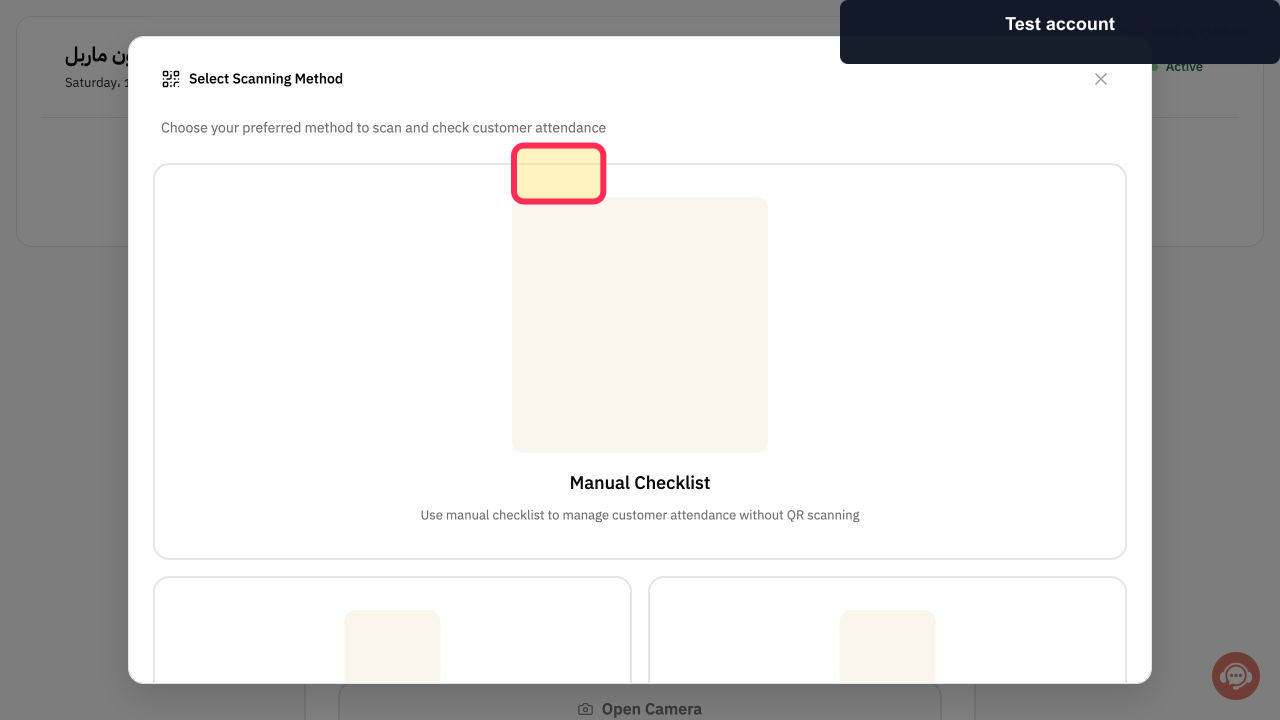
Select Camera when you want to test camera permission and QR scanning, then use the camera control shown in that method.
The camera attendance method opens and Rekaz checks camera permission when requested.
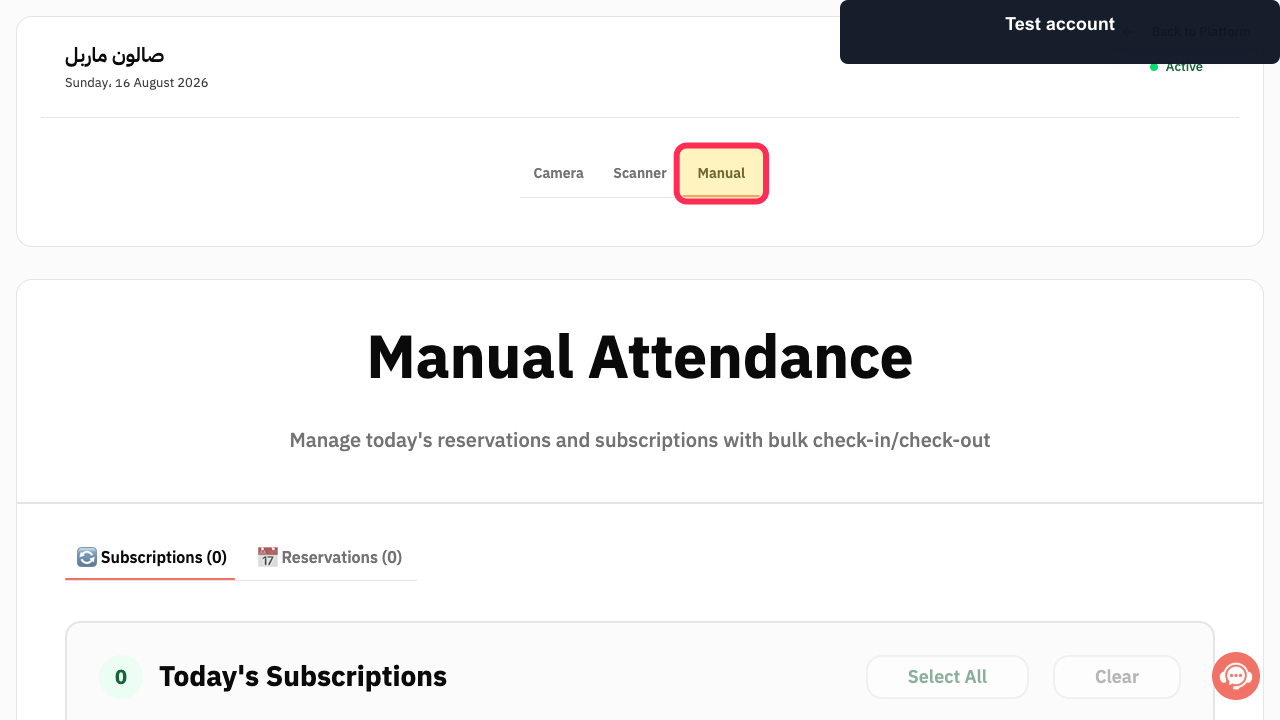
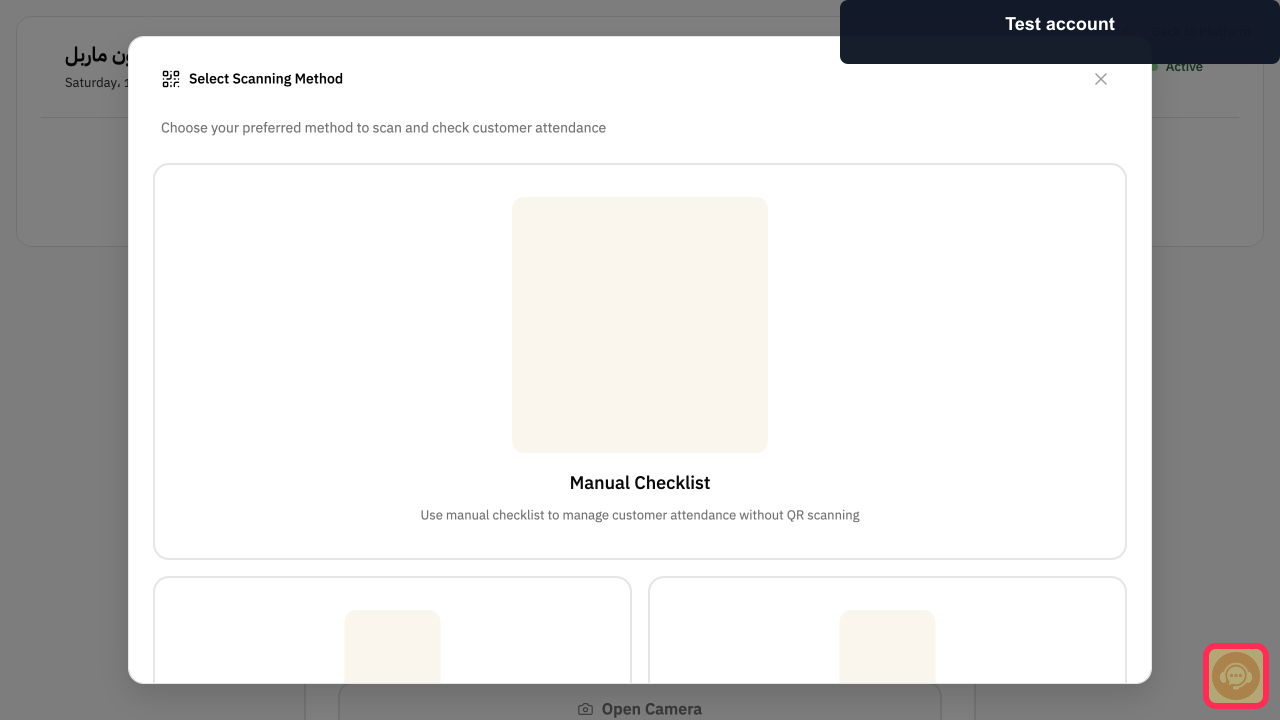
Select Manual to confirm that today's reservations or subscriptions can still be handled without the device.
The Manual Attendance checklist opens.
If a contracted biometric device still does not sync, select Contact support and provide its manufacturer, model, firmware, connection method, and the time of the failed attempt. Do not provide passwords or secrets.
Support receives enough technical context to verify the integration safely.
Illustrated guide
Step 1: Open Attendance Gate in Rekaz.
Step 2: Check the Rekaz Scanner attendance method.
Step 3: Test the Camera attendance method.
Step 4: Use Manual Attendance while the device is unavailable.
Step 5: Contact Rekaz support about the biometric connection.
Important note
Before performing the final sync action, check the button name shown in Rekaz if the interface has changed.
Related questions
Why is my biometric device not syncing automatically in Rekaz?
Where can I find Sync Status in Rekaz?
How do I sync all customers from Sync Status in Rekaz?


