How do I manually sync biometric attendance in Rekaz?
The verified Attendance Gate does not currently show Biometric, Sync Status, Sync, or Sync All controls. It shows Scanner, Camera, and Manual attendance methods instead.
Do not claim that attendance was synchronized when no sync confirmation appears. Model-specific BioTime synchronization may require an account integration that support must confirm.
Steps
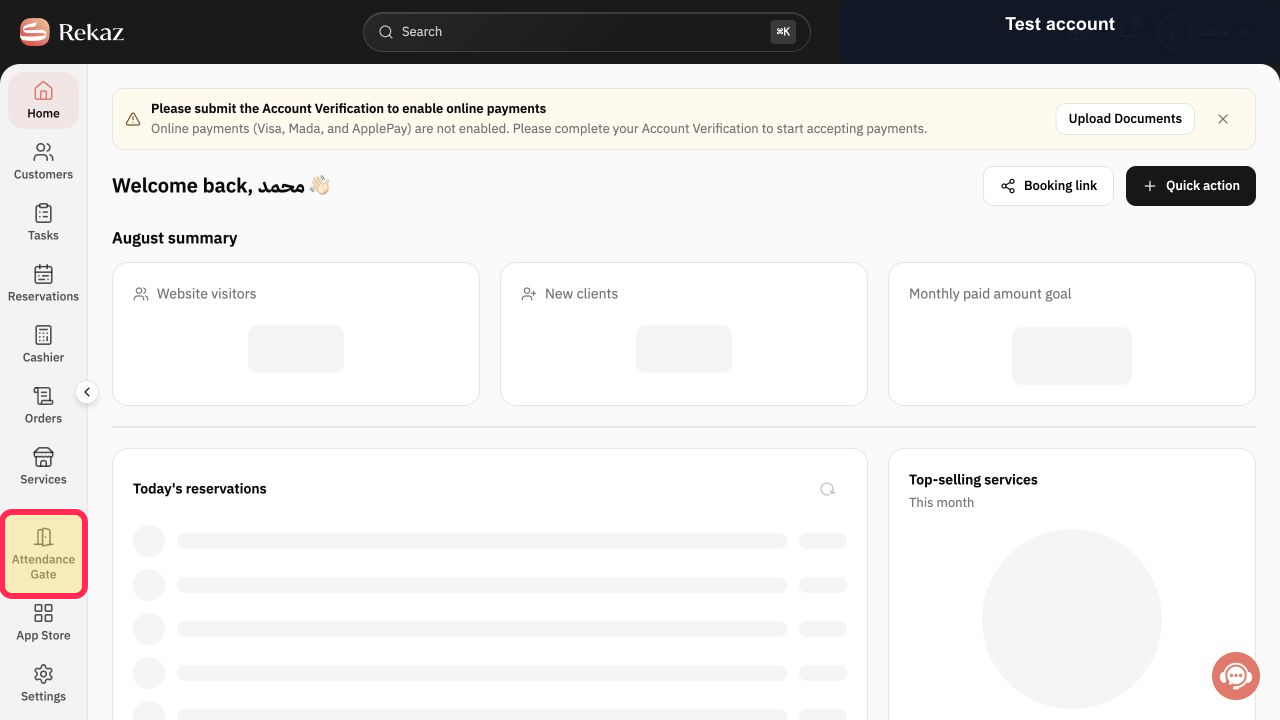
Open Attendance Gate from the Rekaz navigation.
The current Attendance Gate opens.
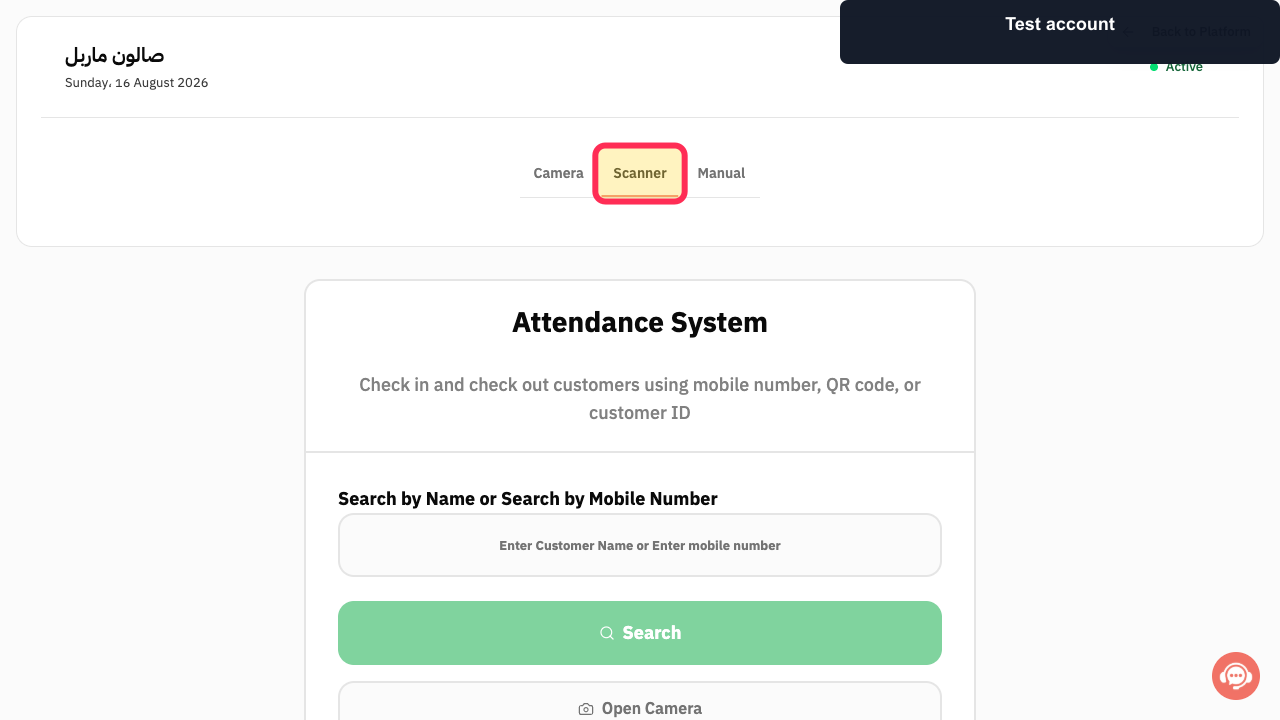
Select Scanner when a dedicated QR scanner is connected.
The QR scanner method becomes active and waits for a customer code.
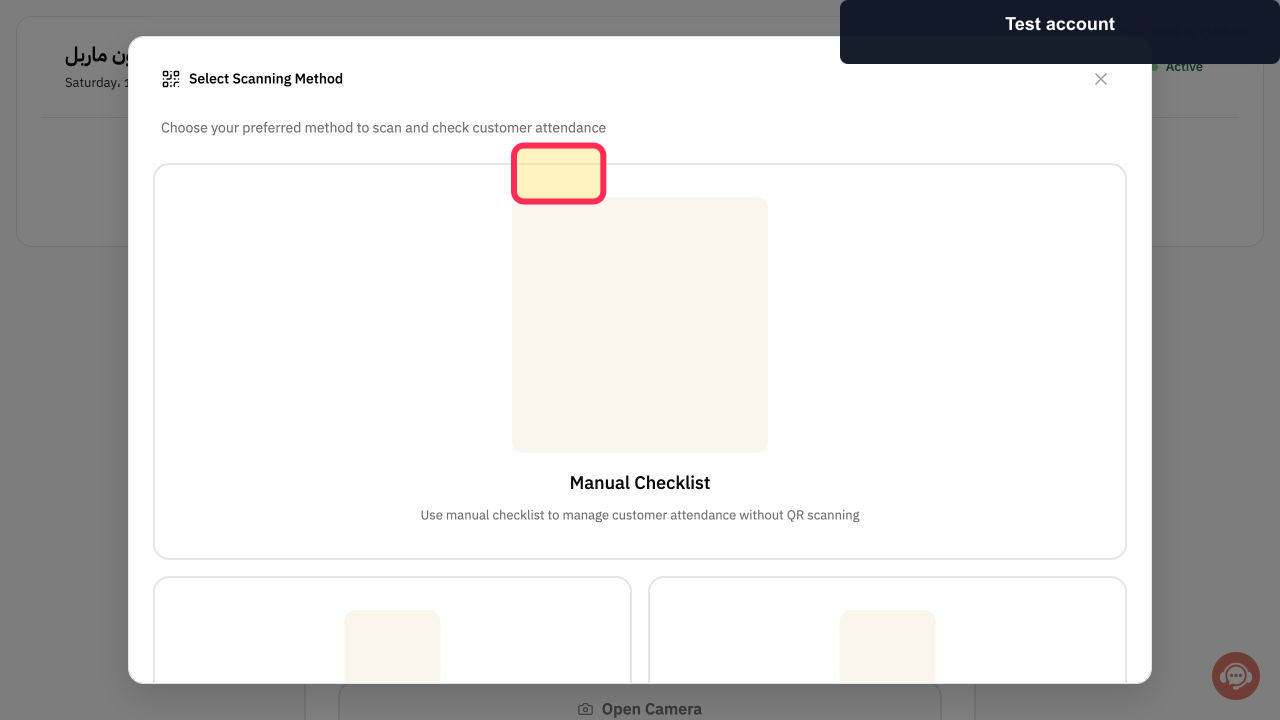
Select Camera when the device camera should scan the QR code instead.
The camera attendance method opens.
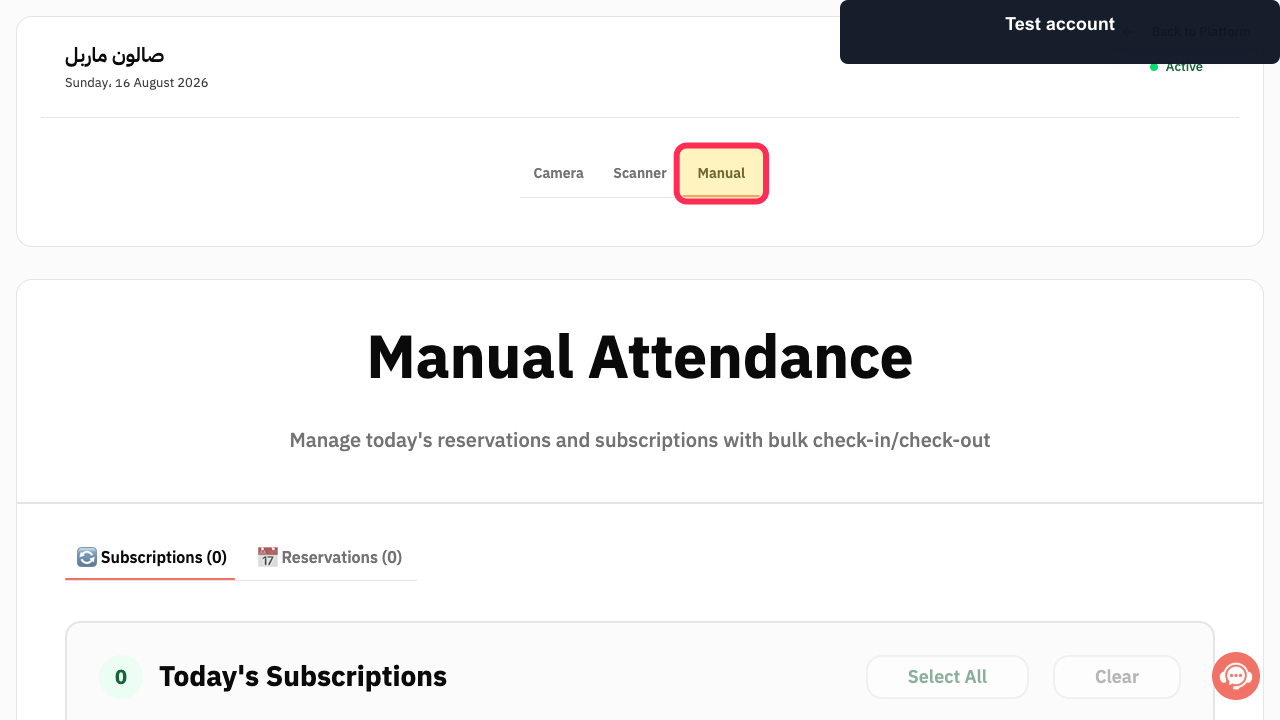
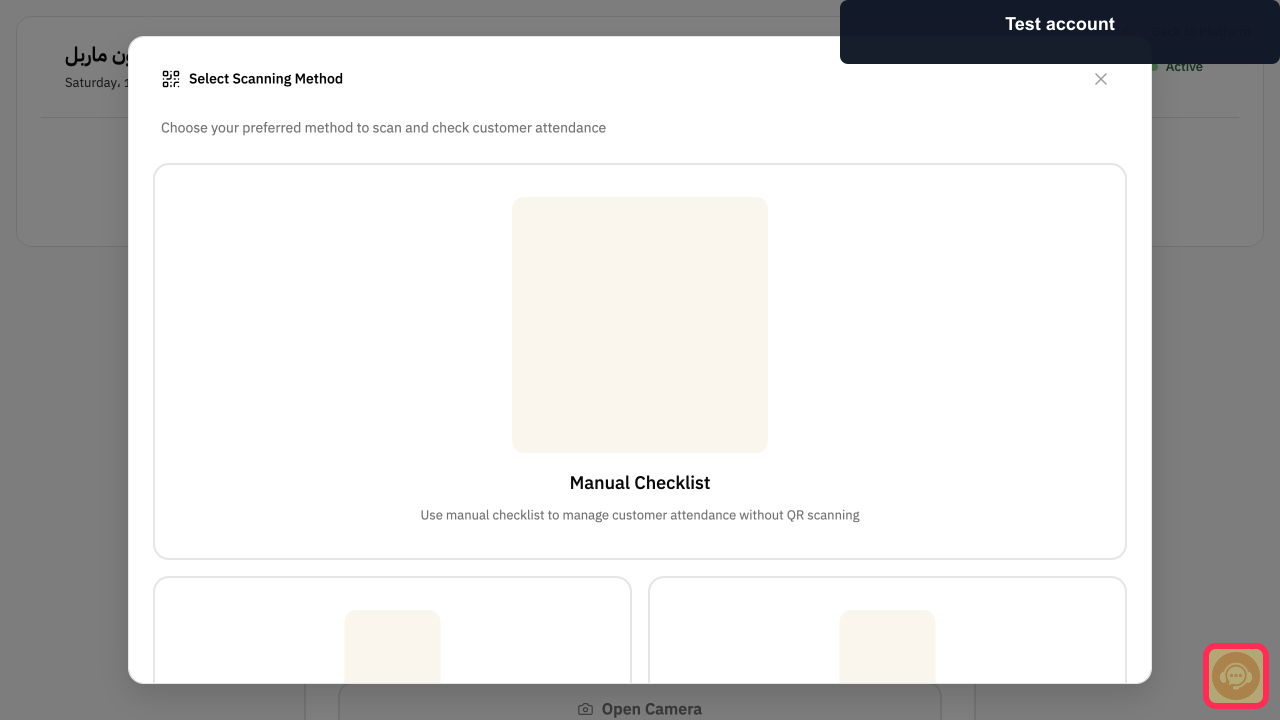
Select Manual when you need to check in or check out today's reservations or subscriptions without scanning.
The Manual Attendance checklist opens.
If your contracted setup should include BioTime synchronization but no sync controls appear, select Contact support and provide the device model and account email only—never the device password or API secret.
Support can verify whether the account has the required biometric integration.
Illustrated guide
Step 1: Open Attendance Gate in Rekaz.
Step 2: Use the Scanner attendance method.
Step 3: Use the Camera attendance method.
Step 4: Open Manual Attendance.
Step 5: Contact Rekaz support about missing biometric sync controls.
Synchronization result
The available workflow confirms the Sync and Sync All actions. It does not confirm a completion message or the post-sync result, so verify the attendance records after running the action.
Important notes
Use manual syncing when automatic biometric attendance syncing is not working as expected.
Interface labels or item locations may change after a Rekaz interface update.
If the sync controls are unavailable or manual syncing does not resolve the issue, contact Rekaz support. Do not send passwords, card details, API secrets, or customer-sensitive data.
Related questions
Where can I find manual biometric syncing in Rekaz?
How do I manually sync one customer’s biometric attendance data in Rekaz?
How do I use Sync All for biometric attendance in Rekaz?


