How do I connect a ZKTeco biometric device in Rekaz?
To connect a ZKTeco biometric device in Rekaz, open App Store and choose the ZKTeco integration that matches the system installed on your device: ZKTeco BioTime or ZKTeco BioCVSecurity. Then follow the connection and configuration guides before entering the device details.
A real device, valid serial number, and compatible network settings are required to complete the connection. Do not share a real device serial number publicly or in an unsecured message.
Steps
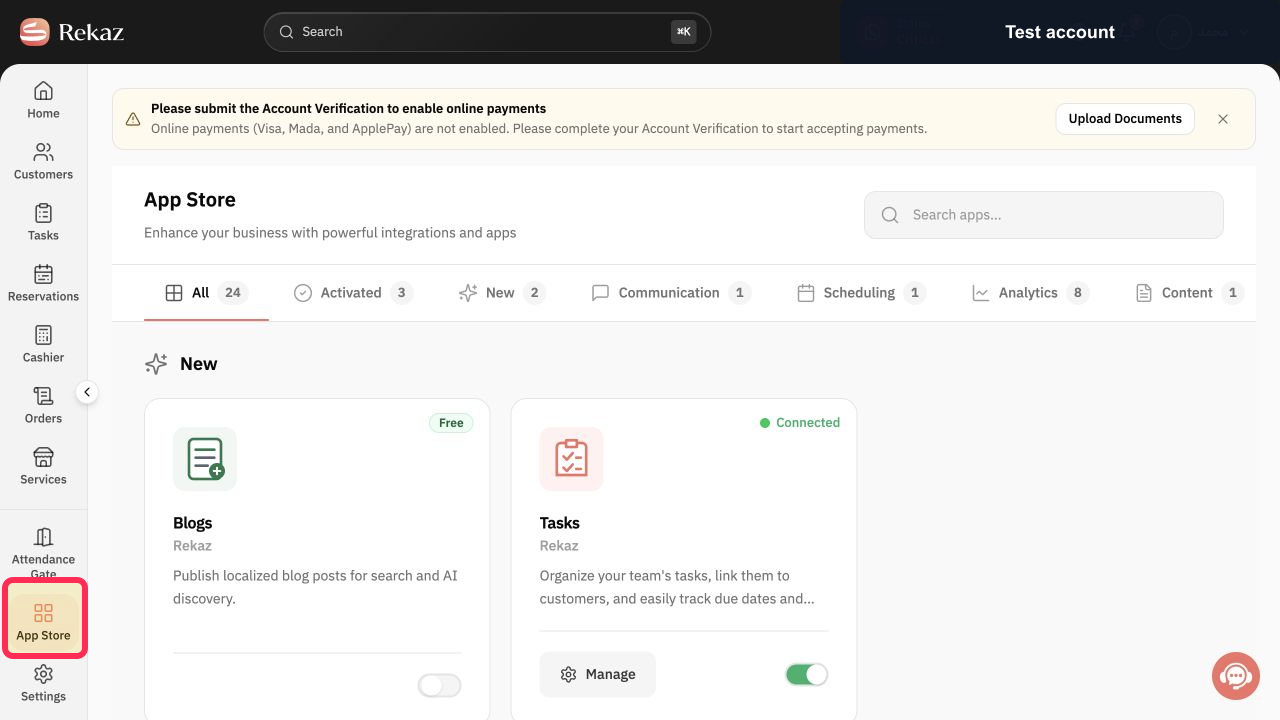
From the signed-in Rekaz dashboard, click App Store in the sidebar.
The App Store opens.
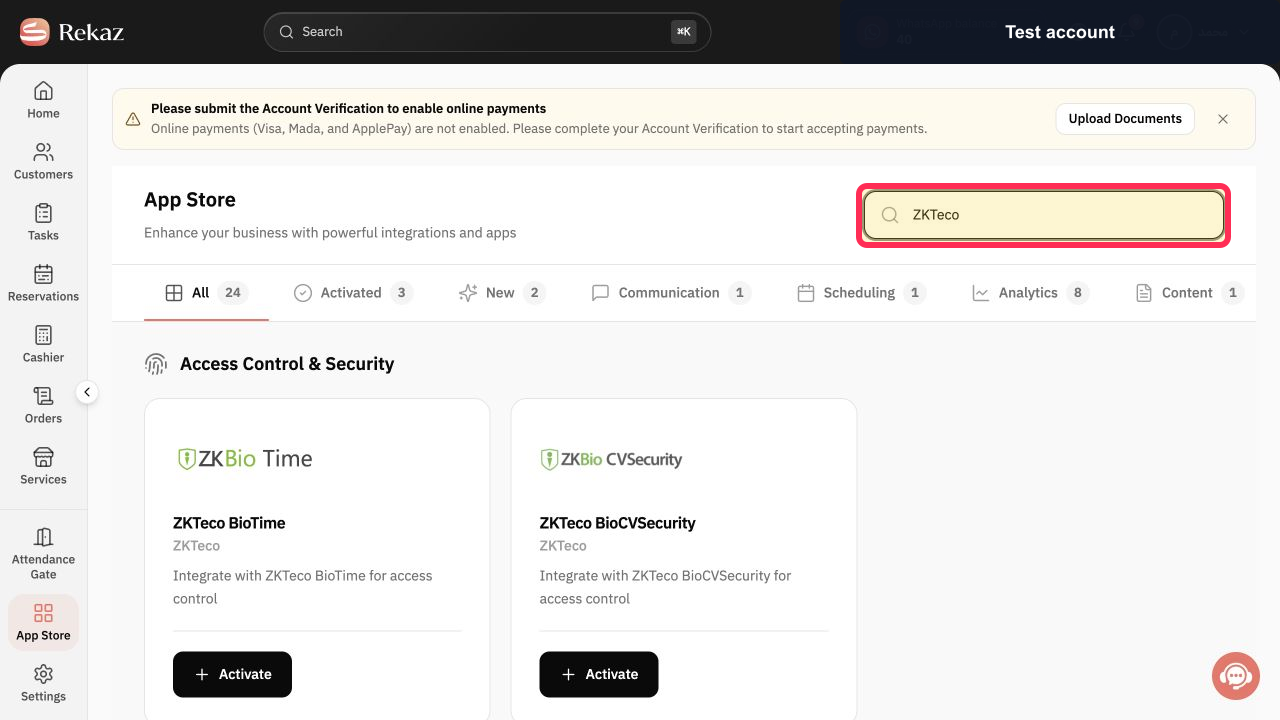
In the App Store, search for ZKTeco.
ZKTeco integration results are displayed.
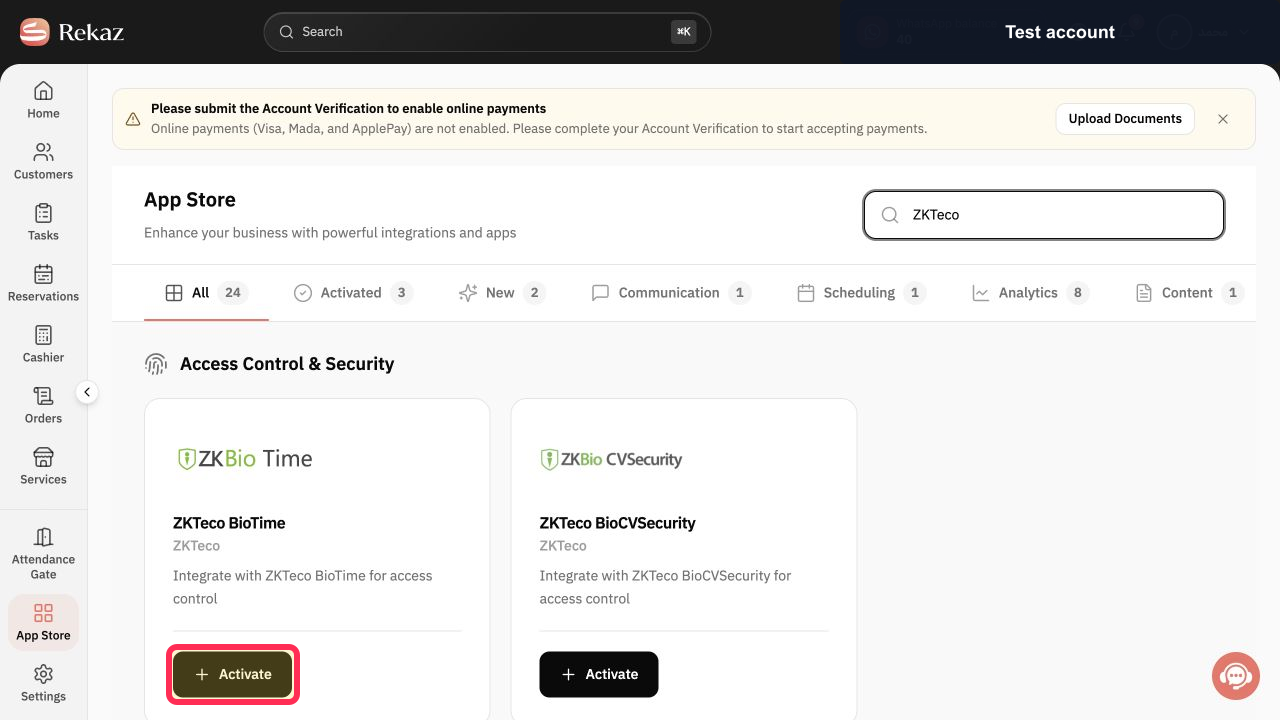
Choose the integration that matches the system installed on your device. This walkthrough uses ZKTeco BioTime; click Activate.
The ZKTeco BioTime activation flow opens.
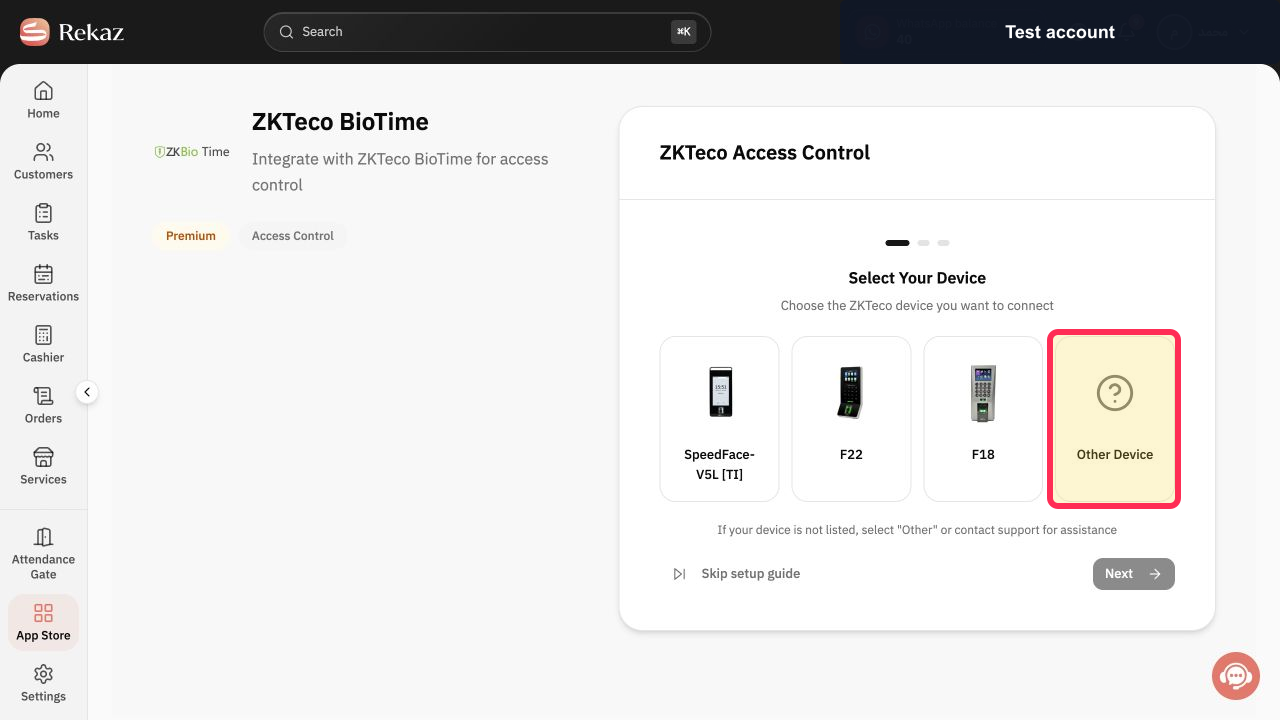
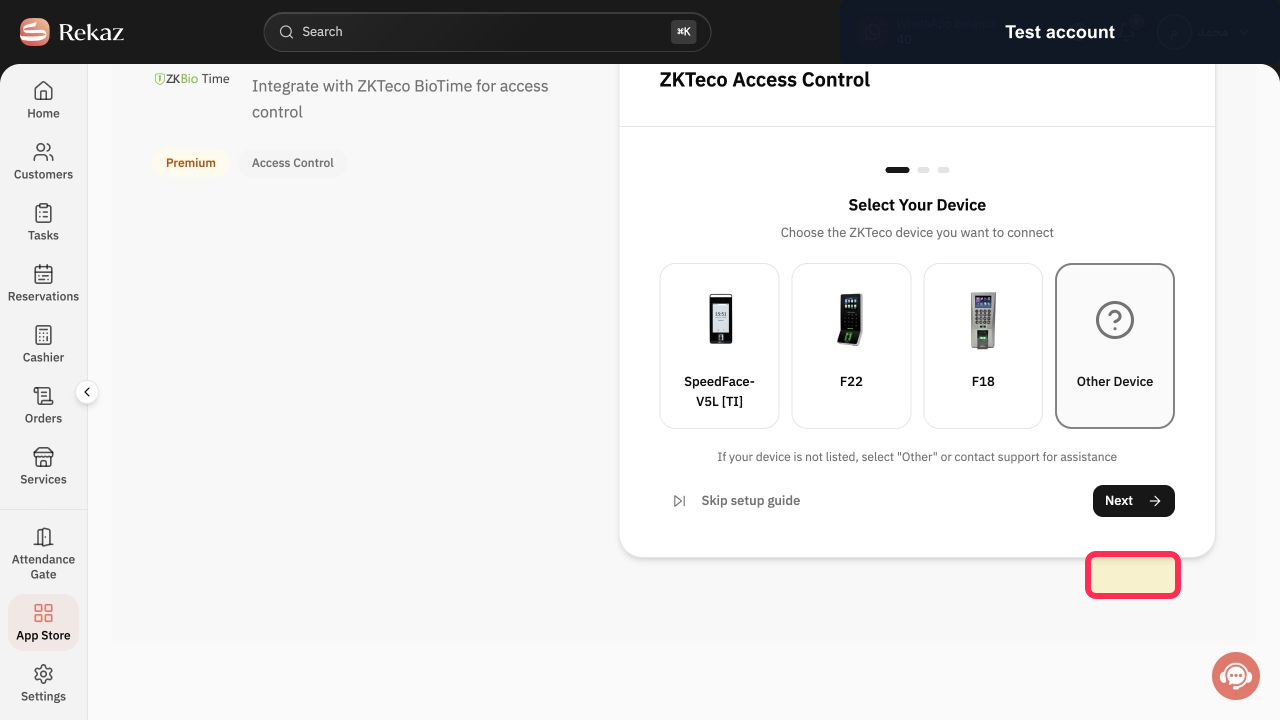
Select your exact device model. If it is not listed, select Other Device.
Your device model is selected.
Click Next.
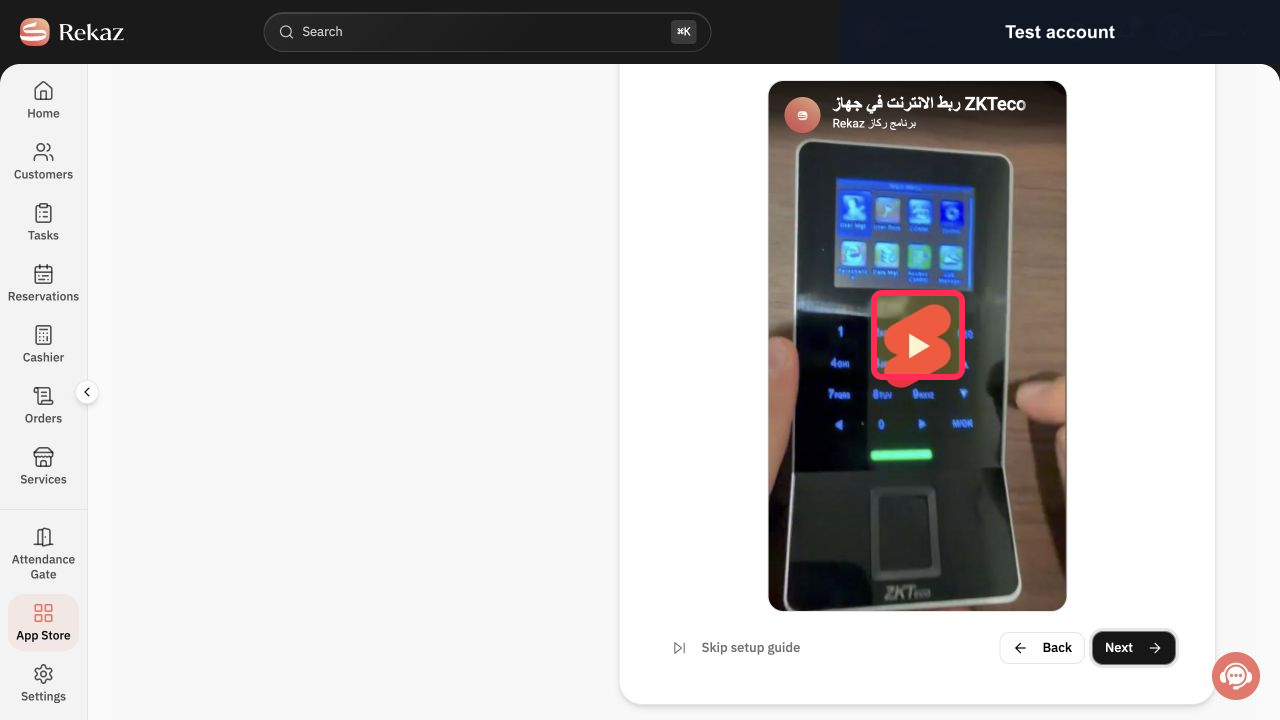
The internet-connection guide is displayed.
Play and follow the Connect to the Internet video guide to connect the device according to the instructions shown in Rekaz.
The internet-connection guide video plays.
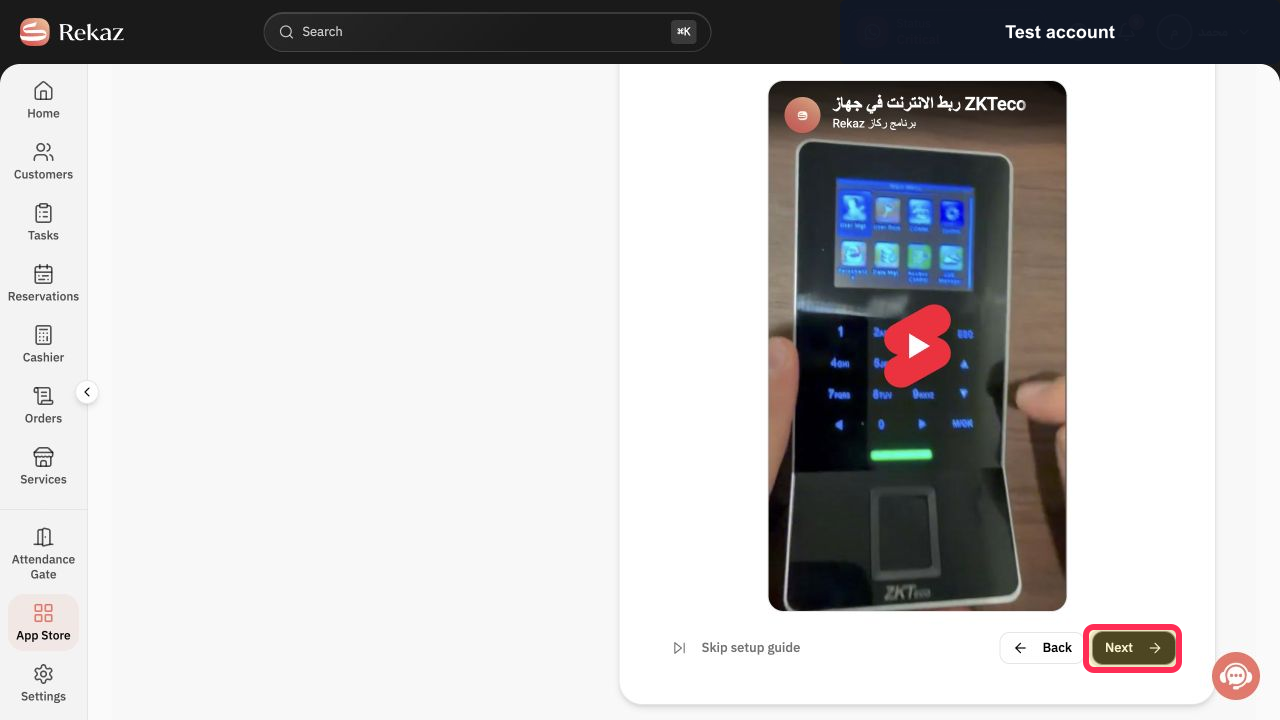
Click Next.
The device-settings configuration guide is displayed.
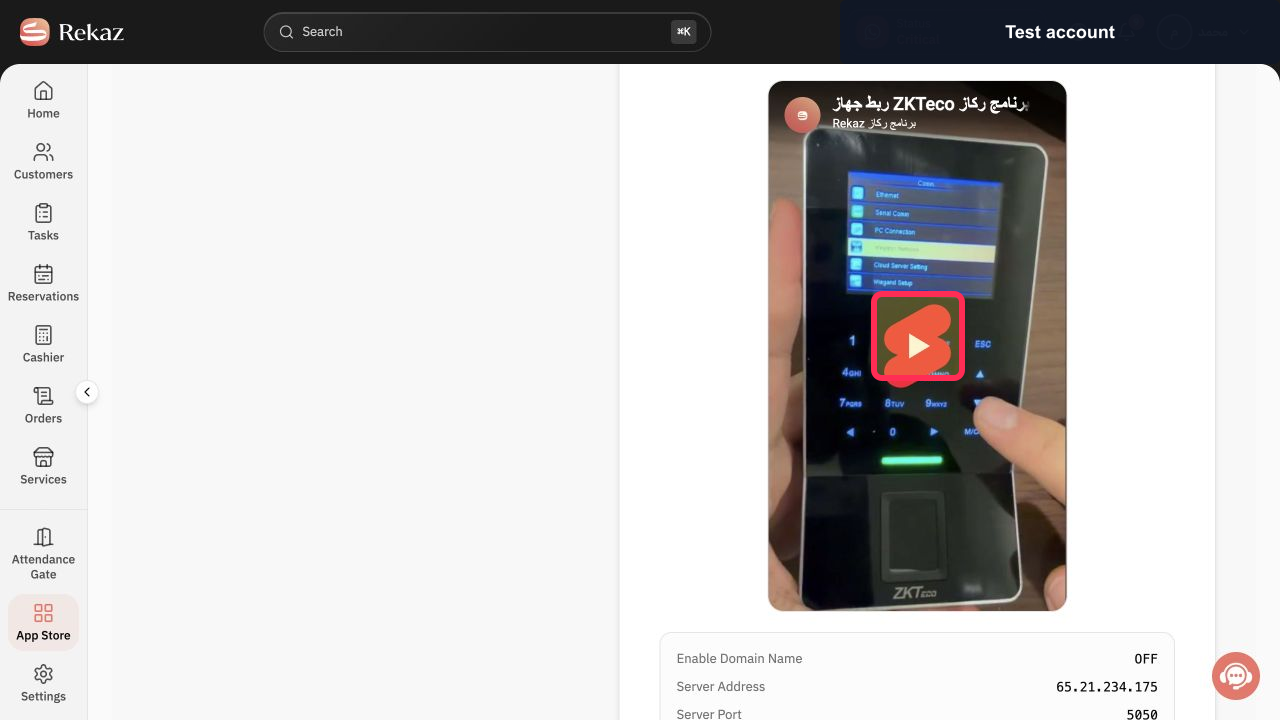
Play and follow Configure Device Settings, then continue with Get Started.
The configuration guide video plays and provides the next setup instructions.
Enter the device Serial number from the device label.
The Serial number field contains the device serial number.
Enter the Area Name for the device location.
The Area Name field contains the selected location name.
After valid device details enable the field, select the applicable Services.
The selected services are shown for the access gate.
Review the real device, area, and selected services, then click Submit.
The access-gate details are submitted when the device information is valid.
Illustrated guide
Step 1: Open App Store from the Rekaz sidebar.
Step 2: Search for ZKTeco integrations.
Step 3: Activate the ZKTeco integration that matches your system.
Step 4: Select the biometric device model or Other Device.
Step 5: Continue to the device internet-connection guide.
Step 6: Follow the guide for connecting the device to the internet.
Step 7: Continue to the device-settings configuration guide.
Step 8: Follow the guide for configuring device settings.
Step 9: Enter the device serial number.
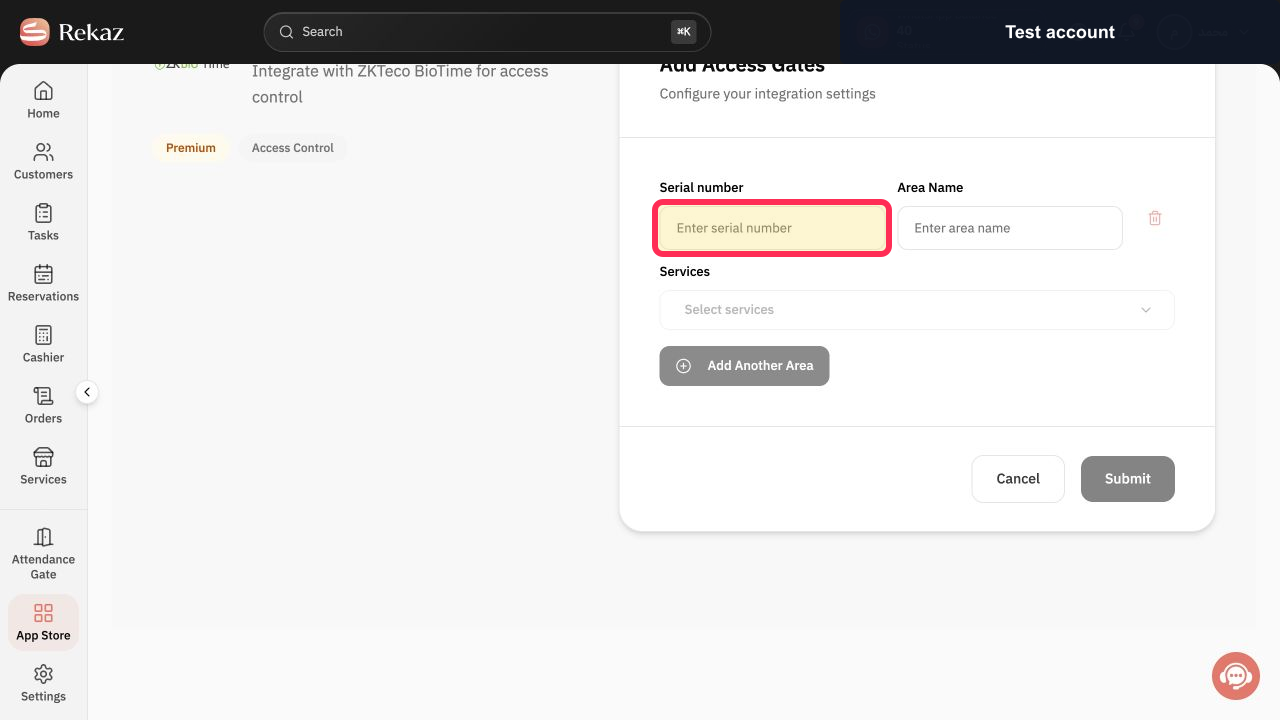
Step 10: Enter the area name for the access gate.
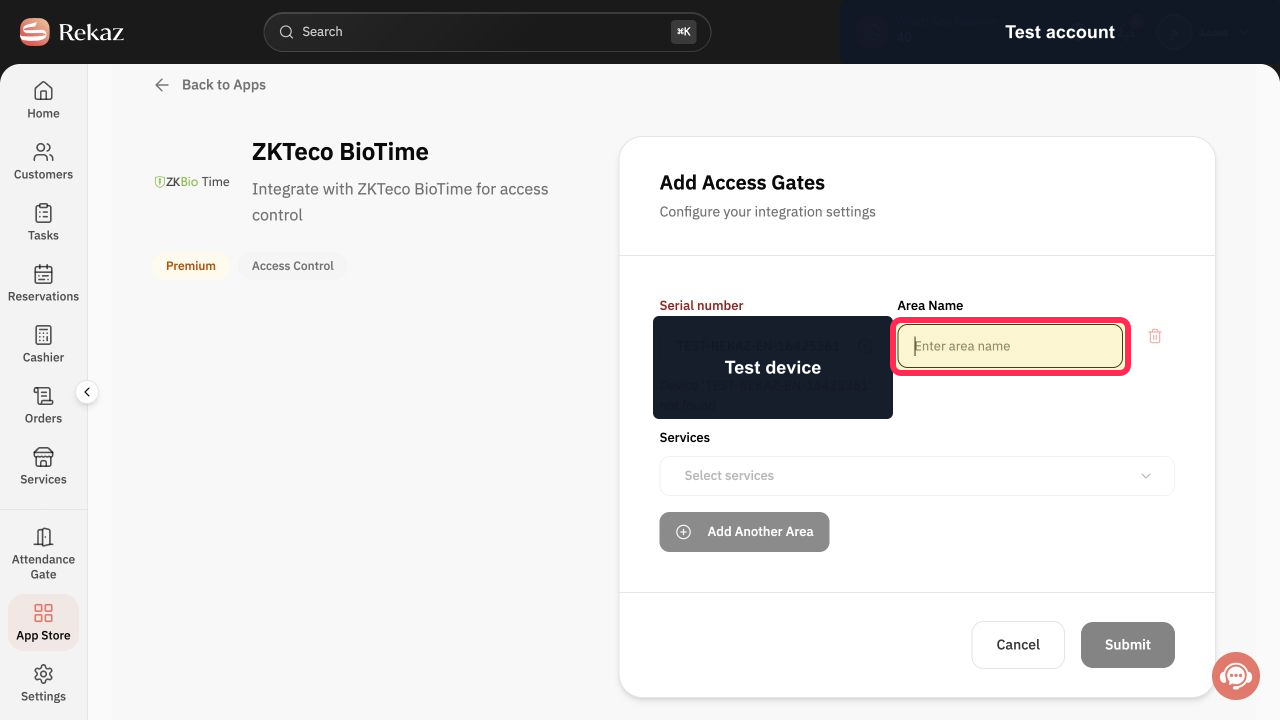
Step 11: Select the services for the access gate.
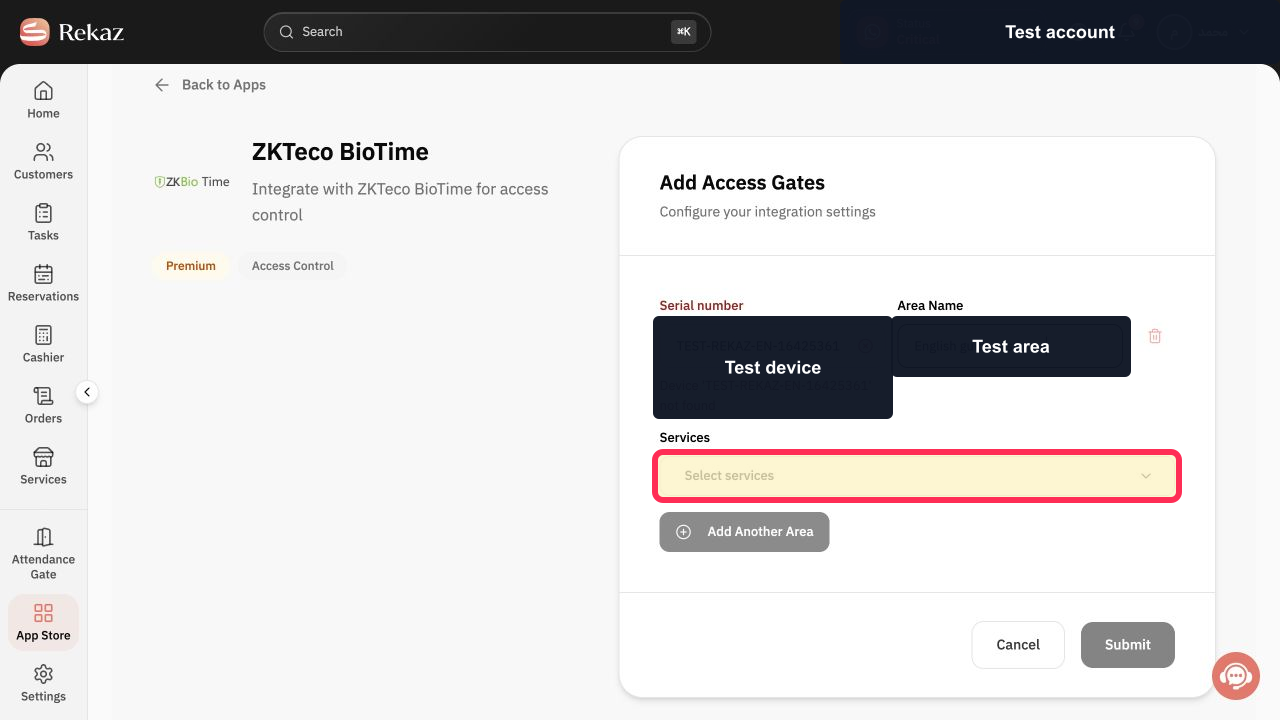
Step 12: Submit the access-gate configuration after reviewing the details.
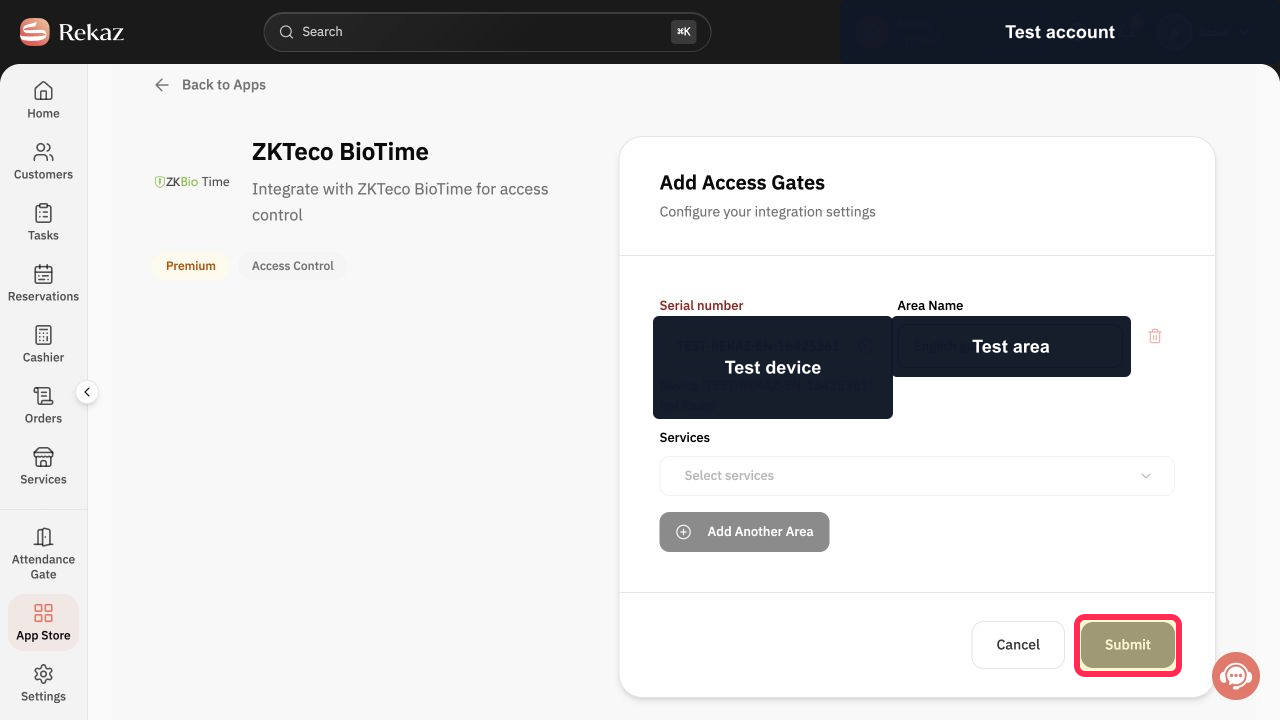
Before you submit
Use the connection values and instructions displayed in your Rekaz account. Do not rely on values from a general screenshot.
After submission, test with a trial user and confirm that synchronization appears before relying on the device operationally.
A test serial number does not enable Services or Submit.
Final connection and synchronization require a real ZKTeco device, a valid serial number, and compatible network settings.
Do not publish or send a real device serial number through an unsecured channel.
Related questions
How do I activate ZKTeco BioTime in Rekaz?
How do I add an access gate in Rekaz?
Why are Services or Submit unavailable when connecting my ZKTeco device in Rekaz?
How do I connect a ZKTeco BioCVSecurity device in Rekaz?


