How do I set up Apple Wallet in Rekaz?
To set up Apple Wallet in Rekaz, open Apple Wallet from Settings, allow customers to add reservation and subscription passes, upload the required images, and save your changes.
This article covers the merchant-side settings only. It does not confirm customer-side pass testing or adding a pass from a customer profile.
Steps
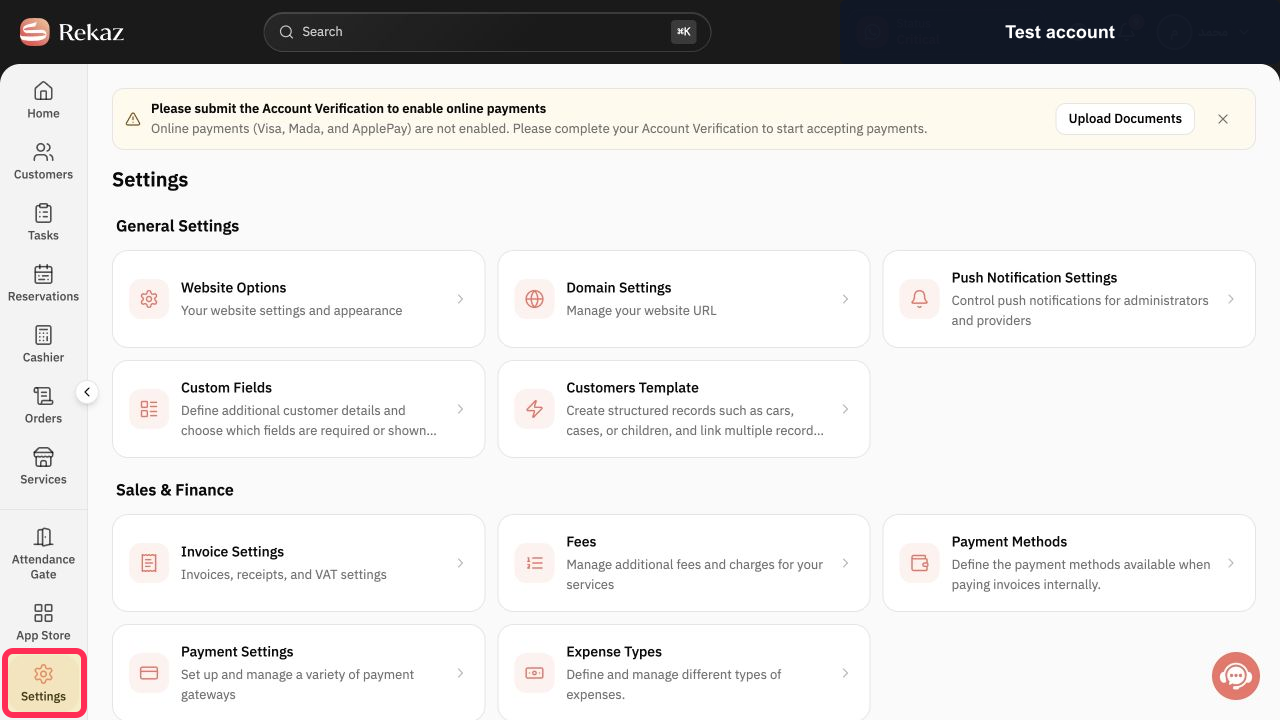
From the Home page, click Settings in the sidebar.
The Settings area opens.
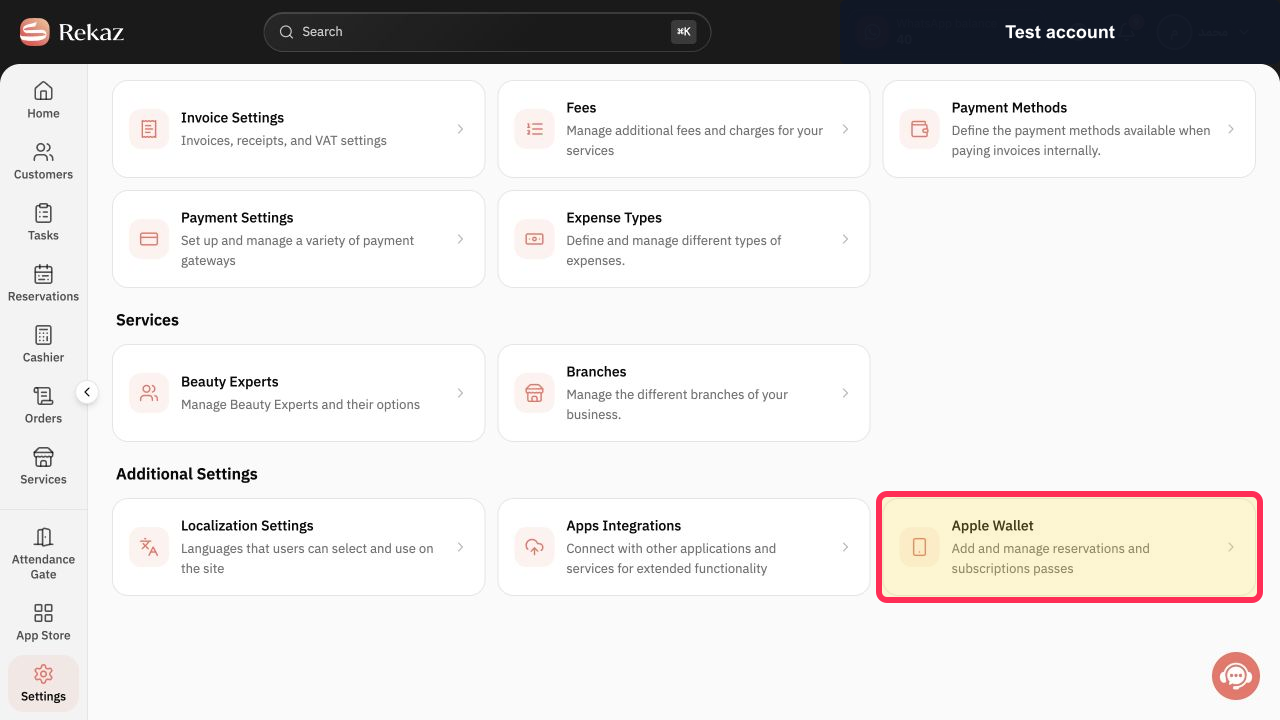
Open Apple Wallet.
The Apple Wallet settings page opens.
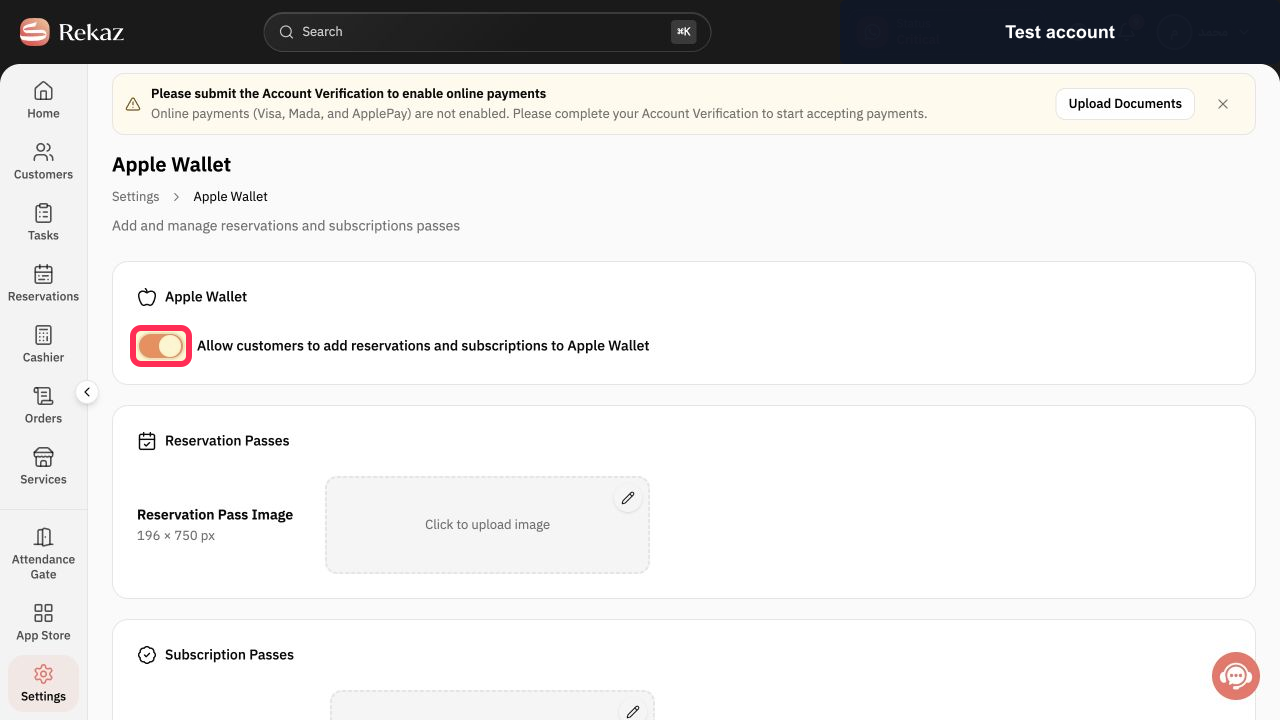
Enable Allow customers to add reservations and subscriptions to Apple Wallet.
Customers are allowed to add reservation and subscription passes to Apple Wallet.
Under Reservation Pass Image, click Click to upload image and upload an image sized 196 × 750 px.
A reservation pass image is selected for upload.
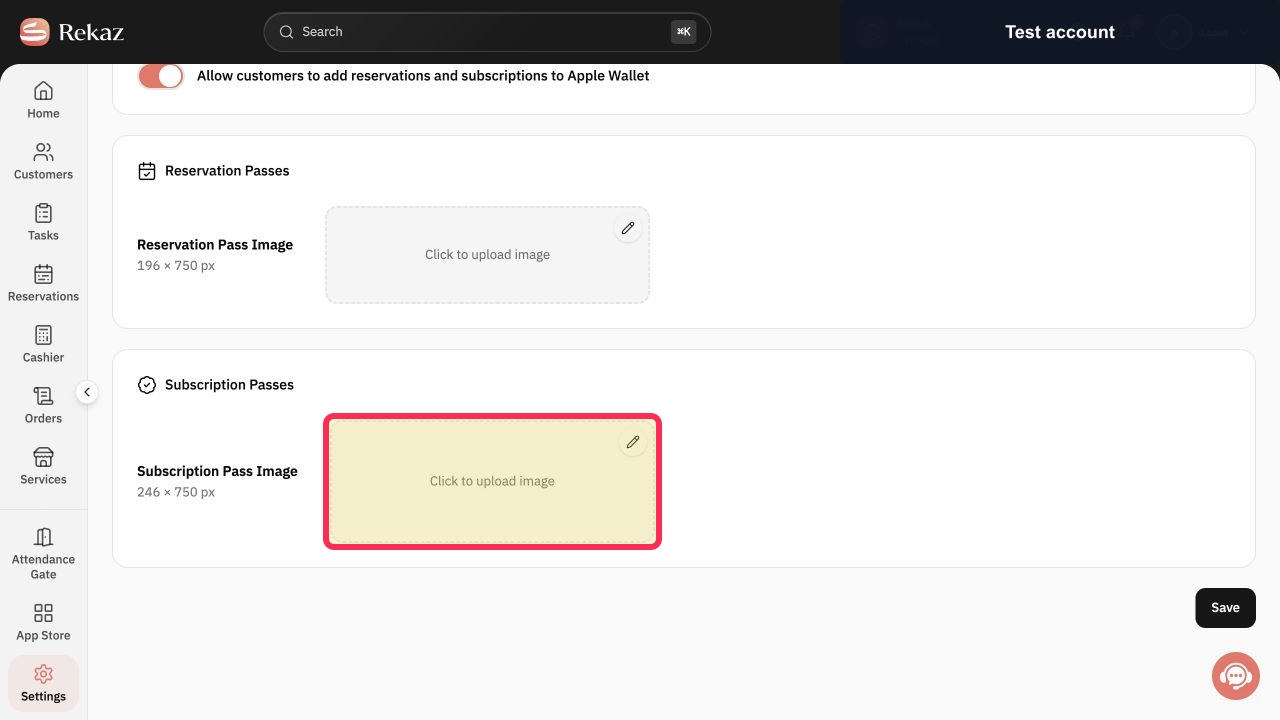
Under Subscription Pass Image, click Click to upload image and upload an image sized 246 × 750 px.
A subscription pass image is selected for upload.
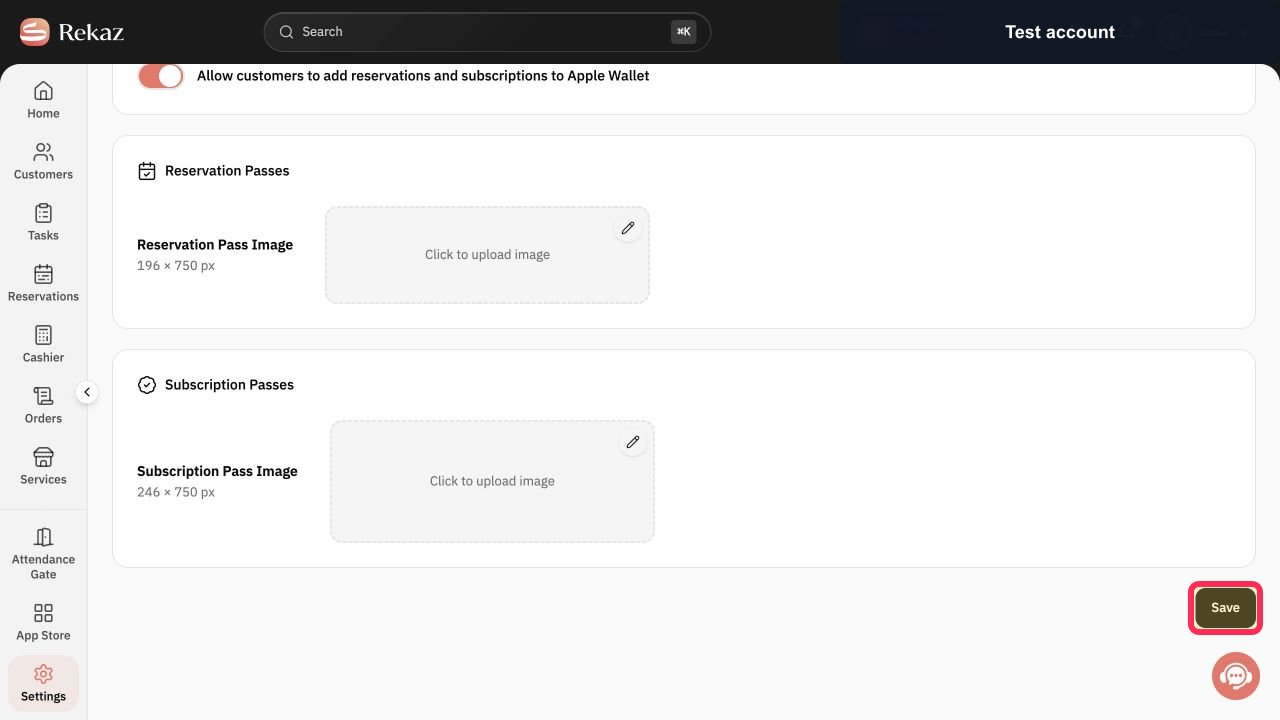
Click Save.
Your Apple Wallet settings are saved.
Illustrated guide
Step 1: Select Settings from the Rekaz sidebar.
Step 2: Open Apple Wallet settings.
Step 3: Enable customer access to Apple Wallet passes.
Step 4: Upload the Reservation Pass Image at 196 × 750 px.
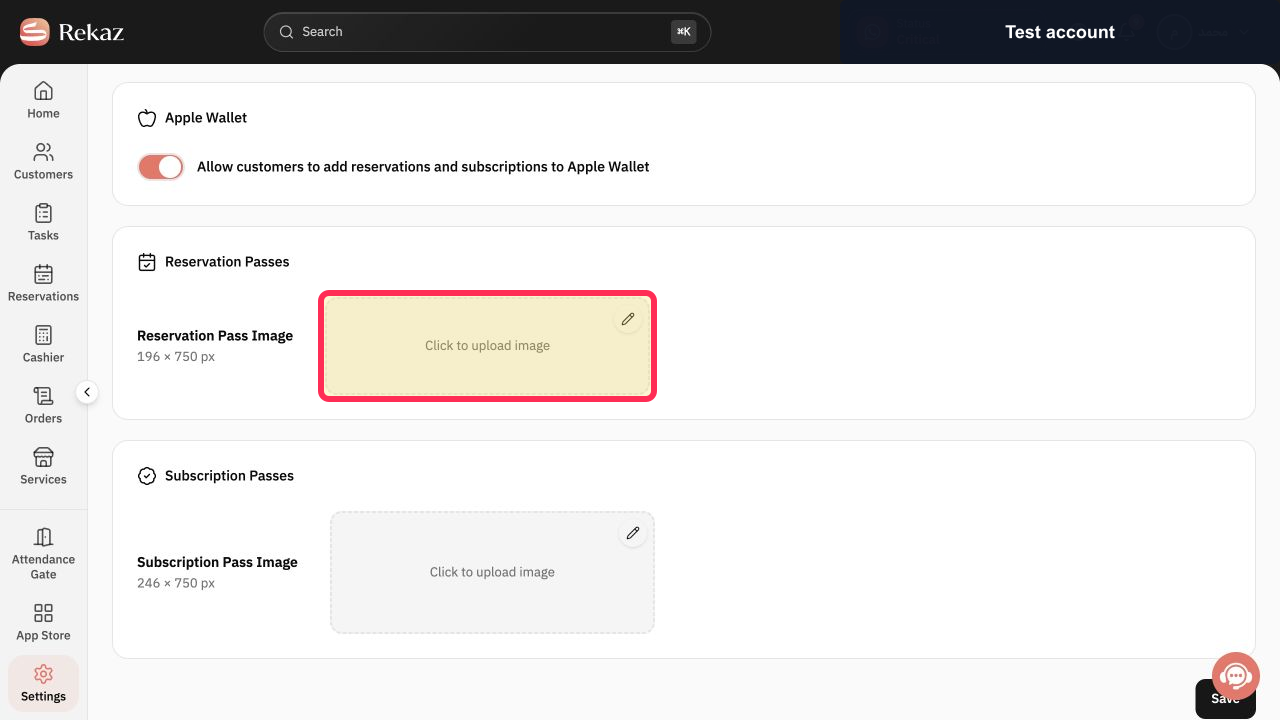
Step 5: Upload the Subscription Pass Image at 246 × 750 px.
Step 6: Save the Apple Wallet settings.
Important
The verified walkthrough covers only the merchant settings for Apple Wallet. Customer-side pass testing has not been verified.
Reservation and subscription passes use different image sizes: 196 × 750 px for Reservation Pass Image and 246 × 750 px for Subscription Pass Image.
Related questions
How do I enable Apple Wallet passes for customers in Rekaz?
What image sizes do I need for Apple Wallet passes in Rekaz?
How do I upload reservation and subscription pass images in Rekaz?


