How do I rotate or delete an API Key in Rekaz?
Rotating a key stops the current Base64 value immediately, so update the connected integration with the new value as part of the same change.
Deleting a key also stops it immediately and cannot be undone. Verify the key name before either action.
Steps
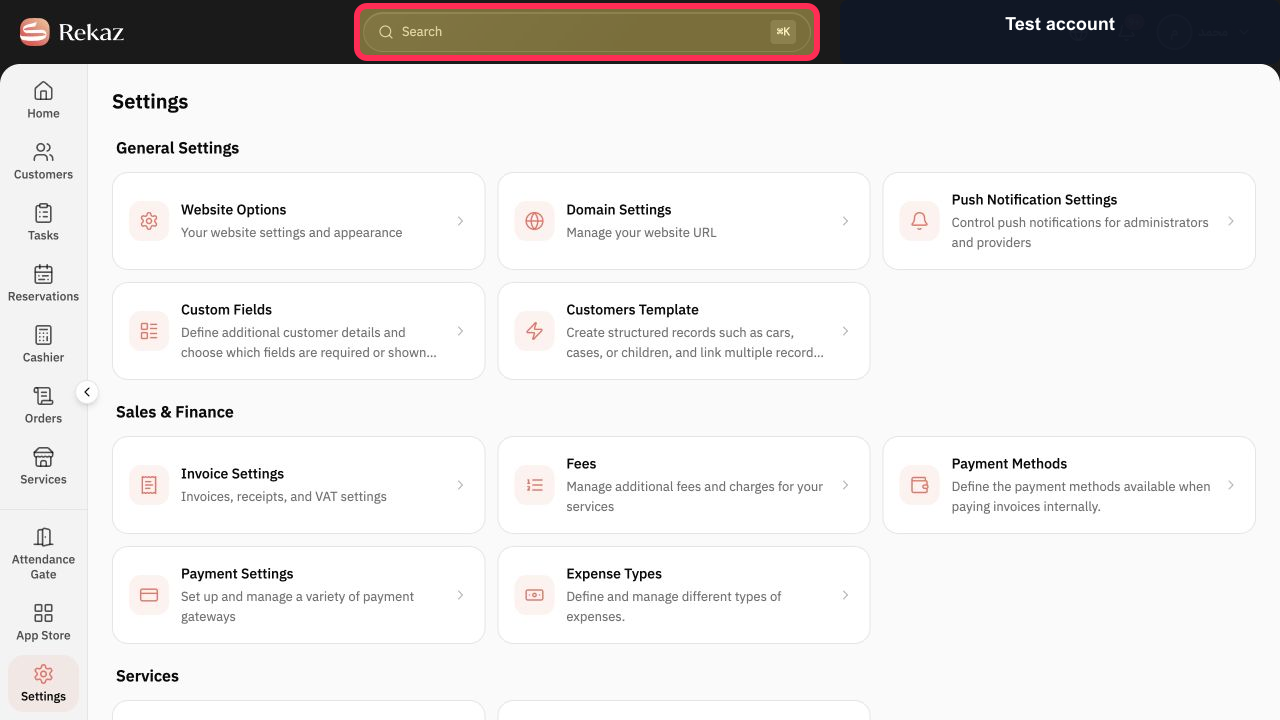
From any Rekaz page, select Search to find Api Keys.
The Rekaz search dialog opens.
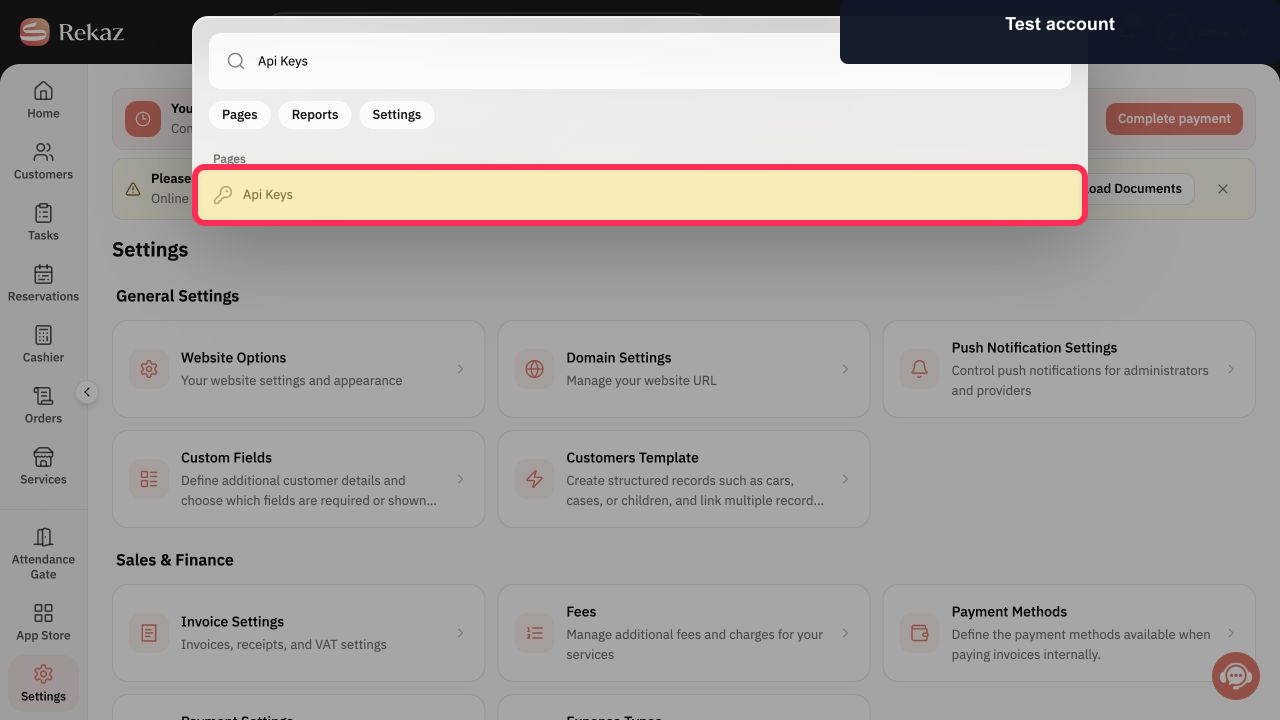
Enter Api Keys, then select Api Keys under Pages.
The Api Keys page opens.
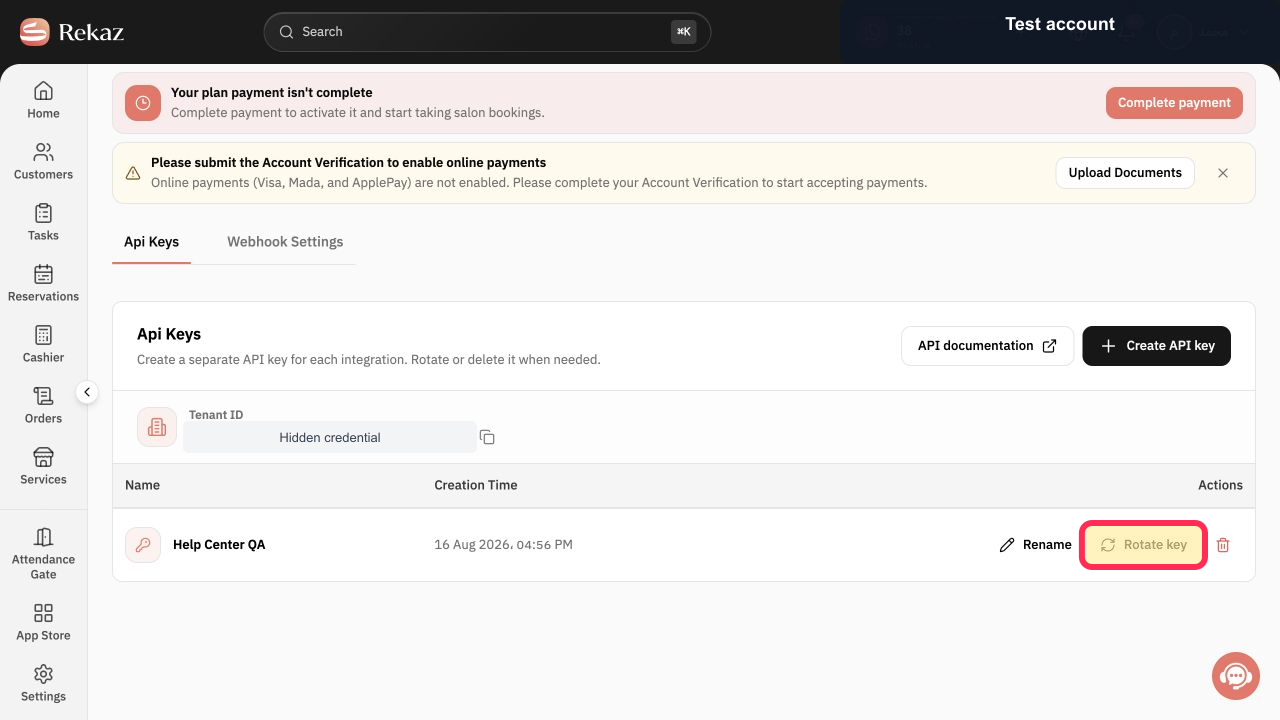
For the key that needs a new credential, select Rotate key.
Rekaz displays the Rotate this API key warning for the selected key.
Read the warning, verify the key name, and select Rotate key in the confirmation.
The old Base64 value stops working and the API key rotated dialog displays the replacement value.
Select Copy Base64, store the replacement in the secrets manager, and update the connected integration immediately.
The replacement credential is copied without exposing it in the guide.
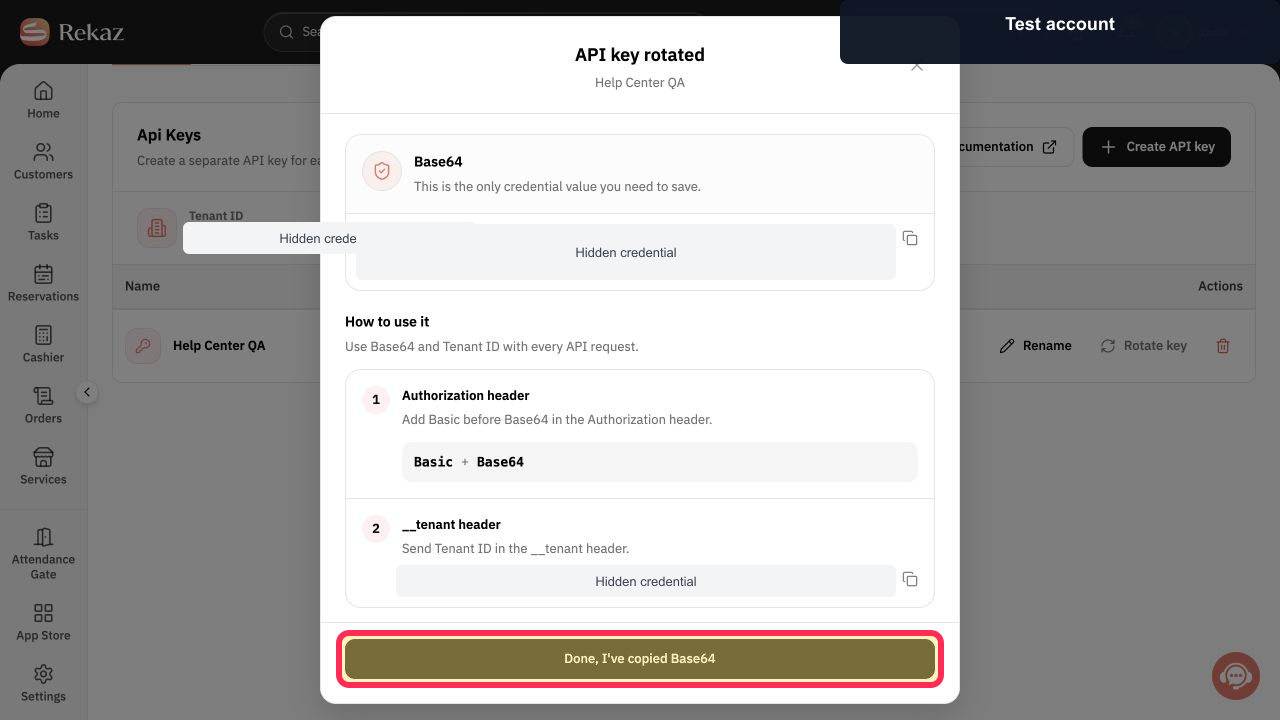
After the integration is updated, select Done, I've copied Base64.
The rotation dialog closes.
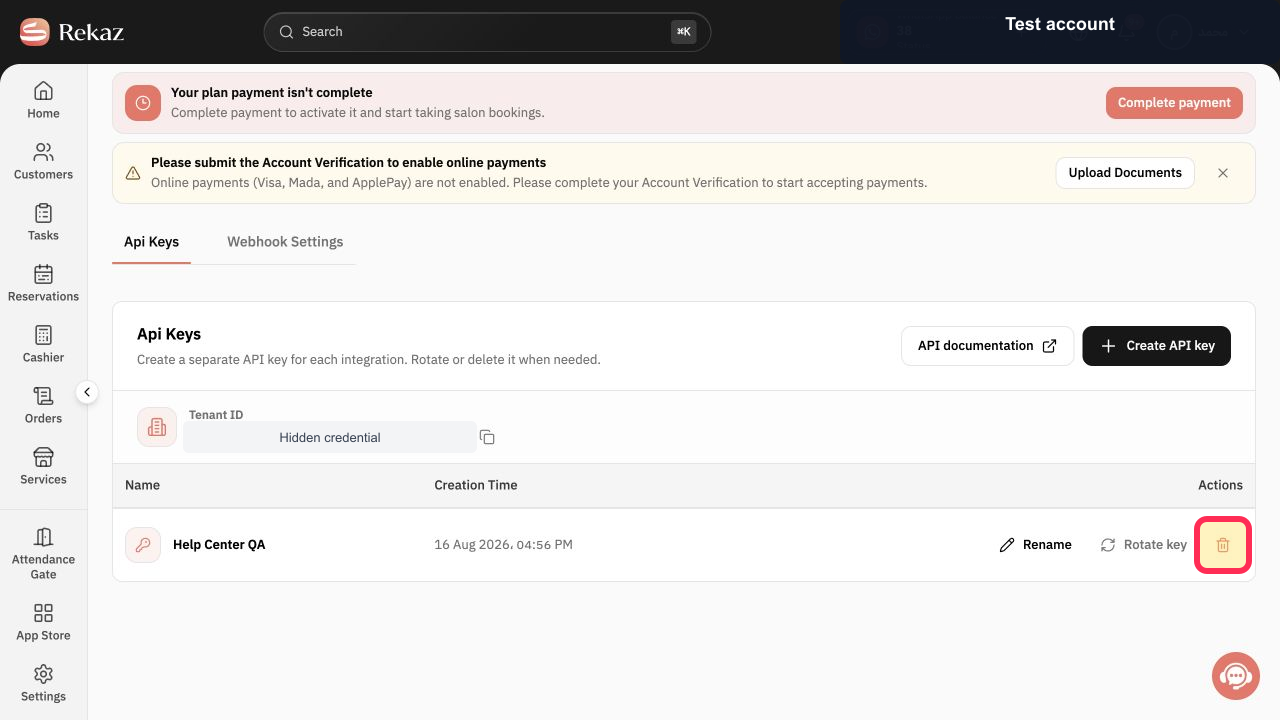
To revoke a key permanently, select Delete in that key's row.
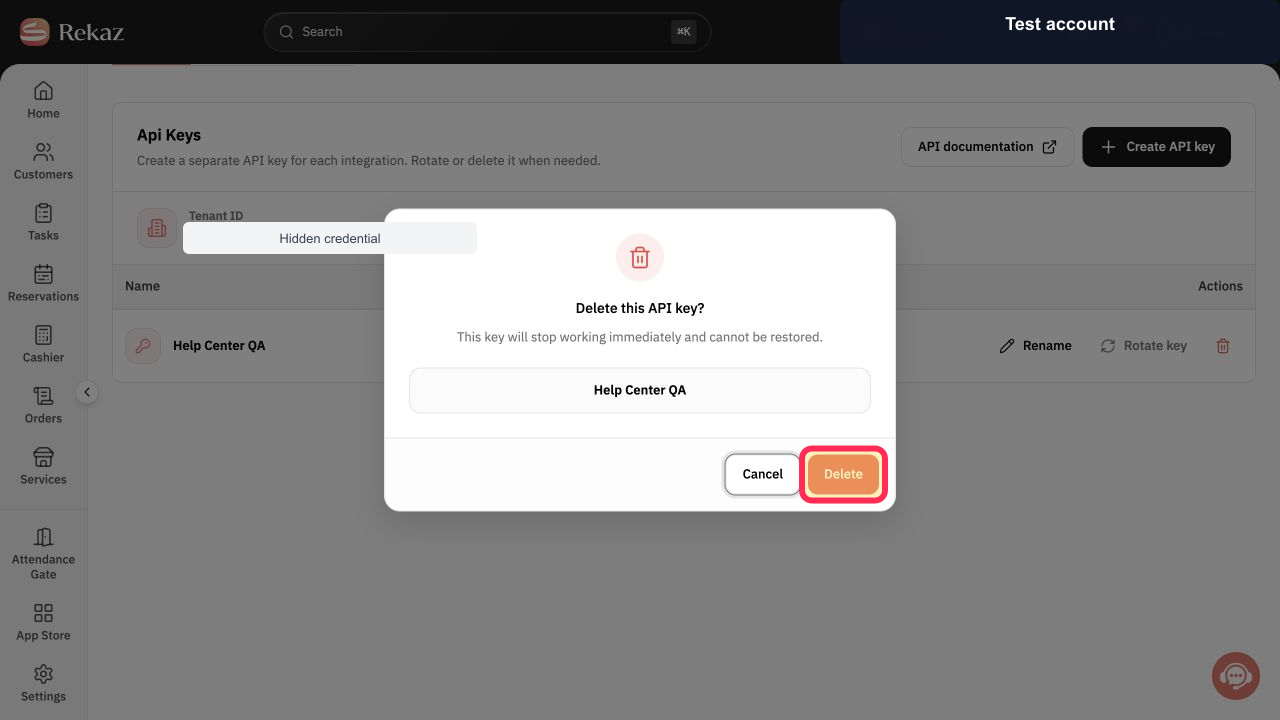
Rekaz displays the Delete this API key warning.
Verify the key name and warning, then select Delete in the confirmation.
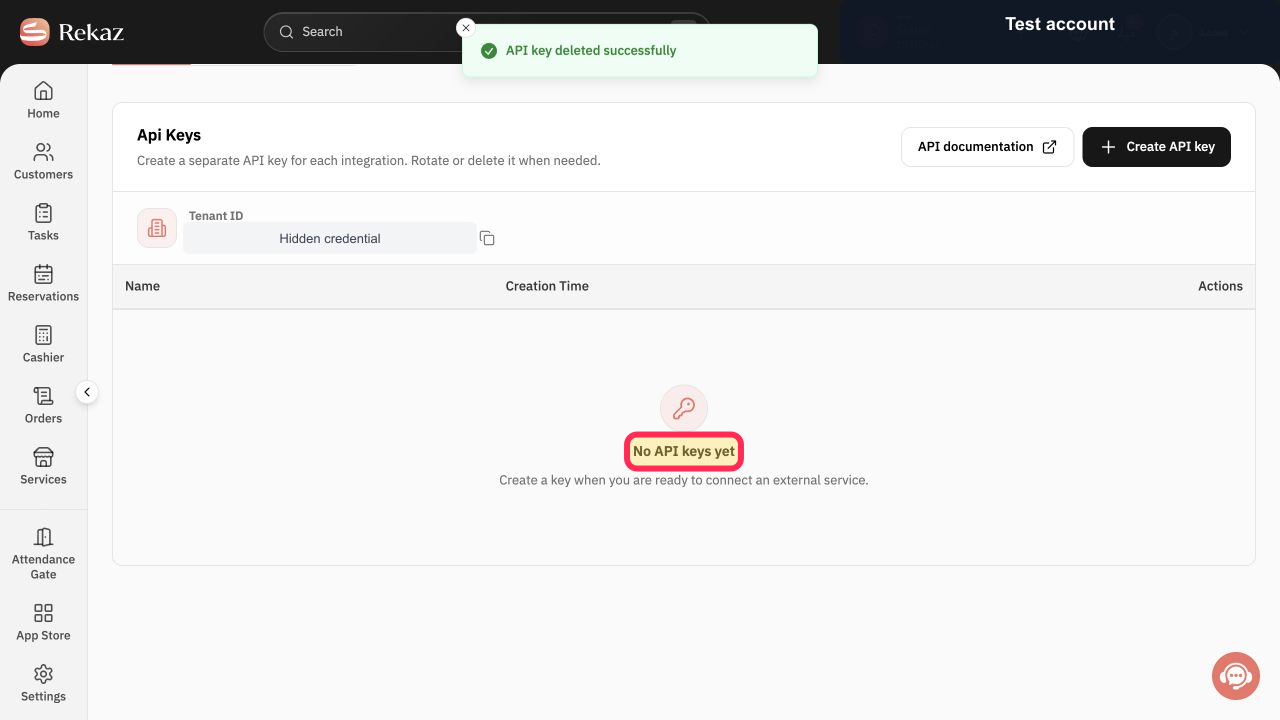
The key stops working immediately and is removed from the list.
Verify that the deleted key no longer appears in the list.
The list no longer contains the key and Rekaz confirms successful deletion.
Illustrated guide
Step 1: Open Rekaz Search to find Api Keys.
Step 2: Find and open Api Keys from Rekaz Search.
Step 3: Start rotating the selected API key.
Step 4: Confirm rotation for the correct API key.
Step 5: Copy the rotated Base64 credential securely.
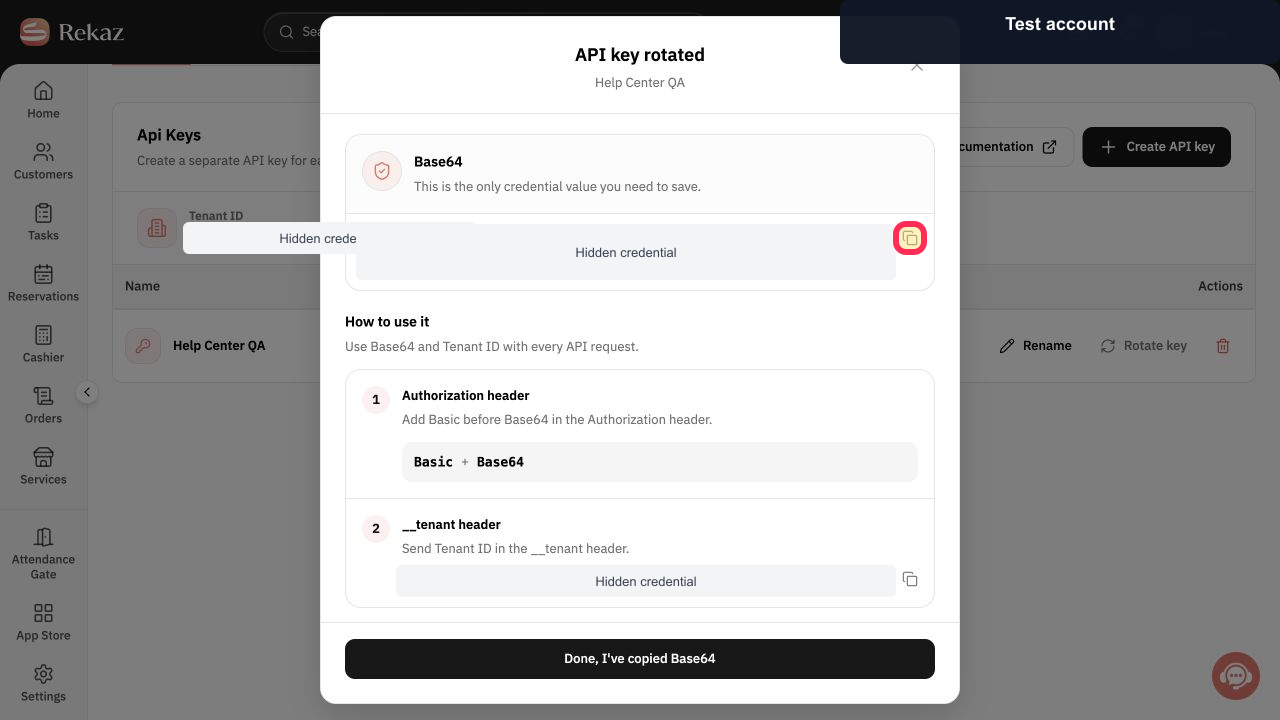
Step 6: Finish the API key rotation workflow.
Step 7: Start deleting the selected API key.
Step 8: Confirm permanent deletion for the correct API key.
Step 9: Verify that the API key was deleted.
Important notes
Rotate key changes the API Key’s access credentials. Update the connected application immediately after rotating the key.
Deleting an API Key stops it immediately. This action cannot be undone.
Confirm that you selected the correct key before you delete it.
Related questions
How do I rotate an API Key in Rekaz?
How do I delete an integration API Key in Rekaz?
Where can I revoke an API Key in Rekaz?


