How do I verify a tracking Pixel integration in Rekaz?
Use the Rekaz App Store to check whether an app is listed under “Pixel”.
The current interface provides the App Store and app search field, but does not show an option to verify a tracking Pixel integration after installation or display connection or tracking status.
Steps
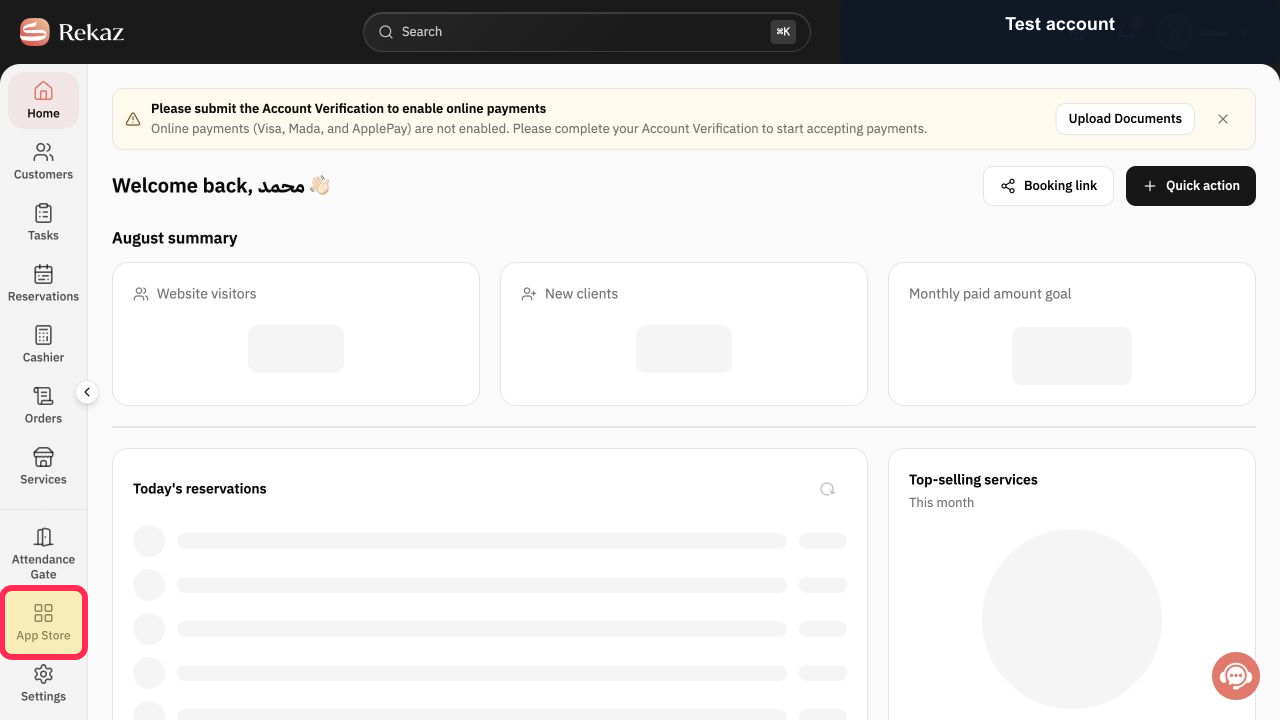
From the signed-in Rekaz dashboard, select App Store in the sidebar.
The App Store opens.
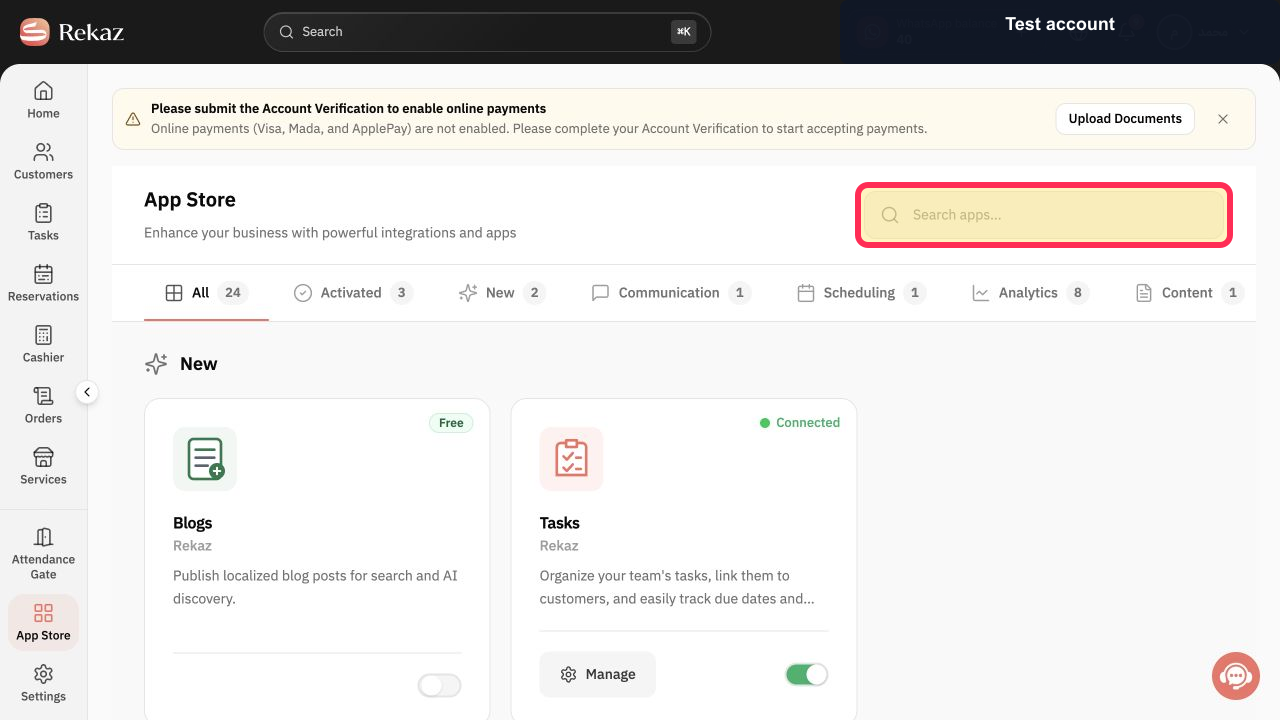
Confirm that the App Store page is open.
The page heading reads “App Store”.
In the app search field, enter “Pixel” to check for a matching listing. The search field contains “Pixel”; no Pixel setup or verification status is shown.
Illustrated guide
Step 1: Select App Store from the Rekaz sidebar.
Step 2: The App Store heading is visible.
Step 3: Enter “Pixel” in the App Store search field.
Important limitations
The App Store search does not confirm that a supported tracking integration is unavailable under a different name.
Do not add tracking code unless Rekaz Support provides the approved setup method.
Review values and data before completing any final or financial action.
Related questions
Where can I find the tracking Pixel integration in Rekaz?
Why can’t I find “Pixel” in the Rekaz App Store?
How do I get the official tracking code setup instructions for my Rekaz website?


